> ## Documentation Index
> Fetch the complete documentation index at: https://help.fieldpulse.com/llms.txt
> Use this file to discover all available pages before exploring further.
# How to Use the PDF Form Filler
> Import a PDF into FieldPulse, add fillable fields and signature boxes, and attach the finished form to customers, jobs, projects, and invoices.
> **Who uses this:** PDF forms are built in Company Settings, and each form attached to a file library names the roles allowed to import it. **Availability:** All regions. The PDF Form Filler is turned on by request — email FieldPulse support to enable it.
The forms your team carries into the field — the inspection checklist, the county-required permit, the customer sign-off — don't have to be printed, filled in by hand, and scanned back at the end of the day. The PDF Form Filler, part of [custom forms](https://www.fieldpulse.com/features/custom-forms), takes a PDF you already have, lets you drop fillable fields onto it, and keeps the completed copy on the record it belongs to.
## Overview
The PDF Form Filler turns an existing PDF into a form your team fills out inside FieldPulse. You import the PDF in **Company Settings**, drag fillable elements onto the page, save the form, and attach it to a customer, job, project, or invoice. Forms are filled out and signed in both the FieldPulse web app and the [mobile app](https://www.fieldpulse.com/features/mobile-app), and the finished copy is stored on the record for anyone who needs it later.
PDF forms support e-signatures, attaching a form to customer communications, saving to customer and job records, and full integration with FieldPulse for smart fill. Form elements include text labels, single-line and multiline text fields, date selection fields, drop-down fields, radio buttons, checkboxes, and signature boxes. You can also import a PDF that already contains fillable fields, so a form you bring from another platform doesn't have to be rebuilt from scratch.
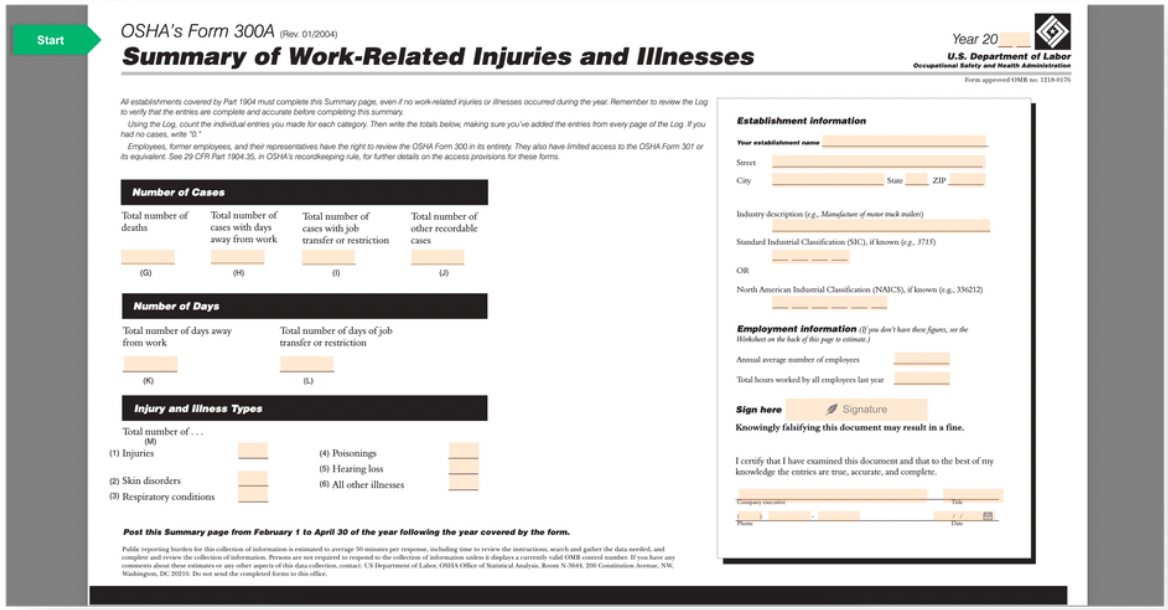 ## Video walkthrough
## Before you begin
* The PDF Form Filler has to be enabled for your account. Email [support@fieldpulse.com](mailto:support@fieldpulse.com) or use the chat feature in the bottom-right corner of your screen to request it.
* Have the PDF you want to build on ready to upload.
## Creating a PDF form
### Import and name the PDF
1. Go to **Company Settings** and select **PDF Forms** from the top menu.
## Video walkthrough
## Before you begin
* The PDF Form Filler has to be enabled for your account. Email [support@fieldpulse.com](mailto:support@fieldpulse.com) or use the chat feature in the bottom-right corner of your screen to request it.
* Have the PDF you want to build on ready to upload.
## Creating a PDF form
### Import and name the PDF
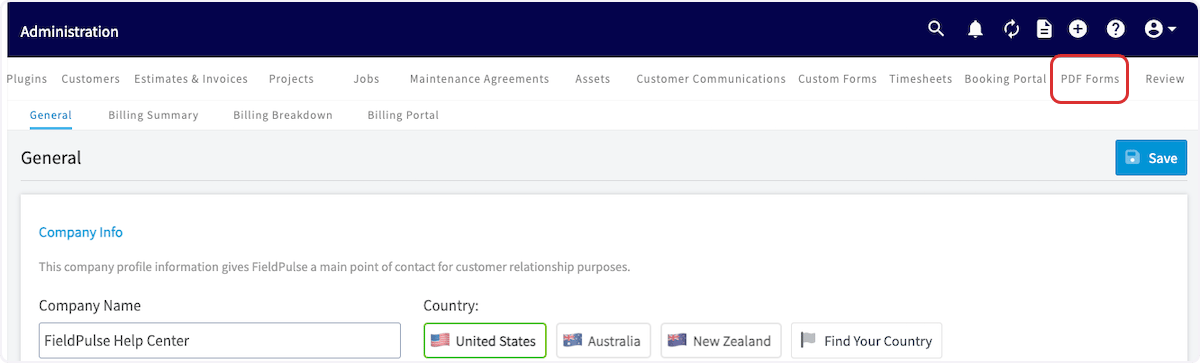
1. Go to **Company Settings** and select **PDF Forms** from the top menu.
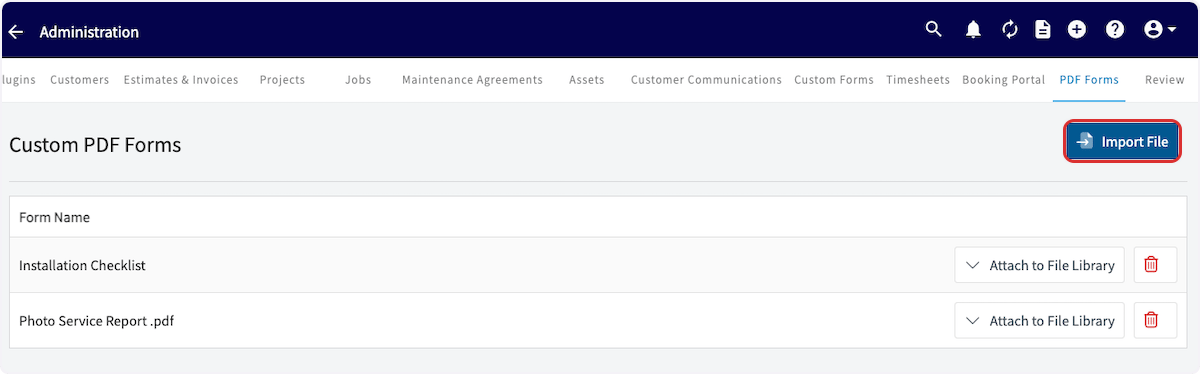
 2. Select **Import File** and choose the PDF you want to build on.
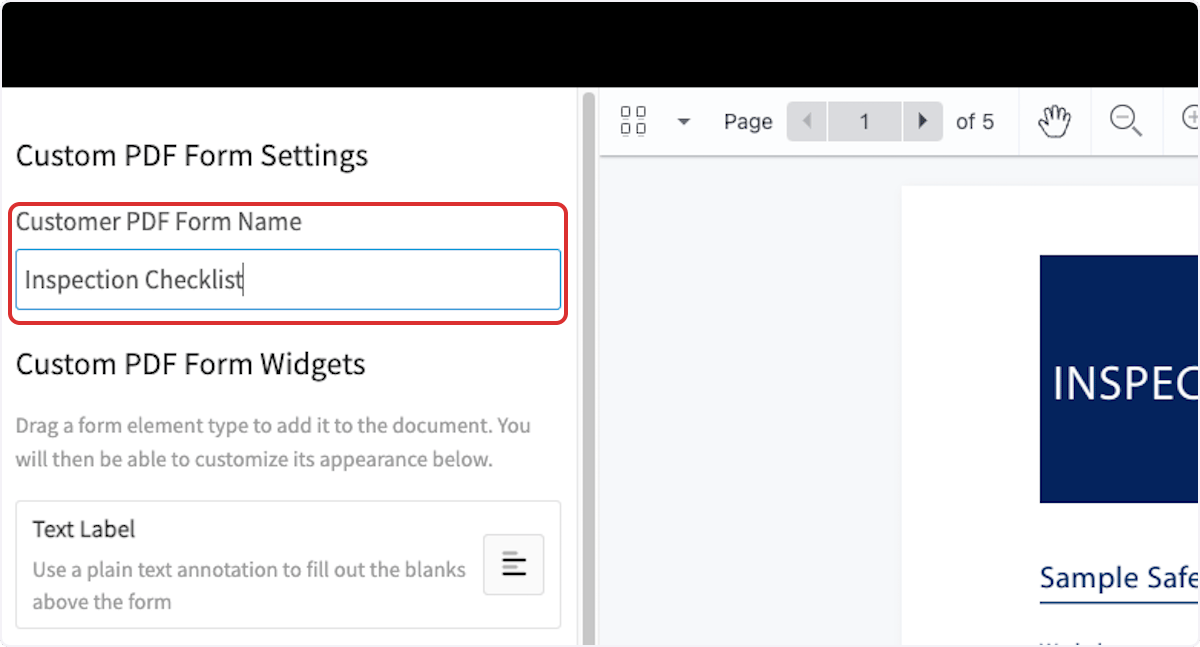
 3. Enter a clear name in **Customer PDF Form Name** so your team can find the form later.
 ### Add form elements
Drag an element from the **Custom PDF Form Widgets** menu on the left onto the PDF. Once an element is placed, you can resize it and adjust its appearance.
| **Element** | **What it adds to the PDF** |
| - | - |
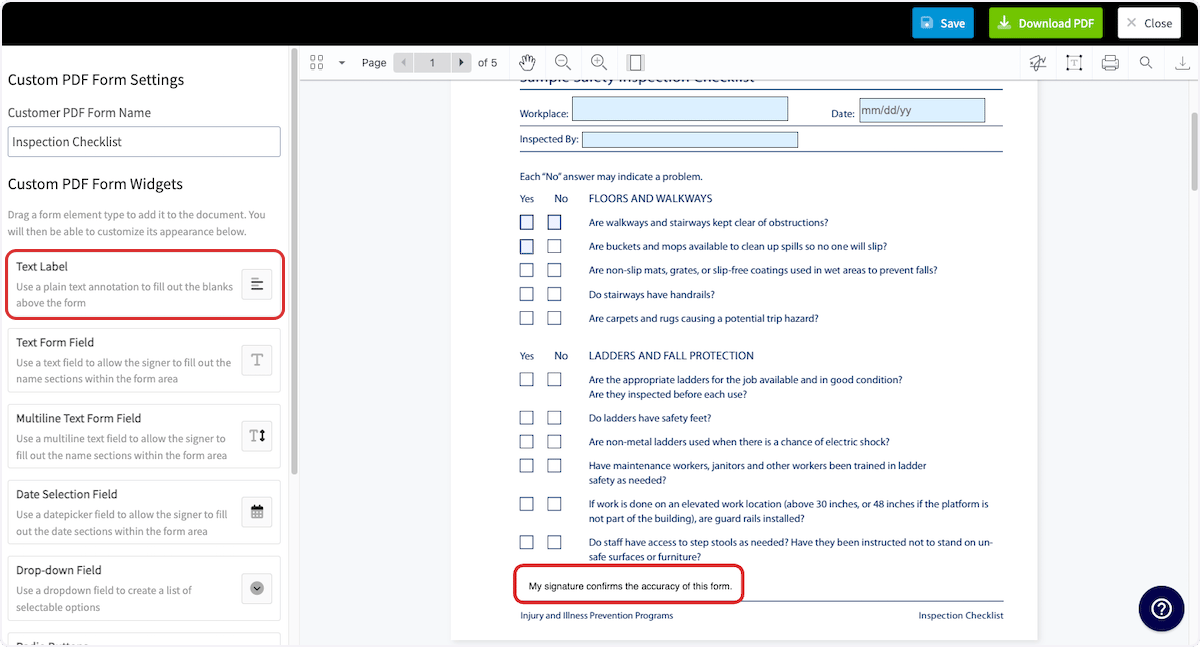
| **Text Label** | Plain text you write onto the page. A text label is not an editable field, so it stays fixed for everyone who fills out the form. |
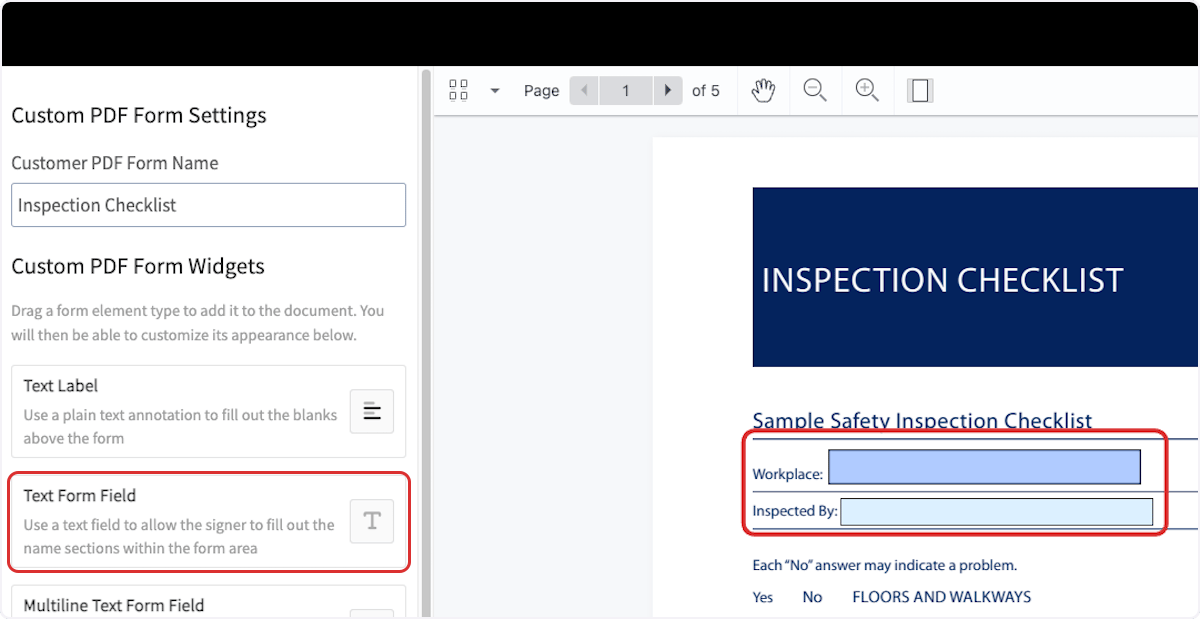
| **Text Form Field** | A blank space to type in, for the name sections and other single-line entries in the form. |
| **Multiline Text Form Field** | A text field that holds more than one line of typed text. |
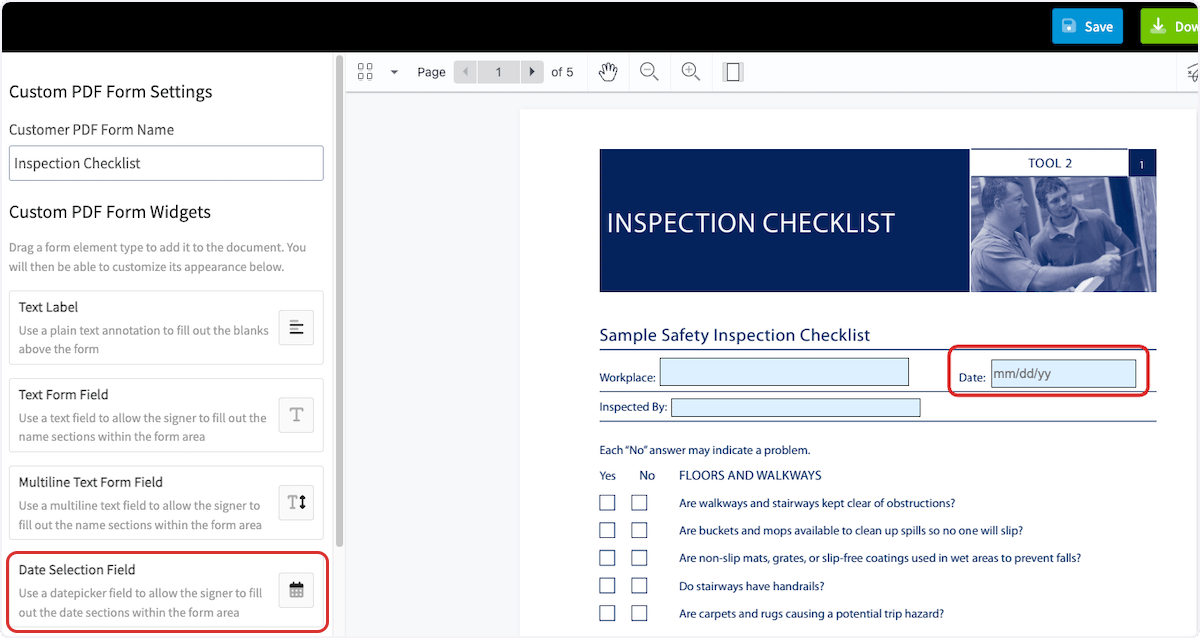
| **Date Selection Field** | A datepicker for filling in the date sections of the form. |
| **Drop-down Field** | A list of selectable options. |
| **Radio Buttons** | Radio groups where only one button in a group can be selected at a time. |
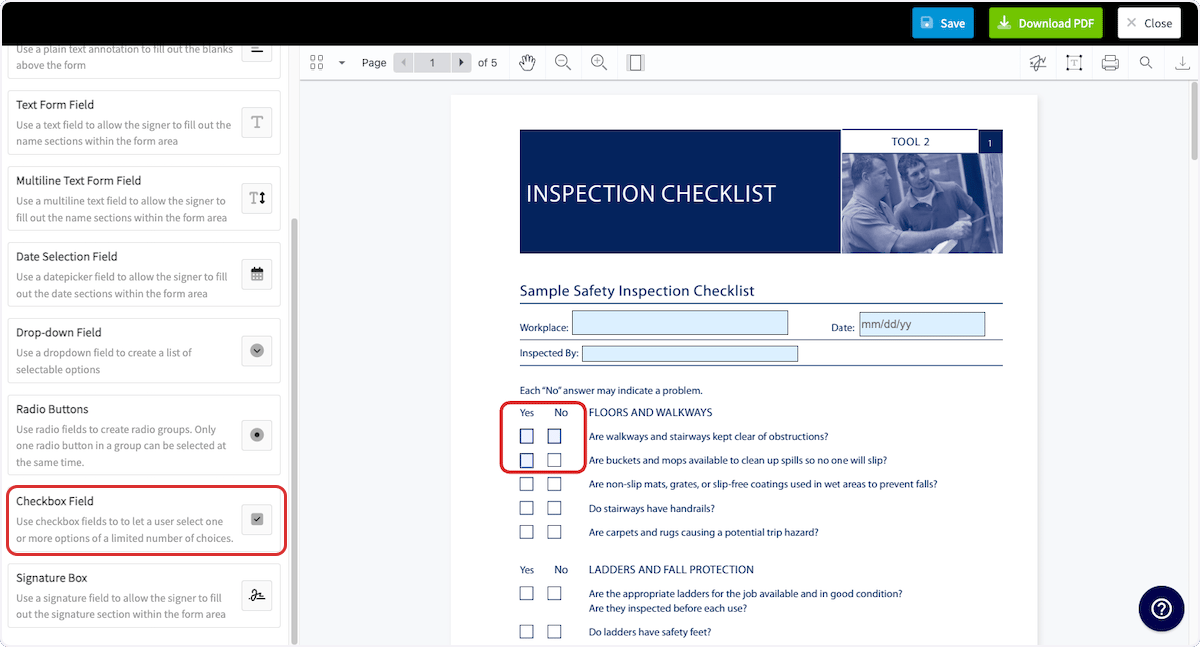
| **Checkbox Field** | Checkboxes that let someone select one or more options from a limited set of choices. |
| **Signature Box** | A space to write or type a signature. |
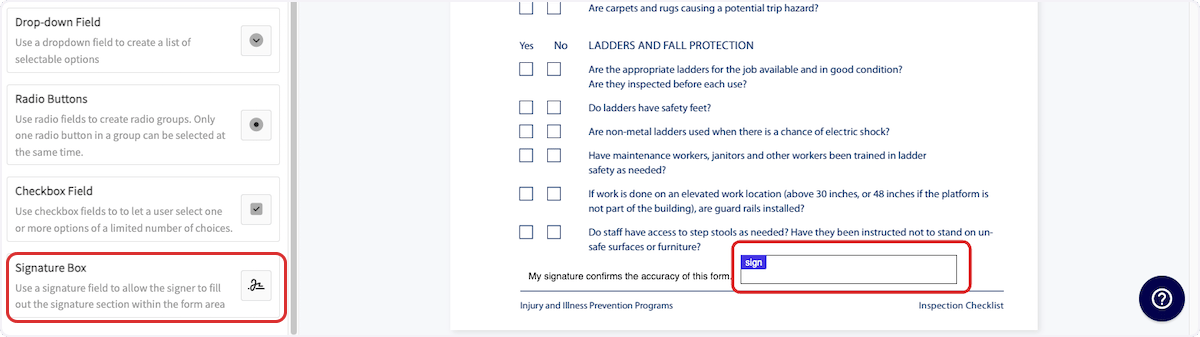
The examples below show a text form field, a date selection field, checkboxes, a text label, and a signature box placed on a safety inspection checklist.
### Add form elements
Drag an element from the **Custom PDF Form Widgets** menu on the left onto the PDF. Once an element is placed, you can resize it and adjust its appearance.
| **Element** | **What it adds to the PDF** |
| - | - |
| **Text Label** | Plain text you write onto the page. A text label is not an editable field, so it stays fixed for everyone who fills out the form. |
| **Text Form Field** | A blank space to type in, for the name sections and other single-line entries in the form. |
| **Multiline Text Form Field** | A text field that holds more than one line of typed text. |
| **Date Selection Field** | A datepicker for filling in the date sections of the form. |
| **Drop-down Field** | A list of selectable options. |
| **Radio Buttons** | Radio groups where only one button in a group can be selected at a time. |
| **Checkbox Field** | Checkboxes that let someone select one or more options from a limited set of choices. |
| **Signature Box** | A space to write or type a signature. |
The examples below show a text form field, a date selection field, checkboxes, a text label, and a signature box placed on a safety inspection checklist.
 A **Signature Box** drops onto the signature line, where the person completing the form writes or types a signature.
 ### Save the form and choose where it lives
1. Select **Save** once your elements are placed.
### Save the form and choose where it lives
1. Select **Save** once your elements are placed.
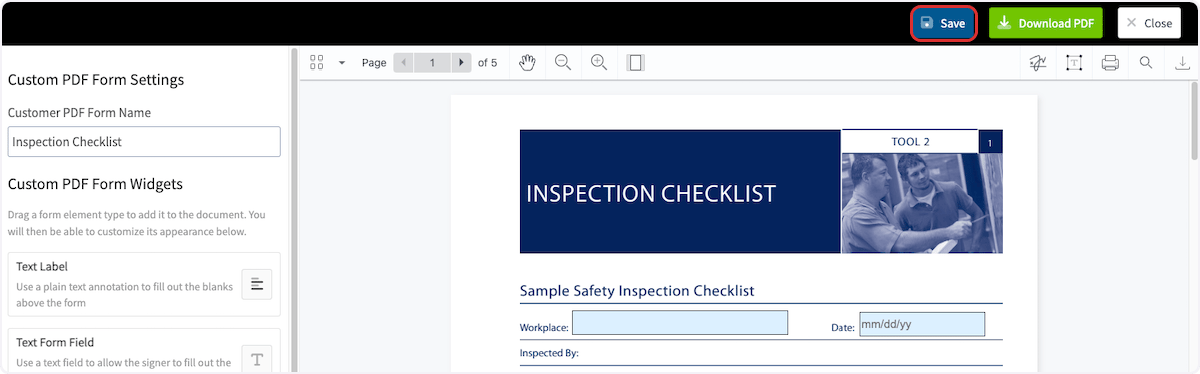 2. Select **Attach to File Library** next to the name of your new PDF form.
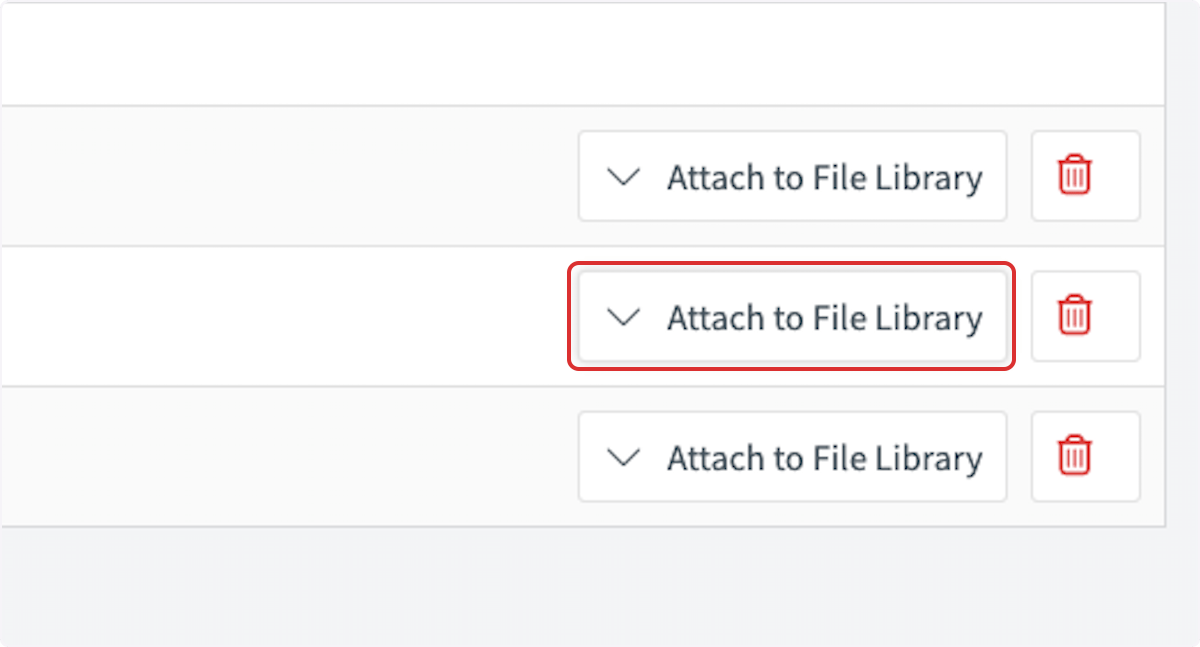 3. Select the library where you want to store the form — **Project File Library**, **Invoice File Library**, **Job File Library**, or **Customer File Library**.
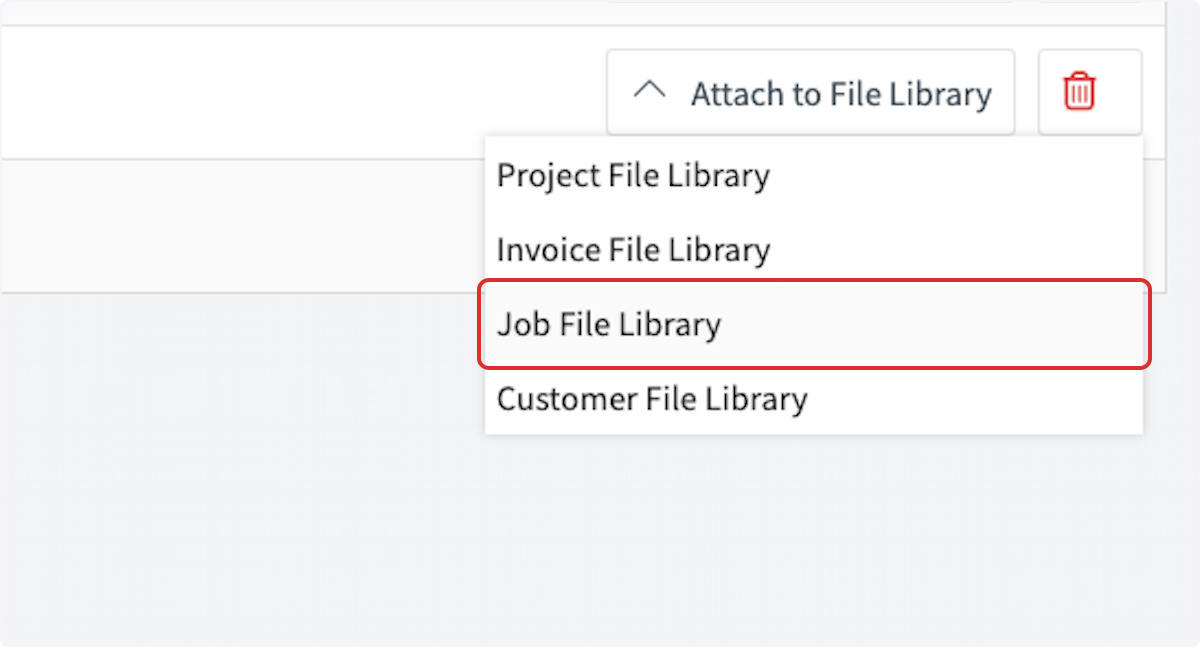 4. Select the roles allowed to import the file onto records in the **File Import Permissions** window, then select **Save**.
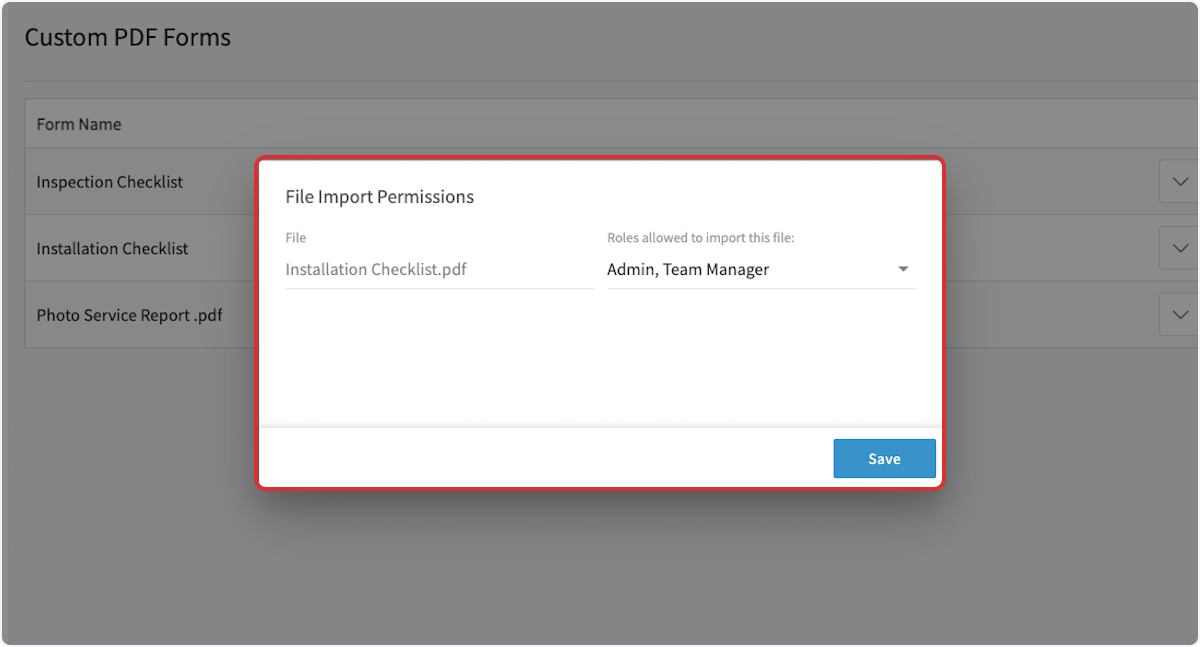 Every PDF form is stored in the PDF Library. Adding a form to a specific file library as well keeps it organized and sets which roles can import it onto records.
Store a form in a specific file library when the form pertains directly to that library's records.
## Attaching a PDF form to a record
PDF forms can be attached to customers, jobs, projects, invoices, and more. The steps below use a job record as the example.
1. Open the record you want to attach the form to.
Every PDF form is stored in the PDF Library. Adding a form to a specific file library as well keeps it organized and sets which roles can import it onto records.
Store a form in a specific file library when the form pertains directly to that library's records.
## Attaching a PDF form to a record
PDF forms can be attached to customers, jobs, projects, invoices, and more. The steps below use a job record as the example.
1. Open the record you want to attach the form to.
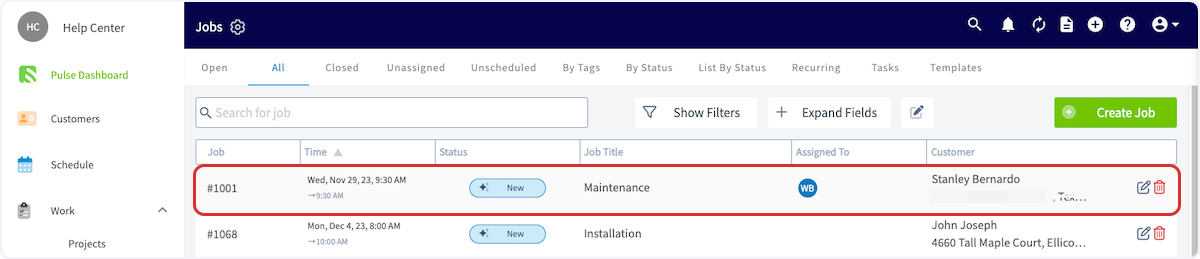 2. Select **Files** from the menu at the top of the screen.
3. Choose where to pull the form from:
* **Import From File Library** — shows only the PDF forms added to the library that matches the record you have open. On a job record, that is the forms in the Job File Library.
* **Import From PDF Library** — shows every PDF form in your account.
4. Preview the PDF, then choose how to save it from the options at the top of the screen:
* **Save as Editable PDF** — saves the form with its fields still fillable.
* **Save as Uneditable PDF** — saves the form with its fields locked so they can't be filled out.
* **Download PDF** — downloads the PDF to your device.
2. Select **Files** from the menu at the top of the screen.
3. Choose where to pull the form from:
* **Import From File Library** — shows only the PDF forms added to the library that matches the record you have open. On a job record, that is the forms in the Job File Library.
* **Import From PDF Library** — shows every PDF form in your account.
4. Preview the PDF, then choose how to save it from the options at the top of the screen:
* **Save as Editable PDF** — saves the form with its fields still fillable.
* **Save as Uneditable PDF** — saves the form with its fields locked so they can't be filled out.
* **Download PDF** — downloads the PDF to your device.
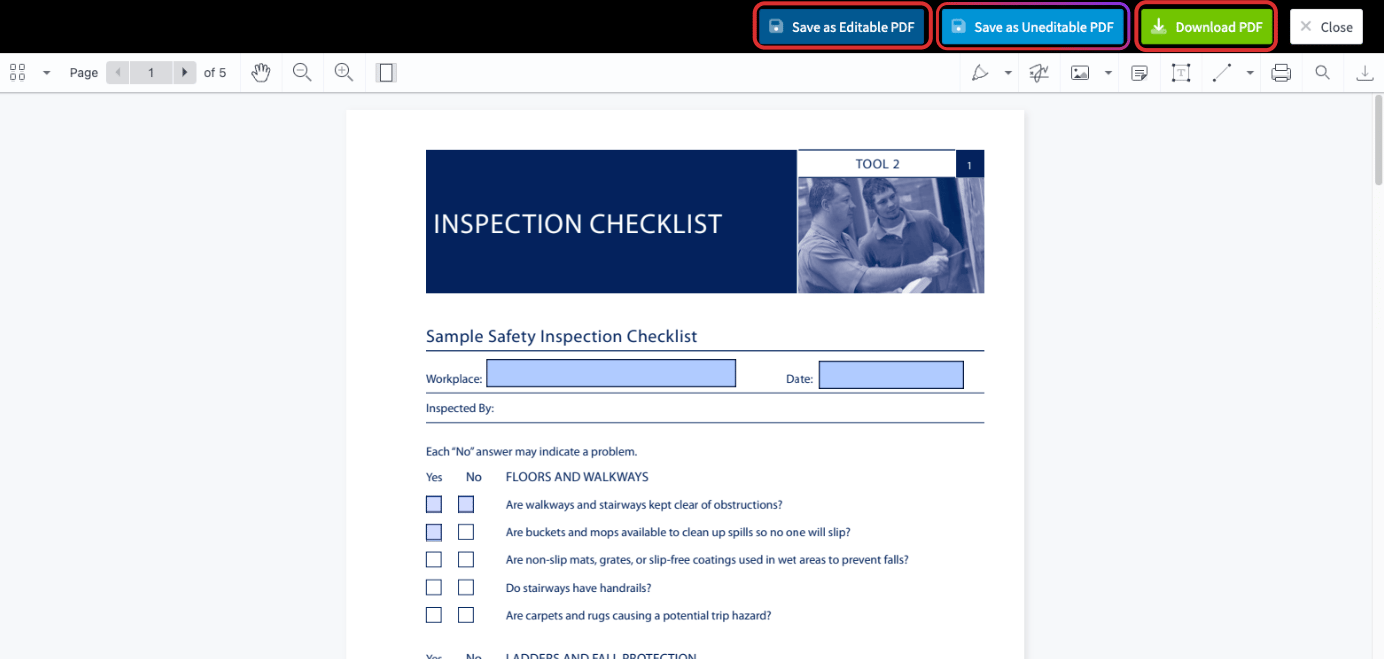 Your PDF form is working when it appears in the file library you chose, opens on a record from **Files**, and saves back to that record with its fields and signature filled in.
## Still need help?
Reach the [FieldPulse support team](https://www.fieldpulse.com/company/contact-us) at [support@fieldpulse.com](mailto:support@fieldpulse.com) or through the chat feature in the bottom-right corner of your screen.
## Related articles
* [Custom Forms Overview](/add-ons/custom-forms/overview)
* [How to Create a Custom Form](/add-ons/custom-forms/create-a-form)
* [How to View Photos and Files on Form PDFs](/add-ons/custom-forms/viewing-photos-files)
* [How to Import and Export Custom Form Templates](/add-ons/custom-forms/import-export)
* [Custom Forms Offline Mode Details](/add-ons/custom-forms/offline-behavior)
## Related topics
- [Custom Forms Overview](/add-ons/custom-forms/overview.md)
- [How to View Photos and Files on Form PDFs](/add-ons/custom-forms/viewing-photos-files.md)
- [Setting Up Custom Forms](/add-ons/custom-forms/enabling.md)
- [How to Import and Export Custom Form Templates](/add-ons/custom-forms/import-export.md)
Your PDF form is working when it appears in the file library you chose, opens on a record from **Files**, and saves back to that record with its fields and signature filled in.
## Still need help?
Reach the [FieldPulse support team](https://www.fieldpulse.com/company/contact-us) at [support@fieldpulse.com](mailto:support@fieldpulse.com) or through the chat feature in the bottom-right corner of your screen.
## Related articles
* [Custom Forms Overview](/add-ons/custom-forms/overview)
* [How to Create a Custom Form](/add-ons/custom-forms/create-a-form)
* [How to View Photos and Files on Form PDFs](/add-ons/custom-forms/viewing-photos-files)
* [How to Import and Export Custom Form Templates](/add-ons/custom-forms/import-export)
* [Custom Forms Offline Mode Details](/add-ons/custom-forms/offline-behavior)
## Related topics
- [Custom Forms Overview](/add-ons/custom-forms/overview.md)
- [How to View Photos and Files on Form PDFs](/add-ons/custom-forms/viewing-photos-files.md)
- [Setting Up Custom Forms](/add-ons/custom-forms/enabling.md)
- [How to Import and Export Custom Form Templates](/add-ons/custom-forms/import-export.md)