> ## Documentation Index
> Fetch the complete documentation index at: https://help.fieldpulse.com/llms.txt
> Use this file to discover all available pages before exploring further.
# How to Assign a Phone Number to a Lead Source
> Attach a FieldPulse lead source to each Engage phone line so every incoming call is credited to the ad, campaign, or landing page that drove it.
> **Who uses this:** Admins and Team Managers who manage Engage phone lines. **Availability:** Requires the Engage add-on — available in the United States and Canada.
Assigning a phone number to a lead source attaches one of your FieldPulse lead sources to a specific [Engage](https://www.fieldpulse.com/features/engage) phone line. From then on, every call to that line is automatically credited to that lead source — so you can see which ad, campaign, or landing page actually drove the call instead of guessing where your leads come from.
## Overview
You set this up per phone line. Give each marketing channel its own Engage number and assign the matching lead source to each — when a customer profile is saved in Engage, the lead source is designated automatically based on the phone line the caller reached. Dedicated numbers per channel let you attribute calls to the correct marketing source, so you can optimize ad spend and improve conversion rates. For example:
* **Ad channels** — someone who clicks your Google Ads sees Phone Number 1, a visitor from Facebook sees Phone Number 2, and a click from your email campaign shows Phone Number 3, so you can track which channel drives calls and conversions.
* **Landing page tests** — visitors on Landing Page A see Phone Number 4 while visitors on Landing Page B see Phone Number 5, showing which page is more effective at generating calls.
* **Organic vs. paid search** — visitors from organic search see Phone Number 6 and visitors from paid search see Phone Number 7, so you can weigh the value of your paid search campaigns against organic traffic.
## Before you begin
* Your available lead sources come from the lead sources set up in FieldPulse. Set those up first so the ones you want to assign appear in Engage — see [How to Track Lead Sources](/customers/leads-pipeline/sources).
## Assign a lead source to a phone number
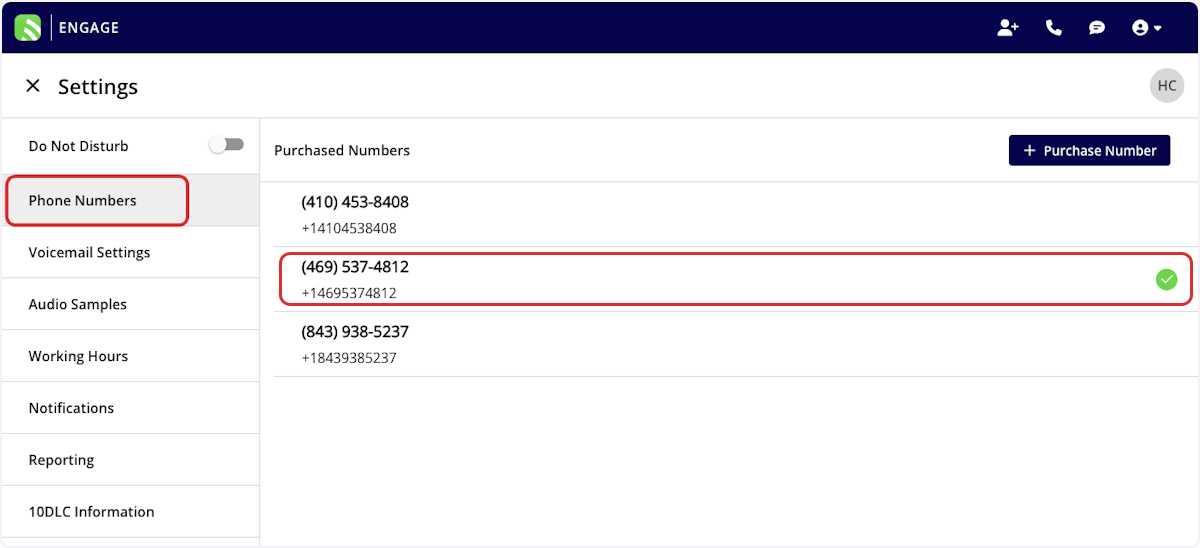
1. In Engage, go to **Settings** and select **Phone Numbers**.
2. Select the phone number you want to attach a lead source to.
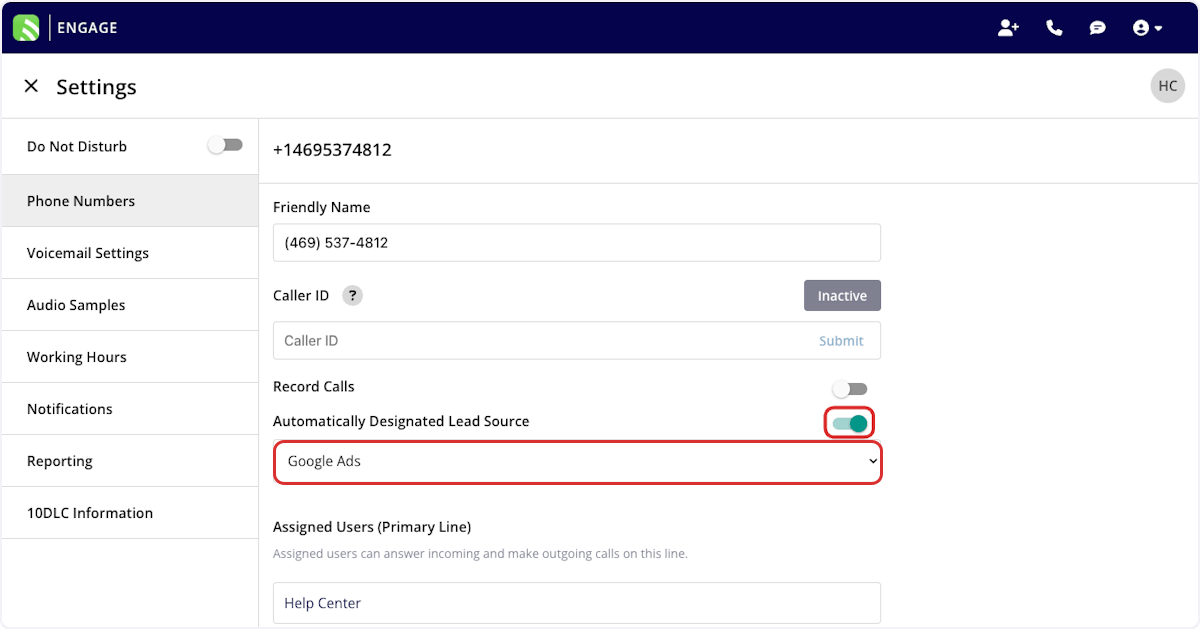
 3. Toggle on **Automatically Designated Lead Source**.
4. Select the lead source you want to associate with this phone number.
3. Toggle on **Automatically Designated Lead Source**.
4. Select the lead source you want to associate with this phone number.
 5. Select **Save**.
To assign a lead source to more than one line, repeat these steps for each phone number — each line carries its own lead source.
## What happens after you assign it
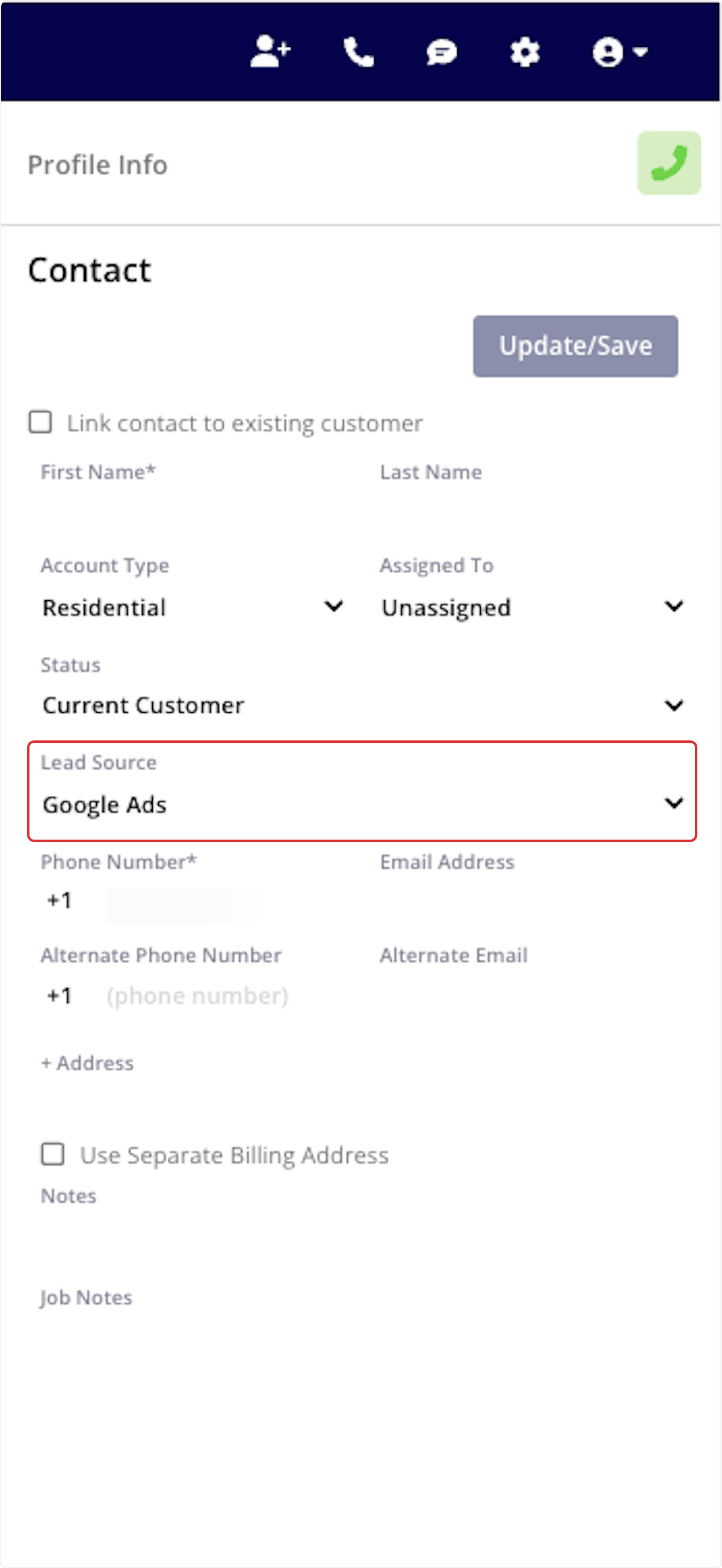
When a customer profile is saved in Engage, the lead source is designated automatically based on the phone line the caller reached.
5. Select **Save**.
To assign a lead source to more than one line, repeat these steps for each phone number — each line carries its own lead source.
## What happens after you assign it
When a customer profile is saved in Engage, the lead source is designated automatically based on the phone line the caller reached.
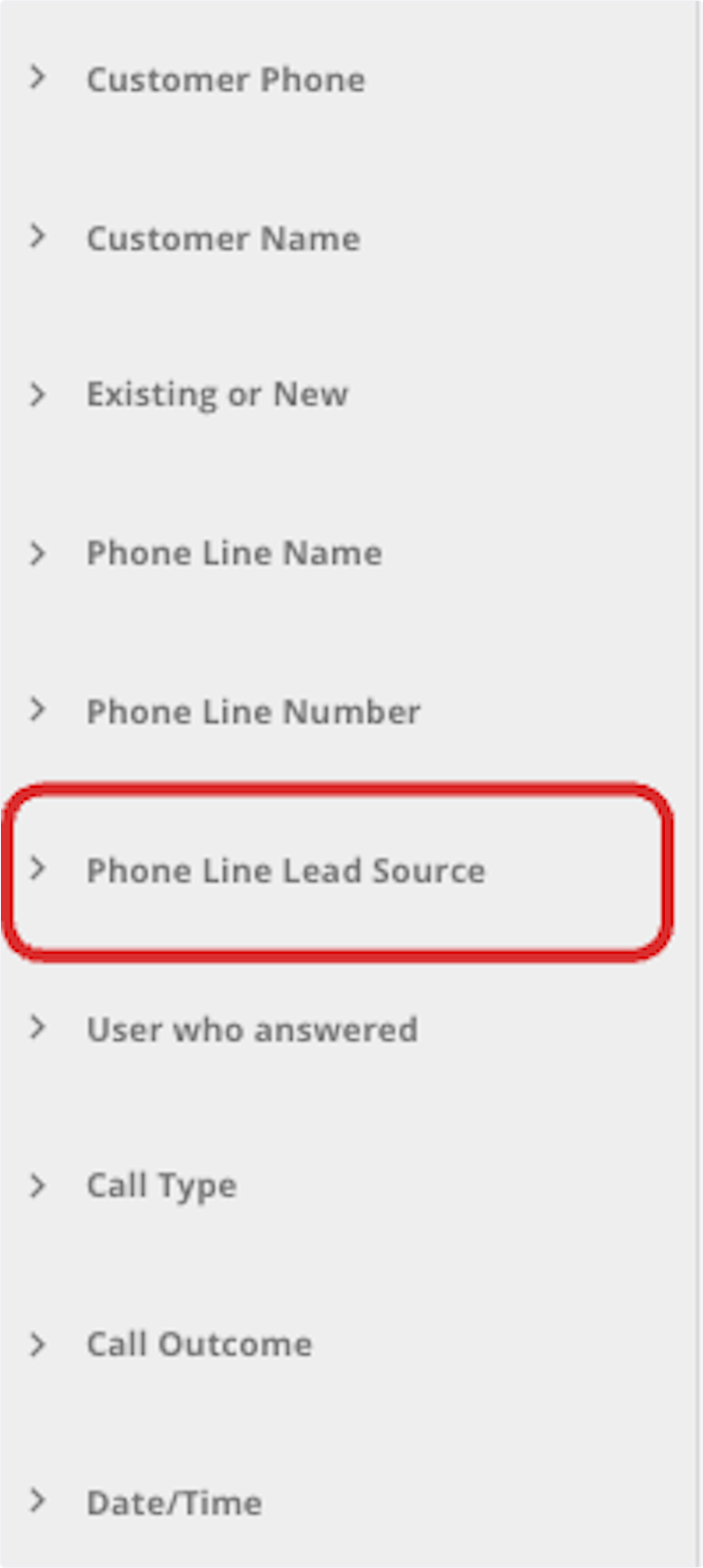
 The lead source also shows under **Phone Line Lead Source** when you [create an Engage report](/add-ons/engage/report), so you can break calls down by marketing channel.
 ## Related articles
* [Engage Overview](/add-ons/engage/overview)
* [How to Create an Engage Report](/add-ons/engage/report)
* [How to Track Lead Sources](/customers/leads-pipeline/sources)
Your lead source is assigned correctly when a call to that line saves a customer with the right lead source already attached, and that lead source shows under **Phone Line Lead Source** in your next Engage report.
## Related topics
- [How to Track Lead Sources](/customers/leads-pipeline/sources.md)
- [How to Create an Engage Report](/add-ons/engage/report.md)
- [Engage Phone System](/add-ons/engage/index.md)
- [Engage Overview](/add-ons/engage/overview.md)
## Related articles
* [Engage Overview](/add-ons/engage/overview)
* [How to Create an Engage Report](/add-ons/engage/report)
* [How to Track Lead Sources](/customers/leads-pipeline/sources)
Your lead source is assigned correctly when a call to that line saves a customer with the right lead source already attached, and that lead source shows under **Phone Line Lead Source** in your next Engage report.
## Related topics
- [How to Track Lead Sources](/customers/leads-pipeline/sources.md)
- [How to Create an Engage Report](/add-ons/engage/report.md)
- [Engage Phone System](/add-ons/engage/index.md)
- [Engage Overview](/add-ons/engage/overview.md)