> ## Documentation Index
> Fetch the complete documentation index at: https://help.fieldpulse.com/llms.txt
> Use this file to discover all available pages before exploring further.
# Setting Up Engage Audio Devices
> Choose the microphone, call speaker, and ringtone device FieldPulse Engage uses on the web app, test them, and switch devices during a call.
> **Who uses this:** Every Engage user, including non-admins. Each user sets their own devices. **Availability:** Engage web app only (the mobile app uses the phone's own call controls) · United States and Canada · requires the Engage add-on.
## Overview
Audio Devices settings let each Engage user choose the microphone, the call speaker, and the ringtone device that the Engage web app uses. The **Ringtone** setting is independent of the **Speaker** setting, so you can have calls ring on your laptop speakers while you talk on a headset.
Without these settings, Engage uses whatever microphone and speaker your browser treats as the system default. Choosing devices in Engage changes only Engage, not the sound settings for every other app on your computer.
No admin setup is needed. Engage saves your choices in your browser, so each computer or browser you use needs to be set up once.
## Before you begin
* Use the Engage web app. The mobile app routes call audio through the phone's own call controls and does not have these settings.
* Connect your headset, webcam, or other audio device to your computer before you open **Audio Devices**.
* Allow your browser to use your microphone. If your browser still needs permission, Engage shows a **Microphone Access** popup. See [Allow microphone access](#allow-microphone-access) below.
Safari cannot choose an output device. In Safari, the **Speaker** and **Ringtone** pickers are hidden and only the **Microphone** picker is available.
## Step-by-step setup
### Choose your devices
1. In Engage, select **Settings** in the left navigation bar, then select **Audio Devices**.
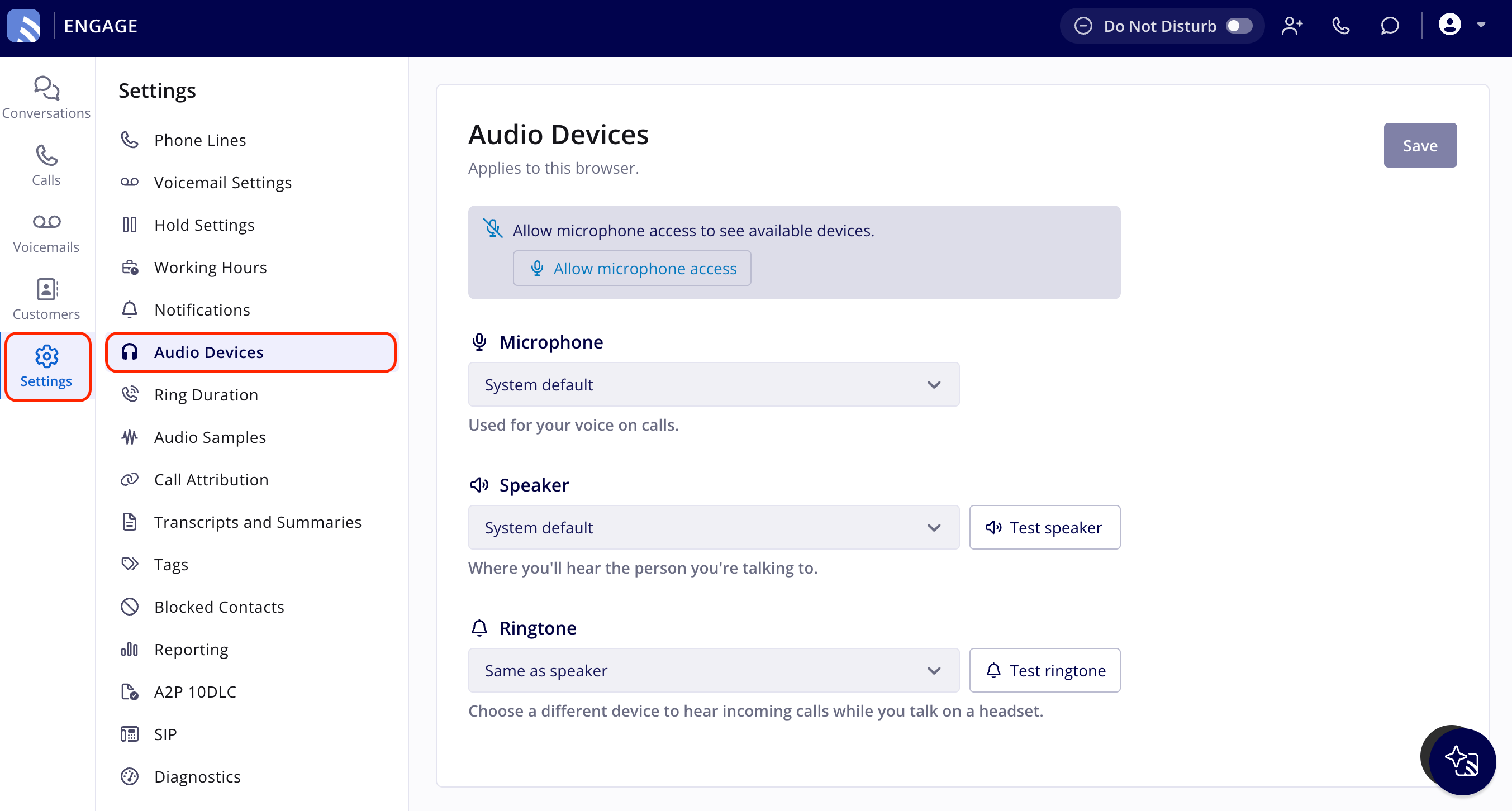 2. Under **Microphone**, select the microphone you want to use for calls.
3. Under **Speaker**, select the device you want to hear calls through.
4. Under **Ringtone**, select the device you want incoming calls to ring on.
5. Select **Test ringtone** to play a tone on the **Ringtone** device, and select **Test speaker** to play a tone on the **Speaker** device. Neither test places a call.
6. Select **Save** to apply your changes.
### Set up devices the first time
After you log in, Engage shows a device popup once if you have never chosen a microphone or speaker, or if your chosen device is not connected. In the popup, the **Ringtone** picker starts on the same device as **Speaker**. Selecting **System default** counts as a choice, and the popup does not appear again for that selection.
If you are on a call when the popup would appear, Engage waits until the call ends.
### Allow microphone access
1. If the **Microphone Access** popup shows an **Allow microphone access** button, select it, then choose **Allow** in your browser's prompt.
2. If you previously blocked microphone access, the popup shows steps for your browser (Chrome, Edge, Firefox, or Safari). Follow the steps for your browser. The popup closes once Engage has access.
### Change devices before or during a call
1. Before a call, use the same **Microphone**, **Speaker**, and **Ringtone** pickers in the dialer.
2. During a call, select **More**, then select **Audio**, and choose a different microphone or speaker. The call stays connected while the audio moves to the new device.
The devices you choose apply to all of your calls in that browser, including calls on hold, and stay selected for your next call and after you reload the page.
Your setup is working when the test tones play on the devices you picked.
## Tips
* **Plug in or unplug devices any time.** The device lists update when you connect or disconnect a device.
* **Unavailable devices fall back to the default.** If a chosen device is no longer available, Engage switches to the system default, and incoming calls still ring.
* **Set up each browser once.** Choices are saved per browser, so a second computer, or a second browser on the same computer, needs its own setup.
## Related articles
* [Engage Overview](/add-ons/engage/overview)
* [Setting Up Engage Notifications](/add-ons/engage/notifications)
* [Setting Up Ring Duration](/add-ons/engage/ring-duration)
* [Troubleshooting Dropped or Rough Engage Calls](/add-ons/engage/network-diagnosis)
* [Troubleshooting Engage Network Warning Messages](/add-ons/engage/network-warning-messages)
## Related topics
- [Engage Overview](/add-ons/engage/overview.md)
- [Setting Up Engage Notifications](/add-ons/engage/notifications.md)
- [Troubleshooting Engage Network Warning Messages](/add-ons/engage/network-warning-messages.md)
- [Setting Up Ring Duration](/add-ons/engage/ring-duration.md)
This documentation is built and hosted on [Mintlify](https://mintlify.com), a developer documentation platform.
2. Under **Microphone**, select the microphone you want to use for calls.
3. Under **Speaker**, select the device you want to hear calls through.
4. Under **Ringtone**, select the device you want incoming calls to ring on.
5. Select **Test ringtone** to play a tone on the **Ringtone** device, and select **Test speaker** to play a tone on the **Speaker** device. Neither test places a call.
6. Select **Save** to apply your changes.
### Set up devices the first time
After you log in, Engage shows a device popup once if you have never chosen a microphone or speaker, or if your chosen device is not connected. In the popup, the **Ringtone** picker starts on the same device as **Speaker**. Selecting **System default** counts as a choice, and the popup does not appear again for that selection.
If you are on a call when the popup would appear, Engage waits until the call ends.
### Allow microphone access
1. If the **Microphone Access** popup shows an **Allow microphone access** button, select it, then choose **Allow** in your browser's prompt.
2. If you previously blocked microphone access, the popup shows steps for your browser (Chrome, Edge, Firefox, or Safari). Follow the steps for your browser. The popup closes once Engage has access.
### Change devices before or during a call
1. Before a call, use the same **Microphone**, **Speaker**, and **Ringtone** pickers in the dialer.
2. During a call, select **More**, then select **Audio**, and choose a different microphone or speaker. The call stays connected while the audio moves to the new device.
The devices you choose apply to all of your calls in that browser, including calls on hold, and stay selected for your next call and after you reload the page.
Your setup is working when the test tones play on the devices you picked.
## Tips
* **Plug in or unplug devices any time.** The device lists update when you connect or disconnect a device.
* **Unavailable devices fall back to the default.** If a chosen device is no longer available, Engage switches to the system default, and incoming calls still ring.
* **Set up each browser once.** Choices are saved per browser, so a second computer, or a second browser on the same computer, needs its own setup.
## Related articles
* [Engage Overview](/add-ons/engage/overview)
* [Setting Up Engage Notifications](/add-ons/engage/notifications)
* [Setting Up Ring Duration](/add-ons/engage/ring-duration)
* [Troubleshooting Dropped or Rough Engage Calls](/add-ons/engage/network-diagnosis)
* [Troubleshooting Engage Network Warning Messages](/add-ons/engage/network-warning-messages)
## Related topics
- [Engage Overview](/add-ons/engage/overview.md)
- [Setting Up Engage Notifications](/add-ons/engage/notifications.md)
- [Troubleshooting Engage Network Warning Messages](/add-ons/engage/network-warning-messages.md)
- [Setting Up Ring Duration](/add-ons/engage/ring-duration.md)
This documentation is built and hosted on [Mintlify](https://mintlify.com), a developer documentation platform.