> ## Documentation Index
> Fetch the complete documentation index at: https://help.fieldpulse.com/llms.txt
> Use this file to discover all available pages before exploring further.
# Setting Up Call Attribution
> Choose whether FieldPulse links Engage calls to records manually or automatically, and whether a parent record's calls carry over to its child records.
> **Who uses this:** Admins only. **Availability:** Engage add-on.
Call Attribution is the account-wide [Engage](https://www.fieldpulse.com/features/engage) setting that decides how calls get linked to your FieldPulse records. Admins turn it on and choose manual or automatic linking from **Settings** in Engage.
## Overview
Call Attribution controls how Engage calls get linked to FieldPulse records — Jobs, Estimates, Invoices, Projects, and Maintenance Agreements. Turn it on to choose whether that linking happens manually or automatically, and whether a call linked to one record should automatically cascade to records created from it. See [How to Link Calls to Records in Engage](/add-ons/engage/link-calls-to-records) for the linking steps themselves.
## Before you begin
* Engage must be enabled on your account with at least one phone line connected.
* You need Admin permissions. Call Attribution is an account-wide setting, and every user inherits whatever is active.
## Step-by-step setup
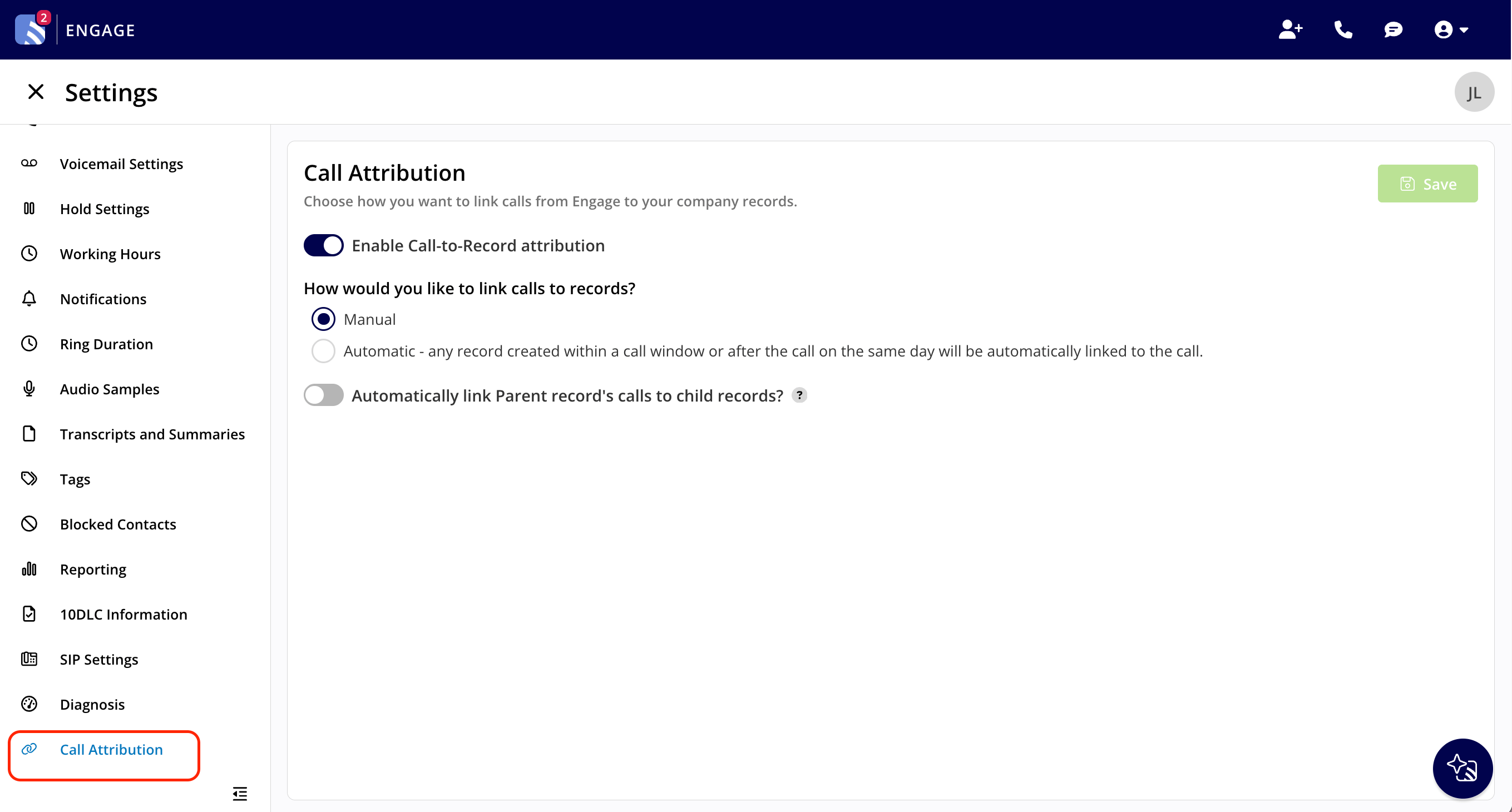
1. In Engage, go to **Settings**.
2. Select **Call Attribution** in the sidebar.
3. Turn on **Enable Call-to-Record attribution**. This is on by default.
4. Under **How would you like to link calls to records?**, select **Manual** or **Automatic** (see below).
5. Turn on **Automatically link Parent record's calls to child records** if you want a call linked to a record to also link automatically to any child record created from it — for example, a Job created from a Maintenance Agreement.
* **Manual** (default): link calls to records yourself, from the **Source** section on a record or the **Related Records** section on a call.
* **Automatic**: FieldPulse links a record to a customer's calls automatically when the record is created during an active call with that customer, or later the same day. Automatic linking runs once an hour; a call you've already linked manually isn't re-linked by the automatic process.
If two Jobs are created for the same customer on the same day, FieldPulse automatically links the call to the first Job only. Link the call to the second Job yourself if you need to.
 ## Settings reference
| **Setting** | **Options** | **Default** | **What it affects** |
| - | - | - | - |
| **Enable Call-to-Record attribution** | On / Off | On | Shows or hides the Source and Related Records sections everywhere on web and mobile |
| **How would you like to link calls to records?** | Manual / Automatic | Manual | Whether links are added by hand or created by FieldPulse on an hourly sync |
| **Automatically link Parent record's calls to child records** | On / Off | Off | Whether a call linked to a parent record also links to records created from it |
**See revenue by phone line.** Once calls are linked to records, you can see how much revenue each of your phone lines produced. In Raw Data Reporting, add the **Primary Call's Phone Number** column, then group or sort by it to see total revenue per line. See [How to Create an Engage Report](/add-ons/engage/report#report-on-revenue-by-phone-line) for the full steps.
## Related articles
* [How to Link Calls to Records in Engage](/add-ons/engage/link-calls-to-records)
* [How to Create an Engage Report](/add-ons/engage/report)
* [Engage Overview](/add-ons/engage/overview)
Your Call Attribution setup is working when the **Source** section appears on your Jobs, Estimates, Invoices, Projects, and Maintenance Agreements and the **Related Records** section appears on each call's **Call Log Details** page.
## Related topics
- [How to Link Calls to Records in Engage](/add-ons/engage/link-calls-to-records.md)
- [Engage Phone System](/add-ons/engage/index.md)
- [Setting Up Call Routing](/add-ons/engage/call-routing.md)
- [Setting Up Call Transcripts and Summaries](/add-ons/engage/call-transcripts-summaries.md)
This documentation is built and hosted on [Mintlify](https://mintlify.com), a developer documentation platform.
## Settings reference
| **Setting** | **Options** | **Default** | **What it affects** |
| - | - | - | - |
| **Enable Call-to-Record attribution** | On / Off | On | Shows or hides the Source and Related Records sections everywhere on web and mobile |
| **How would you like to link calls to records?** | Manual / Automatic | Manual | Whether links are added by hand or created by FieldPulse on an hourly sync |
| **Automatically link Parent record's calls to child records** | On / Off | Off | Whether a call linked to a parent record also links to records created from it |
**See revenue by phone line.** Once calls are linked to records, you can see how much revenue each of your phone lines produced. In Raw Data Reporting, add the **Primary Call's Phone Number** column, then group or sort by it to see total revenue per line. See [How to Create an Engage Report](/add-ons/engage/report#report-on-revenue-by-phone-line) for the full steps.
## Related articles
* [How to Link Calls to Records in Engage](/add-ons/engage/link-calls-to-records)
* [How to Create an Engage Report](/add-ons/engage/report)
* [Engage Overview](/add-ons/engage/overview)
Your Call Attribution setup is working when the **Source** section appears on your Jobs, Estimates, Invoices, Projects, and Maintenance Agreements and the **Related Records** section appears on each call's **Call Log Details** page.
## Related topics
- [How to Link Calls to Records in Engage](/add-ons/engage/link-calls-to-records.md)
- [Engage Phone System](/add-ons/engage/index.md)
- [Setting Up Call Routing](/add-ons/engage/call-routing.md)
- [Setting Up Call Transcripts and Summaries](/add-ons/engage/call-transcripts-summaries.md)
This documentation is built and hosted on [Mintlify](https://mintlify.com), a developer documentation platform.