> ## Documentation Index
> Fetch the complete documentation index at: https://help.fieldpulse.com/llms.txt
> Use this file to discover all available pages before exploring further.
# How to Create Custom Tags in Engage
> Create color-coded tags for calls, conversations, and voicemails in FieldPulse Engage, apply them from any record, and filter your lists by tag.
> **Who uses this:** Admins, Team Managers, and Service Agents — Limited Agents have no access to Engage. **Availability:** United States and Canada · Requires the Engage add-on.
A custom tag in [Engage](https://www.fieldpulse.com/features/engage) is a color-coded label you attach to a call, conversation, or voicemail to organize your communication records. You create tags once in Engage settings, apply them to any record, and then filter your Conversations, Calls, and Voicemails lists by tag to focus on what matters — on web or the FieldPulse mobile app.
## Overview
Think of tags like sticky notes for your Engage records. You create each tag with a name and a color in Engage settings, then apply it to Conversations, Calls, and Voicemails — a record can carry more than one tag. Once records are tagged, you can filter any Engage list by tag, and two tag columns become available in reporting. Engage also applies certain system tags automatically based on call activity — you can filter and report on system tags, but you can't edit them.
## Before you begin
* Engage must be enabled on your account. Contact the FieldPulse team at [support@fieldpulse.com](mailto:support@fieldpulse.com) or through in-app chat to enable Engage — see the [Engage Overview](/add-ons/engage/overview) for details.
## Create a custom tag
1. In Engage, select the **gear** icon in the top-right corner to open the Engage **Settings** page.
2. Select the **Tags** tab from the left menu.
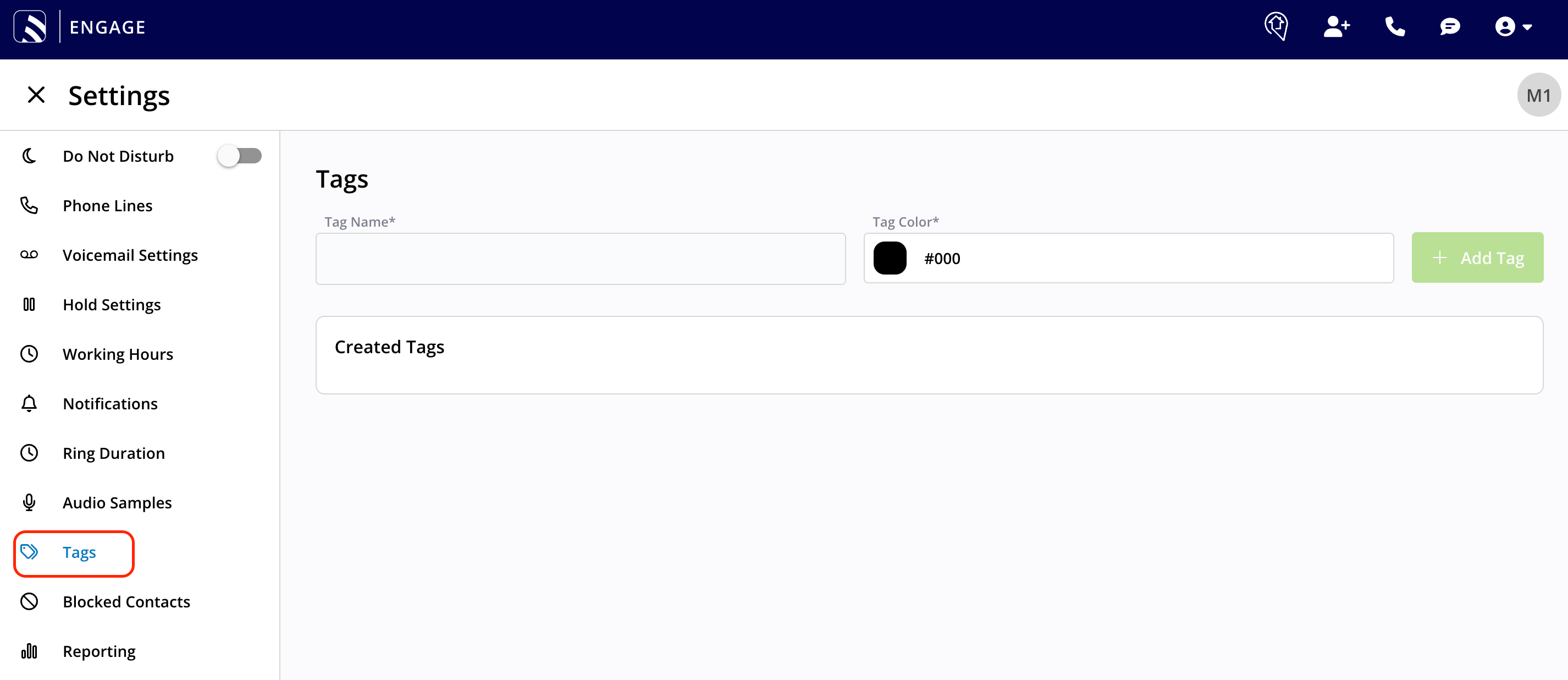 3. Enter a name in **Tag Name** and choose a color in **Tag Color**.
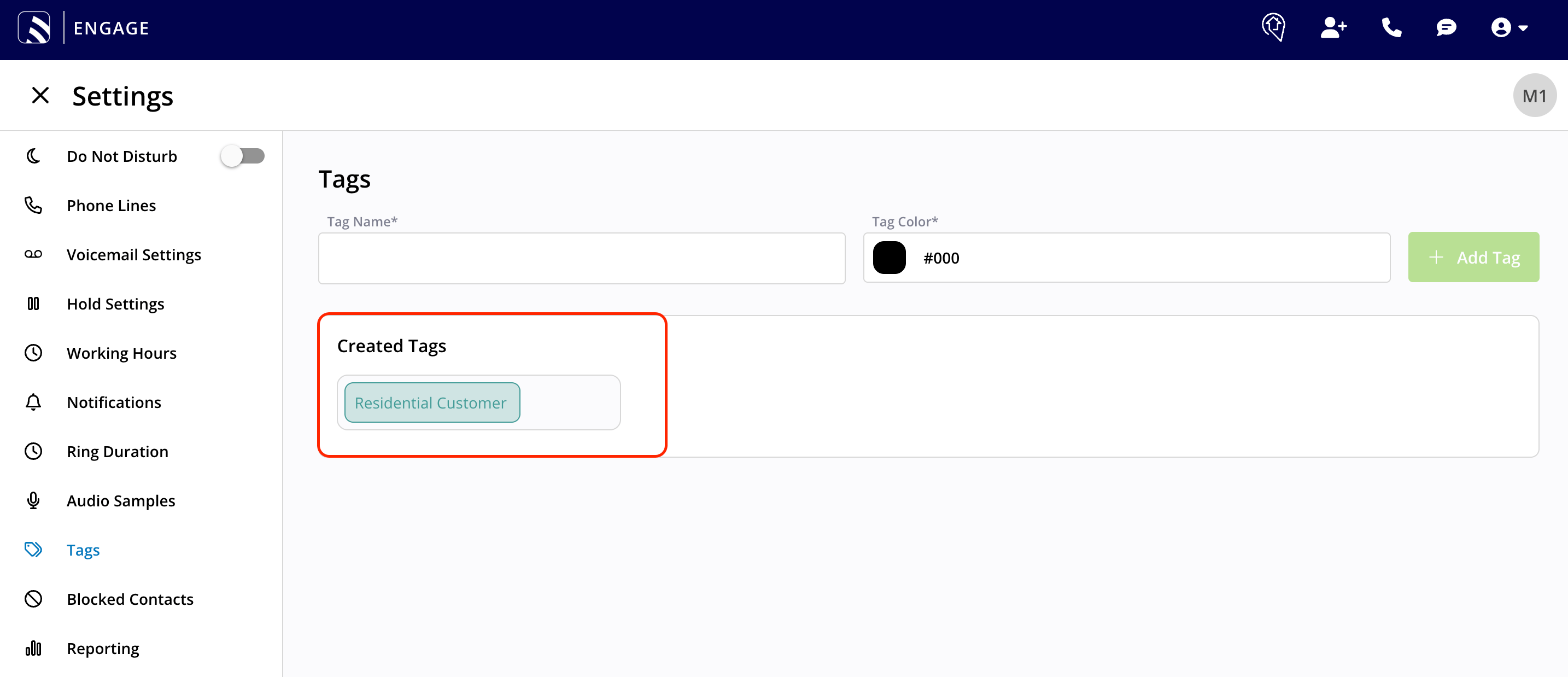
4. Select **Add Tag**. The tag appears in the **Created Tags** section below the form.
3. Enter a name in **Tag Name** and choose a color in **Tag Color**.
4. Select **Add Tag**. The tag appears in the **Created Tags** section below the form.
 ## Apply a tag to a record
1. On a Conversation, Call, or Voicemail — from either the list page or the individual record page — select the **three dots**.
## Apply a tag to a record
1. On a Conversation, Call, or Voicemail — from either the list page or the individual record page — select the **three dots**.
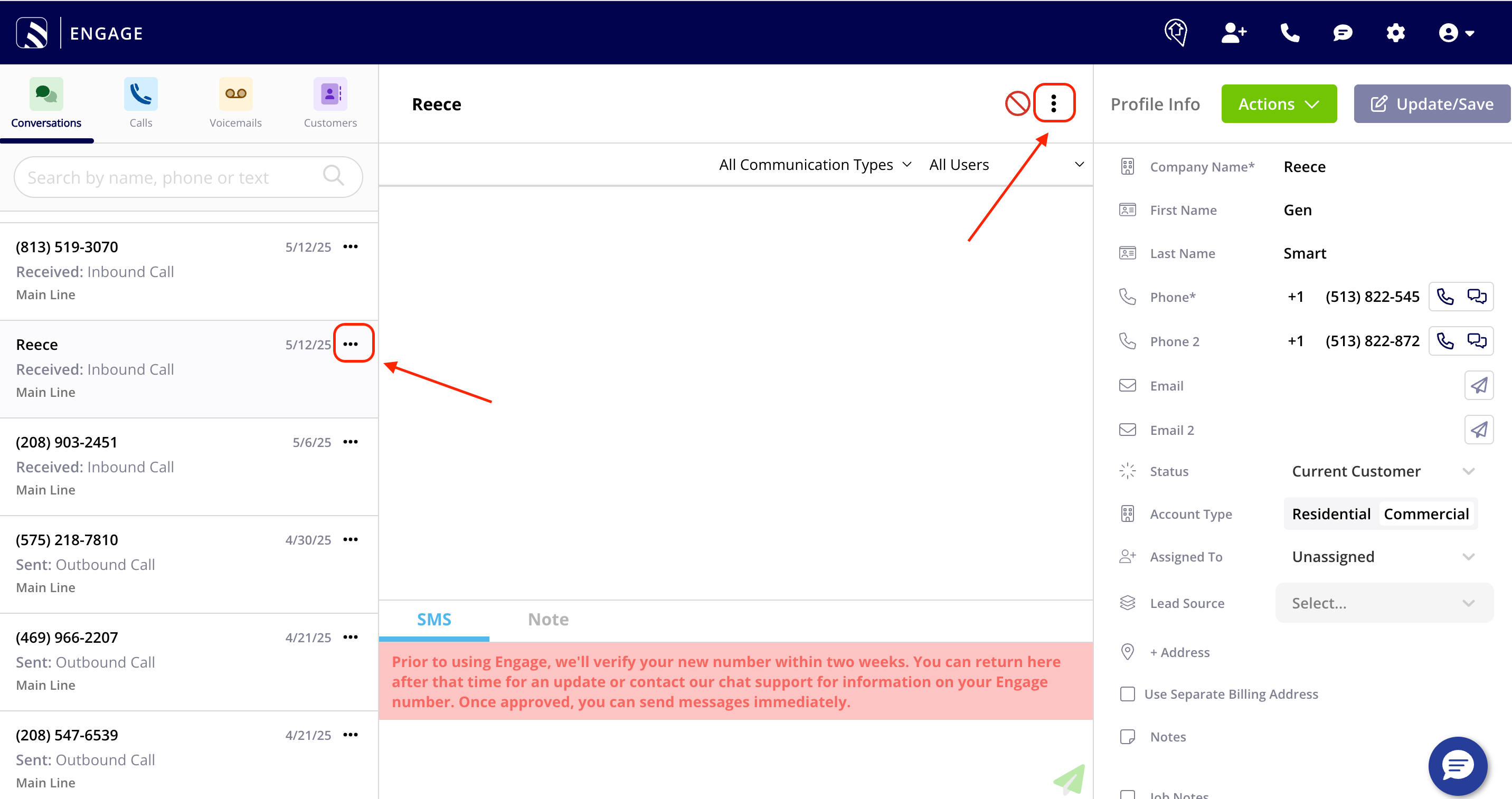 2. Select the **Tags** search bar. A list of your tags appears, so you don't have to remember every tag name.
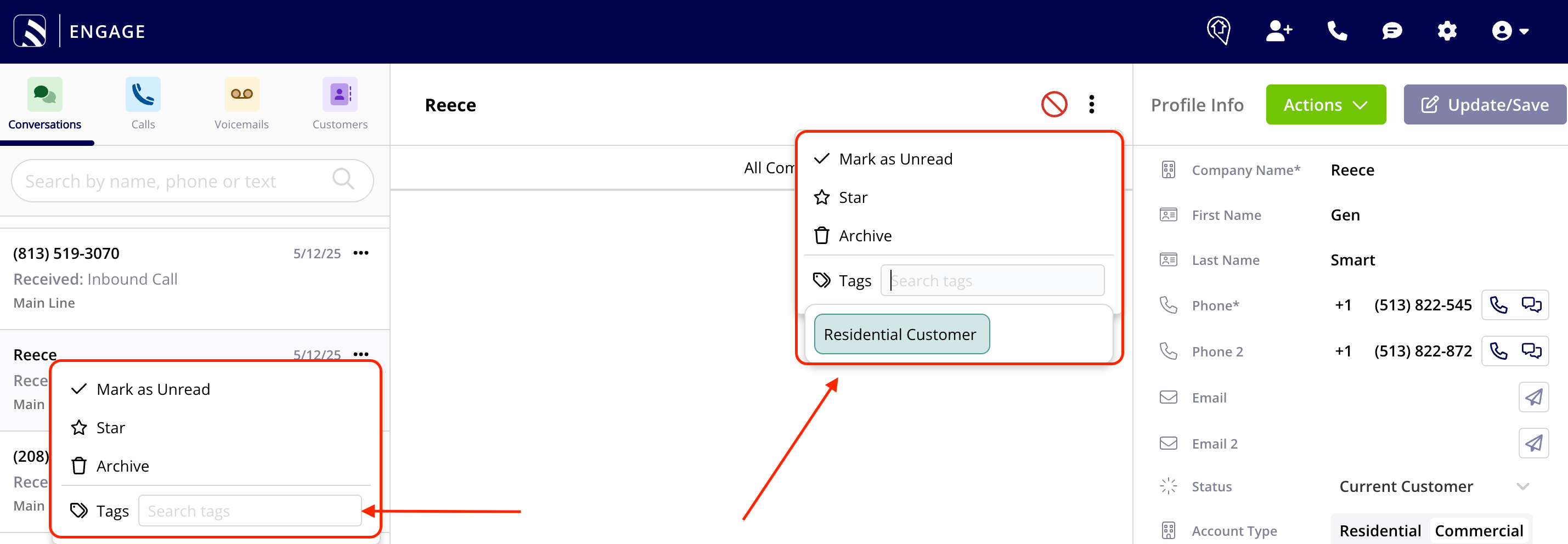 3. Select the tag to apply it.
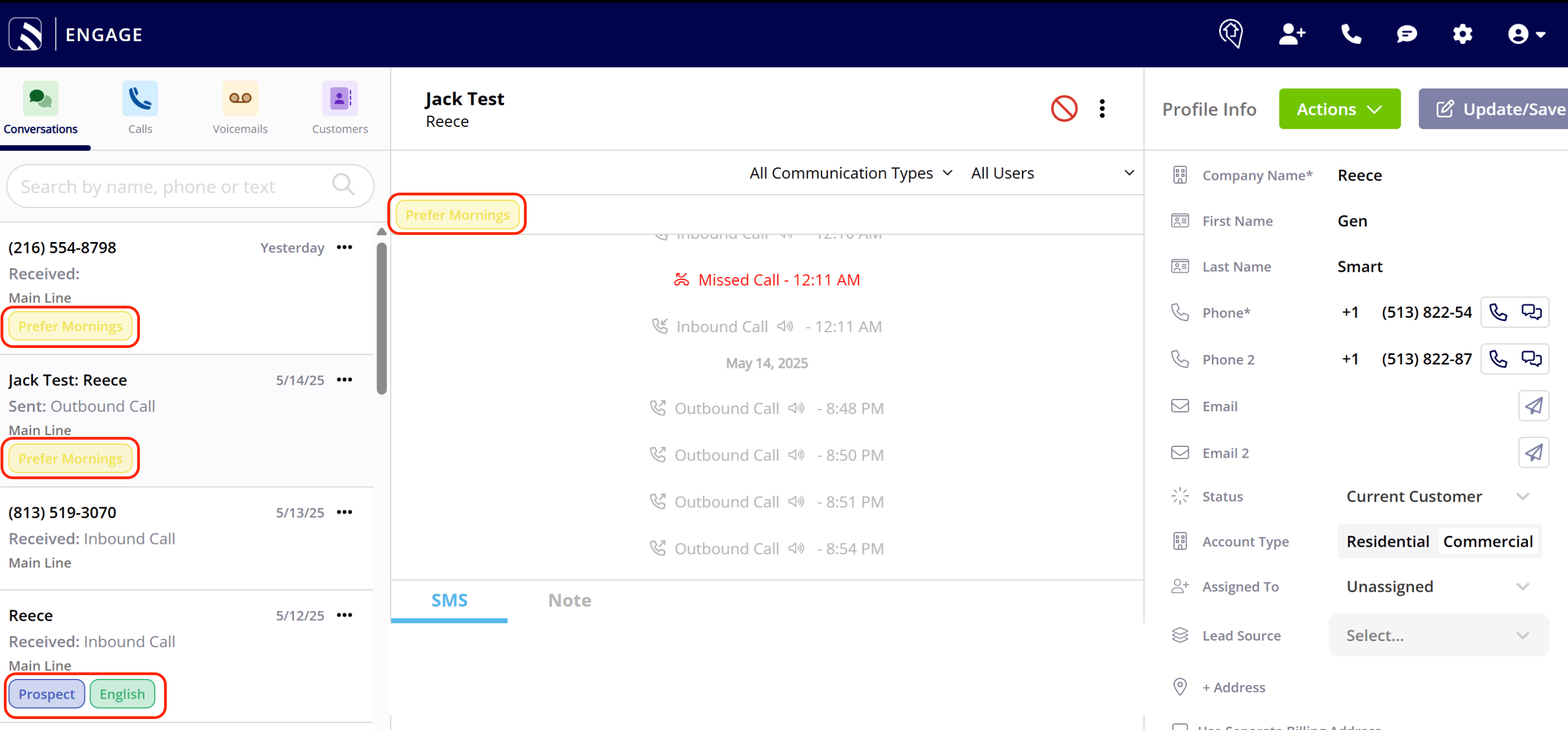
Applied tags show in the list view on the left of your screen, and at the top of each Conversation, Call, and Voicemail when you open it.
3. Select the tag to apply it.
Applied tags show in the list view on the left of your screen, and at the top of each Conversation, Call, and Voicemail when you open it.
 ## System tags
Not every tag in Engage is one you created. Engage applies certain system tags automatically based on call activity, and they behave differently from custom tags.
**Outside Business Hours** is applied automatically to any inbound call that arrives outside the configured working hours for that phone line. If a phone line doesn't have its own working-hours configuration, Engage uses your account's global [working hours](/add-ons/engage/working-hours) instead.
## System tags
Not every tag in Engage is one you created. Engage applies certain system tags automatically based on call activity, and they behave differently from custom tags.
**Outside Business Hours** is applied automatically to any inbound call that arrives outside the configured working hours for that phone line. If a phone line doesn't have its own working-hours configuration, Engage uses your account's global [working hours](/add-ons/engage/working-hours) instead.
 Because it's a system tag:
* Engage applies it automatically — there's no setting to turn on.
* You can't rename, recolor, or remove it.
* It doesn't appear in the tag search bar, so you can't add it to a call or remove it from one yourself.
You can still filter and report on the Outside Business Hours tag like any custom tag. Use it to see how many calls come in after hours at a glance, without cross-checking timestamps against your working hours settings.
## Filter your lists by tag
You can filter your Conversations, Calls, and Voicemails by tag to focus on the records that matter most.
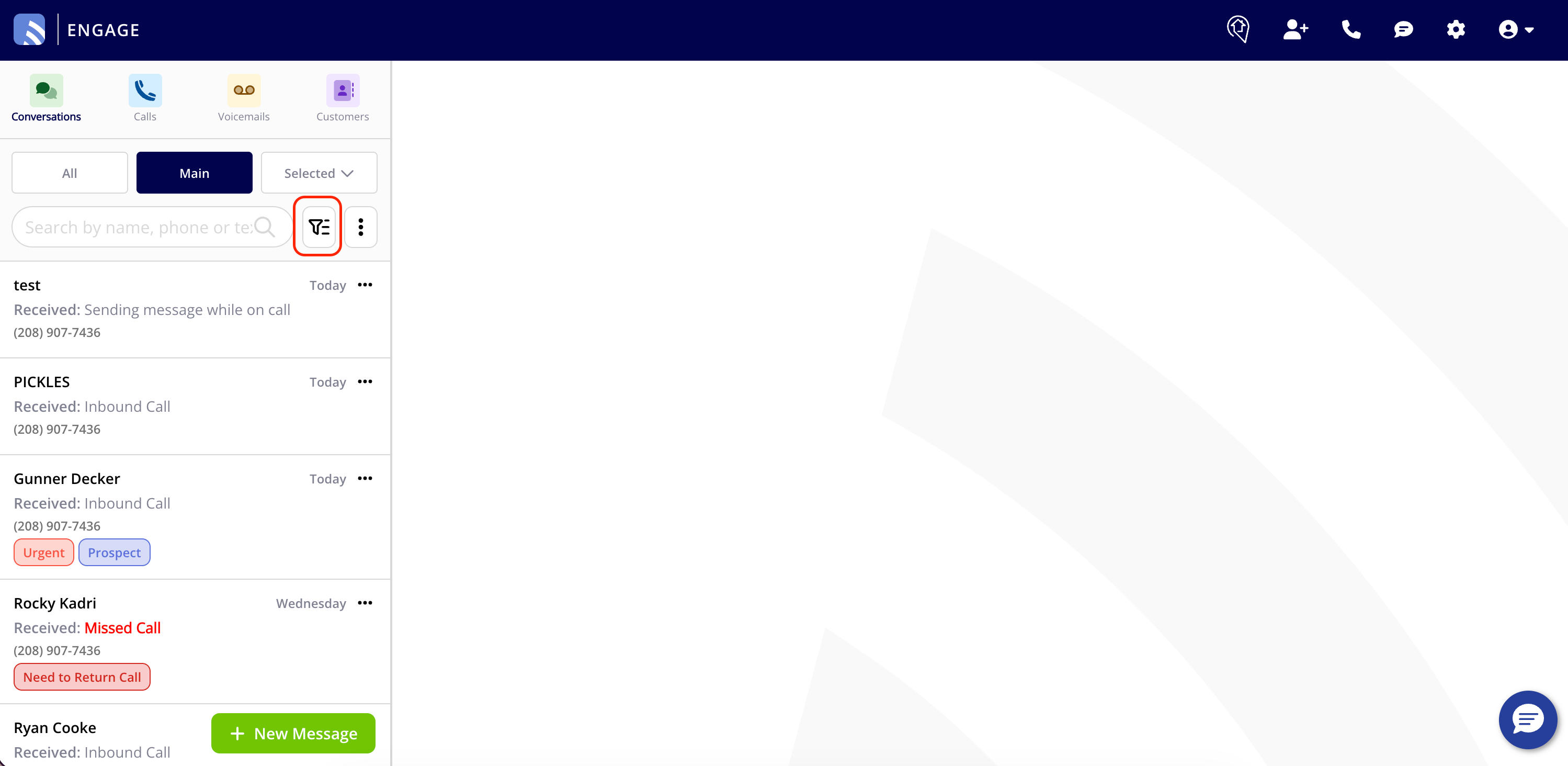
1. Select the **filter** button to the left of the three-dot menu in any Engage view.
Because it's a system tag:
* Engage applies it automatically — there's no setting to turn on.
* You can't rename, recolor, or remove it.
* It doesn't appear in the tag search bar, so you can't add it to a call or remove it from one yourself.
You can still filter and report on the Outside Business Hours tag like any custom tag. Use it to see how many calls come in after hours at a glance, without cross-checking timestamps against your working hours settings.
## Filter your lists by tag
You can filter your Conversations, Calls, and Voicemails by tag to focus on the records that matter most.
1. Select the **filter** button to the left of the three-dot menu in any Engage view.
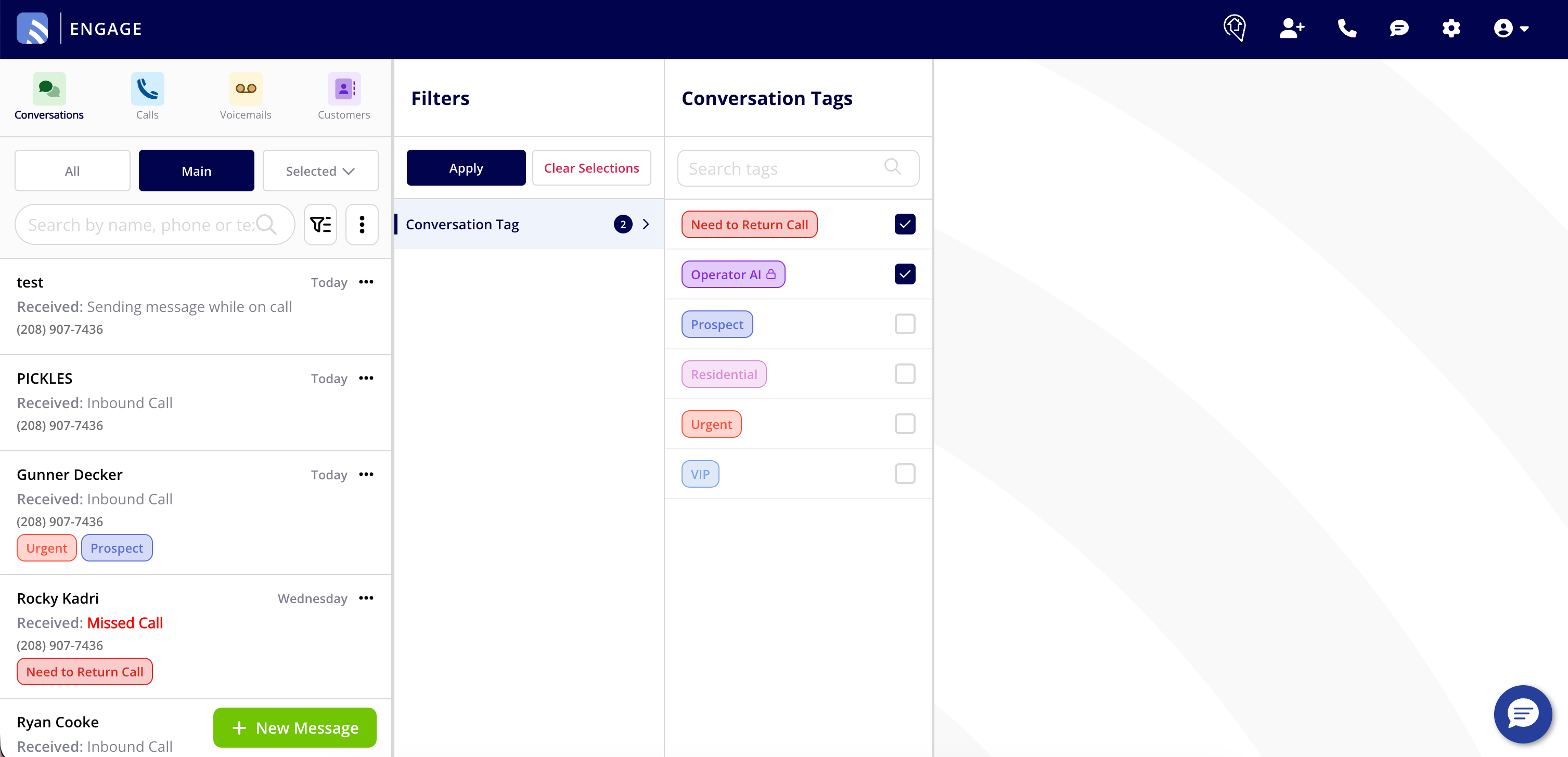
 2. Select one or more tags in the filter panel that slides out from the right. Your list updates in real time.
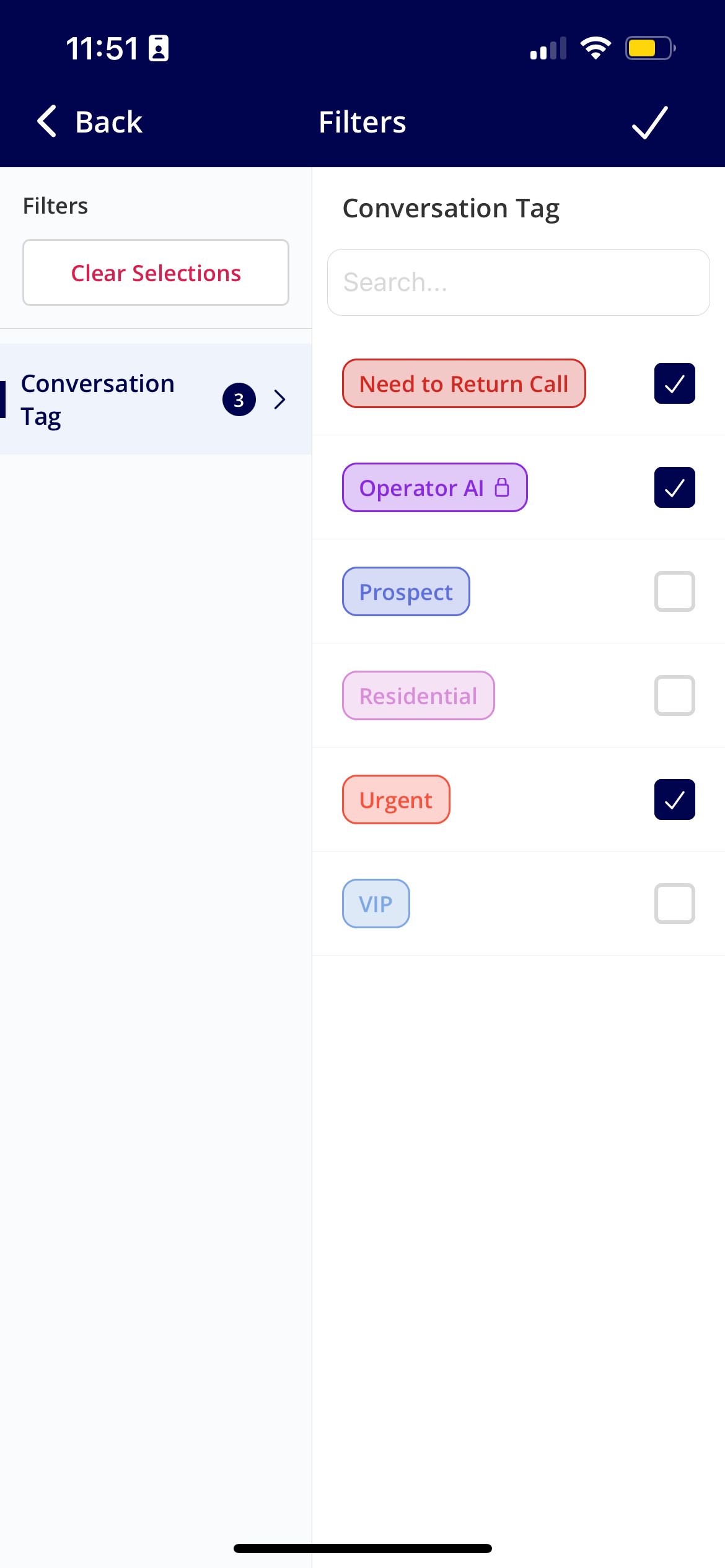
 You can filter by tag the same way on the FieldPulse mobile app.
 ## Tag reporting
Tagging adds two columns in reporting:
* **Call Tags**
* **Voicemail Tags**
To pull tag data into a report, see [How to Create an Engage Report](/add-ons/engage/report).
## FAQs
### Why should I use tags?
Tags are a quick way to segment and organize the conversations, calls, and voicemails left by current and future customers — so you can find and act on the right records fast.
### Can I assign more than one tag to a record?
Yes. You can assign multiple tags to each Conversation, Call, and Voicemail.
### What kinds of tags should I create?
Common categories include service request type (installation, repair, maintenance, inspection, emergency), follow-up type (scheduled appointment, callback request, quote follow-up, review requested), customer type or loyalty (loyal, at-risk, new), customer size (residential, small business, large enterprise), and customer preferences (preferred contact method, best contact times, preferred language).
## Related articles
* [Engage Overview](/add-ons/engage/overview)
* [How to Create an Engage Report](/add-ons/engage/report)
* [How to Use Additional Contacts and Alternate Phone Numbers](/add-ons/engage/additional-contacts)
Your tags are working when you can apply a color-coded label to a call, conversation, or voicemail, filter any Engage list down to only those records, and see the Call Tags and Voicemail Tags columns in your reports.
## Related topics
- [How to Create an Engage Report](/add-ons/engage/report.md)
- [Setting Up Engage Filters](/add-ons/engage/engage-filters.md)
- [How to Filter and Sort Conversations, Calls, and Voicemails](/add-ons/engage/filters-sorting.md)
- [How to Use Additional Contacts and Alternate Phone Numbers](/add-ons/engage/additional-contacts.md)
## Tag reporting
Tagging adds two columns in reporting:
* **Call Tags**
* **Voicemail Tags**
To pull tag data into a report, see [How to Create an Engage Report](/add-ons/engage/report).
## FAQs
### Why should I use tags?
Tags are a quick way to segment and organize the conversations, calls, and voicemails left by current and future customers — so you can find and act on the right records fast.
### Can I assign more than one tag to a record?
Yes. You can assign multiple tags to each Conversation, Call, and Voicemail.
### What kinds of tags should I create?
Common categories include service request type (installation, repair, maintenance, inspection, emergency), follow-up type (scheduled appointment, callback request, quote follow-up, review requested), customer type or loyalty (loyal, at-risk, new), customer size (residential, small business, large enterprise), and customer preferences (preferred contact method, best contact times, preferred language).
## Related articles
* [Engage Overview](/add-ons/engage/overview)
* [How to Create an Engage Report](/add-ons/engage/report)
* [How to Use Additional Contacts and Alternate Phone Numbers](/add-ons/engage/additional-contacts)
Your tags are working when you can apply a color-coded label to a call, conversation, or voicemail, filter any Engage list down to only those records, and see the Call Tags and Voicemail Tags columns in your reports.
## Related topics
- [How to Create an Engage Report](/add-ons/engage/report.md)
- [Setting Up Engage Filters](/add-ons/engage/engage-filters.md)
- [How to Filter and Sort Conversations, Calls, and Voicemails](/add-ons/engage/filters-sorting.md)
- [How to Use Additional Contacts and Alternate Phone Numbers](/add-ons/engage/additional-contacts.md)