> ## Documentation Index
> Fetch the complete documentation index at: https://help.fieldpulse.com/llms.txt
> Use this file to discover all available pages before exploring further.
# How to Create an Engage Report
> Build a custom Engage call report in FieldPulse over any date range, then choose columns and filters to see who answered, call outcomes, and lead sources.
> **Who uses this:** Admins, Team Managers, and Service Agents — Assignment Users and Limited Agents don't have access to Engage. **Availability:** United States and Canada · Engage add-on.
An Engage report shows your call activity over a date range — who answered, whether each call was incoming or outgoing, the outcome, the duration, the lead source, and more. You build the report from the **Reporting** tab in [Engage](https://www.fieldpulse.com/features/engage), then choose the columns and filters that answer the question you're asking.
## Overview
The Engage report shows how your team handles calls instead of leaving you to guess. Set a date range and run the report, then narrow it with columns and filters — for example, calls by the user who answered, missed calls over a period, or calls tied to a specific lead source. The report reads Engage call data, so every incoming and outgoing call on your Engage lines is available to report on.
## Video walkthrough
Watch a start-to-finish walkthrough of building an Engage report, then follow the written steps below.
## Before you begin
* Engage must be enabled on your account. Contact the FieldPulse team through the in-app chat or at [support@fieldpulse.com](mailto:support@fieldpulse.com) to turn it on — see [Engage Overview](/add-ons/engage/overview).
* You need a role with Engage access — Admin, Team Manager, or Service Agent. See [Engage User Roles Details](/add-ons/engage/user-roles).
## Create an Engage report
1. In Engage, open **Settings** and select the **Reporting** tab.
2. Select the **calendar** icon and choose the start and end dates you want to report on.
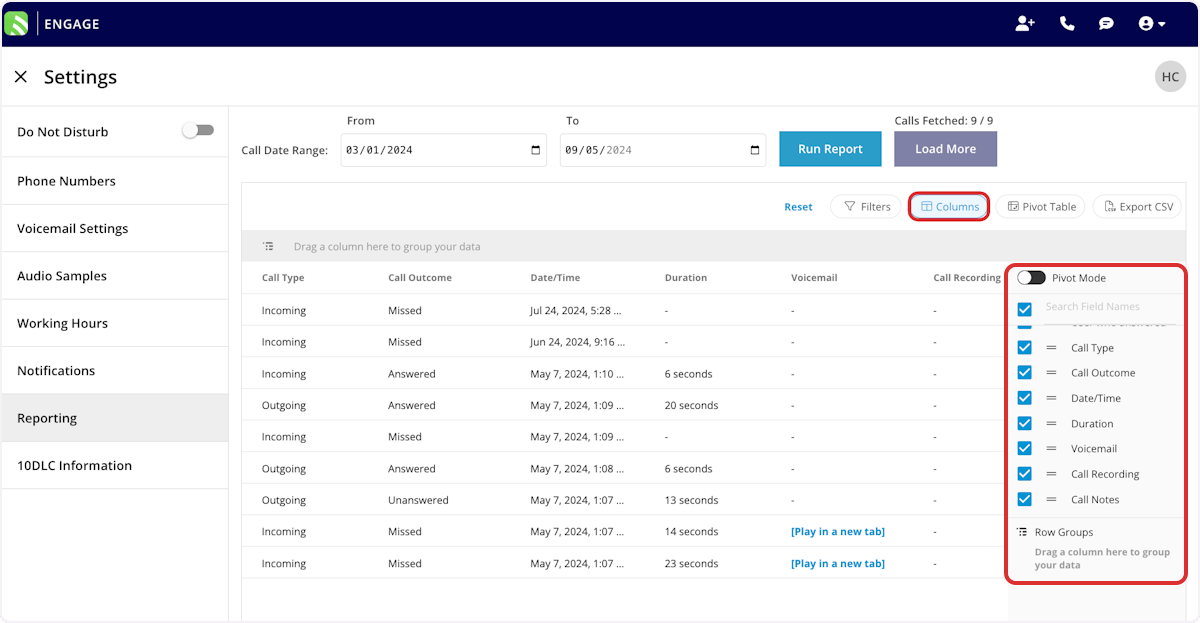
 3. Select **Columns** to choose which columns appear in the report. See the Default columns table below.
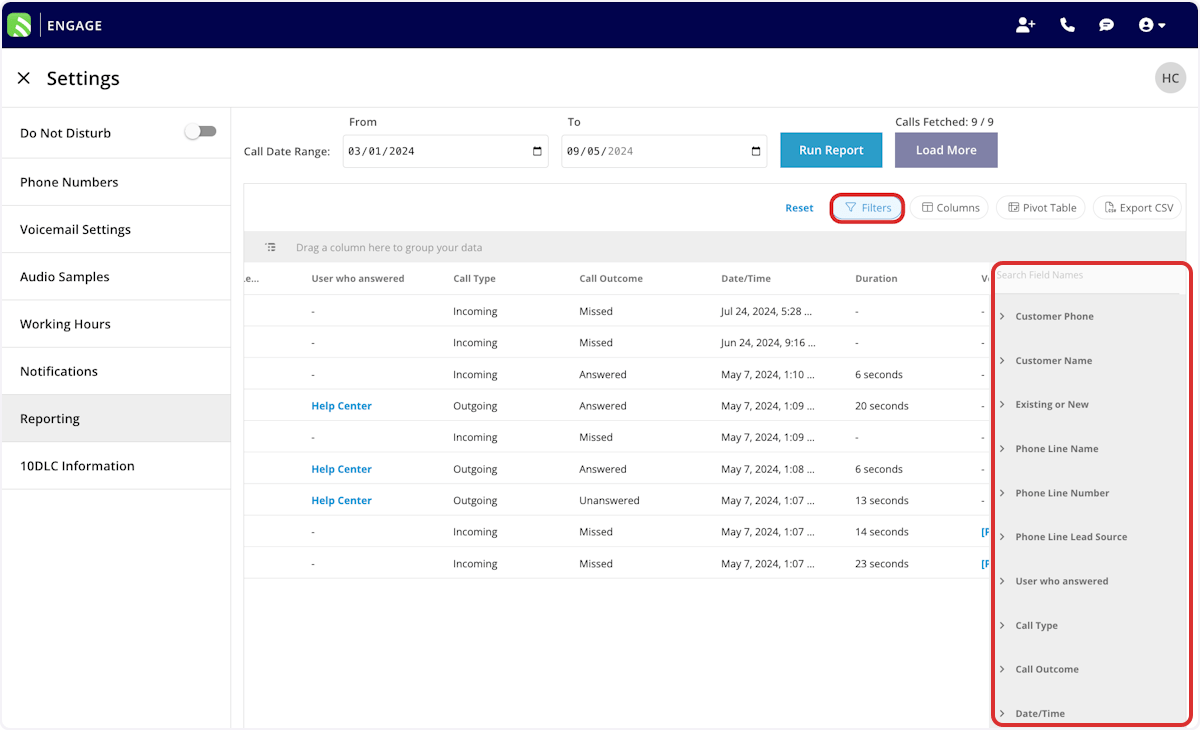
4. Before running the report, select the **Filters** icon to narrow the results. See the Filters section below.
5. Select **Run Report**.
## Default columns
The Engage report includes these columns by default. Select **Columns** to turn any of them on or off.
3. Select **Columns** to choose which columns appear in the report. See the Default columns table below.
4. Before running the report, select the **Filters** icon to narrow the results. See the Filters section below.
5. Select **Run Report**.
## Default columns
The Engage report includes these columns by default. Select **Columns** to turn any of them on or off.
 | **Column** | **What it holds** |
| -------------------------- | -------------------------------------------------- |
| **Customer Phone** | The customer's phone number. |
| **Customer Name** | The customer's name. |
| **Existing or New** | Whether the caller is an existing or new customer. |
| **Phone Line Name** | The friendly name of the Engage phone line. |
| **Phone Line Number** | The Engage phone number. |
| **Phone Line Lead Source** | The lead source attached to the phone line. |
| **User Who Answered** | The Engage user who answered the call. |
| **Call Type** | Incoming or outgoing. |
| **Call Outcome** | Answered, missed, or unanswered. |
| **Date/Time** | The date and time of the call. |
| **Duration** | The length of the call. |
| **Voicemail** | Select to play the voicemail. |
| **Call Recording** | Select to play the call recording. |
| **Call Notes** | Notes left on the call. |
## Filters
Set filters to narrow your results. From the **Filters** icon, choose how to filter each field:
| **Column** | **What it holds** |
| -------------------------- | -------------------------------------------------- |
| **Customer Phone** | The customer's phone number. |
| **Customer Name** | The customer's name. |
| **Existing or New** | Whether the caller is an existing or new customer. |
| **Phone Line Name** | The friendly name of the Engage phone line. |
| **Phone Line Number** | The Engage phone number. |
| **Phone Line Lead Source** | The lead source attached to the phone line. |
| **User Who Answered** | The Engage user who answered the call. |
| **Call Type** | Incoming or outgoing. |
| **Call Outcome** | Answered, missed, or unanswered. |
| **Date/Time** | The date and time of the call. |
| **Duration** | The length of the call. |
| **Voicemail** | Select to play the voicemail. |
| **Call Recording** | Select to play the call recording. |
| **Call Notes** | Notes left on the call. |
## Filters
Set filters to narrow your results. From the **Filters** icon, choose how to filter each field:
 | **Field** | **How you filter it** |
| -------------------------- | ----------------------- |
| **Customer Phone** | By contents. |
| **Customer Name** | By contents. |
| **Existing or New** | Select existing or new. |
| **Phone Line Name** | Select a name. |
| **Phone Line Number** | Select a number. |
| **Phone Line Lead Source** | Select a lead source. |
| **User Who Answered** | By contents. |
| **Call Type** | Select a type. |
| **Call Outcome** | Select an outcome. |
| **Date/Time** | By date. |
| **Duration** | By contents. |
| **Call Notes** | By contents. |
When you filter by contents, choose an operator and then enter the values to match. The operators work the same way across FieldPulse reports:
| **Operator** | **Retrieves data** | **Example** | **Data retrieved** |
| ---------------------------- | ------------------------------------------ | --------------------------------------------- | ------------------------------------------- |
| **Equals** | Equal to a specified value | Created By — Equals Tom Gause | Records created by Tom Gause only |
| **Not Equal** | Different from a specified value | Tag — Not Equal to HVAC | All records except those using the HVAC tag |
| **Less Than** | Lower than a specified value | #ID — Less than 1144 | All records below #1144 |
| **Less Than or Equal To** | Lower than or equal to a specified value | Date/Time — Less than or equal to 12/13/2023 | Records on or before 12/13/2023 |
| **Greater Than** | Greater than a specified value | Duration — Greater than 60 minutes | Records longer than 60 minutes |
| **Greater Than or Equal To** | Greater than or equal to a specified value | Date/Time — Greater than or equal to 1/1/2024 | Records on or after 1/1/2024 |
| **In Range** | Including and between two specified values | #ID — Between 1225 and 1236 | Records with #IDs between 1225 and 1236 |
| **Starts With** | Begins with a specified value | Title — Annual | Records beginning with Annual |
| **Ends With** | Ends with a specified value | Location — TX | Records ending with TX |
| **Blank** | No values in the field | Subtitle | Records with a blank subtitle |
| **Not Blank** | Values in the field | Notes | Records with values in the notes field |
## Related articles
* [Engage Overview](/add-ons/engage/overview)
* [How to Assign a Phone Number to a Lead Source](/add-ons/engage/assign-number-lead-source)
* [How to Create Custom Tags in Engage](/add-ons/engage/custom-tags)
* [How to Use Raw Data Reporting](/reporting/raw-data/using-raw-data-reporting)
Your Engage report is working when you set a date range, run it, and the columns and filters you chose narrow the call data to the exact question you're answering — like which lead source drove the most answered calls last month.
## Related topics
- [How to Create Custom Tags in Engage](/add-ons/engage/custom-tags.md)
- [How to Assign a Phone Number to a Lead Source](/add-ons/engage/assign-number-lead-source.md)
- [Engage Phone System](/add-ons/engage/index.md)
- [How to Create Task Reports](/reporting/raw-data/task-reports.md)
| **Field** | **How you filter it** |
| -------------------------- | ----------------------- |
| **Customer Phone** | By contents. |
| **Customer Name** | By contents. |
| **Existing or New** | Select existing or new. |
| **Phone Line Name** | Select a name. |
| **Phone Line Number** | Select a number. |
| **Phone Line Lead Source** | Select a lead source. |
| **User Who Answered** | By contents. |
| **Call Type** | Select a type. |
| **Call Outcome** | Select an outcome. |
| **Date/Time** | By date. |
| **Duration** | By contents. |
| **Call Notes** | By contents. |
When you filter by contents, choose an operator and then enter the values to match. The operators work the same way across FieldPulse reports:
| **Operator** | **Retrieves data** | **Example** | **Data retrieved** |
| ---------------------------- | ------------------------------------------ | --------------------------------------------- | ------------------------------------------- |
| **Equals** | Equal to a specified value | Created By — Equals Tom Gause | Records created by Tom Gause only |
| **Not Equal** | Different from a specified value | Tag — Not Equal to HVAC | All records except those using the HVAC tag |
| **Less Than** | Lower than a specified value | #ID — Less than 1144 | All records below #1144 |
| **Less Than or Equal To** | Lower than or equal to a specified value | Date/Time — Less than or equal to 12/13/2023 | Records on or before 12/13/2023 |
| **Greater Than** | Greater than a specified value | Duration — Greater than 60 minutes | Records longer than 60 minutes |
| **Greater Than or Equal To** | Greater than or equal to a specified value | Date/Time — Greater than or equal to 1/1/2024 | Records on or after 1/1/2024 |
| **In Range** | Including and between two specified values | #ID — Between 1225 and 1236 | Records with #IDs between 1225 and 1236 |
| **Starts With** | Begins with a specified value | Title — Annual | Records beginning with Annual |
| **Ends With** | Ends with a specified value | Location — TX | Records ending with TX |
| **Blank** | No values in the field | Subtitle | Records with a blank subtitle |
| **Not Blank** | Values in the field | Notes | Records with values in the notes field |
## Related articles
* [Engage Overview](/add-ons/engage/overview)
* [How to Assign a Phone Number to a Lead Source](/add-ons/engage/assign-number-lead-source)
* [How to Create Custom Tags in Engage](/add-ons/engage/custom-tags)
* [How to Use Raw Data Reporting](/reporting/raw-data/using-raw-data-reporting)
Your Engage report is working when you set a date range, run it, and the columns and filters you chose narrow the call data to the exact question you're answering — like which lead source drove the most answered calls last month.
## Related topics
- [How to Create Custom Tags in Engage](/add-ons/engage/custom-tags.md)
- [How to Assign a Phone Number to a Lead Source](/add-ons/engage/assign-number-lead-source.md)
- [Engage Phone System](/add-ons/engage/index.md)
- [How to Create Task Reports](/reporting/raw-data/task-reports.md)