> ## Documentation Index
> Fetch the complete documentation index at: https://help.fieldpulse.com/llms.txt
> Use this file to discover all available pages before exploring further.
# Setting Up Engage via SIP (DID)
> Set up SIP and DID in FieldPulse Engage so VoIP desk phones and direct-dial numbers place and receive calls through your phone system.
> **Who uses this:** Admins and Team Managers who manage Engage phone lines. **Availability:** United States and Canada · requires the Engage add-on.
SIP (Session Initiation Protocol) lets [Engage](https://www.fieldpulse.com/features/engage) calls run through cloud-based VoIP desk phones and computers instead of only the Engage app, and DID (Direct Inward Dialing) rings a phone number straight through to a specific phone. You set up SIP from Engage settings by creating a SIP domain, adding credentials for each phone number, and enabling SIP on each phone line.
## Overview
When your office runs on desk phones, your phone system and your customer records live in two different places. Connecting Engage via SIP puts those calls on the same system as the rest of your business. SIP is the technology that carries real-time calls over the internet, so cloud-based VoIP phones and computers can place and receive Engage calls. DID gives a phone number a direct path to a specific phone, so callers reach the right person without going through a traditional PBX system or a human operator.
Engage SIP currently supports:
* Incoming calls
* Outgoing calls
* Hold
* Transfer
Caller ID is **not** currently supported for SIP phones.
## Before you begin
* Confirm **Engage is enabled** on your account. Engage is available in the United States and Canada; to enable it, email [support@fieldpulse.com](mailto:support@fieldpulse.com) or use the chat feature in the bottom right corner of your screen. See [Engage Overview](/add-ons/engage/overview).
* **Complete 10DLC registration.** 10DLC registration must be complete before you can use SIP. See [Setting Up 10DLC Compliance Registration](/add-ons/engage/10dlc-compliance).
* **Use a cloud-based VoIP phone or computer.** The devices you connect over SIP must be cloud based. For a Yealink desk phone, see [Setting Up a Yealink VoIP Phone](/add-ons/engage/yealink-voip).
* **Confirm you have administrative access to your VoIP phone.** If you purchased the phone through another provider, you may not have administrative access — contact that provider, or purchase a new VoIP phone if they cannot grant it.
* **Know which phone numbers you are connecting.** You set up SIP credentials and enable SIP for each phone number individually.
FieldPulse recommends Grandstream and Yealink VoIP phone models for the best performance.
## Step-by-step setup
1. Open **Engage** and log in with the same credentials you use for your FieldPulse account.
2. Select the **gear icon** in the upper-right corner to open settings.
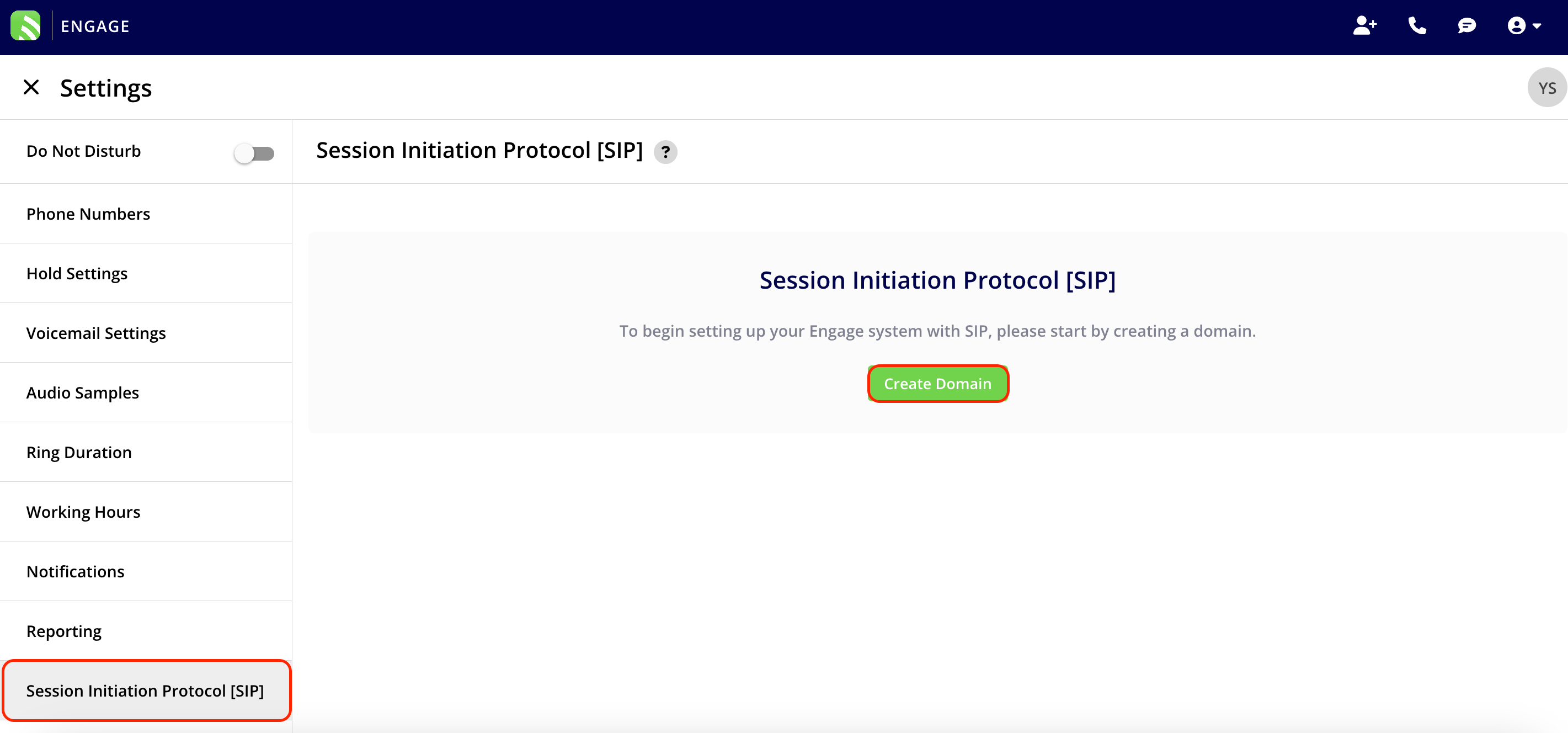
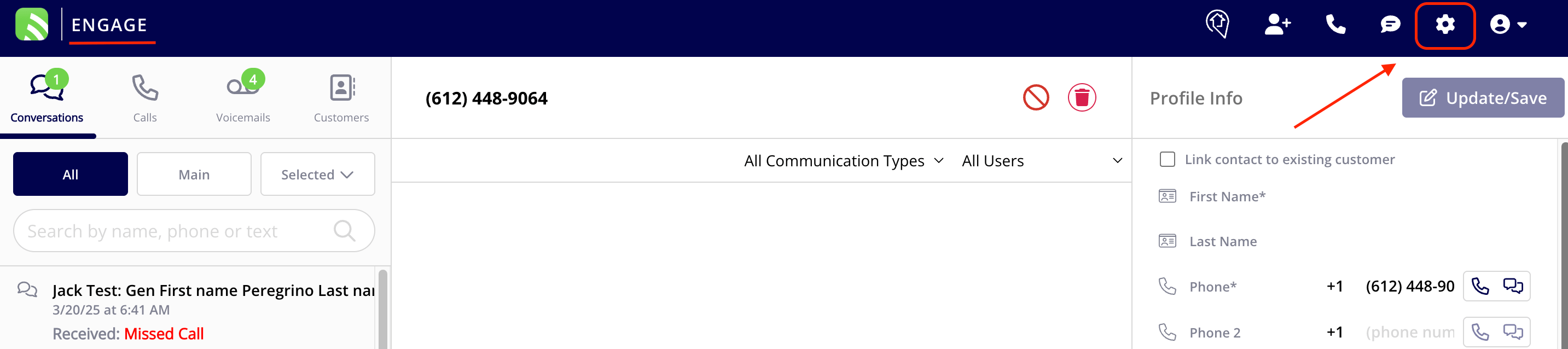 3. In the left-hand menu, select the **Session Initiation Protocol (SIP)** tab.
4. Select **Create Domain** to start setting up your Engage system with SIP.
3. In the left-hand menu, select the **Session Initiation Protocol (SIP)** tab.
4. Select **Create Domain** to start setting up your Engage system with SIP.
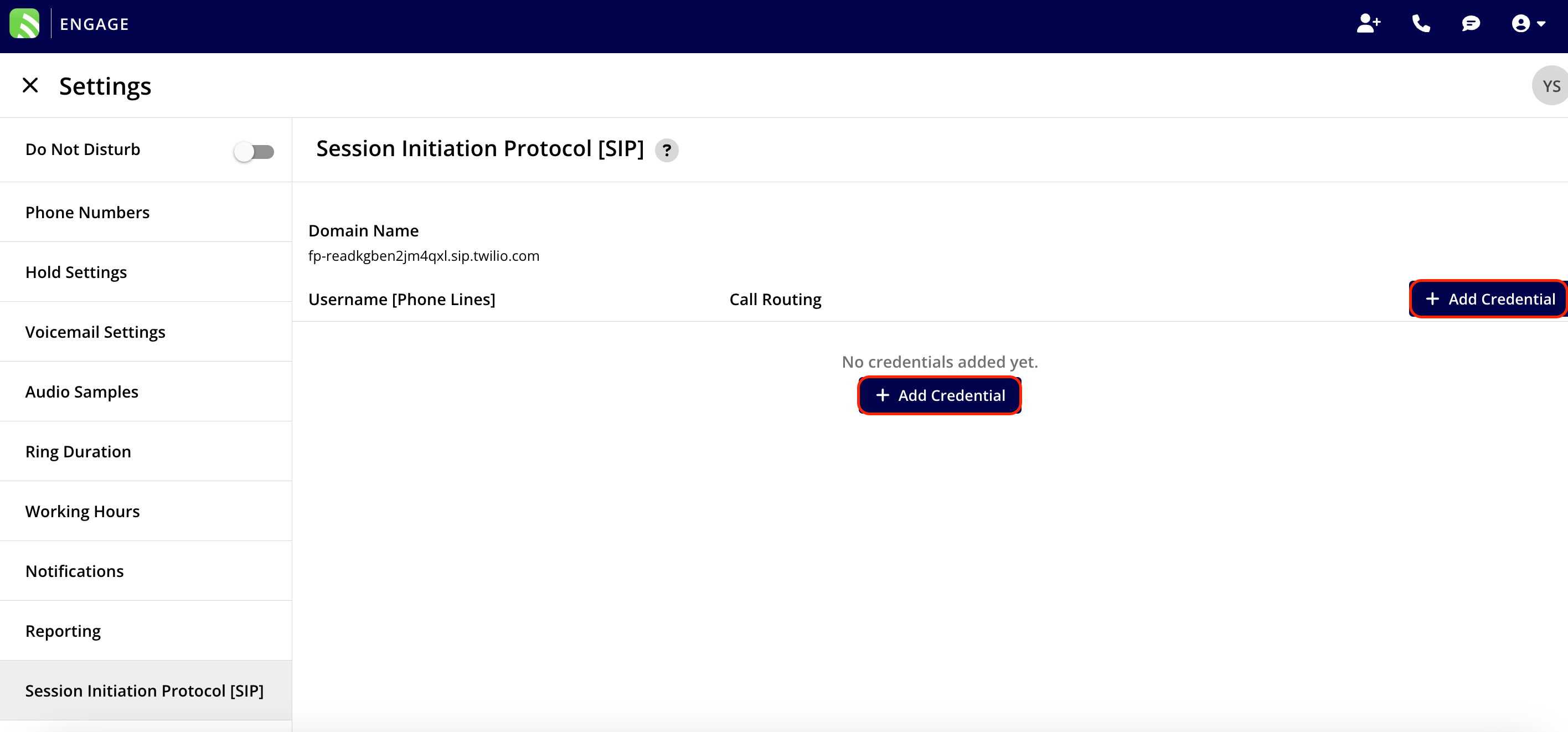
 5. Select either **Add Credential** button to create credentials for a phone number. Set up credentials for **each** phone number you want to use with SIP.
 6. In the **Set up new SIP Credentials** window, choose the phone line under **Username \[Phone Lines]**, enter a password, and select **Add Credential**.
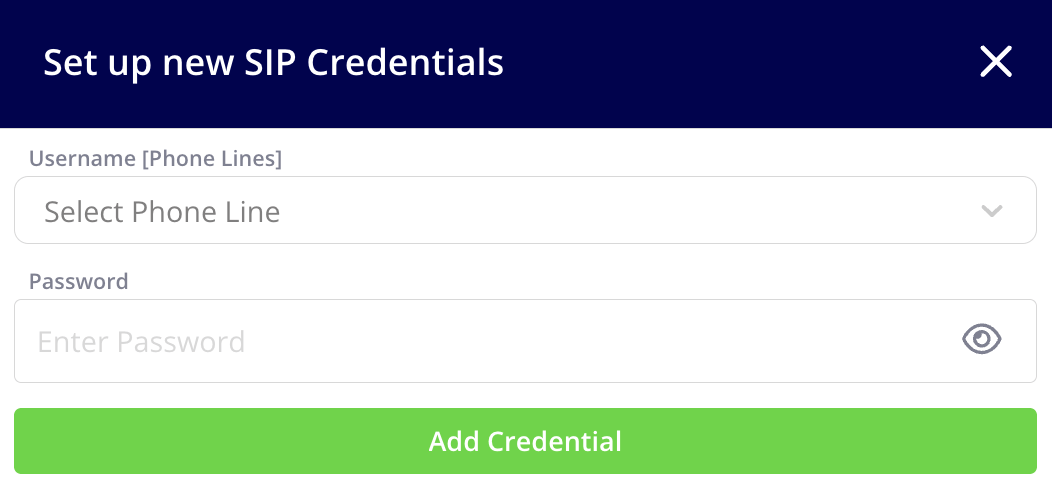 Your password must be a minimum of 12 characters, contain at least 1 digit, and have mixed case (upper and lowercase).
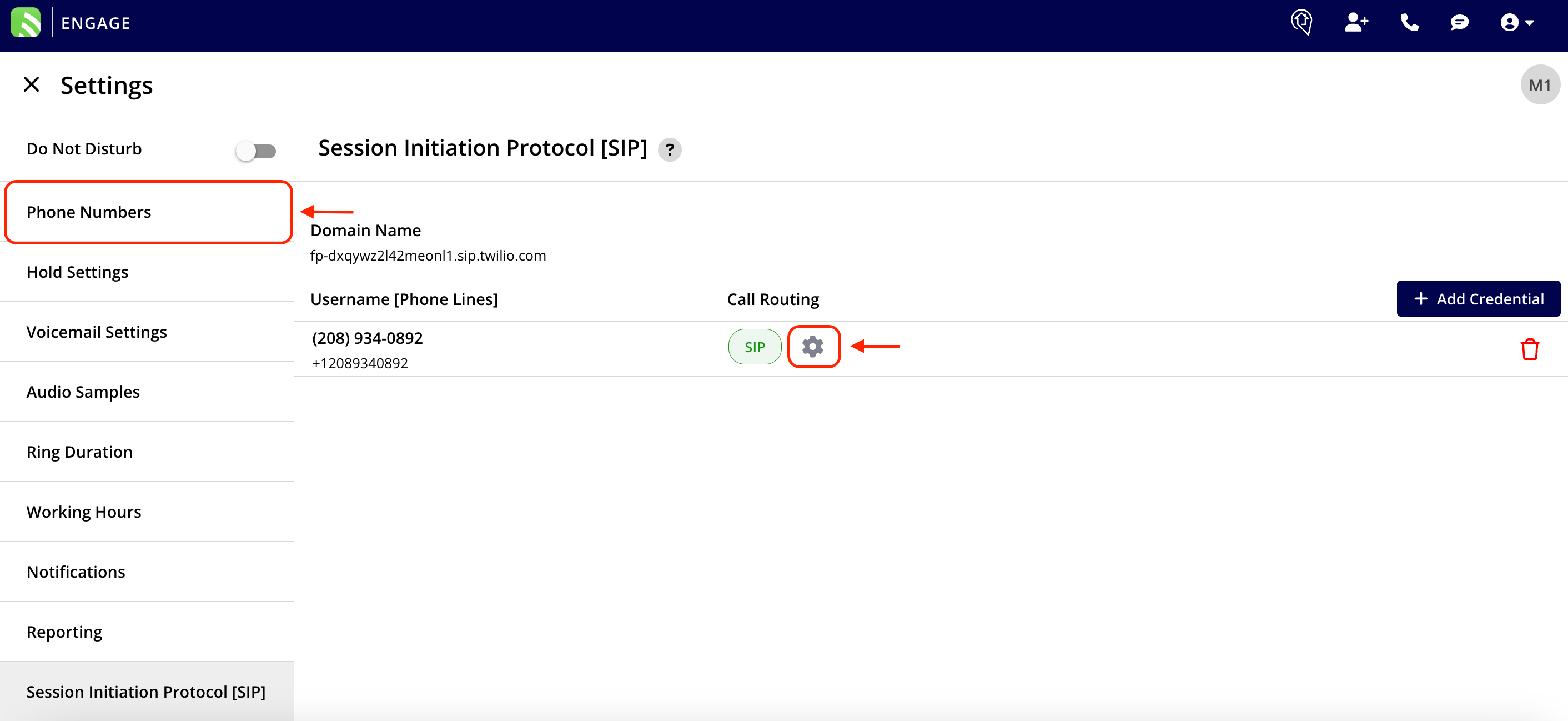
7. Go to the **Phone Numbers** tab in the left-hand menu — or select the **gear icon** next to a phone line as a shortcut.
Your password must be a minimum of 12 characters, contain at least 1 digit, and have mixed case (upper and lowercase).
7. Go to the **Phone Numbers** tab in the left-hand menu — or select the **gear icon** next to a phone line as a shortcut.
 8. On the phone line, scroll to the **SIP Settings** header and toggle on **Enable SIP**. Do this for **each** phone number you want to route through SIP.
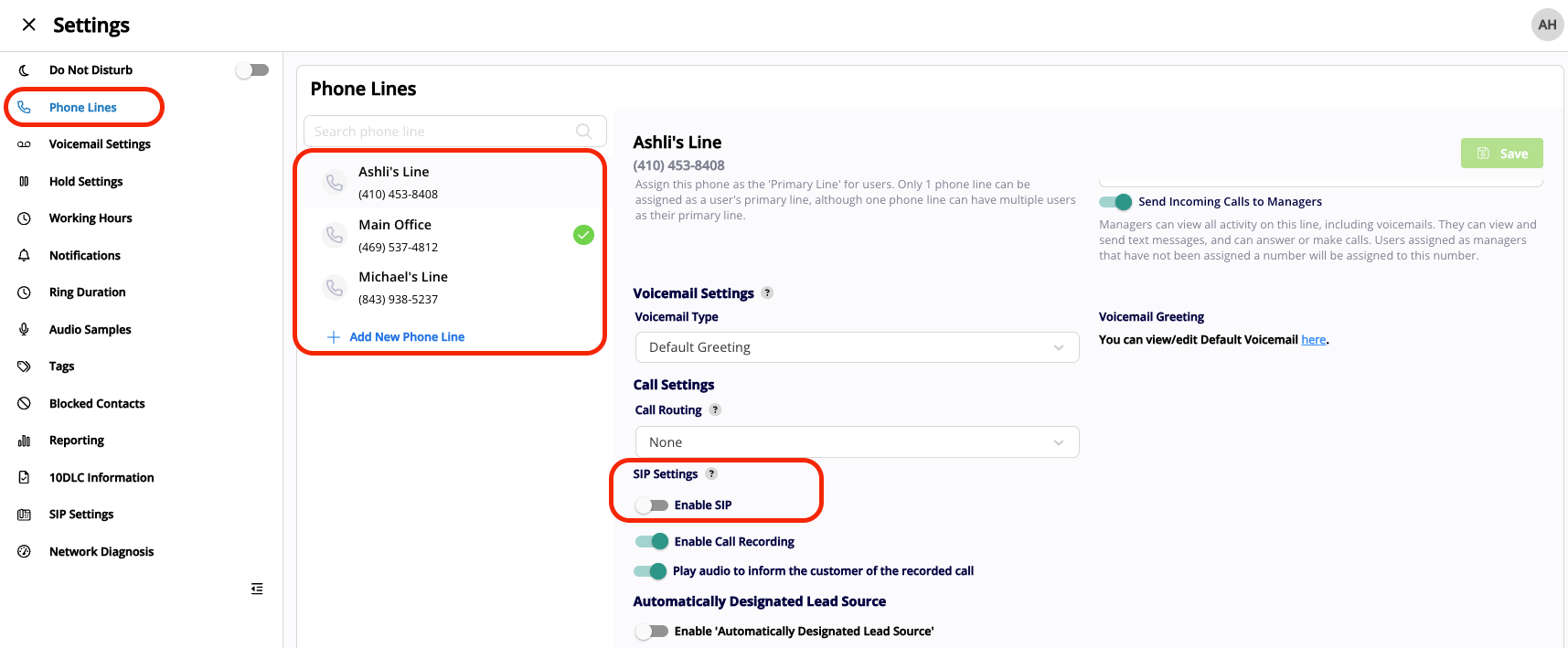 9. Select **Save**.
## Settings reference
| **Setting** | **What to enter** |
| --------------------------- | ------------------------------------------------------------------------------------------------------------------------------ |
| **SIP credential password** | At least 12 characters, at least 1 digit, mixed upper and lower case. Required for each phone number's credentials. |
| **Enable SIP** | Toggle on under **SIP Settings** on each phone line to route that phone number through SIP. Select **Save** after changing it. |
## Related articles
* [Engage Overview](/add-ons/engage/overview)
* [Setting Up 10DLC Compliance Registration](/add-ons/engage/10dlc-compliance)
* [Setting Up a Yealink VoIP Phone](/add-ons/engage/yealink-voip)
* [Phone Number Format (E.164) Details](/add-ons/engage/phone-number-format)
* [Troubleshooting Dropped or Rough Engage Calls](/add-ons/engage/network-diagnosis)
Your SIP setup is working when each phone number has its own credentials, **Enable SIP** is toggled on and saved for every line you want to route, and your VoIP phone can place and receive Engage calls.
## Related topics
- [Connecting Engage via SIP (Session Initiation Protocol) & DID (Direct Inward Dialing)](/features-add-ons/engage-phone-system/hardware-advanced-setup/connecting-engage-via-sip-session-initiation-protocol-did-direct-inward-dialing.md)
- [Engage Overview](/features-add-ons/engage-phone-system/engage-overview.md)
- [Hardware & Advanced Setup](/features-add-ons/engage-phone-system/hardware-advanced-setup/index.md)
- [Purchase Orders](/using-fieldpulse/purchase-orders/purchase-orders.md)
- [Customer Communications](/using-fieldpulse/communications-notifications/customer-communications.md)
9. Select **Save**.
## Settings reference
| **Setting** | **What to enter** |
| --------------------------- | ------------------------------------------------------------------------------------------------------------------------------ |
| **SIP credential password** | At least 12 characters, at least 1 digit, mixed upper and lower case. Required for each phone number's credentials. |
| **Enable SIP** | Toggle on under **SIP Settings** on each phone line to route that phone number through SIP. Select **Save** after changing it. |
## Related articles
* [Engage Overview](/add-ons/engage/overview)
* [Setting Up 10DLC Compliance Registration](/add-ons/engage/10dlc-compliance)
* [Setting Up a Yealink VoIP Phone](/add-ons/engage/yealink-voip)
* [Phone Number Format (E.164) Details](/add-ons/engage/phone-number-format)
* [Troubleshooting Dropped or Rough Engage Calls](/add-ons/engage/network-diagnosis)
Your SIP setup is working when each phone number has its own credentials, **Enable SIP** is toggled on and saved for every line you want to route, and your VoIP phone can place and receive Engage calls.
## Related topics
- [Connecting Engage via SIP (Session Initiation Protocol) & DID (Direct Inward Dialing)](/features-add-ons/engage-phone-system/hardware-advanced-setup/connecting-engage-via-sip-session-initiation-protocol-did-direct-inward-dialing.md)
- [Engage Overview](/features-add-ons/engage-phone-system/engage-overview.md)
- [Hardware & Advanced Setup](/features-add-ons/engage-phone-system/hardware-advanced-setup/index.md)
- [Purchase Orders](/using-fieldpulse/purchase-orders/purchase-orders.md)
- [Customer Communications](/using-fieldpulse/communications-notifications/customer-communications.md)