> ## Documentation Index
> Fetch the complete documentation index at: https://help.fieldpulse.com/llms.txt
> Use this file to discover all available pages before exploring further.
# Setting Up Voicemail
> Set a default voicemail greeting for every FieldPulse Engage phone line using text to speech or a recording, then override it on any single line.
> **Who uses this:** Admins and Team Managers who manage Engage phone lines. Assignment Users and Limited Agents have no Engage access. **Availability:** Engage add-on · United States and Canada.
Voicemail is the greeting a caller hears when a call to an [Engage](https://www.fieldpulse.com/features/engage) phone line goes unanswered. You set one default voicemail greeting that covers every phone line under **Engage** > **Settings** > **Voicemail Settings**, and you can give an individual line its own greeting under **Phone Numbers**. Every greeting is either text to speech — you type the message and Engage reads it — or an audio recording you made yourself.
## Overview
Engage voicemail works on two levels. The **default voicemail greeting** plays on any phone line that has no voicemail set for it, so one message covers the whole account. A **custom voicemail greeting** on an individual phone line replaces the default on that line only, which is how you give one line a Spanish greeting, an after-hours message, or a location-specific message while every other line keeps the default.
Each greeting uses one of these formats:
| **Greeting type** | **What it does** |
| ----------------------------------------------------- | ------------------------------------------------------------------------------- |
| **Text to Speech** | Engage reads the message you type aloud to the caller. |
| **Audio Recording** | Plays an audio sample you recorded or uploaded under the **Audio Samples** tab. |
| **Default Voicemail** *(individual phone lines only)* | Plays the account's default greeting on this line. |
## Before you begin
* Confirm **Engage** is enabled on your account. The FieldPulse team turns Engage on — contact [support@fieldpulse.com](mailto:support@fieldpulse.com) or use the chat feature in the bottom right corner of your screen.
* Confirm your role has Engage access. Assignment Users and Limited Agents do not have access to Engage — see [Engage User Roles Details](/add-ons/engage/user-roles).
* To use an audio recording, record or upload the audio first under the **Audio Samples** tab — see [Setting Up Audio Samples](/add-ons/engage/audio-samples).
## Step-by-step setup
### Set the default voicemail greeting
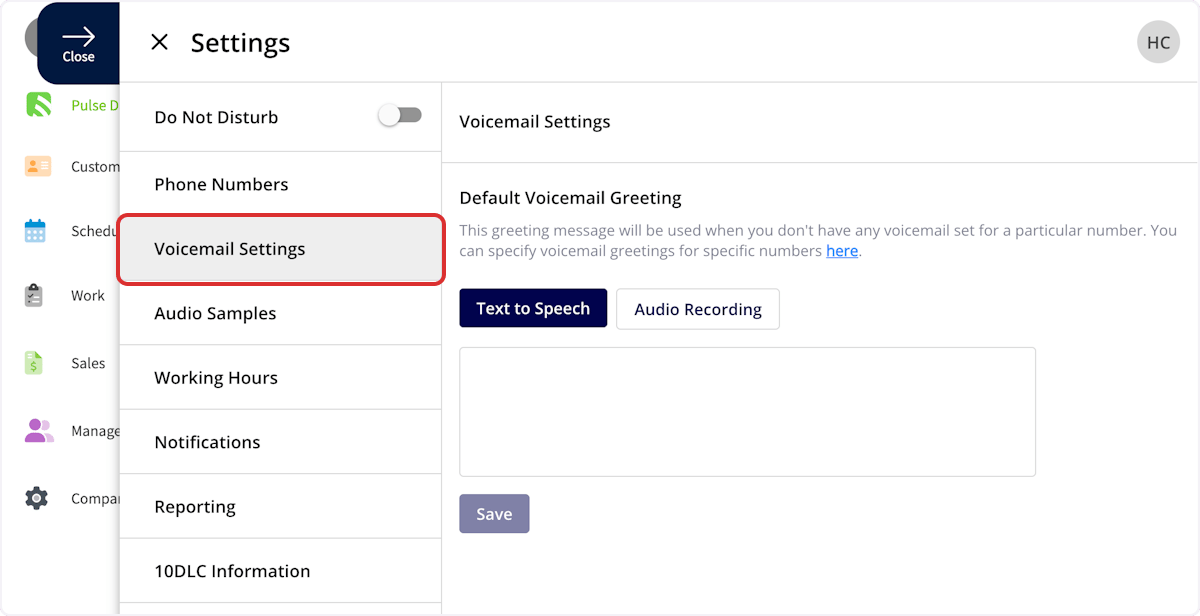
The default voicemail greeting plays on every Engage phone line that does not have a greeting of its own.
1. Go to **Engage** > **Settings** > **Voicemail Settings**.
2. Select **Text to Speech** to type a message for Engage to read, or **Audio Recording** to use a greeting you recorded.
3. Enter the message, or choose the recording.
4. Select **Save**.
 ### Set a greeting for one phone line
A custom voicemail greeting on a phone line overrides the default greeting for that line.
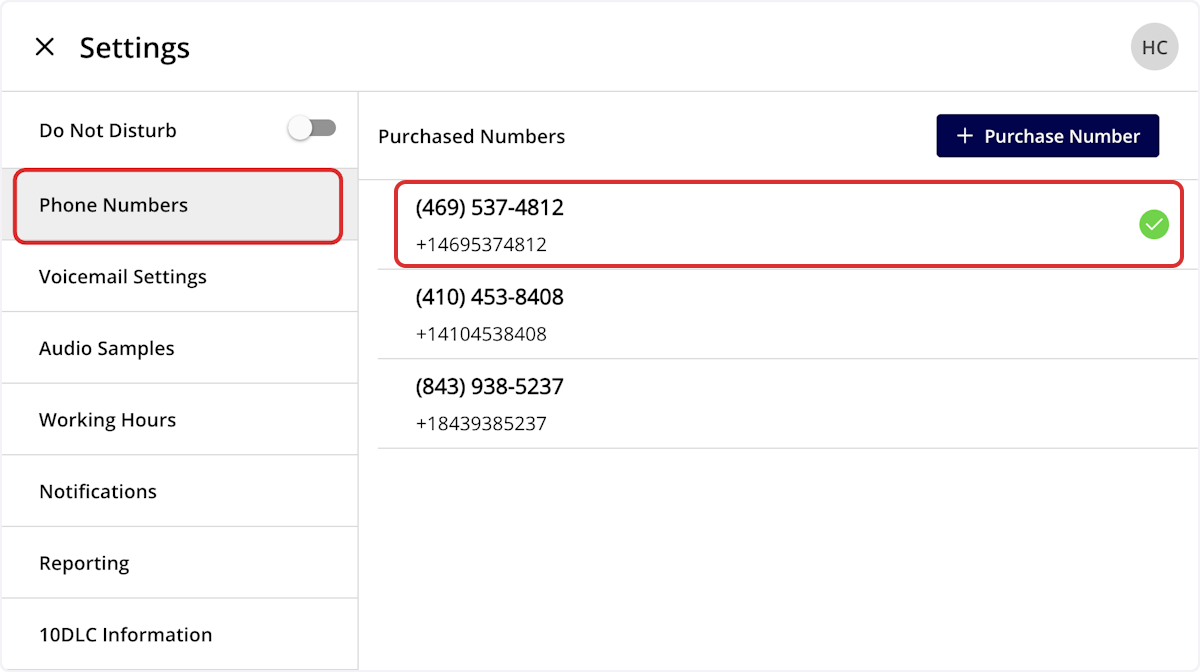
1. Go to **Engage** > **Settings** > **Phone Numbers**.
2. Select the phone line you want to change.
### Set a greeting for one phone line
A custom voicemail greeting on a phone line overrides the default greeting for that line.
1. Go to **Engage** > **Settings** > **Phone Numbers**.
2. Select the phone line you want to change.
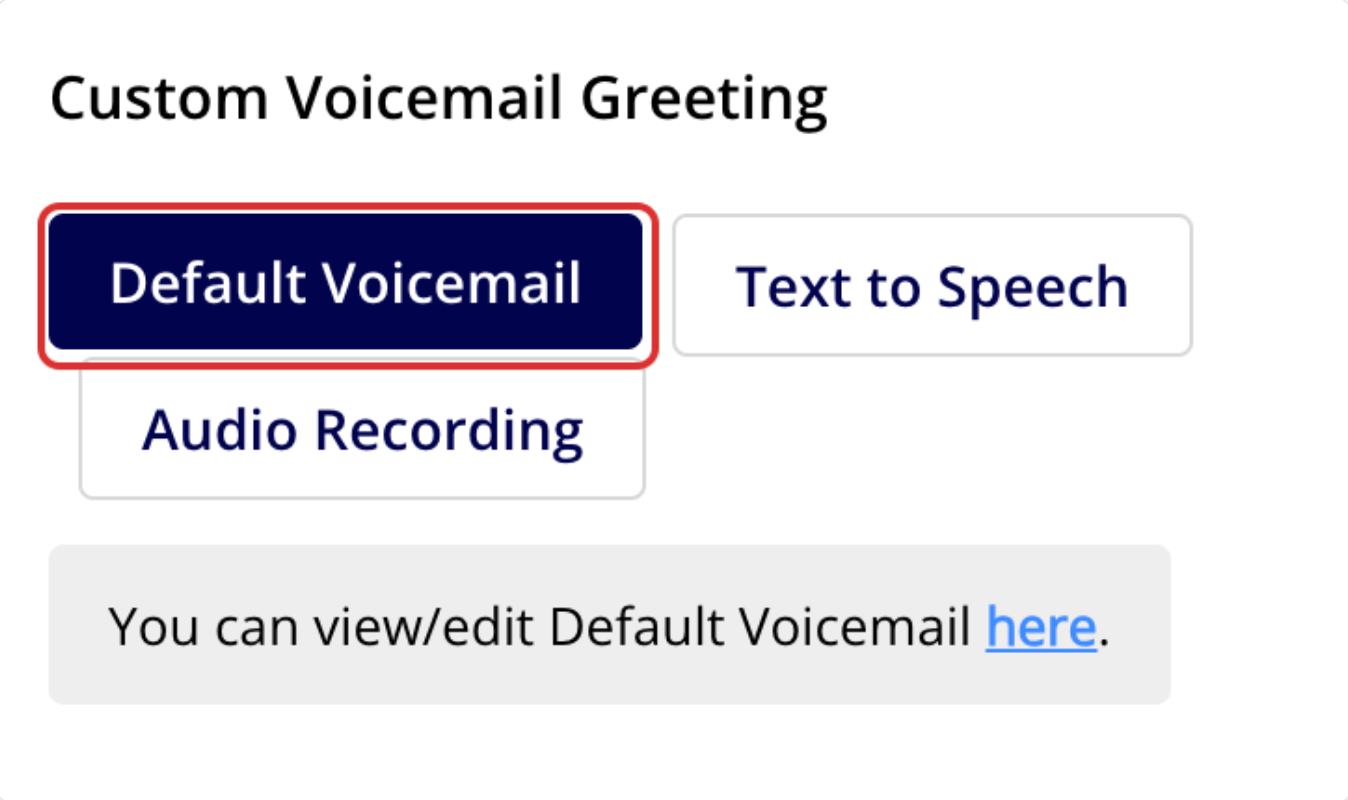
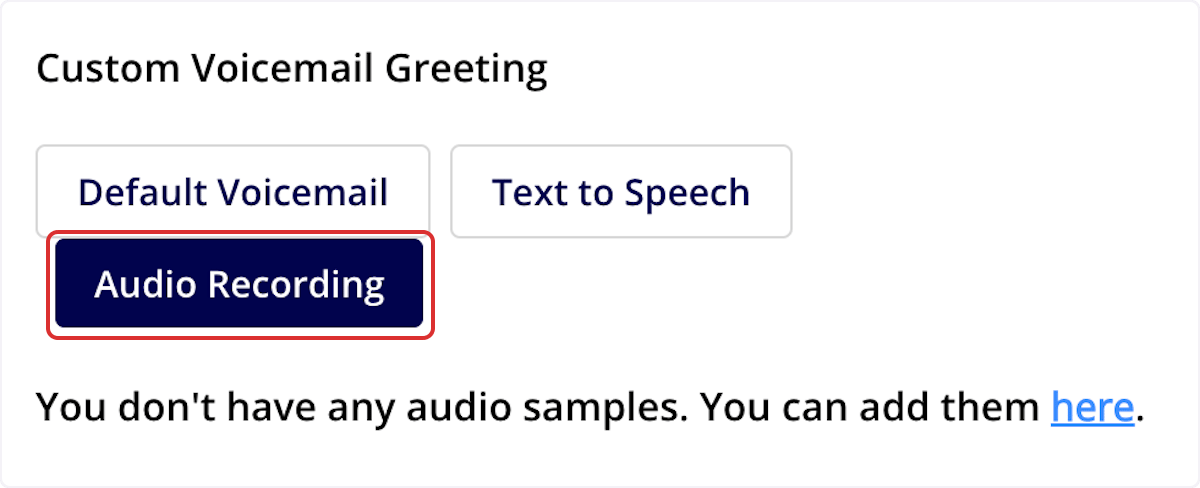
 3. Under **Custom Voicemail Greeting**, select **Default Voicemail**, **Text to Speech**, or **Audio Recording**.
4. Enter the message for **Text to Speech**, or choose your sample for **Audio Recording**. **Default Voicemail** needs nothing more — the line plays the account default, and you can view or edit that default back under **Voicemail Settings**.
5. Select **Save** before navigating away from the page.
3. Under **Custom Voicemail Greeting**, select **Default Voicemail**, **Text to Speech**, or **Audio Recording**.
4. Enter the message for **Text to Speech**, or choose your sample for **Audio Recording**. **Default Voicemail** needs nothing more — the line plays the account default, and you can view or edit that default back under **Voicemail Settings**.
5. Select **Save** before navigating away from the page.
 ## Settings reference
Supported audio file types differ by platform:
| **Platform** | **Supported file types** |
| -------------- | ------------------------ |
| **Web app** | .mp3 |
| **Mobile app** | .mp3 and .wav |
## Voicemail summaries
Every voicemail gets an AI-generated summary, written from the prompt set up under **Engage** > **Settings** > **Transcripts and Summaries** — see [Setting Up Call Transcripts and Summaries](/add-ons/engage/call-transcripts-summaries). Open a voicemail's details page to read the **Voicemail Summary** below the recording, on the web app and in the mobile app.
## FAQs
### Can archived or deleted voicemails be restored in Engage?
No. Once a voicemail has been archived in Engage, it cannot be restored. Save or act on any voicemail you need before you archive it.
## Related articles
* [Engage Overview](/add-ons/engage/overview)
* [Setting Up Audio Samples](/add-ons/engage/audio-samples)
* [Setting Up Call Transcripts and Summaries](/add-ons/engage/call-transcripts-summaries)
* [Phone Line Settings Details](/add-ons/engage/phone-line-settings)
* [Setting Up Call Routing](/add-ons/engage/call-routing)
* [Setting Up Ring Duration](/add-ons/engage/ring-duration)
* [Setting Up Working Hours](/add-ons/engage/working-hours)
Your setup is working when an unanswered test call plays the greeting you set — the default greeting on lines with no greeting of their own, and the custom greeting on any line you overrode.
## Related topics
- [Setting Up Ring Duration](/add-ons/engage/ring-duration.md)
- [Setting Up Audio Samples](/add-ons/engage/audio-samples.md)
- [Setting Up Call Routing](/add-ons/engage/call-routing.md)
- [Setting Up Engage Notifications](/add-ons/engage/notifications.md)
## Settings reference
Supported audio file types differ by platform:
| **Platform** | **Supported file types** |
| -------------- | ------------------------ |
| **Web app** | .mp3 |
| **Mobile app** | .mp3 and .wav |
## Voicemail summaries
Every voicemail gets an AI-generated summary, written from the prompt set up under **Engage** > **Settings** > **Transcripts and Summaries** — see [Setting Up Call Transcripts and Summaries](/add-ons/engage/call-transcripts-summaries). Open a voicemail's details page to read the **Voicemail Summary** below the recording, on the web app and in the mobile app.
## FAQs
### Can archived or deleted voicemails be restored in Engage?
No. Once a voicemail has been archived in Engage, it cannot be restored. Save or act on any voicemail you need before you archive it.
## Related articles
* [Engage Overview](/add-ons/engage/overview)
* [Setting Up Audio Samples](/add-ons/engage/audio-samples)
* [Setting Up Call Transcripts and Summaries](/add-ons/engage/call-transcripts-summaries)
* [Phone Line Settings Details](/add-ons/engage/phone-line-settings)
* [Setting Up Call Routing](/add-ons/engage/call-routing)
* [Setting Up Ring Duration](/add-ons/engage/ring-duration)
* [Setting Up Working Hours](/add-ons/engage/working-hours)
Your setup is working when an unanswered test call plays the greeting you set — the default greeting on lines with no greeting of their own, and the custom greeting on any line you overrode.
## Related topics
- [Setting Up Ring Duration](/add-ons/engage/ring-duration.md)
- [Setting Up Audio Samples](/add-ons/engage/audio-samples.md)
- [Setting Up Call Routing](/add-ons/engage/call-routing.md)
- [Setting Up Engage Notifications](/add-ons/engage/notifications.md)