> ## Documentation Index
> Fetch the complete documentation index at: https://help.fieldpulse.com/llms.txt
> Use this file to discover all available pages before exploring further.
# Setting Up Pulse Fleet Tracking
> Choose an Azuga GPS or dashcam plan, contact the FieldPulse team to enable fleet tracking, and watch your vehicles appear live on the schedule map.
> **Who uses this:** Teams tracking drivers and vehicles — Pulse Fleet Tracking handles fleets of any size. **Availability:** United States and Canada · Pulse Fleet Tracking add-on, delivered through FieldPulse's Azuga partnership — contact the FieldPulse team to enable it.
Pulse Fleet Tracking puts live GPS on every vehicle in your fleet, flags events like hard braking and speeding, and pulls reports that help cut fuel and maintenance costs. It runs through FieldPulse's Azuga partnership, and once it's on, your vehicles show up right on your FieldPulse schedule map. This page is the starting point for the whole feature: what you can get, how to turn it on, and where to go next.
## Overview
The workflow breakdown Pulse Fleet Tracking addresses is not knowing where your trucks are. Without live location, dispatch is guesswork, a customer asking "how far out is the tech?" gets a shrug, and unsafe driving or off-hours use goes unseen until it costs you. Pulse Fleet Tracking gives you real-time eyes on drivers and vehicles, and it handles fleets of any size.
Once enabled, Pulse Fleet Tracking shows up in FieldPulse two ways:
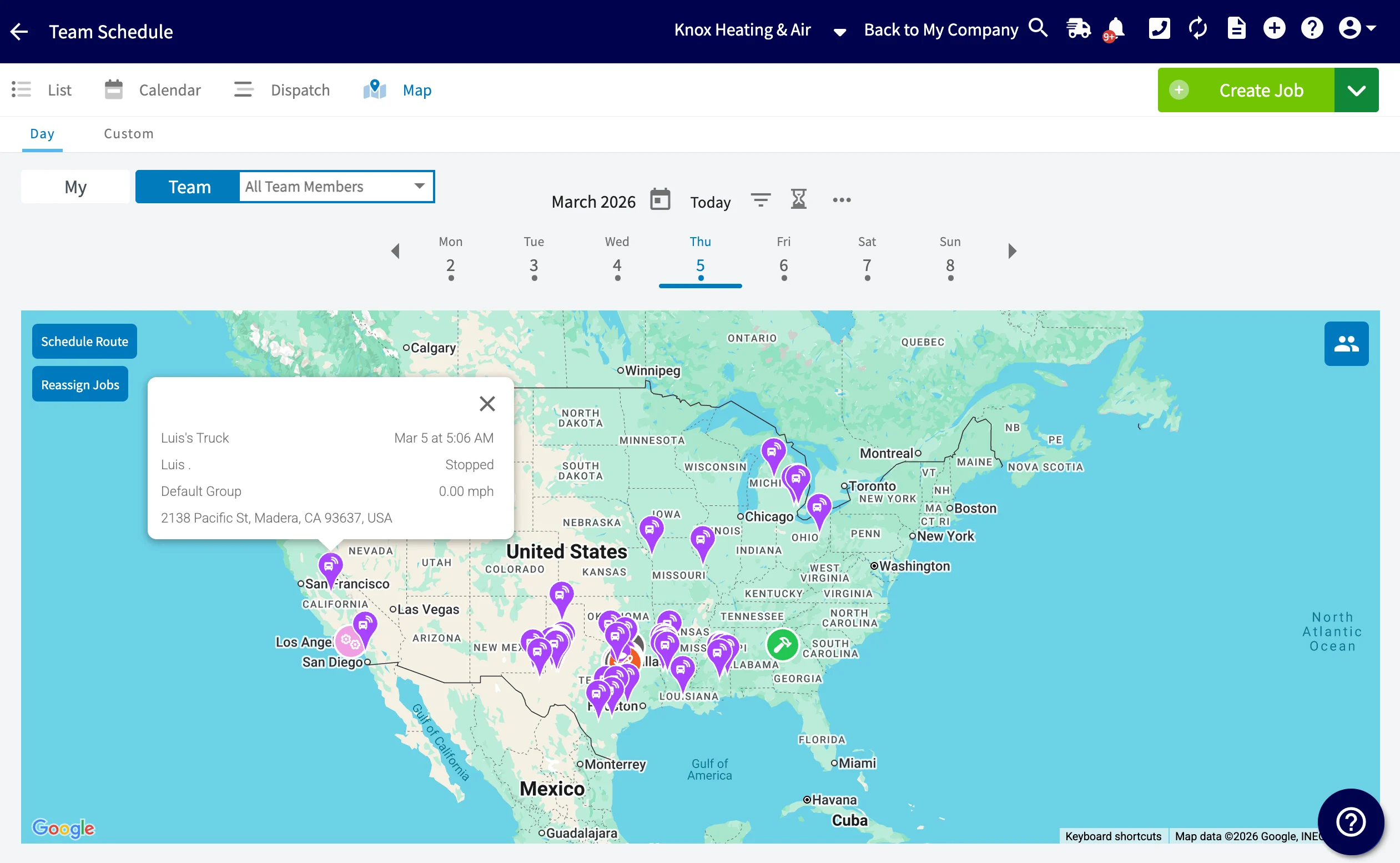
* **On the schedule map** — your vehicles appear as live GPS locations alongside your jobs.
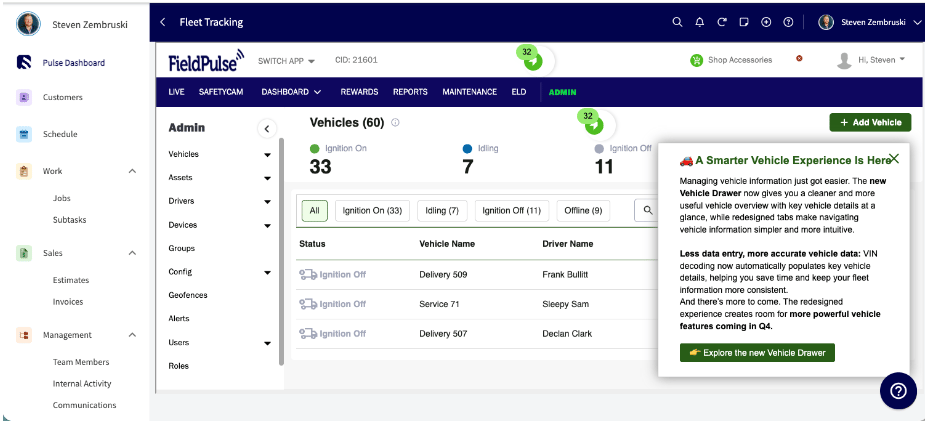
* **In the full Fleet Tracking dashboard** — open it from **Fleet Tracking** under **Management** in the left-side menu for reports, alerts, and geofences.
Beyond live locations, the platform includes:
* **Event reporting** — track events such as hard braking and speeding, and use the detailed reporting to improve vehicle efficiency and cut operating costs.
* **Driver Rewards Program** — improves your team's safety by reducing accidents and increasing productivity.
* **Asset tracking** — protects high-value gear from theft and unauthorized use, with real-time visibility of your equipment and simplified billing.
* **AI-powered smart detection** — clear evidence of road events and driver behavior, including distracted driving.
## Video walkthrough
## Offerings
Pulse Fleet Tracking comes in two Azuga plans. Both include the GPS datalogger hardware; the dashcam plan adds AI video.
| **Plan** | **Hardware** | **What's included** |
| ---------------------------------------------- | ------------------------------------------------------------ | ---------------------------------------------------------------------------------- |
| **Azuga GPS Flex Plan** | GPS Datalogger, plus the Azuga Fleet subscription (software) | GPS tracking, Maintenance Module, Driver Scoring, Engine Diagnostics, Speed Alerts |
| **Azuga GPS & Surfsight AI Dashcam Flex Plan** | GPS Datalogger and Azuga AI Dashcam | AI video telematics, Cloud DVR, and 10 minutes of live stream |
## Before you begin
* Pulse Fleet Tracking is an add-on delivered through Azuga, so it isn't turned on by default.
* It's available in the **US and Canada** only.
* Decide which plan fits your fleet — GPS only, or GPS plus AI dashcam — before you reach out.
## Step-by-step setup
Enabling Pulse Fleet Tracking runs through the FieldPulse team, since it involves Azuga hardware.
1. Contact FieldPulse at [support@fieldpulse.com](mailto:support@fieldpulse.com), or use the chat feature in the bottom right corner of your screen.
2. Tell the team which plan you want — the **Azuga GPS Flex Plan** or the **Azuga GPS & Surfsight AI Dashcam Flex Plan**.
3. Once your hardware is installed and your account is provisioned, select **Fleet Tracking** under **Management** in the left-side menu to reach your Fleet Tracking dashboard.
## How vehicle locations appear on the schedule map
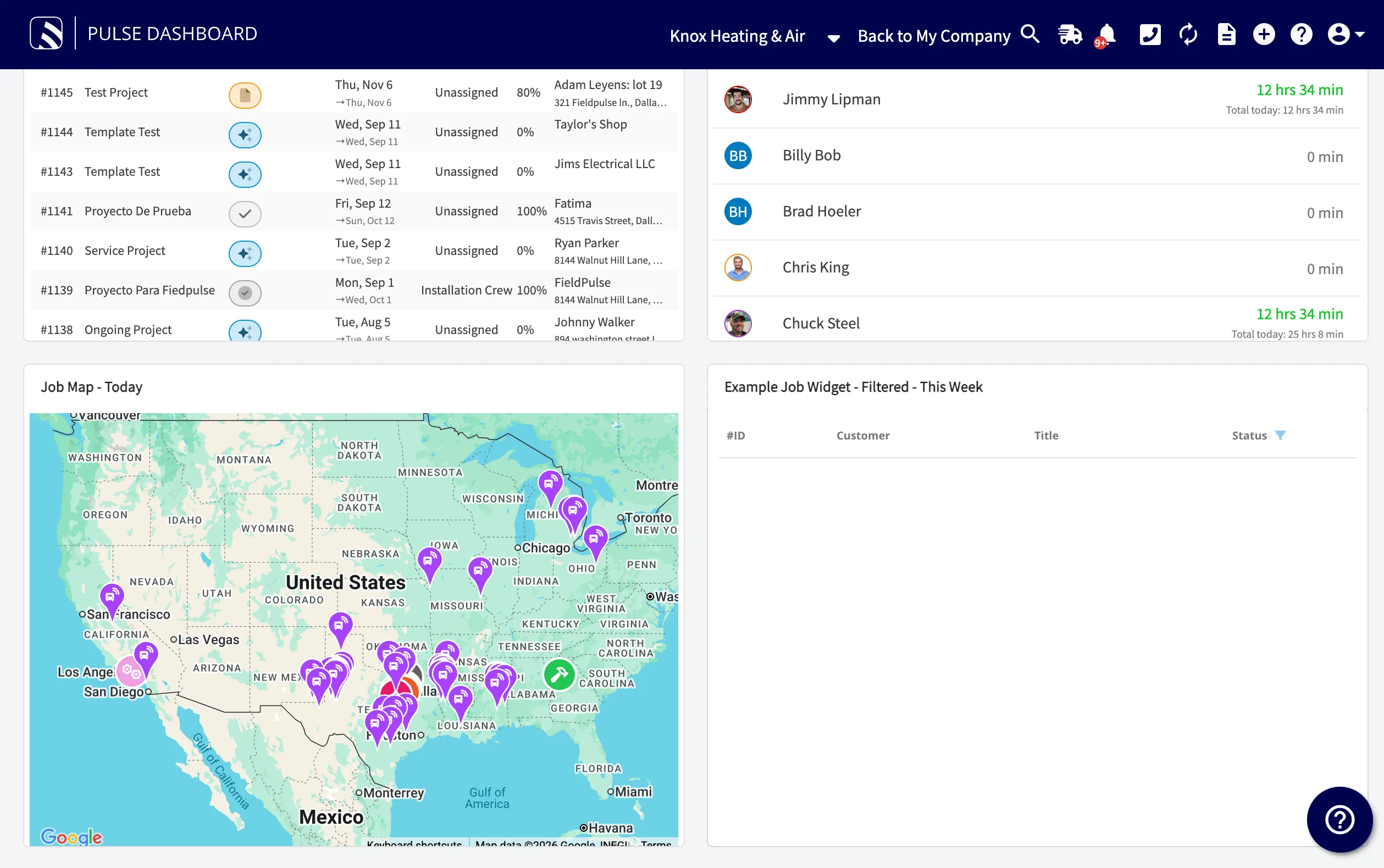
To keep locations current, the **Schedule Map** auto-refreshes every **60 seconds**, so you always see the latest GPS device locations. This auto-update runs everywhere the schedule map appears:
* The Schedule Map View page
* Your FieldPulse dashboard widgets
* The FieldPulse mobile app
For where the map lives day to day, see [How to Use the Schedule Map View](/scheduling-dispatch/dispatch/using-schedule-map-view).
## Viewing vehicle details
Select a vehicle from your fleet to open its details in the Vehicle Drawer, which brings together everything about that vehicle in one place:
* **Vehicle Profile** — make, model, VIN, assigned driver, odometer reading, and current status
* **Connected Hardware** — the GPS tracker and dashcam's connection status, signal strength, and diagnostics
From the Vehicle Drawer, you can also jump directly to related reports and maintenance records for that vehicle.
## FAQs
### Where is Pulse Fleet Tracking available?
Pulse Fleet Tracking is available in the US and Canada.
### How does Pulse Fleet Tracking integrate with FieldPulse?
Your vehicles appear on the FieldPulse schedule map view. You can also open the full dashboard by selecting **Fleet Tracking** in the left-side menu.
### How often does the location update?
GPS tracking updates at 1-minute intervals, and the schedule map auto-refreshes every 60 seconds.
### Is there geofencing?
Yes. You can create geofences for zones like your head office, a client location, or home, and every time a vehicle enters or exits a geofence it is logged; while creating a geofence, you can also set alerts that tell you when a vehicle enters or exits it. See [How to Create Geofences in Pulse Fleet Tracking](/add-ons/fleet/geofences).
### Can I get vehicle maintenance reminders?
Yes. You can set up alerts that tell you when the next service is due for a vehicle or asset.
### How do I monitor speeding?
Set up speeding alerts and pull speeding reports — including the maximum speed reached, the location, and the date and time.
### Does the ignition need to be on for the GPS tracker and dashcam to work?
Yes, both require the vehicle's ignition to be on. The dashcam has a standby mode and can stay on for up to 120 minutes after the ignition is turned off.
## Related articles
* [How to Create Geofences in Pulse Fleet Tracking](/add-ons/fleet/geofences)
* [How to Use the Schedule Map View](/scheduling-dispatch/dispatch/using-schedule-map-view)
Your setup is working when your vehicles appear as live GPS locations on the FieldPulse schedule map and the map refreshes their positions on its own every 60 seconds.
## Related topics
- [Fleet Tracking](/add-ons/fleet/index.md)
- [How to Create Geofences in Pulse Fleet Tracking](/add-ons/fleet/geofences.md)
- [How to Check Team Member Locations](/settings/users-teams/checking-team-locations.md)
- [Customer Communications Overview](/customers/communications/overview.md)
 ## FAQs
### Where is Pulse Fleet Tracking available?
Pulse Fleet Tracking is available in the US and Canada.
### How does Pulse Fleet Tracking integrate with FieldPulse?
Your vehicles appear on the FieldPulse schedule map view. You can also open the full dashboard by selecting **Fleet Tracking** in the left-side menu.
### How often does the location update?
GPS tracking updates at 1-minute intervals, and the schedule map auto-refreshes every 60 seconds.
### Is there geofencing?
Yes. You can create geofences for zones like your head office, a client location, or home, and every time a vehicle enters or exits a geofence it is logged; while creating a geofence, you can also set alerts that tell you when a vehicle enters or exits it. See [How to Create Geofences in Pulse Fleet Tracking](/add-ons/fleet/geofences).
### Can I get vehicle maintenance reminders?
Yes. You can set up alerts that tell you when the next service is due for a vehicle or asset.
### How do I monitor speeding?
Set up speeding alerts and pull speeding reports — including the maximum speed reached, the location, and the date and time.
### Does the ignition need to be on for the GPS tracker and dashcam to work?
Yes, both require the vehicle's ignition to be on. The dashcam has a standby mode and can stay on for up to 120 minutes after the ignition is turned off.
## Related articles
* [How to Create Geofences in Pulse Fleet Tracking](/add-ons/fleet/geofences)
* [How to Use the Schedule Map View](/scheduling-dispatch/dispatch/using-schedule-map-view)
Your setup is working when your vehicles appear as live GPS locations on the FieldPulse schedule map and the map refreshes their positions on its own every 60 seconds.
## Related topics
- [Fleet Tracking](/add-ons/fleet/index.md)
- [How to Create Geofences in Pulse Fleet Tracking](/add-ons/fleet/geofences.md)
- [How to Check Team Member Locations](/settings/users-teams/checking-team-locations.md)
- [Customer Communications Overview](/customers/communications/overview.md)
## FAQs
### Where is Pulse Fleet Tracking available?
Pulse Fleet Tracking is available in the US and Canada.
### How does Pulse Fleet Tracking integrate with FieldPulse?
Your vehicles appear on the FieldPulse schedule map view. You can also open the full dashboard by selecting **Fleet Tracking** in the left-side menu.
### How often does the location update?
GPS tracking updates at 1-minute intervals, and the schedule map auto-refreshes every 60 seconds.
### Is there geofencing?
Yes. You can create geofences for zones like your head office, a client location, or home, and every time a vehicle enters or exits a geofence it is logged; while creating a geofence, you can also set alerts that tell you when a vehicle enters or exits it. See [How to Create Geofences in Pulse Fleet Tracking](/add-ons/fleet/geofences).
### Can I get vehicle maintenance reminders?
Yes. You can set up alerts that tell you when the next service is due for a vehicle or asset.
### How do I monitor speeding?
Set up speeding alerts and pull speeding reports — including the maximum speed reached, the location, and the date and time.
### Does the ignition need to be on for the GPS tracker and dashcam to work?
Yes, both require the vehicle's ignition to be on. The dashcam has a standby mode and can stay on for up to 120 minutes after the ignition is turned off.
## Related articles
* [How to Create Geofences in Pulse Fleet Tracking](/add-ons/fleet/geofences)
* [How to Use the Schedule Map View](/scheduling-dispatch/dispatch/using-schedule-map-view)
Your setup is working when your vehicles appear as live GPS locations on the FieldPulse schedule map and the map refreshes their positions on its own every 60 seconds.
## Related topics
- [Fleet Tracking](/add-ons/fleet/index.md)
- [How to Create Geofences in Pulse Fleet Tracking](/add-ons/fleet/geofences.md)
- [How to Check Team Member Locations](/settings/users-teams/checking-team-locations.md)
- [Customer Communications Overview](/customers/communications/overview.md)