> ## Documentation Index
> Fetch the complete documentation index at: https://help.fieldpulse.com/llms.txt
> Use this file to discover all available pages before exploring further.
# How to Import a Pricebook
> Upload an existing pricebook from Excel, Google Sheets, or CSV straight into FieldPulse using the import tool, so you skip rebuilding every item by hand.
> **Who uses this:** Admins. **Availability:** Sales Suite add-on — the Pricebook must be enabled on your account.
You can import a pricebook you already keep in Excel, Google Sheets, or CSV directly into FieldPulse instead of rebuilding every flat-rate job by hand. Export your existing pricebook, fill in the FieldPulse template, and upload it — the import tool brings your pricing in for you.
## Overview
Importing a pricebook is the fastest way to stand up your [Pricebook](/add-ons/sales-suite/pricebook) when your pricing already lives in a spreadsheet. You download the **Pricebook Excel template**, move your pricing into it without changing the template's structure, and re-upload the completed file. FieldPulse notifies you once the pricebook has imported successfully.
## Before you begin
* Confirm the Pricebook is enabled on your account. If it isn't, contact the FieldPulse team at [support@fieldpulse.com](mailto:support@fieldpulse.com) or use the chat in the bottom-right corner of your screen.
* Have your existing pricebook ready in Excel, Google Sheets, or CSV format.
* No Excel? You can use Google Sheets instead — see [How to Self-Import Data With Google Sheets](/settings/data/self-import-google-sheets).
## Import your pricebook
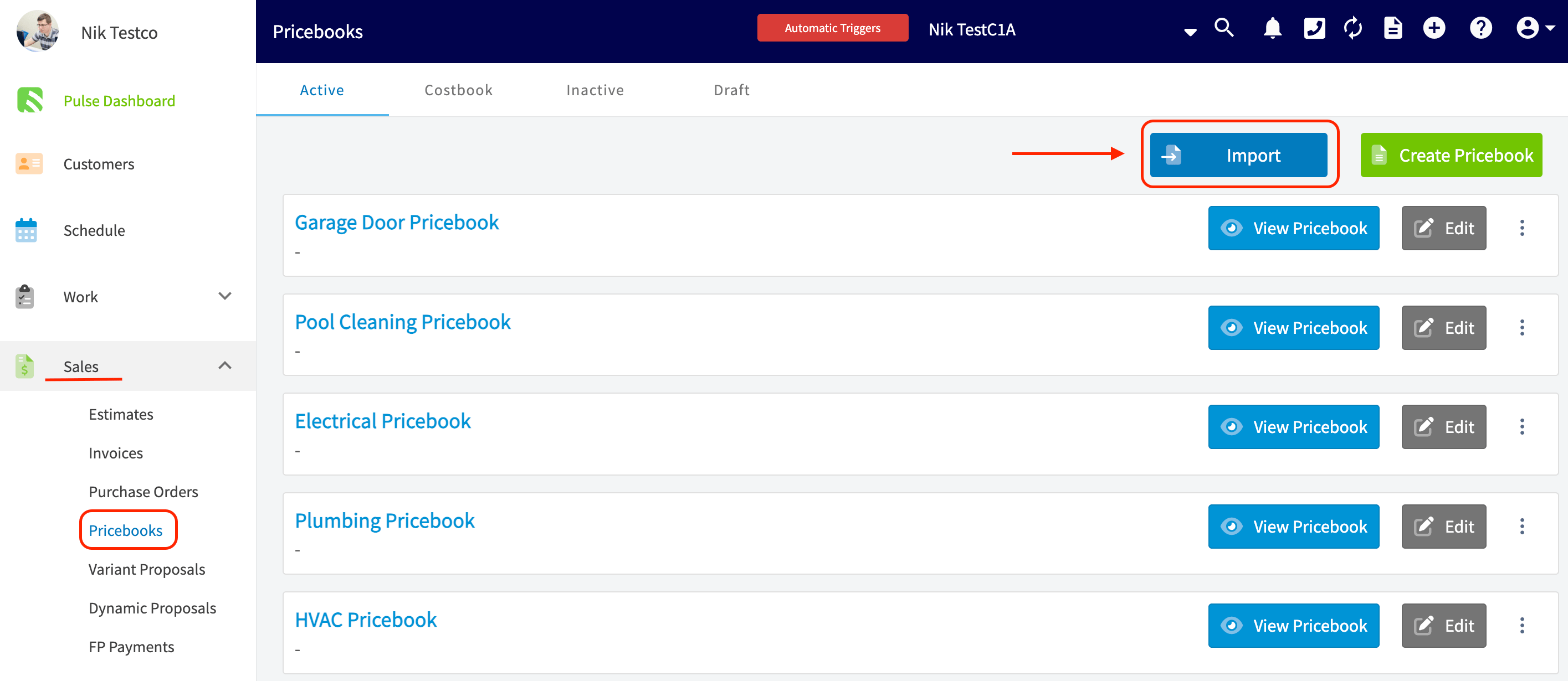
1. Select the **Sales** tab in the left menu, then select **Pricebooks**. The page lists any active pricebooks in your account.
2. Near the top-right corner, select the blue **Import** button.
 3. Follow the on-screen prompts and select **Download** to save the **Pricebook Excel template**.
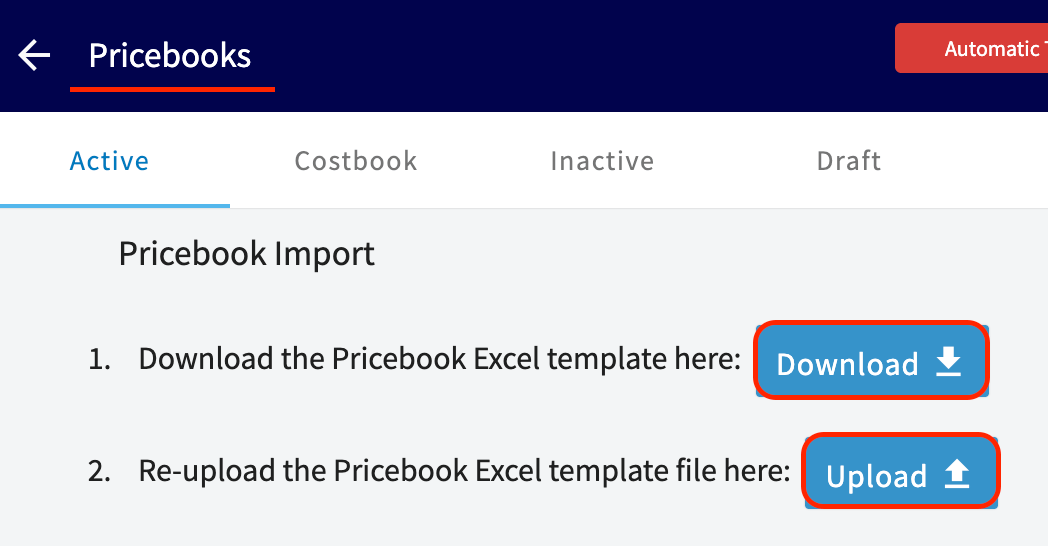 4. Fill in the template with your pricing without altering the template's structure.
5. Re-upload the completed template on the same Pricebook Import screen using the **Upload** button.
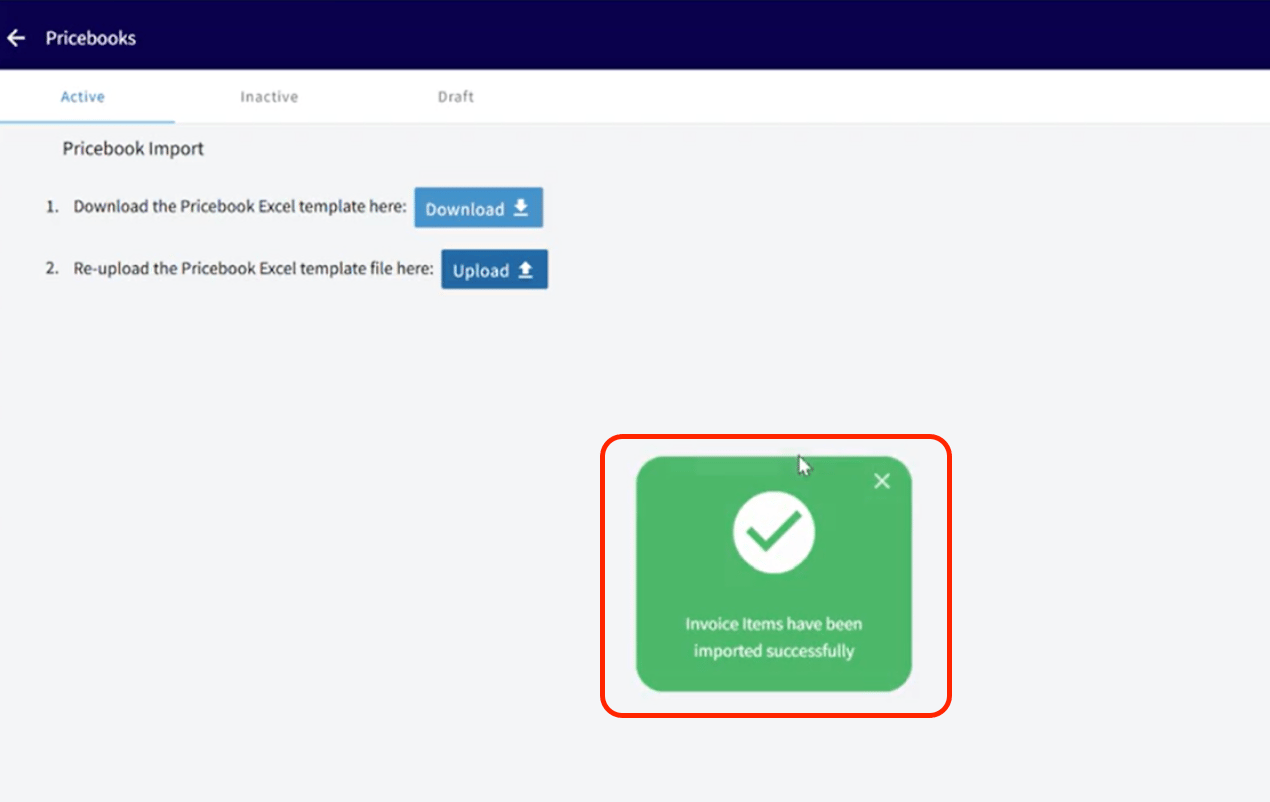
6. Wait for the confirmation — FieldPulse notifies you when your pricebook has imported successfully.
4. Fill in the template with your pricing without altering the template's structure.
5. Re-upload the completed template on the same Pricebook Import screen using the **Upload** button.
6. Wait for the confirmation — FieldPulse notifies you when your pricebook has imported successfully.
 ## Related articles
* [Sales Suite Overview](/add-ons/sales-suite/overview)
* [Setting Up Your Pricebook](/add-ons/sales-suite/pricebook)
* [Setting Up Dimensional Pricebook](/add-ons/sales-suite/dimensional-pricebook)
* [How to Self-Import Data With Google Sheets](/settings/data/self-import-google-sheets)
Your import worked when FieldPulse confirms the import succeeded and your pricebook appears under **Sales > Pricebooks**.
## Related topics
- [Setting Up Your Pricebook](/add-ons/sales-suite/pricebook.md)
- [Setting Up Dimensional Pricebook](/add-ons/sales-suite/dimensional-pricebook.md)
- [How to Import Data into FieldPulse](/settings/data/importing-data.md)
- [Sales Suite Overview](/add-ons/sales-suite/overview.md)
## Related articles
* [Sales Suite Overview](/add-ons/sales-suite/overview)
* [Setting Up Your Pricebook](/add-ons/sales-suite/pricebook)
* [Setting Up Dimensional Pricebook](/add-ons/sales-suite/dimensional-pricebook)
* [How to Self-Import Data With Google Sheets](/settings/data/self-import-google-sheets)
Your import worked when FieldPulse confirms the import succeeded and your pricebook appears under **Sales > Pricebooks**.
## Related topics
- [Setting Up Your Pricebook](/add-ons/sales-suite/pricebook.md)
- [Setting Up Dimensional Pricebook](/add-ons/sales-suite/dimensional-pricebook.md)
- [How to Import Data into FieldPulse](/settings/data/importing-data.md)
- [Sales Suite Overview](/add-ons/sales-suite/overview.md)