> ## Documentation Index
> Fetch the complete documentation index at: https://help.fieldpulse.com/llms.txt
> Use this file to discover all available pages before exploring further.
# Setting Up Automatic Communication Triggers
> Set up automatic triggers so FieldPulse sends the right email or SMS template at a step you choose in a job, estimate, invoice, or payment.
> **Who uses this:** An Admin creates automatic triggers — they live in Company Settings, which only Admin users can view. **Availability:** All regions · Customer communications must be enabled on your account; texting U.S. numbers through Engage requires 10DLC registration.
An automatic trigger ties one of your [customer communication](https://www.fieldpulse.com/features/customer-communication) templates to a moment in the work — a job is created, an estimate is accepted, an invoice goes past due — so FieldPulse sends the message on its own. You set a trigger up once, and every customer gets the same message at the same point without anyone on your team remembering to send it.
## Overview
An automatic trigger has three parts: the **trigger** (the moment that starts it), the **Trigger Action** (whether the message sends on its own, asks you to confirm first, or sends on a timing sequence), and the **template** (the email or SMS that goes out). You build automatic triggers in **Company Settings > Customer Communications**, on the **Automatic Triggers** tab.
There are a variety of trigger options, covering moments like estimate activity, invoice activity, payment activity, and job or site visit activity. The Settings reference below describes some of the options you can choose from.
## Video walkthrough
This walkthrough covers Customer Communications in the web app end to end, including creating automatic triggers:
* [Customer Communications on the web app](https://www.loom.com/share/47344a973902421caef243ad9569d5c7)
## Before you begin
* **Build the email or SMS template first.** An automatic trigger points at an existing template, so the template has to exist before you create the trigger. See [Setting Up Email & SMS Templates](/customers/communications/message-templates).
* **Sign in as an Admin.** Automatic triggers live in Company Settings, which only Admin users can view.
* **Confirm customer communications are enabled** on your FieldPulse account.
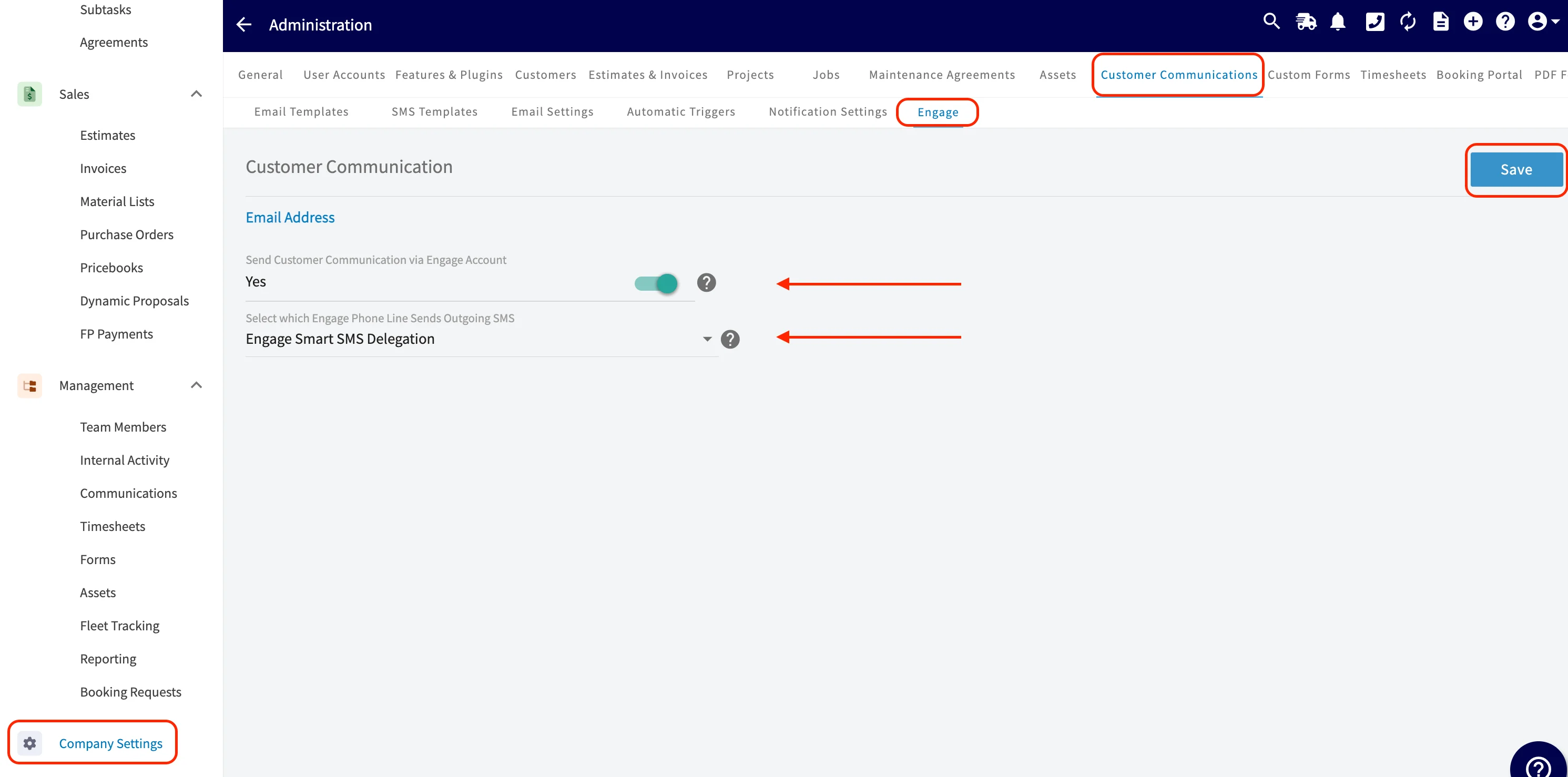
* **Optional — connect Engage.** If you want triggered messages to send from your own business phone line instead of a FieldPulse toll-free number, set up [Engage](/add-ons/engage/overview) and turn on **Send Customer Communication via Engage Account**. The toggle governs how triggered messages send — see How triggered messages send below.
## Step-by-step setup
1. Go to **Company Settings** and select **Customer Communications**.
2. Select **Automatic Triggers**.
3. Select **Create New**.
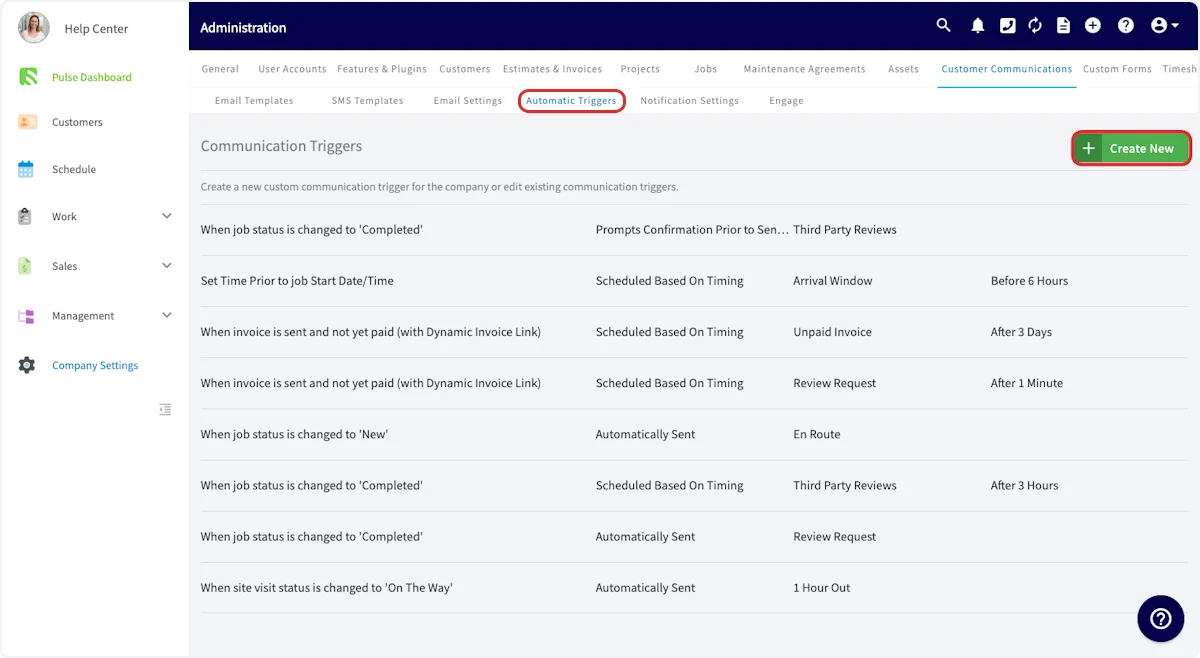 4. Choose the **trigger** — the moment you want the message to send. There are a variety of options, so scroll through the list and select the one that applies. The trigger reference below describes some of the options. The example below uses **When job status is changed to 'New'**.
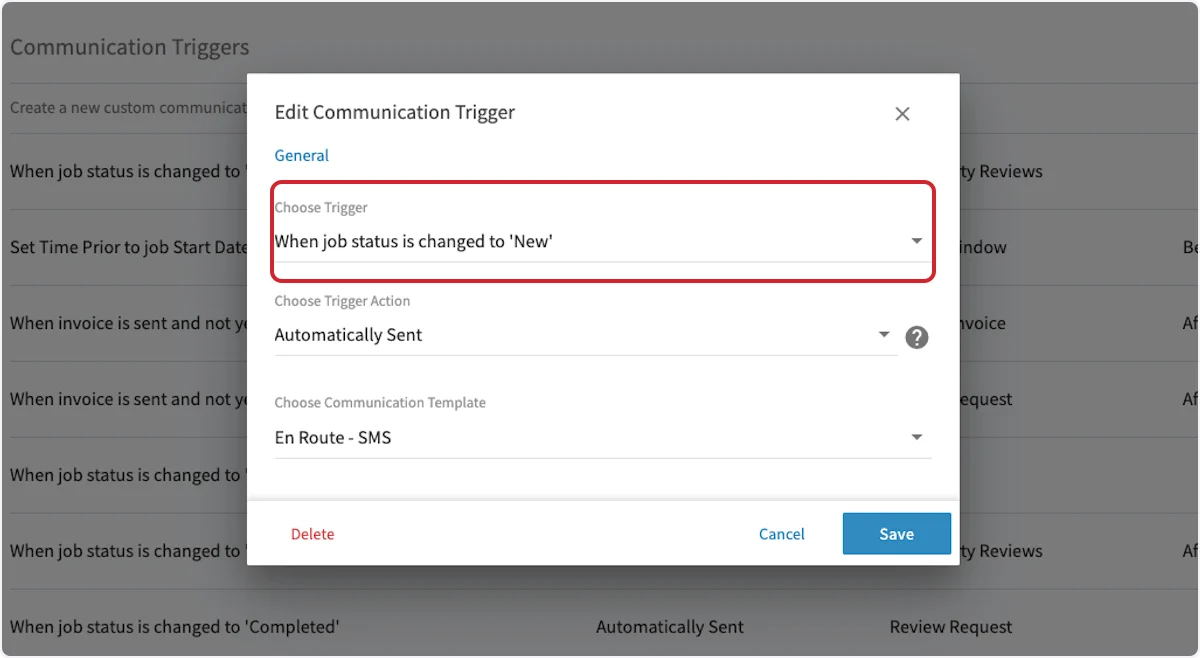 5. Choose the **Trigger Action** — **Automatically Sent**, **Prompts Confirmation Prior to Sending**, or **Scheduled Based On Timing**. See the Trigger actions table in the Settings reference below for what each one does.
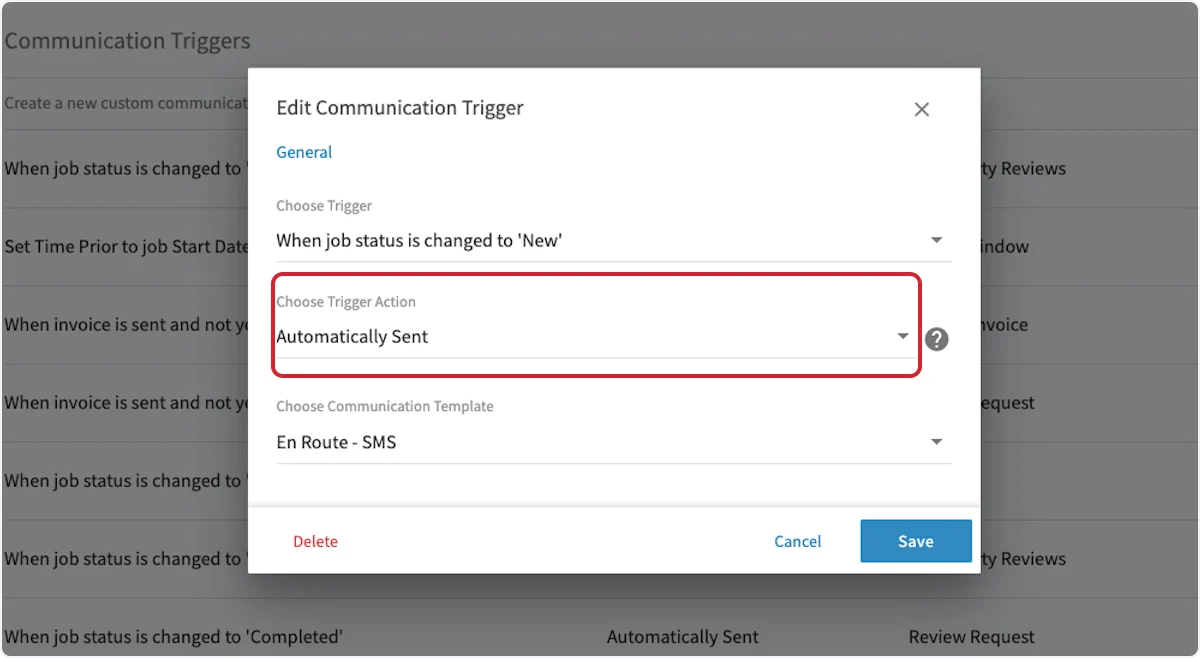 6. Choose the **email or SMS template** FieldPulse should send when the trigger fires.
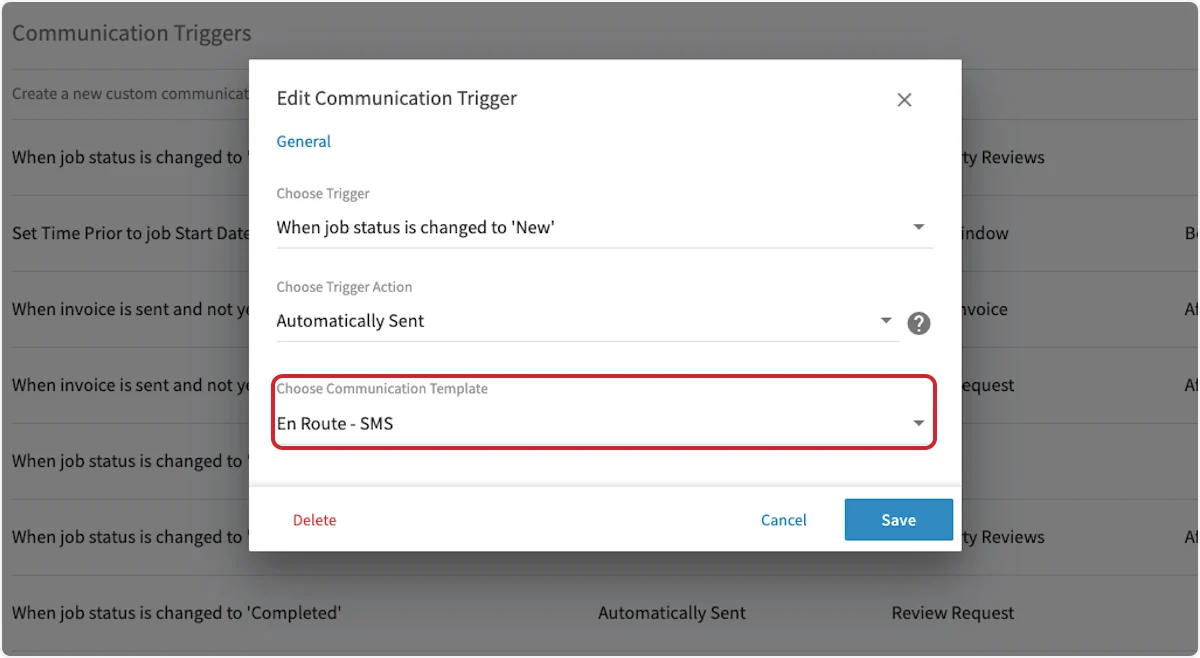 7. Select **Save**.
In the example above, the saved trigger sends your chosen template every time a job moves to the **New** status. To add another automatic trigger, select **Create New** and repeat these steps.
## Settings reference
### Trigger reference
Some of the trigger options you can choose from:
| **Trigger** | **When the communication sends** |
| ------------------------------------------------------------------------------ | --------------------------------------------------------------------------------------------------------------------------------------------------------------------------------------------------------------------- |
| **When Estimate is sent and not yet accepted (without Dynamic Estimate Link)** | When the estimate is first sent and the customer has not yet accepted it. The Dynamic Estimate Link is **not** included. |
| **When Estimate is sent and not yet accepted (with Dynamic Estimate Link)** | When the estimate is first sent and the customer has not yet accepted it. The Dynamic Estimate Link is included. |
| **When an Estimate is Accepted** | When the customer accepts the estimate. |
| **When invoice is sent and not yet paid (with Dynamic Invoice Link)** | On the date the invoice is past due, including the invoice link. Sends only for invoices in the *invoiced* status. |
| **When invoice is overdue and not yet fully paid (with Dynamic Invoice Link)** | On the date an invoice is past due, including the invoice link. Sends for invoices in the *invoiced* and *partially paid* statuses. |
| **When the invoice is past due** | On the date the invoice becomes past due. Does not include a Dynamic Invoice Link. Fires for any invoice status except *Paid*. |
| **When a payment record is created** | When a payment record is created — automatically through FieldPulse Payments, through a sync from QuickBooks or another connected accounting system, or when someone logs a payment by hand in the web or mobile app. |
| **When job is newly created** | When the job record is newly created in FieldPulse. |
| **When job status is changed to \[Status]** | When the job record moves to a status you specify. |
| **When site visit status is changed to \[Status]** | When the site visit record moves to a status you specify. |
| **Set Time Prior to job Start Date/Time** | At a custom time you set, either before or after the job's start date and time. |
### Trigger actions
| **Trigger action** | **What it does** |
| ----------------------------------------- | -------------------------------------------------------------------------------------------- |
| **Automatically Sent** | Sends the communication immediately when the trigger fires, with no preview or confirmation. |
| **Prompts Confirmation Prior to Sending** | Opens a pop-up when the trigger fires so you can confirm before the message goes out. |
| **Scheduled Based On Timing** | Sends the communication on a timing sequence you specify. |
### How triggered messages send
Which number or address a triggered message comes from depends on whether Engage is connected:
* **With Engage** — If [Engage](/add-ons/engage/overview) is enabled and **Send Customer Communication via Engage Account** is on, SMS and email triggers send through your Engage account, using one of two options you choose: **Engage Smart SMS Delegation** (FieldPulse uses the sender's assigned line, falls back to the company owner's line, then to any available Engage line) or a **Custom Phone Line**, so every triggered message always sends from the same line.
* **Without Engage** — All email and SMS triggers send from a no-reply toll-free FieldPulse number.
7. Select **Save**.
In the example above, the saved trigger sends your chosen template every time a job moves to the **New** status. To add another automatic trigger, select **Create New** and repeat these steps.
## Settings reference
### Trigger reference
Some of the trigger options you can choose from:
| **Trigger** | **When the communication sends** |
| ------------------------------------------------------------------------------ | --------------------------------------------------------------------------------------------------------------------------------------------------------------------------------------------------------------------- |
| **When Estimate is sent and not yet accepted (without Dynamic Estimate Link)** | When the estimate is first sent and the customer has not yet accepted it. The Dynamic Estimate Link is **not** included. |
| **When Estimate is sent and not yet accepted (with Dynamic Estimate Link)** | When the estimate is first sent and the customer has not yet accepted it. The Dynamic Estimate Link is included. |
| **When an Estimate is Accepted** | When the customer accepts the estimate. |
| **When invoice is sent and not yet paid (with Dynamic Invoice Link)** | On the date the invoice is past due, including the invoice link. Sends only for invoices in the *invoiced* status. |
| **When invoice is overdue and not yet fully paid (with Dynamic Invoice Link)** | On the date an invoice is past due, including the invoice link. Sends for invoices in the *invoiced* and *partially paid* statuses. |
| **When the invoice is past due** | On the date the invoice becomes past due. Does not include a Dynamic Invoice Link. Fires for any invoice status except *Paid*. |
| **When a payment record is created** | When a payment record is created — automatically through FieldPulse Payments, through a sync from QuickBooks or another connected accounting system, or when someone logs a payment by hand in the web or mobile app. |
| **When job is newly created** | When the job record is newly created in FieldPulse. |
| **When job status is changed to \[Status]** | When the job record moves to a status you specify. |
| **When site visit status is changed to \[Status]** | When the site visit record moves to a status you specify. |
| **Set Time Prior to job Start Date/Time** | At a custom time you set, either before or after the job's start date and time. |
### Trigger actions
| **Trigger action** | **What it does** |
| ----------------------------------------- | -------------------------------------------------------------------------------------------- |
| **Automatically Sent** | Sends the communication immediately when the trigger fires, with no preview or confirmation. |
| **Prompts Confirmation Prior to Sending** | Opens a pop-up when the trigger fires so you can confirm before the message goes out. |
| **Scheduled Based On Timing** | Sends the communication on a timing sequence you specify. |
### How triggered messages send
Which number or address a triggered message comes from depends on whether Engage is connected:
* **With Engage** — If [Engage](/add-ons/engage/overview) is enabled and **Send Customer Communication via Engage Account** is on, SMS and email triggers send through your Engage account, using one of two options you choose: **Engage Smart SMS Delegation** (FieldPulse uses the sender's assigned line, falls back to the company owner's line, then to any available Engage line) or a **Custom Phone Line**, so every triggered message always sends from the same line.
* **Without Engage** — All email and SMS triggers send from a no-reply toll-free FieldPulse number.
 Texting U.S. numbers through Engage requires 10DLC registration with The Campaign Registry before carriers will deliver your messages, including messages sent by an automatic trigger. See [Setting Up 10DLC Compliance Registration](/add-ons/engage/10dlc-compliance).
Who receives a triggered message depends on the record it came from. Job-related communications go to the customer's main contact or to any additional contact on the Customer record that you designate as the job's contact. All other communications go only to the main customer contact.
Trip tracking messages cannot be tied to an automatic trigger — a technician sends each one by hand from the mobile app, and the live location link stays active for one hour after it is sent.
## FAQs
### What time do automatic communications send to my customers?
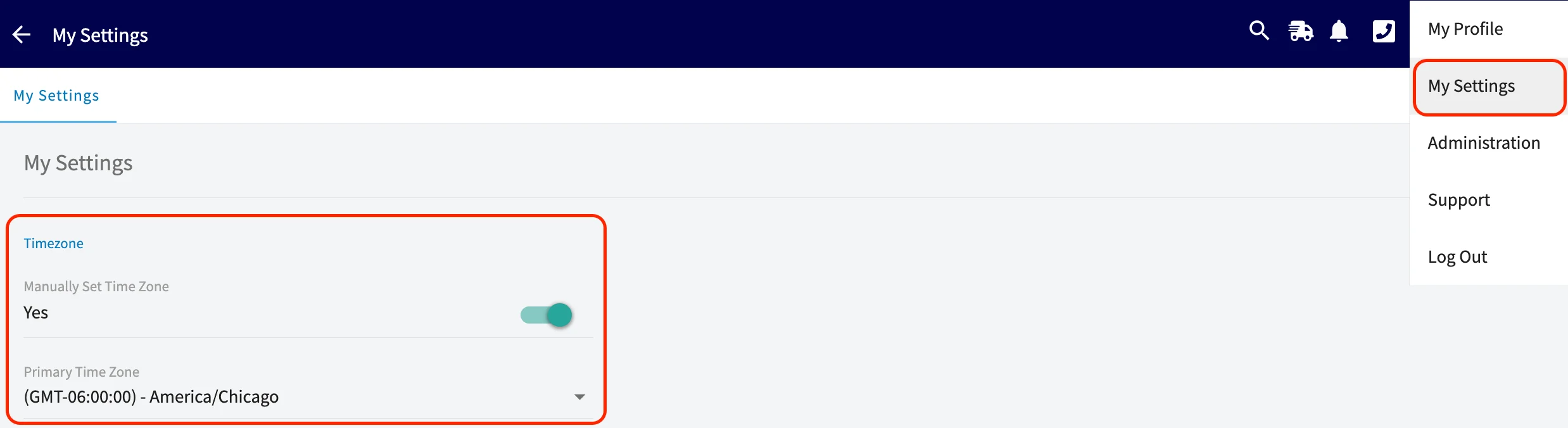
Date-based triggers send at 8:00 AM in the timezone set on your FieldPulse account, so a message set for 3 days after a job moves to Completed sends at 8:00 AM on that day. Hour-based triggers send at the exact interval instead — a message set for 30 hours after completion sends 30 hours after that job entered the Completed status.
Texting U.S. numbers through Engage requires 10DLC registration with The Campaign Registry before carriers will deliver your messages, including messages sent by an automatic trigger. See [Setting Up 10DLC Compliance Registration](/add-ons/engage/10dlc-compliance).
Who receives a triggered message depends on the record it came from. Job-related communications go to the customer's main contact or to any additional contact on the Customer record that you designate as the job's contact. All other communications go only to the main customer contact.
Trip tracking messages cannot be tied to an automatic trigger — a technician sends each one by hand from the mobile app, and the live location link stays active for one hour after it is sent.
## FAQs
### What time do automatic communications send to my customers?
Date-based triggers send at 8:00 AM in the timezone set on your FieldPulse account, so a message set for 3 days after a job moves to Completed sends at 8:00 AM on that day. Hour-based triggers send at the exact interval instead — a message set for 30 hours after completion sends 30 hours after that job entered the Completed status.
 ### Can an automatic trigger include the technician's profile photo?
No. Profile photo SMS messages send from the mobile app through the technician's native messaging app, so they cannot be used with automatic communication triggers.
## Related articles
* [Setting Up Email & SMS Templates](/customers/communications/message-templates)
* [How to Send Communications to Customers](/customers/communications/sending)
* [Customer Communications Overview](/customers/communications/overview)
* [Customer Notification Preferences and SMS Opt-Out Details](/customers/communications/notification-preferences)
* [Job Confirmations Overview](/customers/communications/job-confirmations)
Your triggers are working when a record hits the moment you chose — a job is created, an estimate is accepted, an invoice goes past due — and the customer receives the right message without anyone on your team sending it.
## Related topics
- [Customer Communications Overview](/customers/communications/overview.md)
- [Communications](/customers/communications/index.md)
- [Setting Up Custom Estimate & Invoice Status Workflows](/estimates-invoices/creating/status-workflows.md)
- [Setting Up Review Management](/customers/reviews-referrals/management.md)
### Can an automatic trigger include the technician's profile photo?
No. Profile photo SMS messages send from the mobile app through the technician's native messaging app, so they cannot be used with automatic communication triggers.
## Related articles
* [Setting Up Email & SMS Templates](/customers/communications/message-templates)
* [How to Send Communications to Customers](/customers/communications/sending)
* [Customer Communications Overview](/customers/communications/overview)
* [Customer Notification Preferences and SMS Opt-Out Details](/customers/communications/notification-preferences)
* [Job Confirmations Overview](/customers/communications/job-confirmations)
Your triggers are working when a record hits the moment you chose — a job is created, an estimate is accepted, an invoice goes past due — and the customer receives the right message without anyone on your team sending it.
## Related topics
- [Customer Communications Overview](/customers/communications/overview.md)
- [Communications](/customers/communications/index.md)
- [Setting Up Custom Estimate & Invoice Status Workflows](/estimates-invoices/creating/status-workflows.md)
- [Setting Up Review Management](/customers/reviews-referrals/management.md)