> ## Documentation Index
> Fetch the complete documentation index at: https://help.fieldpulse.com/llms.txt
> Use this file to discover all available pages before exploring further.
# How to Create Related Customers
> Link one company's separate service locations under a parent customer in FieldPulse so each location keeps its own jobs while staying under one account.
> **Who uses this:** Creating a related customer creates a customer record — **Create & edit Customers** is Yes for Admins, configurable for Team Managers, and No for Service Agents and Limited Agents. **Availability:** All regions.
When one [customer](https://www.fieldpulse.com/features/customer-management) has multiple locations that you service, you set that company up as a **Parent Customer** and set its locations up as **Related Customers**. Every location stays organized under one central customer, and you still set up individual jobs for each location.
## Overview
Related customers are separate customer records linked to one parent customer record — a linked location is also called a **Child Customer**. You open the parent customer's **Related Customers** tab and either create a new customer there or link a customer that already exists. Use related customers when a single company has several locations you service separately — for example, a property management company with buildings at different addresses.
Related customers are not the same as a multi-location customer. Related customers are separate customer records linked under a parent, and each one still gets its own jobs. A multi-location customer is one customer record with additional locations added to it. To keep several addresses on a single record instead, see [How to Manage Multi-Location & Multi-Contact Customers](/customers/managing-customers/multi-location-multi-contact).
## Video walkthrough
Watch the [related customers walkthrough](https://www.loom.com/share/8e897ae7658840508bf22d9ca0b33c5e) to see the process in FieldPulse. The written steps below cover the same ground.
## Before you begin
* Create the company you want to use as the parent, if it isn't in FieldPulse yet. See [How to Create a Customer](/customers/managing-customers/creating-a-customer).
* Decide whether each location is a brand-new customer record or a customer record you already have. The **Link Customer** option only lists customers that already exist in your account.
## On web
### Open the parent customer's record
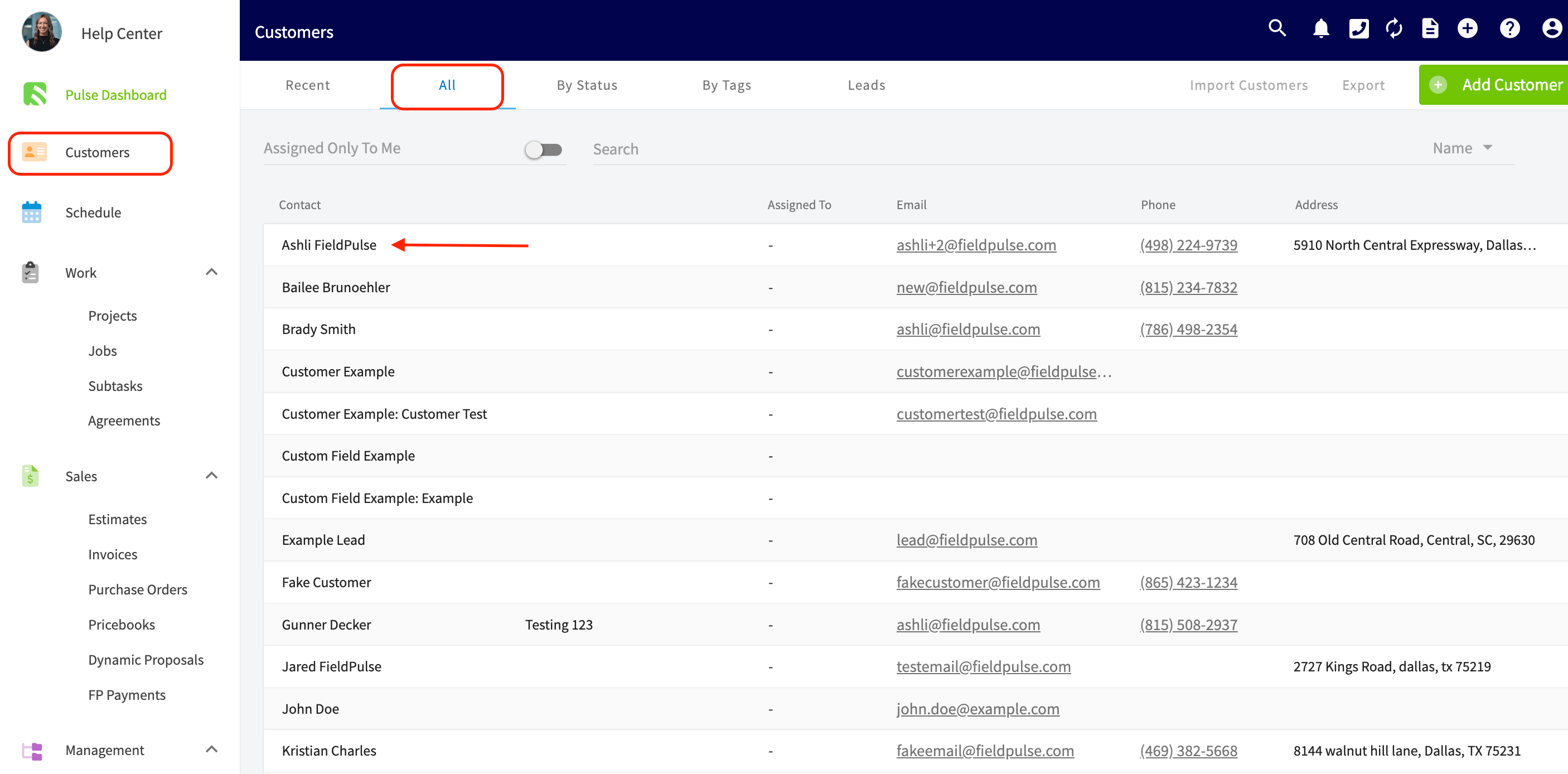
1. Select **Customers** in the left menu.
2. Select the company you want to set up as the parent customer.
 ### Create a new related customer
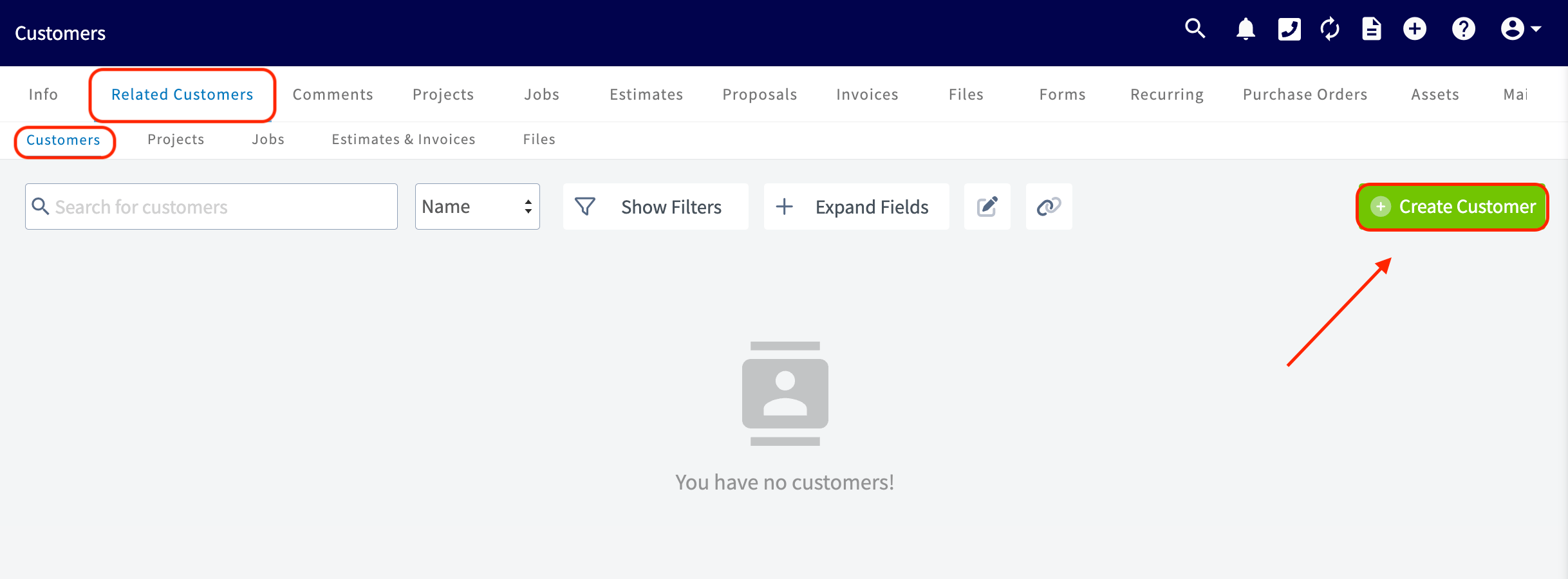
1. On the parent customer's record, select **Related Customers** in the header. The **Customers** sub-tab lists the locations linked to this parent, alongside sub-tabs for **Projects**, **Jobs**, **Estimates & Invoices**, and **Files**.
2. Select **Create Customer** to create a new customer that is linked to this parent customer.
### Create a new related customer
1. On the parent customer's record, select **Related Customers** in the header. The **Customers** sub-tab lists the locations linked to this parent, alongside sub-tabs for **Projects**, **Jobs**, **Estimates & Invoices**, and **Files**.
2. Select **Create Customer** to create a new customer that is linked to this parent customer.
 ### Link a customer you already have
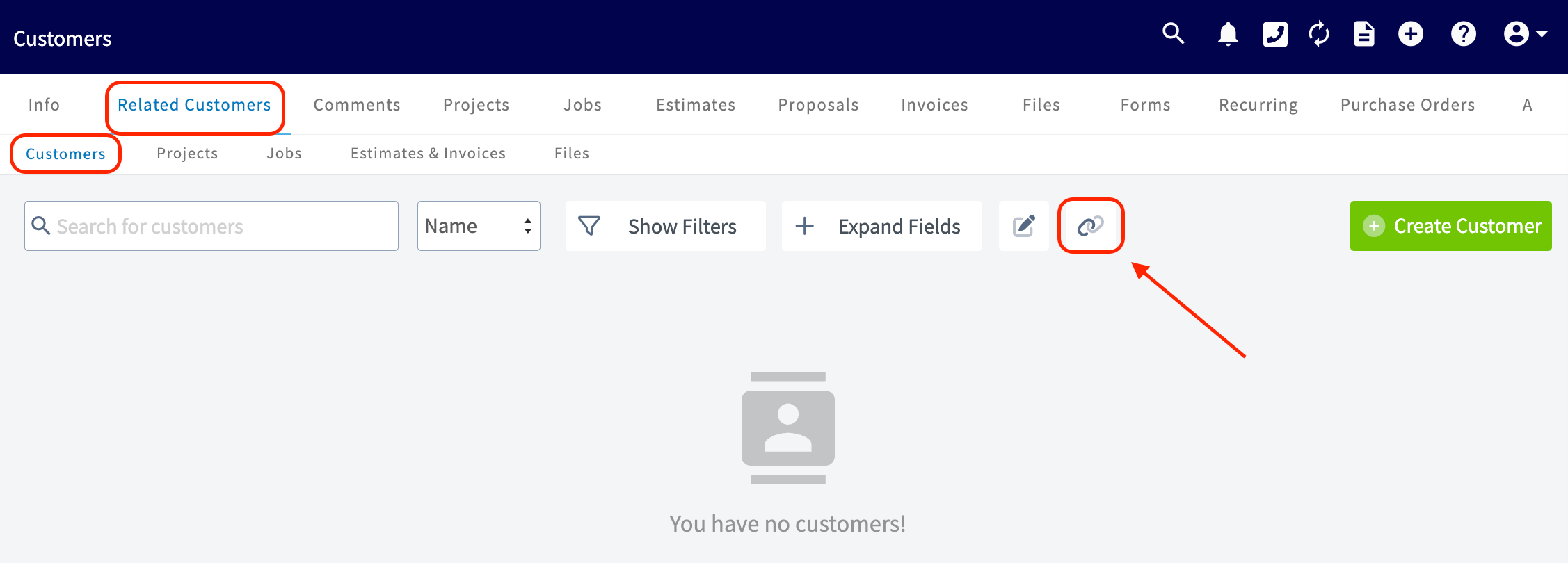
1. On the parent customer's **Related Customers** tab, select the **Link Customer** icon — the chain icon to the right of **Expand Fields**.
### Link a customer you already have
1. On the parent customer's **Related Customers** tab, select the **Link Customer** icon — the chain icon to the right of **Expand Fields**.
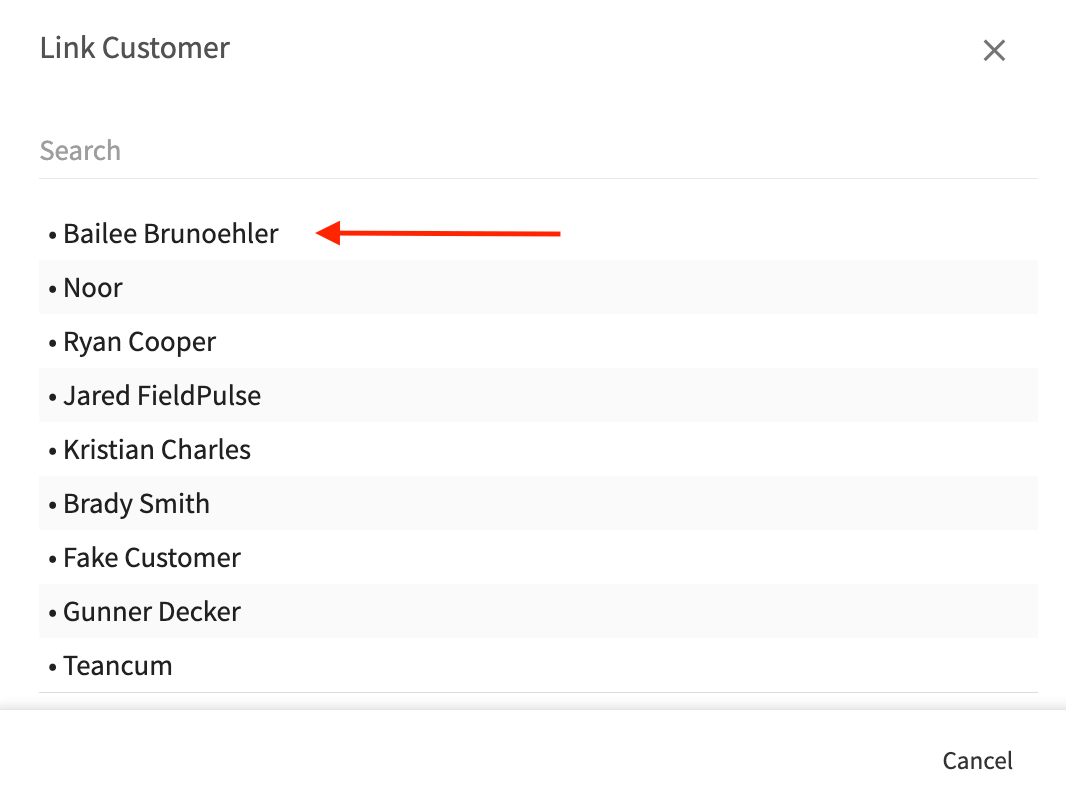
 2. In the **Link Customer** pop-up, search for and select the existing customer you want to link to the parent.
 The customer you selected then appears on the parent's **Related Customers** tab, listed as **Parent Customer: Related Customer**.
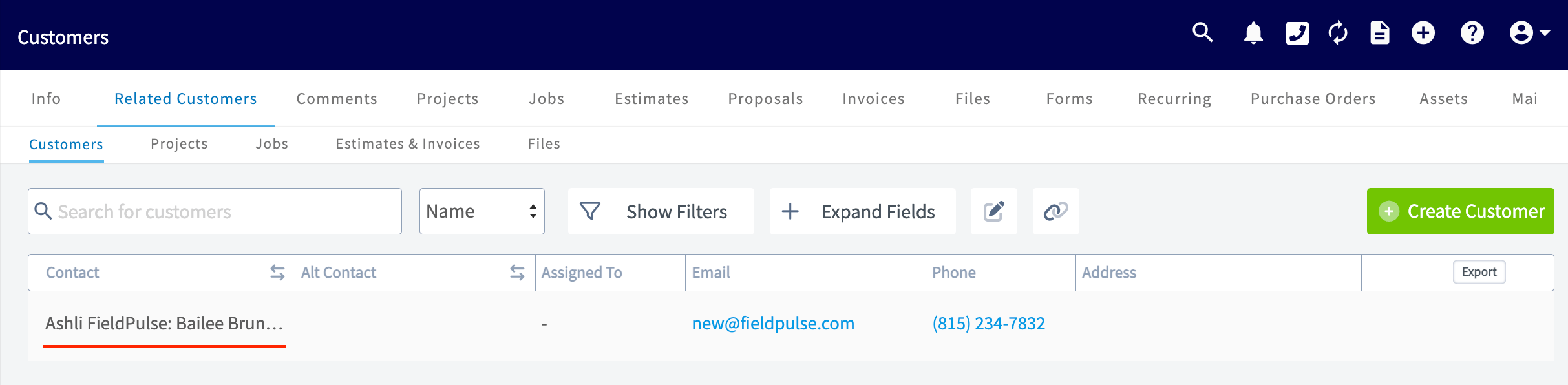 You can add as many related customers as needed.
## How related customers appear
Once a location is linked, both records show the relationship.
On the related (child) customer's record, the **Parent** field in the **Workflow** section names the parent customer, with an **Open** link that takes you to the parent record.
You can add as many related customers as needed.
## How related customers appear
Once a location is linked, both records show the relationship.
On the related (child) customer's record, the **Parent** field in the **Workflow** section names the parent customer, with an **Open** link that takes you to the parent record.
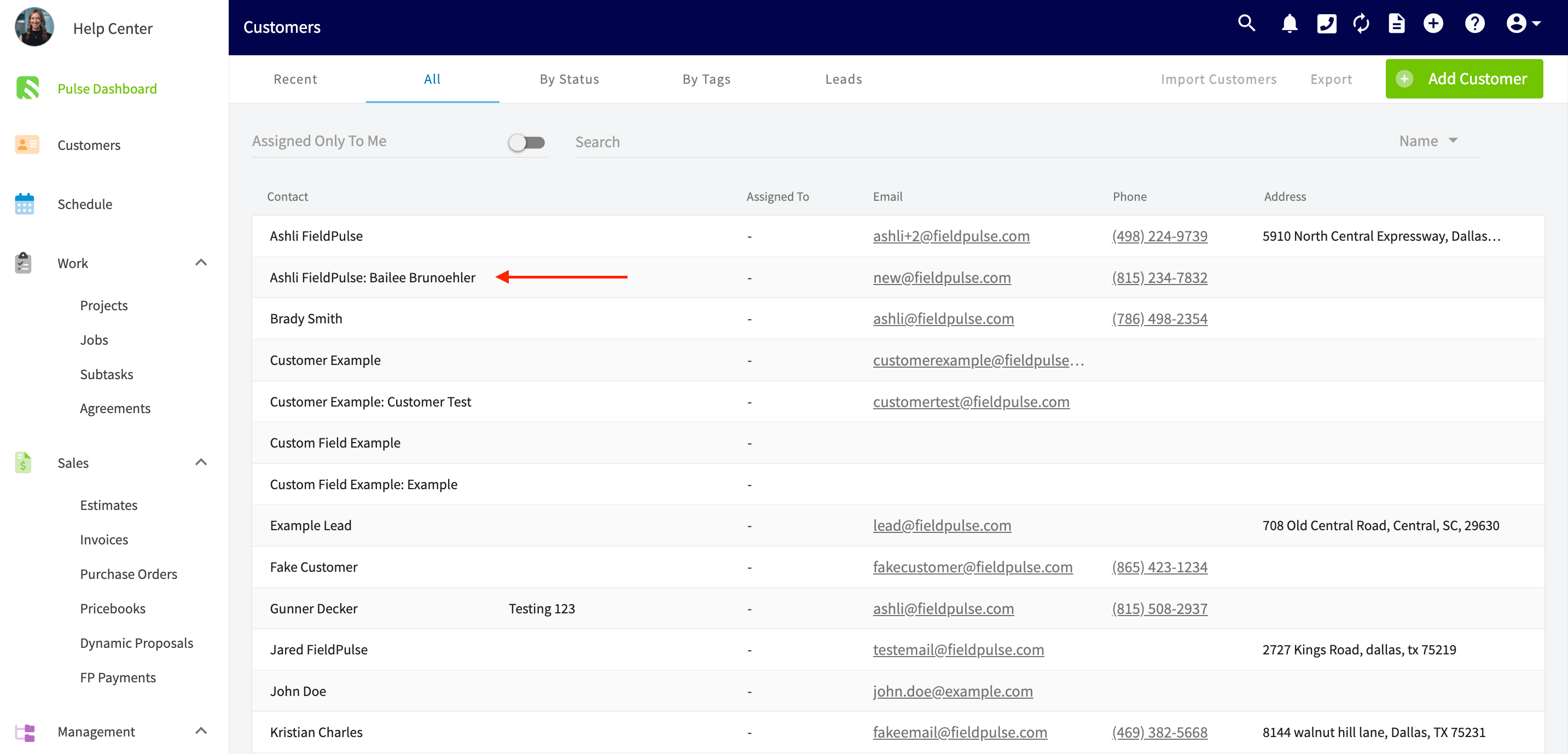
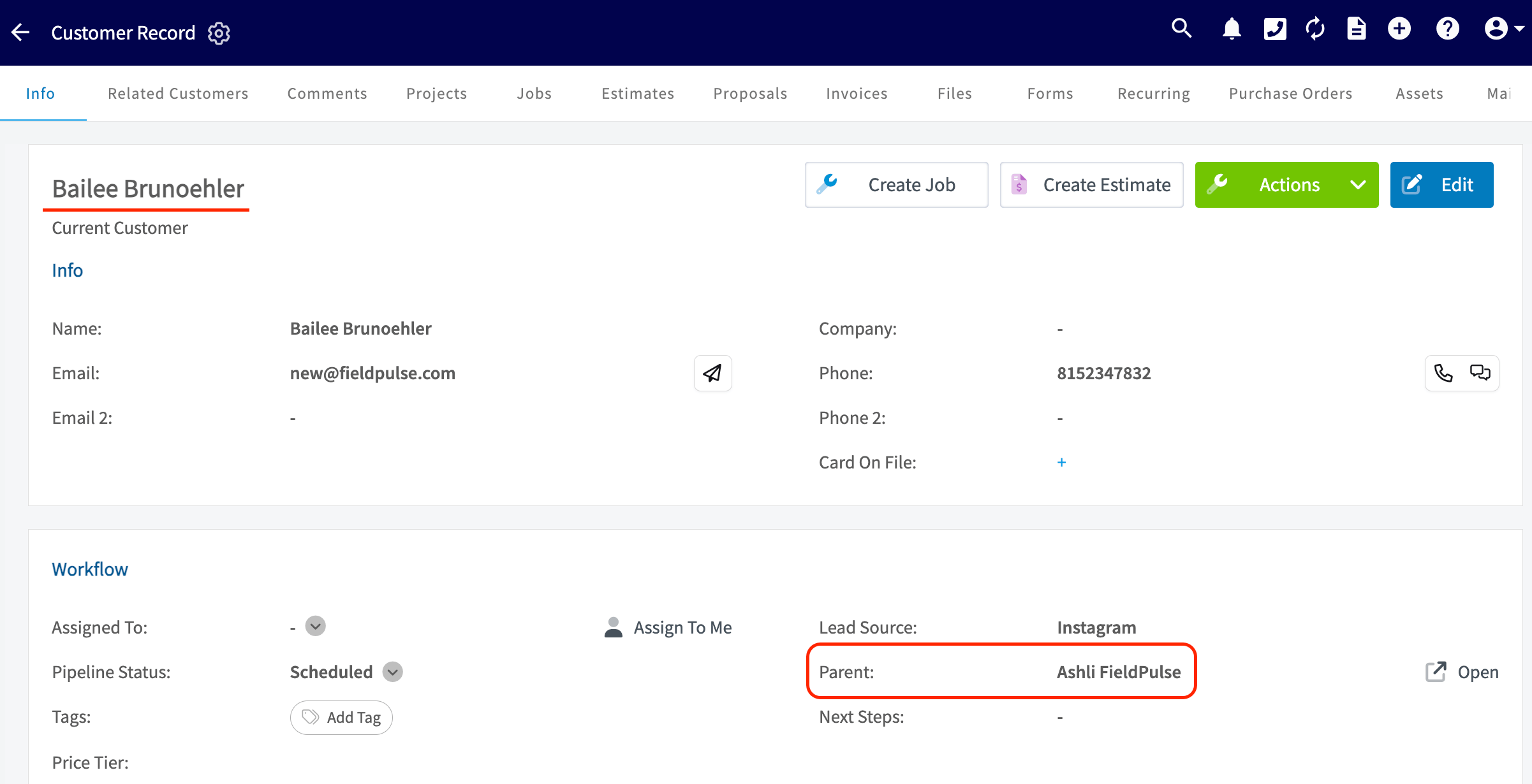 In the main customer list, the name of a related customer is displayed as **Parent Customer: Related Customer**.
 Each related location keeps its own job records, so you can track work per location while keeping everything under one parent customer.
## FAQs
### What is the difference between related customers and multi-location customers?
Related customers are separate customer records linked under a parent customer, so each location keeps its own jobs and appears in the customer list as "Parent Customer: Related Customer." A multi-location customer is one record that holds several service addresses and contacts, with a starred **Main Location** that fills in on new Job, Project, Estimate, and Invoice records. See [How to Create Related Customers](/customers/managing-customers/creating-related-customers) and [How to Manage Multi-Location & Multi-Contact Customers](/customers/managing-customers/multi-location-multi-contact).
## Still need help?
Contact the FieldPulse support team at [support@fieldpulse.com](mailto:support@fieldpulse.com) or use the chat feature in the bottom-right corner of your screen.
## Related articles
* [How to Create a Customer](/customers/managing-customers/creating-a-customer)
* [How to Manage Multi-Location & Multi-Contact Customers](/customers/managing-customers/multi-location-multi-contact)
Your setup is working when the parent customer's **Related Customers** tab lists every location, each related customer record names the parent in its **Parent** field, and the customer list shows those locations as **Parent Customer: Related Customer**.
## Related topics
- [How to Create a Customer](/customers/managing-customers/creating-a-customer.md)
- [How to Merge Duplicate Customers](/customers/managing-customers/merging-duplicates.md)
- [How to Manage Multi-Location & Multi-Contact Customers](/customers/managing-customers/multi-location-multi-contact.md)
- [Customer Account Structures Overview](/settings/account-structures/customer-account-structures.md)
Each related location keeps its own job records, so you can track work per location while keeping everything under one parent customer.
## FAQs
### What is the difference between related customers and multi-location customers?
Related customers are separate customer records linked under a parent customer, so each location keeps its own jobs and appears in the customer list as "Parent Customer: Related Customer." A multi-location customer is one record that holds several service addresses and contacts, with a starred **Main Location** that fills in on new Job, Project, Estimate, and Invoice records. See [How to Create Related Customers](/customers/managing-customers/creating-related-customers) and [How to Manage Multi-Location & Multi-Contact Customers](/customers/managing-customers/multi-location-multi-contact).
## Still need help?
Contact the FieldPulse support team at [support@fieldpulse.com](mailto:support@fieldpulse.com) or use the chat feature in the bottom-right corner of your screen.
## Related articles
* [How to Create a Customer](/customers/managing-customers/creating-a-customer)
* [How to Manage Multi-Location & Multi-Contact Customers](/customers/managing-customers/multi-location-multi-contact)
Your setup is working when the parent customer's **Related Customers** tab lists every location, each related customer record names the parent in its **Parent** field, and the customer list shows those locations as **Parent Customer: Related Customer**.
## Related topics
- [How to Create a Customer](/customers/managing-customers/creating-a-customer.md)
- [How to Merge Duplicate Customers](/customers/managing-customers/merging-duplicates.md)
- [How to Manage Multi-Location & Multi-Contact Customers](/customers/managing-customers/multi-location-multi-contact.md)
- [Customer Account Structures Overview](/settings/account-structures/customer-account-structures.md)