> ## Documentation Index
> Fetch the complete documentation index at: https://help.fieldpulse.com/llms.txt
> Use this file to discover all available pages before exploring further.
# Review Management Emails Overview
> See the third-party review request and internal feedback emails FieldPulse sends your customer, where each response lands, and what you control.
> **Who uses this:** Your customer receives these emails; an Admin sets the wording, the review-site links, and the send timing in **Company Settings** > **Review** (Company Settings is Admin-only). **Availability:** All regions · included in the FieldPulse subscription. Review Management must be enabled under **Company Settings** > **Features & Plugins**.
Review Management sends review requests to your customer at any point in your [job workflow](https://www.fieldpulse.com/features/job-management), either automatically through a trigger or by hand from a completed job. This page shows those requests from the customer's side — the two emails FieldPulse sends, what each one asks the customer to do, and which parts of them you control.
## Overview
Review Management sends your customer one of two emails: a third-party review request or an internal feedback request. A third-party review request points the customer to a public review site. An internal feedback request collects a rating that is internal only and never gets posted publicly.
| **Email type** | **What the customer does** | **Where the response goes** |
| ------------------------------ | ----------------------------------------------------------------------------------- | ------------------------------------------------------- |
| **Third-party review request** | Follows a link to leave a public review on a site such as Google, Yelp, or Facebook | Posted publicly on the review site the customer chooses |
| **Internal feedback request** | Rates their experience with your company or the assigned technician | Internal only — never posted publicly |
## How it works
### Third-party review request
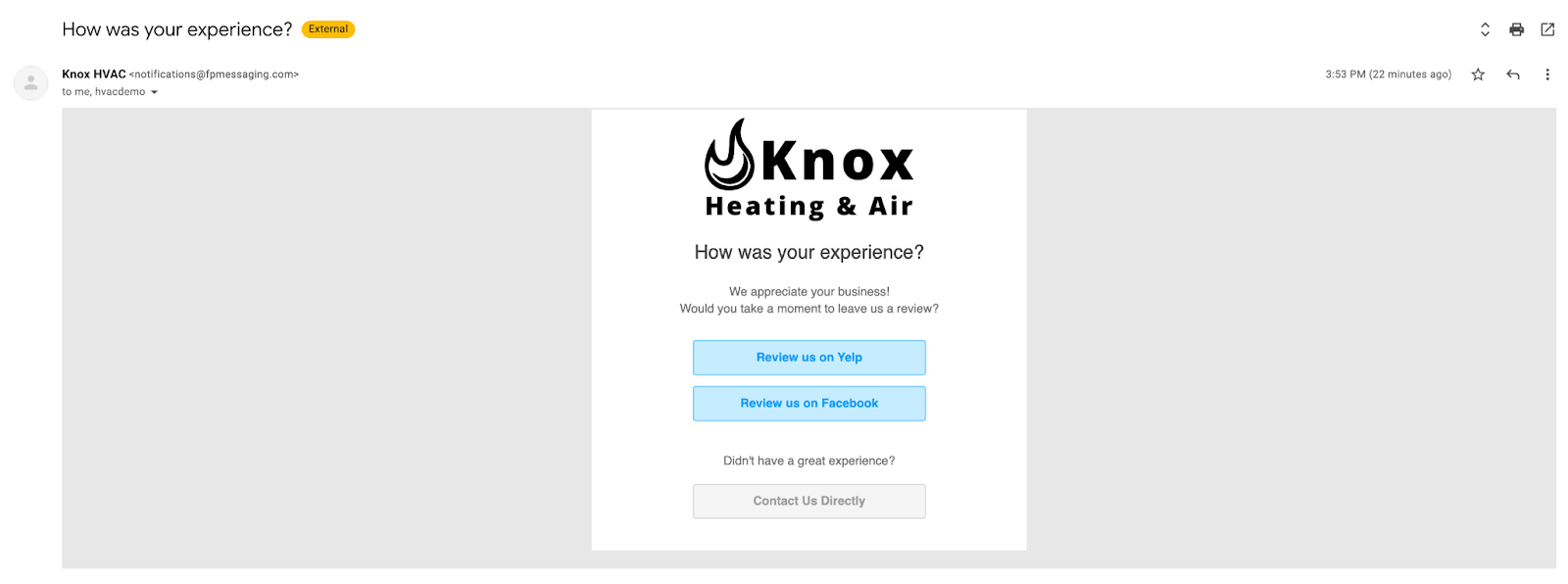
The third-party review request directs your customer to leave a public review on sites like Google, Yelp, or Facebook. You can include multiple review site links and turn each one on or off, so the customer sees a button for every site you have enabled.
The email carries your company logo and name, a short line asking the customer to leave a review, and one button per enabled review site. Underneath those buttons, the email asks "Didn't have a great experience?" and offers a **Contact Us Directly** button. The contact email address that appears in the request is the **Contact Us Email Address** you enter in your Review settings.
 ### Internal feedback request
The internal feedback request asks your customer to rate their experience with your company or the assigned technician. The feedback is internal only and never gets posted publicly, which makes it a way to catch issues early and recognize standout team members.
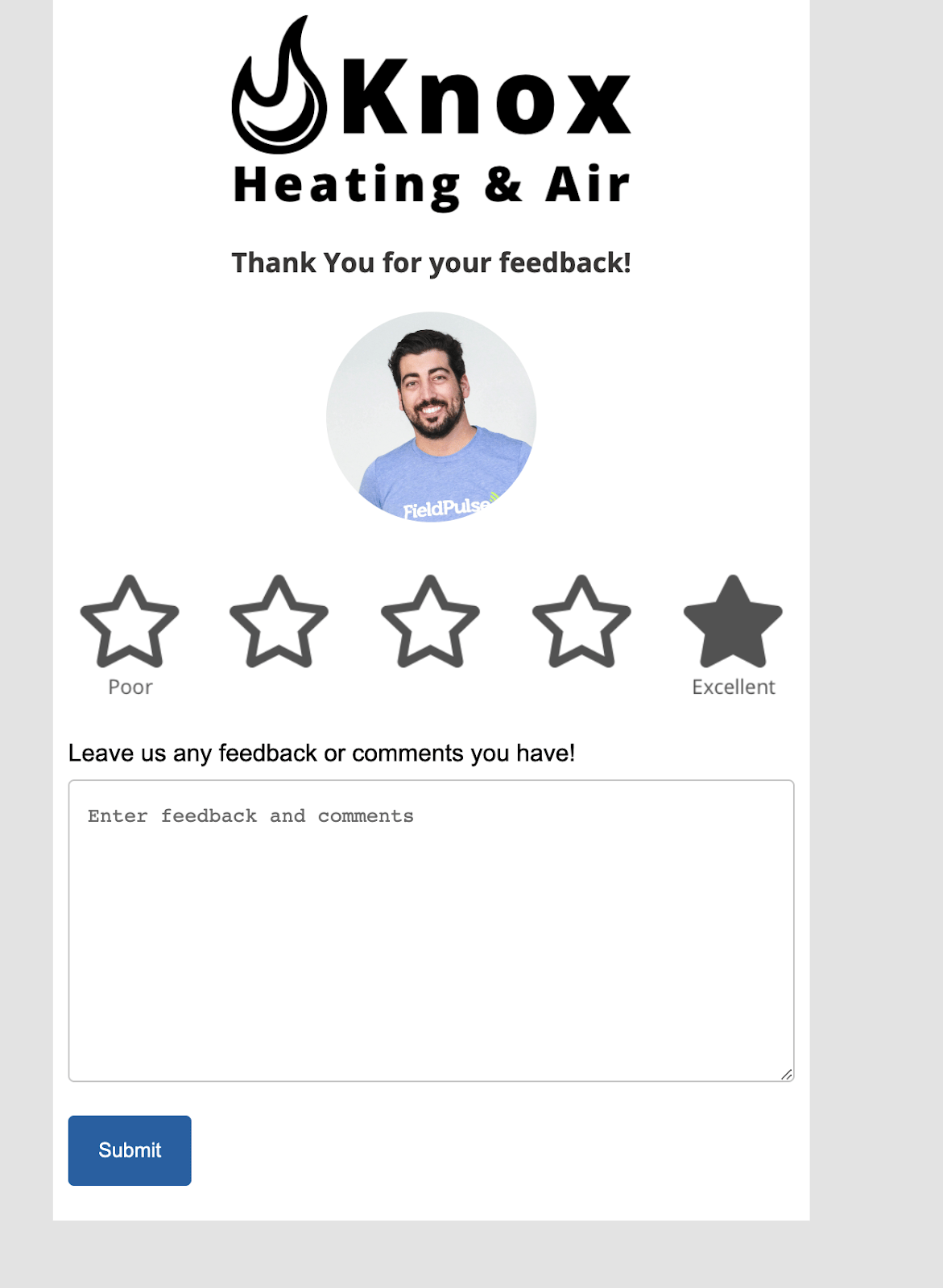
The customer sees your company logo, a five-star scale running from **Poor** to **Excellent**, and a comment box for anything they want to add. They pick a rating, type any comments, and select **Submit**.
### Internal feedback request
The internal feedback request asks your customer to rate their experience with your company or the assigned technician. The feedback is internal only and never gets posted publicly, which makes it a way to catch issues early and recognize standout team members.
The customer sees your company logo, a five-star scale running from **Poor** to **Excellent**, and a comment box for anything they want to add. They pick a rating, type any comments, and select **Submit**.
 ## Settings reference
You control four parts of what your customer sees:
| **Element** | **What you control** |
| -------------------------- | --------------------------------------------------------------------------------------------------------------------------------------------- |
| **Email subject and body** | The subject line and the message text of each email. The third-party review request and the internal feedback request are written separately. |
| **Review sites** | Which review-site links appear in a third-party request. Add a link for each site you want to use, then turn individual sites on or off. |
| **Who the feedback rates** | Whether an internal feedback score applies to the **Company** or to the **Assigned User** on the related job. |
| **Trigger timing** | When a request sends on its own — immediately after the trigger event, after a confirmation prompt, or on a schedule you set. |
To learn more about Review Management, see [Setting Up Review Management](/customers/reviews-referrals/management).
## Related articles
* [Setting Up Review Management](/customers/reviews-referrals/management)
* [Customer Communications Overview](/customers/communications/overview)
* [Setting Up Automatic Communication Triggers](/customers/communications/automatic-triggers)
* [How to Create Review Management Reports](/reporting/raw-data/review-management-reports)
## Related topics
- [Setting Up Review Management](/customers/reviews-referrals/management.md)
- [Reviews & Referrals](/customers/reviews-referrals/index.md)
- [How to Create Review Management Reports](/reporting/raw-data/review-management-reports.md)
- [How to Get a $100 Gift Card for a Capterra Review](/training-resources/review-referral-rewards/capterra-gift-card.md)
## Settings reference
You control four parts of what your customer sees:
| **Element** | **What you control** |
| -------------------------- | --------------------------------------------------------------------------------------------------------------------------------------------- |
| **Email subject and body** | The subject line and the message text of each email. The third-party review request and the internal feedback request are written separately. |
| **Review sites** | Which review-site links appear in a third-party request. Add a link for each site you want to use, then turn individual sites on or off. |
| **Who the feedback rates** | Whether an internal feedback score applies to the **Company** or to the **Assigned User** on the related job. |
| **Trigger timing** | When a request sends on its own — immediately after the trigger event, after a confirmation prompt, or on a schedule you set. |
To learn more about Review Management, see [Setting Up Review Management](/customers/reviews-referrals/management).
## Related articles
* [Setting Up Review Management](/customers/reviews-referrals/management)
* [Customer Communications Overview](/customers/communications/overview)
* [Setting Up Automatic Communication Triggers](/customers/communications/automatic-triggers)
* [How to Create Review Management Reports](/reporting/raw-data/review-management-reports)
## Related topics
- [Setting Up Review Management](/customers/reviews-referrals/management.md)
- [Reviews & Referrals](/customers/reviews-referrals/index.md)
- [How to Create Review Management Reports](/reporting/raw-data/review-management-reports.md)
- [How to Get a $100 Gift Card for a Capterra Review](/training-resources/review-referral-rewards/capterra-gift-card.md)