> ## Documentation Index
> Fetch the complete documentation index at: https://help.fieldpulse.com/llms.txt
> Use this file to discover all available pages before exploring further.
# Setting Up Review Management
> Turn on Review Management in FieldPulse, add your Google, Yelp, and Facebook review links, and trigger the request email when a job is marked Completed.
> **Who uses this:** Admins enable Review Management and configure the request emails and triggers in Company Settings. **Availability:** All regions · included in the FieldPulse subscription. Review Management must be enabled in **Company Settings > Features & Plugins**.
Review Management emails your customers a request for a review after you work with them. It sends two kinds of request — a third-party review request that points the customer to your Google, Yelp, Facebook, or HomeAdvisor page, and an internal feedback request that collects a private rating of your company or the assigned team member. Set both up once in Company Settings, and FieldPulse sends them as [customer communications](https://www.fieldpulse.com/features/customer-communication) on its own — or you send either one by hand from a job record.
## Overview
Review Management sends two kinds of request email:
* **Third-party review requests** point the customer to your public review pages — Yelp, Facebook, Google, or any other site you add. Each site has its own link field and its own on/off control, so you choose which links appear in the email.
* **Internal feedback requests** ask the customer to rate your company or the team member assigned to the job on a five-star scale and leave written comments. Internal feedback stays in FieldPulse and is never posted publicly.
Setting up Review Management takes four parts:
1. Enable the feature in **Company Settings > Features & Plugins**.
2. Set up the third-party review request email.
3. Set up the internal feedback email.
4. Add a trigger so the right email sends on its own.
You can also send either request by hand from a job record instead of using a trigger.
## Video walkthrough
This video walks through Review Management in FieldPulse.
## Before you begin
* Gather the **review page URLs** you want customers to use — your company's Yelp, Facebook, Google, or other review pages.
* Decide the **contact email address** that should appear on third-party review requests.
* Decide whether internal feedback scores apply to the **Company** or the **Assigned User** on the job.
* Set up your customer communication email templates before you build a trigger, since a trigger sends one of those templates. See [Customer Communications Overview](/customers/communications/overview).
## Step-by-step setup
### 1. Enable Review Management
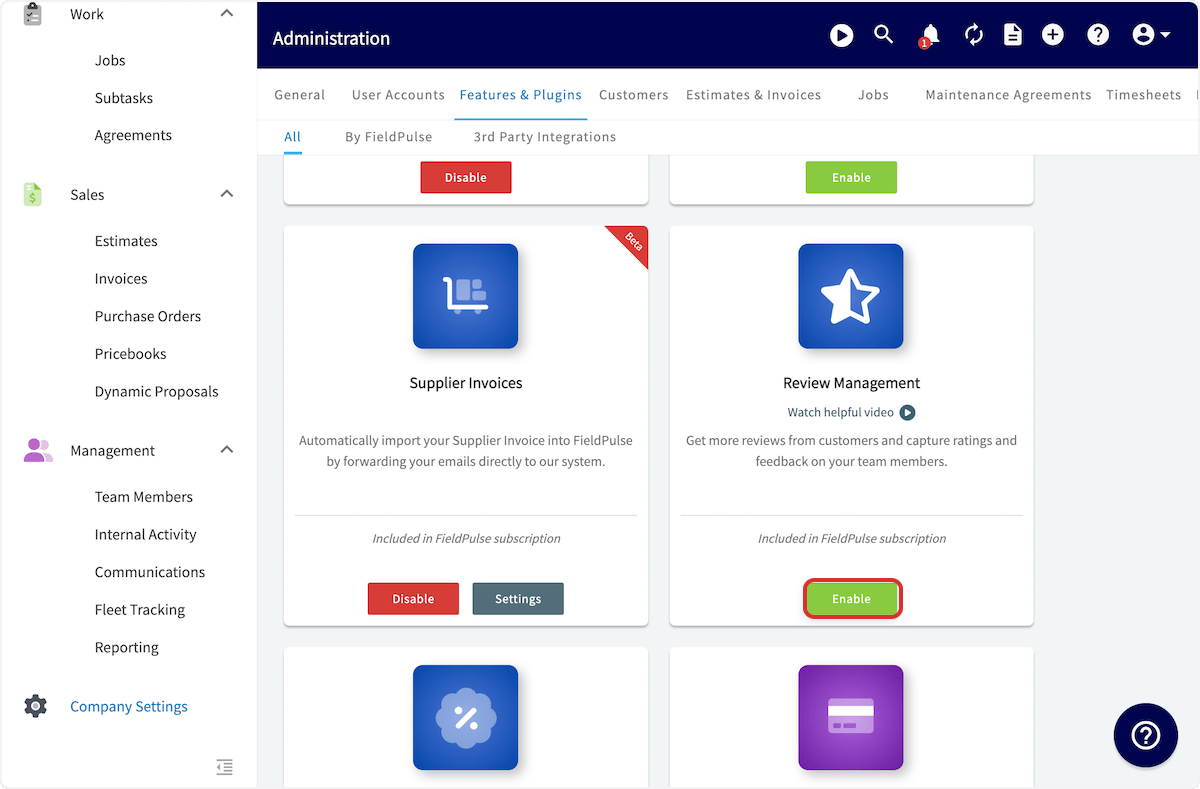
1. Go to **Company Settings** > **Features & Plugins**.
2. Find the **Review Management** tile and select **Enable**.
 ### 2. Set up third-party review requests
Third-party review requests ask your customer to publish a review on an external site such as Google, Yelp, Facebook, or HomeAdvisor.
1. Go to **Company Settings** > **Review** and stay on the **Review Setup** tab.
### 2. Set up third-party review requests
Third-party review requests ask your customer to publish a review on an external site such as Google, Yelp, Facebook, or HomeAdvisor.
1. Go to **Company Settings** > **Review** and stay on the **Review Setup** tab.
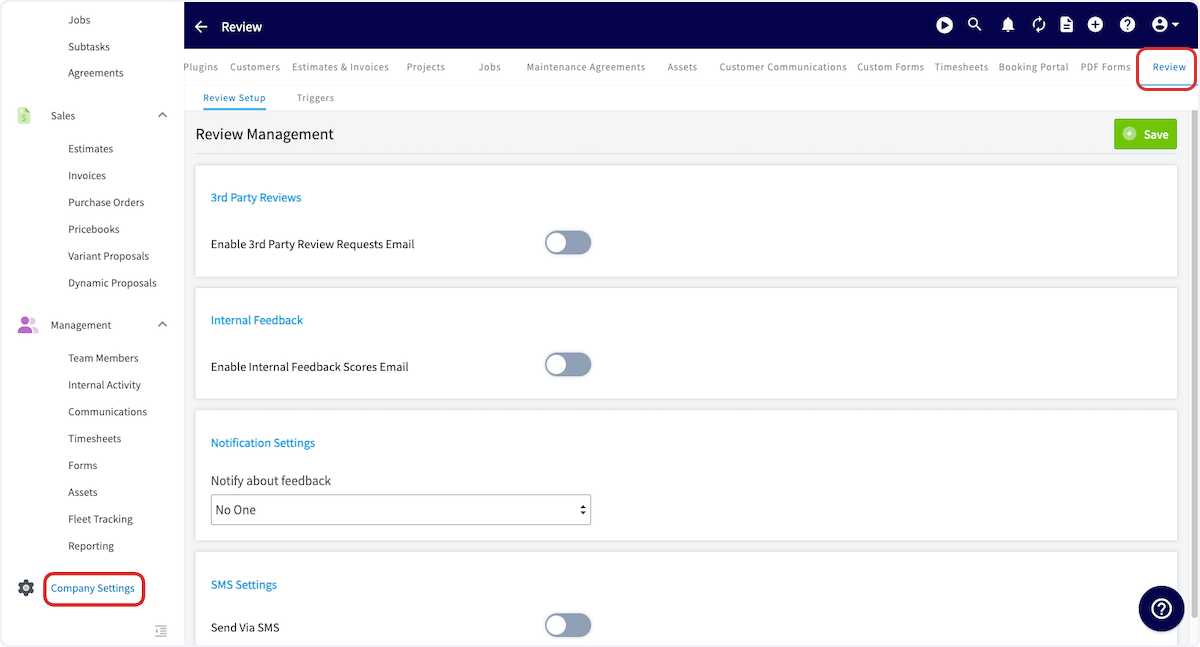 2. Turn on **Enable 3rd Party Review Requests Email**. FieldPulse fills in a standard **Email Subject Line** and **Email Body**.
3. Replace the standard subject line and body with your own wording. Both fields are required, and both go out with every review request.
2. Turn on **Enable 3rd Party Review Requests Email**. FieldPulse fills in a standard **Email Subject Line** and **Email Body**.
3. Replace the standard subject line and body with your own wording. Both fields are required, and both go out with every review request.
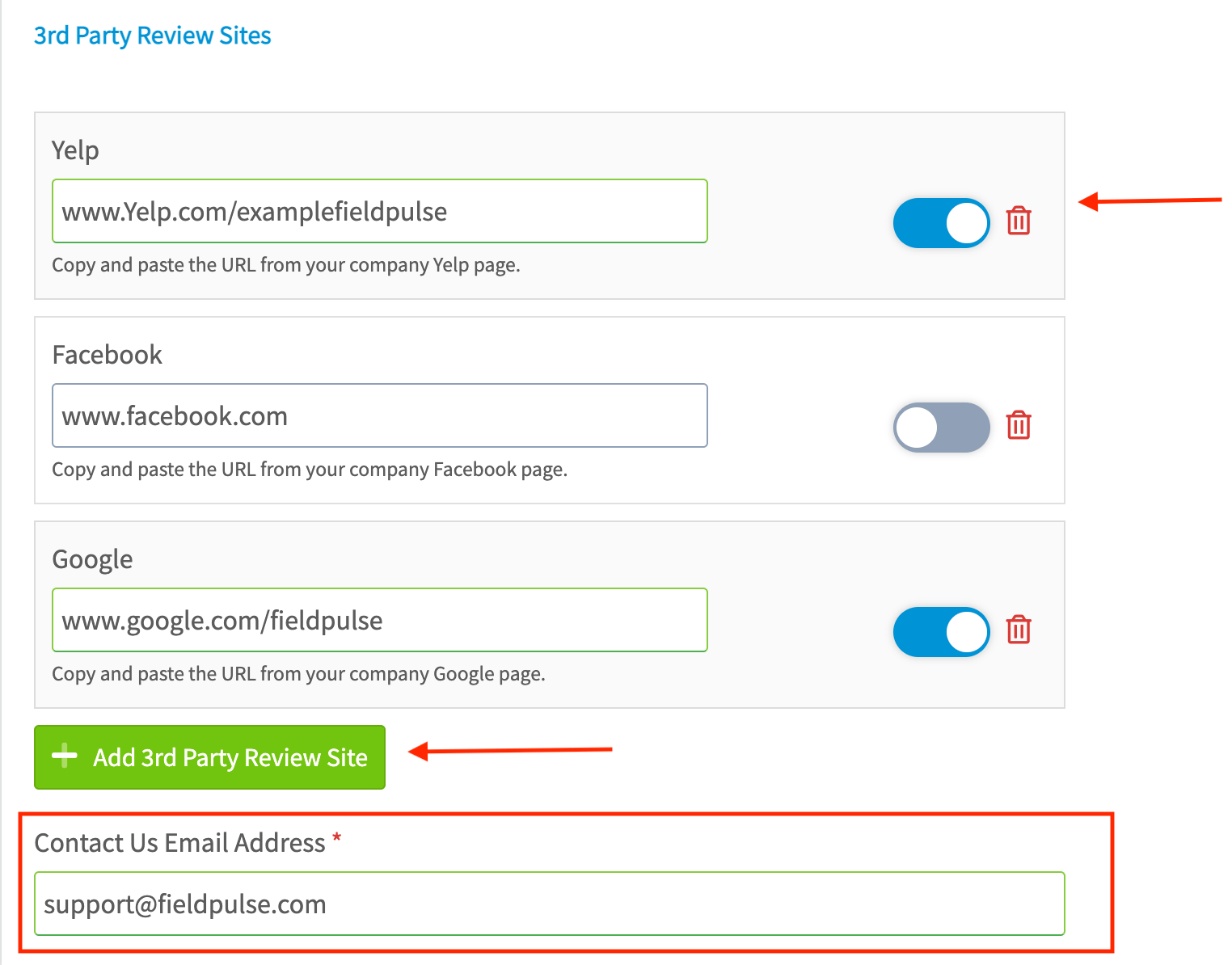
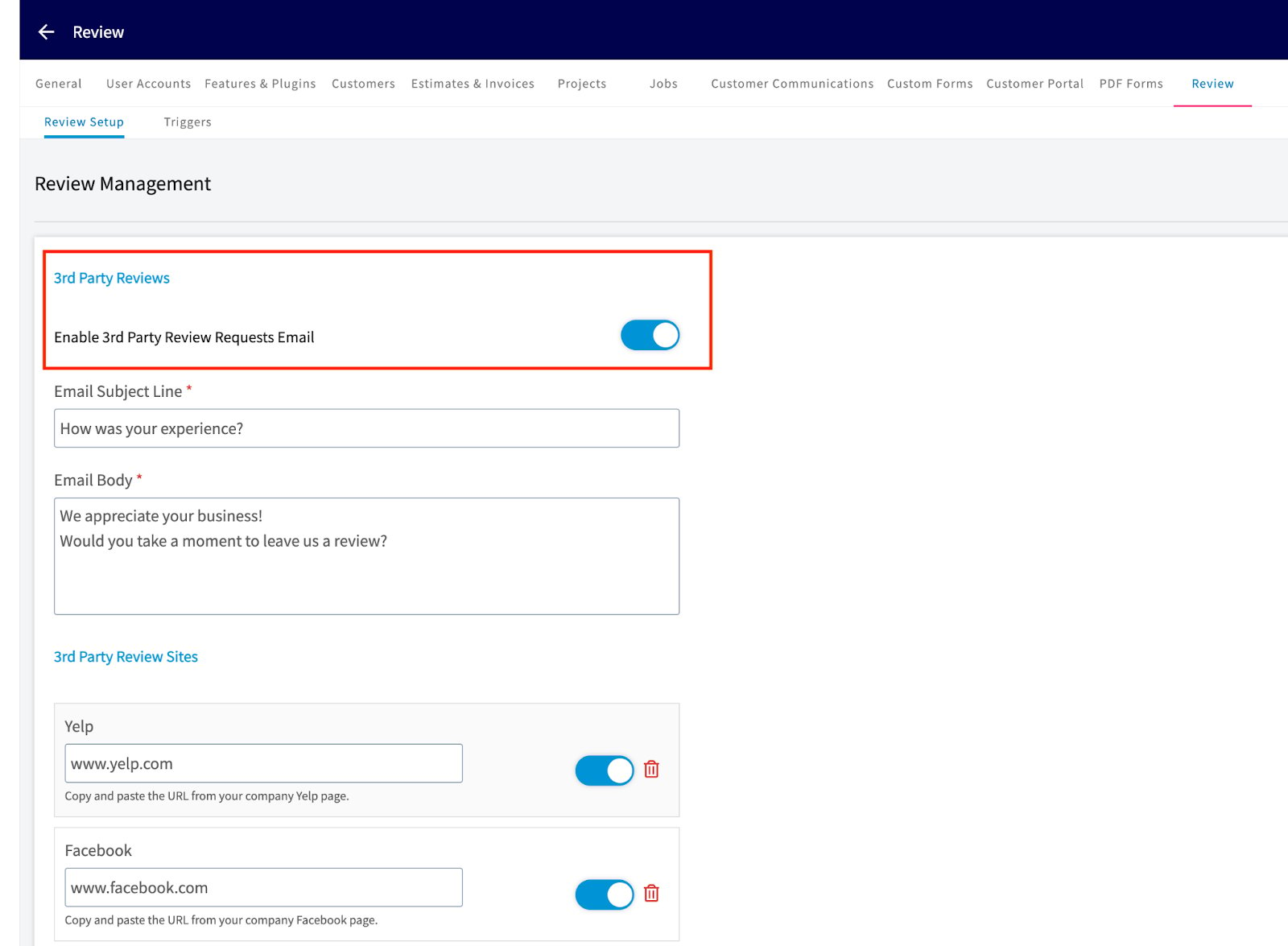 4. Under **3rd Party Review Sites**, paste the URL of each review page into its field. Yelp, Facebook, and Google each have their own field.
5. Turn each site's toggle on or off to control whether that link appears in the request, or select the trash icon to remove the site.
6. Select **Add 3rd Party Review Site** to add a review site beyond the three listed.
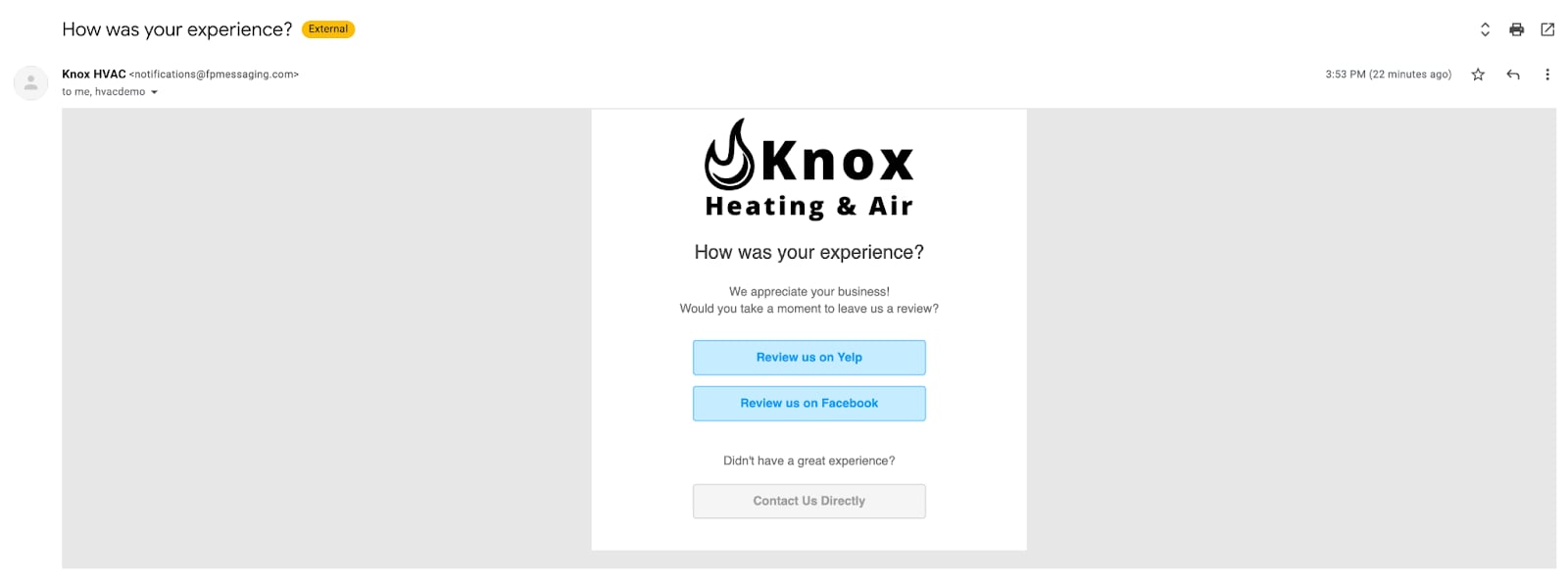
7. Enter a **Contact Us Email Address**. This field is required, and the address sits behind the **Contact Us Directly** button in the request email.
4. Under **3rd Party Review Sites**, paste the URL of each review page into its field. Yelp, Facebook, and Google each have their own field.
5. Turn each site's toggle on or off to control whether that link appears in the request, or select the trash icon to remove the site.
6. Select **Add 3rd Party Review Site** to add a review site beyond the three listed.
7. Enter a **Contact Us Email Address**. This field is required, and the address sits behind the **Contact Us Directly** button in the request email.
 8. Select **Save**.
Here is what a third-party review request looks like when it reaches your customer:
8. Select **Save**.
Here is what a third-party review request looks like when it reaches your customer:
 ### 3. Set up internal feedback
Internal feedback requests ask your customer to rate the service they received so your company and your service agents can improve. The rating stays in FieldPulse and is never posted publicly.
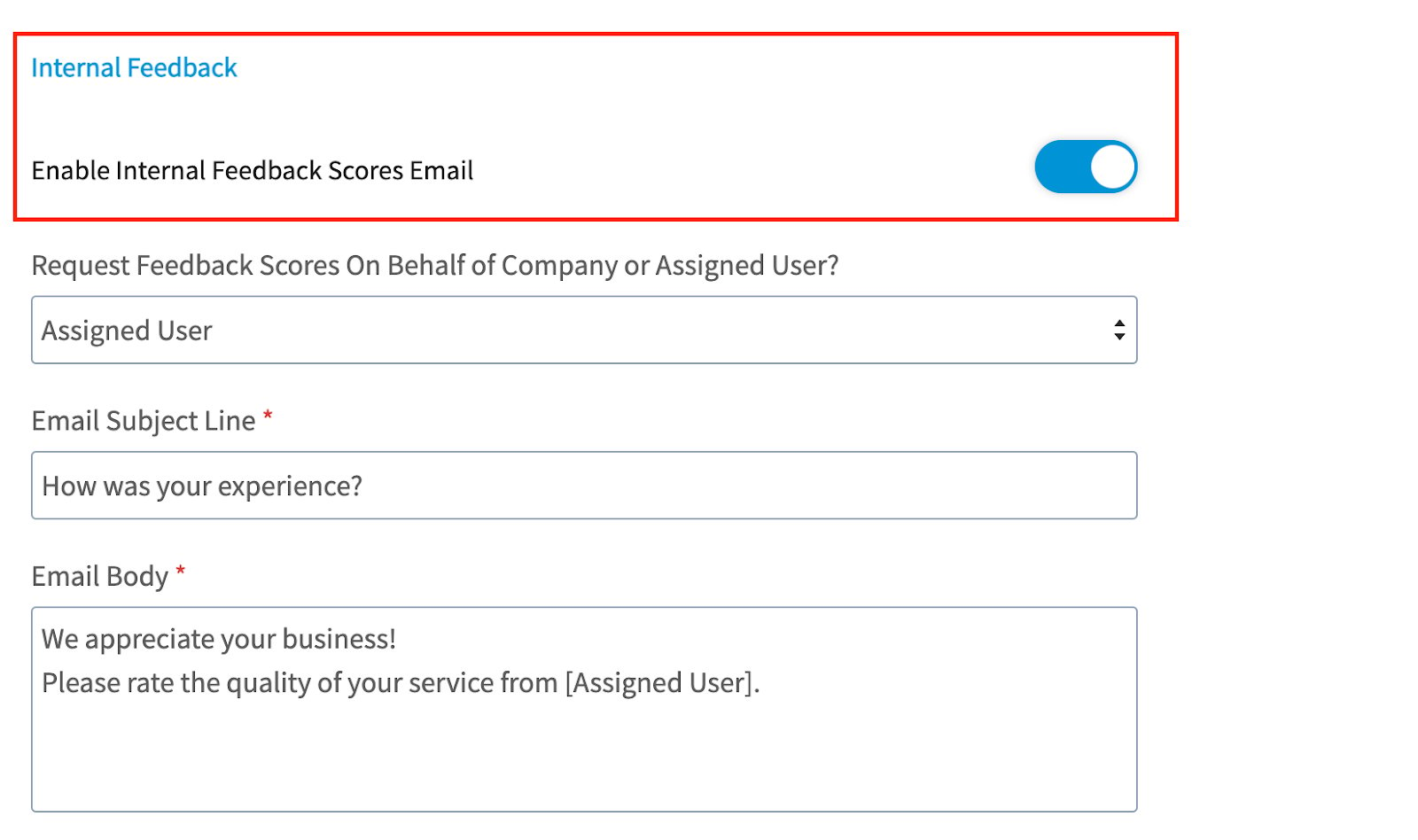
1. On the **Review Setup** tab, turn on **Enable Internal Feedback Scores Email**.
2. Set **Request Feedback Scores On Behalf of Company or Assigned User?** to **Company** to score the business as a whole, or to **Assigned User** to score the team member assigned to the related job.
3. Replace the standard **Email Subject Line** and **Email Body** with your own wording. Both fields are required, and both go out with every feedback request.
### 3. Set up internal feedback
Internal feedback requests ask your customer to rate the service they received so your company and your service agents can improve. The rating stays in FieldPulse and is never posted publicly.
1. On the **Review Setup** tab, turn on **Enable Internal Feedback Scores Email**.
2. Set **Request Feedback Scores On Behalf of Company or Assigned User?** to **Company** to score the business as a whole, or to **Assigned User** to score the team member assigned to the related job.
3. Replace the standard **Email Subject Line** and **Email Body** with your own wording. Both fields are required, and both go out with every feedback request.
 4. Select **Save**.
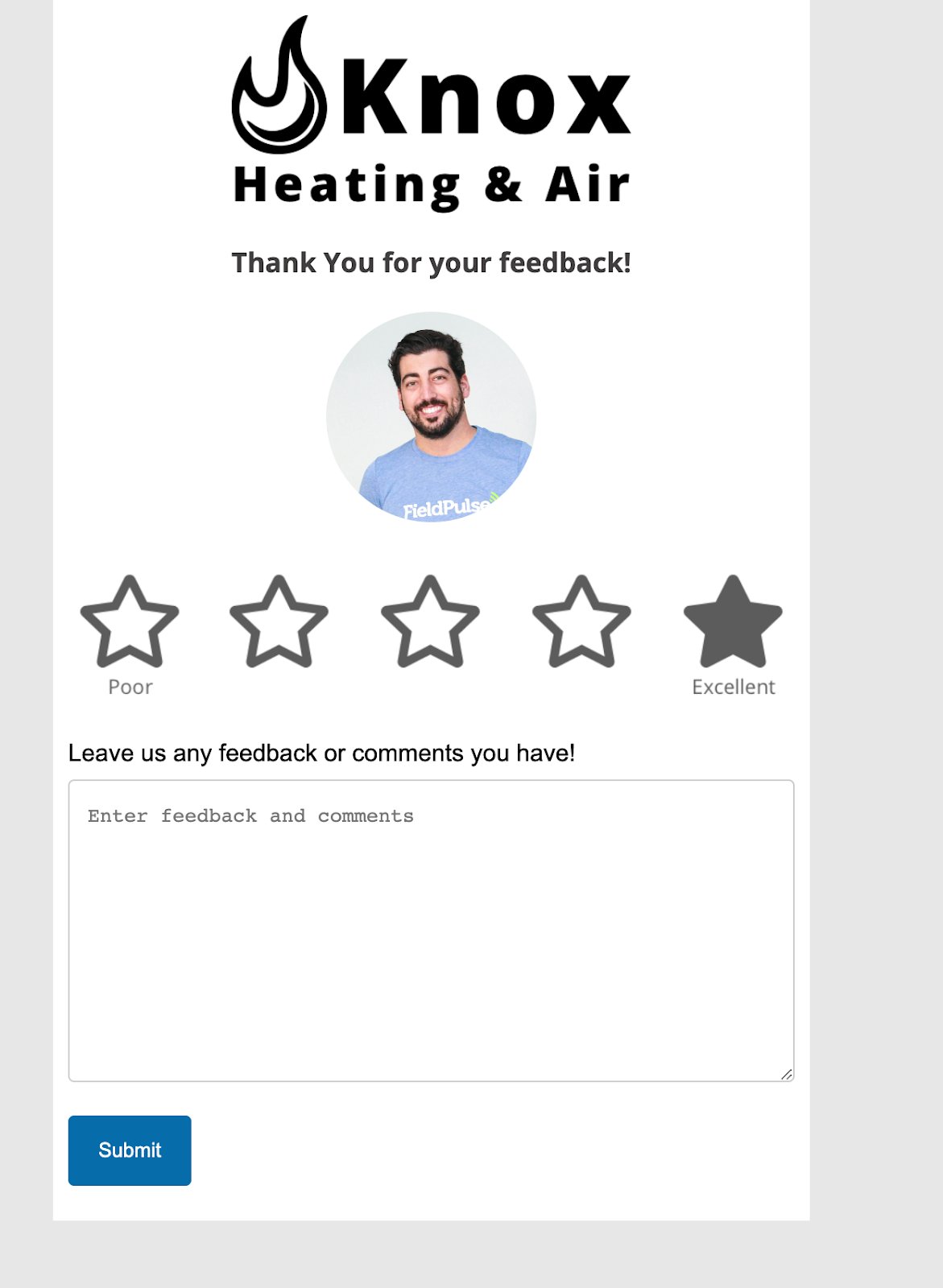
Your customer rates the service on a form carrying your company logo, choosing a star rating from Poor to Excellent, adding any written comments, and selecting **Submit**:
4. Select **Save**.
Your customer rates the service on a form carrying your company logo, choosing a star rating from Poor to Excellent, adding any written comments, and selecting **Submit**:
 ### 4. Add an automatic trigger
A trigger sends a review or feedback request on its own when something happens on a job, so nobody on your team has to remember to send it.
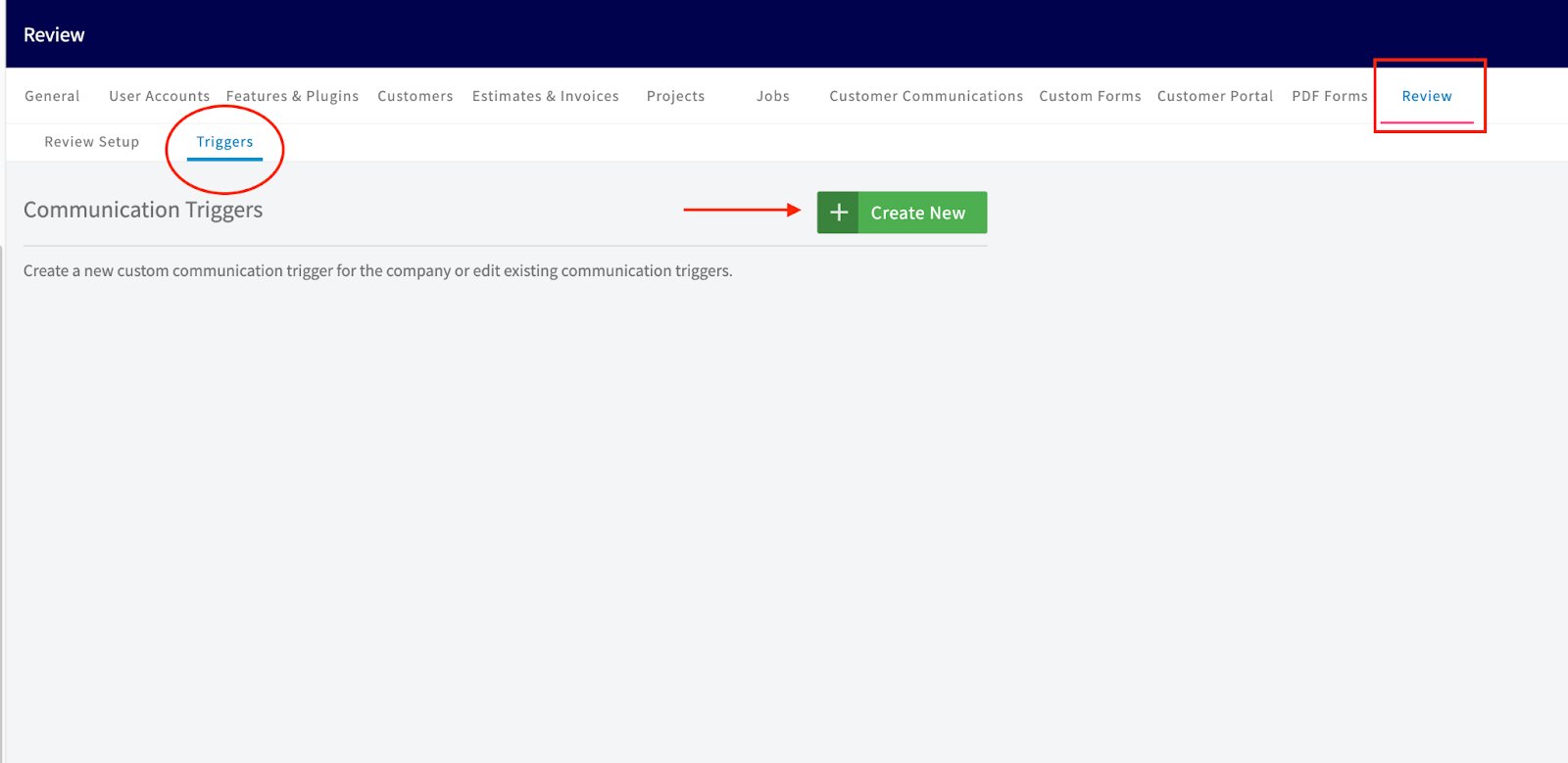
1. Go to **Company Settings** > **Review** > **Triggers**.
2. Select **Create New**.
### 4. Add an automatic trigger
A trigger sends a review or feedback request on its own when something happens on a job, so nobody on your team has to remember to send it.
1. Go to **Company Settings** > **Review** > **Triggers**.
2. Select **Create New**.
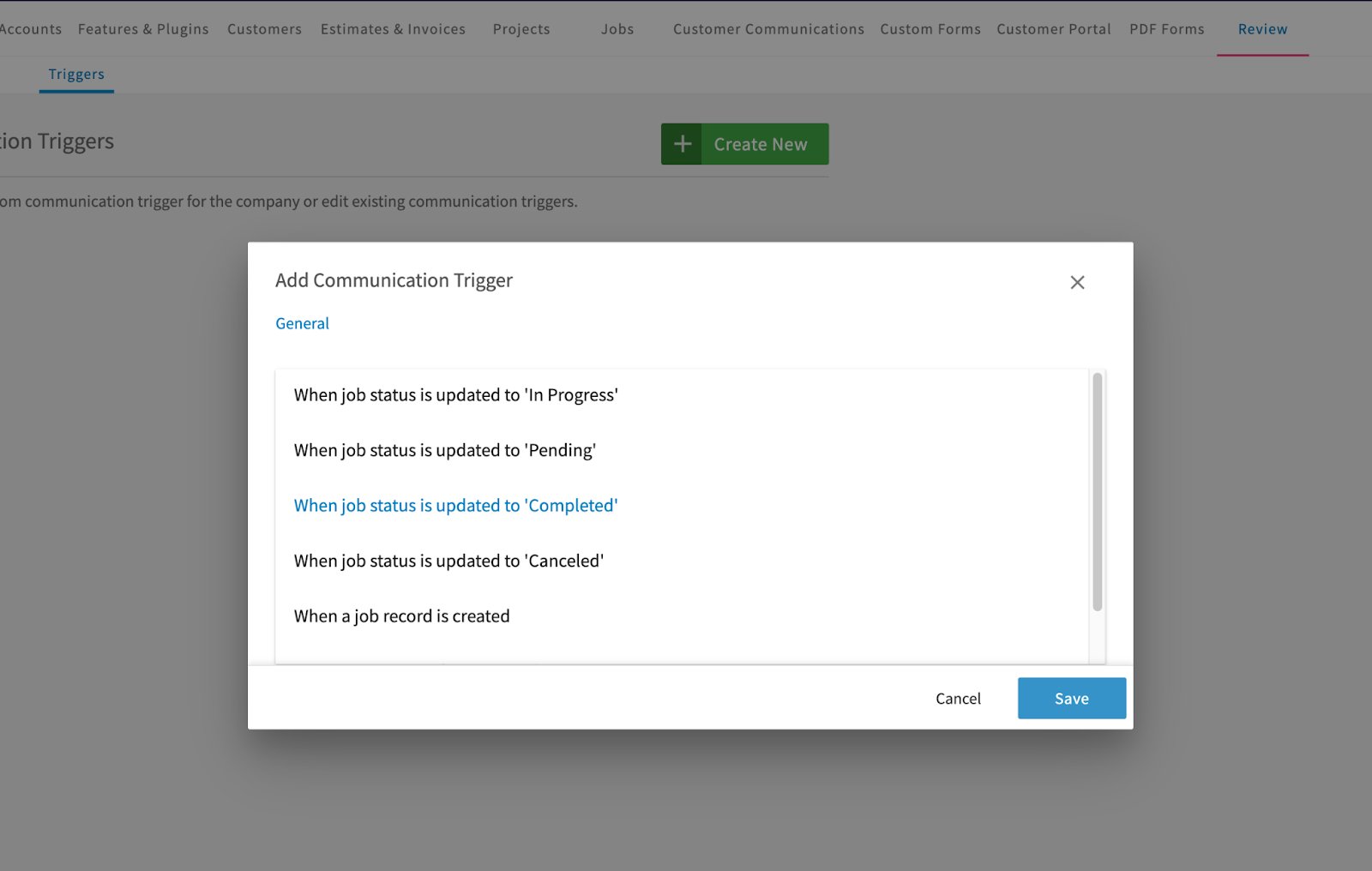
 3. In **Choose Trigger**, pick the event that sends the email. The list covers job events such as when a job record is created and when job status is updated to In Progress, Pending, Completed, or Canceled. Pick **When job status is updated to 'Completed'** if you want the request to go out once the work is done.
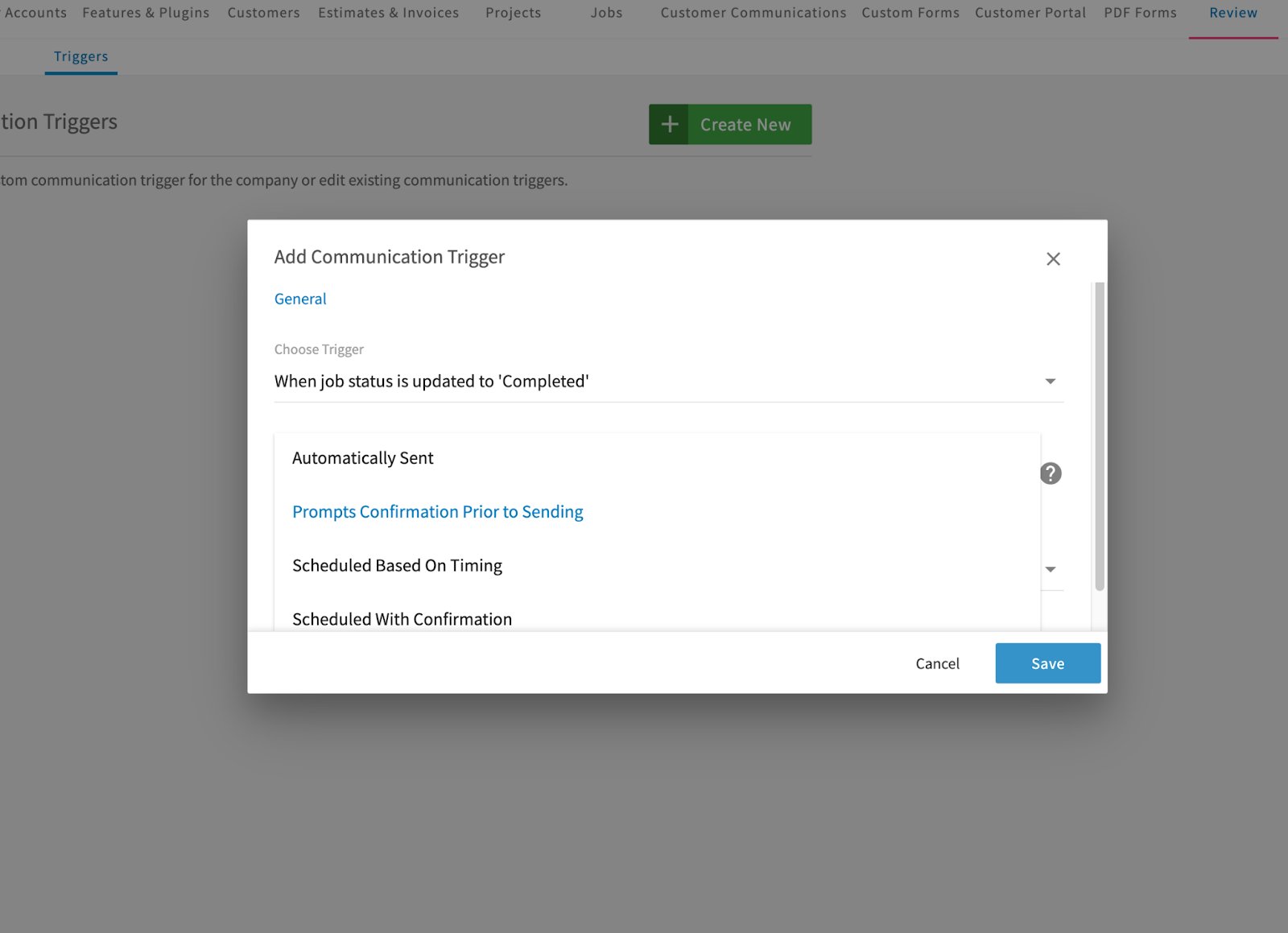
4. In **Choose Trigger Action**, pick what happens when the trigger fires. See [Trigger actions](#trigger-actions) in the Settings reference for what each option does.
3. In **Choose Trigger**, pick the event that sends the email. The list covers job events such as when a job record is created and when job status is updated to In Progress, Pending, Completed, or Canceled. Pick **When job status is updated to 'Completed'** if you want the request to go out once the work is done.
4. In **Choose Trigger Action**, pick what happens when the trigger fires. See [Trigger actions](#trigger-actions) in the Settings reference for what each option does.
 5. In **Choose Communication Template**, pick the review or feedback template this trigger sends.
6. Select **Save**.
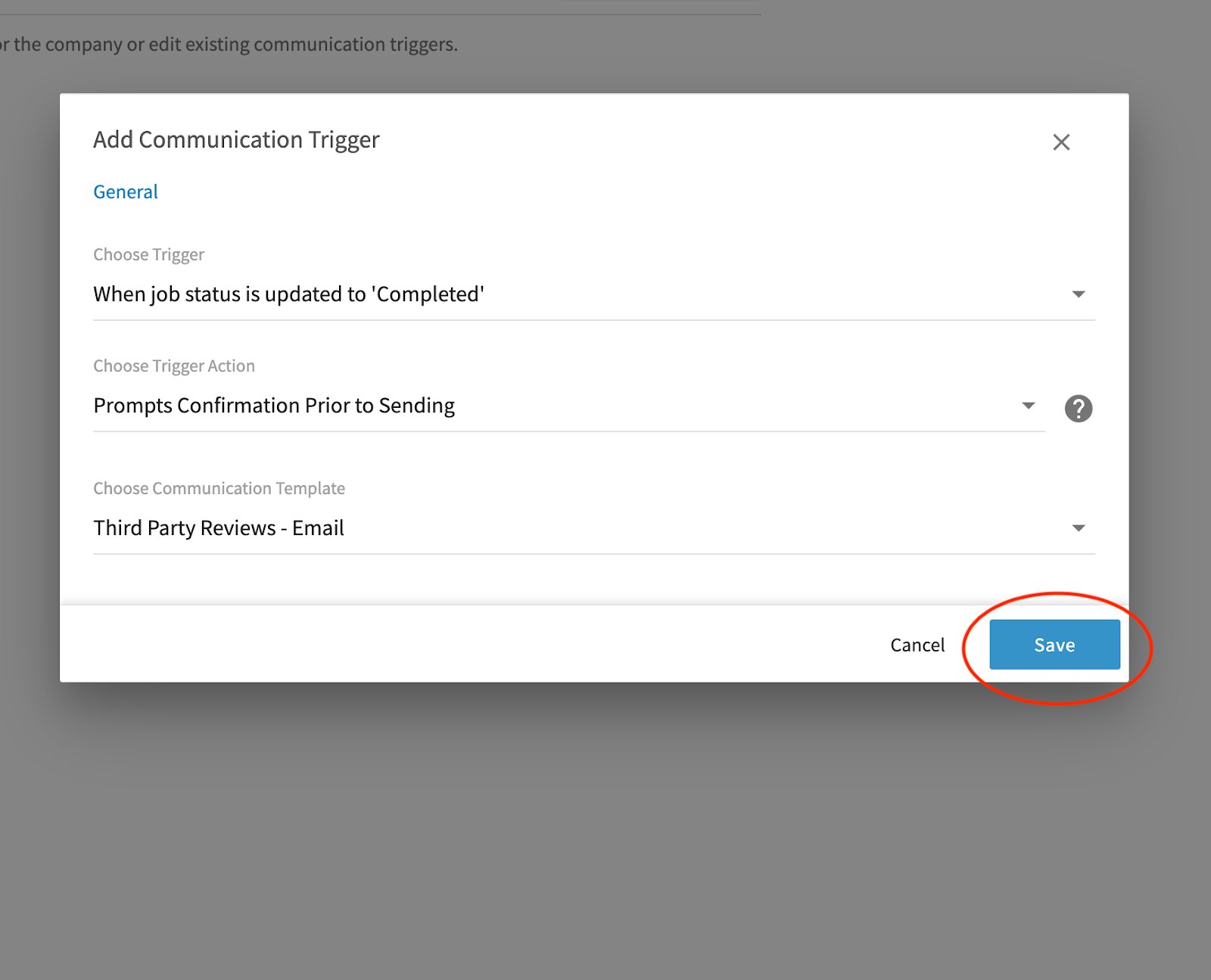
5. In **Choose Communication Template**, pick the review or feedback template this trigger sends.
6. Select **Save**.
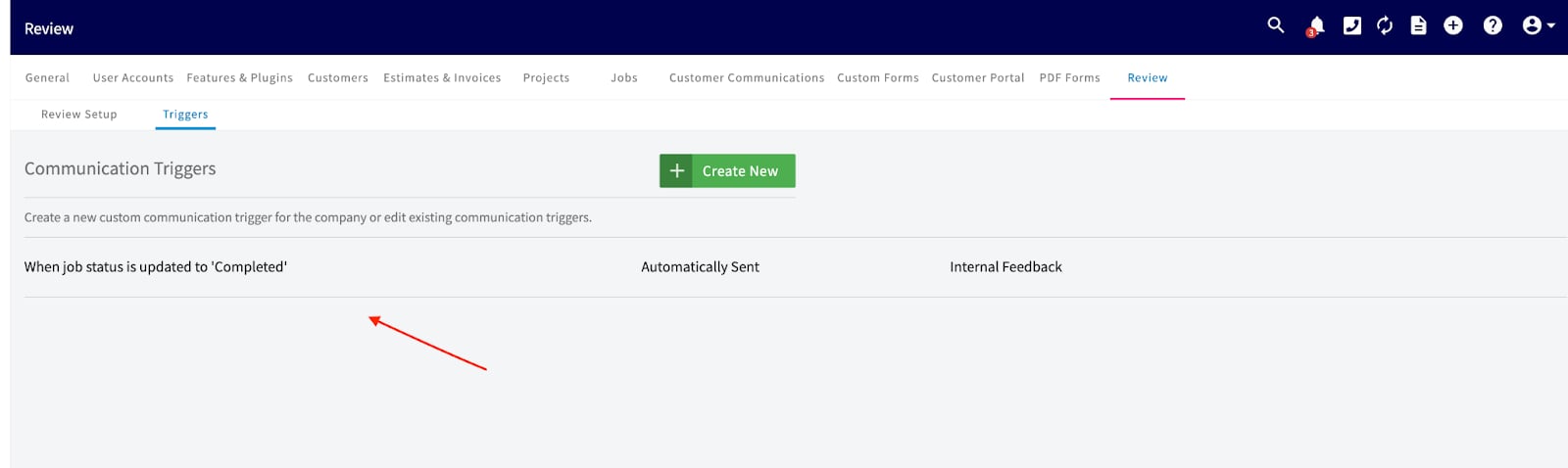
 The new trigger appears in the **Communication Triggers** list with its trigger event, its trigger action, and its template. Repeat these steps to add another trigger.
 ## Sending a request manually
Send a review or feedback request by hand from the job record when you would rather not use a trigger.
1. Open the job record for a job that has been completed.
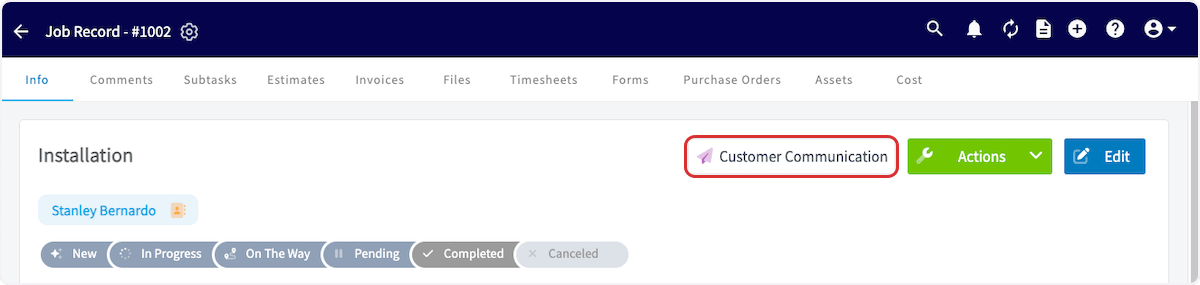
2. Select **Customer Communication**.
## Sending a request manually
Send a review or feedback request by hand from the job record when you would rather not use a trigger.
1. Open the job record for a job that has been completed.
2. Select **Customer Communication**.
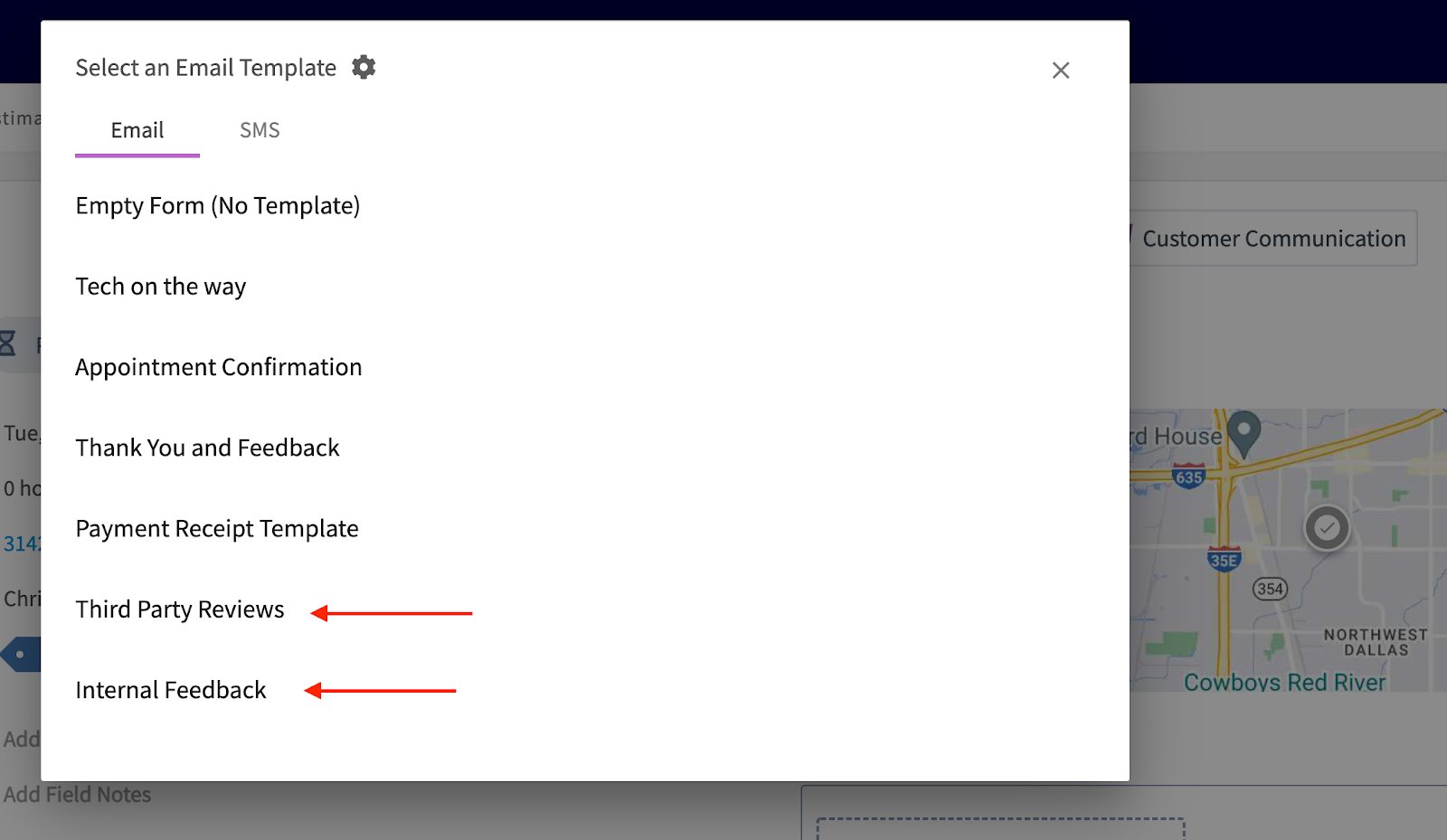
 3. On the **Email** tab of **Select an Email Template**, choose **Third Party Reviews** or **Internal Feedback**.
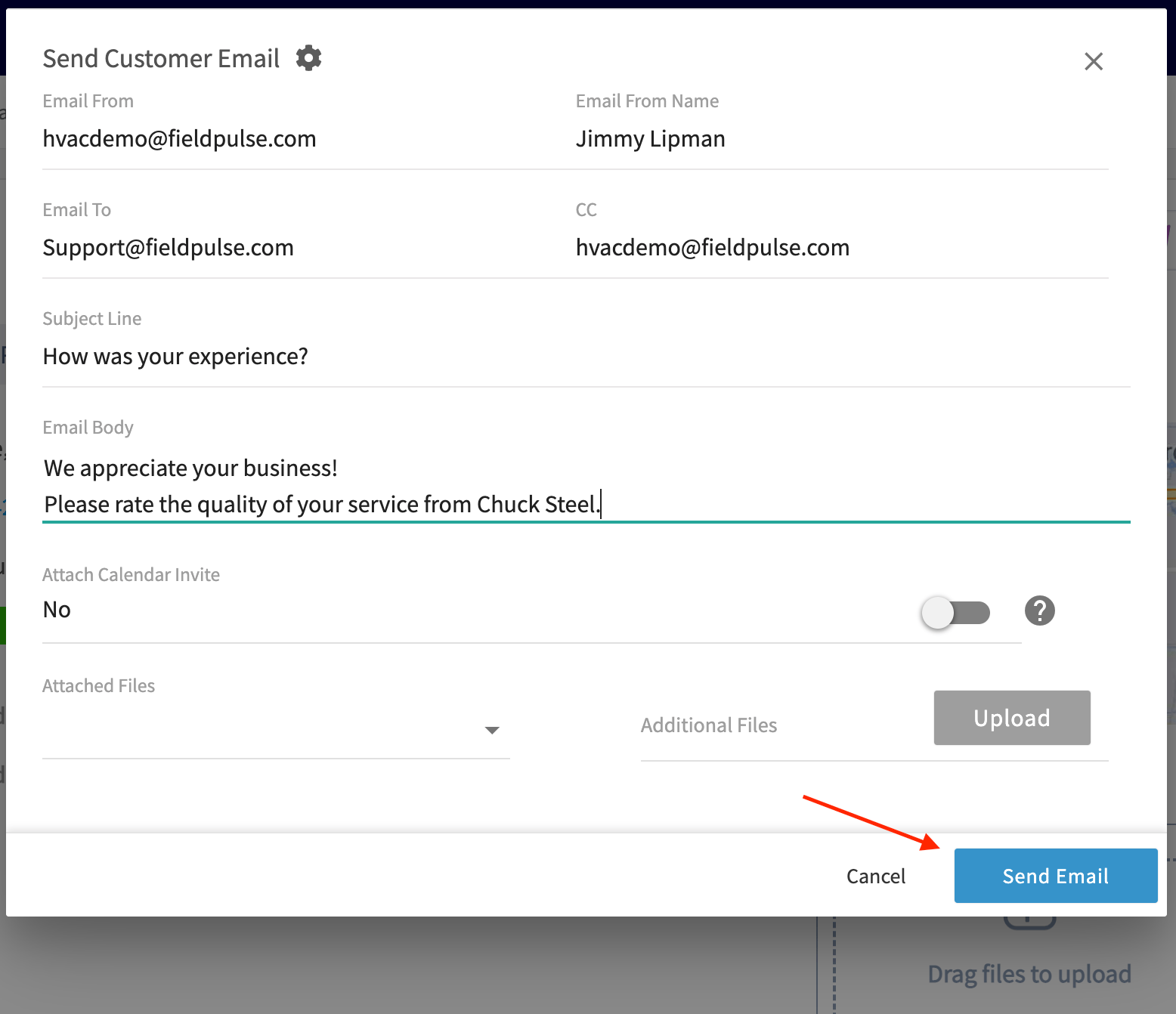
 4. Check the **Email To**, **Subject Line**, and **Email Body** that the template fills in, then select **Send Email**.
 ## Settings reference
### Review Setup settings
Every setting below lives on the **Review Setup** tab under **Company Settings** > **Review**.
| **Section** | **Setting** | **What it controls** |
| --------------------- | ------------------------------------------------------------------ | -------------------------------------------------------------------------------------------------------------------------- |
| 3rd Party Reviews | **Enable 3rd Party Review Requests Email** | Turns the third-party review request email on or off. |
| 3rd Party Reviews | **Email Subject Line** and **Email Body** | The wording of the review request. Both are required. |
| 3rd Party Reviews | **3rd Party Review Sites** | One URL field, one on/off toggle, and one delete control per review site. **Add 3rd Party Review Site** adds another site. |
| 3rd Party Reviews | **Contact Us Email Address** | The address behind the **Contact Us Directly** button in the request email. Required. |
| Internal Feedback | **Enable Internal Feedback Scores Email** | Turns the internal feedback request email on or off. |
| Internal Feedback | **Request Feedback Scores On Behalf of Company or Assigned User?** | Whether a feedback score applies to the **Company** or to the **Assigned User** on the related job. |
| Internal Feedback | **Email Subject Line** and **Email Body** | The wording of the feedback request. Both are required. |
| Notification Settings | **Notify about feedback** | Who gets notified about feedback. |
| SMS Settings | **Send Via SMS** | Whether requests also go out by SMS. |
### Trigger actions
**Choose Trigger Action** decides what FieldPulse does once the trigger event happens.
| **Trigger action** | **What happens** |
| ----------------------------------------- | -------------------------------------------------------------------------------------------------------- |
| **Automatically Sent** | FieldPulse sends the communication immediately after the trigger fires, with no preview or confirmation. |
| **Prompts Confirmation Prior to Sending** | A pop-up opens after the trigger fires so you can confirm the communication before it sends. |
| **Scheduled Based On Timing** | FieldPulse sends the communication on a timing sequence you specify. |
## Related articles
* [Review Management Emails Overview](/customers/reviews-referrals/customer-view)
* [Customer Communications Overview](/customers/communications/overview)
* [Setting Up Automatic Communication Triggers](/customers/communications/automatic-triggers)
* [How to Create Review Management Reports](/reporting/raw-data/review-management-reports)
Your setup is working when the trigger you created fires on a job, your customer receives the request email you wrote, and public reviews and internal feedback scores start coming back to your company or to the assigned team member.
## Related topics
- [Review Management Emails Overview](/customers/reviews-referrals/customer-view.md)
- [Reviews & Referrals](/customers/reviews-referrals/index.md)
- [How to Create Review Management Reports](/reporting/raw-data/review-management-reports.md)
- [How to Get a $100 Gift Card for a Capterra Review](/training-resources/review-referral-rewards/capterra-gift-card.md)
## Settings reference
### Review Setup settings
Every setting below lives on the **Review Setup** tab under **Company Settings** > **Review**.
| **Section** | **Setting** | **What it controls** |
| --------------------- | ------------------------------------------------------------------ | -------------------------------------------------------------------------------------------------------------------------- |
| 3rd Party Reviews | **Enable 3rd Party Review Requests Email** | Turns the third-party review request email on or off. |
| 3rd Party Reviews | **Email Subject Line** and **Email Body** | The wording of the review request. Both are required. |
| 3rd Party Reviews | **3rd Party Review Sites** | One URL field, one on/off toggle, and one delete control per review site. **Add 3rd Party Review Site** adds another site. |
| 3rd Party Reviews | **Contact Us Email Address** | The address behind the **Contact Us Directly** button in the request email. Required. |
| Internal Feedback | **Enable Internal Feedback Scores Email** | Turns the internal feedback request email on or off. |
| Internal Feedback | **Request Feedback Scores On Behalf of Company or Assigned User?** | Whether a feedback score applies to the **Company** or to the **Assigned User** on the related job. |
| Internal Feedback | **Email Subject Line** and **Email Body** | The wording of the feedback request. Both are required. |
| Notification Settings | **Notify about feedback** | Who gets notified about feedback. |
| SMS Settings | **Send Via SMS** | Whether requests also go out by SMS. |
### Trigger actions
**Choose Trigger Action** decides what FieldPulse does once the trigger event happens.
| **Trigger action** | **What happens** |
| ----------------------------------------- | -------------------------------------------------------------------------------------------------------- |
| **Automatically Sent** | FieldPulse sends the communication immediately after the trigger fires, with no preview or confirmation. |
| **Prompts Confirmation Prior to Sending** | A pop-up opens after the trigger fires so you can confirm the communication before it sends. |
| **Scheduled Based On Timing** | FieldPulse sends the communication on a timing sequence you specify. |
## Related articles
* [Review Management Emails Overview](/customers/reviews-referrals/customer-view)
* [Customer Communications Overview](/customers/communications/overview)
* [Setting Up Automatic Communication Triggers](/customers/communications/automatic-triggers)
* [How to Create Review Management Reports](/reporting/raw-data/review-management-reports)
Your setup is working when the trigger you created fires on a job, your customer receives the request email you wrote, and public reviews and internal feedback scores start coming back to your company or to the assigned team member.
## Related topics
- [Review Management Emails Overview](/customers/reviews-referrals/customer-view.md)
- [Reviews & Referrals](/customers/reviews-referrals/index.md)
- [How to Create Review Management Reports](/reporting/raw-data/review-management-reports.md)
- [How to Get a $100 Gift Card for a Capterra Review](/training-resources/review-referral-rewards/capterra-gift-card.md)