> ## Documentation Index
> Fetch the complete documentation index at: https://help.fieldpulse.com/llms.txt
> Use this file to discover all available pages before exploring further.
# Setting Up Automatic Tax Rates & Tax Override
> Turn on Automatic Tax Rates in FieldPulse Company Settings so estimates and invoices pick up the rate for the job location, and override it on one record.
> **Who uses this:** Admins — only Admins can see **Company Settings**. **Availability:** Enable it from **Features & Plugins** in **Company Settings**.
Automatic Tax Rates fills in the tax rate on an [estimate or invoice](https://www.fieldpulse.com/features/estimates-and-invoices) for you, so your team stops looking up the tax code for every service area by hand. An Admin turns the feature on once in **Company Settings**, and you can still set a different rate on a record that needs one.
## Overview
Automatic Tax Rates applies the tax rate to an estimate or invoice based on the location of the job or customer. That saves time on every estimate and invoice, and it reduces the errors that come from entering tax rates by hand for areas with different tax codes.
When the service address and the billing address on a record are different, FieldPulse bases the automatic tax rate on the **service address zip code**.
The rate FieldPulse fills in is not fixed. You can change the tax rate on an individual estimate or invoice when that record needs a different rate. See [How to Create an Estimate](/estimates-invoices/creating/estimate) and [How to Create an Invoice](/estimates-invoices/creating/invoice) for where the tax rate sits on the record.
### Tax rates with QuickBooks Online
To set up your individualized tax rate settings for QuickBooks Online, see the default tax rate section of [How to Manage QuickBooks Online After Syncing](/integrations/accounting/quickbooks-online/post-sync).
For Canadian businesses that charge two taxes, FieldPulse pulls both rates — such as GST and PST — from QuickBooks Online and shows them on finalized records. See [Canadian Dual Tax Rate Details](/integrations/accounting/quickbooks-online/canadian-dual-tax) for the tax mode this requires.
## Before you begin
* Confirm your user role is **Admin**. Only Admins can see **Company Settings**, which holds this setting.
* Set up your custom tax rates in QuickBooks Online before you use them in FieldPulse. The rates need to exist in QuickBooks Online first.
## Step-by-step setup
1. Select **Company Settings** in the left-side menu.
2. Select **Features & Plugins** in the header.
3. Select **Enable** on the **Automatic Tax Rate** card.
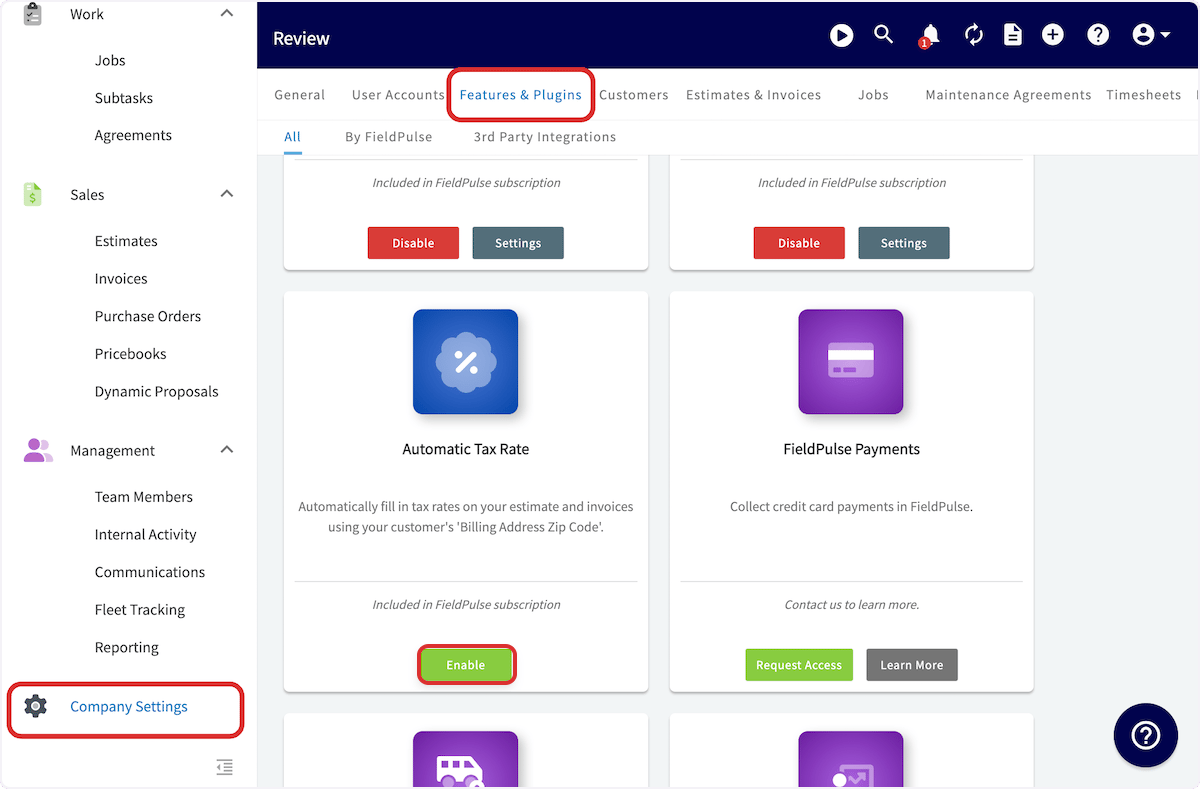 Once Automatic Tax Rates is on, FieldPulse fills in the tax rate on estimates and invoices. To use a different rate on a single record, change the tax rate on that estimate or invoice.
## Settings reference
| **Situation** | **What FieldPulse applies** |
| -------------------------------------------- | ---------------------------------------------------- |
| **The service and billing addresses match** | The tax rate for that location. |
| **The service and billing addresses differ** | The tax rate for the **service address zip code**. |
| **One record needs a different rate** | The rate set on that individual estimate or invoice. |
## Tips
* Use **Automatic Tax Rates** for the most accurate setup with the least manual work.
* Review your tax settings in QuickBooks Online regularly.
## Still need help?
Reach the [FieldPulse support team](https://www.fieldpulse.com/company/contact-us) at [support@fieldpulse.com](mailto:support@fieldpulse.com) or through the chat feature in the bottom-right corner of your screen.
## Related articles
* [Setting Up Default Estimate & Invoice Settings](/estimates-invoices/creating/default-settings)
* [How to Create an Estimate](/estimates-invoices/creating/estimate)
* [How to Create an Invoice](/estimates-invoices/creating/invoice)
* [How to Manage QuickBooks Online After Syncing](/integrations/accounting/quickbooks-online/post-sync)
* [Canadian Dual Tax Rate Details](/integrations/accounting/quickbooks-online/canadian-dual-tax)
Your setup is working when a team member creates an estimate or invoice, the tax rate for the job location fills in on its own, and the rate can still be changed on a record that needs a different one.
## Related topics
- [How to Create an Invoice](/estimates-invoices/creating/invoice.md)
- [How to Create an Estimate](/estimates-invoices/creating/estimate.md)
- [Setting Up Default Estimate & Invoice Settings](/estimates-invoices/creating/default-settings.md)
- [Creating Estimates & Invoices](/estimates-invoices/creating/index.md)
Once Automatic Tax Rates is on, FieldPulse fills in the tax rate on estimates and invoices. To use a different rate on a single record, change the tax rate on that estimate or invoice.
## Settings reference
| **Situation** | **What FieldPulse applies** |
| -------------------------------------------- | ---------------------------------------------------- |
| **The service and billing addresses match** | The tax rate for that location. |
| **The service and billing addresses differ** | The tax rate for the **service address zip code**. |
| **One record needs a different rate** | The rate set on that individual estimate or invoice. |
## Tips
* Use **Automatic Tax Rates** for the most accurate setup with the least manual work.
* Review your tax settings in QuickBooks Online regularly.
## Still need help?
Reach the [FieldPulse support team](https://www.fieldpulse.com/company/contact-us) at [support@fieldpulse.com](mailto:support@fieldpulse.com) or through the chat feature in the bottom-right corner of your screen.
## Related articles
* [Setting Up Default Estimate & Invoice Settings](/estimates-invoices/creating/default-settings)
* [How to Create an Estimate](/estimates-invoices/creating/estimate)
* [How to Create an Invoice](/estimates-invoices/creating/invoice)
* [How to Manage QuickBooks Online After Syncing](/integrations/accounting/quickbooks-online/post-sync)
* [Canadian Dual Tax Rate Details](/integrations/accounting/quickbooks-online/canadian-dual-tax)
Your setup is working when a team member creates an estimate or invoice, the tax rate for the job location fills in on its own, and the rate can still be changed on a record that needs a different one.
## Related topics
- [How to Create an Invoice](/estimates-invoices/creating/invoice.md)
- [How to Create an Estimate](/estimates-invoices/creating/estimate.md)
- [Setting Up Default Estimate & Invoice Settings](/estimates-invoices/creating/default-settings.md)
- [Creating Estimates & Invoices](/estimates-invoices/creating/index.md)