> ## Documentation Index
> Fetch the complete documentation index at: https://help.fieldpulse.com/llms.txt
> Use this file to discover all available pages before exploring further.
# How to Use Line Item Bundles & Groupings
> Save the parts and services you always sell together as a FieldPulse invoice bundle, and group line items under one title, price, and customer visibility.
> **Who uses this:** Only Admins can view **Company Settings**, where invoice bundles are built; inserting a bundle and creating a grouping on a record needs the **Create & send Estimates/Invoices** permission, which Admins and Team Managers hold by default and an Admin can enable for a Service Agent. **Availability:** All regions.
An invoice bundle is a saved set of services and parts that you insert onto an [estimate or invoice](https://www.fieldpulse.com/features/estimates-and-invoices) in one step instead of adding each line by hand. A grouping collects related line items on one estimate or invoice under a single title and price, and controls how much of that detail your customer sees. Bundles and groupings are two separate tools, and you can use them together on the same record.
## Overview
Bundles and groupings solve two different problems. You build an invoice bundle once in **Company Settings**, then insert it on any estimate or invoice — the bundle saves the entry time on the sets of parts and services you sell together. You create a grouping while building a specific estimate or invoice — the grouping controls how the finished document reads for your customer.
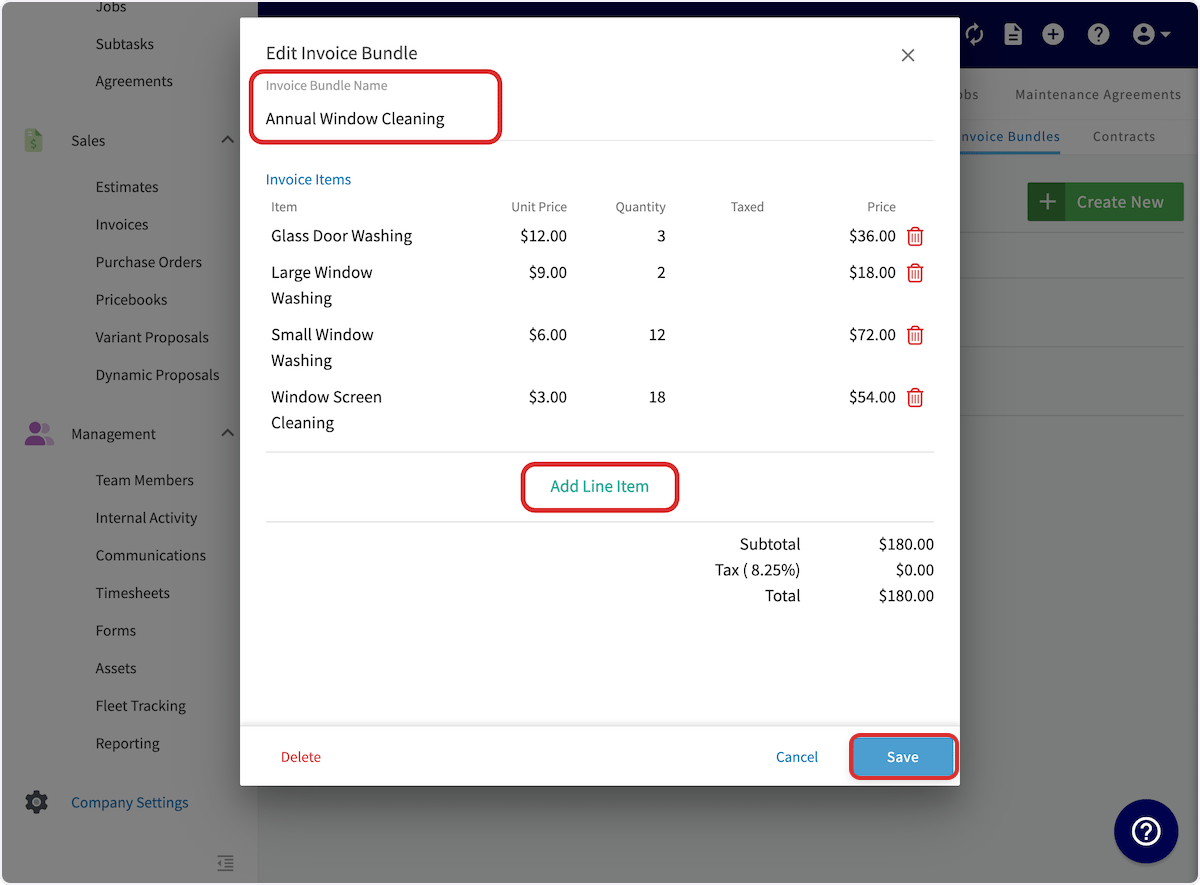
A bundle holds each line item with its unit price and quantity, and the bundle window shows the subtotal, tax, and total of everything inside it. A grouping shows a title, an optional description, and a total on the record, with the line items nested underneath it.
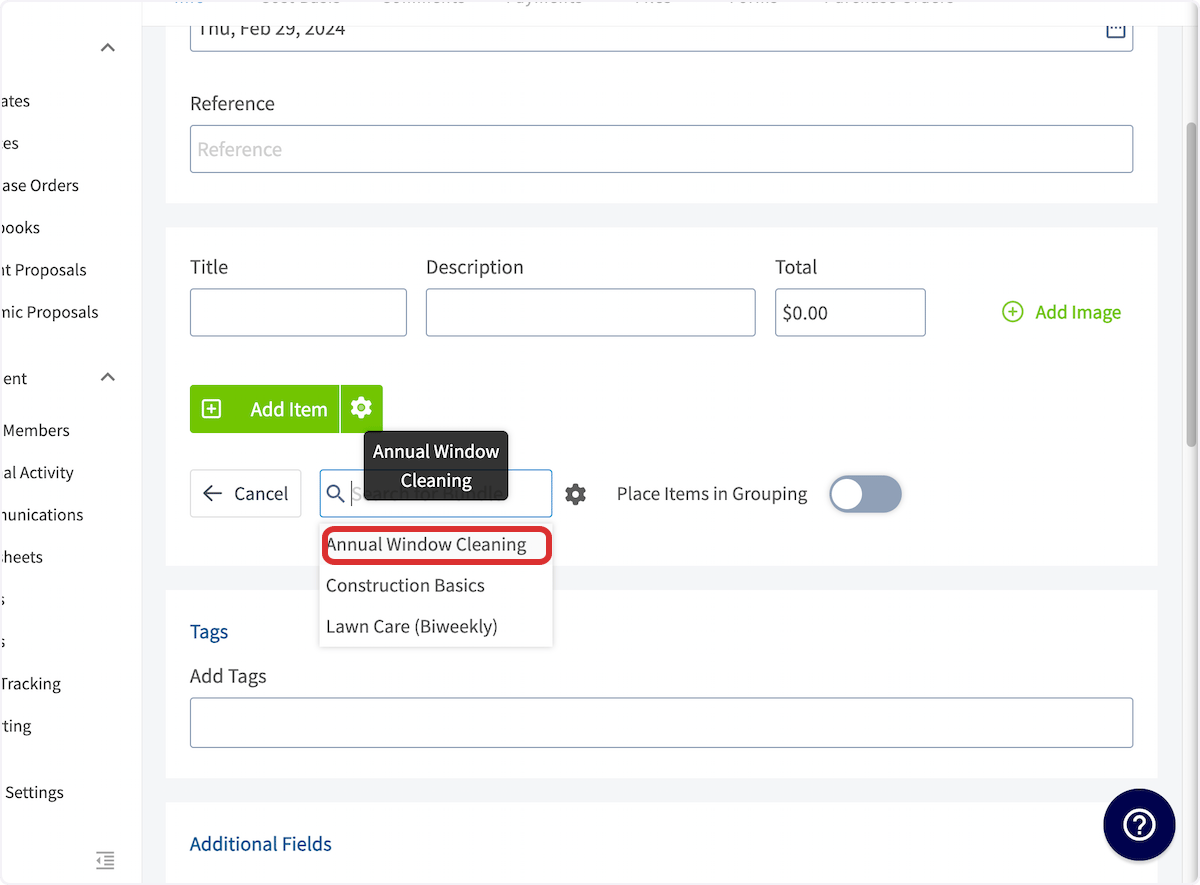
You can use both at once. When you insert a bundle, toggling on **Place Items in Grouping** puts the bundled items under a grouping on that record.
## Video walkthrough
Watch the [line item bundles and groupings walkthrough](https://www.loom.com/share/a23e762b1d5a472dbd1575b9fab0626e), then follow the written steps below.
## Before you begin
* Confirm your role. Only Admins can view **Company Settings**, where invoice bundles are built, and creating a record to insert a bundle onto needs the **Create & send Estimates/Invoices** permission — see [User Roles and Permissions Details](/settings/users-teams/user-roles).
* Build the bundle first. **Insert Bundle** adds a bundle that already exists in **Company Settings**, so set the bundle up before you need it on a record. Groupings need no setup — you create them on the estimate or invoice itself.
## Create an invoice bundle
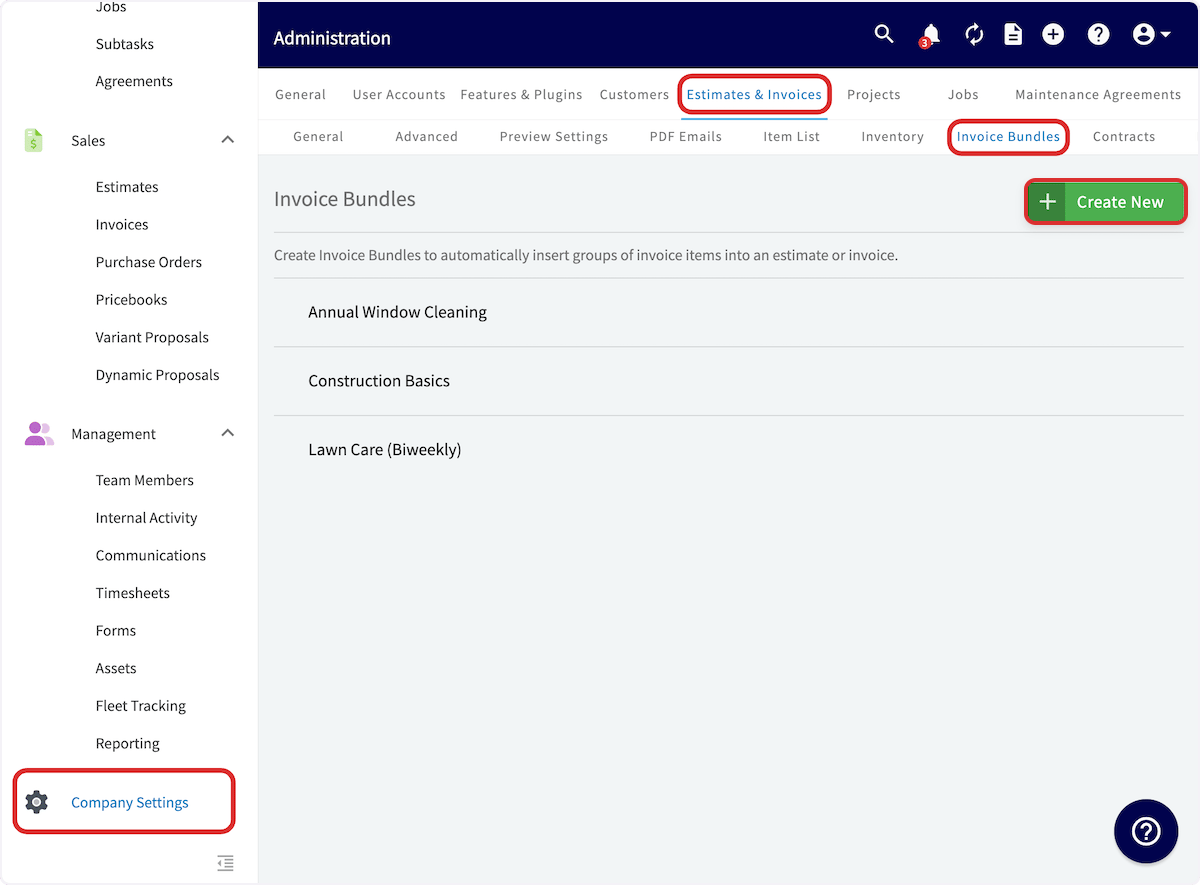
1. Select **Company Settings** in the left-side menu.
2. Select **Estimates & Invoices** in the header.
3. Select **Invoice Bundles** in the sub-header.
4. Select **Create New**.
 5. Enter a name for the bundle in **Invoice Bundle Name**.
6. Select **Add Line Item** and add each service or part that makes up the bundle.
7. Select **Save**.
5. Enter a name for the bundle in **Invoice Bundle Name**.
6. Select **Add Line Item** and add each service or part that makes up the bundle.
7. Select **Save**.
 To edit or delete a bundle you already saved, select it on the **Invoice Bundles** page.
## Insert a bundle on an estimate or invoice
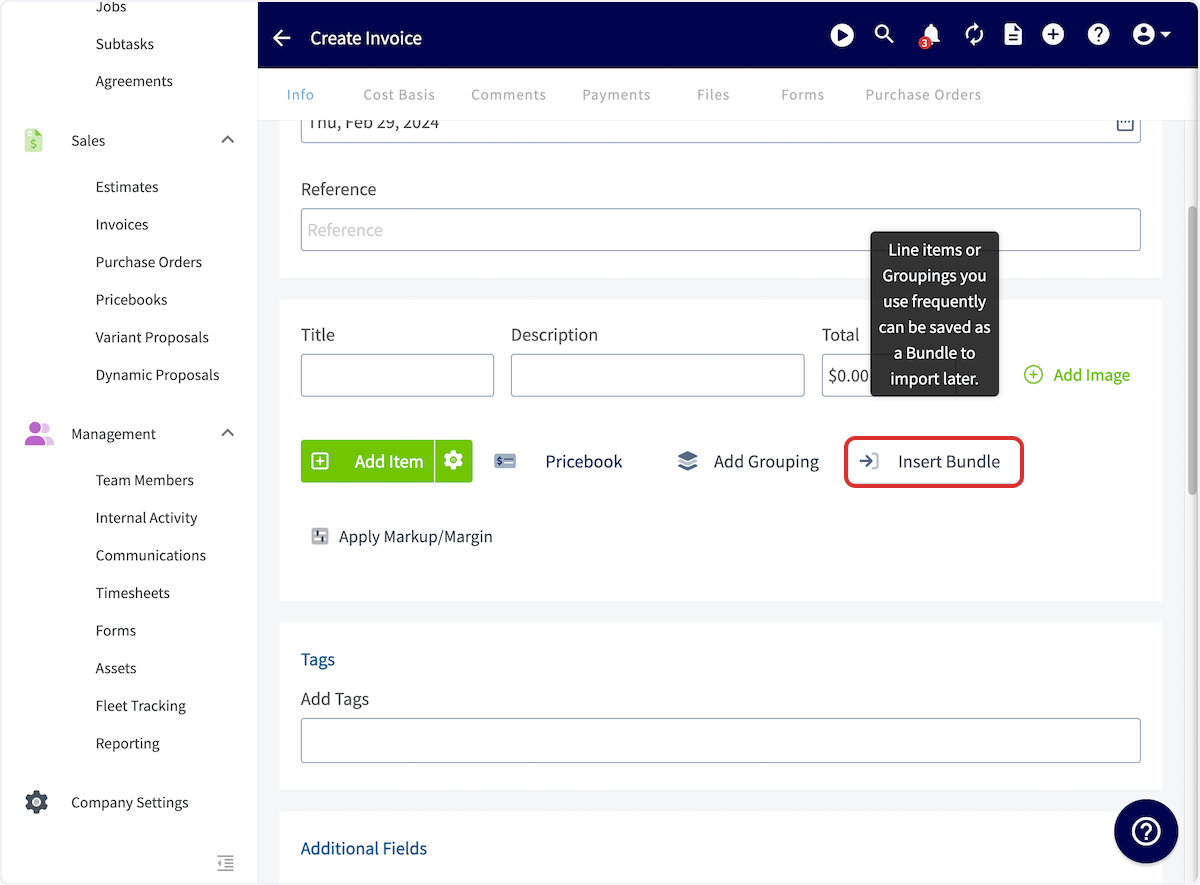
1. While building an estimate or invoice, select **Insert Bundle**.
To edit or delete a bundle you already saved, select it on the **Invoice Bundles** page.
## Insert a bundle on an estimate or invoice
1. While building an estimate or invoice, select **Insert Bundle**.
 2. Select the bundle you want to add.
3. To place the bundled items under a grouping, toggle on **Place Items in Grouping**.
2. Select the bundle you want to add.
3. To place the bundled items under a grouping, toggle on **Place Items in Grouping**.
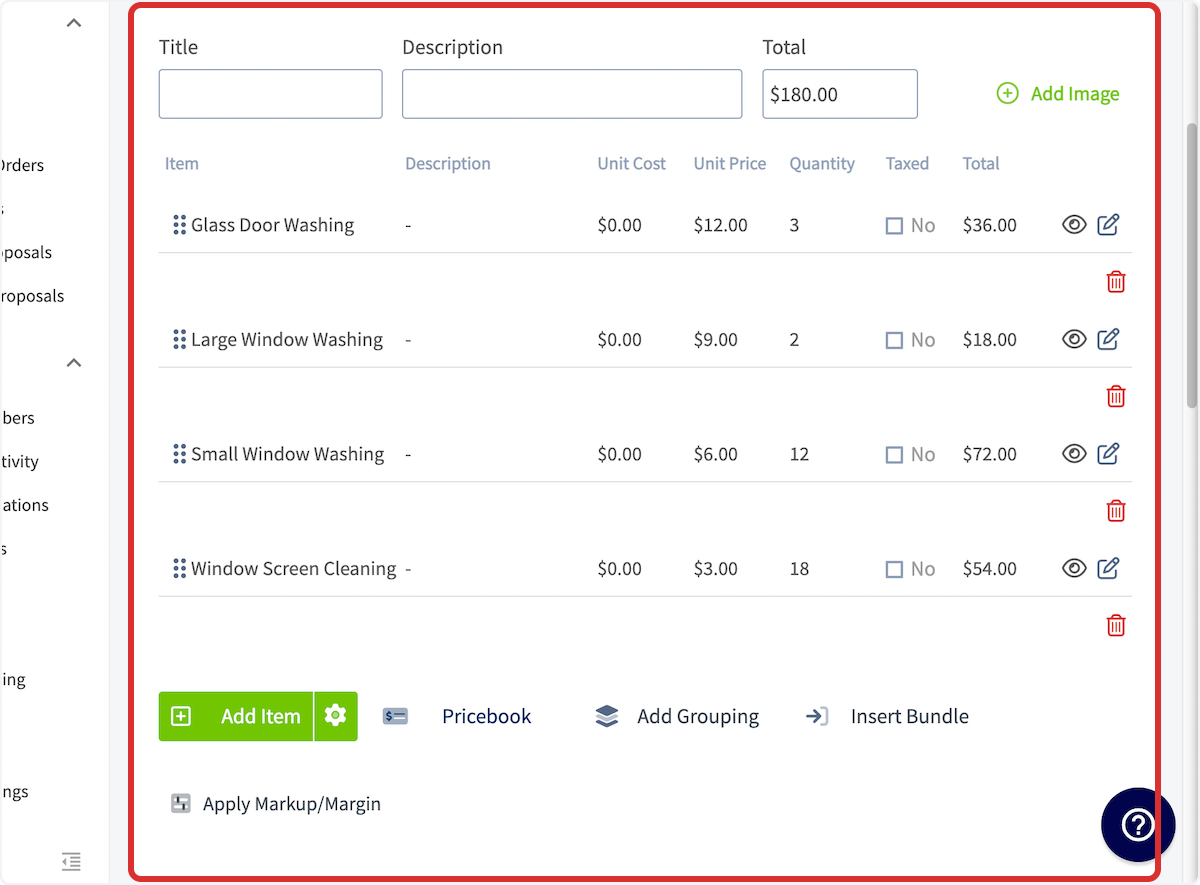
 The bundled items then appear in the record's line items, each with its unit cost, unit price, quantity, and total.
 ## Create a grouping
1. While creating an estimate or invoice, select **Add Grouping**.
## Create a grouping
1. While creating an estimate or invoice, select **Add Grouping**.
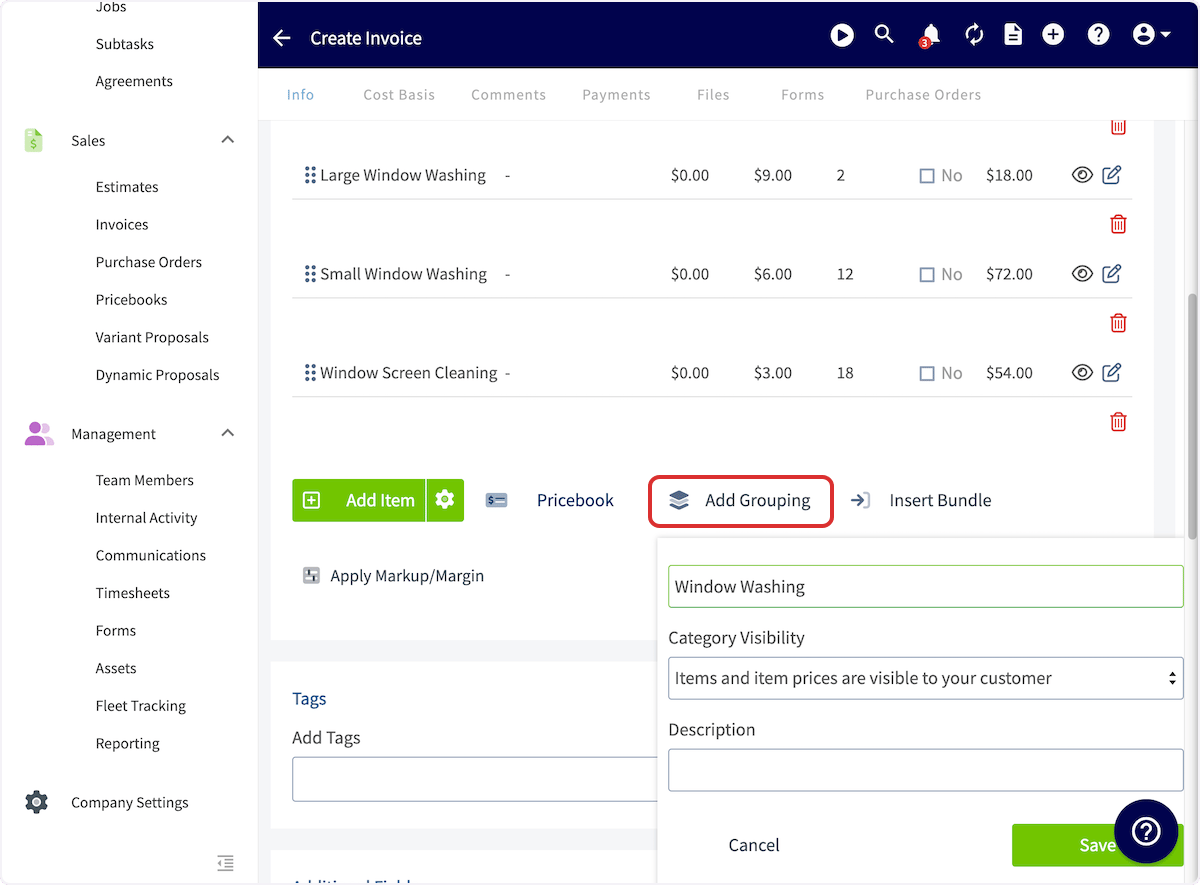 2. Enter a title for the grouping.
3. Choose a **Category Visibility** setting.
4. Add a description.
5. Select **Save**.
2. Enter a title for the grouping.
3. Choose a **Category Visibility** setting.
4. Add a description.
5. Select **Save**.
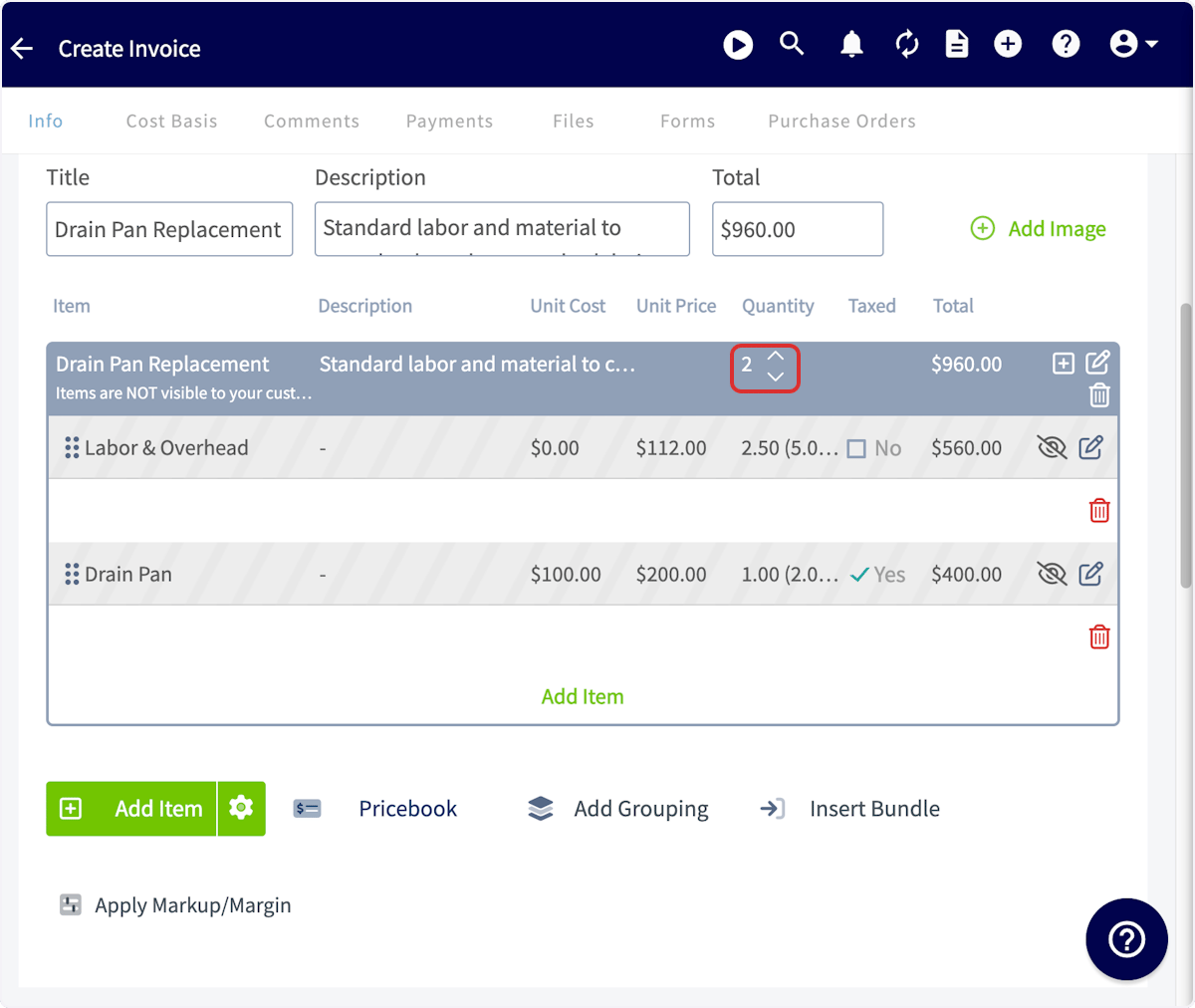
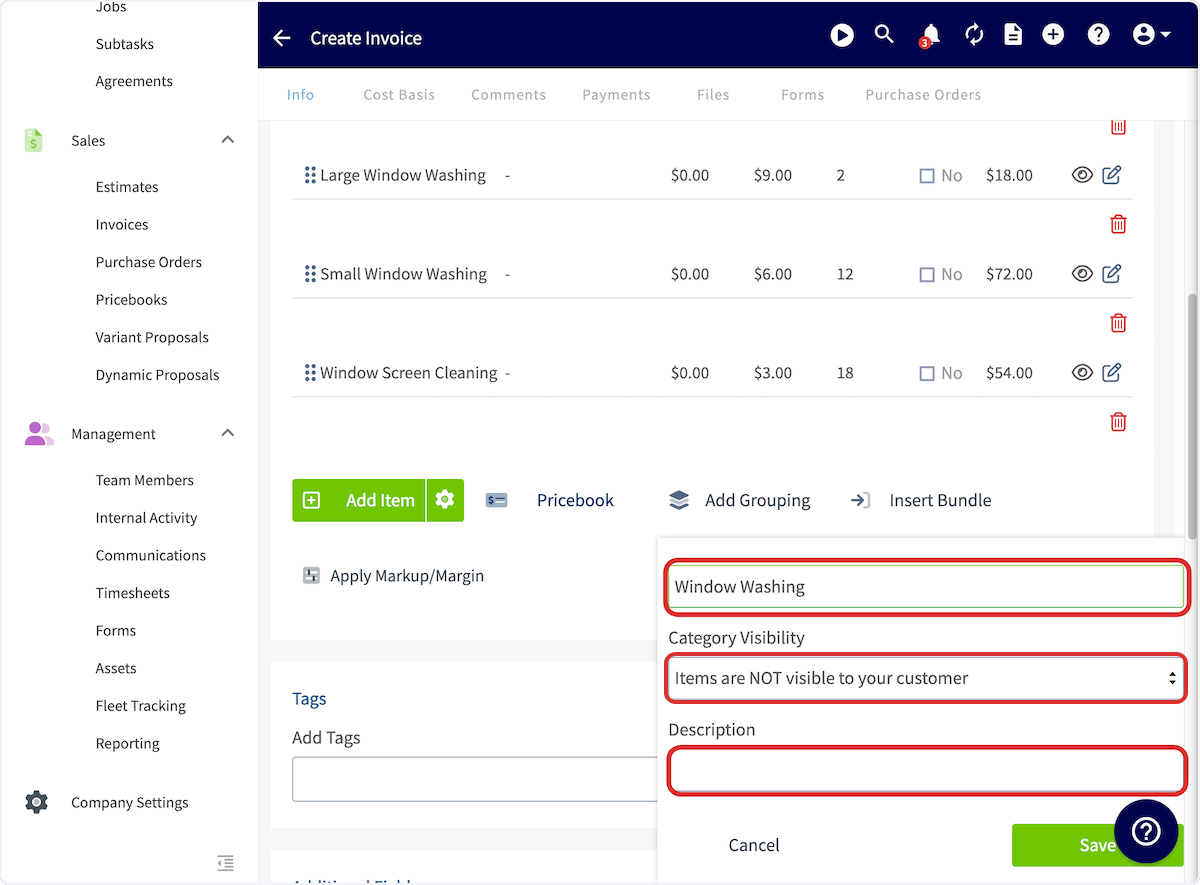 6. Drag your line items under the grouping. Repeat the process to create another grouping.
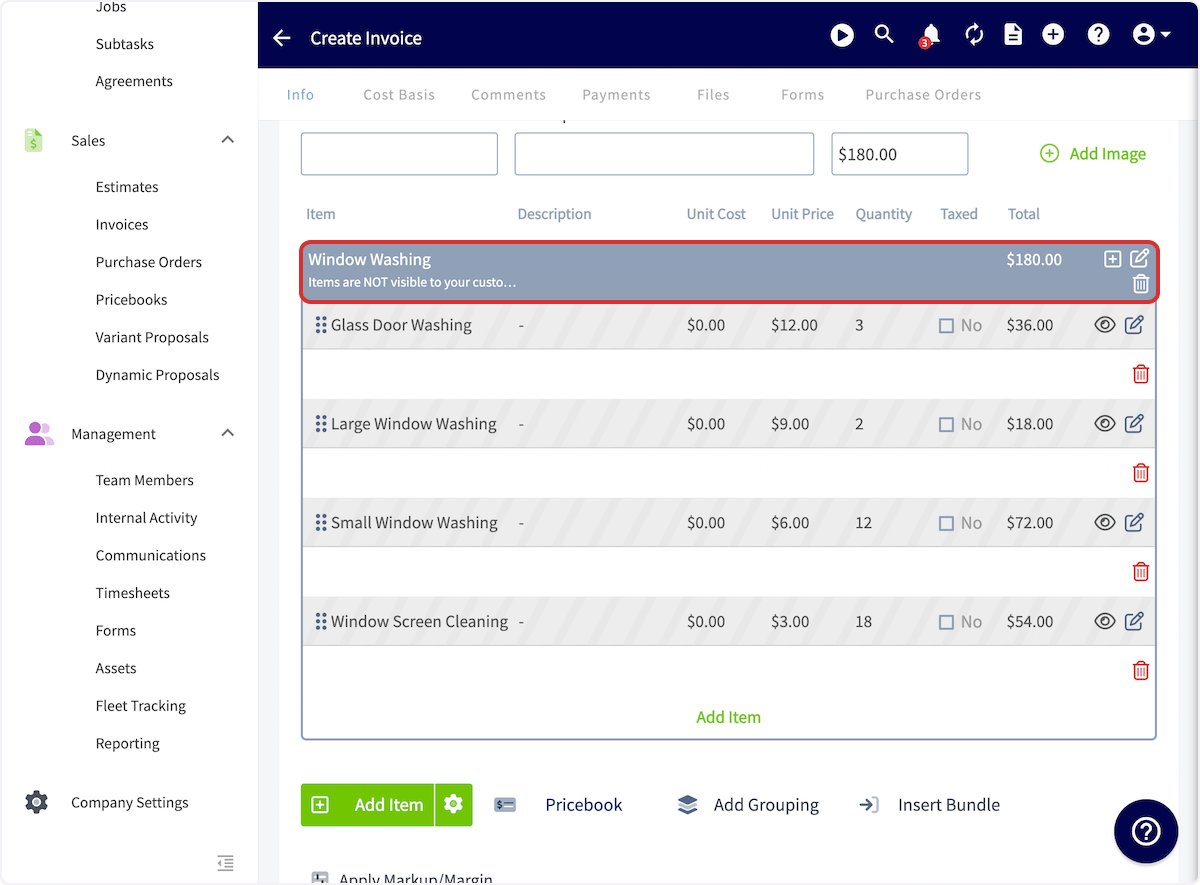 Adjusting the quantity of a grouping adjusts the quantities of every line item placed under that grouping.
 ## Grouping visibility options
A grouping's **Category Visibility** setting controls how much of the grouping your customer sees on the finished estimate or invoice.
| **Visibility setting** | **What the customer sees** |
| ------------------------------------------------------ | --------------------------------------------------------------------------------------------------------- |
| **Items and item prices are visible to your customer** | The grouping title and total, plus every line item with its unit price, quantity, and amount. |
| **Prices are not visible to your customer** | The grouping title and total, plus every line item and its quantity, with unit prices and amounts hidden. |
| **Items are NOT visible to your customer** | The grouping title and its total price only. |
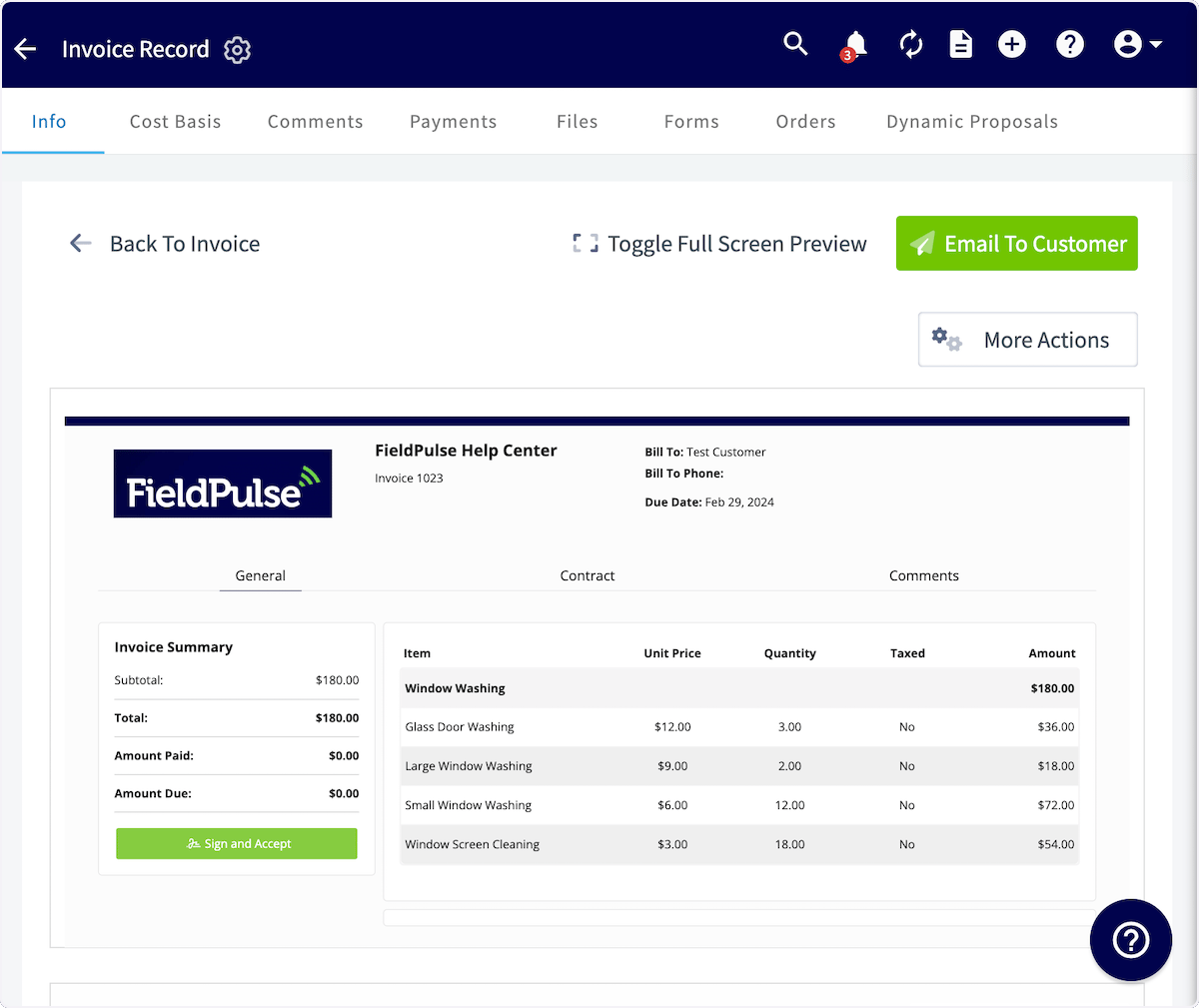
With **Items and item prices are visible to your customer**, the customer's copy lists the grouping and then each item priced out in full.
## Grouping visibility options
A grouping's **Category Visibility** setting controls how much of the grouping your customer sees on the finished estimate or invoice.
| **Visibility setting** | **What the customer sees** |
| ------------------------------------------------------ | --------------------------------------------------------------------------------------------------------- |
| **Items and item prices are visible to your customer** | The grouping title and total, plus every line item with its unit price, quantity, and amount. |
| **Prices are not visible to your customer** | The grouping title and total, plus every line item and its quantity, with unit prices and amounts hidden. |
| **Items are NOT visible to your customer** | The grouping title and its total price only. |
With **Items and item prices are visible to your customer**, the customer's copy lists the grouping and then each item priced out in full.
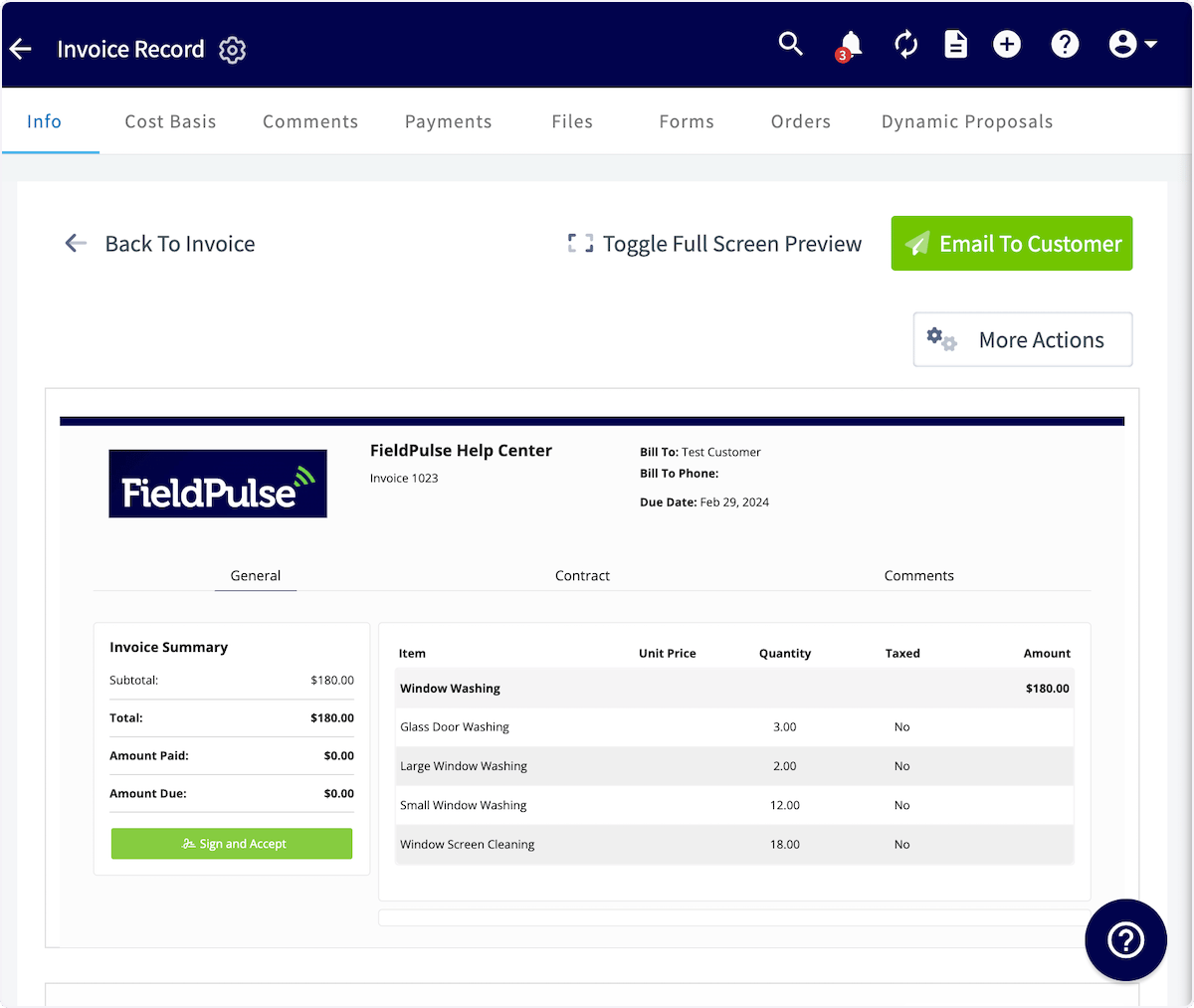
 With **Prices are not visible to your customer**, the customer's copy still lists every item in the grouping, with the unit price and amount columns blank.
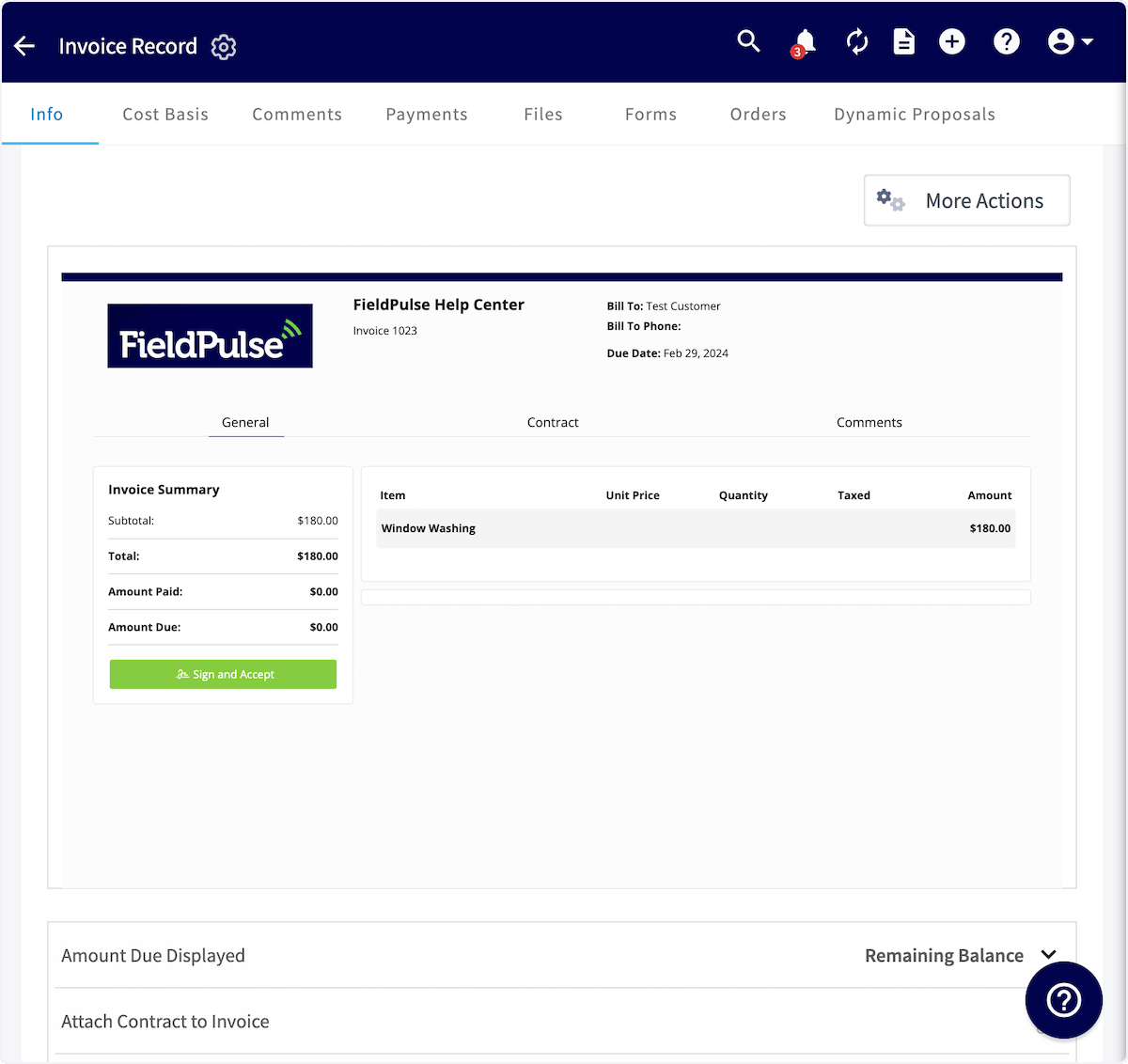
 With **Items are NOT visible to your customer**, the customer's copy shows one row for the grouping and nothing underneath it.
 ## On mobile
On the FieldPulse mobile app, **Insert Bundle** and **Add Grouping** sit with the other line item options on an estimate or invoice. See the On mobile sections of [How to Create an Estimate](/estimates-invoices/creating/estimate) and [How to Create an Invoice](/estimates-invoices/creating/invoice). Bundles themselves are built in **Company Settings**.
## Still need help?
Reach the [FieldPulse support team](https://www.fieldpulse.com/company/contact-us) at [support@fieldpulse.com](mailto:support@fieldpulse.com) or through the chat feature in the bottom-right corner of your screen.
## Related articles
* [How to Create an Estimate](/estimates-invoices/creating/estimate)
* [How to Create an Invoice](/estimates-invoices/creating/invoice)
* [Setting Up Formula-Based Quantities](/estimates-invoices/creating/formula-quantities)
* [Setting Up Estimate & Invoice Templates](/estimates-invoices/templates/creating-templates)
* [Estimate & Invoice Customer Experience Overview](/estimates-invoices/creating/customer-view)
* [User Roles and Permissions Details](/settings/users-teams/user-roles)
Your bundles and groupings are working when **Insert Bundle** drops a whole set of parts and services onto the record in one step, and the customer's copy of the estimate or invoice shows exactly the level of detail the grouping's visibility setting allows.
## Related topics
- [How to Create an Invoice](/estimates-invoices/creating/invoice.md)
- [How to Create an Estimate](/estimates-invoices/creating/estimate.md)
- [How to Use Estimate & Invoice Templates](/estimates-invoices/templates/using-templates.md)
- [Setting Up Estimate & Invoice Templates](/estimates-invoices/templates/creating-templates.md)
## On mobile
On the FieldPulse mobile app, **Insert Bundle** and **Add Grouping** sit with the other line item options on an estimate or invoice. See the On mobile sections of [How to Create an Estimate](/estimates-invoices/creating/estimate) and [How to Create an Invoice](/estimates-invoices/creating/invoice). Bundles themselves are built in **Company Settings**.
## Still need help?
Reach the [FieldPulse support team](https://www.fieldpulse.com/company/contact-us) at [support@fieldpulse.com](mailto:support@fieldpulse.com) or through the chat feature in the bottom-right corner of your screen.
## Related articles
* [How to Create an Estimate](/estimates-invoices/creating/estimate)
* [How to Create an Invoice](/estimates-invoices/creating/invoice)
* [Setting Up Formula-Based Quantities](/estimates-invoices/creating/formula-quantities)
* [Setting Up Estimate & Invoice Templates](/estimates-invoices/templates/creating-templates)
* [Estimate & Invoice Customer Experience Overview](/estimates-invoices/creating/customer-view)
* [User Roles and Permissions Details](/settings/users-teams/user-roles)
Your bundles and groupings are working when **Insert Bundle** drops a whole set of parts and services onto the record in one step, and the customer's copy of the estimate or invoice shows exactly the level of detail the grouping's visibility setting allows.
## Related topics
- [How to Create an Invoice](/estimates-invoices/creating/invoice.md)
- [How to Create an Estimate](/estimates-invoices/creating/estimate.md)
- [How to Use Estimate & Invoice Templates](/estimates-invoices/templates/using-templates.md)
- [Setting Up Estimate & Invoice Templates](/estimates-invoices/templates/creating-templates.md)