> ## Documentation Index
> Fetch the complete documentation index at: https://help.fieldpulse.com/llms.txt
> Use this file to discover all available pages before exploring further.
# How to Capture Line Item Images on Mobile
> Take or upload a photo for a line item while building an estimate or invoice in the FieldPulse mobile app, add markup and notes, and keep it on the record.
> **Who uses this:** Any user who builds estimates or invoices in the FieldPulse mobile app. **Availability:** FieldPulse mobile app only · All regions.
A technician pricing a repair on site should not have to leave the estimate to photograph the part. In the [FieldPulse mobile app](https://www.fieldpulse.com/features/mobile-app), you take or upload the photo from inside the line item, so the image stays with the item on the [estimate or invoice](https://www.fieldpulse.com/features/estimates-and-invoices) and carries over to the record's files.
## Overview
Line item images are photos captured or uploaded from inside a line item while you build an estimate or invoice draft in the mobile app. Each image can carry a title, markup, a description, and settings such as compression and a date/time stamp. When you save the estimate or invoice, the images cascade to the related Estimate and Service Record Files sections automatically, so the photo of the failed part sits next to the line that replaces it.
## Before you begin
* Line item image capture works only in the FieldPulse mobile app.
* Open the estimate or invoice draft you want to add items and images to.
## On mobile
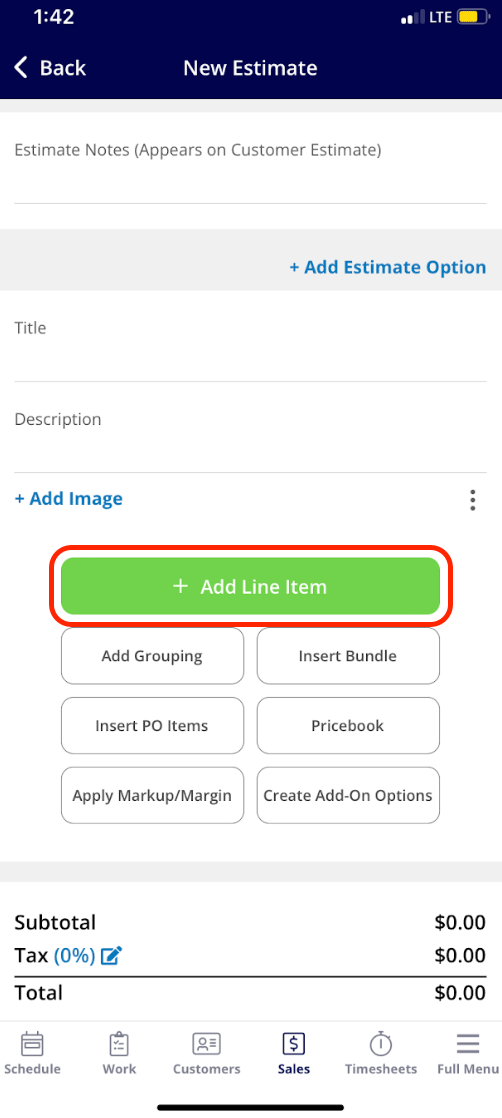
1. In the estimate or invoice draft, select the green **Add Line Item** button.
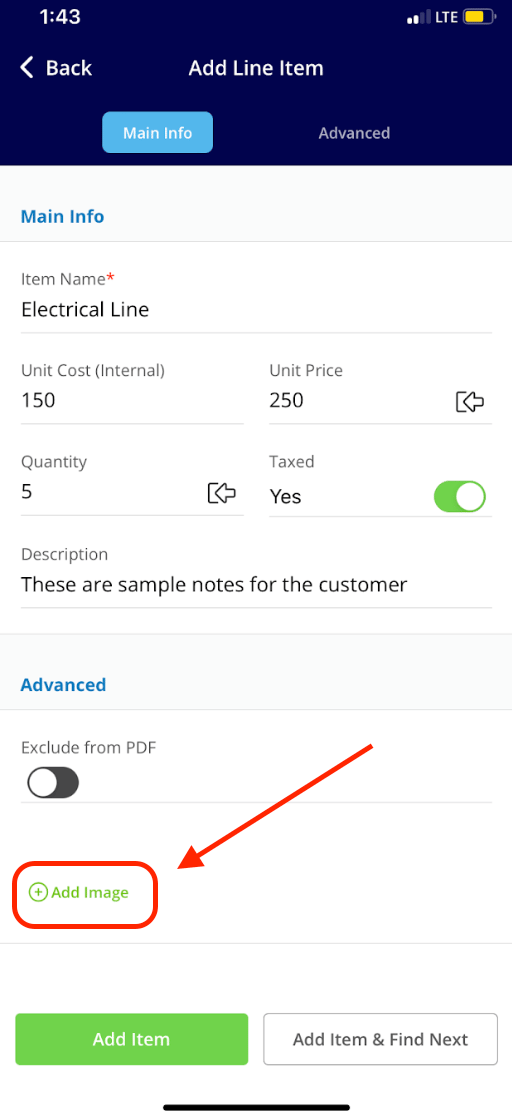
 2. Select the line item you want to add, then select **Add Image** before choosing **Add Item** or **Add Item & Find Next**.
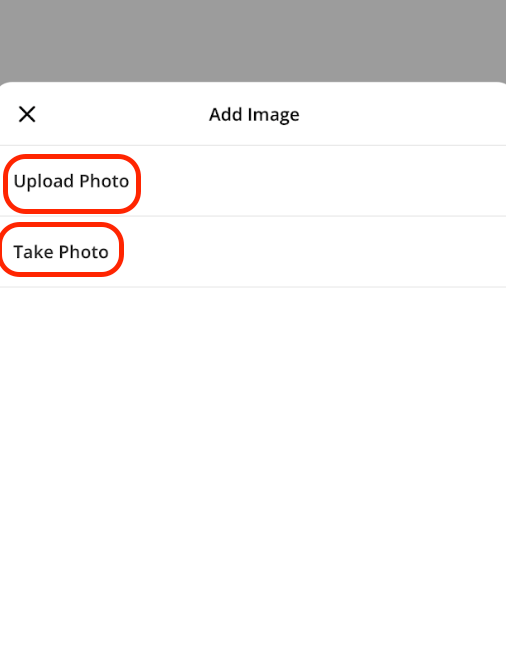
 3. Choose **Upload Photo** to pick an existing image from your device, or **Take Photo** to open the camera and capture a new image for the line item.
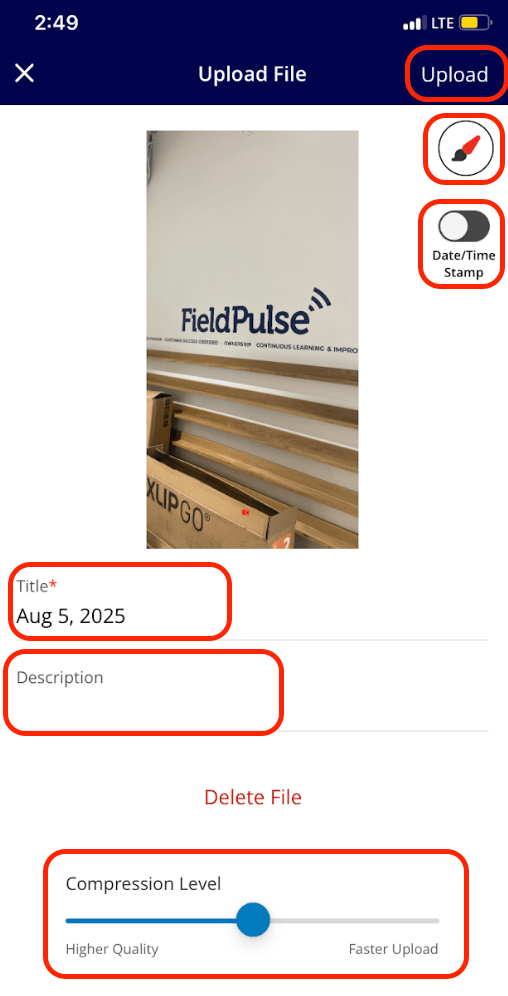
 4. Add a title, mark up the photo, add a description, and adjust settings such as compression and the date/time stamp. Select **Upload** in the top-right corner when you are done.
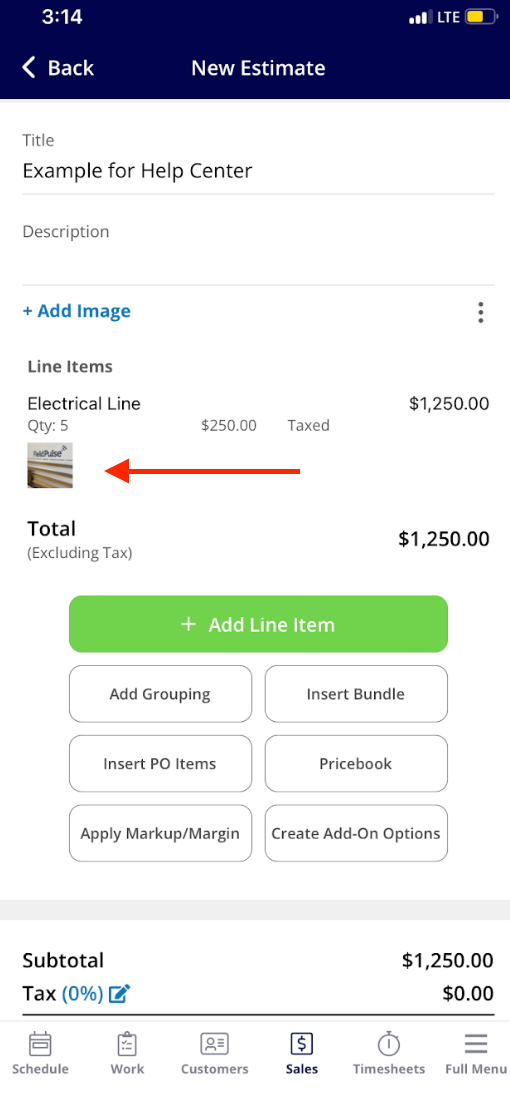
 The image now shows on the line item.
 ## FAQs
### Is this feature available on all devices?
Line item image capture works only in the FieldPulse mobile app.
### Can I upload multiple images for a line item?
Yes. Add more than one image to a line item if you need to.
### Will the images sync to other sections automatically?
Yes. Once you save the estimate or invoice, the images cascade to the related Estimate and Service Record Files sections.
### Can I edit or remove images after they have been added?
Yes. Edit or remove images from the estimate or invoice draft at any time before saving the document.
## Related articles
* [How to Attach Photos & Files to Estimates & Invoices](/estimates-invoices/creating/attaching-photos-files)
* [How to Create an Estimate](/estimates-invoices/creating/estimate)
* [How to Create an Invoice](/estimates-invoices/creating/invoice)
* [Service Agent Mobile App Overview](/getting-started/mobile-app/service-agents)
You are done when the photo shows on the line item in the draft and, after you save, appears in the record's Files section as well.
## Related topics
- [Creating Estimates & Invoices](/estimates-invoices/creating/index.md)
- [How to Create an Invoice](/estimates-invoices/creating/invoice.md)
- [How to Create an Estimate](/estimates-invoices/creating/estimate.md)
- [Setting Up Your Pricebook](/add-ons/sales-suite/pricebook.md)
## FAQs
### Is this feature available on all devices?
Line item image capture works only in the FieldPulse mobile app.
### Can I upload multiple images for a line item?
Yes. Add more than one image to a line item if you need to.
### Will the images sync to other sections automatically?
Yes. Once you save the estimate or invoice, the images cascade to the related Estimate and Service Record Files sections.
### Can I edit or remove images after they have been added?
Yes. Edit or remove images from the estimate or invoice draft at any time before saving the document.
## Related articles
* [How to Attach Photos & Files to Estimates & Invoices](/estimates-invoices/creating/attaching-photos-files)
* [How to Create an Estimate](/estimates-invoices/creating/estimate)
* [How to Create an Invoice](/estimates-invoices/creating/invoice)
* [Service Agent Mobile App Overview](/getting-started/mobile-app/service-agents)
You are done when the photo shows on the line item in the draft and, after you save, appears in the record's Files section as well.
## Related topics
- [Creating Estimates & Invoices](/estimates-invoices/creating/index.md)
- [How to Create an Invoice](/estimates-invoices/creating/invoice.md)
- [How to Create an Estimate](/estimates-invoices/creating/estimate.md)
- [Setting Up Your Pricebook](/add-ons/sales-suite/pricebook.md)