> ## Documentation Index
> Fetch the complete documentation index at: https://help.fieldpulse.com/llms.txt
> Use this file to discover all available pages before exploring further.
# Setting Up Custom Estimate & Invoice Status Workflows
> Create your own estimate and invoice statuses in FieldPulse Company Settings, set a default workflow, and keep your statuses mapped to QuickBooks.
> **Who uses this:** Admins — custom status workflows are built in **Company Settings**, which only the Admin role can view. **Availability:** All regions.
A custom status workflow defines and labels the statuses an [estimate or invoice](https://www.fieldpulse.com/features/estimates-and-invoices) moves through, from initial review to approval to job handoff, so the stages in FieldPulse match the stages your business actually works in. You build workflows once in **Company Settings**, and every estimate and invoice your team creates follows one.
## Overview
A status workflow is an ordered set of statuses that an estimate or invoice can sit in. You can create more than one workflow — a separate flow for different job types or sales cycles — so each kind of work follows the process that fits it, and your team stays on the same track.
Every status you create is assigned to a **status bucket**. The bucket is what FieldPulse and QuickBooks understand about the status, so a status named "Waiting on landlord" still maps to a corresponding category in QuickBooks and keeps your accounting accurate.
| **Workflow type** | **Where you build it** | **Status buckets available** |
| ---------------------------- | ---------------------------------------------------------------------------------------- | ---------------------------- |
| **Estimate status workflow** | The **Estimate Custom Status** tab under **Company Settings** > **Estimates & Invoices** | 12 |
| **Invoice status workflow** | The **Invoice Custom Status** tab under **Company Settings** > **Estimates & Invoices** | 7 |
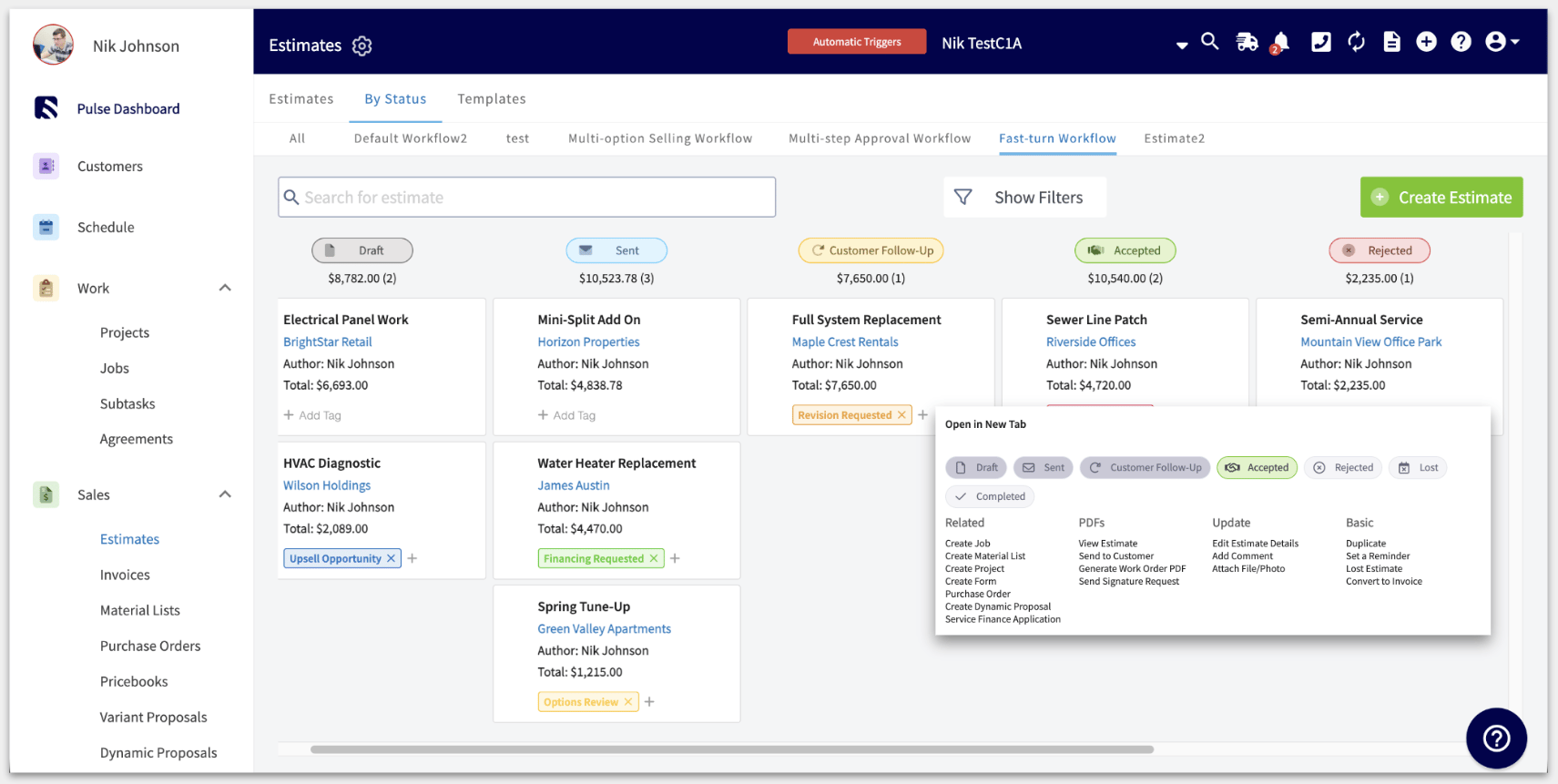
Once workflows are in place, the **By Status** subpage under **Estimates** and **Invoices** shows your records as a pipeline of status boards, with the total value of each status at the top of its column.
 ## Before you begin
* Decide which statuses match your real sales pipeline first. Every status you create is assigned to a status bucket, and the bucket controls how that status maps to QuickBooks, so know which stage each status represents before you build the workflow.
* Look at the workflow your account already has. A default workflow was added to your FieldPulse account when you signed up, and you can build alongside it rather than replacing it.
> **Important QuickBooks note:** Any estimate that syncs in from QuickBooks is assigned to the Default Estimate Workflow. You can edit the estimate afterward to reassign the workflow.
## Step-by-step setup
### 1. Open the custom status settings
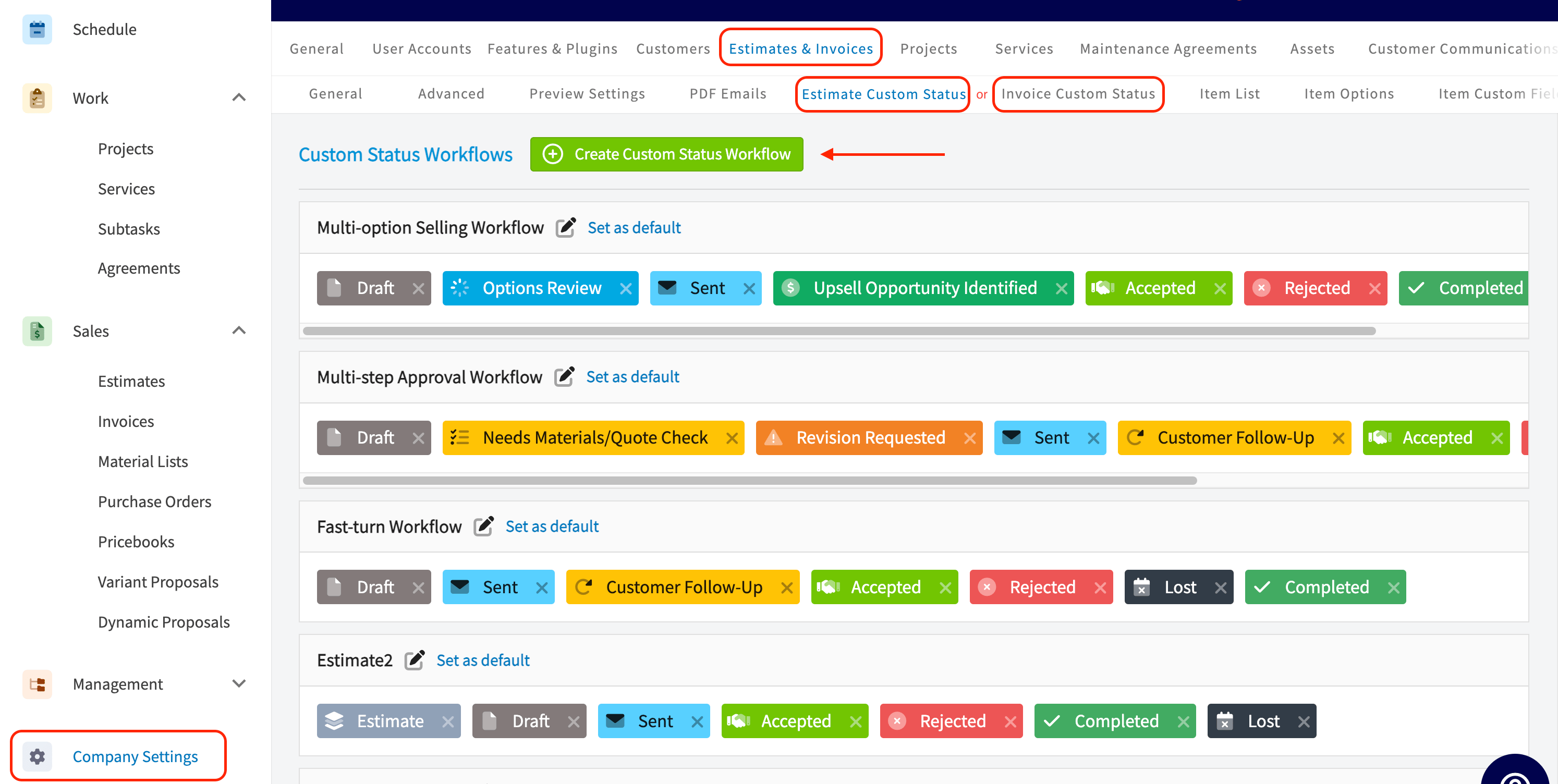
1. Select **Company Settings** in the left-side menu.
2. Select **Estimates & Invoices** in the header.
3. Select the **Estimate Custom Status** tab or the **Invoice Custom Status** tab, depending on which record type you are building for.
## Before you begin
* Decide which statuses match your real sales pipeline first. Every status you create is assigned to a status bucket, and the bucket controls how that status maps to QuickBooks, so know which stage each status represents before you build the workflow.
* Look at the workflow your account already has. A default workflow was added to your FieldPulse account when you signed up, and you can build alongside it rather than replacing it.
> **Important QuickBooks note:** Any estimate that syncs in from QuickBooks is assigned to the Default Estimate Workflow. You can edit the estimate afterward to reassign the workflow.
## Step-by-step setup
### 1. Open the custom status settings
1. Select **Company Settings** in the left-side menu.
2. Select **Estimates & Invoices** in the header.
3. Select the **Estimate Custom Status** tab or the **Invoice Custom Status** tab, depending on which record type you are building for.
 ### 2. Create the workflow
1. Select **Create Custom Status Workflow**.
2. Name the workflow.
3. Add and label each status this workflow uses, assigning every status to a status bucket. The **Settings reference** below lists the buckets and what each one allows.
### 3. Set a default workflow
1. Select **Set as default** next to the workflow you want new records to use.
New estimates or invoices then pick up that workflow on their own. Even with a default set, you can change the workflow on an individual estimate or invoice at the time you create the record.
### 4. Choose the invoice workflow a converted estimate follows
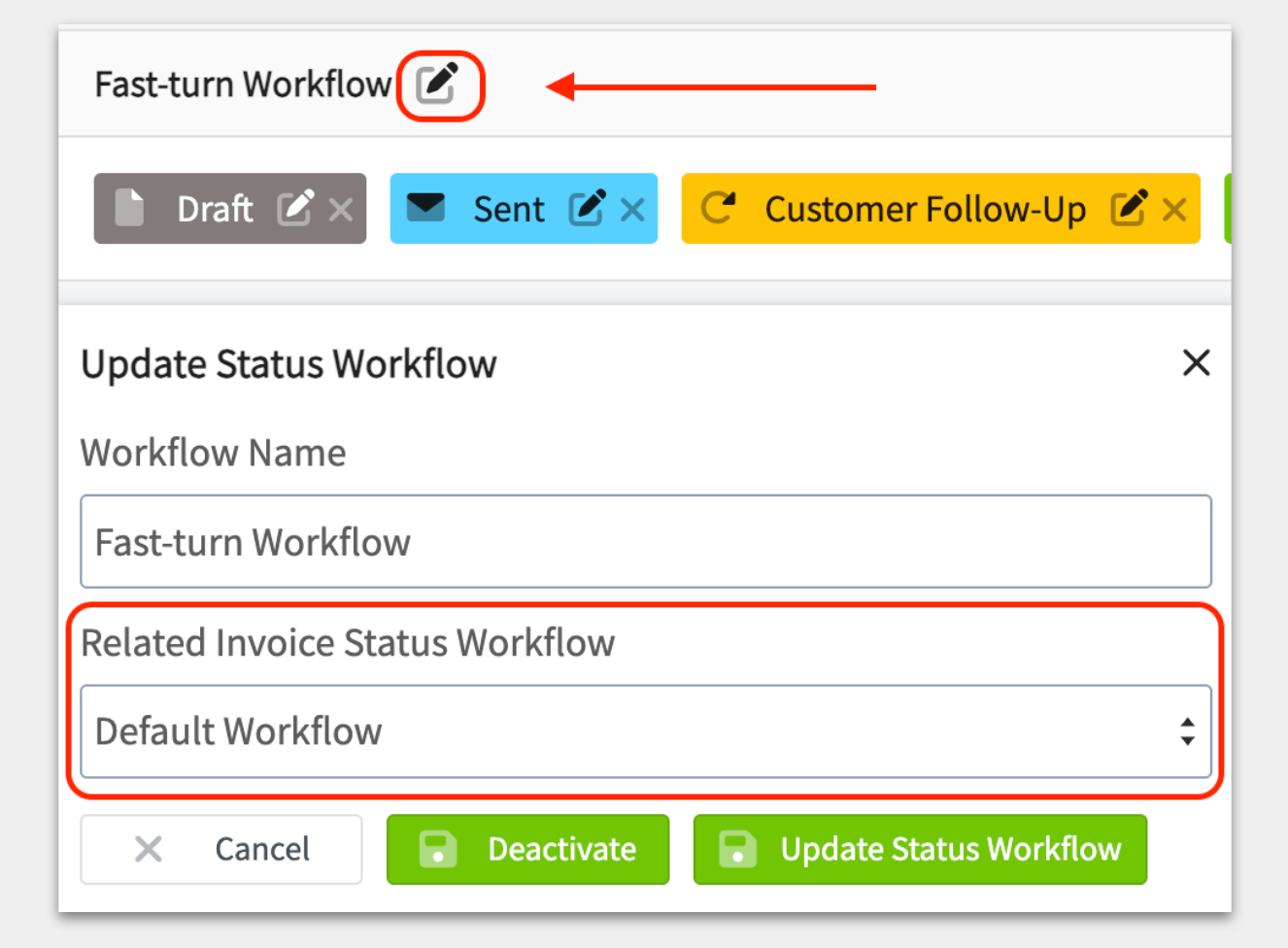
1. On the **Estimate Custom Status** tab, select the edit icon next to the estimate workflow. The **Update Status Workflow** panel opens.
2. Set **Related Invoice Status Workflow** to the invoice workflow you want converted estimates to follow.
3. Select **Update Status Workflow**.
After an estimate record is converted to an invoice record, the new invoice follows the workflow named here.
### 2. Create the workflow
1. Select **Create Custom Status Workflow**.
2. Name the workflow.
3. Add and label each status this workflow uses, assigning every status to a status bucket. The **Settings reference** below lists the buckets and what each one allows.
### 3. Set a default workflow
1. Select **Set as default** next to the workflow you want new records to use.
New estimates or invoices then pick up that workflow on their own. Even with a default set, you can change the workflow on an individual estimate or invoice at the time you create the record.
### 4. Choose the invoice workflow a converted estimate follows
1. On the **Estimate Custom Status** tab, select the edit icon next to the estimate workflow. The **Update Status Workflow** panel opens.
2. Set **Related Invoice Status Workflow** to the invoice workflow you want converted estimates to follow.
3. Select **Update Status Workflow**.
After an estimate record is converted to an invoice record, the new invoice follows the workflow named here.
 ## Settings reference
The custom status settings live on two tabs under **Company Settings** > **Estimates & Invoices**.
| **Setting** | **What it controls** |
| ----------------------------------- | ----------------------------------------------------------------------------------------------------------------- |
| **Estimate Custom Status** tab | Builds and edits estimate status workflows — 12 status buckets available. |
| **Invoice Custom Status** tab | Builds and edits invoice status workflows — 7 status buckets available. |
| **Create Custom Status Workflow** | Starts a new workflow on the tab you are on. |
| **Set as default** | Applies the selected workflow to new records automatically. Still changeable on an individual record at creation. |
| **Related Invoice Status Workflow** | Sets which invoice workflow an estimate follows after it is converted to an invoice. |
| **Color and symbol** | Editable on every status, including the default statuses. |
### Estimate status buckets
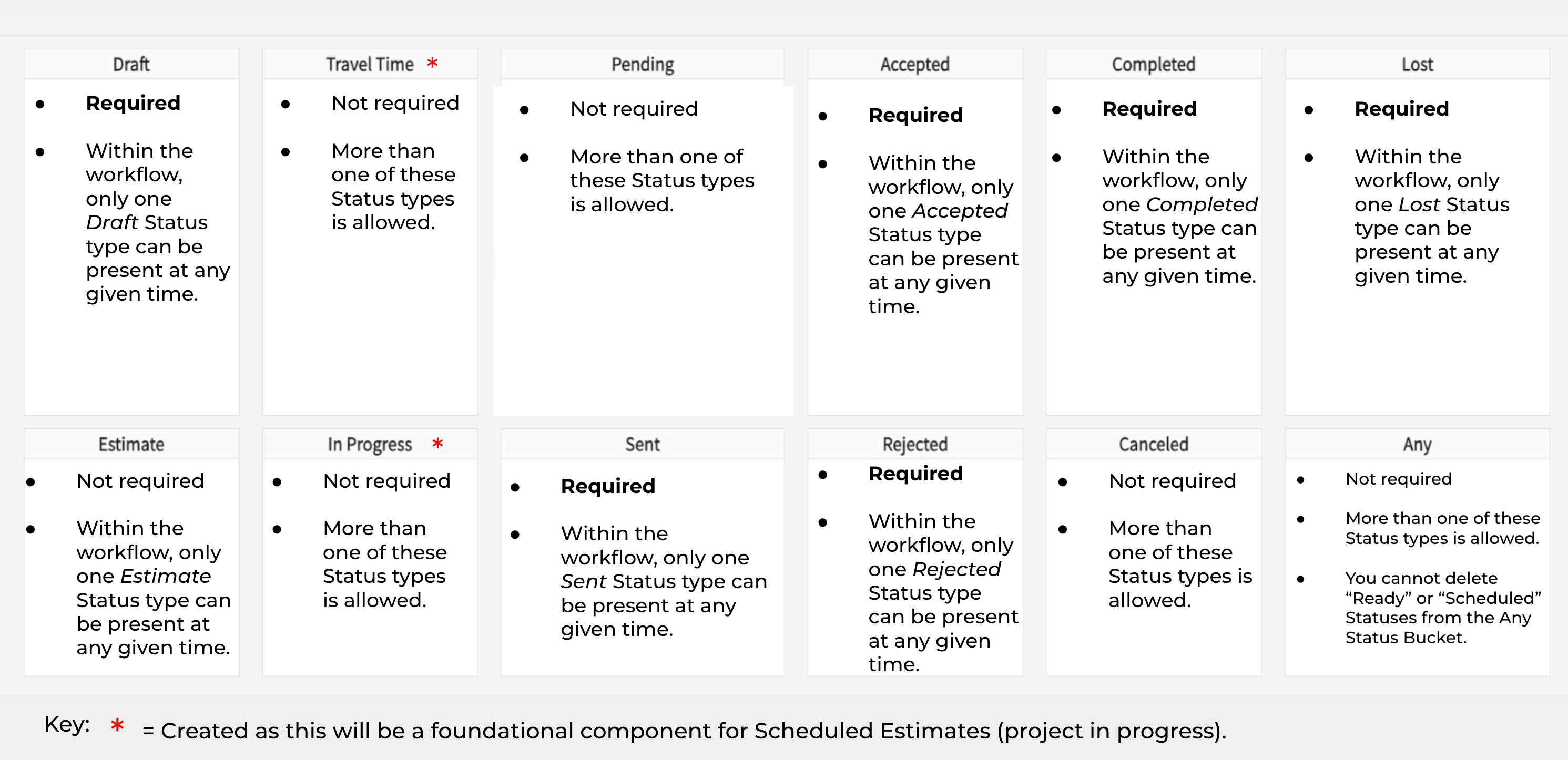
Estimate workflows have 12 status buckets. Each bucket sets whether a workflow has to include a status of that type, and how many statuses of that type the workflow can hold.
| **Status bucket** | **Required in a workflow** | **How many statuses of this type a workflow can hold** |
| ----------------- | -------------------------- | ---------------------------------------------------------------------------------------------------------- |
| **Draft** | Required | Only one at any given time |
| **Travel Time** | Not required | More than one allowed |
| **Pending** | Not required | More than one allowed |
| **Accepted** | Required | Only one at any given time |
| **Completed** | Required | Only one at any given time |
| **Lost** | Required | Only one at any given time |
| **Estimate** | Not required | Only one at any given time |
| **In Progress** | Not required | More than one allowed |
| **Sent** | Required | Only one at any given time |
| **Rejected** | Required | Only one at any given time |
| **Canceled** | Not required | More than one allowed |
| **Any** | Not required | More than one allowed. The **Ready** and **Scheduled** statuses cannot be deleted from the **Any** bucket. |
## Settings reference
The custom status settings live on two tabs under **Company Settings** > **Estimates & Invoices**.
| **Setting** | **What it controls** |
| ----------------------------------- | ----------------------------------------------------------------------------------------------------------------- |
| **Estimate Custom Status** tab | Builds and edits estimate status workflows — 12 status buckets available. |
| **Invoice Custom Status** tab | Builds and edits invoice status workflows — 7 status buckets available. |
| **Create Custom Status Workflow** | Starts a new workflow on the tab you are on. |
| **Set as default** | Applies the selected workflow to new records automatically. Still changeable on an individual record at creation. |
| **Related Invoice Status Workflow** | Sets which invoice workflow an estimate follows after it is converted to an invoice. |
| **Color and symbol** | Editable on every status, including the default statuses. |
### Estimate status buckets
Estimate workflows have 12 status buckets. Each bucket sets whether a workflow has to include a status of that type, and how many statuses of that type the workflow can hold.
| **Status bucket** | **Required in a workflow** | **How many statuses of this type a workflow can hold** |
| ----------------- | -------------------------- | ---------------------------------------------------------------------------------------------------------- |
| **Draft** | Required | Only one at any given time |
| **Travel Time** | Not required | More than one allowed |
| **Pending** | Not required | More than one allowed |
| **Accepted** | Required | Only one at any given time |
| **Completed** | Required | Only one at any given time |
| **Lost** | Required | Only one at any given time |
| **Estimate** | Not required | Only one at any given time |
| **In Progress** | Not required | More than one allowed |
| **Sent** | Required | Only one at any given time |
| **Rejected** | Required | Only one at any given time |
| **Canceled** | Not required | More than one allowed |
| **Any** | Not required | More than one allowed. The **Ready** and **Scheduled** statuses cannot be deleted from the **Any** bucket. |
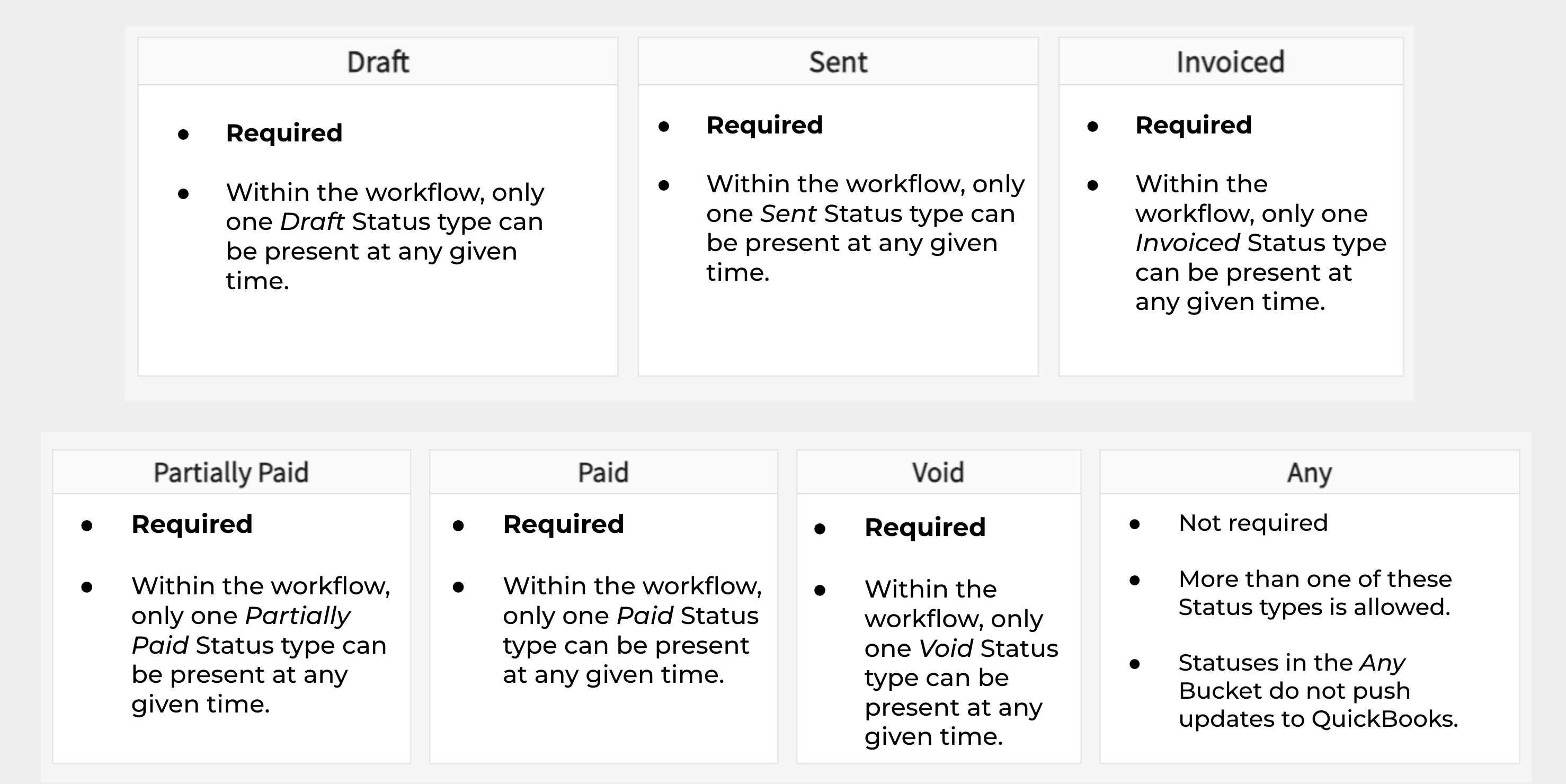
 ### Invoice status buckets
Invoice workflows have 7 status buckets.
| **Status bucket** | **Required in a workflow** | **How many statuses of this type a workflow can hold** |
| ------------------ | -------------------------- | ---------------------------------------------------------------------------------------- |
| **Draft** | Required | Only one at any given time |
| **Sent** | Required | Only one at any given time |
| **Invoiced** | Required | Only one at any given time |
| **Partially Paid** | Required | Only one at any given time |
| **Paid** | Required | Only one at any given time |
| **Void** | Required | Only one at any given time |
| **Any** | Not required | More than one allowed. Statuses in the **Any** bucket do not push updates to QuickBooks. |
You **cannot** remove or edit the names of the default invoice statuses in each bucket, but you **can** change the color and symbol for each status.
### Invoice status buckets
Invoice workflows have 7 status buckets.
| **Status bucket** | **Required in a workflow** | **How many statuses of this type a workflow can hold** |
| ------------------ | -------------------------- | ---------------------------------------------------------------------------------------- |
| **Draft** | Required | Only one at any given time |
| **Sent** | Required | Only one at any given time |
| **Invoiced** | Required | Only one at any given time |
| **Partially Paid** | Required | Only one at any given time |
| **Paid** | Required | Only one at any given time |
| **Void** | Required | Only one at any given time |
| **Any** | Not required | More than one allowed. Statuses in the **Any** bucket do not push updates to QuickBooks. |
You **cannot** remove or edit the names of the default invoice statuses in each bucket, but you **can** change the color and symbol for each status.
 ## Track your records on the By Status board
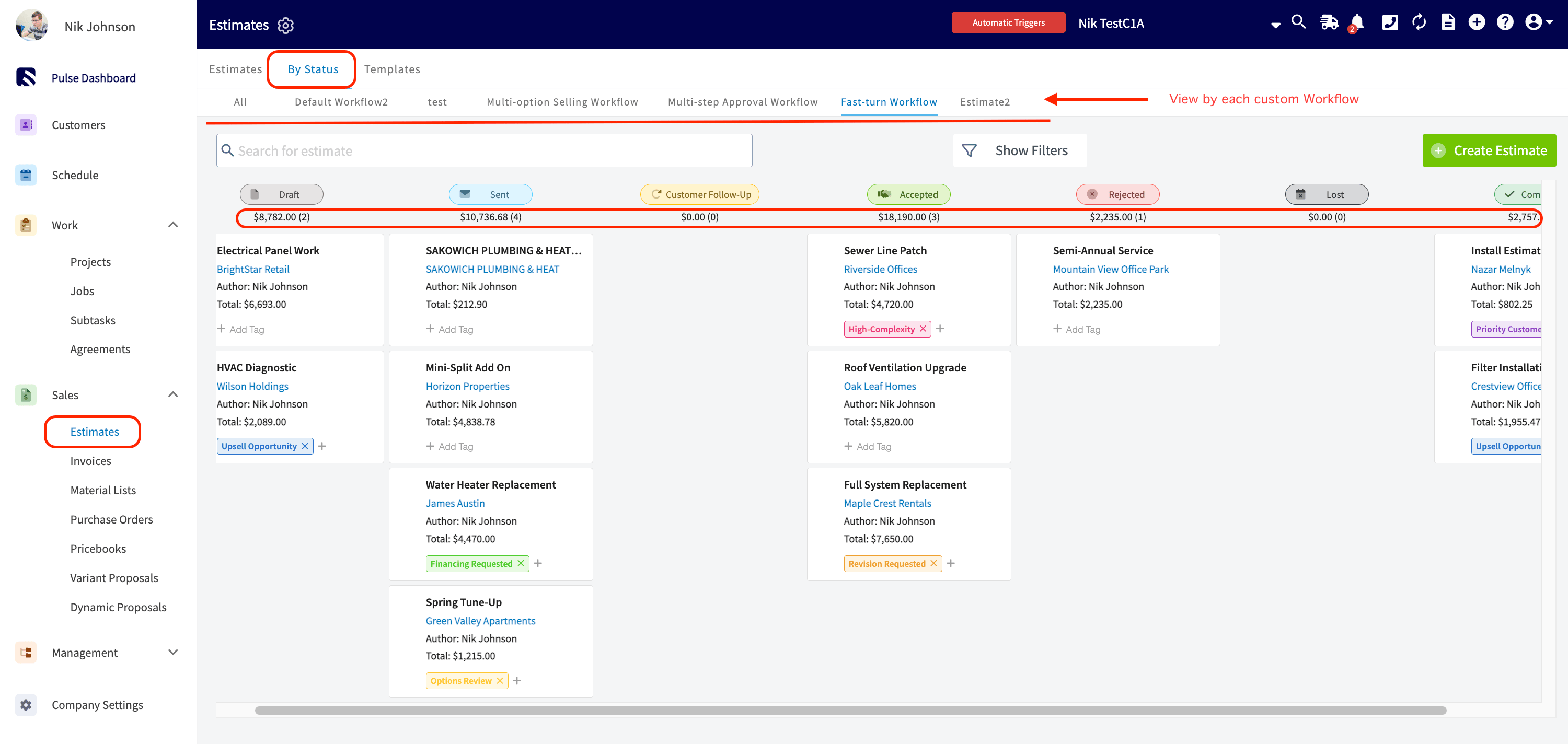
The **By Status** subpage shows every estimate or invoice as a tile on a board, arranged in columns by status, so you can see at a glance what is progressing and what is stalled.
1. Select the **Estimates** or **Invoices** tab in the left-side menu.
2. Select the **By Status** subpage at the top of the screen.
Tabs across the top of the board switch the view between **All** and each custom workflow. Under each status title, FieldPulse displays the total sum of the records in that column, so you can see how cash moves through the pipeline.
## Track your records on the By Status board
The **By Status** subpage shows every estimate or invoice as a tile on a board, arranged in columns by status, so you can see at a glance what is progressing and what is stalled.
1. Select the **Estimates** or **Invoices** tab in the left-side menu.
2. Select the **By Status** subpage at the top of the screen.
Tabs across the top of the board switch the view between **All** and each custom workflow. Under each status title, FieldPulse displays the total sum of the records in that column, so you can see how cash moves through the pipeline.
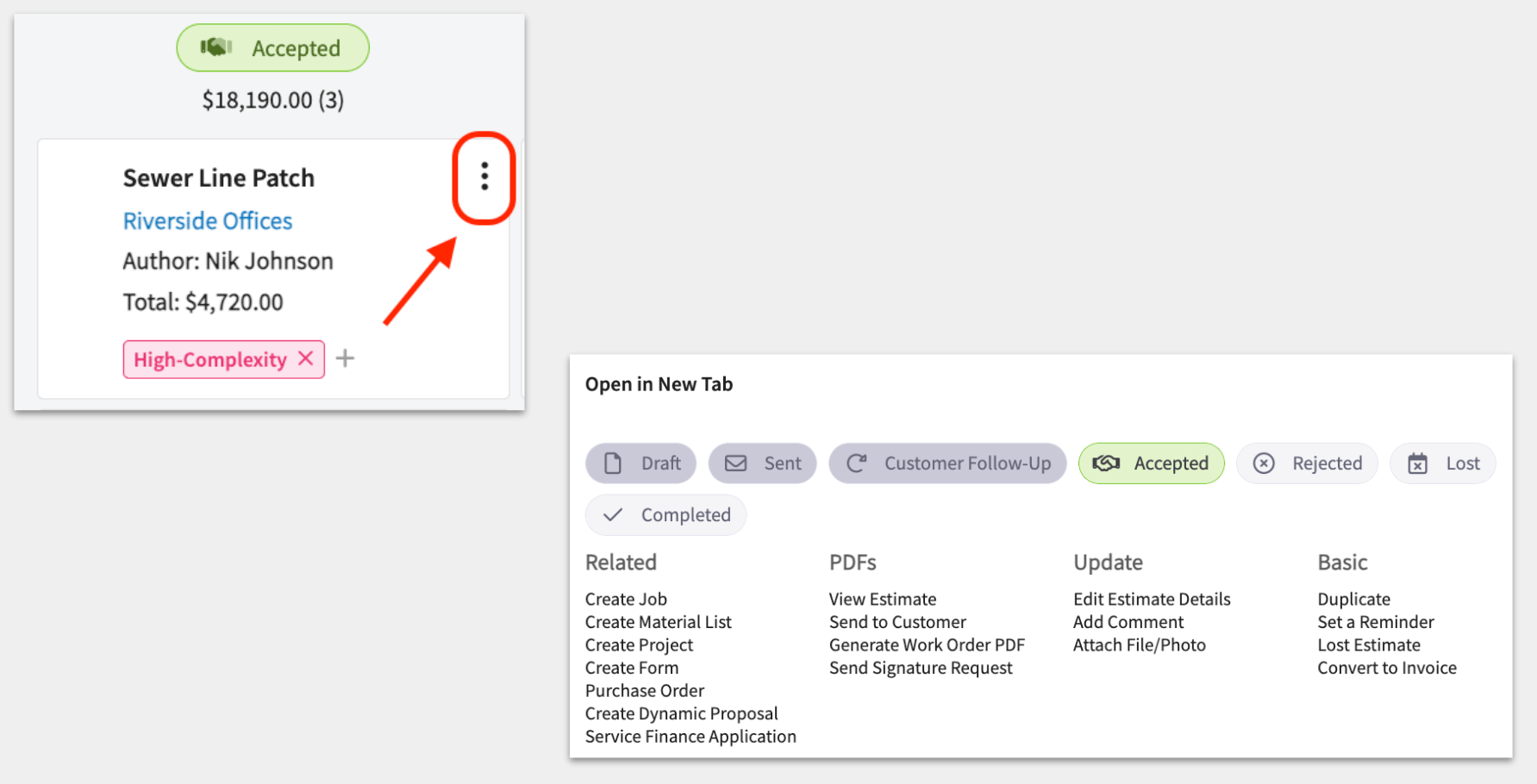
 Each tile carries its own controls:
* **Drag and drop.** Rearrange tiles as needed.
* **The action menu.** Select the three-dot icon on a tile to open it. The menu shows the workflow's statuses as chips and groups the record's actions under **Related**, **PDFs**, **Update**, and **Basic** — creating related records, viewing and generating PDFs, and making updates without leaving the board.
Each tile carries its own controls:
* **Drag and drop.** Rearrange tiles as needed.
* **The action menu.** Select the three-dot icon on a tile to open it. The menu shows the workflow's statuses as chips and groups the record's actions under **Related**, **PDFs**, **Update**, and **Basic** — creating related records, viewing and generating PDFs, and making updates without leaving the board.
 ## Send automatic messages when a status changes
You can send automatic email and text messages to a customer whenever an estimate or invoice moves into a particular status. Two automatic triggers cover custom status workflows:
* *When Estimate Status is changed to (Status)*
* *When Invoice Status is changed to (Status)*
Associate a communication template with one of these triggers and the message sends on its own. Common uses are following up on open estimates, chasing unpaid invoices, requesting a review once an invoice is finalized, and revisiting an estimate that did not convert the first time.
## Send automatic messages when a status changes
You can send automatic email and text messages to a customer whenever an estimate or invoice moves into a particular status. Two automatic triggers cover custom status workflows:
* *When Estimate Status is changed to (Status)*
* *When Invoice Status is changed to (Status)*
Associate a communication template with one of these triggers and the message sends on its own. Common uses are following up on open estimates, chasing unpaid invoices, requesting a review once an invoice is finalized, and revisiting an estimate that did not convert the first time.
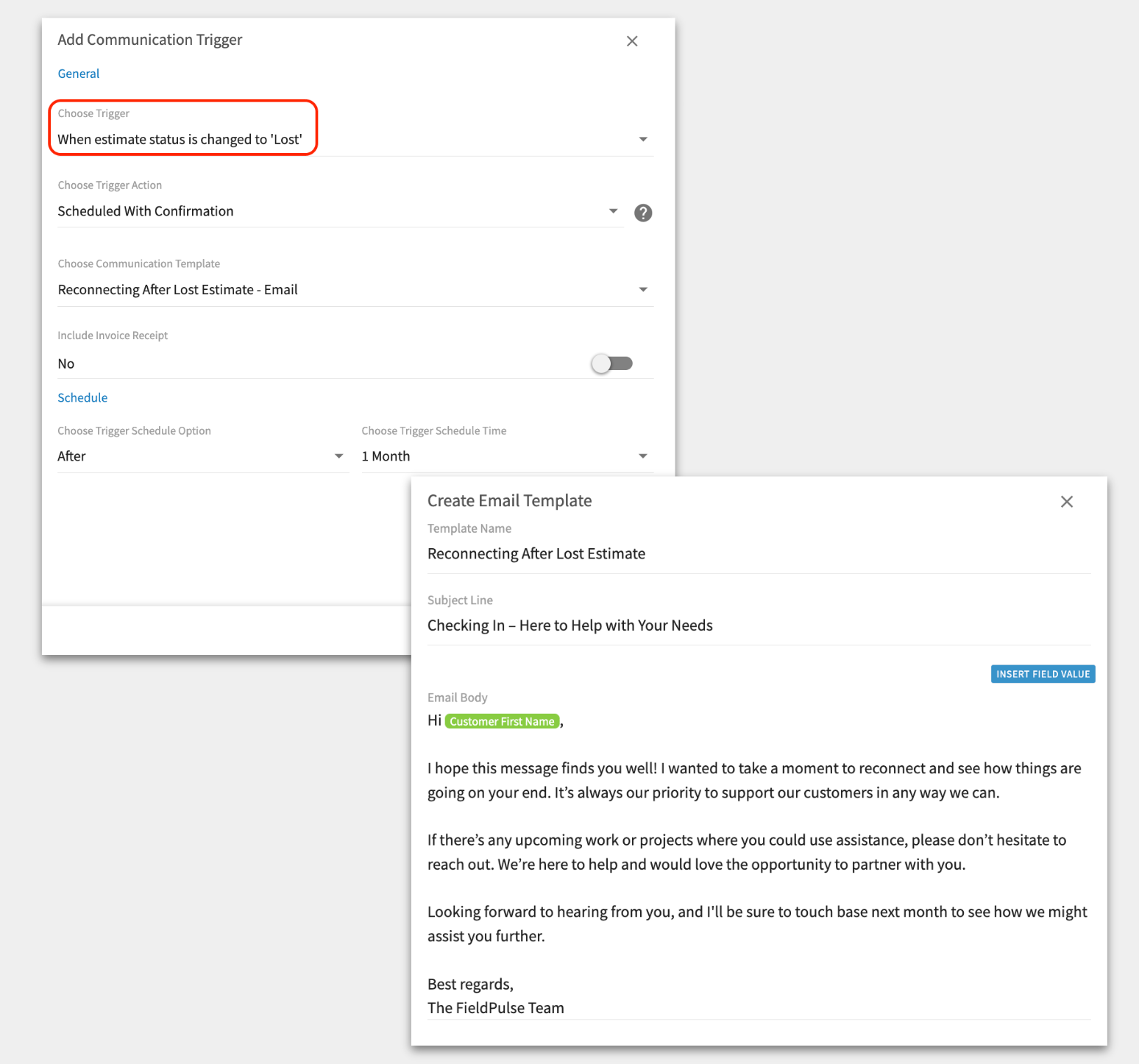 *Example of an automatic trigger and template that can be sent to the customer when a team member changes the estimate status to "Lost."*
To learn more about customer communications and automatic triggers, see [Setting Up Automatic Communication Triggers](/customers/communications/automatic-triggers).
## Report on custom statuses
Custom statuses and workflows are available as report columns, so you can filter and group records by the stages you defined.
| **Report** | **Column** | **What it gives you** |
| ---------------------------------------------------------- | ------------------------------- | --------------------------------------------------------------------------------------------------------------------------------------------------------- |
| [Job reporting](/reporting/raw-data/job-reports) | **Related Invoice Status** | Visibility into what status the related invoice is in. |
| [Job reporting](/reporting/raw-data/job-reports) | **Related Invoice Status Type** | Filtering by type of status — Draft, Sent, Invoiced, Partially Paid, Paid, Void, or Any. |
| [Estimate reporting](/reporting/raw-data/estimate-reports) | **Assigned Workflow** | Reporting on the estimate status workflow assigned to the record. |
| [Estimate reporting](/reporting/raw-data/estimate-reports) | **Status** | Visibility into what status your estimate is in. |
| [Estimate reporting](/reporting/raw-data/estimate-reports) | **Status Type** | Filtering by type of status — Draft, Travel Time, Pending, Accepted, Completed, Lost, Estimate, In Progress, Sent, Rejected, Canceled, or Any. |
| [Invoice reporting](/reporting/raw-data/invoice-reports) | **Assigned Workflow** | Reporting on the invoice status workflow assigned to the record. |
| [Invoice reporting](/reporting/raw-data/invoice-reports) | **Status** | Visibility into what status your invoice is in. |
| [Invoice reporting](/reporting/raw-data/invoice-reports) | **Status Type** | Filtering by type of status — Draft, Sent, Invoiced, Partially Paid, Paid, Void, or Any. |
| [Payments reporting](/reporting/raw-data/payment-reports) | **Parent Invoice Status** | A way to verify that invoices are fully paid, and to identify the ones that are only partially paid or still sitting in **Sent** waiting on the customer. |
| [Payments reporting](/reporting/raw-data/payment-reports) | **Parent Invoice Status Type** | Filtering by type of status — Draft, Sent, Invoiced, Partially Paid, Paid, Void, or Any. |
To learn more about reporting in FieldPulse, see [How to Use Raw Data Reporting](/reporting/raw-data/using-raw-data-reporting).
## FAQs
### Can an invoice show "Invoiced" after it has been sent to a customer?
Once an invoice is sent, its status updates to **Sent**, and **Sent** is what displays going forward until the invoice is paid or adjusted by hand. **Invoiced** marks the day the invoice was finalized, which is also used to calculate the due date from your Company Settings default terms, and that invoiced date stays on the record for reference.
## Still need help?
Reach the [FieldPulse support team](https://www.fieldpulse.com/company/contact-us) at [support@fieldpulse.com](mailto:support@fieldpulse.com) or through the chat feature in the bottom-right corner of your screen.
## Related articles
* [Setting Up Default Estimate & Invoice Settings](/estimates-invoices/creating/default-settings)
* [Setting Up Record Locking on Estimates & Invoices](/estimates-invoices/creating/locking-edits)
* [Setting Up Automatic Communication Triggers](/customers/communications/automatic-triggers)
* [How to Send Estimates & Invoices to Customers](/estimates-invoices/creating/sending)
* [How to Create Estimate Reports](/reporting/raw-data/estimate-reports)
* [How to Create Invoice Reports](/reporting/raw-data/invoice-reports)
Your workflows are set up correctly when a new estimate or invoice picks up your default workflow, moves across the statuses you named on the **By Status** board, and each status maps to its category in QuickBooks.
## Related topics
- [How to Create an Estimate](/estimates-invoices/creating/estimate.md)
- [Workflow Blueprint Details](/jobs/workflows/blueprints.md)
- [How to Migrate from ServiceTitan to FieldPulse](/getting-started/migrating/servicetitan.md)
- [How to Migrate from Service Fusion to FieldPulse](/getting-started/migrating/service-fusion.md)
*Example of an automatic trigger and template that can be sent to the customer when a team member changes the estimate status to "Lost."*
To learn more about customer communications and automatic triggers, see [Setting Up Automatic Communication Triggers](/customers/communications/automatic-triggers).
## Report on custom statuses
Custom statuses and workflows are available as report columns, so you can filter and group records by the stages you defined.
| **Report** | **Column** | **What it gives you** |
| ---------------------------------------------------------- | ------------------------------- | --------------------------------------------------------------------------------------------------------------------------------------------------------- |
| [Job reporting](/reporting/raw-data/job-reports) | **Related Invoice Status** | Visibility into what status the related invoice is in. |
| [Job reporting](/reporting/raw-data/job-reports) | **Related Invoice Status Type** | Filtering by type of status — Draft, Sent, Invoiced, Partially Paid, Paid, Void, or Any. |
| [Estimate reporting](/reporting/raw-data/estimate-reports) | **Assigned Workflow** | Reporting on the estimate status workflow assigned to the record. |
| [Estimate reporting](/reporting/raw-data/estimate-reports) | **Status** | Visibility into what status your estimate is in. |
| [Estimate reporting](/reporting/raw-data/estimate-reports) | **Status Type** | Filtering by type of status — Draft, Travel Time, Pending, Accepted, Completed, Lost, Estimate, In Progress, Sent, Rejected, Canceled, or Any. |
| [Invoice reporting](/reporting/raw-data/invoice-reports) | **Assigned Workflow** | Reporting on the invoice status workflow assigned to the record. |
| [Invoice reporting](/reporting/raw-data/invoice-reports) | **Status** | Visibility into what status your invoice is in. |
| [Invoice reporting](/reporting/raw-data/invoice-reports) | **Status Type** | Filtering by type of status — Draft, Sent, Invoiced, Partially Paid, Paid, Void, or Any. |
| [Payments reporting](/reporting/raw-data/payment-reports) | **Parent Invoice Status** | A way to verify that invoices are fully paid, and to identify the ones that are only partially paid or still sitting in **Sent** waiting on the customer. |
| [Payments reporting](/reporting/raw-data/payment-reports) | **Parent Invoice Status Type** | Filtering by type of status — Draft, Sent, Invoiced, Partially Paid, Paid, Void, or Any. |
To learn more about reporting in FieldPulse, see [How to Use Raw Data Reporting](/reporting/raw-data/using-raw-data-reporting).
## FAQs
### Can an invoice show "Invoiced" after it has been sent to a customer?
Once an invoice is sent, its status updates to **Sent**, and **Sent** is what displays going forward until the invoice is paid or adjusted by hand. **Invoiced** marks the day the invoice was finalized, which is also used to calculate the due date from your Company Settings default terms, and that invoiced date stays on the record for reference.
## Still need help?
Reach the [FieldPulse support team](https://www.fieldpulse.com/company/contact-us) at [support@fieldpulse.com](mailto:support@fieldpulse.com) or through the chat feature in the bottom-right corner of your screen.
## Related articles
* [Setting Up Default Estimate & Invoice Settings](/estimates-invoices/creating/default-settings)
* [Setting Up Record Locking on Estimates & Invoices](/estimates-invoices/creating/locking-edits)
* [Setting Up Automatic Communication Triggers](/customers/communications/automatic-triggers)
* [How to Send Estimates & Invoices to Customers](/estimates-invoices/creating/sending)
* [How to Create Estimate Reports](/reporting/raw-data/estimate-reports)
* [How to Create Invoice Reports](/reporting/raw-data/invoice-reports)
Your workflows are set up correctly when a new estimate or invoice picks up your default workflow, moves across the statuses you named on the **By Status** board, and each status maps to its category in QuickBooks.
## Related topics
- [How to Create an Estimate](/estimates-invoices/creating/estimate.md)
- [Workflow Blueprint Details](/jobs/workflows/blueprints.md)
- [How to Migrate from ServiceTitan to FieldPulse](/getting-started/migrating/servicetitan.md)
- [How to Migrate from Service Fusion to FieldPulse](/getting-started/migrating/service-fusion.md)