> ## Documentation Index
> Fetch the complete documentation index at: https://help.fieldpulse.com/llms.txt
> Use this file to discover all available pages before exploring further.
# Setting Up Contracts
> Create reusable contracts in FieldPulse, attach one to every estimate and invoice by default, and collect the customer's signature by email or in the app.
> **Who uses this:** Admins only — only an Admin can create a contract or turn on **Attach Contract to PDF**; both live in **Company Settings**. **Availability:** All regions. Customers sign in the FieldPulse mobile app or by email.
A service agreement that has to be printed, signed, and scanned before work starts slows the whole job down. Contracts in FieldPulse attach to your [estimates and invoices](https://www.fieldpulse.com/features/estimates-and-invoices), and customers sign them directly in the mobile app or through a signature request sent by email.
## Overview
A contract is reusable text — a service or maintenance agreement, a general contract, a warranty — that you create once in Company Settings and attach to estimates and invoices. Set a default contract and it attaches to every new estimate and invoice automatically, with the number of signature lines you choose; adjust or remove it on any single document from its preview panel.
If you require a signature on an estimate before starting work for your customer, you **must** attach a contract.
## Video walkthrough
## Before you begin
* You need access to **Company Settings** > **Estimates & Invoices**, where contracts are created and the default contract is set.
* Decide how many signature lines each contract needs.
## Step-by-step setup
### Create a contract
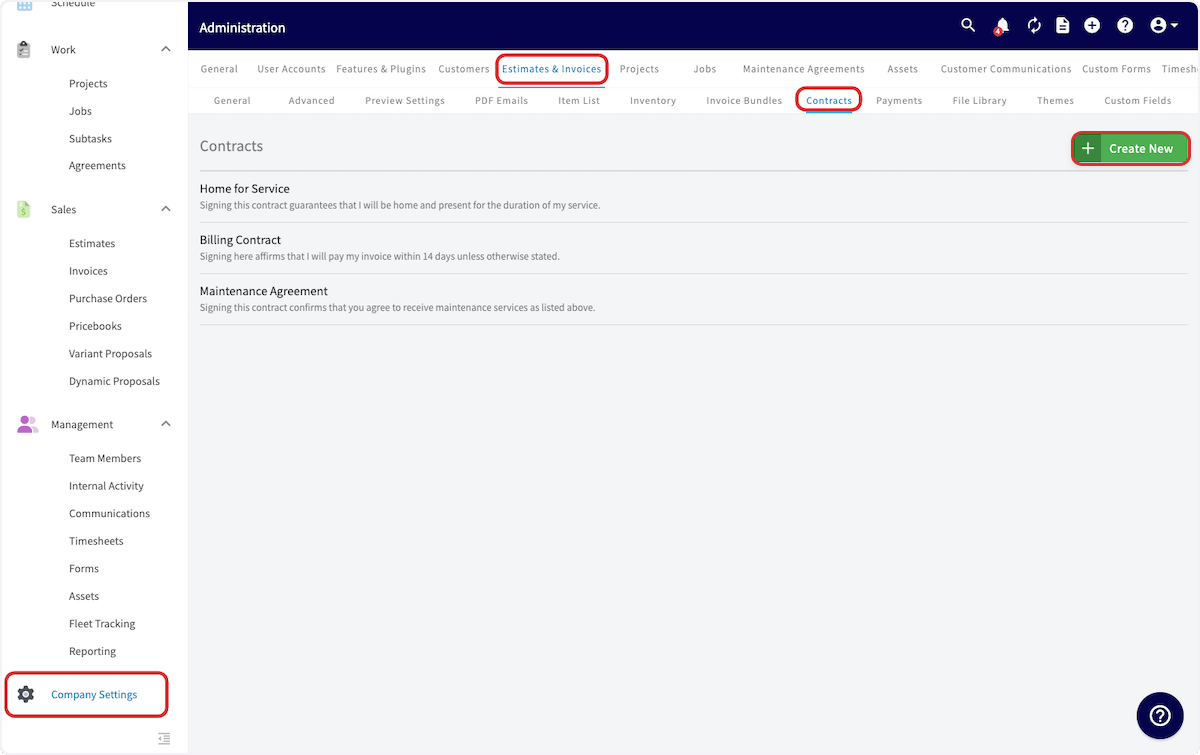
1. Go to **Company Settings** in the left-side menu, then select **Estimates & Invoices**.
2. Select **Contracts** in the sub-header.
3. On the Contracts page, select **Create New**.
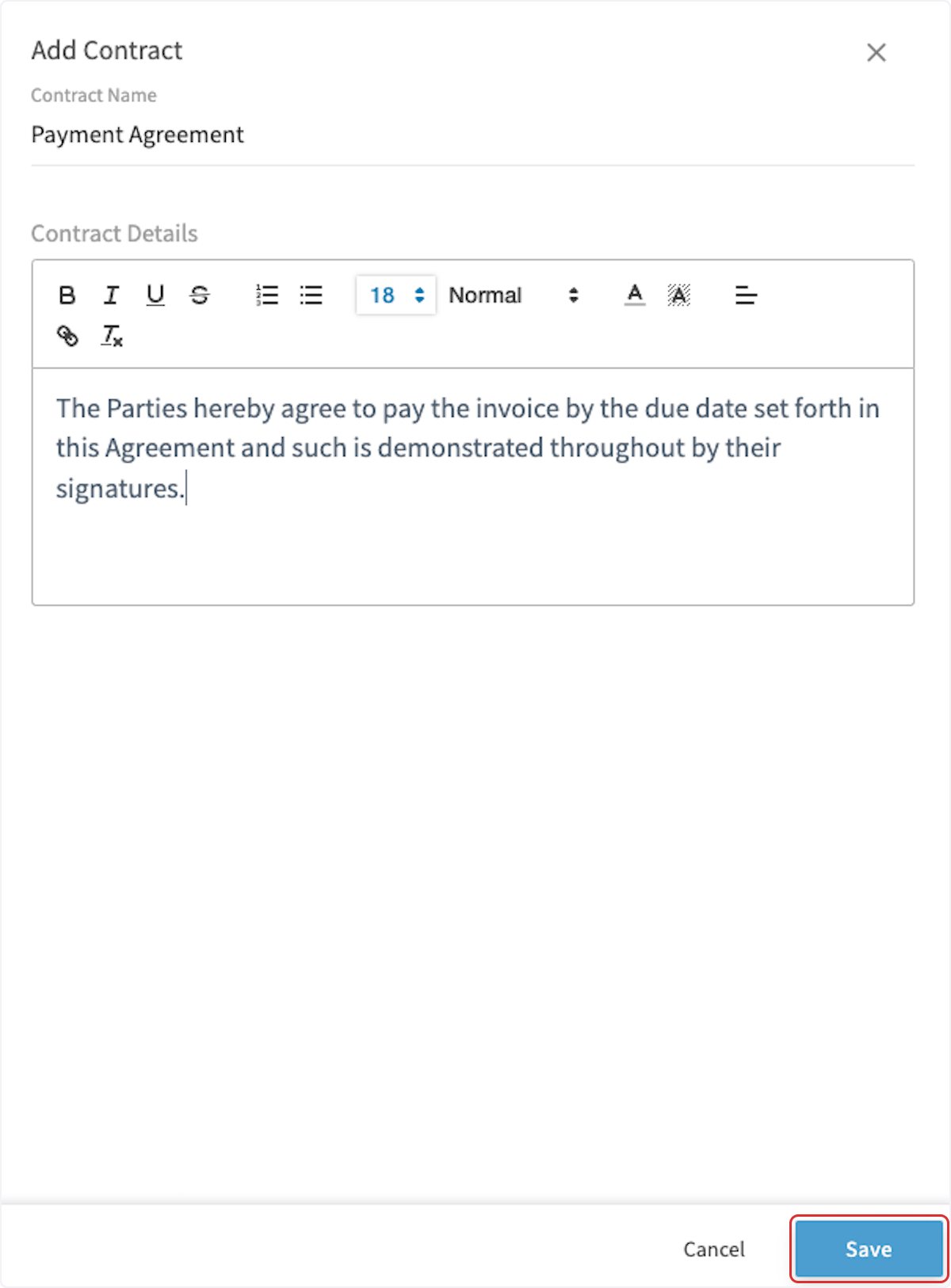
 4. Enter the contract's details. Customers use contracts for service and maintenance agreements, general contracts, warranties, and similar terms.
5. Select **Save**.
4. Enter the contract's details. Customers use contracts for service and maintenance agreements, general contracts, warranties, and similar terms.
5. Select **Save**.
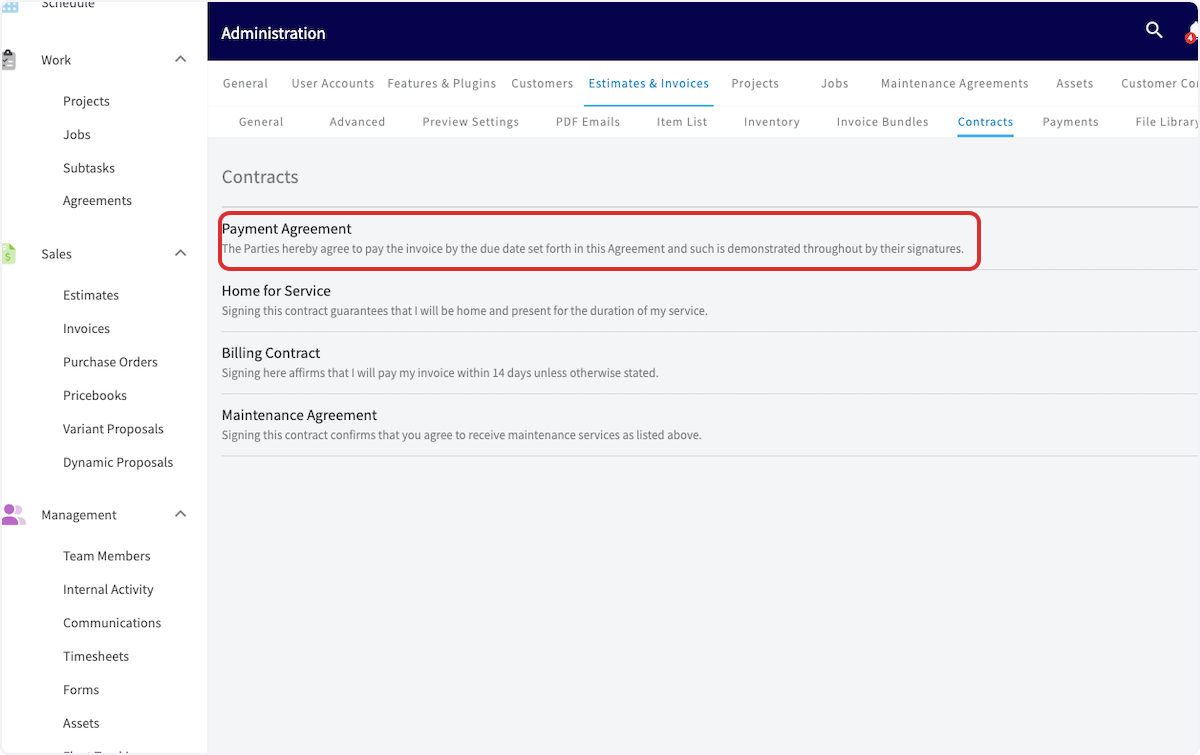
 The new contract appears in the list on the Contracts page.
 ### Attach a contract to every estimate and invoice by default
1. Under **Estimates & Invoices**, select **Preview Settings**.
2. Toggle on **Attach Contract to PDF**.
### Attach a contract to every estimate and invoice by default
1. Under **Estimates & Invoices**, select **Preview Settings**.
2. Toggle on **Attach Contract to PDF**.
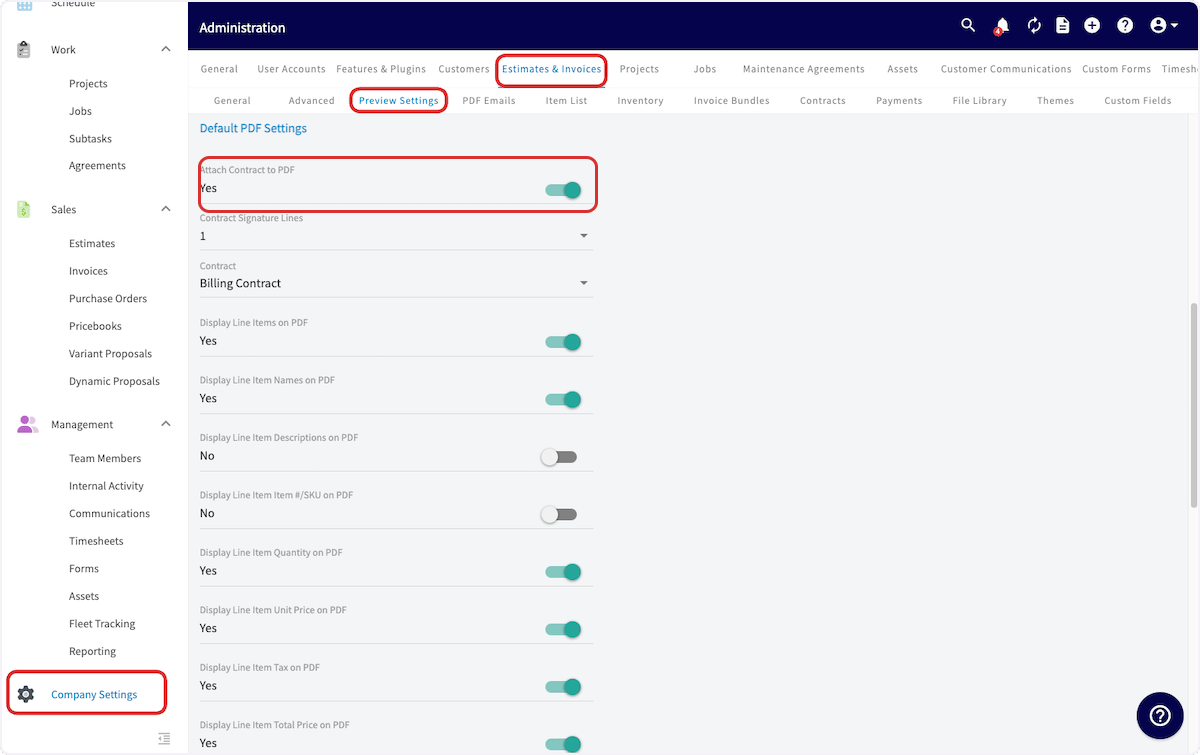 3. Enter how many signature lines you require and choose which contract to attach.
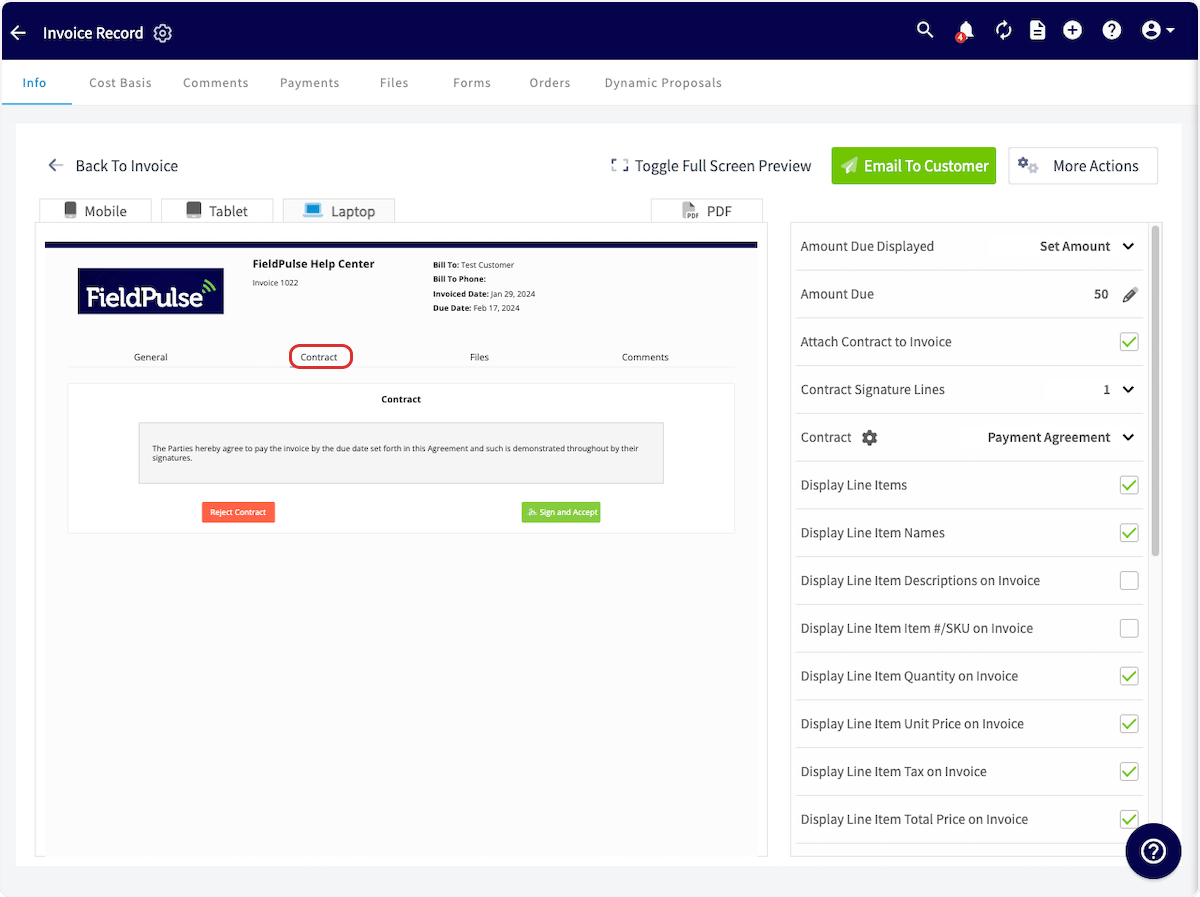
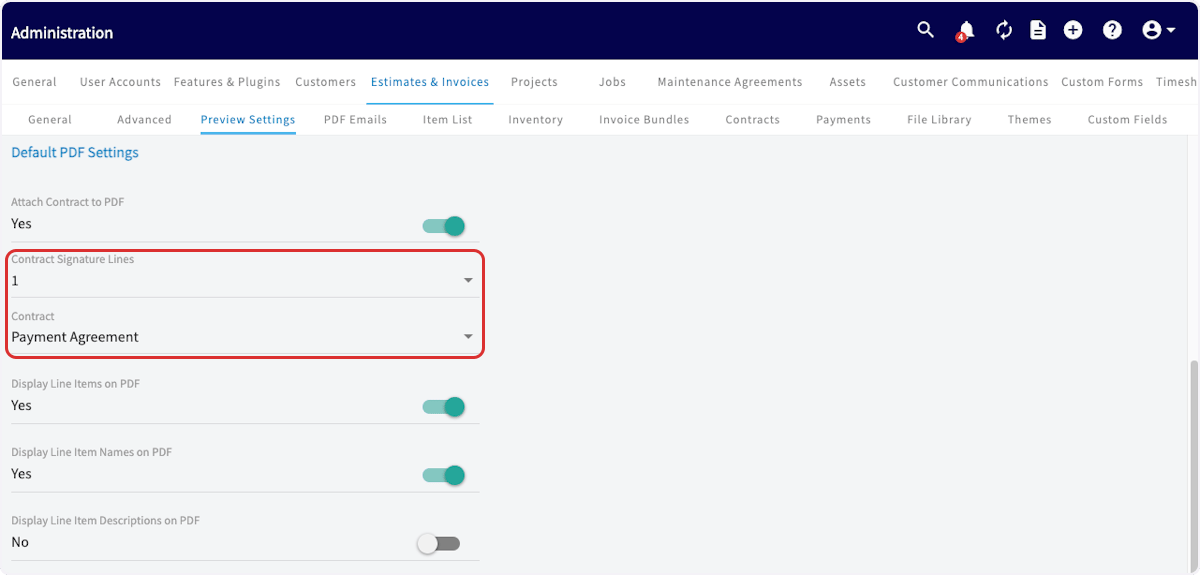 The next time you create an estimate or invoice, the contract appears in its Contracts section and on the second page of the PDF. Your customer can sign it by email or in the FieldPulse mobile app while your technician is on site.
 ### Change the contract on one estimate or invoice
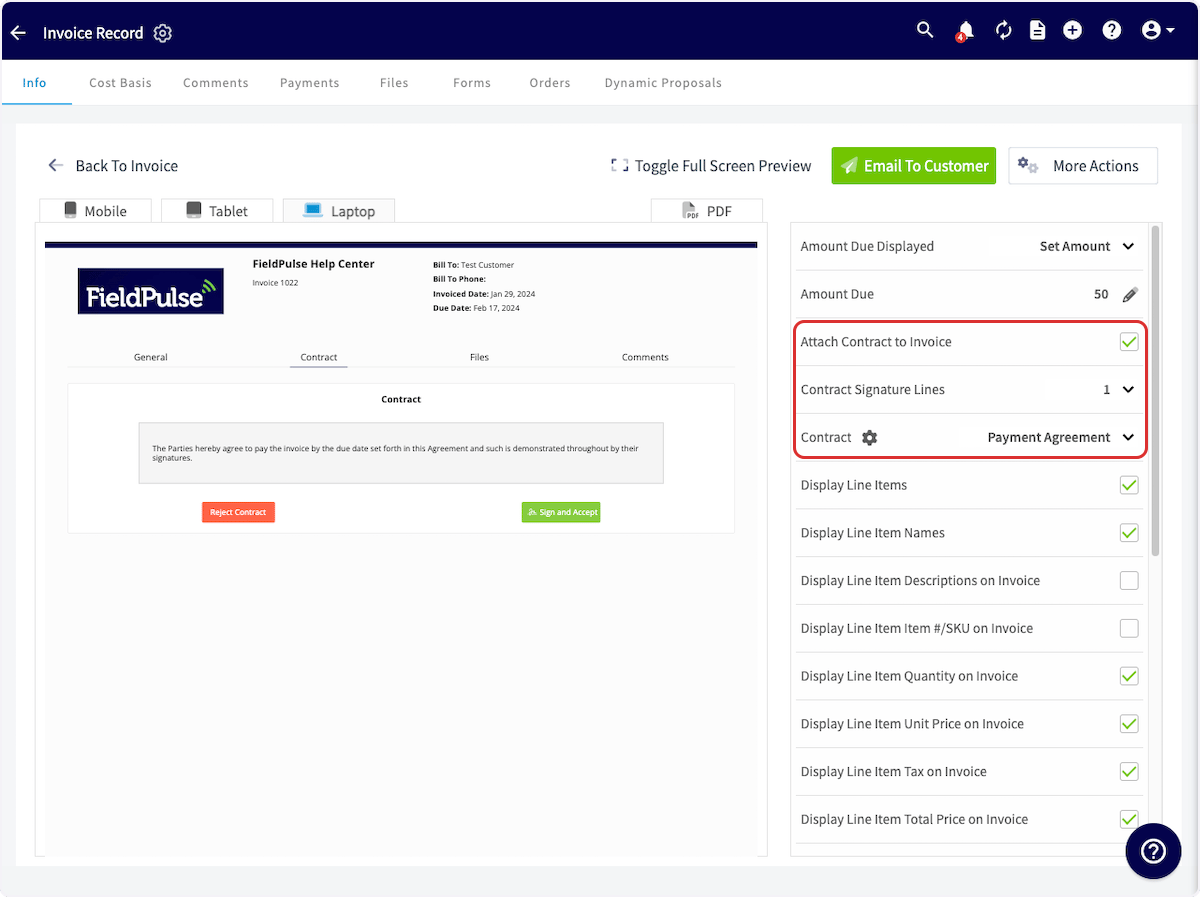
To remove or change the contract or the signature lines on a single estimate or invoice, open the document's preview and make the change in the right-side menu. The default contract settings stay as they are for every other document.
### Change the contract on one estimate or invoice
To remove or change the contract or the signature lines on a single estimate or invoice, open the document's preview and make the change in the right-side menu. The default contract settings stay as they are for every other document.
 ## Settings reference
| **Setting** | **Where** | **What it does** |
| -------------------------- | ------------------------------------------------------------------- | ------------------------------------------------------------------------------- |
| **Contracts** | Company Settings > Estimates & Invoices > Contracts | The list of reusable contracts you can attach. |
| **Attach Contract to PDF** | Company Settings > Estimates & Invoices > Preview Settings | Attaches the chosen contract to every new estimate and invoice PDF. |
| **Signature lines** | Preview Settings, and the preview panel on each estimate or invoice | How many signature lines the attached contract carries. |
| **Contract** | Preview Settings, and the preview panel on each estimate or invoice | Which contract is attached — the default, or a different one for that document. |
## Related articles
* [How to Request a Customer Signature](/estimates-invoices/options/customer-signature)
* [Setting Up Default Estimate & Invoice Settings](/estimates-invoices/creating/default-settings)
* [How to Send Estimates & Invoices to Customers](/estimates-invoices/creating/sending)
* [How to Create a Maintenance Agreement](/jobs/assets/maintenance-agreements)
Your setup is working when a new estimate shows your contract, with the signature lines you set, in its Contracts section and on the second page of the PDF.
## Related topics
- [Options, Add-Ons & Signatures](/estimates-invoices/options/index.md)
- [Setting Up the NiceJob Integration](/integrations/partner-apps/nicejob.md)
- [Setting Up Default Estimate & Invoice Settings](/estimates-invoices/creating/default-settings.md)
- [Setting Up Operator AI](/add-ons/ai/operator-ai.md)
## Settings reference
| **Setting** | **Where** | **What it does** |
| -------------------------- | ------------------------------------------------------------------- | ------------------------------------------------------------------------------- |
| **Contracts** | Company Settings > Estimates & Invoices > Contracts | The list of reusable contracts you can attach. |
| **Attach Contract to PDF** | Company Settings > Estimates & Invoices > Preview Settings | Attaches the chosen contract to every new estimate and invoice PDF. |
| **Signature lines** | Preview Settings, and the preview panel on each estimate or invoice | How many signature lines the attached contract carries. |
| **Contract** | Preview Settings, and the preview panel on each estimate or invoice | Which contract is attached — the default, or a different one for that document. |
## Related articles
* [How to Request a Customer Signature](/estimates-invoices/options/customer-signature)
* [Setting Up Default Estimate & Invoice Settings](/estimates-invoices/creating/default-settings)
* [How to Send Estimates & Invoices to Customers](/estimates-invoices/creating/sending)
* [How to Create a Maintenance Agreement](/jobs/assets/maintenance-agreements)
Your setup is working when a new estimate shows your contract, with the signature lines you set, in its Contracts section and on the second page of the PDF.
## Related topics
- [Options, Add-Ons & Signatures](/estimates-invoices/options/index.md)
- [Setting Up the NiceJob Integration](/integrations/partner-apps/nicejob.md)
- [Setting Up Default Estimate & Invoice Settings](/estimates-invoices/creating/default-settings.md)
- [Setting Up Operator AI](/add-ons/ai/operator-ai.md)