> ## Documentation Index
> Fetch the complete documentation index at: https://help.fieldpulse.com/llms.txt
> Use this file to discover all available pages before exploring further.
# How to Request a Customer Signature
> Email a FieldPulse estimate or invoice with a signature request, attach a contract if you need one, and find the signed PDF saved on the record.
> **Who uses this:** Administrators and Team Managers can create and send estimates and invoices by default, and an Administrator can turn that permission on for a Service Agent; the account-wide default signature setting sits in **Company Settings**, which only Administrators can view. **Availability:** All regions.
You can collect a customer's electronic signature on an [estimate or invoice](https://www.fieldpulse.com/features/estimates-and-invoices) by email, directly in FieldPulse. Request a signature on a single estimate or invoice at the moment you email it, or turn on a default so every new estimate and invoice carries a signature field. A contract can go out with the same signature request.
## Overview
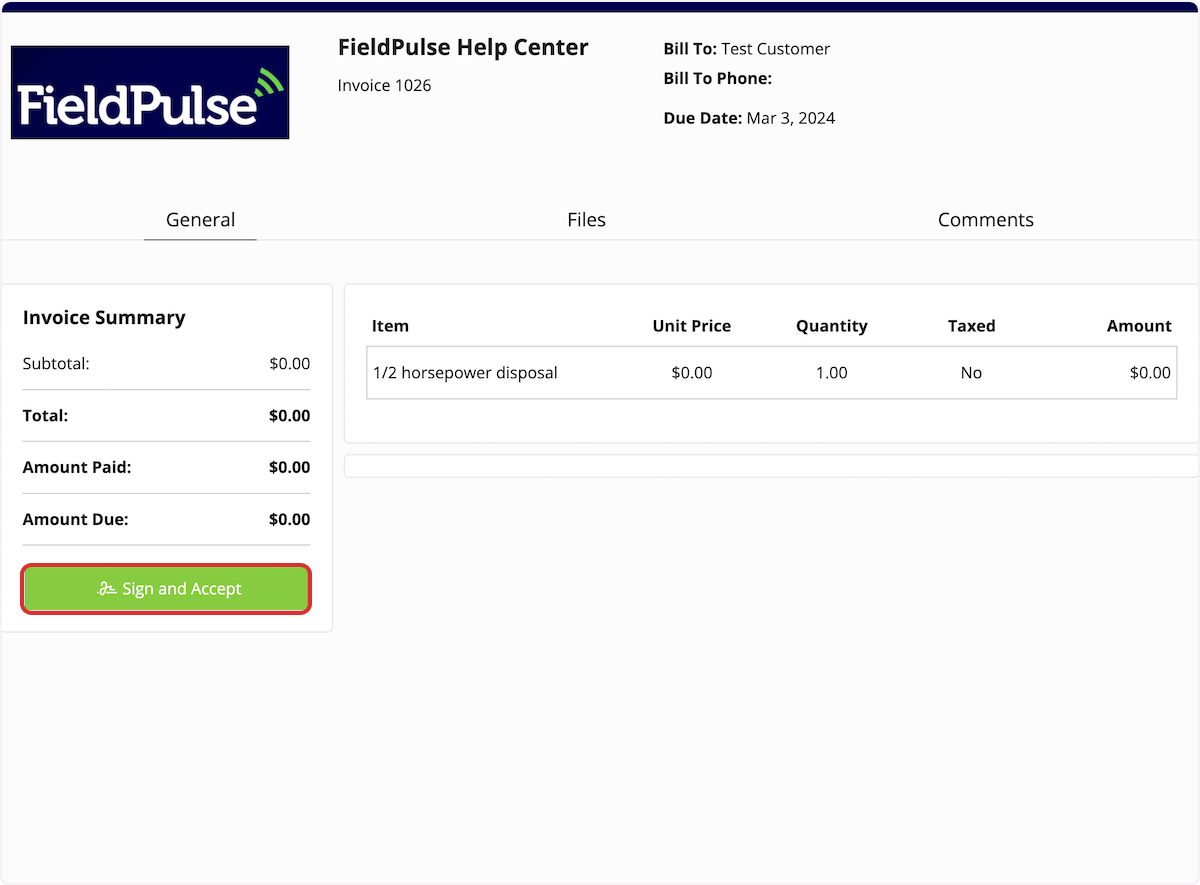
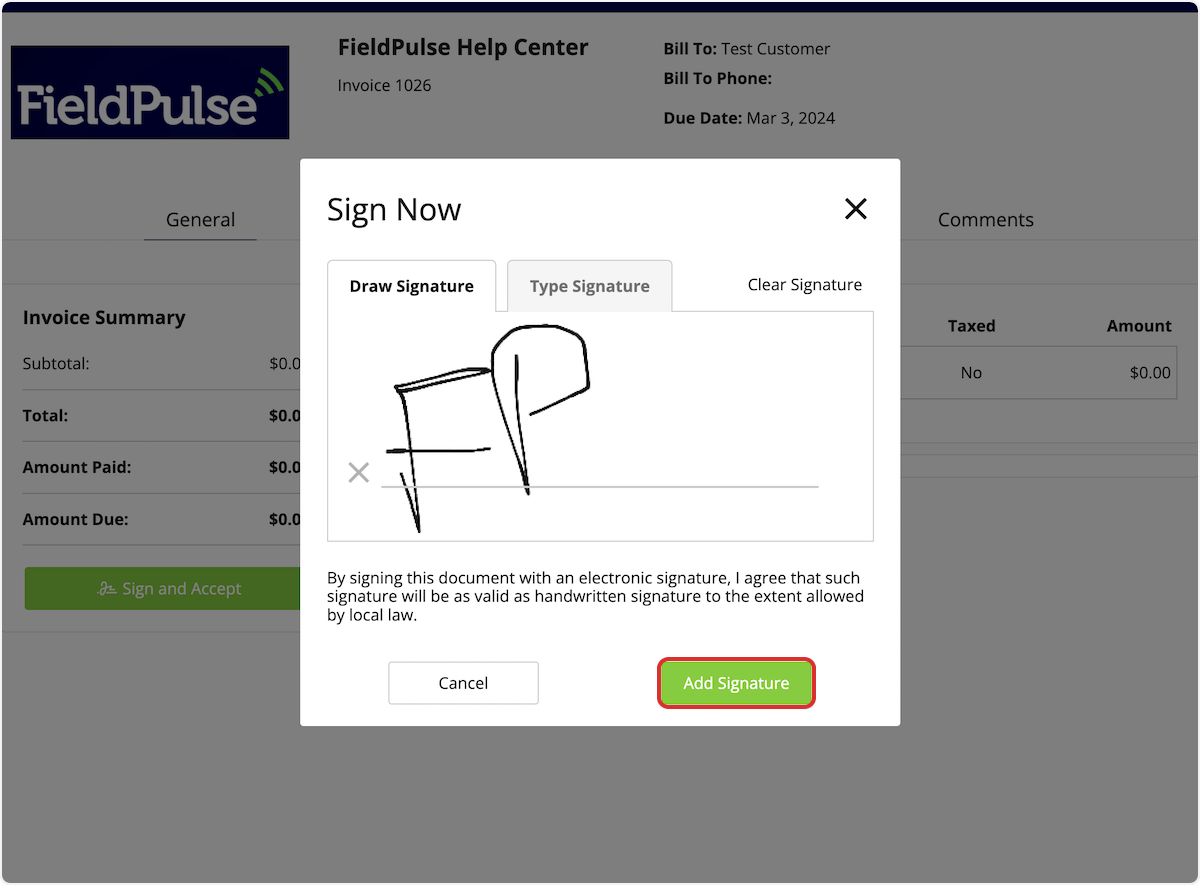
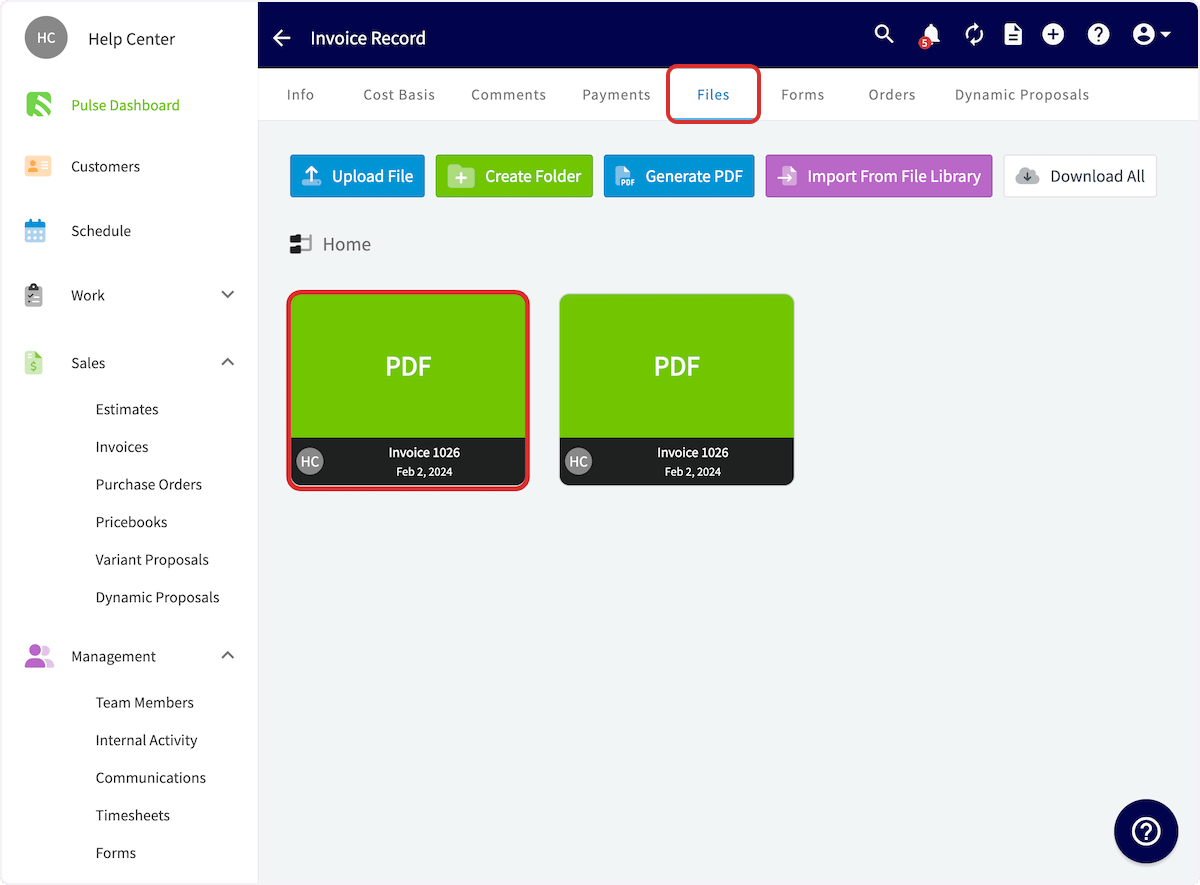
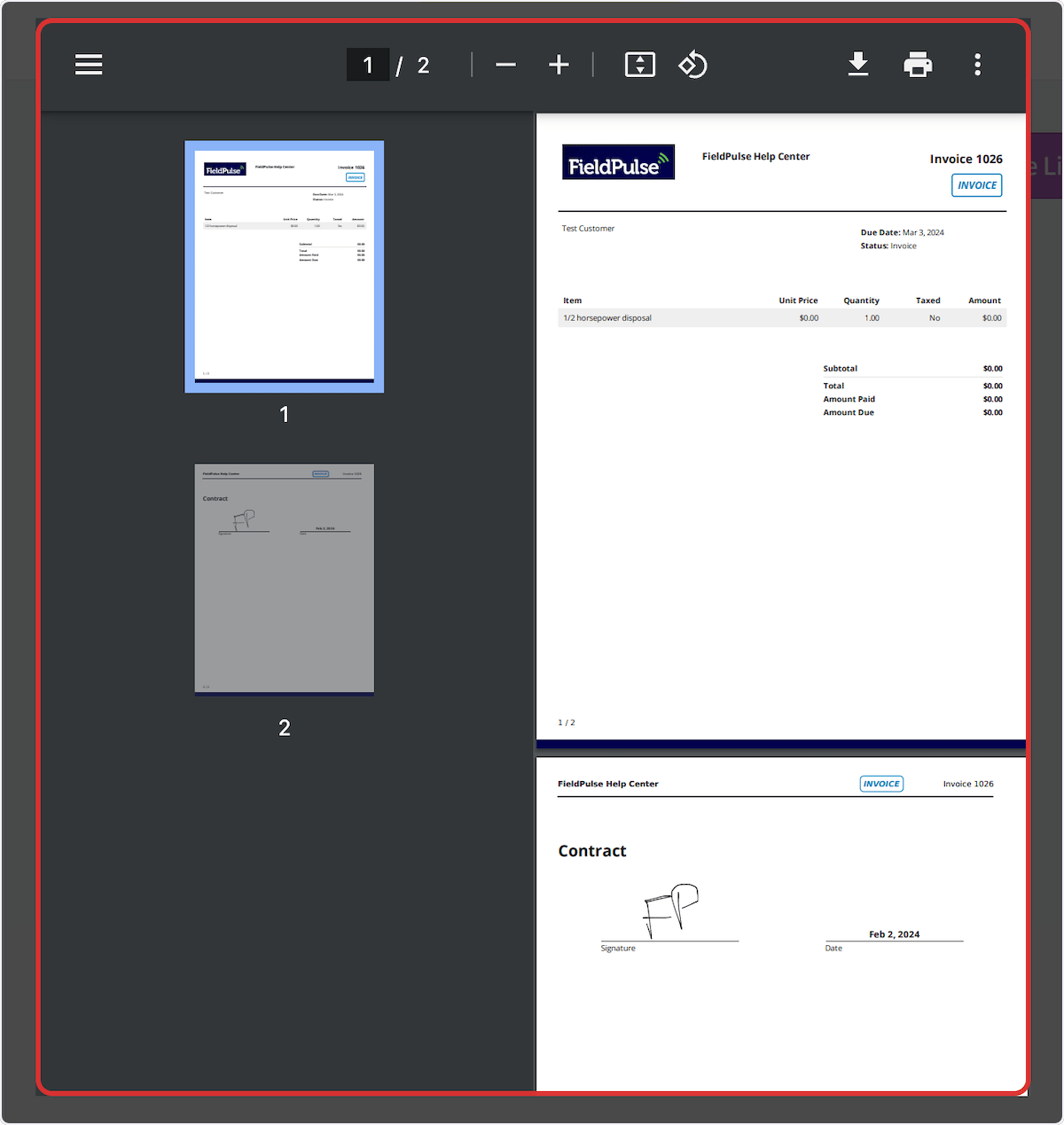
There are two ways to request a customer signature. Turn on the default signature setting to add a signature field to every new estimate and invoice, or include a signature request on one estimate or invoice when you email it. When the customer opens the emailed record, they select **Sign and Accept**, draw or type their signature, and add it. FieldPulse then saves the signed PDF under **Files** on the estimate or invoice record.
## Video walkthrough
## Before you begin
* Decide whether you want a signature on every estimate and invoice or only on specific ones. The default setting covers the first case, and the per-record signature request covers the second.
* Create the estimate or invoice you want signed. The signature request goes out with the email, so the record has to exist first. See [How to Create an Estimate](/estimates-invoices/creating/estimate) or [How to Create an Invoice](/estimates-invoices/creating/invoice).
* Set up the contract you want attached before you send, if you plan to collect a signature on a contract at the same time.
## Setting a default signature request
Turn on the default signature request if you plan to collect a signature on every estimate and invoice. As with other default settings, you can still change the setting on an individual estimate or invoice later.
1. Select **Company Settings** in the left menu.
2. Select **Estimates & Invoices** in the header.
3. Select the **Preview Settings** tab.
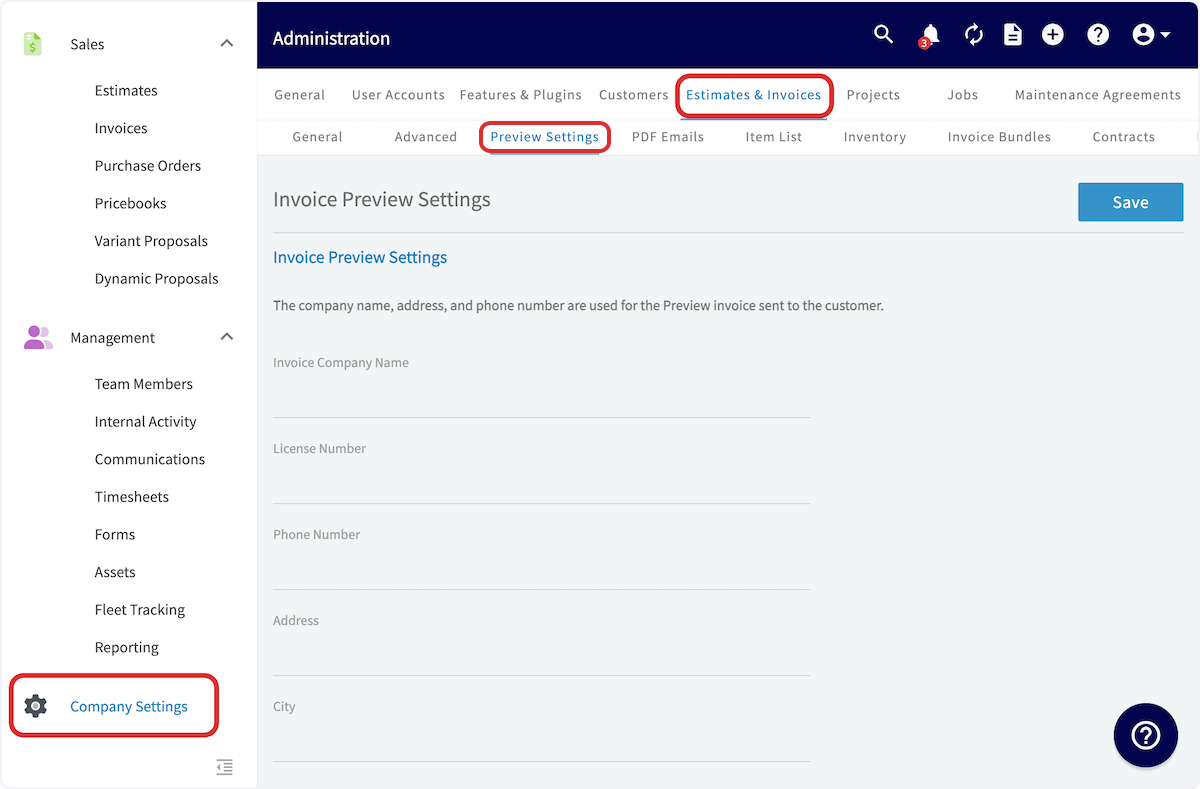 4. Scroll down and toggle on **Default Display Signature Button**.
 5. Scroll back to the top of the screen and select **Save**.
Every estimate and invoice you create from then on includes a signature field by default.
## Requesting a signature on a single estimate or invoice
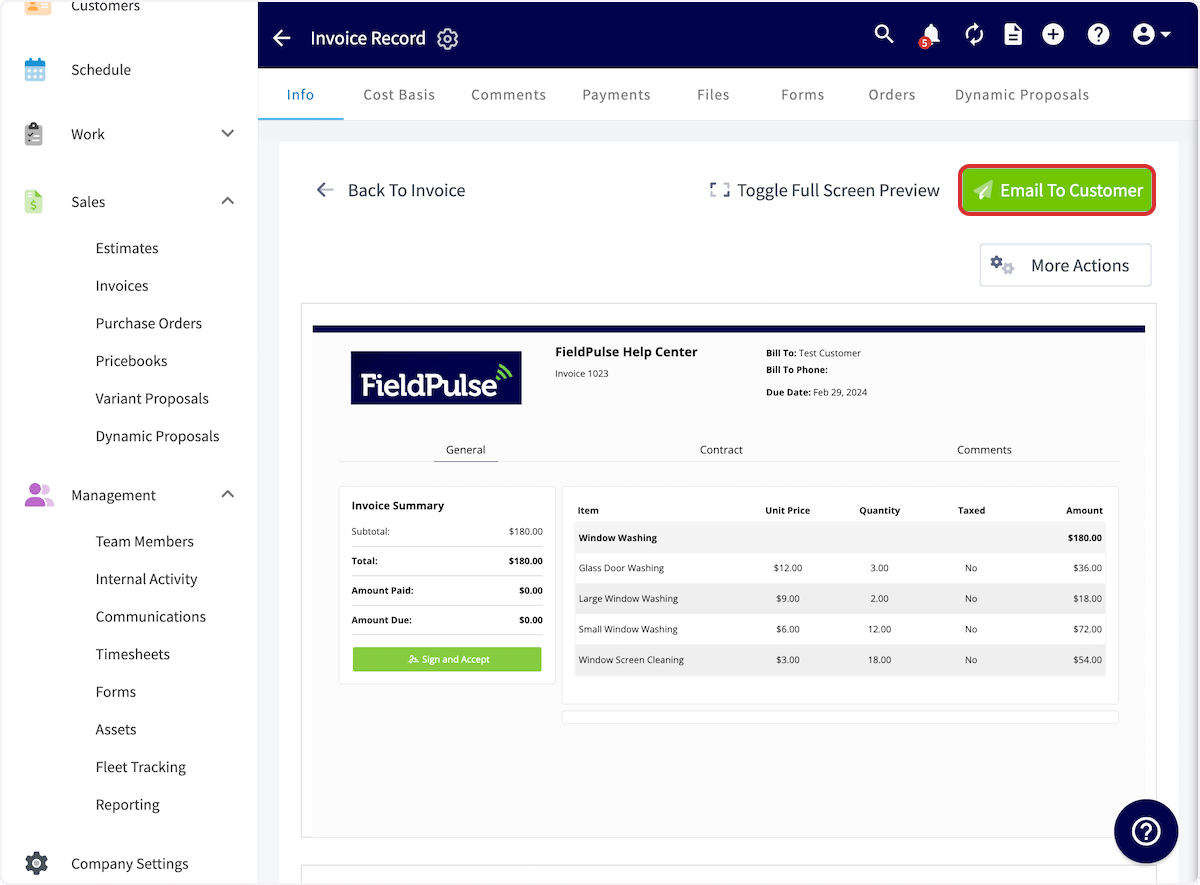
1. Open the estimate or invoice, preview it, and select **Email To Customer** in the top-right corner.
5. Scroll back to the top of the screen and select **Save**.
Every estimate and invoice you create from then on includes a signature field by default.
## Requesting a signature on a single estimate or invoice
1. Open the estimate or invoice, preview it, and select **Email To Customer** in the top-right corner.
 2. In the email window, scroll down and toggle on **Include Signature Request**.
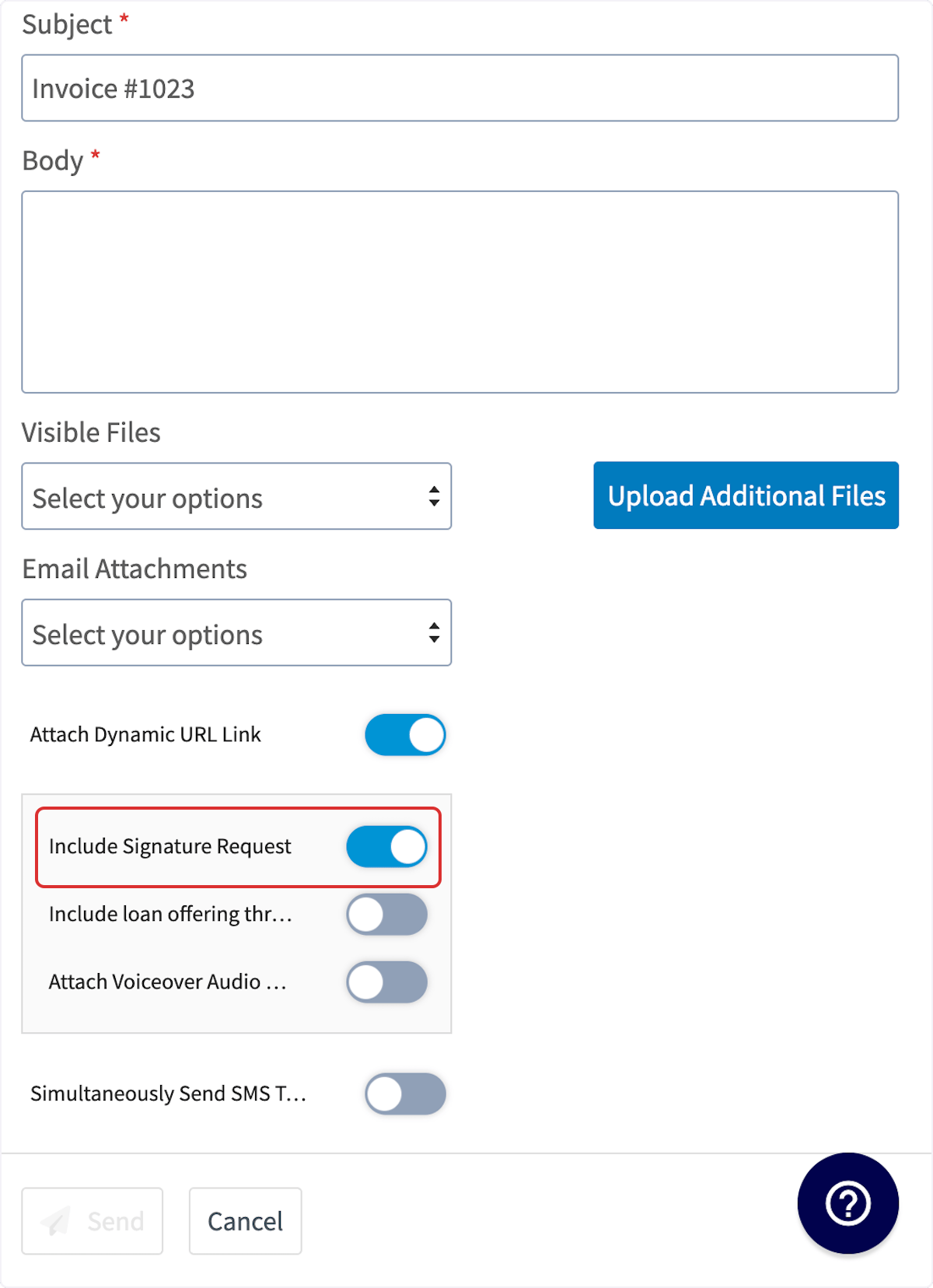 **Include Signature Request** is already turned on for you when a contract is attached to the estimate or invoice. It only turns on by itself when a contract is on the record — with no contract attached, turn it on manually.
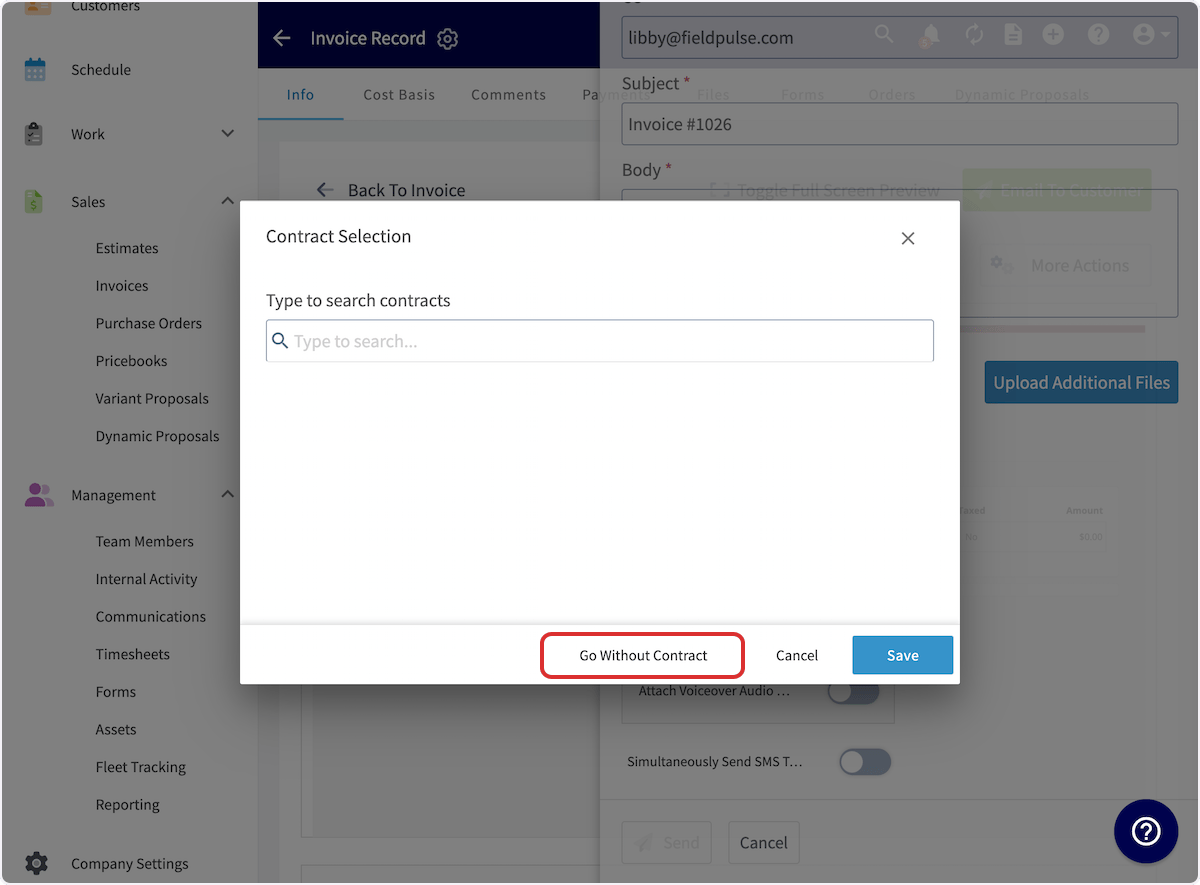
3. If no contract is attached, a **Contract Selection** pop-up opens. Search for the contract you want and attach it, or select **Go Without Contract**.
**Include Signature Request** is already turned on for you when a contract is attached to the estimate or invoice. It only turns on by itself when a contract is on the record — with no contract attached, turn it on manually.
3. If no contract is attached, a **Contract Selection** pop-up opens. Search for the contract you want and attach it, or select **Go Without Contract**.
 4. Select **Save**, then send the estimate or invoice to your customer.
## How the customer signs
1. The customer opens the emailed estimate or invoice and selects **Sign and Accept**.
4. Select **Save**, then send the estimate or invoice to your customer.
## How the customer signs
1. The customer opens the emailed estimate or invoice and selects **Sign and Accept**.
 2. The customer draws or types their signature in the **Sign Now** window, then selects **Add Signature**.
 3. Open the estimate or invoice record and select the **Files** tab to view the signed PDF.
 ## Still need help?
Reach the [FieldPulse support team](https://www.fieldpulse.com/company/contact-us) at [support@fieldpulse.com](mailto:support@fieldpulse.com) or through the chat feature in the bottom-right corner of your screen.
## Related articles
* [How to Send Estimates & Invoices to Customers](/estimates-invoices/creating/sending)
* [How to Use Estimate Options & Add-Ons](/estimates-invoices/options/options-add-ons)
* [Setting Up Default Estimate & Invoice Settings](/estimates-invoices/creating/default-settings)
* [Estimate & Invoice Customer Experience Overview](/estimates-invoices/creating/customer-view)
* [How to Create an Estimate](/estimates-invoices/creating/estimate)
* [How to Create an Invoice](/estimates-invoices/creating/invoice)
Your signature request is working when the customer opens the emailed estimate or invoice, signs it, and the signed PDF appears under **Files** on the record.
## Related topics
- [How to Create an Estimate](/estimates-invoices/creating/estimate.md)
- [Options, Add-Ons & Signatures](/estimates-invoices/options/index.md)
- [How to Send Estimates & Invoices to Customers](/estimates-invoices/creating/sending.md)
- [Estimate & Invoice Customer Experience Overview](/estimates-invoices/creating/customer-view.md)
## Still need help?
Reach the [FieldPulse support team](https://www.fieldpulse.com/company/contact-us) at [support@fieldpulse.com](mailto:support@fieldpulse.com) or through the chat feature in the bottom-right corner of your screen.
## Related articles
* [How to Send Estimates & Invoices to Customers](/estimates-invoices/creating/sending)
* [How to Use Estimate Options & Add-Ons](/estimates-invoices/options/options-add-ons)
* [Setting Up Default Estimate & Invoice Settings](/estimates-invoices/creating/default-settings)
* [Estimate & Invoice Customer Experience Overview](/estimates-invoices/creating/customer-view)
* [How to Create an Estimate](/estimates-invoices/creating/estimate)
* [How to Create an Invoice](/estimates-invoices/creating/invoice)
Your signature request is working when the customer opens the emailed estimate or invoice, signs it, and the signed PDF appears under **Files** on the record.
## Related topics
- [How to Create an Estimate](/estimates-invoices/creating/estimate.md)
- [Options, Add-Ons & Signatures](/estimates-invoices/options/index.md)
- [How to Send Estimates & Invoices to Customers](/estimates-invoices/creating/sending.md)
- [Estimate & Invoice Customer Experience Overview](/estimates-invoices/creating/customer-view.md)