> ## Documentation Index
> Fetch the complete documentation index at: https://help.fieldpulse.com/llms.txt
> Use this file to discover all available pages before exploring further.
# How to Send a Variant Proposal
> Send a FieldPulse variant proposal so the customer picks a Good, Better, or Best option, signs, and pays in one visit, from web or mobile.
> **Who uses this:** All users with estimate permissions · **Availability:** All regions and all plans. Payment requests require FieldPulse Payments or a supported payment provider.
## Overview
A variant proposal presents Good, Better, and Best options from one estimate, and the customer picks one, signs, and can pay in the same visit. Every variant proposal includes a signature request. You can also attach a payment request and an Acorn financing offer when you send it.
Selecting an option does not accept the estimate. The estimate moves to **Accepted** when the customer submits their signature.
## Before you begin
* Create an estimate with the options you want to offer. See [How to Use Estimate Options & Add-Ons](/estimates-invoices/options/options-add-ons).
* Attach a contract to the estimate if you want the customer to review terms before signing. See [Setting Up Contracts](/estimates-invoices/options/contracts).
* To include a payment request, set up FieldPulse Payments or a supported payment provider.
## On web
### Send the proposal
1. Open the estimate and select **View Estimate**.
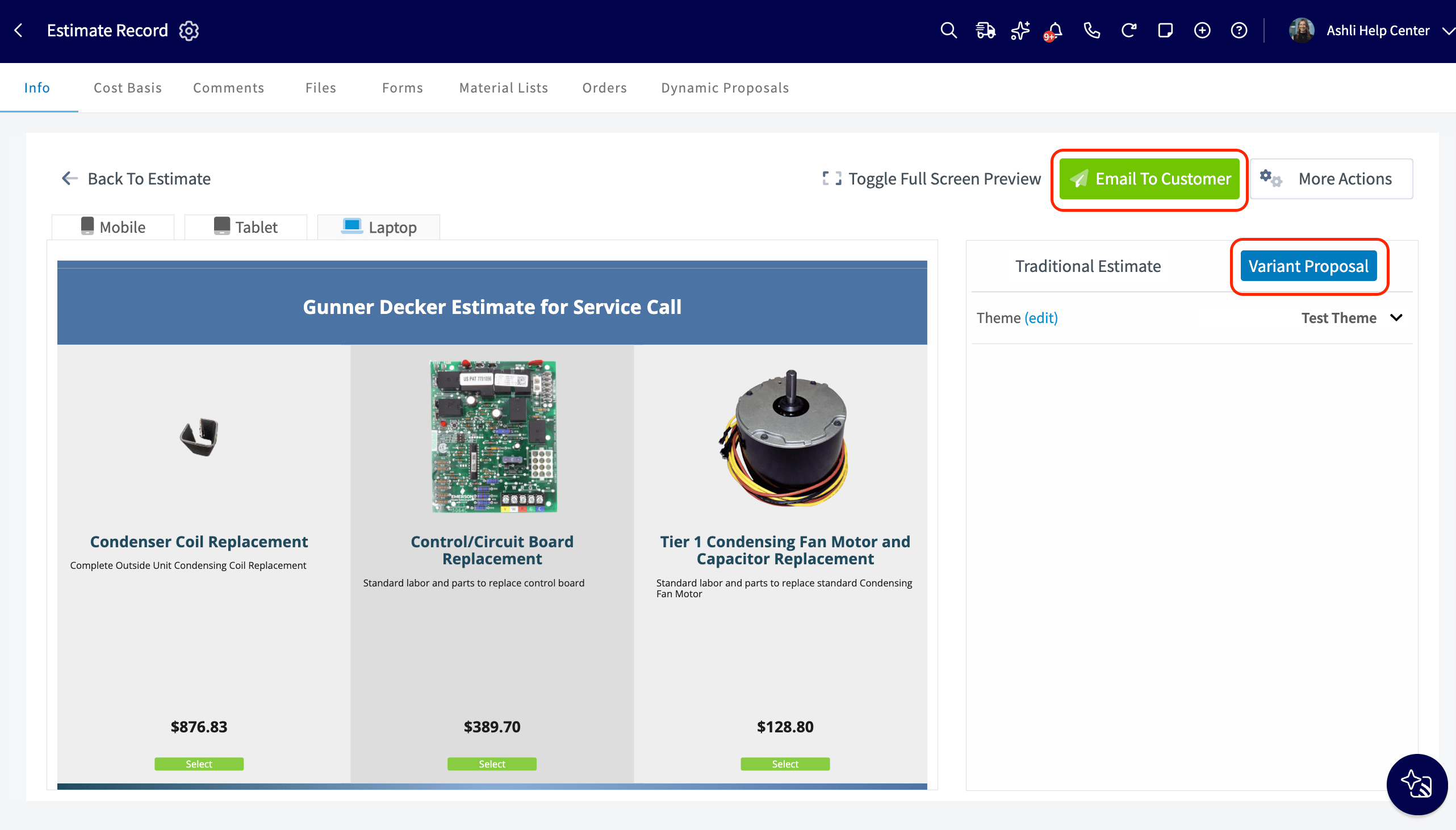
2. Select **Variant Proposal**, then select **Email To Customer**.
3. In the **Email Estimate** panel, scroll to **Send Options**. The signature request is always included. Choose whether to add a payment request.
4. Select **Send**.
 ### What the customer sees and does
The customer sees every option side by side. When the estimate has a discount, each option shows the amount the customer would pay after the discount.
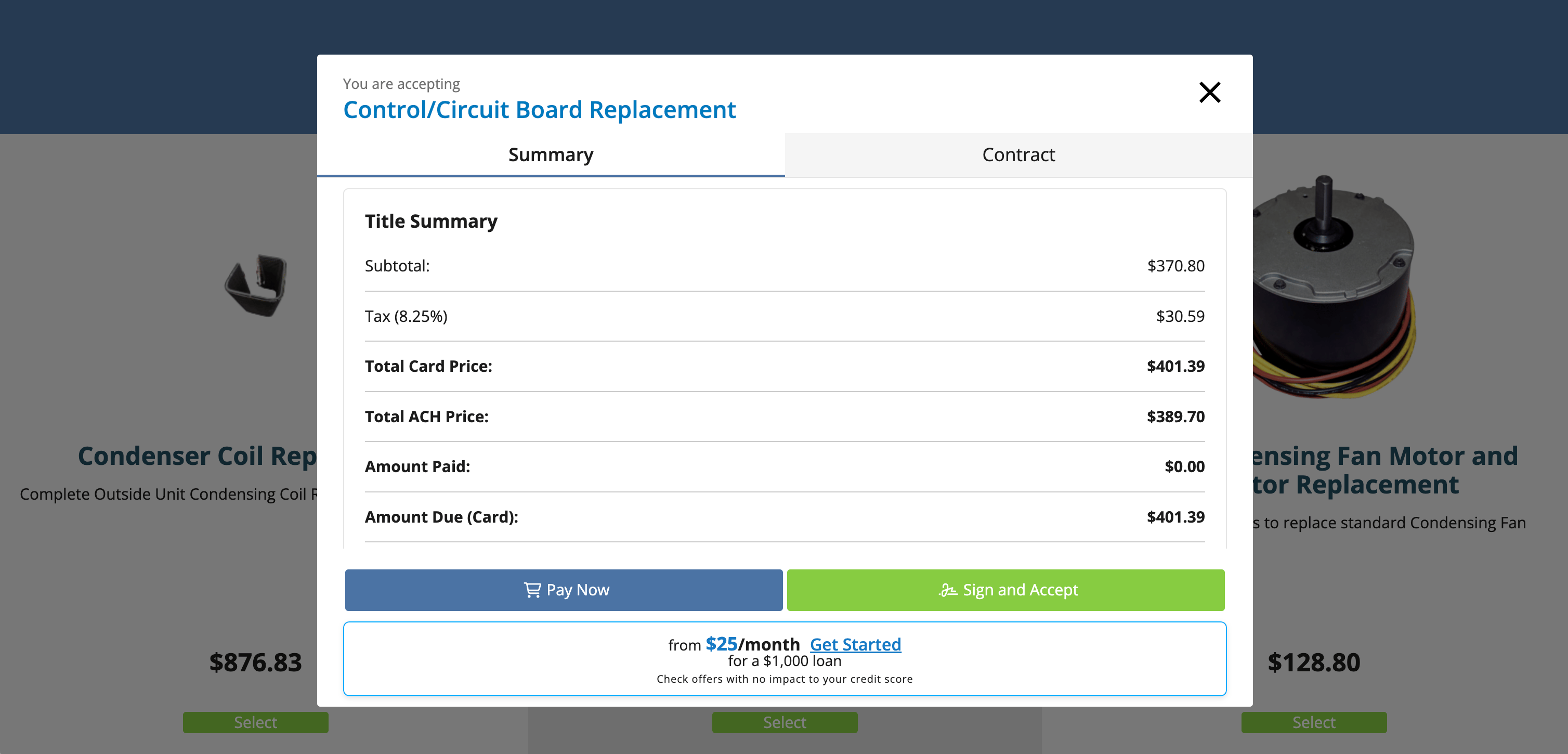
1. The customer selects an option. A window opens over the proposal, showing the option name above a **Summary** tab and a **Contract** tab.
2. The customer reviews the **Summary** tab, which shows the estimate summary for that option.
3. The customer optionally opens the **Contract** tab to read the attached contract. Opening the contract is not required before signing or paying.
4. The customer selects **Sign and Accept**, or **Pay Now** when a payment request is included.
5. The customer draws their signature in **Sign Now**, then enters their full name.
6. The customer sees the accepted confirmation. When a balance remains, the confirmation includes **Pay Now**.
One signature covers the selected option and the attached contract together. The **Contract** tab appears only when a contract is attached. Without one, the customer sees the summary alone.
### What the customer sees and does
The customer sees every option side by side. When the estimate has a discount, each option shows the amount the customer would pay after the discount.
1. The customer selects an option. A window opens over the proposal, showing the option name above a **Summary** tab and a **Contract** tab.
2. The customer reviews the **Summary** tab, which shows the estimate summary for that option.
3. The customer optionally opens the **Contract** tab to read the attached contract. Opening the contract is not required before signing or paying.
4. The customer selects **Sign and Accept**, or **Pay Now** when a payment request is included.
5. The customer draws their signature in **Sign Now**, then enters their full name.
6. The customer sees the accepted confirmation. When a balance remains, the confirmation includes **Pay Now**.
One signature covers the selected option and the attached contract together. The **Contract** tab appears only when a contract is attached. Without one, the customer sees the summary alone.
 ### What happens after the customer signs
When the customer submits a signature, FieldPulse updates the estimate record:
* The estimate status changes to **Accepted**.
* A signed PDF for the selected option is saved to **Files** on the estimate.
* The selected option is checked off, and the estimate total reflects it. Converting to an invoice carries over that option's line items and totals.
## On mobile
1. Open the estimate and select **View Estimate**, then choose **Variant Proposal** and select **Send**.
2. On the **Send Estimate Email** screen, turn on **Include Payment Request**, which appears directly below **Attach Estimate PDF** if you have FieldPulse Payments.
3. Send the proposal.
The customer receives the proposal by email, and the estimate moves to **Accepted** after the customer signs.
## Related articles
* [How to Use Estimate Options & Add-Ons](/estimates-invoices/options/options-add-ons)
* [How to Request a Customer Signature](/estimates-invoices/options/customer-signature)
* [Setting Up Contracts](/estimates-invoices/options/contracts)
* [How to Send Estimates & Invoices to Customers](/estimates-invoices/creating/sending)
* [Setting Up Acorn Finance](/payments/financing/acorn-finance)
* [Dynamic Proposals Overview](/add-ons/sales-suite/dynamic-proposals)
## Related topics
- [Dynamic Proposals Overview](/add-ons/sales-suite/dynamic-proposals.md)
- [Options, Add-Ons & Signatures](/estimates-invoices/options/index.md)
- [How to Create an Estimate](/estimates-invoices/creating/estimate.md)
- [Setting Up Your Pricebook](/add-ons/sales-suite/pricebook.md)
### What happens after the customer signs
When the customer submits a signature, FieldPulse updates the estimate record:
* The estimate status changes to **Accepted**.
* A signed PDF for the selected option is saved to **Files** on the estimate.
* The selected option is checked off, and the estimate total reflects it. Converting to an invoice carries over that option's line items and totals.
## On mobile
1. Open the estimate and select **View Estimate**, then choose **Variant Proposal** and select **Send**.
2. On the **Send Estimate Email** screen, turn on **Include Payment Request**, which appears directly below **Attach Estimate PDF** if you have FieldPulse Payments.
3. Send the proposal.
The customer receives the proposal by email, and the estimate moves to **Accepted** after the customer signs.
## Related articles
* [How to Use Estimate Options & Add-Ons](/estimates-invoices/options/options-add-ons)
* [How to Request a Customer Signature](/estimates-invoices/options/customer-signature)
* [Setting Up Contracts](/estimates-invoices/options/contracts)
* [How to Send Estimates & Invoices to Customers](/estimates-invoices/creating/sending)
* [Setting Up Acorn Finance](/payments/financing/acorn-finance)
* [Dynamic Proposals Overview](/add-ons/sales-suite/dynamic-proposals)
## Related topics
- [Dynamic Proposals Overview](/add-ons/sales-suite/dynamic-proposals.md)
- [Options, Add-Ons & Signatures](/estimates-invoices/options/index.md)
- [How to Create an Estimate](/estimates-invoices/creating/estimate.md)
- [Setting Up Your Pricebook](/add-ons/sales-suite/pricebook.md)