> ## Documentation Index
> Fetch the complete documentation index at: https://help.fieldpulse.com/llms.txt
> Use this file to discover all available pages before exploring further.
# Setting Up Recurring Billing
> Bill maintenance customers on a schedule in FieldPulse so each invoice generates on the date you choose, with a payment link or a card on file charged.
> **Who uses this:** Admins see every recurring billing, and only Admins can open **Company Settings** to enable the feature. Team Managers have a configurable **View Recurring Billing** permission, Service Agents see recurring billings they created or that belong to customers they can view, and Limited Agents cannot view recurring billing. **Availability:** All regions.
Recurring billing generates [invoices](https://www.fieldpulse.com/features/estimates-and-invoices) on a schedule you set and requests or collects [payment](https://www.fieldpulse.com/features/fieldpulse-payments) automatically, through the FieldPulse mobile or web app. FieldPulse built the feature for companies that regularly perform maintenance work, such as landscaping and pool maintenance. A recurring billing can stand on its own, attach to a recurring job, or attach to a [maintenance agreement](https://www.fieldpulse.com/features/maintenance-agreements).
## Overview
A recurring billing record ties one customer to one invoice schedule. You set how often invoices generate, which day of the month they land on, when they start, whether they send to the customer automatically, and how payment is handled.
Recurring billing uses a Standard ("Pay-As-You-Go") model — the system creates one invoice at a time, right on the day it is due. That behavior is the same whether the recurring billing is standalone, linked to a maintenance agreement, or created from a maintenance agreement.
> **Example — monthly billing starting Jan 1, 2026:**
>
> * Jan 1, 2026 — the system generates Invoice #1.
> * Feb 1, 2026 — the system generates Invoice #2.
> * Mar 1, 2026 — the system generates Invoice #3.
If auto-send is turned on, each invoice is also sent to the customer automatically as it generates.
## Video walkthrough
## Before you begin
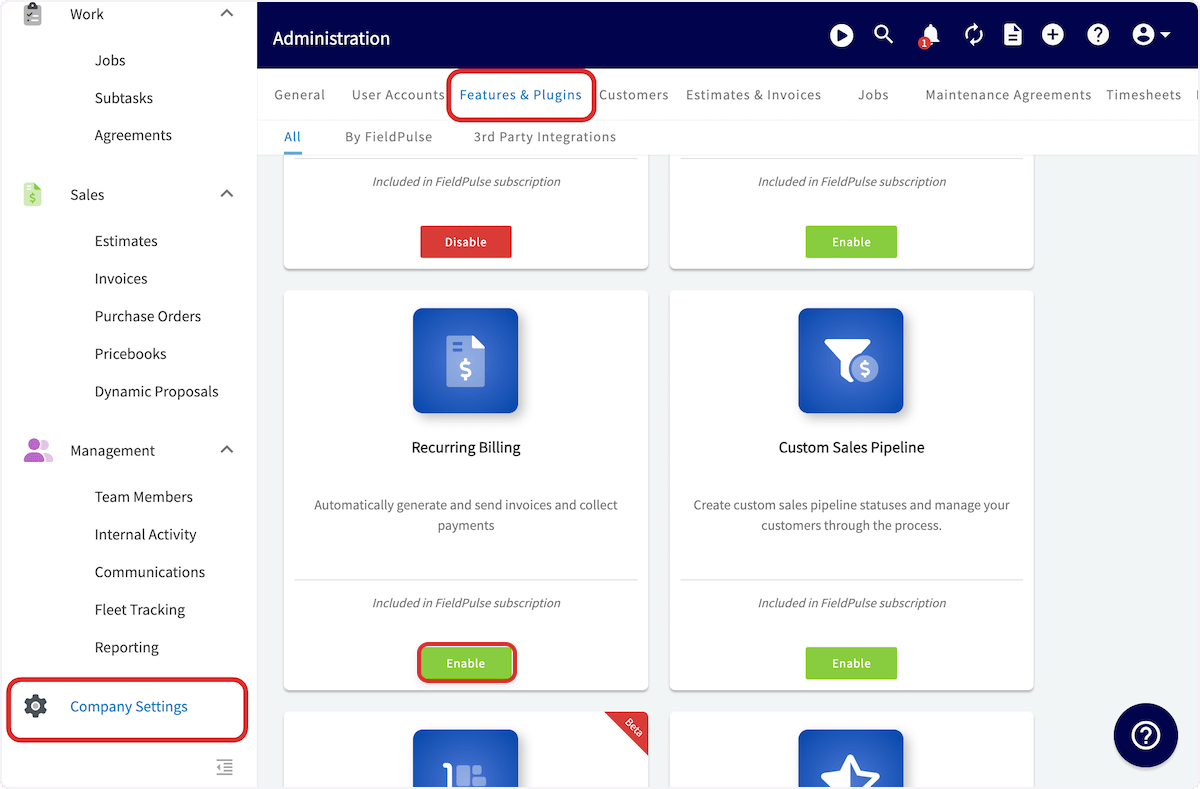
Recurring Billing is a feature you turn on before you can use it.
1. Select **Company Settings**.
2. Open **Features & Plugins**.
3. Find the **Recurring Billing** tile and select **Enable**.
 ## Step-by-step setup
### Create a recurring billing
1. Select **Invoices** in the left menu.
## Step-by-step setup
### Create a recurring billing
1. Select **Invoices** in the left menu.
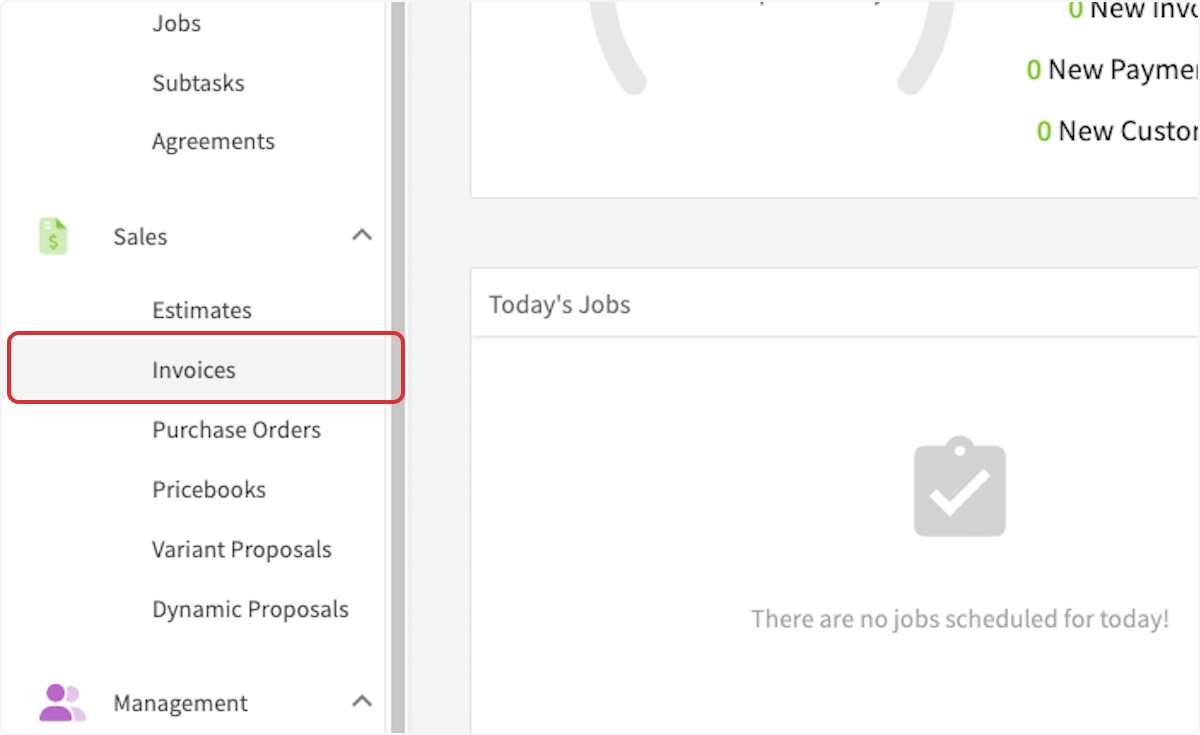 2. Select **Recurring Billing** at the top of the screen.
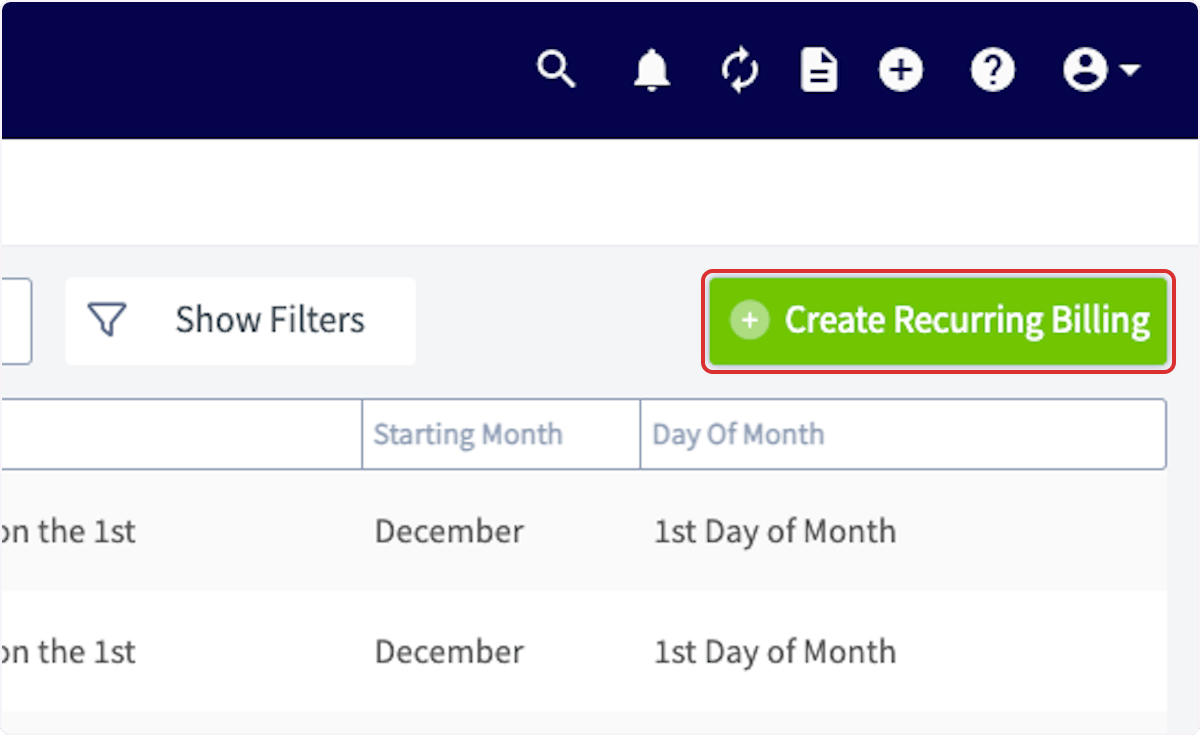
 3. Select **Create Recurring Billing**.
 4. Enter a **Title** and search for a **Customer Name**. Both fields are required.
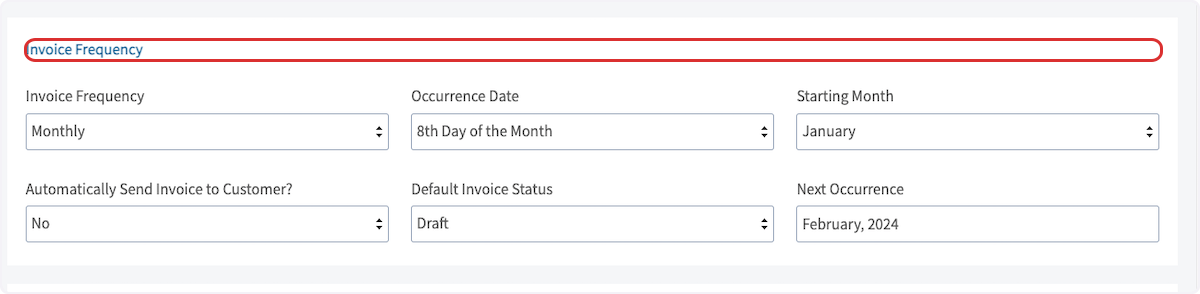
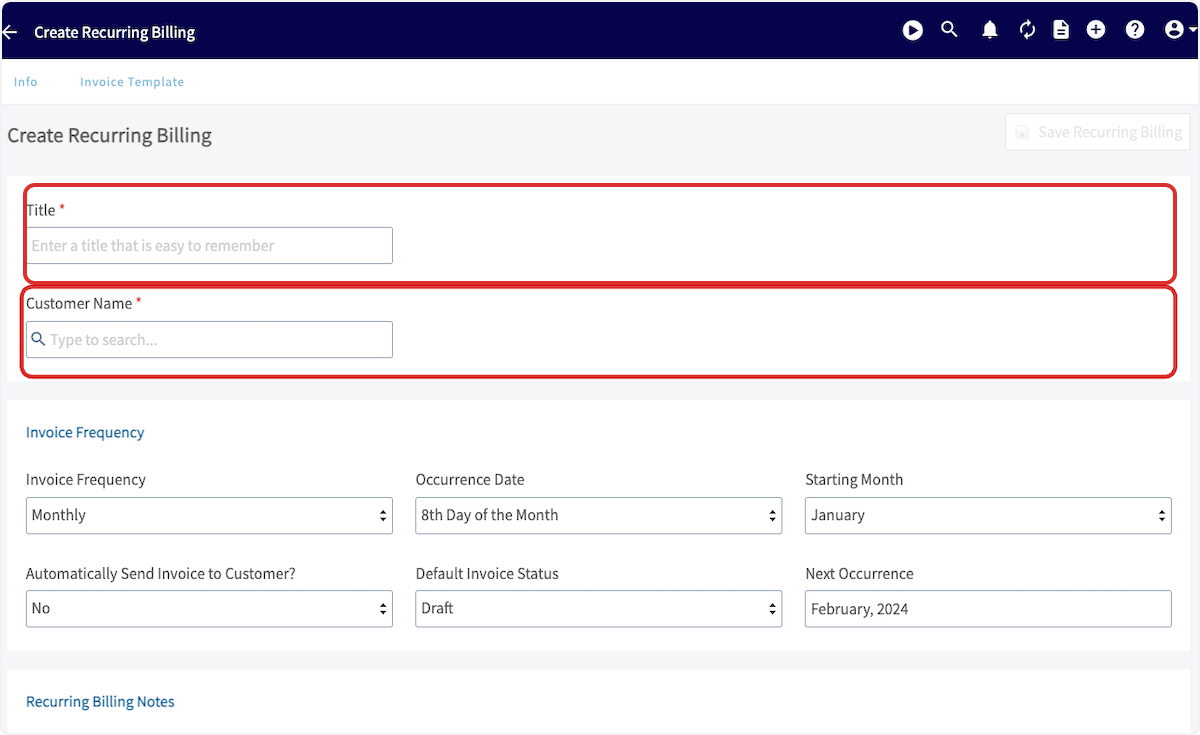 5. Set the schedule in the **Invoice Frequency** panel — frequency, occurrence date, starting month, auto-send, and default invoice status. See the settings reference below for what each field controls.
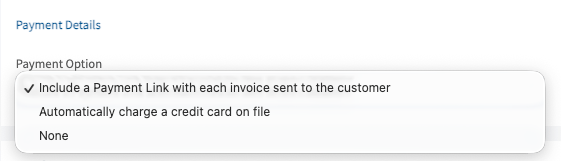
 6. Under **Payment Details**, choose a **Payment Option**. The dropdown offers **Include a Payment Link with each invoice sent to the customer**, **Automatically charge a credit card on file**, and **None**.
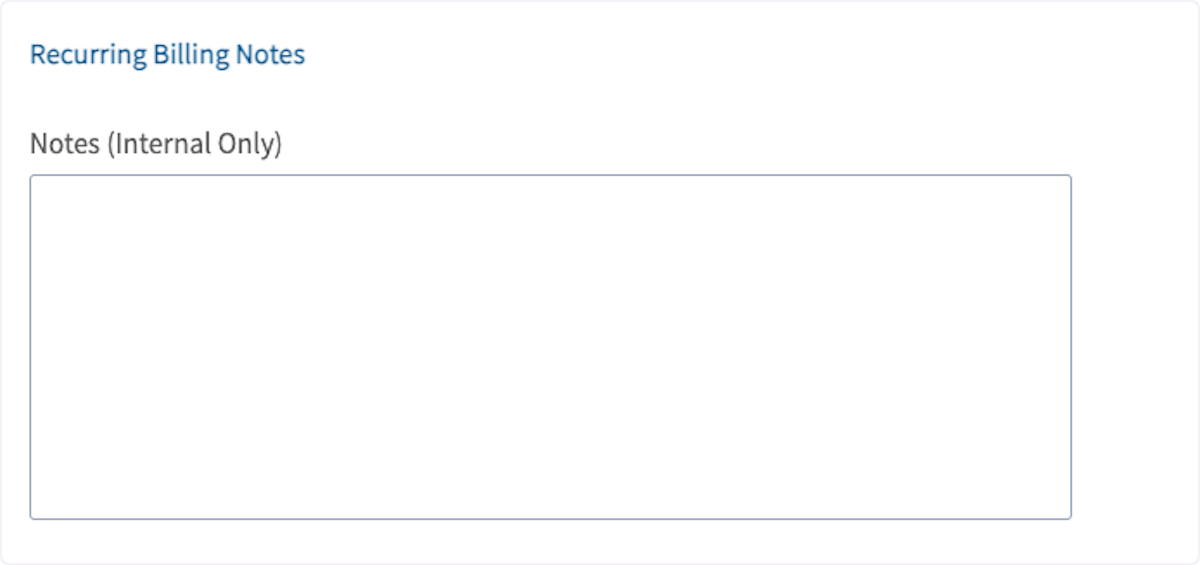
 7. Add any internal notes in the **Recurring Billing Notes** panel. The **Notes** field is internal only.
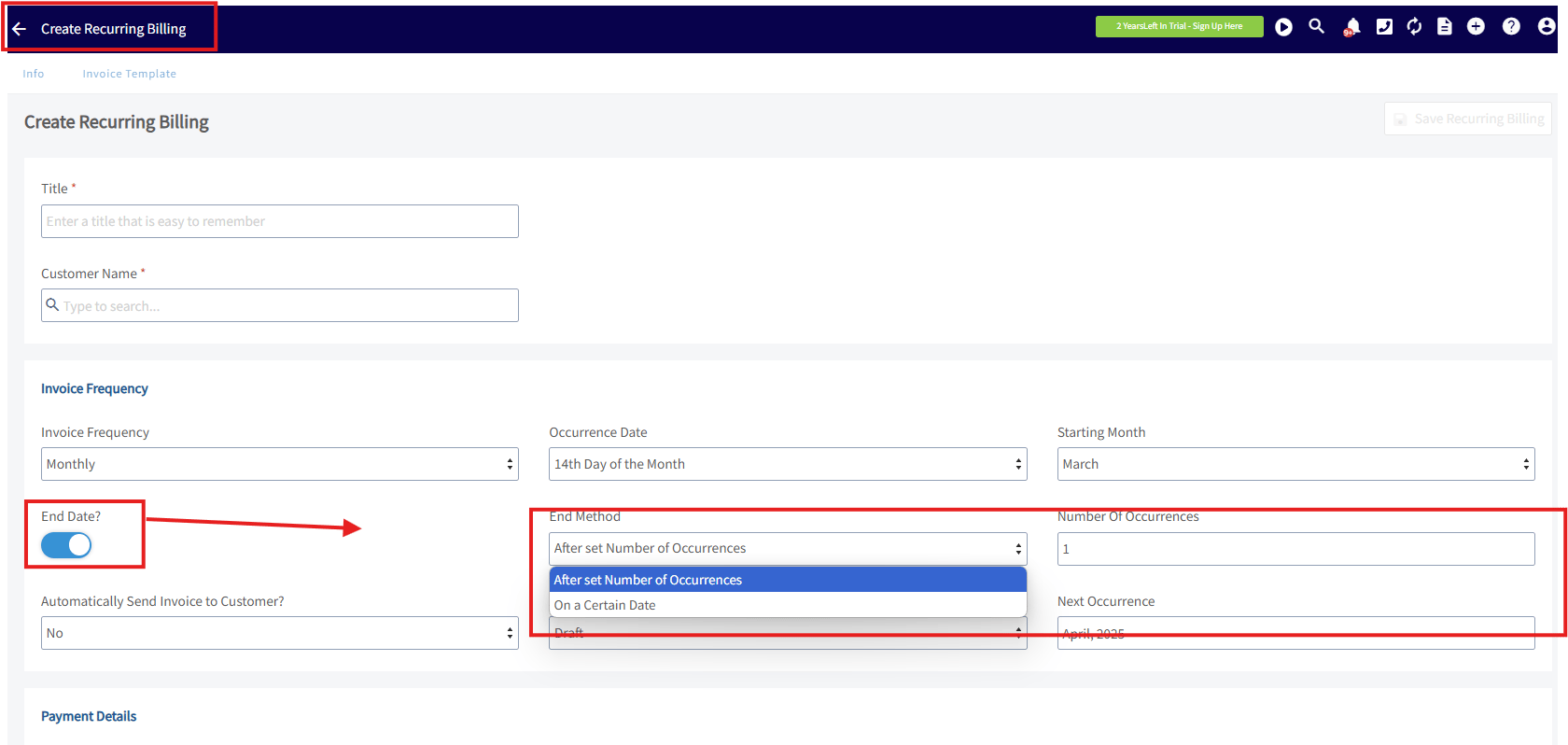
 8. Toggle **End Date?** on if the recurring billing should stop on its own, then pick an **End Method** — **After set Number of Occurrences** or **On a Certain Date** — and fill in the matching **Number Of Occurrences** or date.
 9. Scroll to the top of the screen and select **Save Recurring Billing**.
 Once the number of billing occurrences you set is reached, the recurring billing's status updates to **Completed**.
Records with a status of **Completed** cannot be edited.
Two end-date examples:
| **Business** | **End rule** |
| ------------------------ | -------------------------------------------------------------------------------- |
| **Plumbing business** | Stops billing after 12 bi-monthly sessions, in line with a one-year contract. |
| **Landscaping business** | Ends billing after 24 weekly sessions, corresponding with the end of the season. |
### Attach a recurring billing to a recurring job
1. Go to **Jobs** and select **Create Job**.
Once the number of billing occurrences you set is reached, the recurring billing's status updates to **Completed**.
Records with a status of **Completed** cannot be edited.
Two end-date examples:
| **Business** | **End rule** |
| ------------------------ | -------------------------------------------------------------------------------- |
| **Plumbing business** | Stops billing after 12 bi-monthly sessions, in line with a one-year contract. |
| **Landscaping business** | Ends billing after 24 weekly sessions, corresponding with the end of the season. |
### Attach a recurring billing to a recurring job
1. Go to **Jobs** and select **Create Job**.
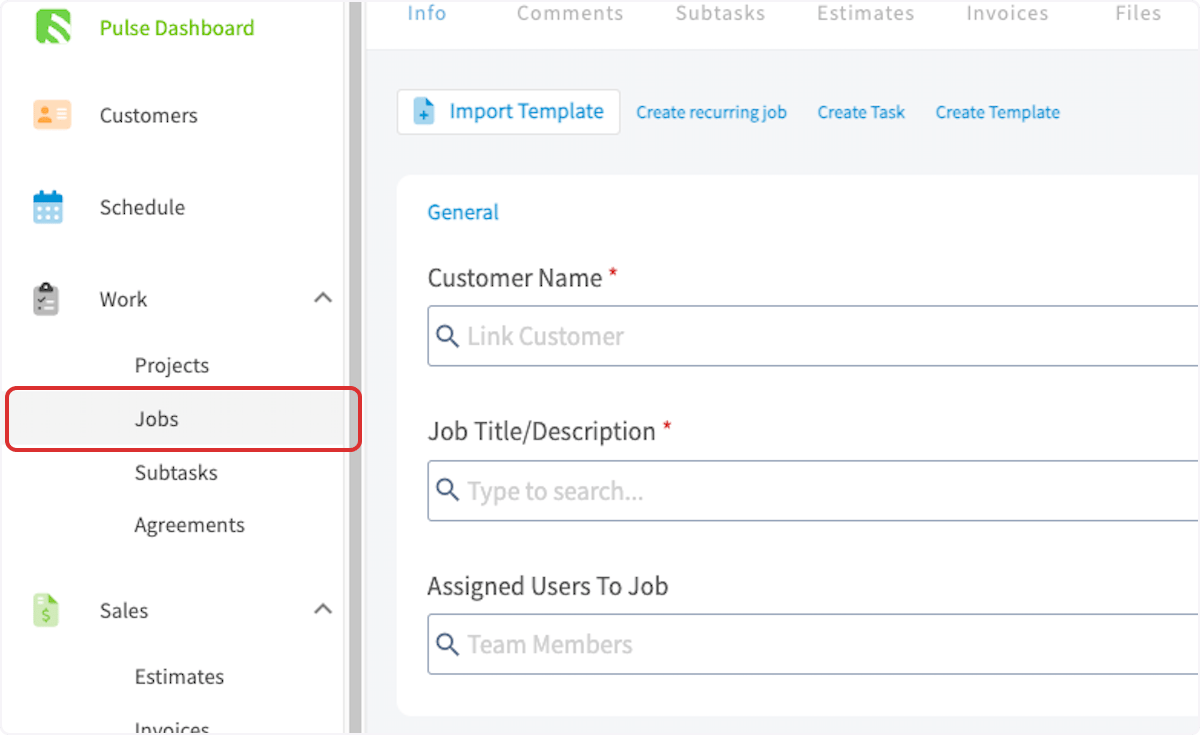
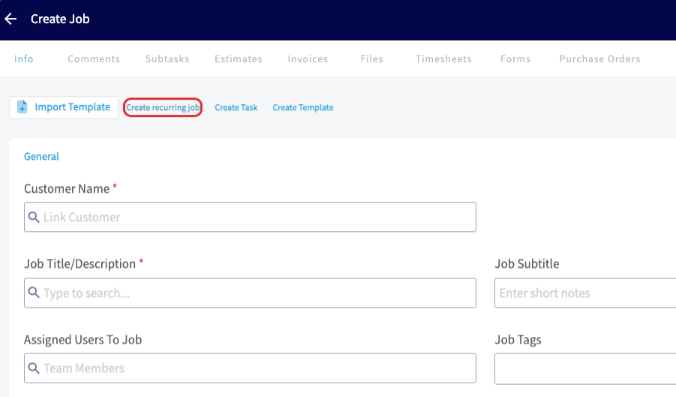
 2. Select **Create recurring job** and complete the required fields.
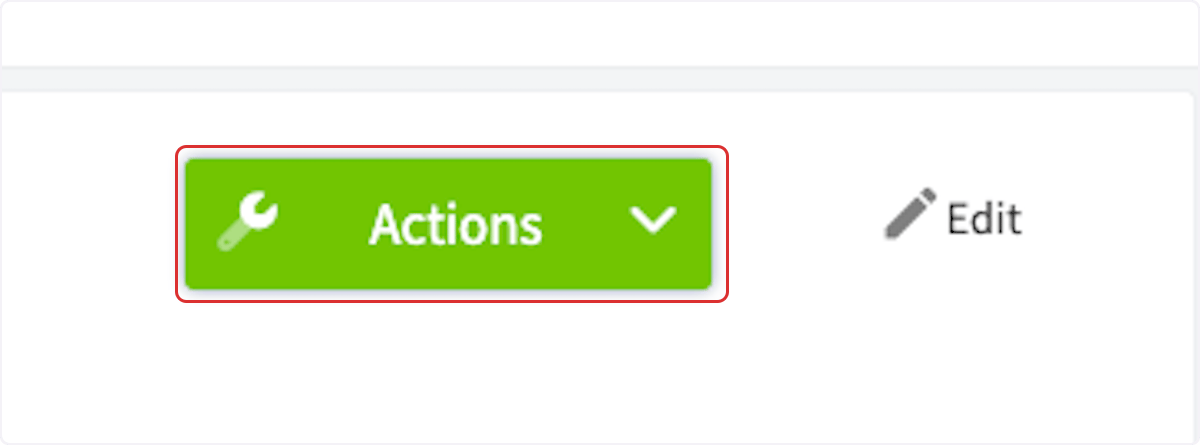
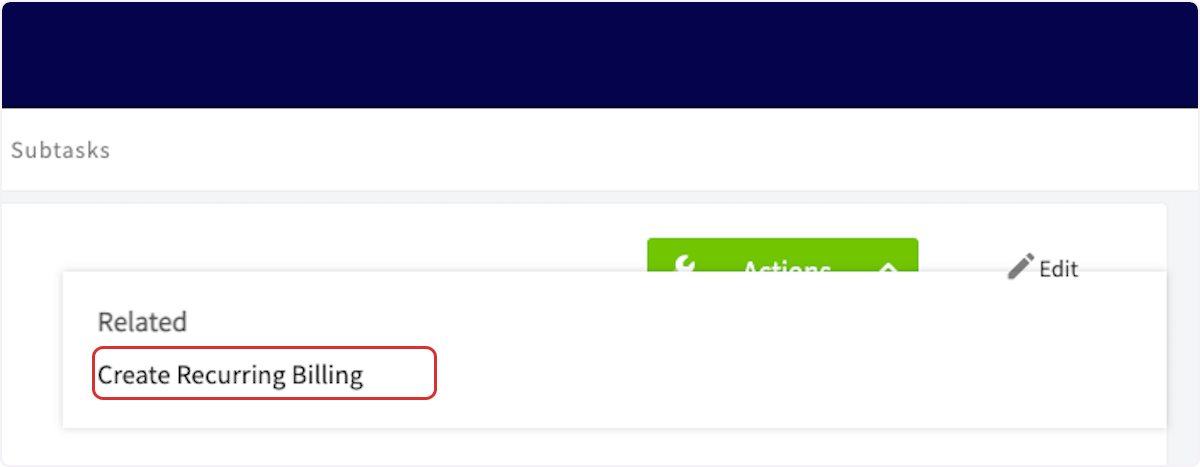
 3. Save the recurring job, then select **Actions** on the recurring job record and select **Create Recurring Billing**.
 4. Complete the recurring billing fields as described in **Create a recurring billing** above.
### Attach a recurring billing to a maintenance agreement
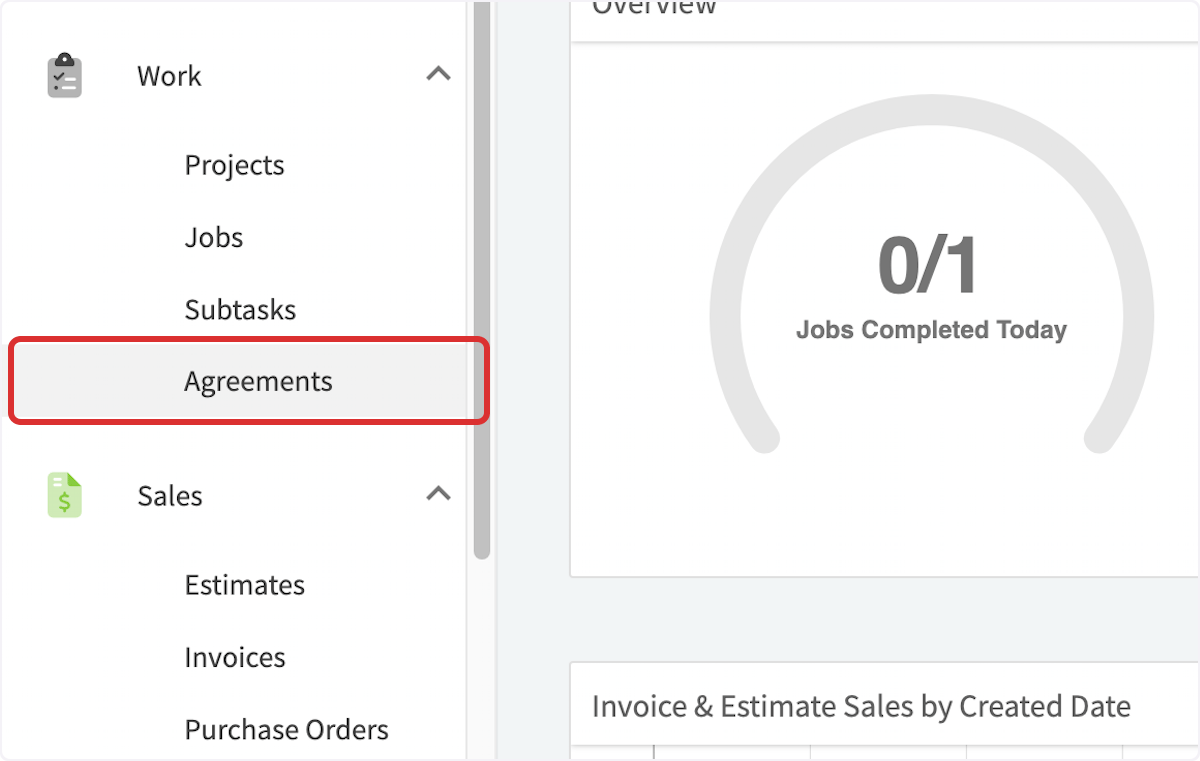
1. Select **Agreements** in the left menu.
4. Complete the recurring billing fields as described in **Create a recurring billing** above.
### Attach a recurring billing to a maintenance agreement
1. Select **Agreements** in the left menu.
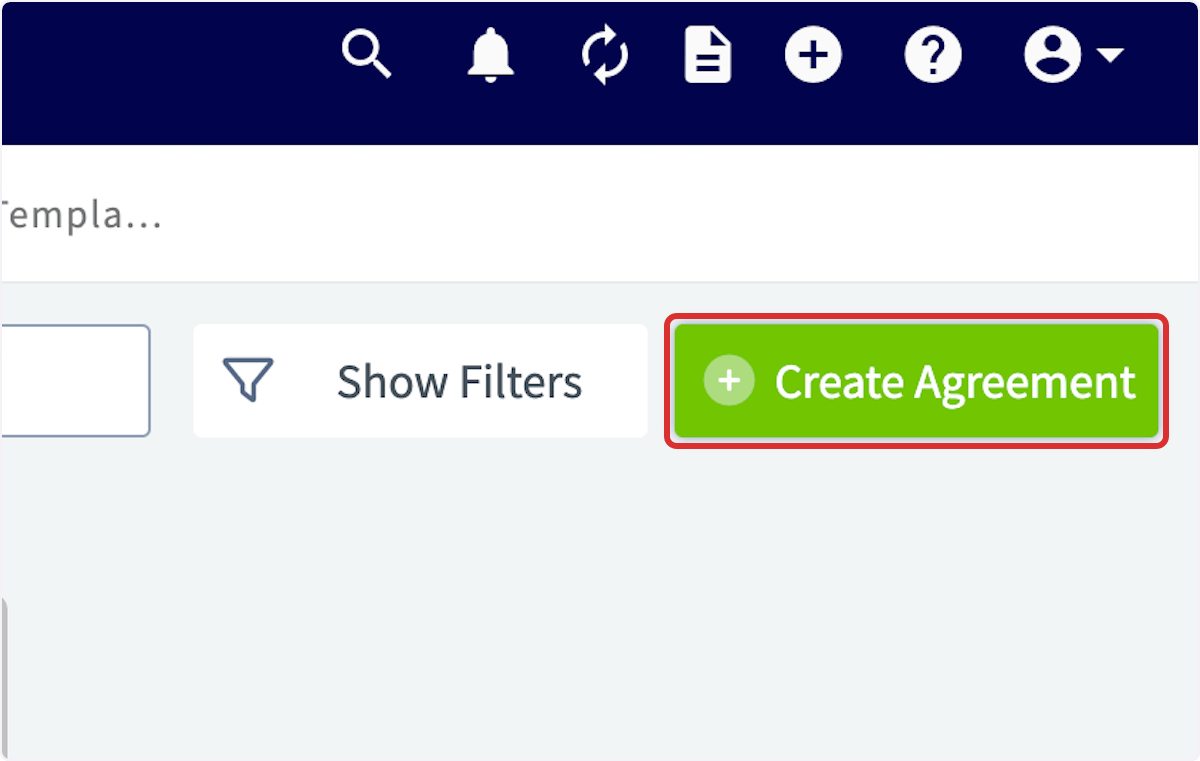
 2. Select **Create Agreement**, or open an existing agreement.
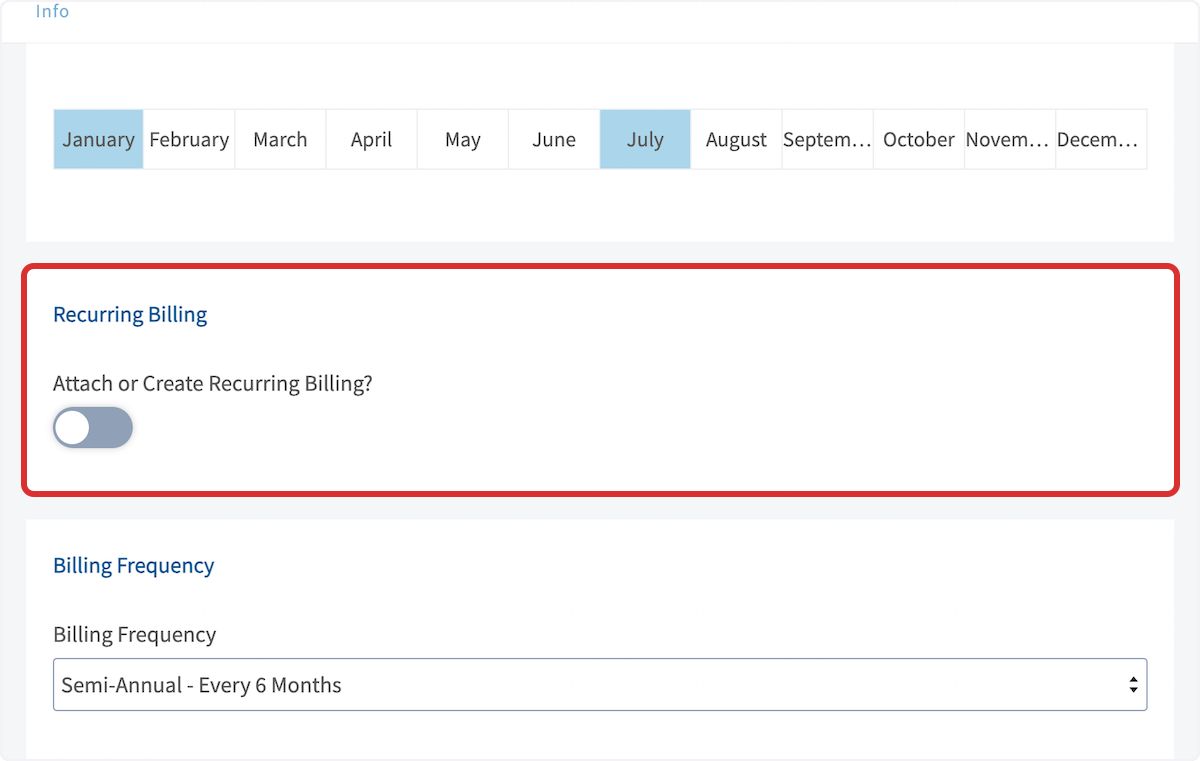
 3. Enter a title for the agreement and link a customer, then scroll down to **Attach or Create Recurring Billing** and toggle it on.
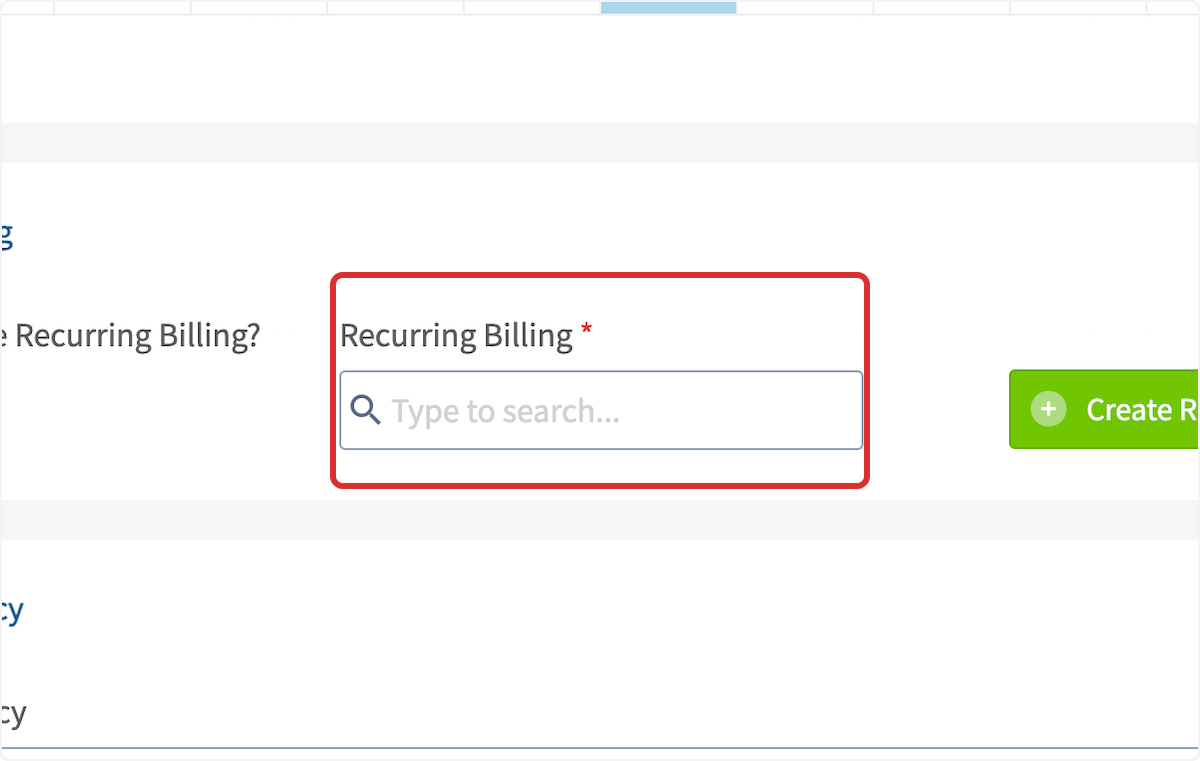
 4. Search the **Recurring Billing** field to attach an existing recurring billing, or select **Create Recurring Billing** to build a new one.
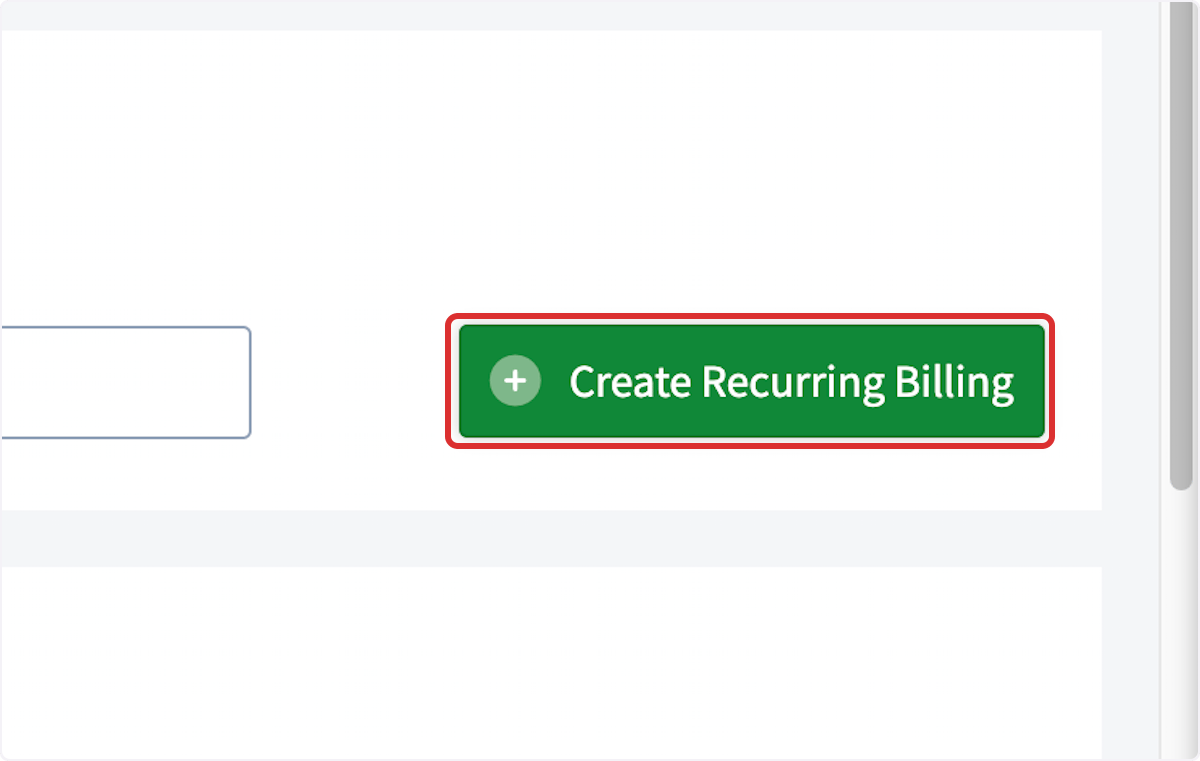 5. Complete the recurring billing fields, then save both the recurring billing and the maintenance agreement.
## Settings reference
Set the schedule in the **Invoice Frequency** panel when you create a recurring billing.
| **Setting** | **What it controls** |
| ------------------------------------------- | ----------------------------------------------------------------------------------------------------------- |
| **Invoice Frequency** | How often the customer is invoiced — Weekly, Monthly, Annually, and other intervals. |
| **Occurrence Date** | Which day of the month the customer is invoiced. |
| **Starting Month** | When the invoices begin. |
| **Automatically Send Invoice to Customer?** | Whether invoices send to the customer automatically, or you preview each one before sending. |
| **Default Invoice Status** | Whether each generated invoice carries a **Draft** or **Invoiced** status. |
| **Next Occurrence** | Auto-fills with the next invoice occurrence, based on the occurrence date and starting month entered above. |
The **End Date?** toggle and its **End Method** and **Number Of Occurrences** fields sit in the same **Invoice Frequency** panel.
| **Setting** | **What it controls** |
| ------------------------- | ---------------------------------------------------------------------------------------- |
| **End Date?** | Whether the recurring billing concludes on its own. |
| **End Method** | Ends the recurring billing **After set Number of Occurrences** or **On a Certain Date**. |
| **Number Of Occurrences** | How many billing occurrences run before the status updates to **Completed**. |
## Where to find your recurring billings
Recurring billings are listed in two places.
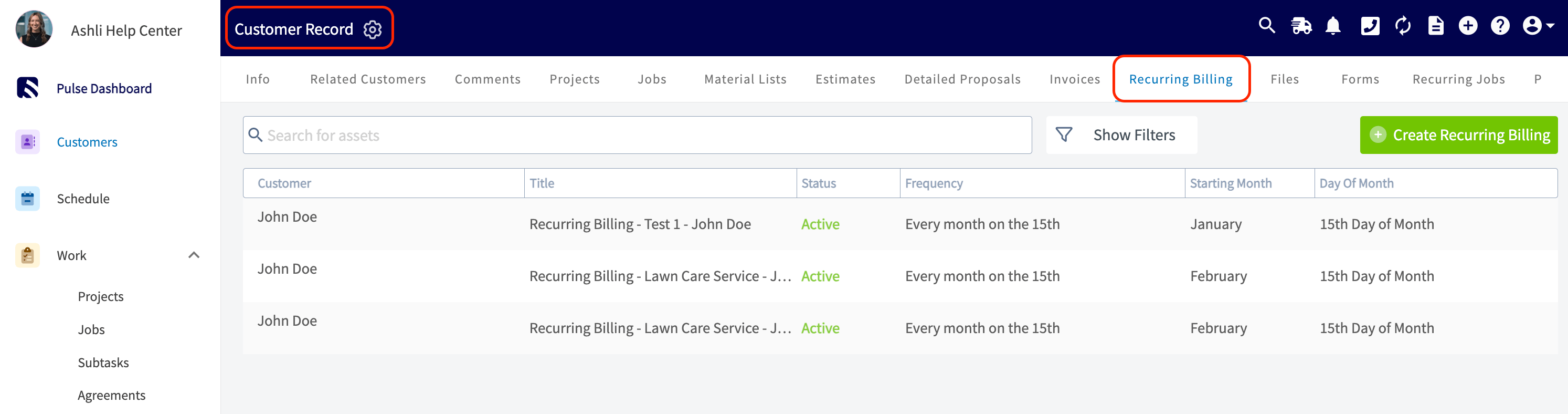
* Open a **Customer Record** and select the **Recurring Billing** tab to see that customer's recurring billings.
5. Complete the recurring billing fields, then save both the recurring billing and the maintenance agreement.
## Settings reference
Set the schedule in the **Invoice Frequency** panel when you create a recurring billing.
| **Setting** | **What it controls** |
| ------------------------------------------- | ----------------------------------------------------------------------------------------------------------- |
| **Invoice Frequency** | How often the customer is invoiced — Weekly, Monthly, Annually, and other intervals. |
| **Occurrence Date** | Which day of the month the customer is invoiced. |
| **Starting Month** | When the invoices begin. |
| **Automatically Send Invoice to Customer?** | Whether invoices send to the customer automatically, or you preview each one before sending. |
| **Default Invoice Status** | Whether each generated invoice carries a **Draft** or **Invoiced** status. |
| **Next Occurrence** | Auto-fills with the next invoice occurrence, based on the occurrence date and starting month entered above. |
The **End Date?** toggle and its **End Method** and **Number Of Occurrences** fields sit in the same **Invoice Frequency** panel.
| **Setting** | **What it controls** |
| ------------------------- | ---------------------------------------------------------------------------------------- |
| **End Date?** | Whether the recurring billing concludes on its own. |
| **End Method** | Ends the recurring billing **After set Number of Occurrences** or **On a Certain Date**. |
| **Number Of Occurrences** | How many billing occurrences run before the status updates to **Completed**. |
## Where to find your recurring billings
Recurring billings are listed in two places.
* Open a **Customer Record** and select the **Recurring Billing** tab to see that customer's recurring billings.
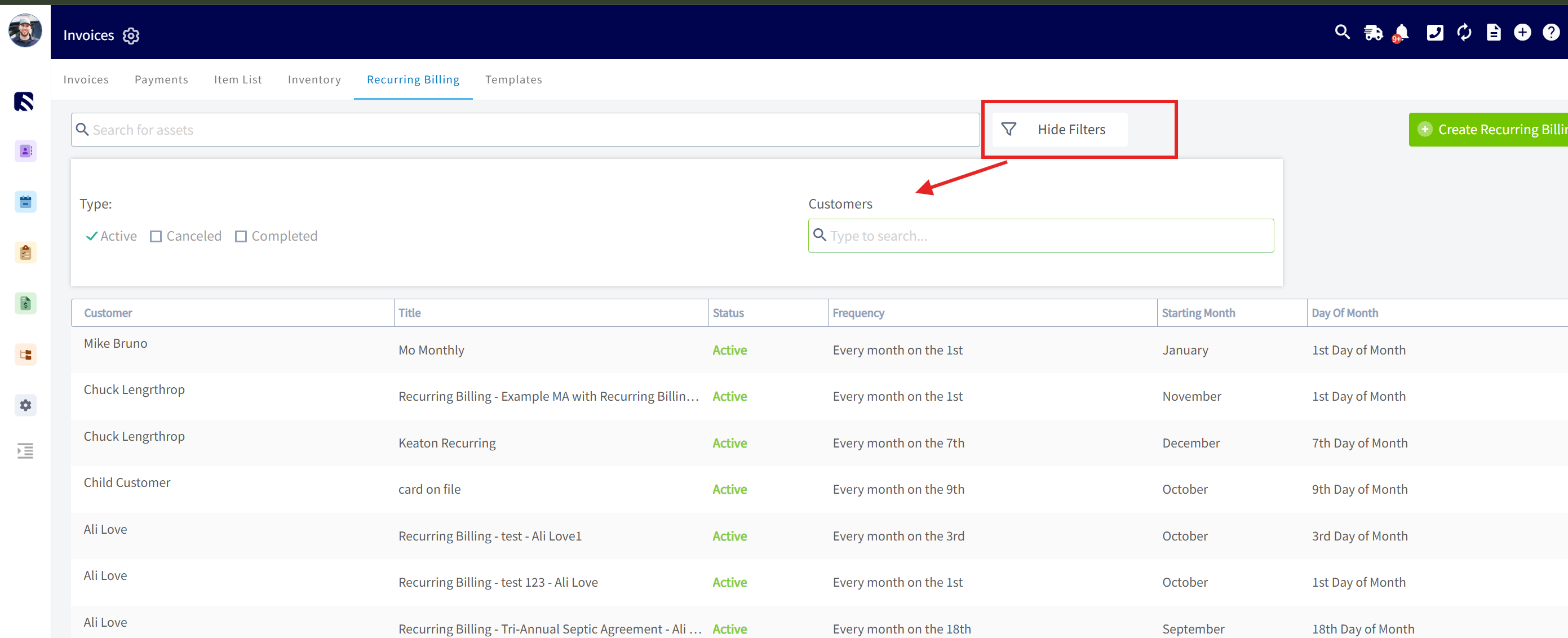
 * Or go to **Invoices** > **Recurring Billing** for the full list, and use the **Customers** filter to locate one customer's recurring billings without scrolling through the whole list or running a separate report. The same filter panel narrows the list by type — **Active**, **Canceled**, or **Completed**.
 ## FAQs
### How does recurring billing work?
Recurring billing uses a Standard ("Pay-As-You-Go") model, creating one invoice at a time on the day that invoice is due. The behavior is the same whether the recurring billing is standalone, linked to a maintenance agreement, or created from a maintenance agreement. If auto-send is turned on, each invoice is sent to the customer as it is generated.
### If a customer's credit card declines, will the recurring billing continue?
Yes, the recurring billing continues. The invoice is not marked as paid. If you have notifications set up outside of FieldPulse, you should also receive an alert from the payment provider.
## Related articles
* [How to Create an Invoice](/estimates-invoices/creating/invoice)
* [How to Create Recurring Jobs](/jobs/jobs-tasks/recurring-jobs)
* [How to Create a Maintenance Agreement](/jobs/assets/maintenance-agreements)
* [How to Save a Payment Method on File](/payments/collecting/saving-payment-method)
* [How to Use Estimate Options & Add-Ons](/estimates-invoices/options/options-add-ons)
* [How to Request a Customer Signature](/estimates-invoices/options/customer-signature)
* [User Roles and Permissions Details](/settings/users-teams/user-roles)
Your setup is working when the schedule runs without you — invoices generate on the dates you set, payment is requested or collected the way you chose, and the recurring billing ends itself at the occurrence count or date you named.
## Related topics
- [How to Create a Maintenance Agreement](/jobs/assets/maintenance-agreements.md)
- [Payment Provider Options Overview](/payments/getting-started/payment-provider-options.md)
- [How to Create Recurring Jobs](/jobs/jobs-tasks/recurring-jobs.md)
- [Setting Up Bill to Parent](/estimates-invoices/creating/bill-to-parent.md)
## FAQs
### How does recurring billing work?
Recurring billing uses a Standard ("Pay-As-You-Go") model, creating one invoice at a time on the day that invoice is due. The behavior is the same whether the recurring billing is standalone, linked to a maintenance agreement, or created from a maintenance agreement. If auto-send is turned on, each invoice is sent to the customer as it is generated.
### If a customer's credit card declines, will the recurring billing continue?
Yes, the recurring billing continues. The invoice is not marked as paid. If you have notifications set up outside of FieldPulse, you should also receive an alert from the payment provider.
## Related articles
* [How to Create an Invoice](/estimates-invoices/creating/invoice)
* [How to Create Recurring Jobs](/jobs/jobs-tasks/recurring-jobs)
* [How to Create a Maintenance Agreement](/jobs/assets/maintenance-agreements)
* [How to Save a Payment Method on File](/payments/collecting/saving-payment-method)
* [How to Use Estimate Options & Add-Ons](/estimates-invoices/options/options-add-ons)
* [How to Request a Customer Signature](/estimates-invoices/options/customer-signature)
* [User Roles and Permissions Details](/settings/users-teams/user-roles)
Your setup is working when the schedule runs without you — invoices generate on the dates you set, payment is requested or collected the way you chose, and the recurring billing ends itself at the occurrence count or date you named.
## Related topics
- [How to Create a Maintenance Agreement](/jobs/assets/maintenance-agreements.md)
- [Payment Provider Options Overview](/payments/getting-started/payment-provider-options.md)
- [How to Create Recurring Jobs](/jobs/jobs-tasks/recurring-jobs.md)
- [Setting Up Bill to Parent](/estimates-invoices/creating/bill-to-parent.md)