> ## Documentation Index
> Fetch the complete documentation index at: https://help.fieldpulse.com/llms.txt
> Use this file to discover all available pages before exploring further.
# ClearPath Widgets: Job Details
> Reference for every Focus View job-detail widget, from job title to status, and what techs can view or edit in each one.
# Overview
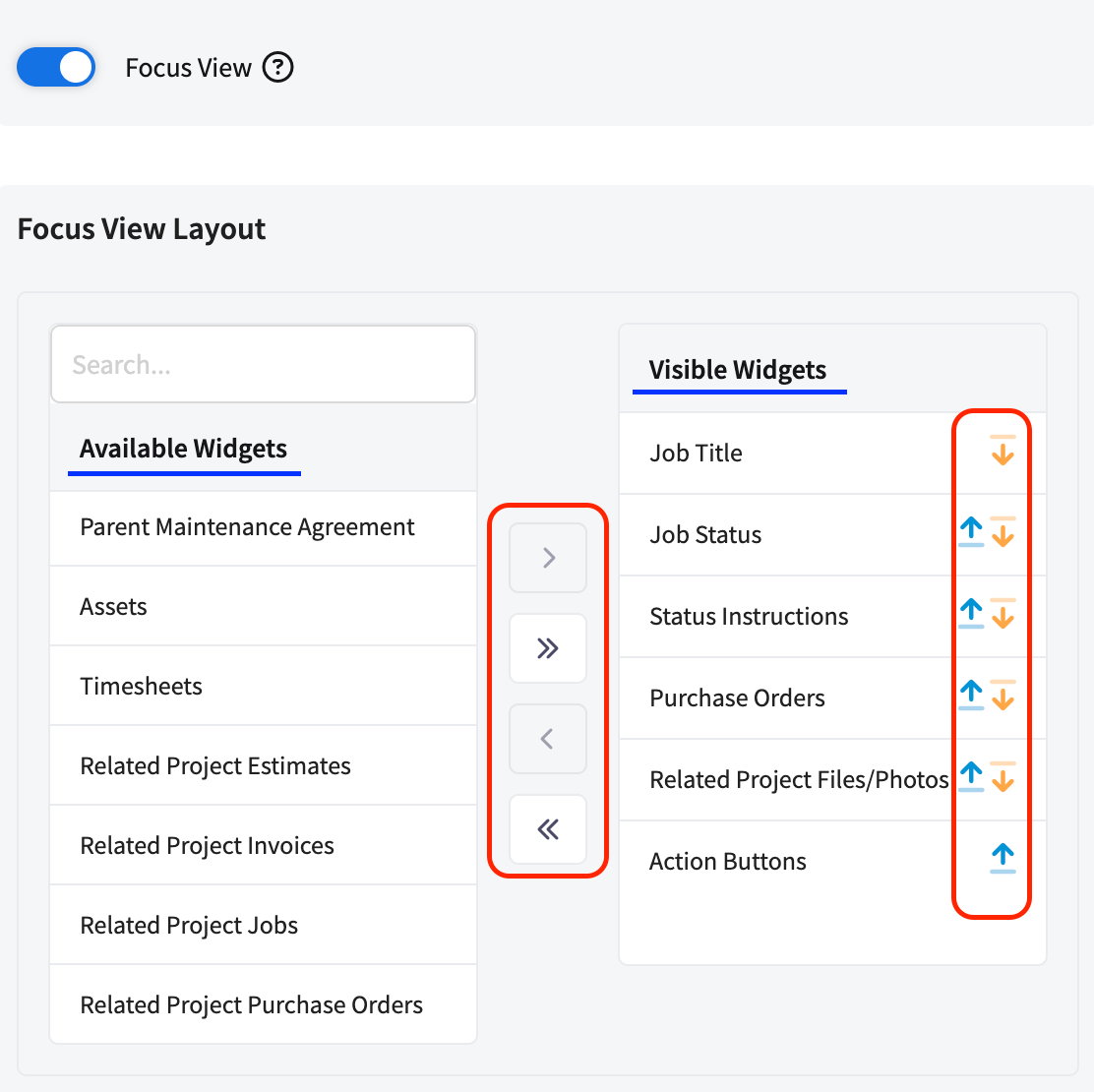
The widgets in this article are the core building blocks of the Focus View experience. They display essential Job information and give technicians the visibility they need all from one screen.
To learn how to add widgets to your Status Action Flow, [click here.](/features-add-ons/clearpath/clearpath-by-fieldpulse#h_09e9672fae)
 ***
# Widgets
## Job Title
***
# Widgets
## Job Title
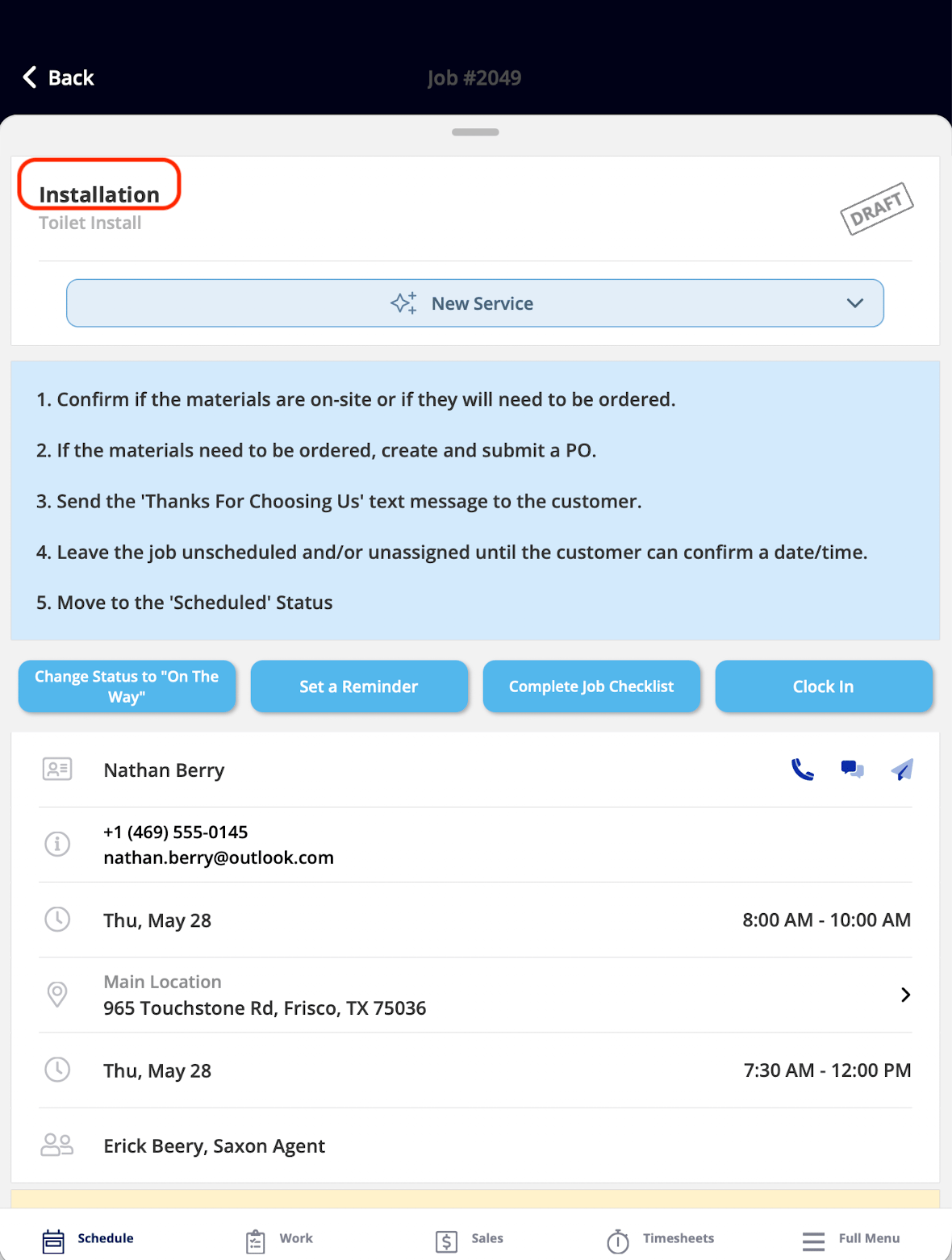 *What It Shows:* The name of your Job you are currently working on.
*What You Can Do:* This widget is view-only.
## Job Subtitle
*What It Shows:* The name of your Job you are currently working on.
*What You Can Do:* This widget is view-only.
## Job Subtitle
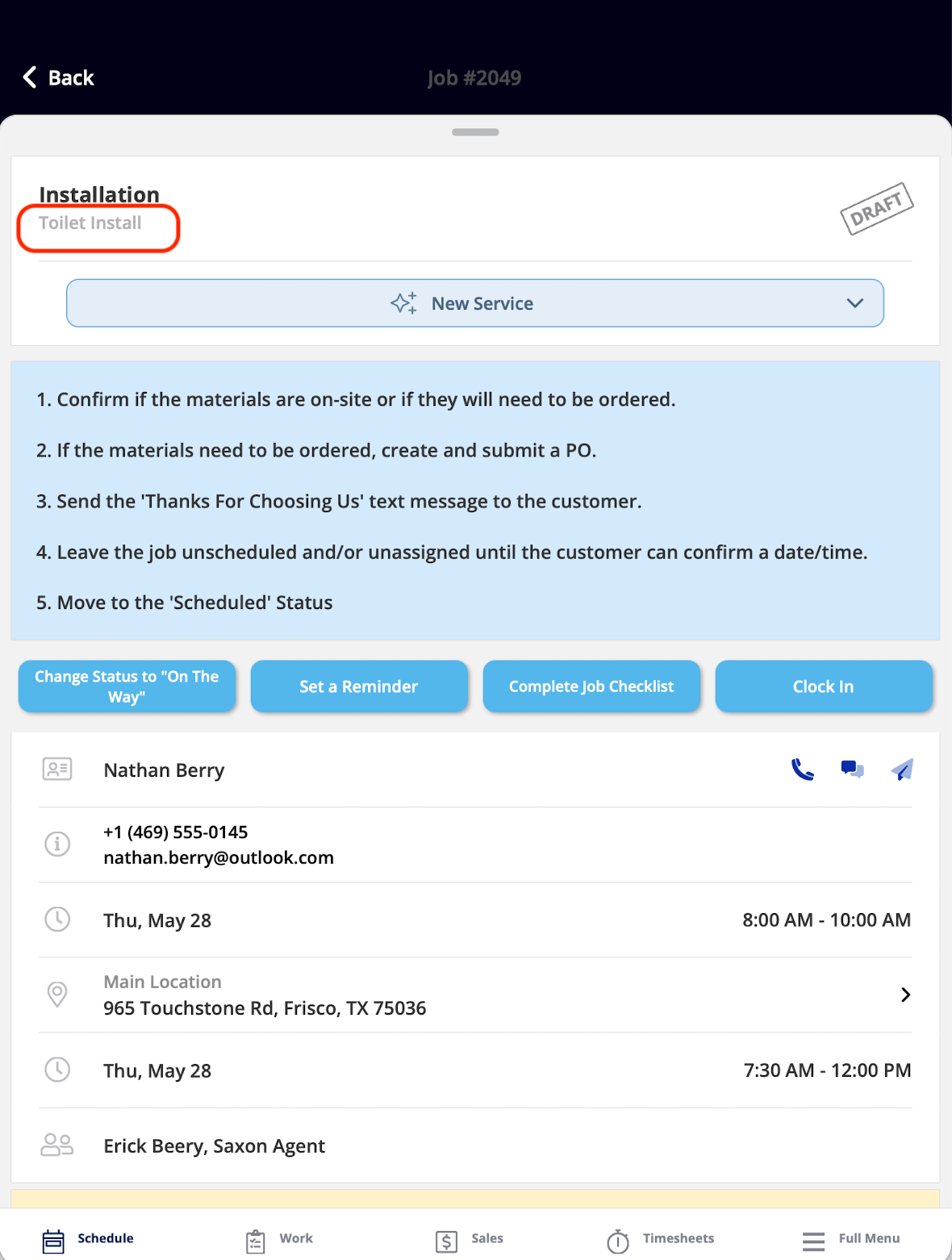 *What It Shows:* The subtitle of your Job.
*What You Can Do:* This widget is view-only.
## Job Status
*What It Shows:* The subtitle of your Job.
*What You Can Do:* This widget is view-only.
## Job Status
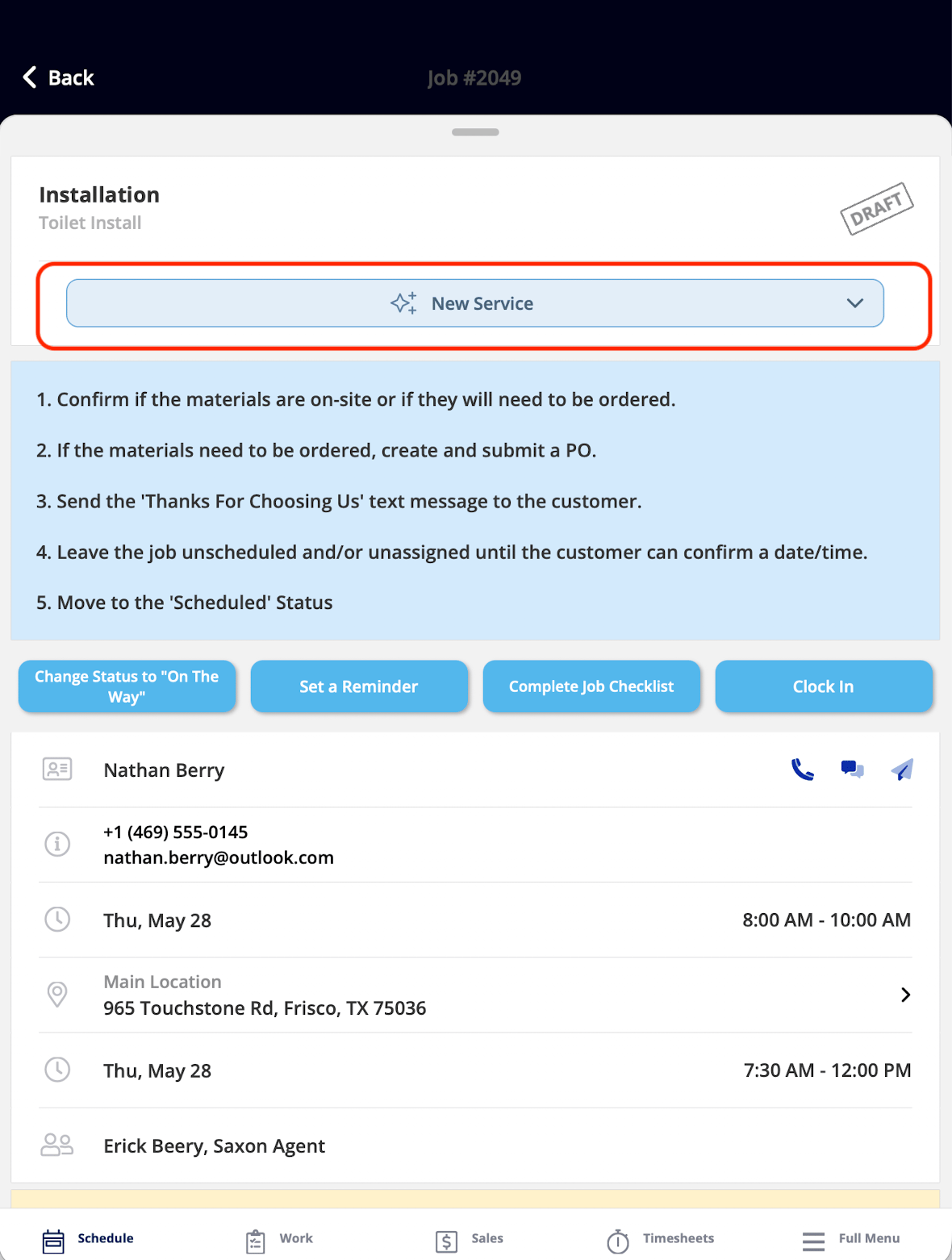 *What It Shows:* The current status of your Job within the assigned workflow.
*What You Can Do:* You can tap this widget to switch your Job to a different status. Note: if the [Ability to Change Status](/features-add-ons/clearpath/clearpath-by-fieldpulse#h_ec07148bc4) toggle is turned off in the Status Action Flow, you will not be able to manually change the status here.
## Status Instructions
*What It Shows:* The current status of your Job within the assigned workflow.
*What You Can Do:* You can tap this widget to switch your Job to a different status. Note: if the [Ability to Change Status](/features-add-ons/clearpath/clearpath-by-fieldpulse#h_ec07148bc4) toggle is turned off in the Status Action Flow, you will not be able to manually change the status here.
## Status Instructions
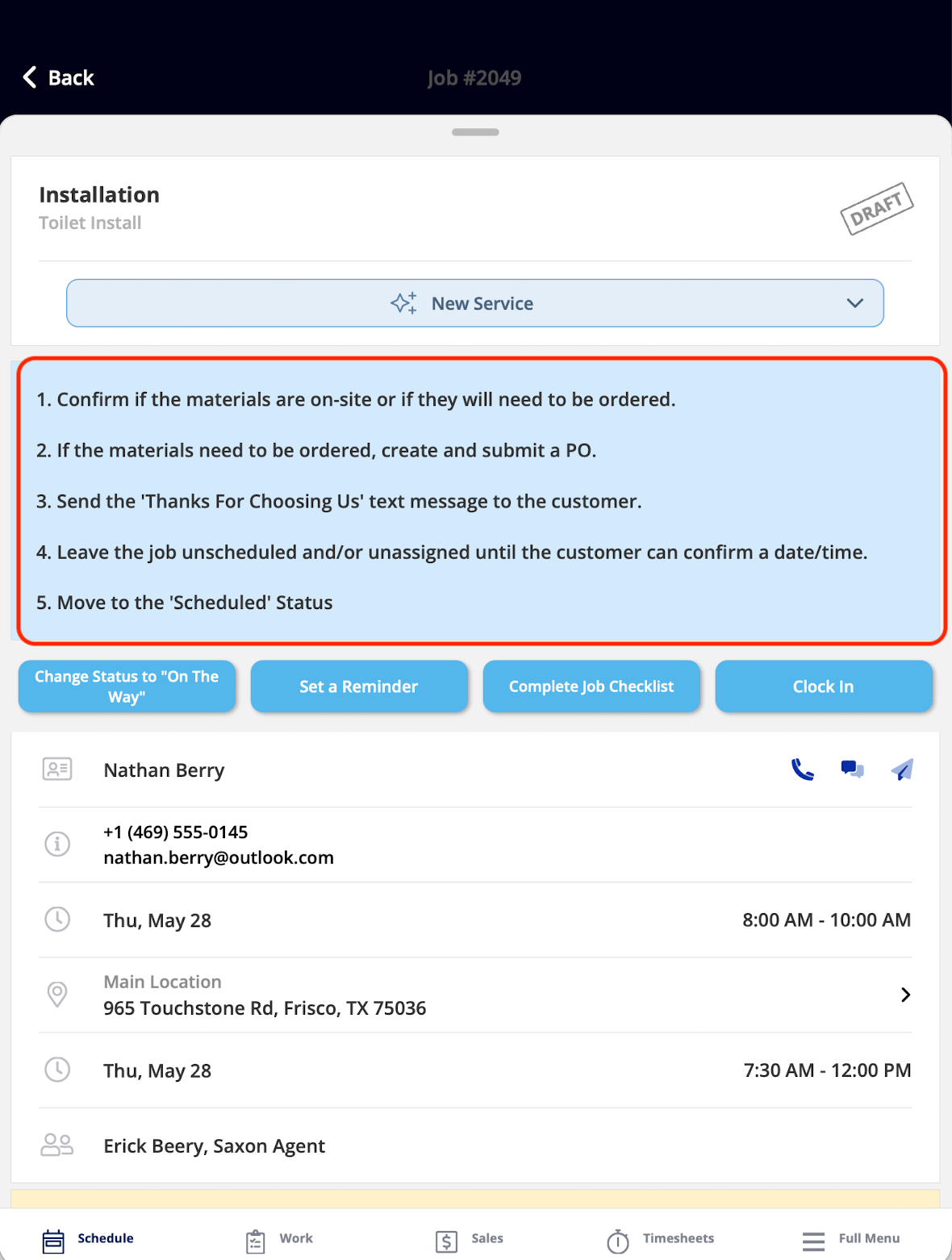 *What It Shows:* The step-by-step instructions for the current status. These tell you exactly what to do at this stage of your Job.
*What You Can Do:* This widget is read-only. Instructions are configured by an Admin in the Status Action Flow. Learn more about [Status Instructions here.](/features-add-ons/clearpath/clearpath-by-fieldpulse#h_f99e8e0ebc)
## Action Buttons
*What It Shows:* The step-by-step instructions for the current status. These tell you exactly what to do at this stage of your Job.
*What You Can Do:* This widget is read-only. Instructions are configured by an Admin in the Status Action Flow. Learn more about [Status Instructions here.](/features-add-ons/clearpath/clearpath-by-fieldpulse#h_f99e8e0ebc)
## Action Buttons
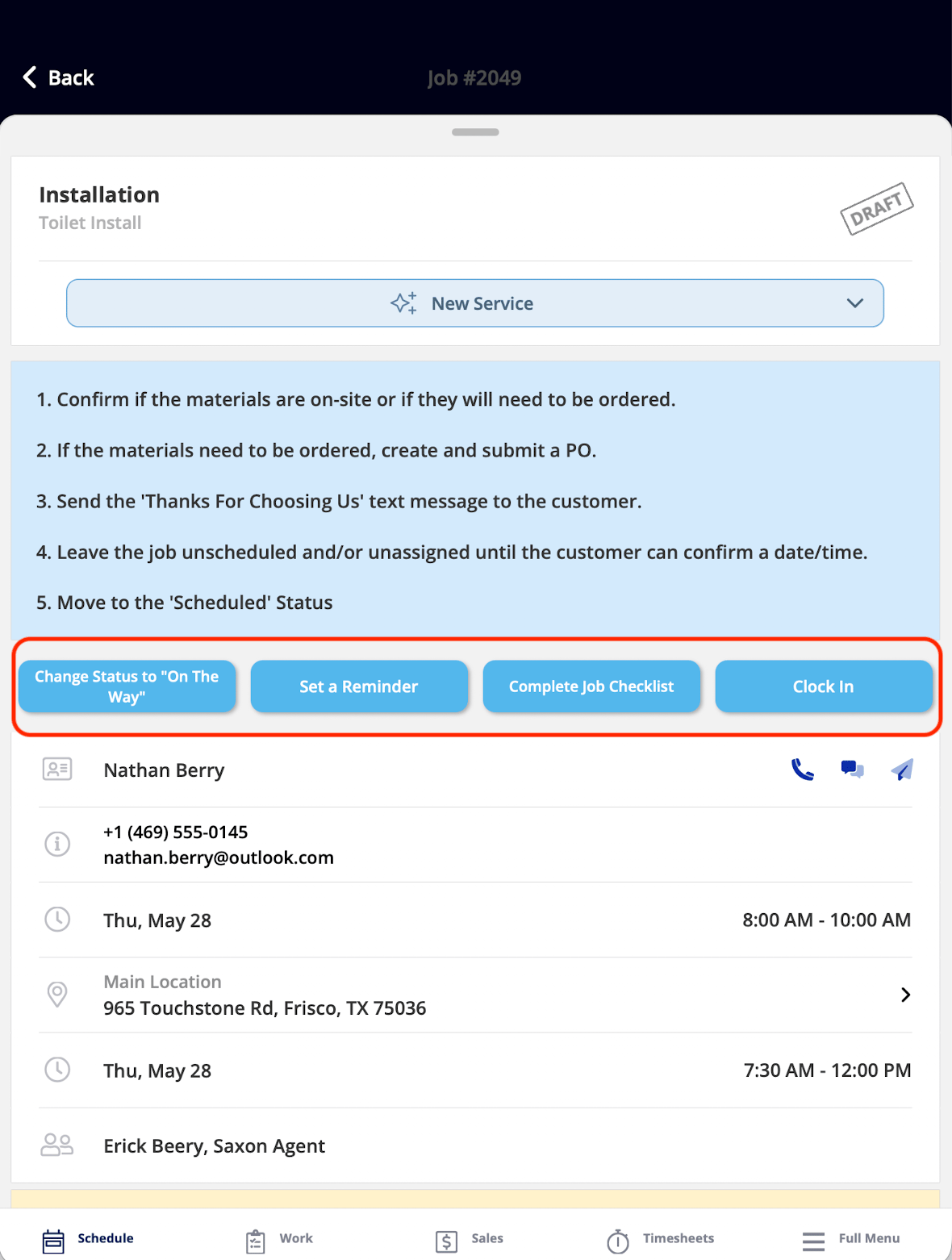 *What It Shows:* The custom Action Buttons configured for the current status. These let you complete tasks with a single tap without navigating elsewhere in the app.
*What You Can Do:* You tap a button to trigger the associated action. Up to 10 custom buttons can be displayed per status, with up to 27 unique actions available. Learn more about configuring [Action Buttons here.](/features-add-ons/clearpath/clearpath-by-fieldpulse#h_9925c256b6)
## Notes
*What It Shows:* The custom Action Buttons configured for the current status. These let you complete tasks with a single tap without navigating elsewhere in the app.
*What You Can Do:* You tap a button to trigger the associated action. Up to 10 custom buttons can be displayed per status, with up to 27 unique actions available. Learn more about configuring [Action Buttons here.](/features-add-ons/clearpath/clearpath-by-fieldpulse#h_9925c256b6)
## Notes
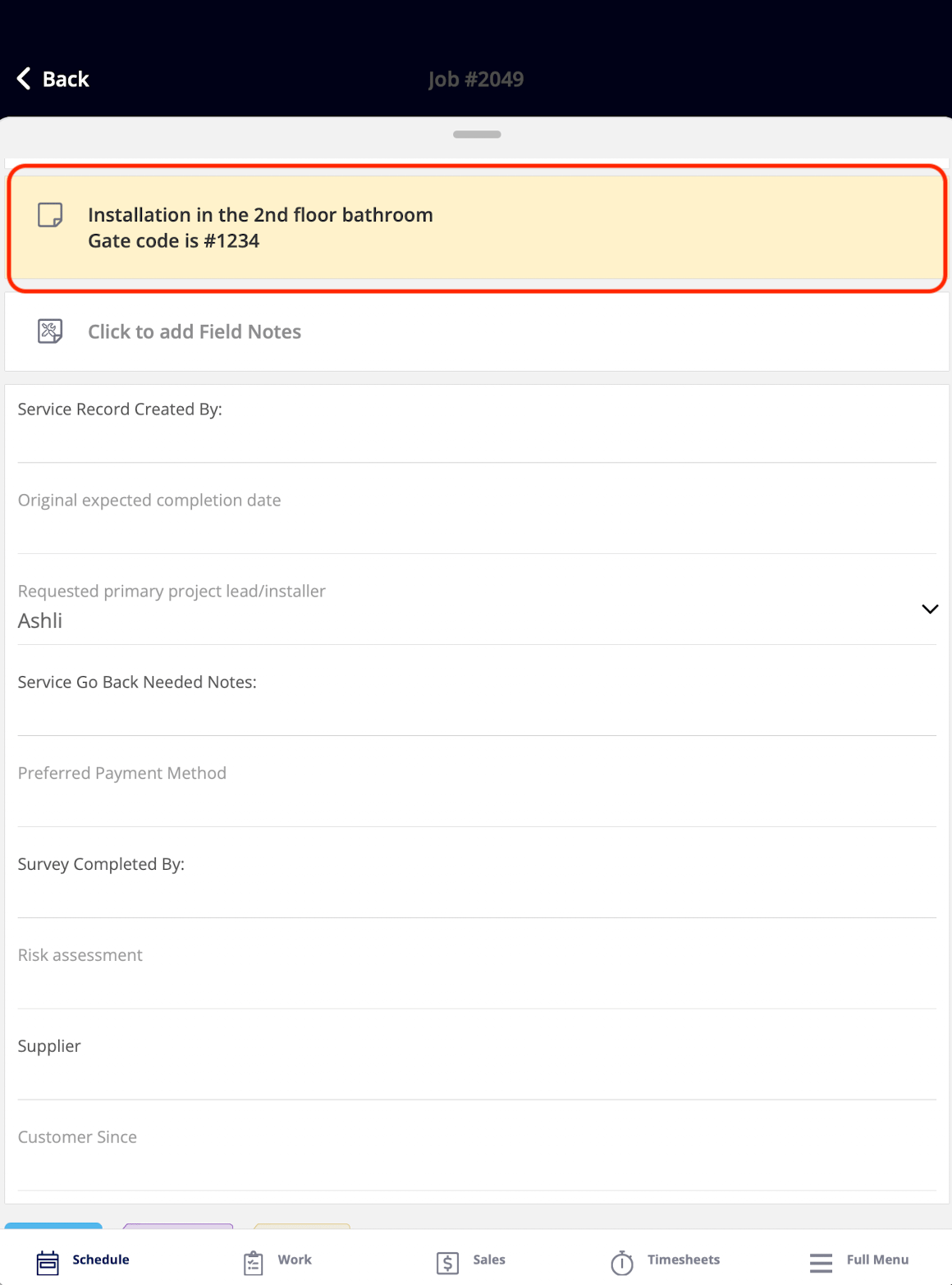 *What It Shows:* Notes added to your Job at the time it was created, typically written by the office to provide context or instructions for the technician.
*What You Can Do:* This widget is read-only for Service Agents. Service Agents can view notes but cannot add or edit them from this widget.
## Field Notes
*What It Shows:* Notes added to your Job at the time it was created, typically written by the office to provide context or instructions for the technician.
*What You Can Do:* This widget is read-only for Service Agents. Service Agents can view notes but cannot add or edit them from this widget.
## Field Notes
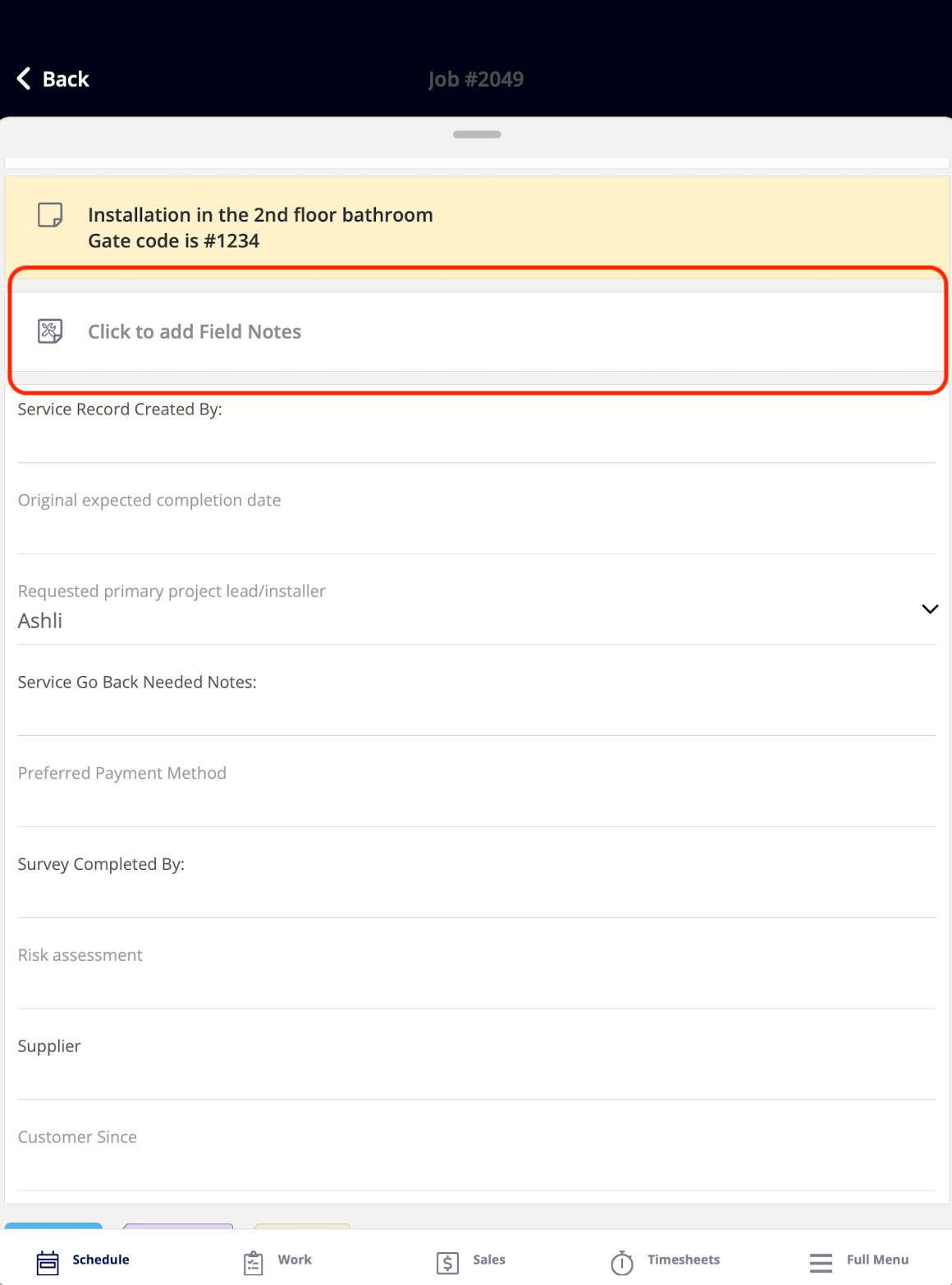 *What It Shows:* Notes created while on-site. Unlike the Notes widget (which is set by the office), Field Notes belong to the tech in the field.
*What You Can Do:* You can add your own Field Notes directly from this widget.
## Comments
*What It Shows:* Notes created while on-site. Unlike the Notes widget (which is set by the office), Field Notes belong to the tech in the field.
*What You Can Do:* You can add your own Field Notes directly from this widget.
## Comments
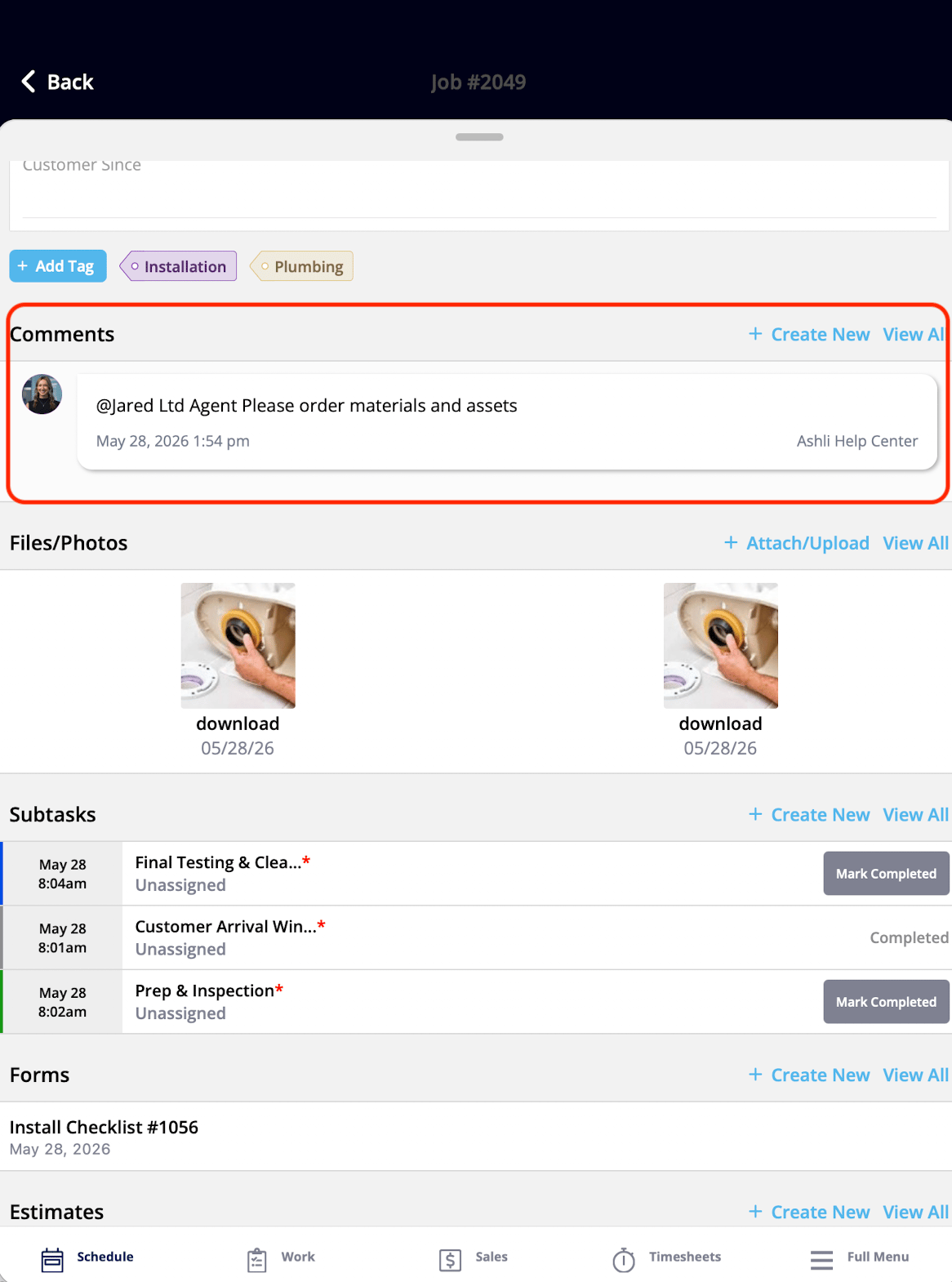 *What It Shows:* All Comments left on your Job.
*What You Can Do:* You can view existing Comments and post new ones directly from this widget.
## Tags
*What It Shows:* All Comments left on your Job.
*What You Can Do:* You can view existing Comments and post new ones directly from this widget.
## Tags
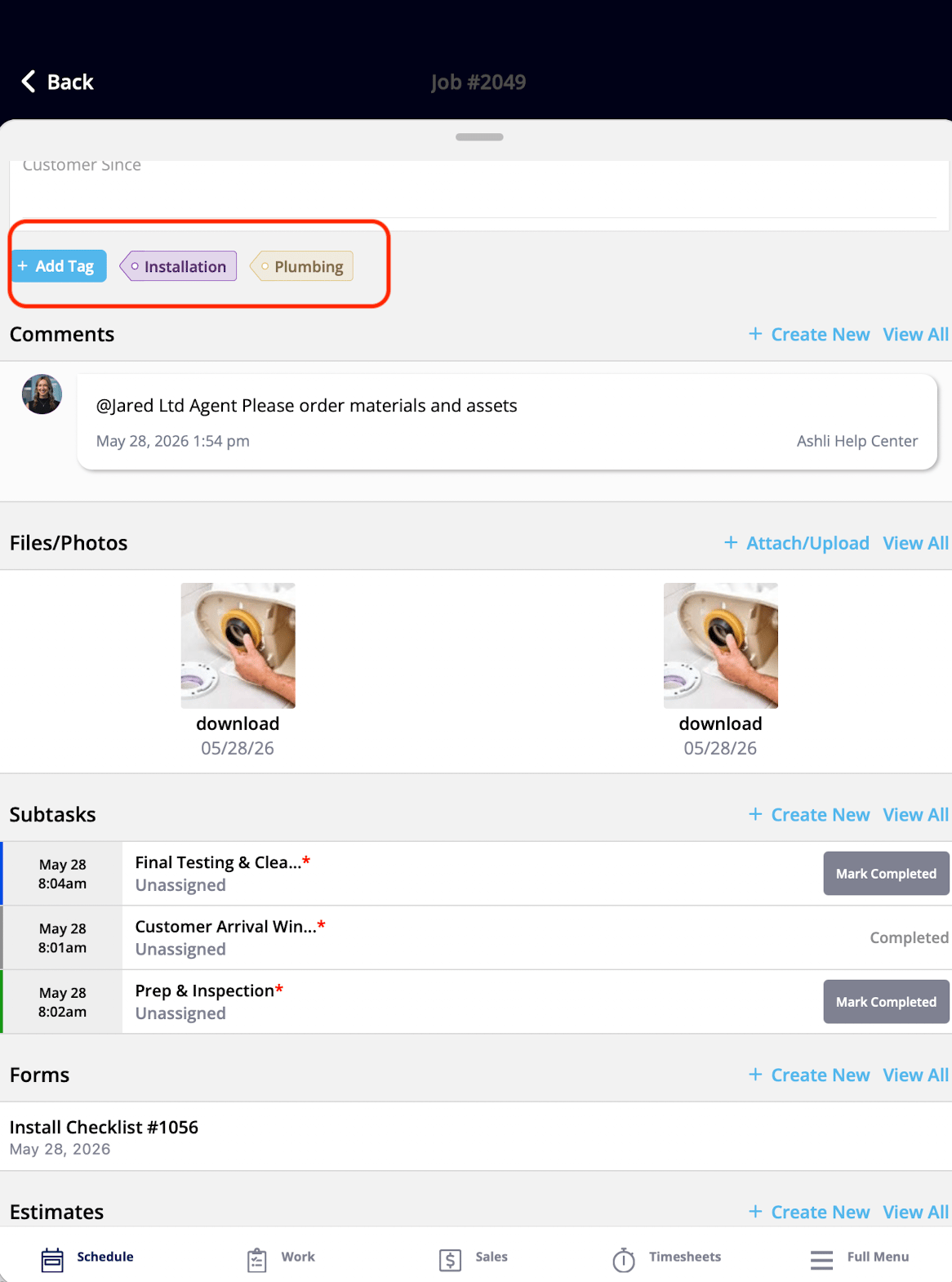 *What It Shows:* All Tags associated with your Job.
*What You Can Do:* You can view existing Tags and add new Tags to your job from this widget.
## Custom Fields
*What It Shows:* All Tags associated with your Job.
*What You Can Do:* You can view existing Tags and add new Tags to your job from this widget.
## Custom Fields
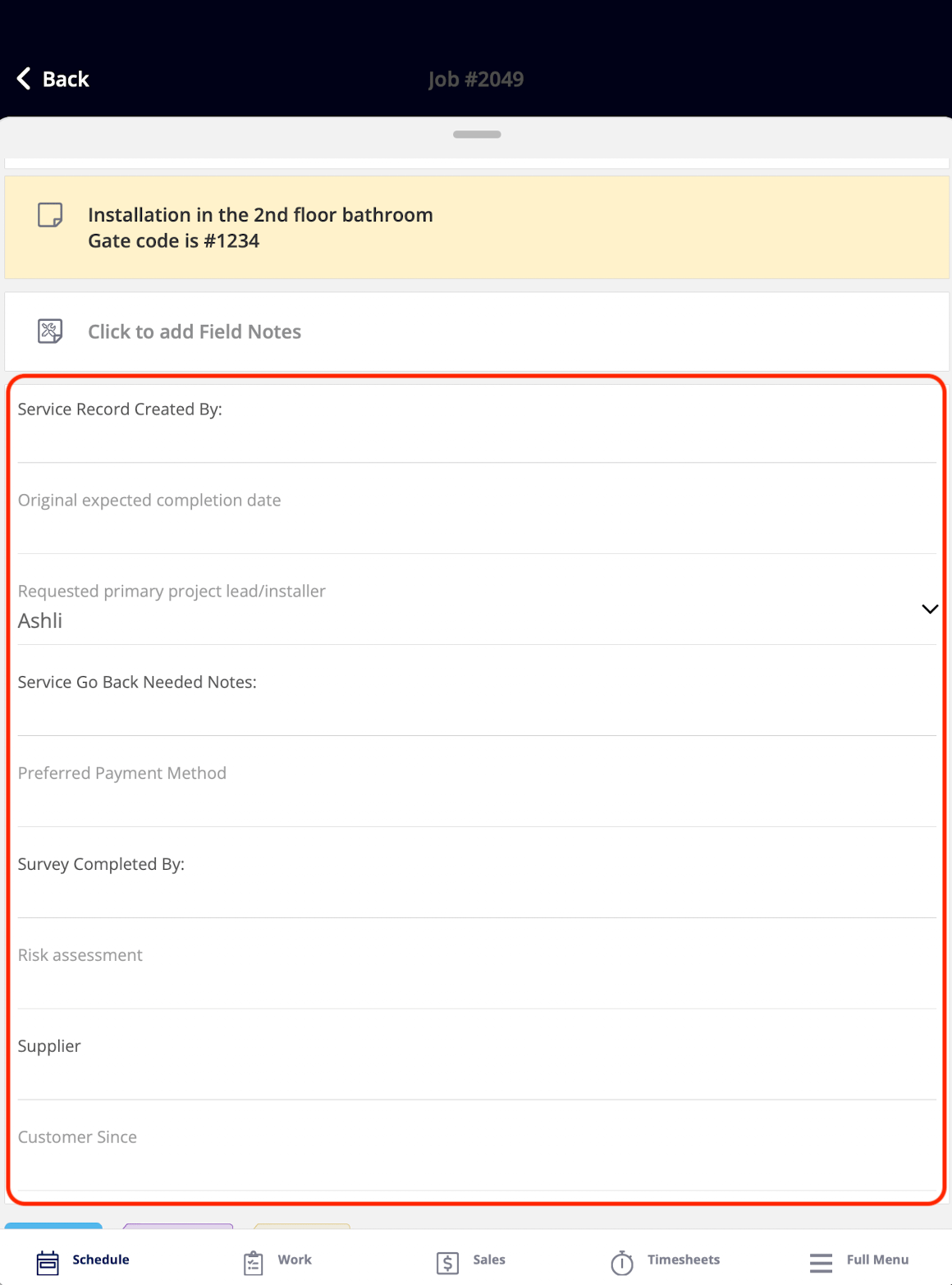 *What It Shows:* The Custom Field data attached to your Job. Custom Fields are configured in your Company Settings to capture specific information relevant to your business.
*What You Can Do:* You can view and edit Custom Field values as long as you have permission to edit that particular custom field. Custom field permissions are managed at the field level in your account settings.
## Files/Photos
*What It Shows:* The Custom Field data attached to your Job. Custom Fields are configured in your Company Settings to capture specific information relevant to your business.
*What You Can Do:* You can view and edit Custom Field values as long as you have permission to edit that particular custom field. Custom field permissions are managed at the field level in your account settings.
## Files/Photos
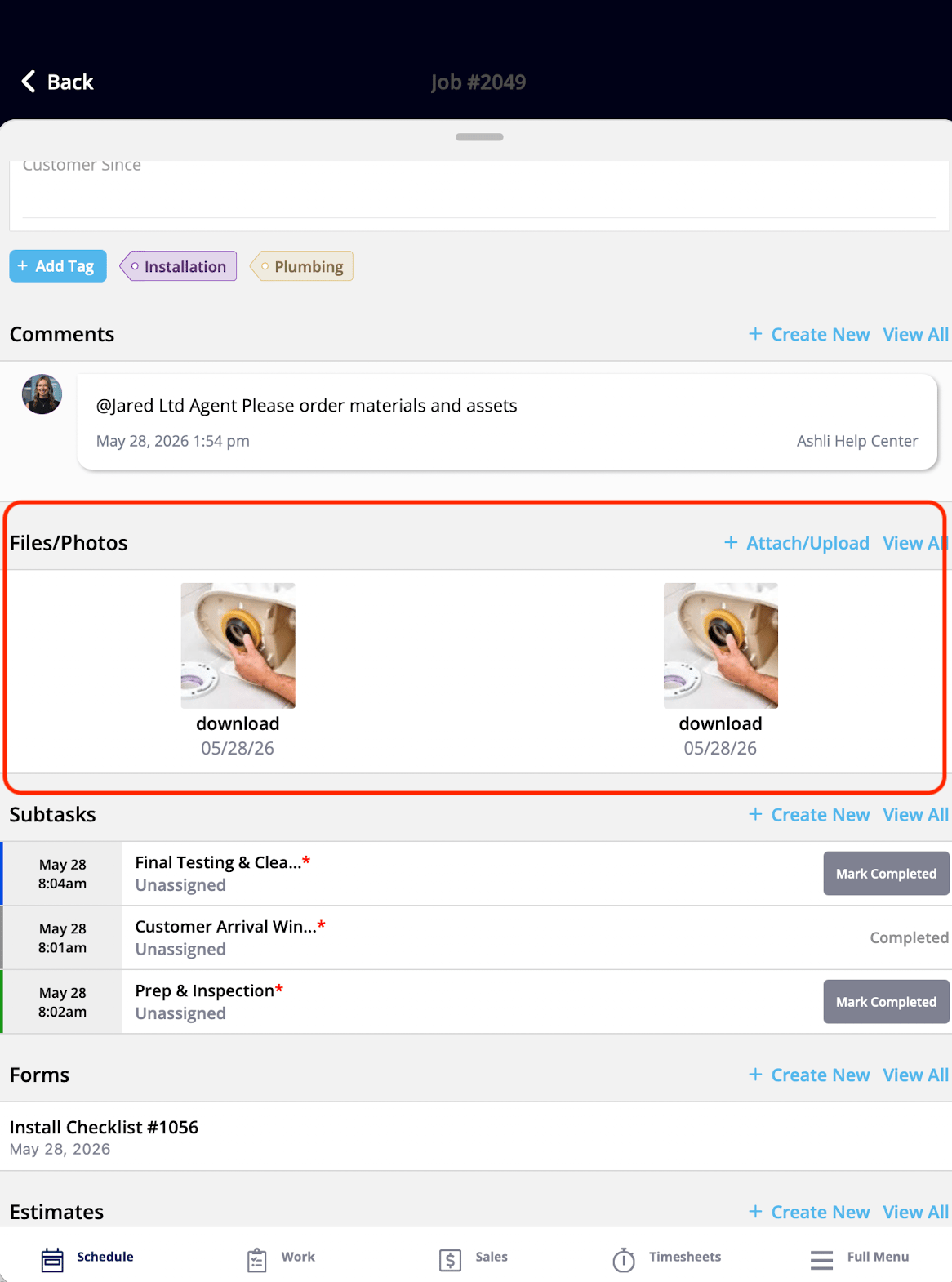 *What It Shows:* All files and photos attached to your Job.
*What You Can Do:* You can view existing files and photos and upload new ones directly from this widget.
## Subtasks
*What It Shows:* All files and photos attached to your Job.
*What You Can Do:* You can view existing files and photos and upload new ones directly from this widget.
## Subtasks
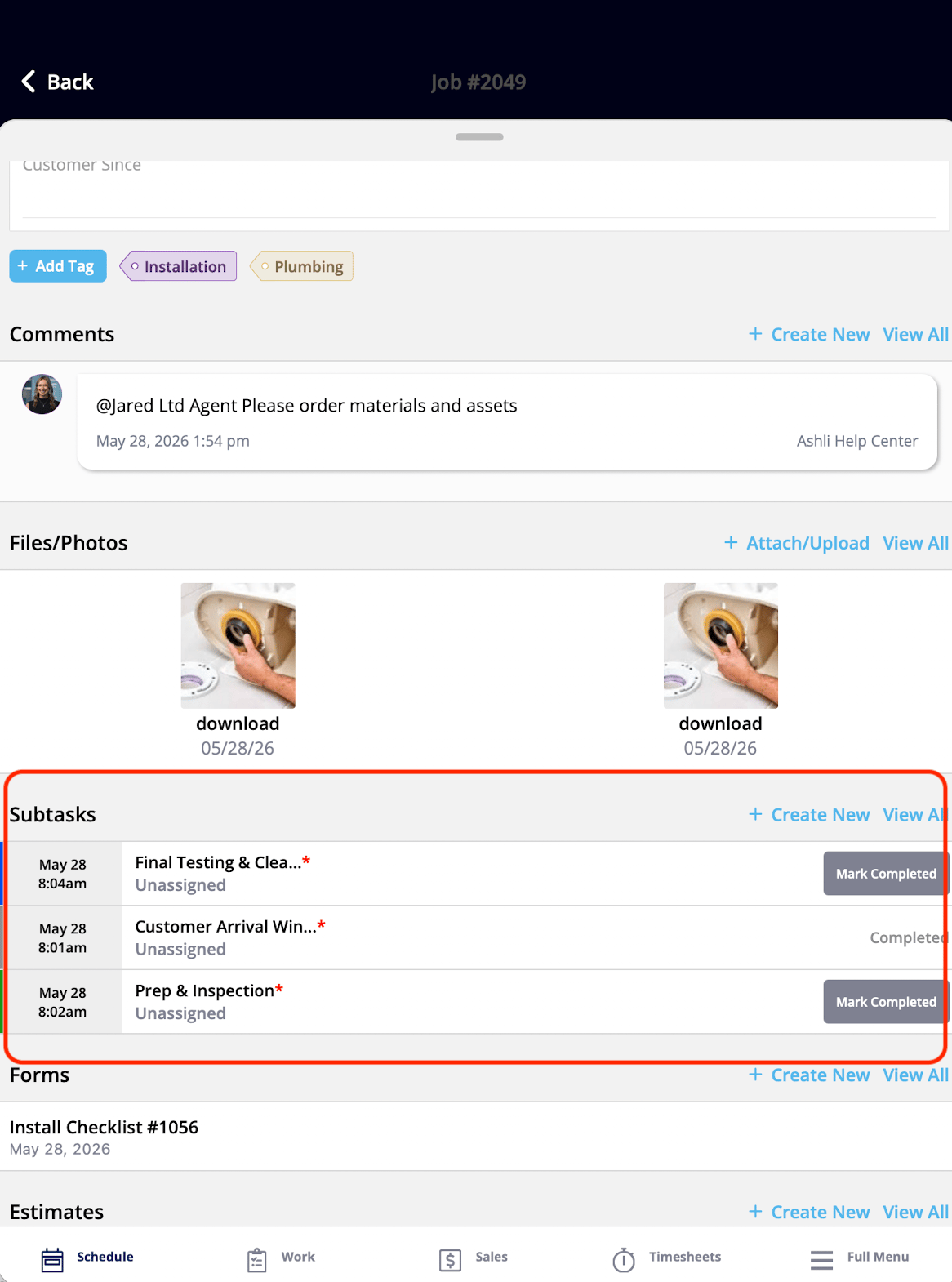 *What It Shows:* All Subtasks associated with your Job, displayed as a checklist.
*What You Can Do:* You can view existing Subtasks, add new ones, and mark Subtasks as complete all from this widget.
***
**Have additional questions?**
*Contact us at [support@fieldpulse.com](mailto:support@fieldpulse.com) or use the chat feature in the bottom right corner of your screen.*
*What It Shows:* All Subtasks associated with your Job, displayed as a checklist.
*What You Can Do:* You can view existing Subtasks, add new ones, and mark Subtasks as complete all from this widget.
***
**Have additional questions?**
*Contact us at [support@fieldpulse.com](mailto:support@fieldpulse.com) or use the chat feature in the bottom right corner of your screen.*