> ## Documentation Index
> Fetch the complete documentation index at: https://help.fieldpulse.com/llms.txt
> Use this file to discover all available pages before exploring further.
# Connecting Engage via SIP (Session Initiation Protocol) & DID (Direct Inward Dialing)
> Route desk-phone and direct-dial calls through Engage using SIP and DID so hardware handsets place and receive calls.
***
## FieldPulse Engage - SIP
**FieldPulse Engage - SIP currently supports the following features:**
* Incoming calls
* Outgoing calls
* Hold
* Transfer
**Note:** Caller ID is **not** currently supported for SIP phones.
***
## **Overview**
Within the Engage phone system we have two powerful features that you can choose to take advantage of: SIP (Session Initiation Protocol) and DID (Direct Inward Dialing). These features improve the flexibility and efficiency of your communications within the Engage platform.
## **What are SIP and DID?**
**SIP (Session Initiation Protocol):** SIP is a fundamental technology that enables real-time communication over the internet. SIP allows users to use a variety of devices as their phone system including VoIP phones and computers. SIP enables your devices to communicate with each other over the internet. The devices you utilize must be cloud based.
If utilizing a **VoIP phone**, you will need to ensure you have administrative access to that phone. If you purchased your phone through another provider you may not have administrative access. Therefore, you will need to contact your current provider or purchase a new VoIP phone if they are not able to provide you with that access.
⭐ **FieldPulse Pro Tip:** We recommend using Grandstream and Yealink VoIP phone models for optimal performance.
**DID (Direct Inward Dialing):** DID is a service that allows a phone number to ring through directly to a specific phone at a business rather than going through a traditional PBX system. This simplifies the process of directing a call to a particular person within an organization without the need for a human operator.
* **Direct Connection:** Enables direct communication to specific employees or departments, which speeds up response times and improves customer service.
* **Professionalism:** Provides customers with a direct line to contact specific parts of your business, enhancing the professional image of your company.
* **Efficiency:** Reduces the need for a receptionist or operator to direct calls, streamlining your operations.
## **Who Benefits?**
* **Businesses with Customer Support Teams:** Direct numbers for each support agent can improve response times and customer satisfaction.
* **Sales Teams:** Sales professionals can have dedicated lines, making it easier for clients to reach them directly.
* **Remote Teams:** With SIP, remote team members can connect to the company's phone system regardless of their location as if they were in the office.
***
# **Getting Started with SIP**
**Note:** 10DLC has to be complete in order to utilize SIP.
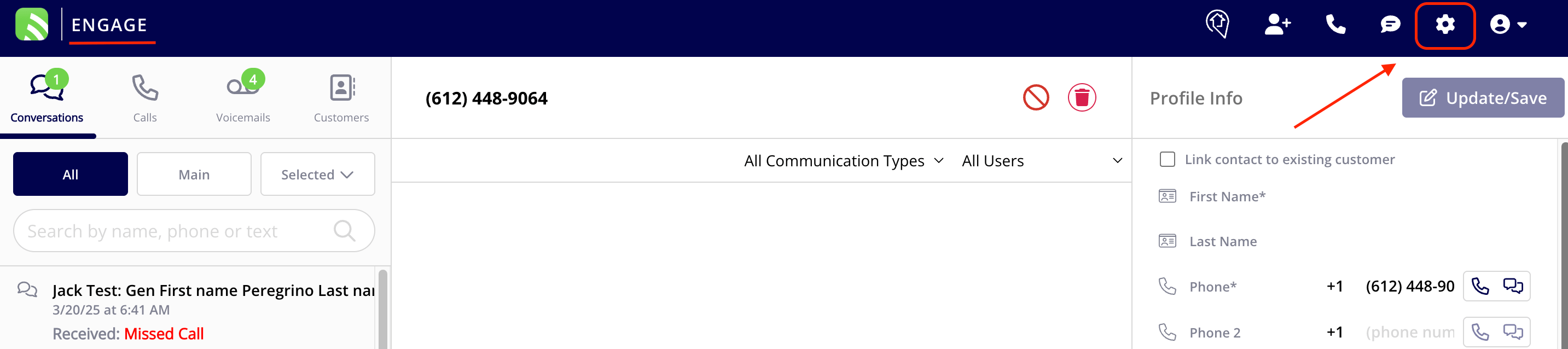
To set up SIP, you will first need to navigate to your settings within Engage. To do so, open Engage and login with the same credentials that you use to login to your FieldPulse account. Then, locate the *gear icon* towards the upper right hand corner of your screen and click on it.
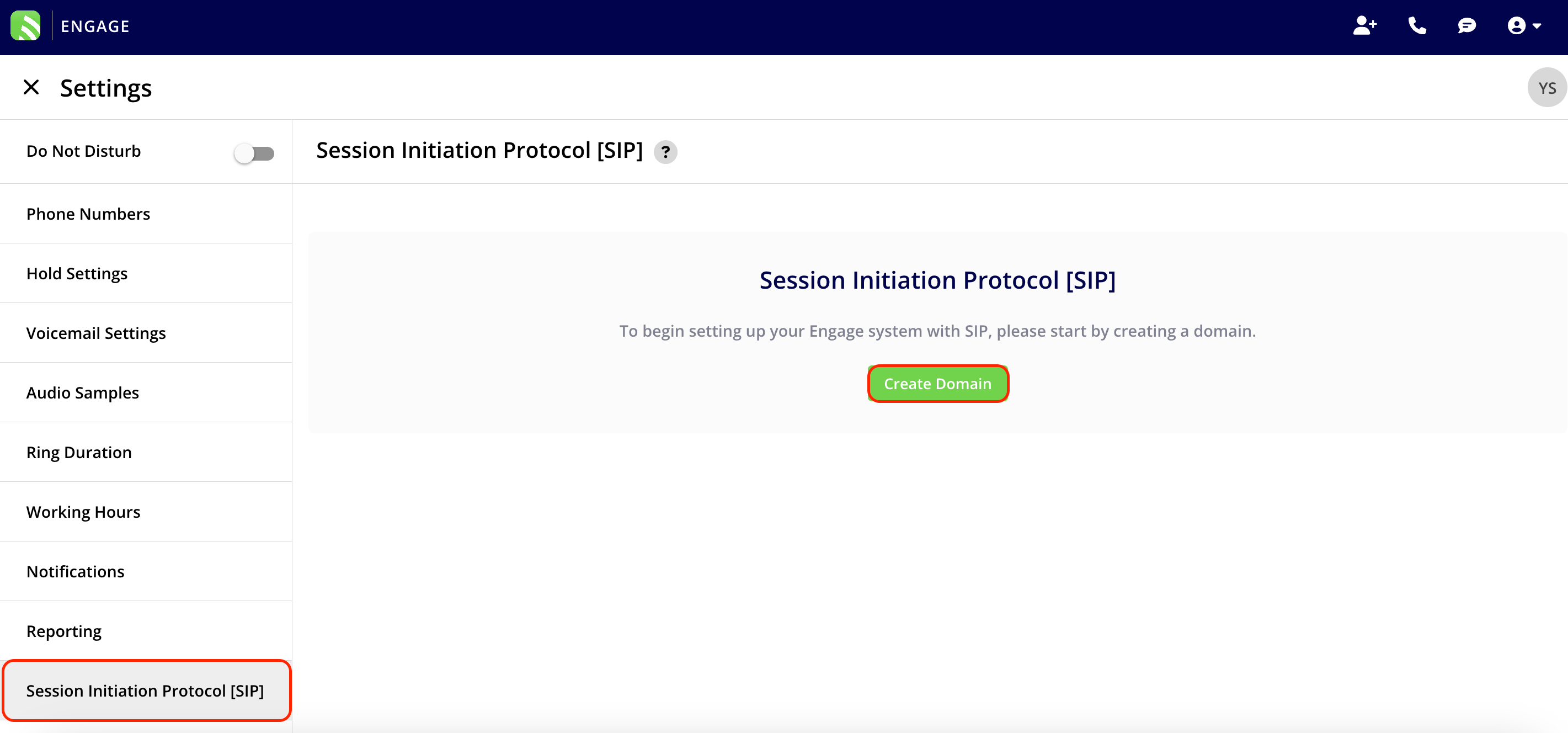
 Once the settings window is open, click on the tab from the left hand menu that says *Session Initiation Protocol (SIP)*. Then click on the green button that says *Create Domain* to begin setting up your Engage system with SIP.
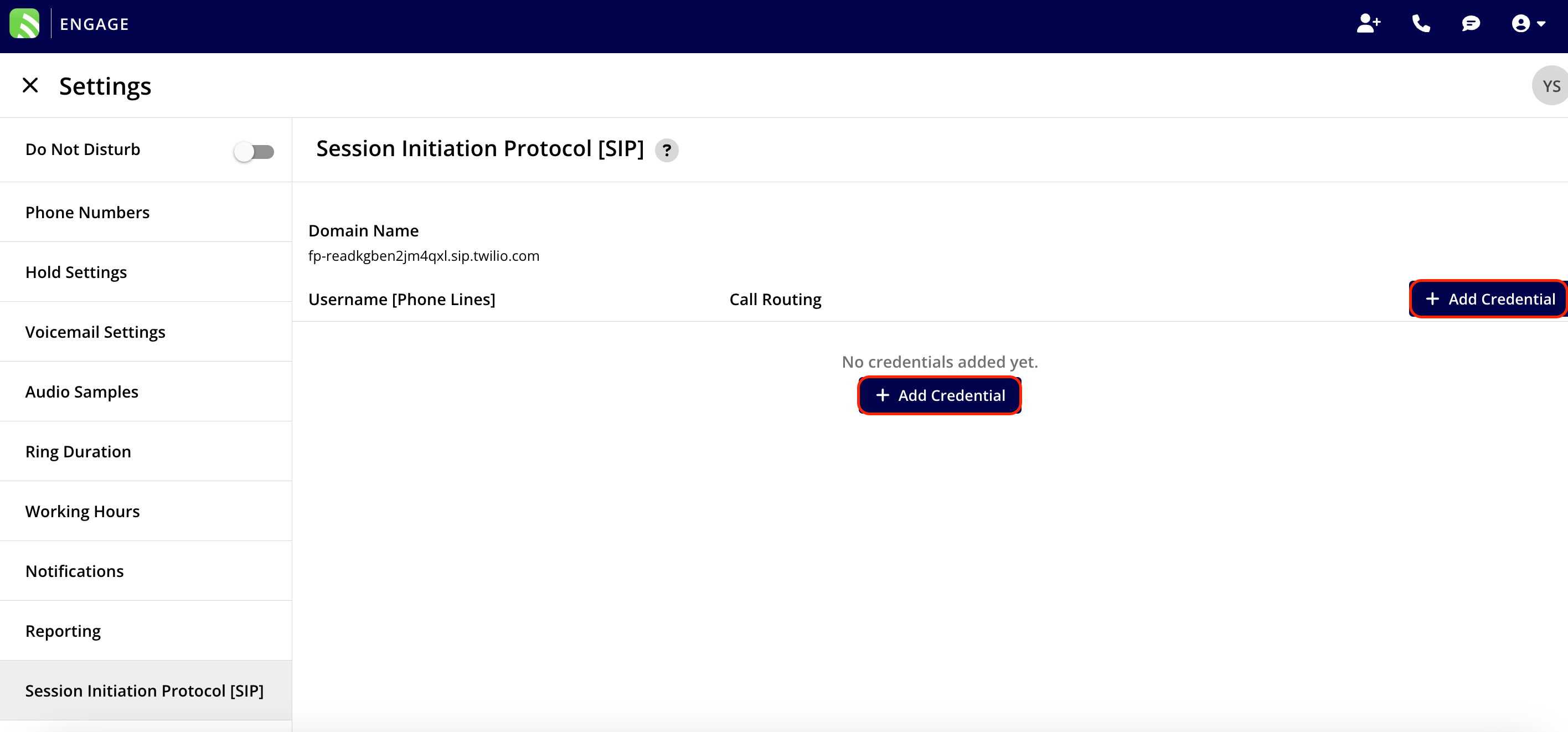
 Now, it is time to begin setting up the credentials for **each** phone number. Do so by clicking either of the blue *Add Credentials* buttons.
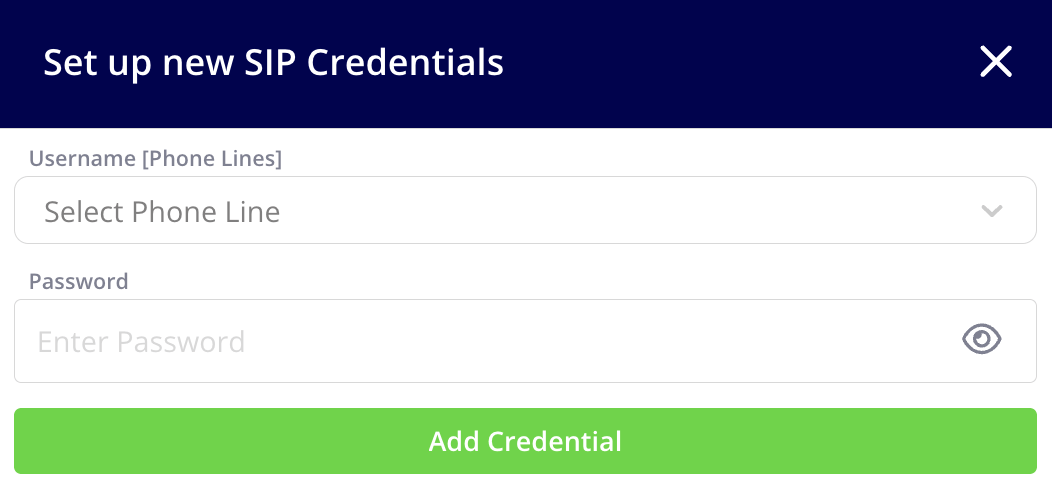 **Note:** Your password must be a minimum of 12 characters, contain at least 1 digit, and have mixed case (upper and lowercase).
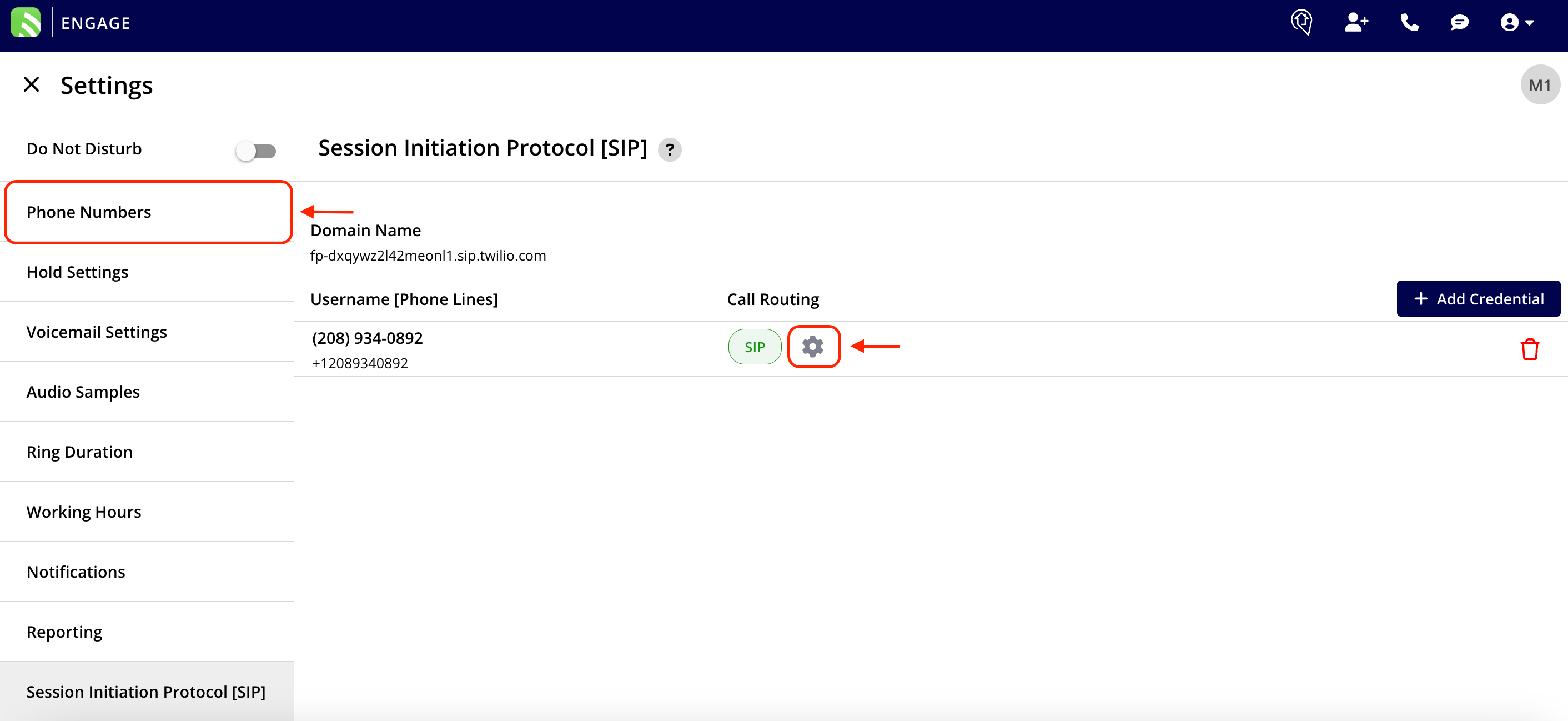
Once the credential is created for a phone line/number, you must enable the call routing method to SIP. This needs to be done for **each** phone number you wish to utilize with SIP. To do this, navigate to the *Phone Numbers* tab in the left-hand menu, or click on the gear icon next to the phone line/number for a shortcut.
**Note:** Your password must be a minimum of 12 characters, contain at least 1 digit, and have mixed case (upper and lowercase).
Once the credential is created for a phone line/number, you must enable the call routing method to SIP. This needs to be done for **each** phone number you wish to utilize with SIP. To do this, navigate to the *Phone Numbers* tab in the left-hand menu, or click on the gear icon next to the phone line/number for a shortcut.
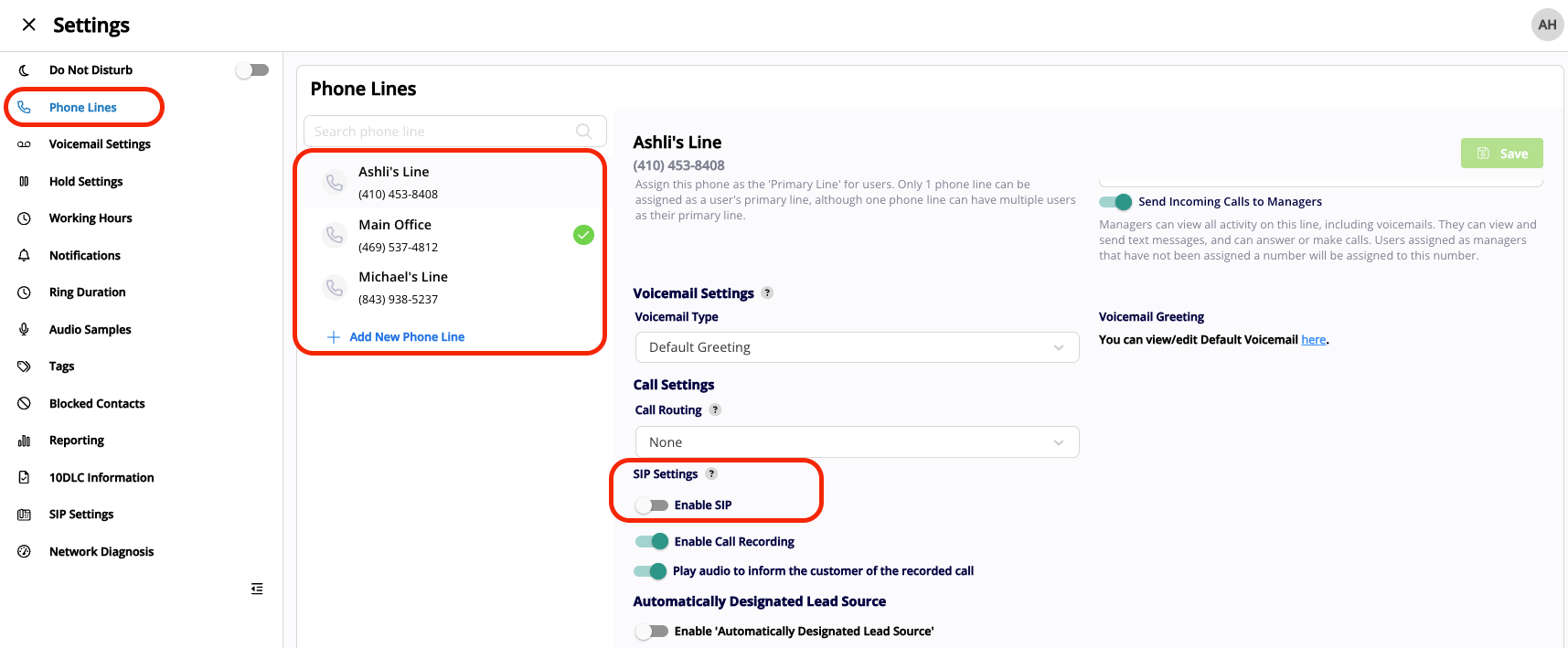
 Within the *Phone Lines* tab, for each phone line, scroll towards the bottom until you find the header that says *SIP Settings*. Toggle on the option to *Enable SIP.* After making your changes be sure to press the *Save* button.
 ***
**Have additional questions?**
*Contact us at [support@fieldpulse.com](mailto:support@fieldpulse.com) or use the chat feature in the bottom right corner of your screen.*
***
**Have additional questions?**
*Contact us at [support@fieldpulse.com](mailto:support@fieldpulse.com) or use the chat feature in the bottom right corner of your screen.*