> ## Documentation Index
> Fetch the complete documentation index at: https://help.fieldpulse.com/llms.txt
> Use this file to discover all available pages before exploring further.
# Call Transcripts and Summaries in Engage
> AI-generated transcripts and summaries for every Engage call and voicemail — manage the summary prompt and view insights on web and mobile.
# Overview
Every call handled through Engage, whether it's answered by a person or by Operator AI, can get an AI-generated transcript and summary shortly after it ends. The summary gives you a readout of who called, why, what was discussed, and what happens next, so anyone who opens the call log later (a dispatcher, a technician, the owner) can get up to speed without replaying the recording. Voicemails get the same treatment: an AI summary appears right alongside the recording.
***
# Managing Call Transcript and Summary Settings
Admins control how summaries are generated.
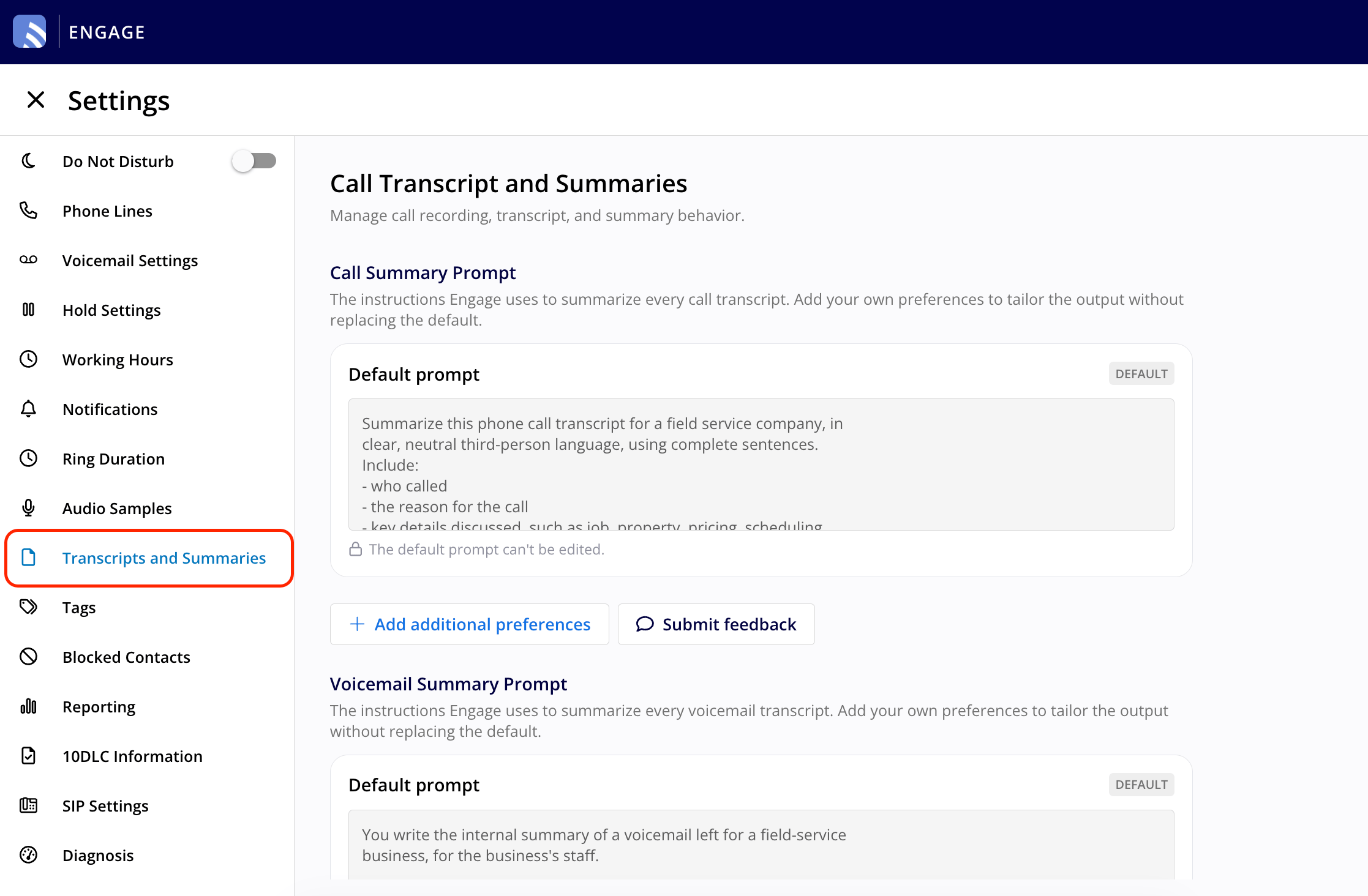
1. Go to *Engage Settings*.
2. Click *Transcripts and Summaries* in the sidebar.
3. On this page, you can manage the following:
* **Call Summary Prompt:** the instructions Engage uses to summarize call transcripts.
* **Voicemail Summary Prompt:** the equivalent settings for voicemail summaries, following the same pattern as the Call Summary Prompt.
4. Click *Save* in the top-right corner to apply your changes.
 ***
# Customizing the Summary Prompt
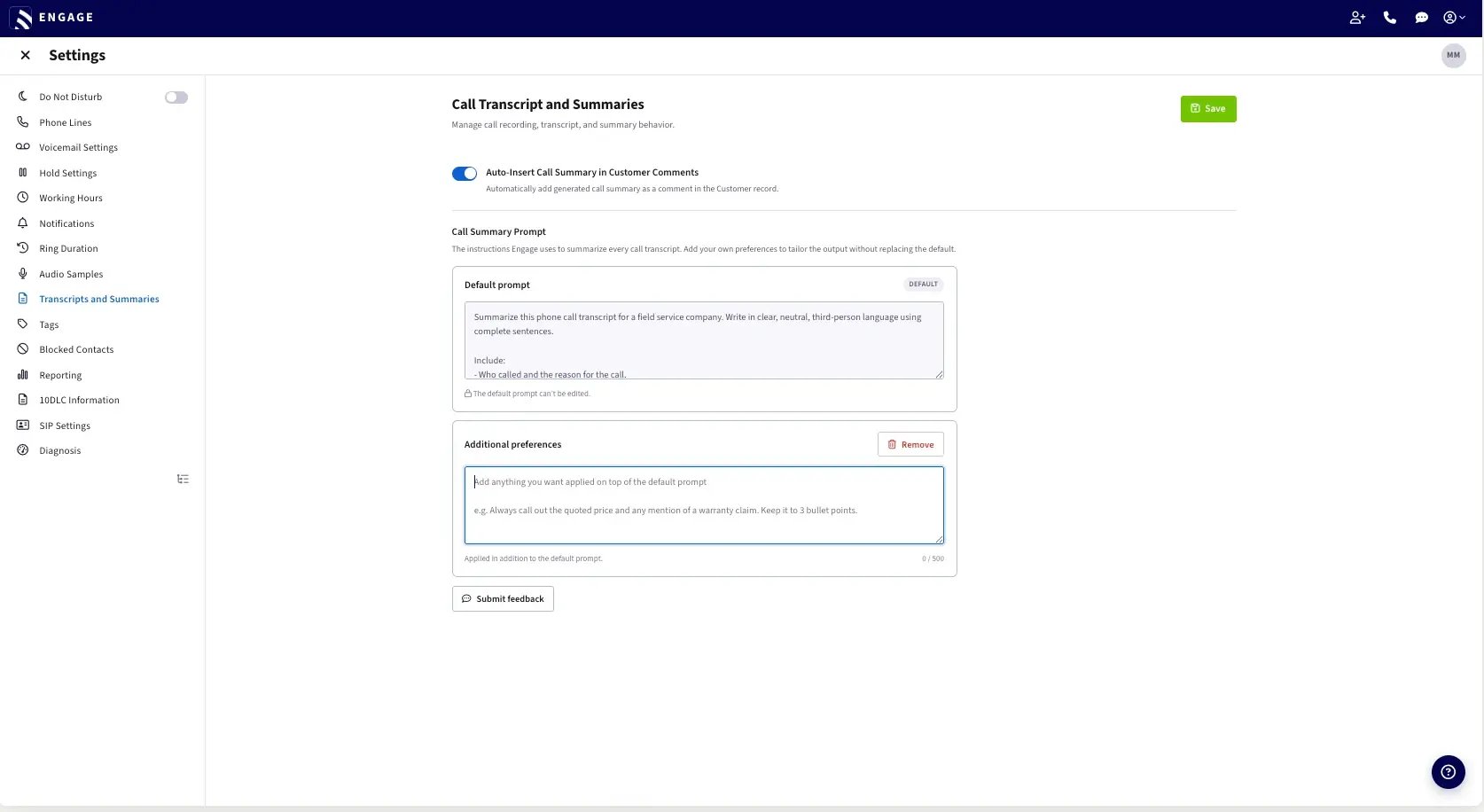
Engage summarizes every call using a fixed default prompt. You can't edit the default prompt, but you can add your own preferences on top of it.
To tailor the output without replacing the default:
1. Click *+ Add additional preferences*.
2. Enter anything you'd like applied on top of the default prompt (for example, a preference for a shorter summary, or a request to always flag emergency calls). Additional preferences are limited to 500 characters, and a live counter shows how much room you have left.
3. Click *Save*. From now on, every call summary is generated using the default prompt plus your additional preferences. The default prompt is always applied; your preferences are added on top of it, never in place of it.
To remove your customizations and return to the default prompt alone, click *Remove* in the top-right corner of the Additional preferences box.
The Voicemail Summary Prompt works the same way: a fixed, read-only default prompt plus an optional Additional preferences box for voicemail summaries.
***
# Customizing the Summary Prompt
Engage summarizes every call using a fixed default prompt. You can't edit the default prompt, but you can add your own preferences on top of it.
To tailor the output without replacing the default:
1. Click *+ Add additional preferences*.
2. Enter anything you'd like applied on top of the default prompt (for example, a preference for a shorter summary, or a request to always flag emergency calls). Additional preferences are limited to 500 characters, and a live counter shows how much room you have left.
3. Click *Save*. From now on, every call summary is generated using the default prompt plus your additional preferences. The default prompt is always applied; your preferences are added on top of it, never in place of it.
To remove your customizations and return to the default prompt alone, click *Remove* in the top-right corner of the Additional preferences box.
The Voicemail Summary Prompt works the same way: a fixed, read-only default prompt plus an optional Additional preferences box for voicemail summaries.
 ***
# Sending Feedback on Summaries
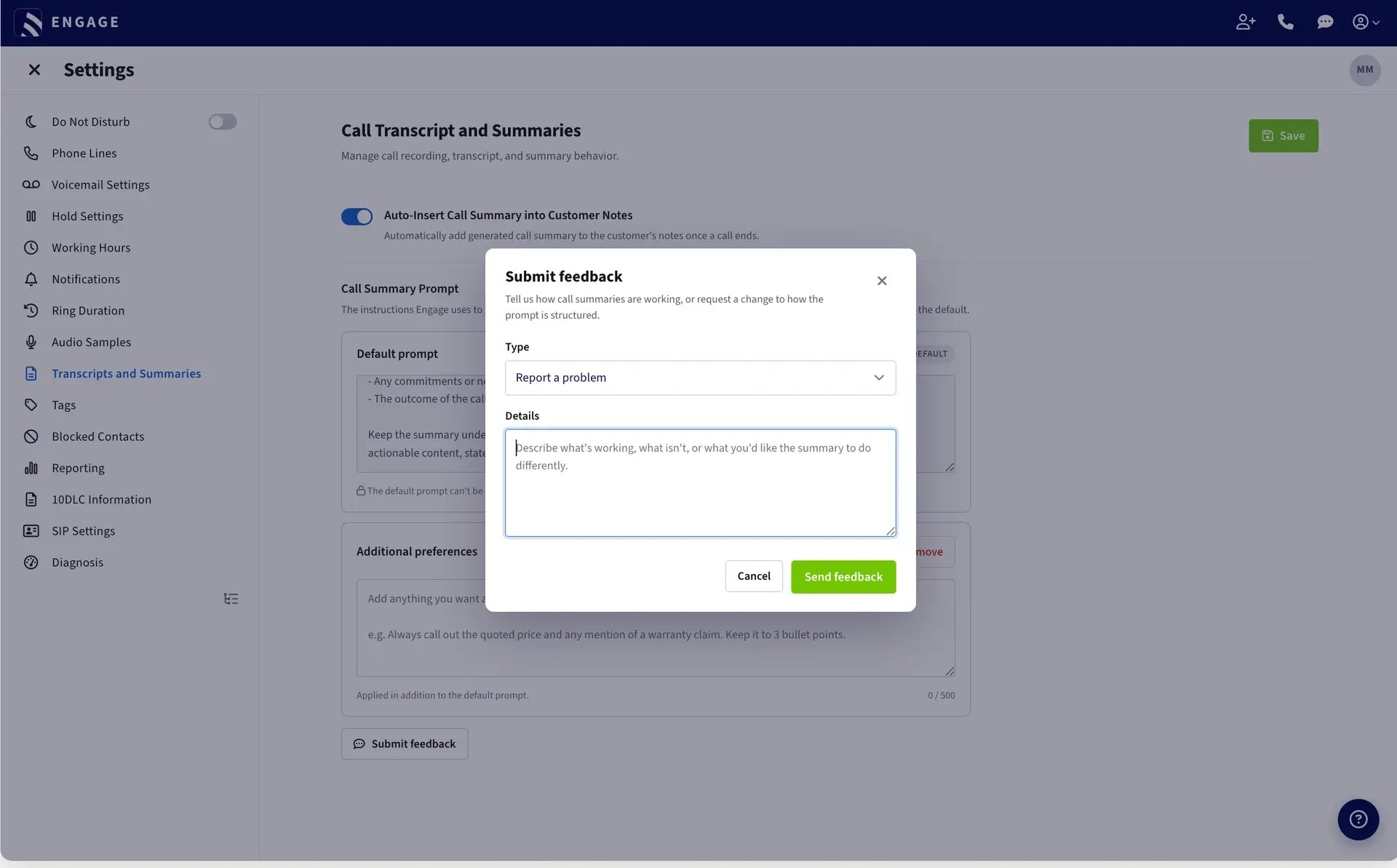
If a summary isn't quite right, or you'd like to see the prompt behave differently, you can send feedback directly from the settings page.
1. Click *Submit feedback*.
2. Choose a type: *Feedback on summary quality* or *Report a problem*.
3. Describe what's working, what isn't, or what you'd like the summary to do differently. Details are limited to 1,000 characters.
4. Click *Send feedback*. Click *Cancel* or the X in the top-right corner if you'd rather not submit.
***
# Sending Feedback on Summaries
If a summary isn't quite right, or you'd like to see the prompt behave differently, you can send feedback directly from the settings page.
1. Click *Submit feedback*.
2. Choose a type: *Feedback on summary quality* or *Report a problem*.
3. Describe what's working, what isn't, or what you'd like the summary to do differently. Details are limited to 1,000 characters.
4. Click *Send feedback*. Click *Cancel* or the X in the top-right corner if you'd rather not submit.
 ***
# Viewing Call Summaries and Transcripts (Web)
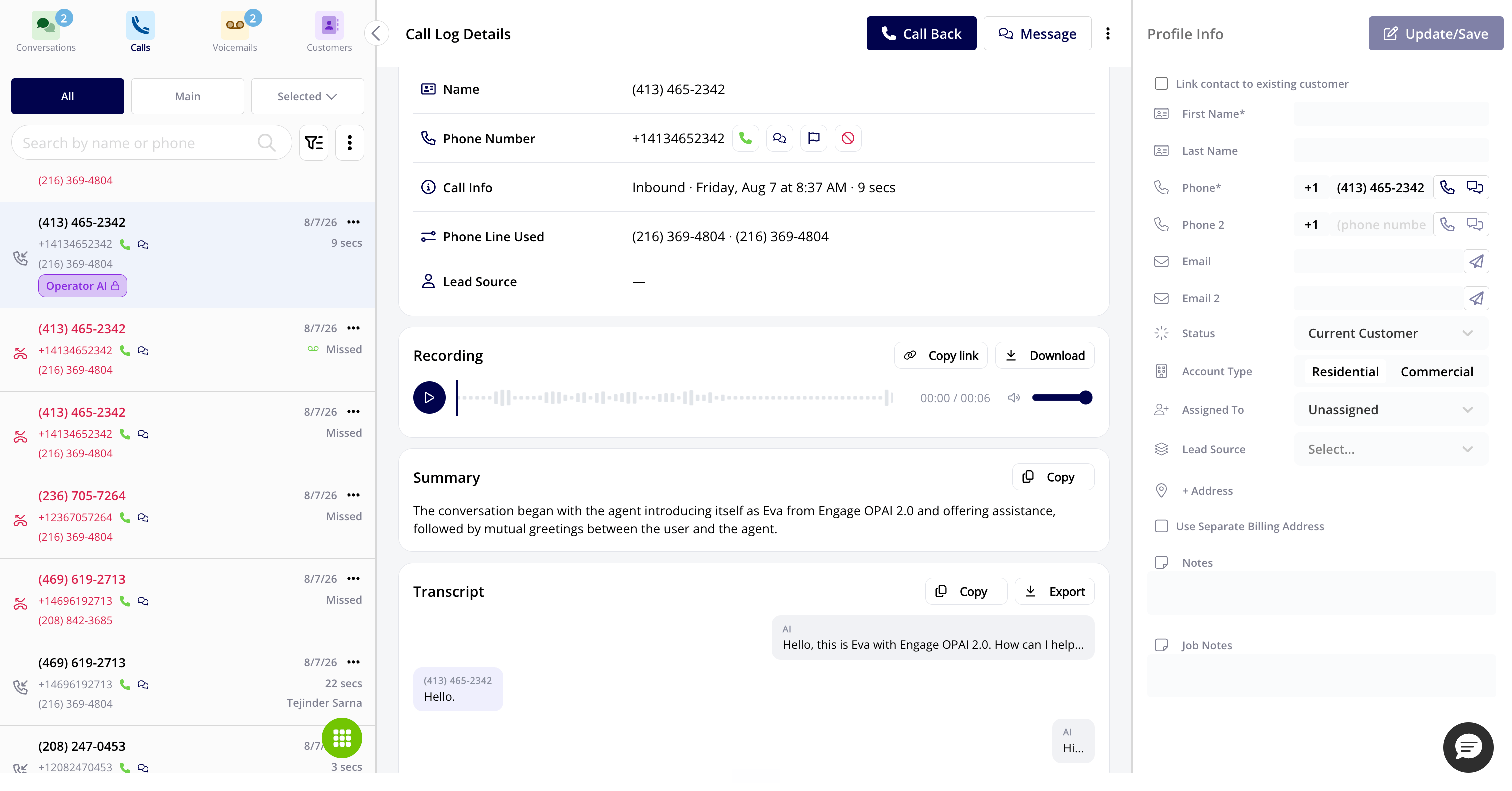
Every call log has Recording, Summary, and Transcript sections, positioned just above Call Notes.
1. Open a call from your Engage call log.
2. The Recording section gives you a player with play/pause and a scrubber. Click *Copy link* to copy a shareable link to the recording, or *Download* to save it as an MP3 file.
3. The Summary section shows the AI-generated call summary. Click *Copy* to copy the full summary to your clipboard.
4. The Transcript section shows the full, turn-by-turn conversation. Click *Copy* to copy the transcript, or *Export* to download it as a file.
***
# Viewing Call Summaries and Transcripts (Web)
Every call log has Recording, Summary, and Transcript sections, positioned just above Call Notes.
1. Open a call from your Engage call log.
2. The Recording section gives you a player with play/pause and a scrubber. Click *Copy link* to copy a shareable link to the recording, or *Download* to save it as an MP3 file.
3. The Summary section shows the AI-generated call summary. Click *Copy* to copy the full summary to your clipboard.
4. The Transcript section shows the full, turn-by-turn conversation. Click *Copy* to copy the transcript, or *Export* to download it as a file.
 ***
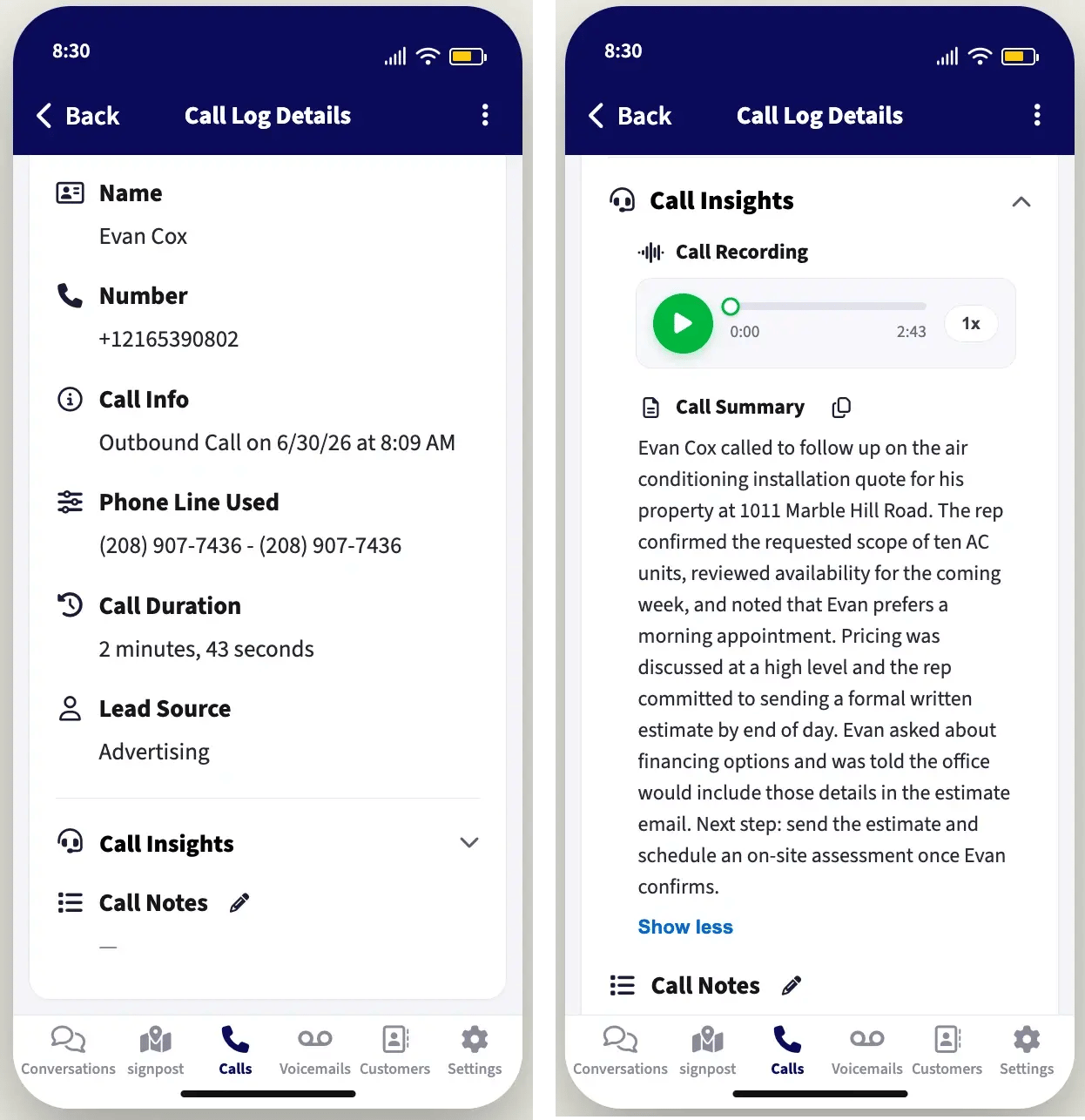
# Viewing Call Summaries and Recordings (Mobile)
On mobile, the Call Log Details page has a collapsible Call Recording & Summary section, positioned above Call Notes.
1. Tap the section to expand it.
2. The Call Recording block gives you a player with play/pause, a scrubber, elapsed and total time, and a playback-speed control. The recording can be downloaded as an MP3.
3. The Call Summary block shows the summary text with a copy icon. Summaries are truncated by default. Tap *Show more* to see the full summary, or *Show less* to collapse it again.
The mobile app shows the call summary and recording only. The full transcript is available on the web app.
***
# Viewing Call Summaries and Recordings (Mobile)
On mobile, the Call Log Details page has a collapsible Call Recording & Summary section, positioned above Call Notes.
1. Tap the section to expand it.
2. The Call Recording block gives you a player with play/pause, a scrubber, elapsed and total time, and a playback-speed control. The recording can be downloaded as an MP3.
3. The Call Summary block shows the summary text with a copy icon. Summaries are truncated by default. Tap *Show more* to see the full summary, or *Show less* to collapse it again.
The mobile app shows the call summary and recording only. The full transcript is available on the web app.
 ***
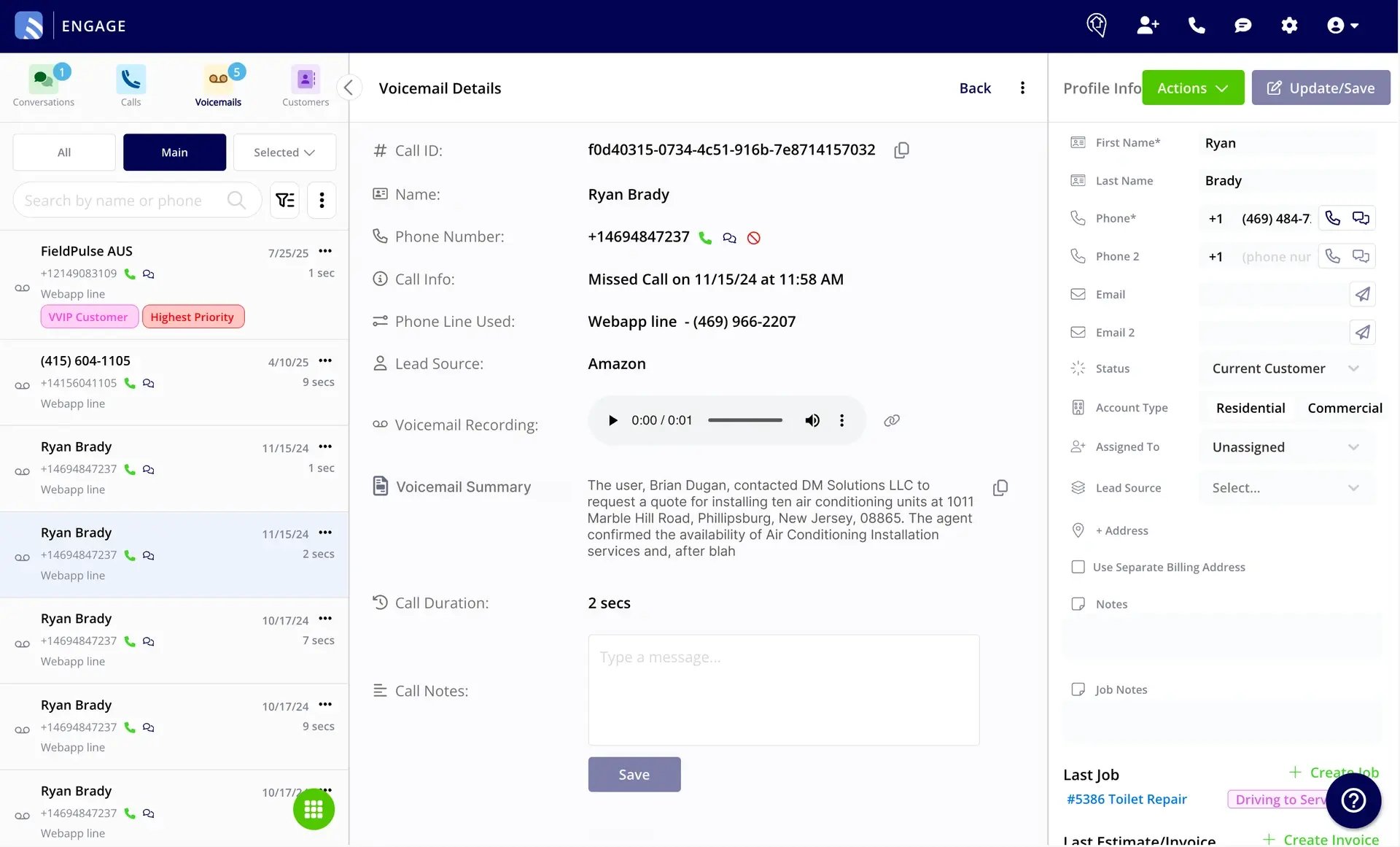
# Voicemail Summaries
Voicemail Details pages, on both web and mobile, show a Voicemail Summary field below the voicemail recording.
* On web, the summary appears automatically below the recording and can be copied using the same copy icon used elsewhere on the page.
* On mobile, opening a voicemail automatically shows the summary below the recording. If the summary runs longer than three lines, it's truncated with a *Show More* button; tap *Show Less* to collapse it again. The summary can be copied from the mobile app as well.
***
# Voicemail Summaries
Voicemail Details pages, on both web and mobile, show a Voicemail Summary field below the voicemail recording.
* On web, the summary appears automatically below the recording and can be copied using the same copy icon used elsewhere on the page.
* On mobile, opening a voicemail automatically shows the summary below the recording. If the summary runs longer than three lines, it's truncated with a *Show More* button; tap *Show Less* to collapse it again. The summary can be copied from the mobile app as well.
 ***
# Turning Off Summaries and Transcripts for a Line
If you'd rather not generate transcripts and summaries for a specific phone line, you can turn that off per line under Phone Line Settings. See [Phone Line Settings](/features-add-ons/engage-phone-system/set-up-configuration/phone-line-settings) for details.
***
# Permissions
| Action | Who can do it |
| ------------------------------------------------------------ | --------------------------------------------------------- |
| View or edit the Call Transcript and Summaries settings page | Admins only |
| Turn summaries/transcripts on or off for a phone line | Anyone with permission to edit that phone line's settings |
| View a call's summary, transcript, or recording | Anyone with Engage view permission |
***
**Have additional questions?**
*Contact us at [support@fieldpulse.com](mailto:support@fieldpulse.com) or use the chat feature in the bottom right corner of your screen.*
## Related topics
- [Phone Line Settings](/features-add-ons/engage-phone-system/set-up-configuration/phone-line-settings.md)
- [Set Up & Configuration](/features-add-ons/engage-phone-system/set-up-configuration/index.md)
- [Chat AI](/features-add-ons/field-intelligence/chat-ai.md)
- [Operator AI](/features-add-ons/field-intelligence/operator-ai.md)
- [Engage Overview](/features-add-ons/engage-phone-system/engage-overview.md)
***
# Turning Off Summaries and Transcripts for a Line
If you'd rather not generate transcripts and summaries for a specific phone line, you can turn that off per line under Phone Line Settings. See [Phone Line Settings](/features-add-ons/engage-phone-system/set-up-configuration/phone-line-settings) for details.
***
# Permissions
| Action | Who can do it |
| ------------------------------------------------------------ | --------------------------------------------------------- |
| View or edit the Call Transcript and Summaries settings page | Admins only |
| Turn summaries/transcripts on or off for a phone line | Anyone with permission to edit that phone line's settings |
| View a call's summary, transcript, or recording | Anyone with Engage view permission |
***
**Have additional questions?**
*Contact us at [support@fieldpulse.com](mailto:support@fieldpulse.com) or use the chat feature in the bottom right corner of your screen.*
## Related topics
- [Phone Line Settings](/features-add-ons/engage-phone-system/set-up-configuration/phone-line-settings.md)
- [Set Up & Configuration](/features-add-ons/engage-phone-system/set-up-configuration/index.md)
- [Chat AI](/features-add-ons/field-intelligence/chat-ai.md)
- [Operator AI](/features-add-ons/field-intelligence/operator-ai.md)
- [Engage Overview](/features-add-ons/engage-phone-system/engage-overview.md)