> ## Documentation Index
> Fetch the complete documentation index at: https://help.fieldpulse.com/llms.txt
> Use this file to discover all available pages before exploring further.
# Setting Up Working Hours
> Set your time zone and business hours in Engage, then choose where calls route after you close for the day.
Working Hours allows you to set the hours that your business is available to answer customer communications in Engage. You can adjust your Time Zone, as well as dictate where calls should be directed outside of your working hours.
***
# How to Set Up Company Wide Working Hours
To get started, navigate to the Engage Settings by clicking on the gear icon.
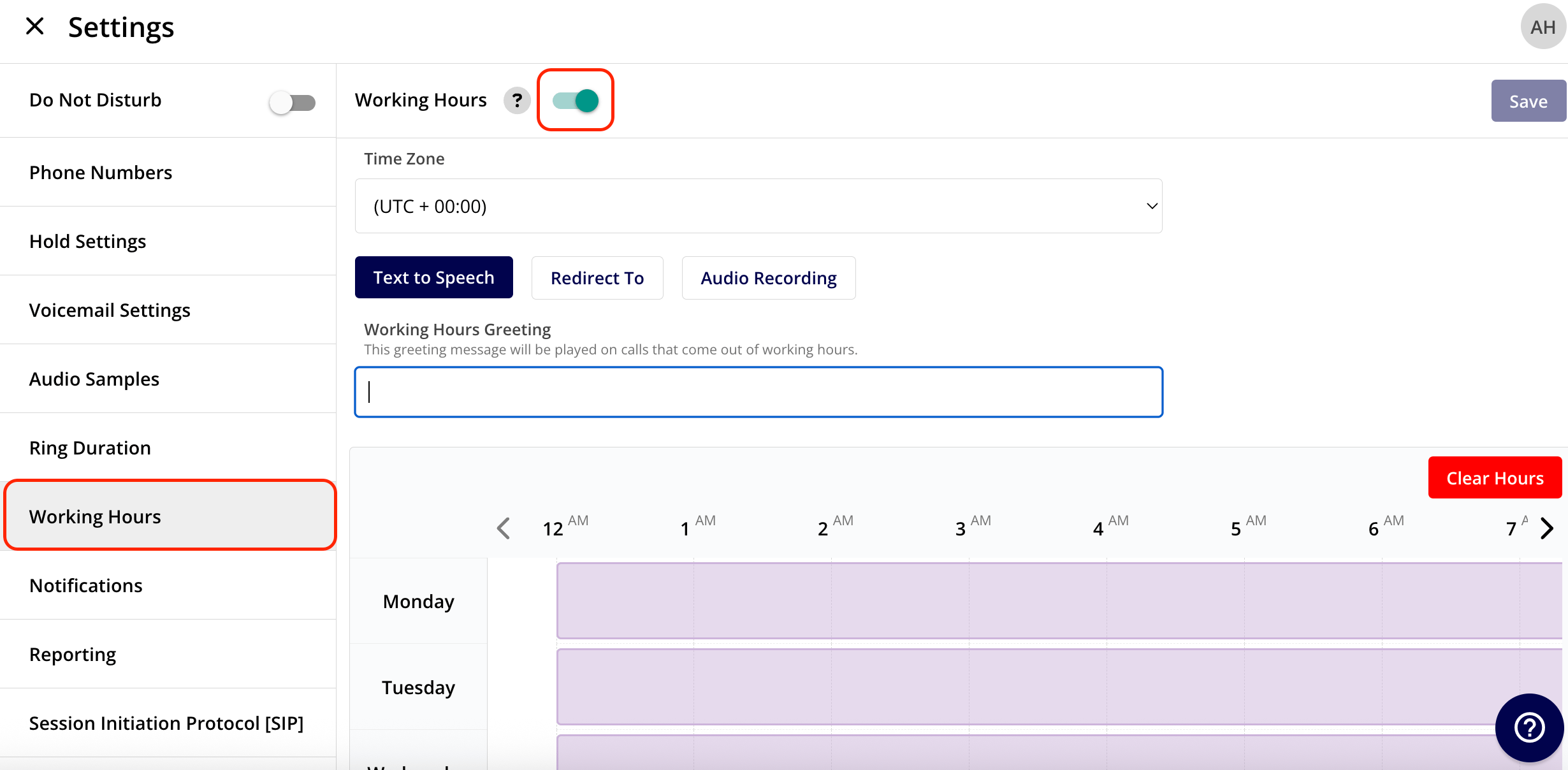
 Click the *Working Hours* tab from the menu of options on the left hand side of your screen. Enable working hours by toggling the button on.
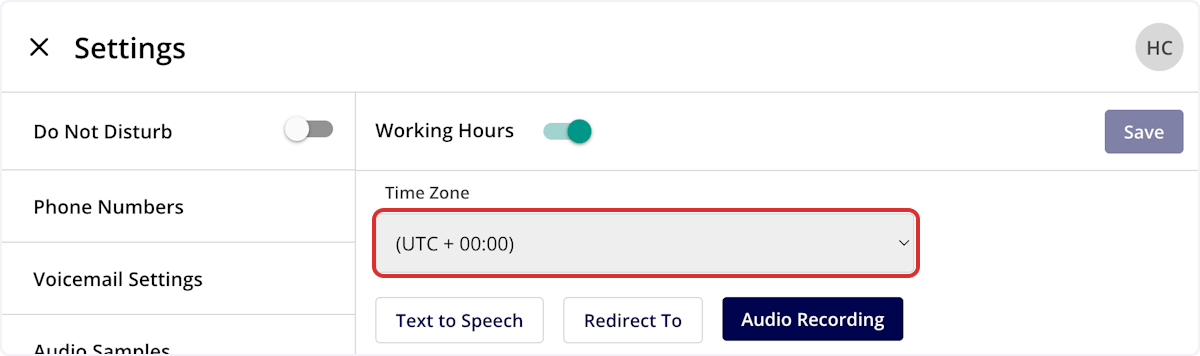
 From here, begin by setting your Time Zone.
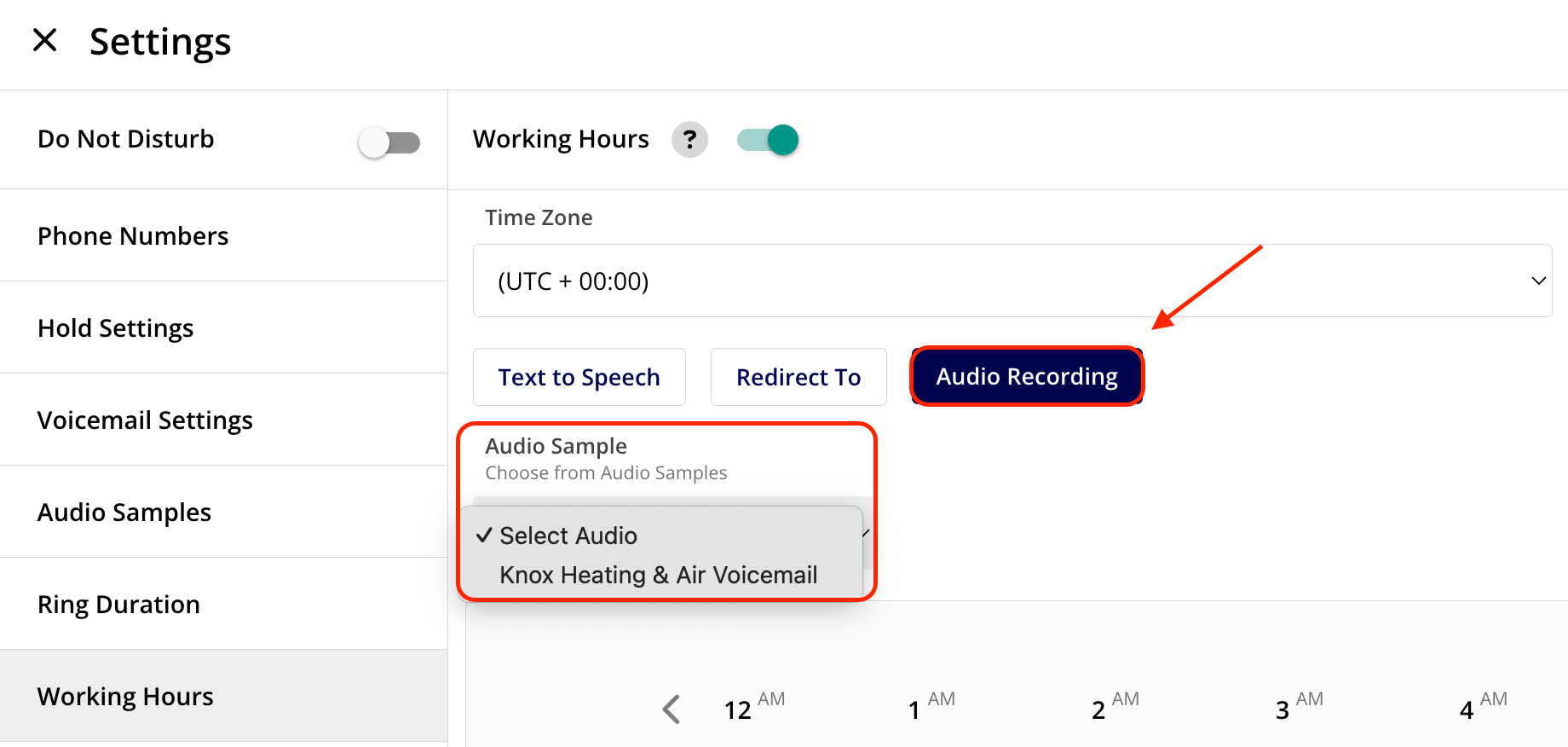
 Next, you'll need to specify what should happen when someone calls outside of your business working hours. You have three options: *Text to Speech*, *Redirect To*, and *Audio Recording*.
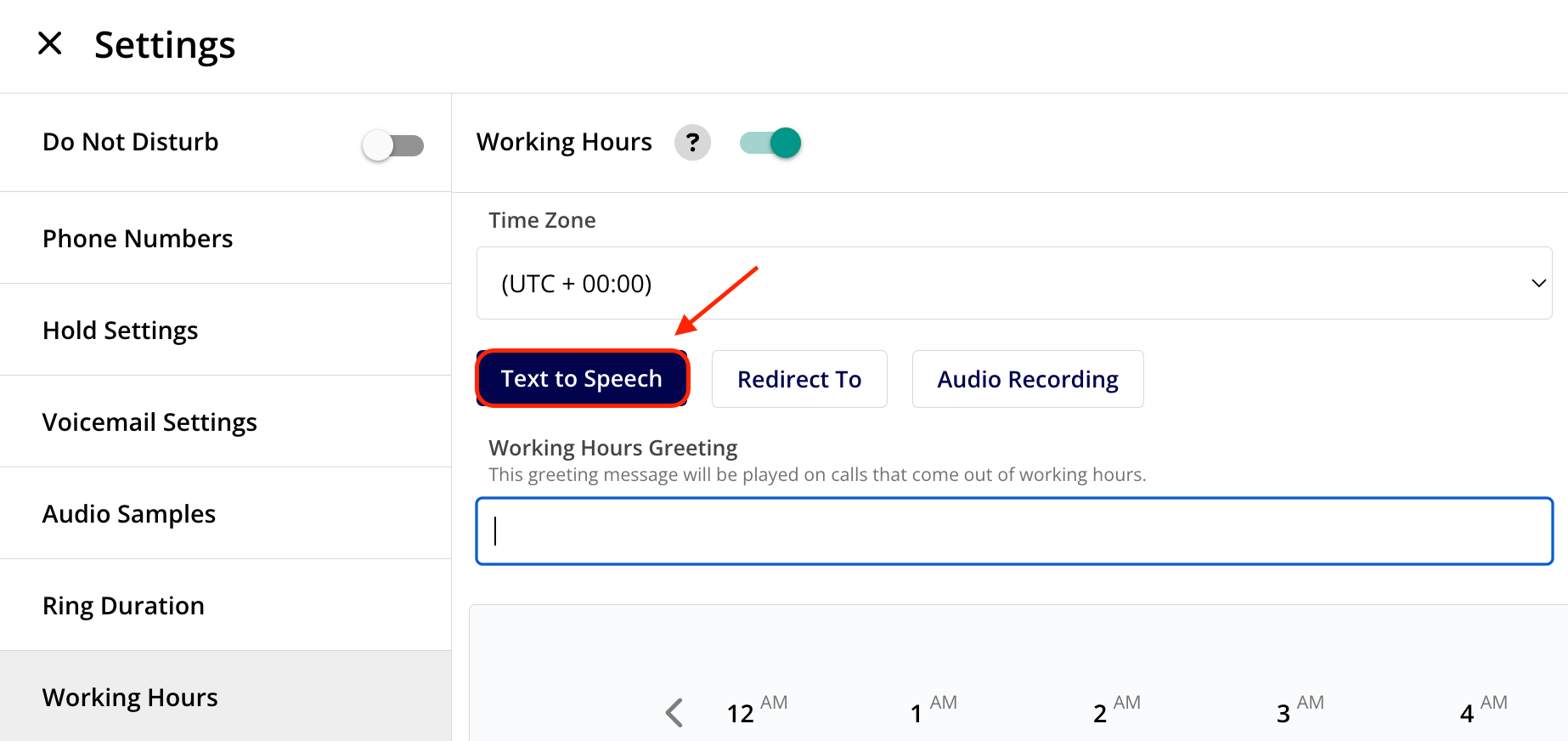
***Text to Speech*** will create a voicemail message that plays for all incoming calls outside of your working hours.
Next, you'll need to specify what should happen when someone calls outside of your business working hours. You have three options: *Text to Speech*, *Redirect To*, and *Audio Recording*.
***Text to Speech*** will create a voicemail message that plays for all incoming calls outside of your working hours.
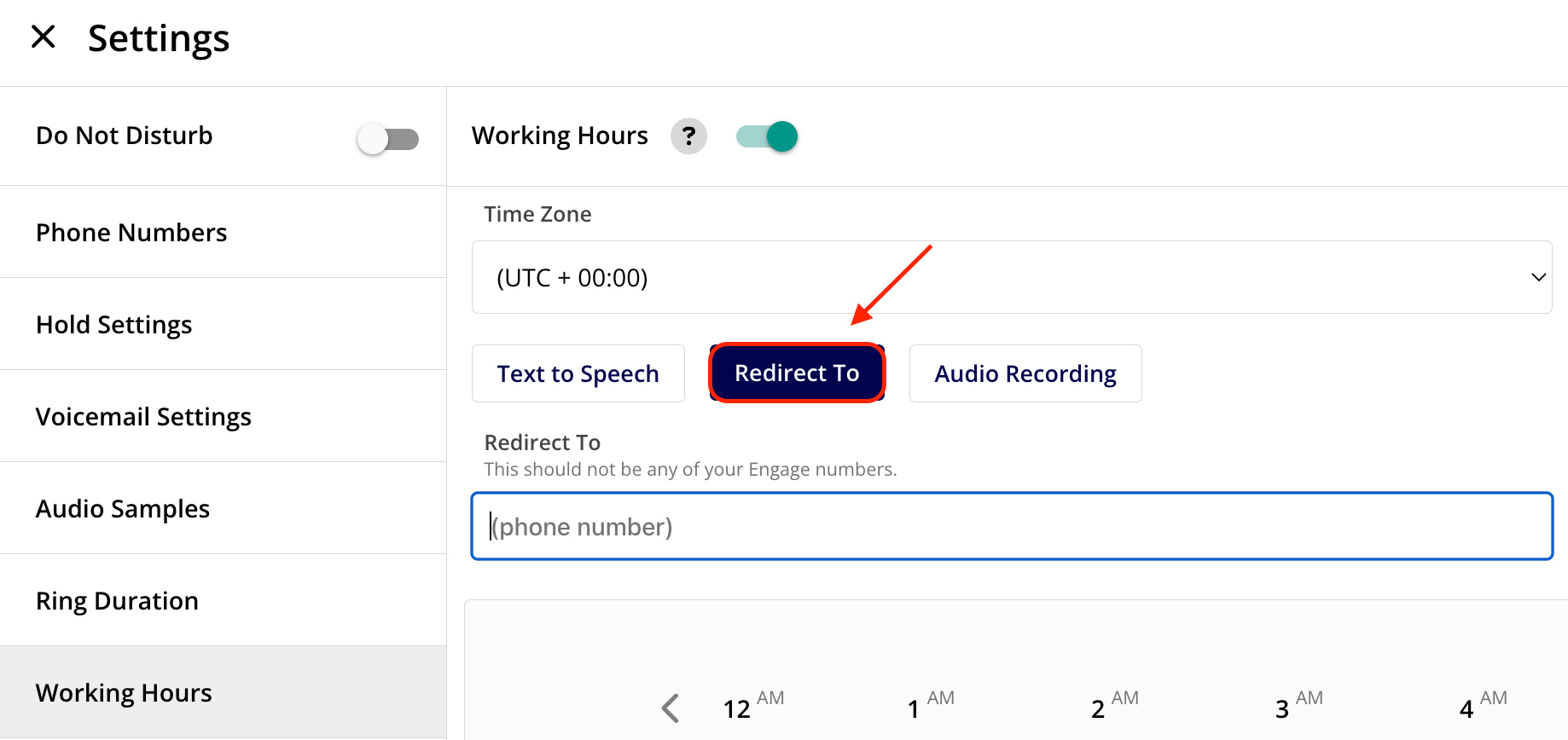
 ***Redirect To*** allows you to redirect your incoming calls to a non-Engage phone line when someone calls in outside of your working hours.
 ***Audio Recording*** allows you to set a custom voicemail greeting for incoming calls outside of your established working hours. Record or upload an audio sample under the *Audio Samples* tab, then select the applicable sample here to use it as your outside working hours voicemail.
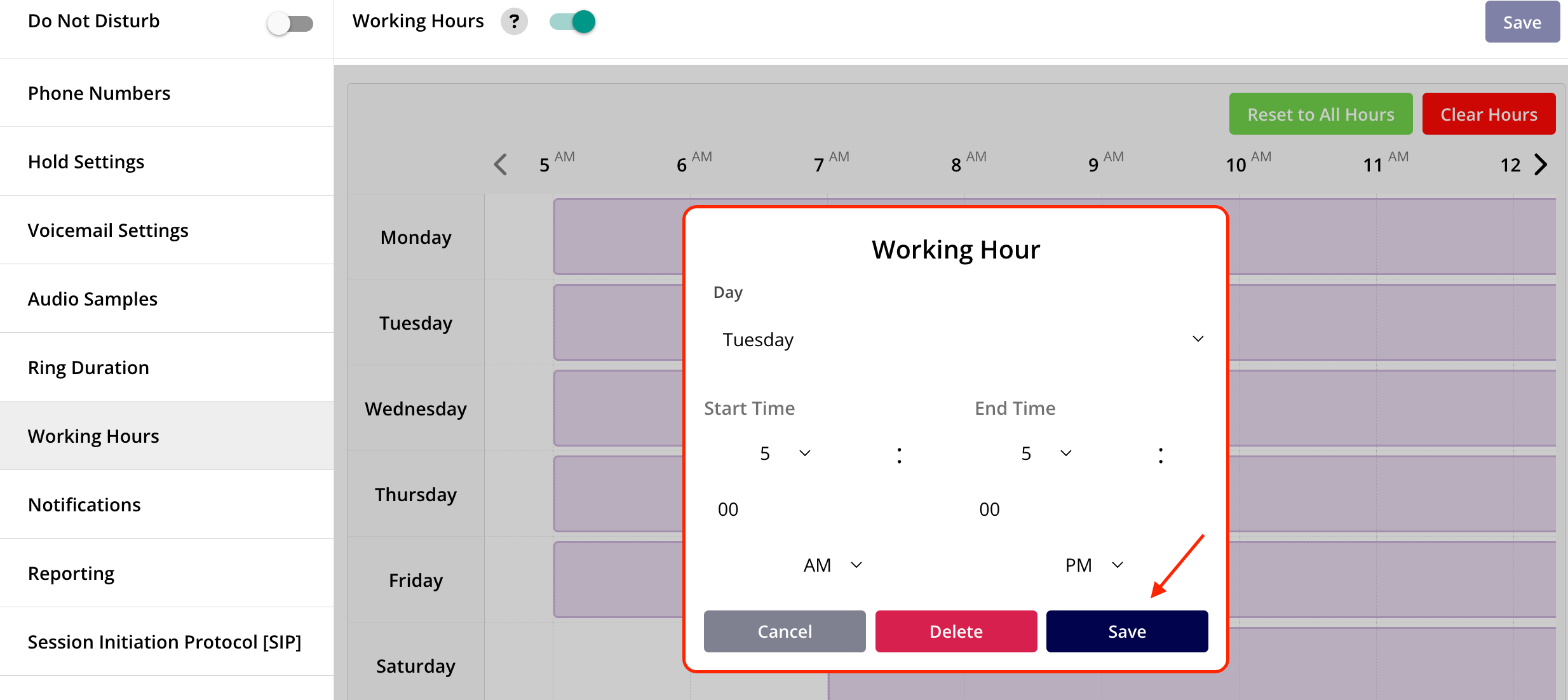
 Click on the working hours calendar to adjust your working hours for **each** day of the week. Once you press *Save*, the purple bars will adjust to reflect your working hours.
 ***
# How to Set Up Individual Phone Line Working Hours
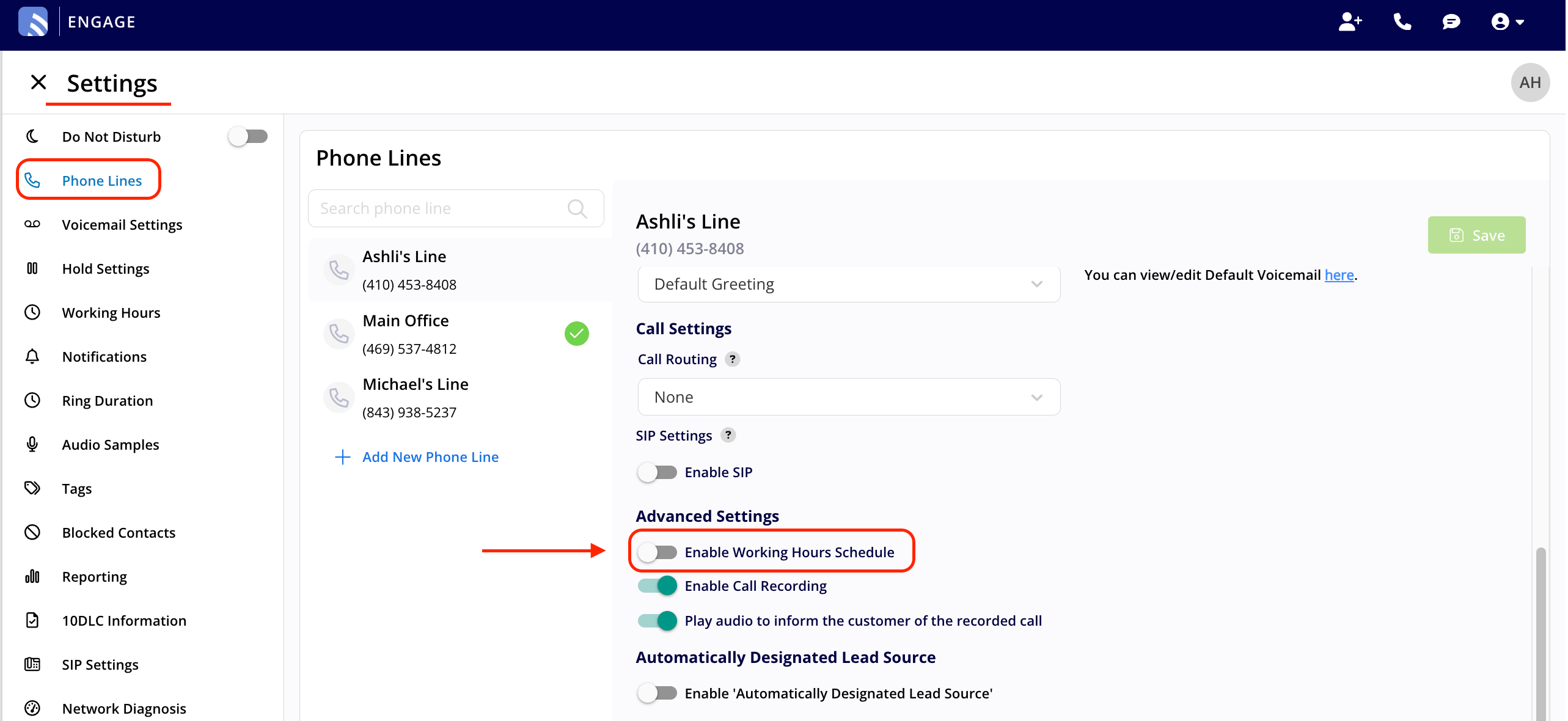
Rather than being restricted to a single set of company-wide working hours, each team or department can establish its own working hours schedule. To activate this feature, go to your *Engage Settings*, navigate to the *Phone Lines* tab, select the specific line you wish to manage, and under *Advanced Settings*, enable the *Working Hours Schedule*. Customize your hours as needed and save your changes.
***
# How to Set Up Individual Phone Line Working Hours
Rather than being restricted to a single set of company-wide working hours, each team or department can establish its own working hours schedule. To activate this feature, go to your *Engage Settings*, navigate to the *Phone Lines* tab, select the specific line you wish to manage, and under *Advanced Settings*, enable the *Working Hours Schedule*. Customize your hours as needed and save your changes.
 ***
**Have additional questions?**
*Contact us at [support@fieldpulse.com](mailto:support@fieldpulse.com) or use the chat feature in the bottom right corner of your screen.*
***
**Have additional questions?**
*Contact us at [support@fieldpulse.com](mailto:support@fieldpulse.com) or use the chat feature in the bottom right corner of your screen.*