> ## Documentation Index
> Fetch the complete documentation index at: https://help.fieldpulse.com/llms.txt
> Use this file to discover all available pages before exploring further.
# Creating Custom Tags in Engage
> Create color-coded tags for calls, conversations, and voicemails to organize and filter your Engage communication records.
Within Engage, you have the ability to create custom tags for all of your Calls, Conversations, and Voicemails. By utilizing tags, it allows you to better organize and manage all of your communication records.
***
# Creating Custom Engage Tags
Within Engage, click on the *gear icon* in the top right corner of your screen. From here the Engage *Settings* page will open. Click into the *Tags* tab from the menu on the left to begin creating your tags.
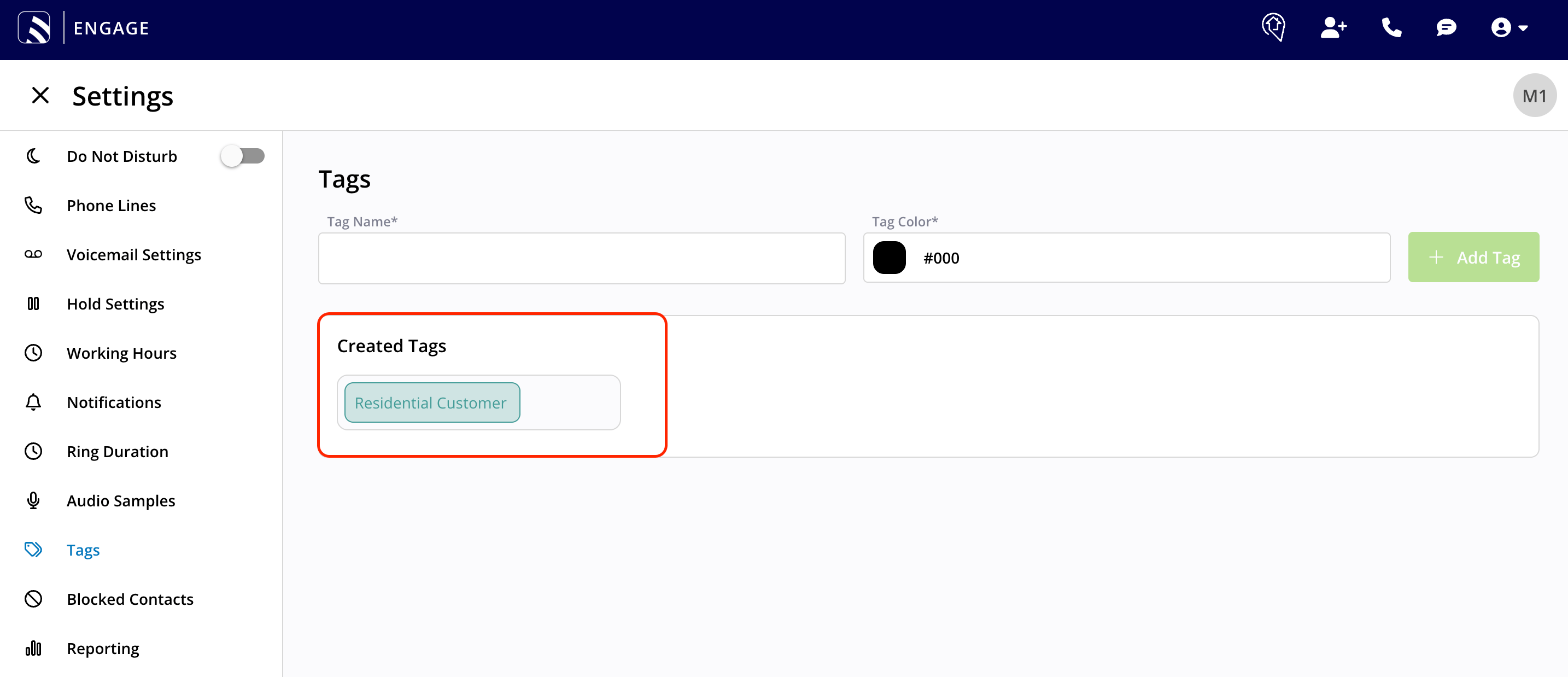
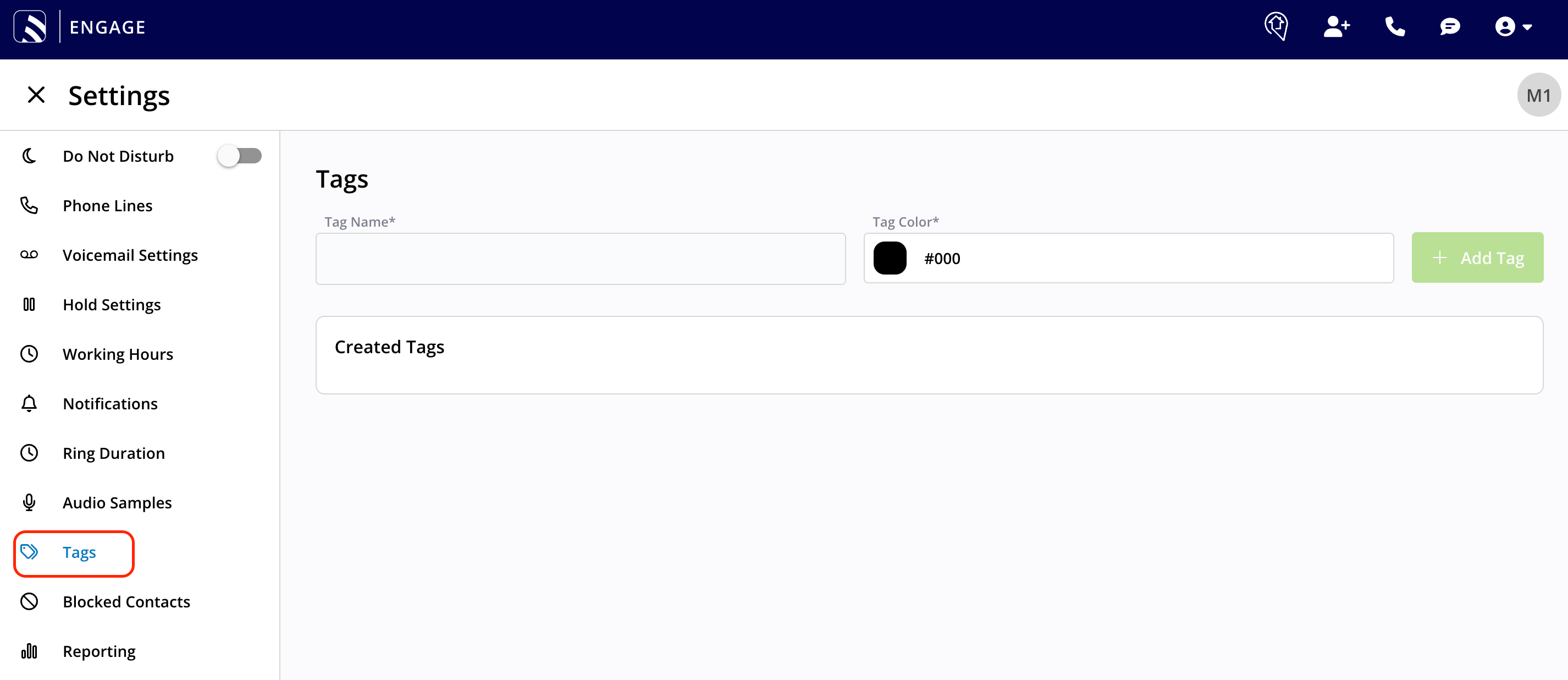 Once you've titled your tag and associated a color with it, your created tags will populate in the section below.
 ***
# Associating a Tag to a Communication Within Engage
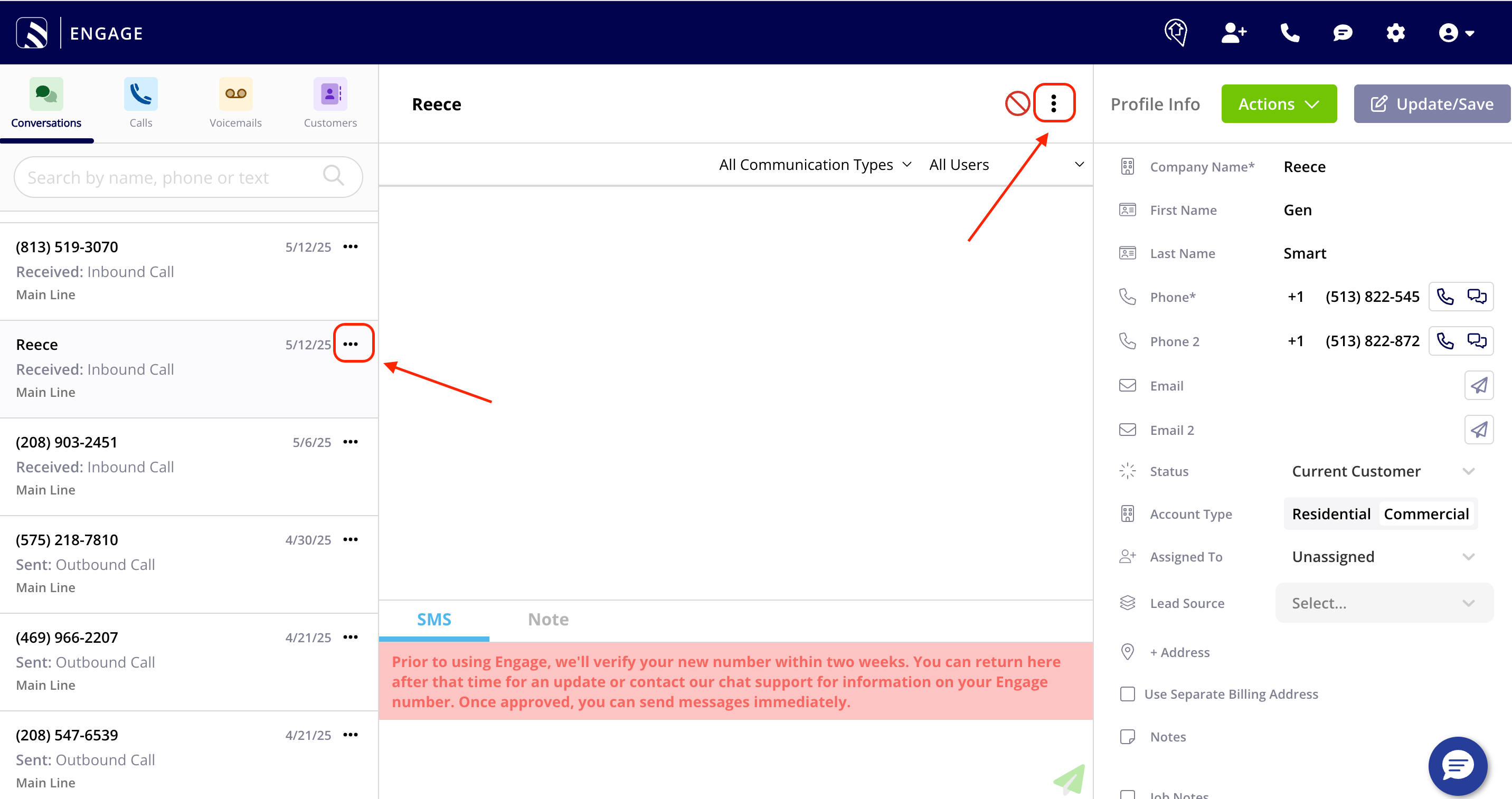
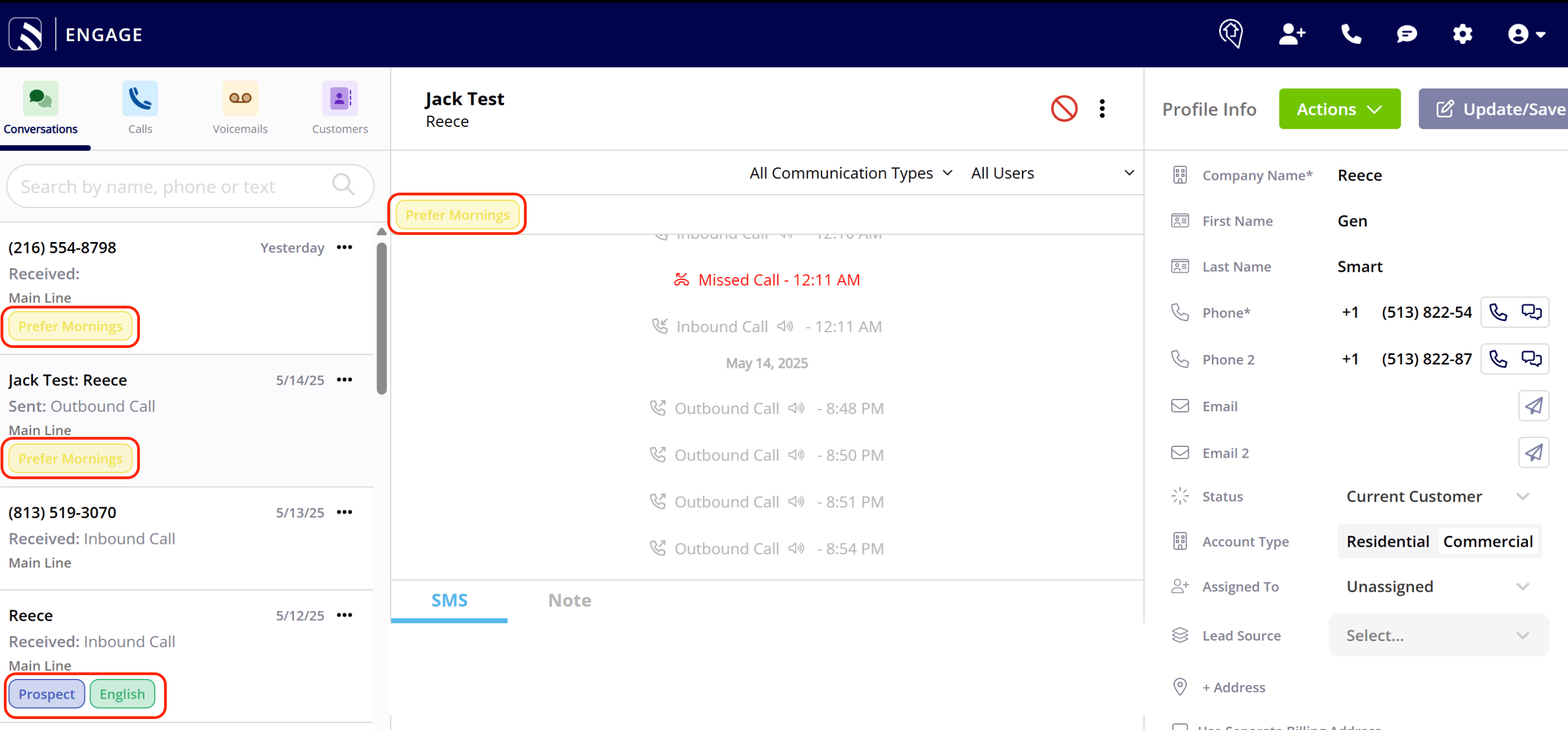
To apply a tag within Engage, utilize the three dots on the communication record. Note in the picture below, there are two different places where you can locate and utilize the three dots on a communication record. These three dots are present on the Conversation, Call, and Voicemail list pages and individual record pages.
***
# Associating a Tag to a Communication Within Engage
To apply a tag within Engage, utilize the three dots on the communication record. Note in the picture below, there are two different places where you can locate and utilize the three dots on a communication record. These three dots are present on the Conversation, Call, and Voicemail list pages and individual record pages.
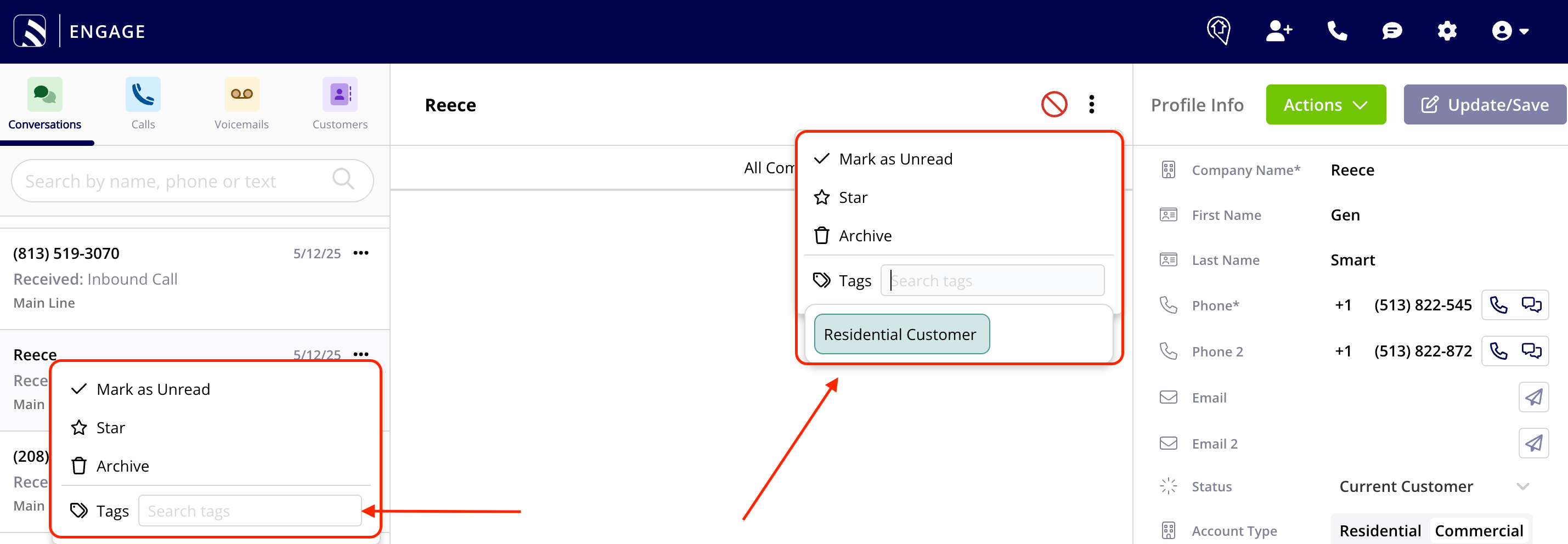
 When you click on the three dots, you will see the option to search by tags. By clicking into the search bar, a list of tags will populate there for you in case you forget the names of all the custom tags you've created overtime.
 Tags will be viewable in the list view shown on the left hand side of your screen. Tags are also viewable when you click into **each** Conversation, Call, and Voicemail. You will see them at the top.
 ***
# Filtering by Tag
You can use tags to filter your Conversations, Calls, and Voicemails list, making it easy to focus on the records that matter most.
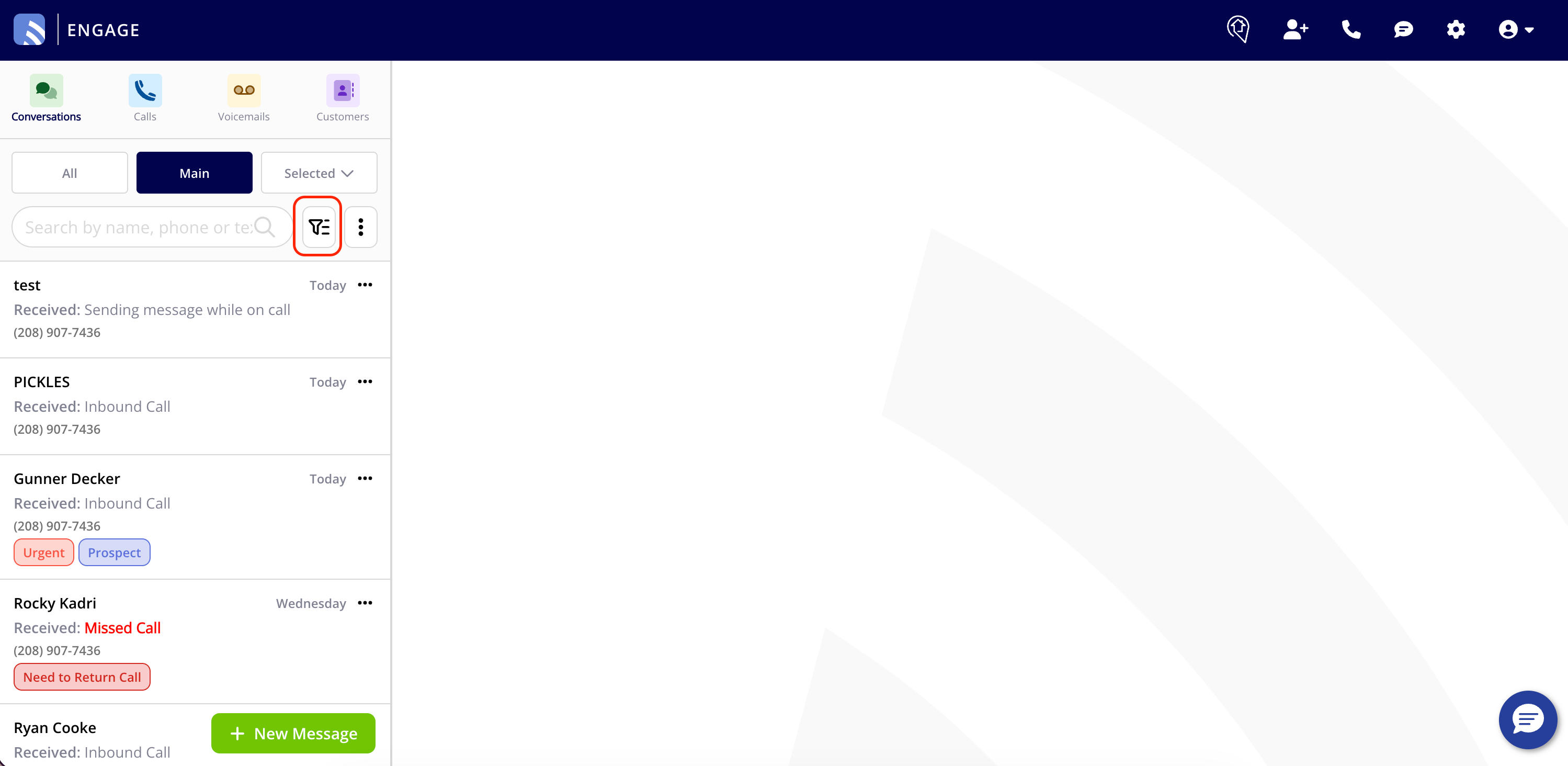
To filter by tag, click the filter button to the left of the 3-dot menu in any Engage view.
***
# Filtering by Tag
You can use tags to filter your Conversations, Calls, and Voicemails list, making it easy to focus on the records that matter most.
To filter by tag, click the filter button to the left of the 3-dot menu in any Engage view.
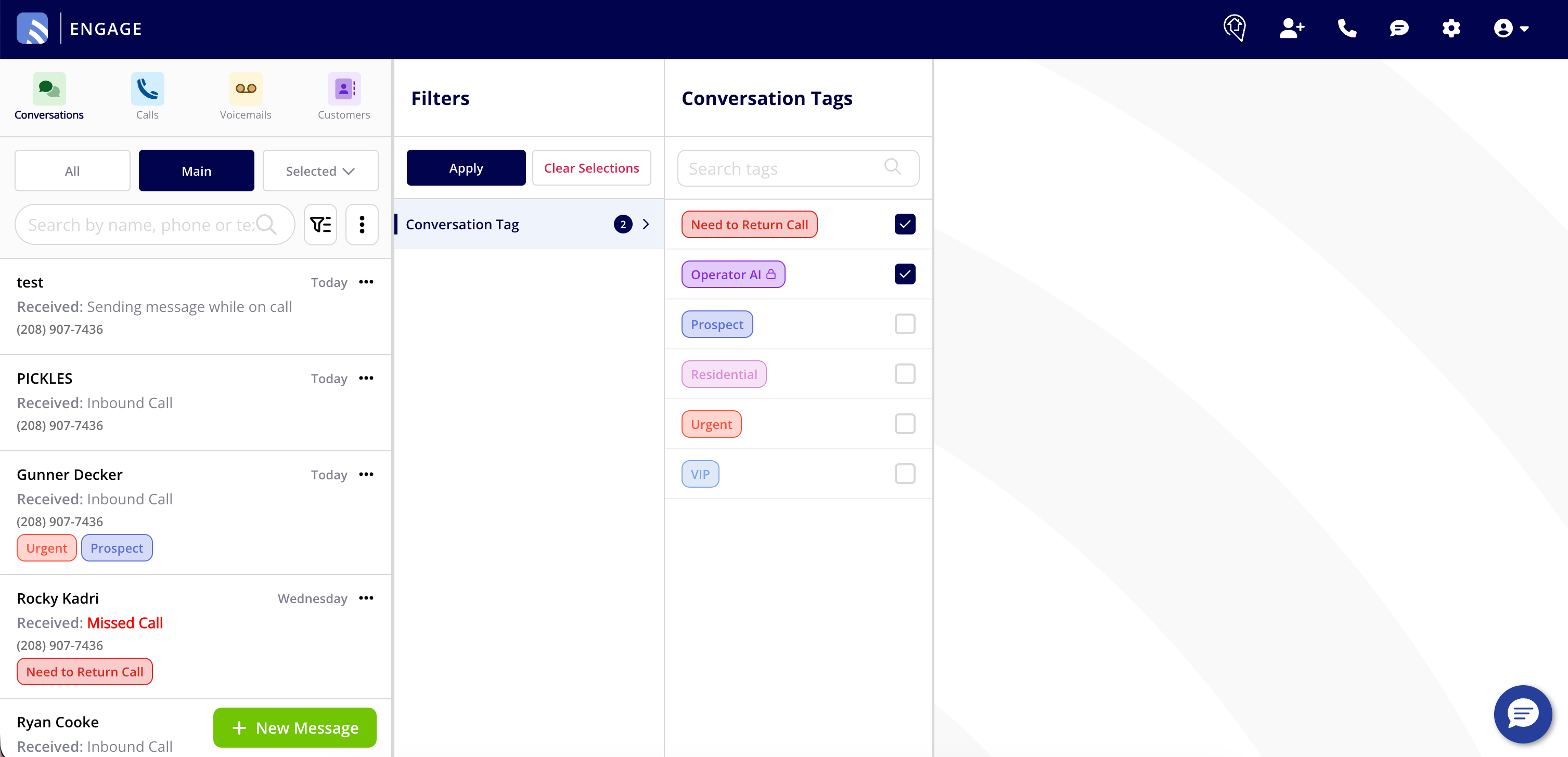
 The filter panel will slide out from the right. Select one or more tags to apply the filter, your list will update in real time.
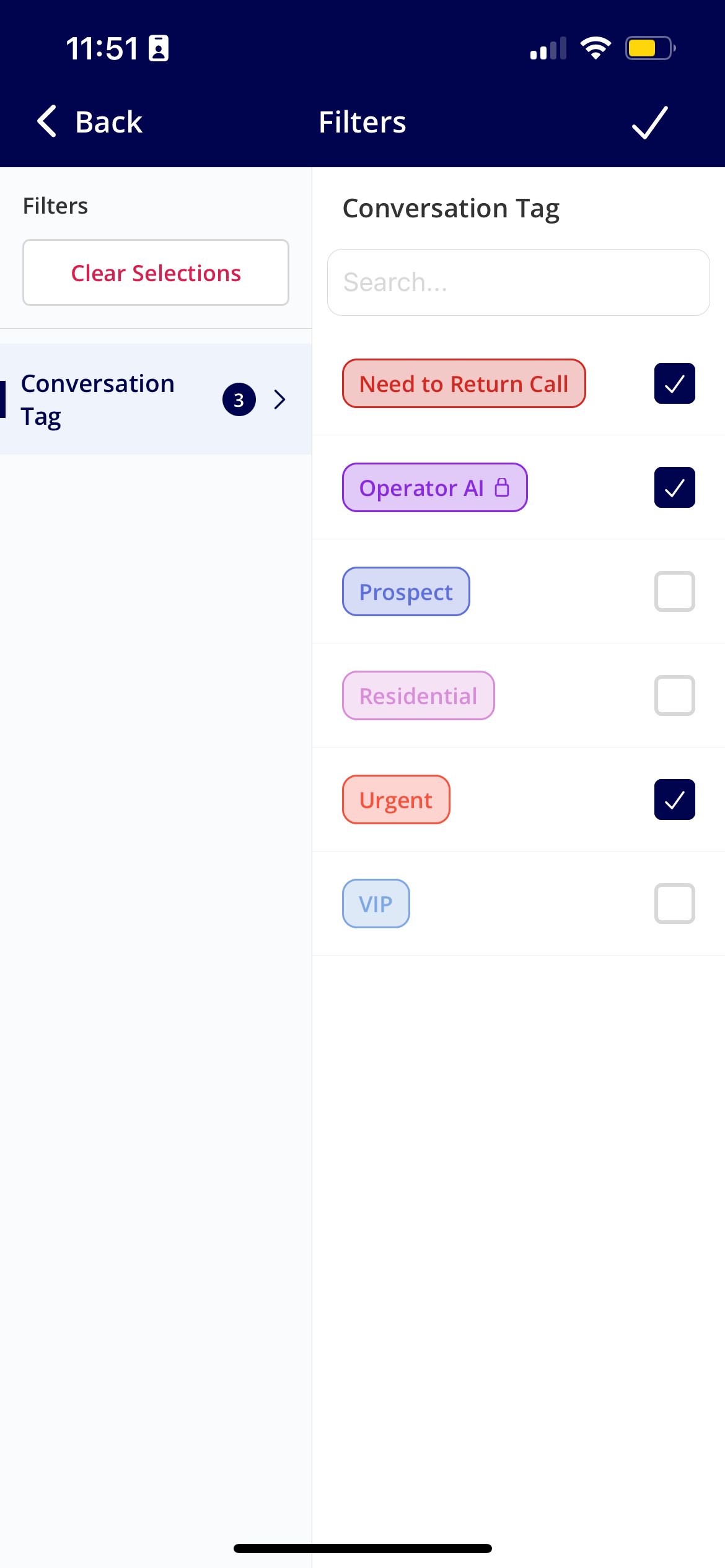
 You can also do the same on the FieldPulse mobile app:
 ***
# Tag Reporting
Two new columns will be added in reporting:
* Call Tags
* Voicemail Tags
***
# FAQs
**Why should I utilize tags?**
Think of tags like Sticky Notes. Tags are a great way to further segment and organize the conversations, calls, or voicemails left by future or current customers of yours.
**Can I assign more than one custom tag to a record?**
Yes! Multiple tags can be assigned to each Conversation, Call, and/or Voicemail.
**I love the idea of tags, but just don't know where to begin! What are some categories of tags I could create within Engage?**
Use the below examples for inspiration. Creating tags based off of some of the categories mentioned below will allow you to further organize your communications and allow for a more efficient workflow!
1. **Service Request Type**: Installation, Repair, Maintenance, Inspection, Emergency
2. **Follow-Up Type**: Scheduled Appointment, Callback Request, Quote Follow-Up, Review Requested
3. **Customer Type/Loyalty**: Loyal Customer, At-Risk Customer, New Customer
4. **Customer Size**: Residential, Small Business, Large Enterprise
5. **Customer Preferences**: Preferred Contact Method, Best Contact Times, Preferred Language
***
**Have additional questions?**
*Contact us at [support@fieldpulse.com](mailto:support@fieldpulse.com) or use the chat feature in the bottom right corner of your screen.*
***
# Tag Reporting
Two new columns will be added in reporting:
* Call Tags
* Voicemail Tags
***
# FAQs
**Why should I utilize tags?**
Think of tags like Sticky Notes. Tags are a great way to further segment and organize the conversations, calls, or voicemails left by future or current customers of yours.
**Can I assign more than one custom tag to a record?**
Yes! Multiple tags can be assigned to each Conversation, Call, and/or Voicemail.
**I love the idea of tags, but just don't know where to begin! What are some categories of tags I could create within Engage?**
Use the below examples for inspiration. Creating tags based off of some of the categories mentioned below will allow you to further organize your communications and allow for a more efficient workflow!
1. **Service Request Type**: Installation, Repair, Maintenance, Inspection, Emergency
2. **Follow-Up Type**: Scheduled Appointment, Callback Request, Quote Follow-Up, Review Requested
3. **Customer Type/Loyalty**: Loyal Customer, At-Risk Customer, New Customer
4. **Customer Size**: Residential, Small Business, Large Enterprise
5. **Customer Preferences**: Preferred Contact Method, Best Contact Times, Preferred Language
***
**Have additional questions?**
*Contact us at [support@fieldpulse.com](mailto:support@fieldpulse.com) or use the chat feature in the bottom right corner of your screen.*