> ## Documentation Index
> Fetch the complete documentation index at: https://help.fieldpulse.com/llms.txt
> Use this file to discover all available pages before exploring further.
# Importing a Pricebook
> Upload an existing pricebook from Excel, Google Sheets, or CSV straight into FieldPulse so you skip rebuilding every item by hand.
Looking to import a pricebook you are currently utilizing? Simply export your existing pricebook to Excel, Google Sheets, or CSV format, and utilize our import tool to upload it directly into FieldPulse! ***Note: Pricebook must be enabled on your account. Reach out to our team to get started today and streamline your pricing process with ease!***
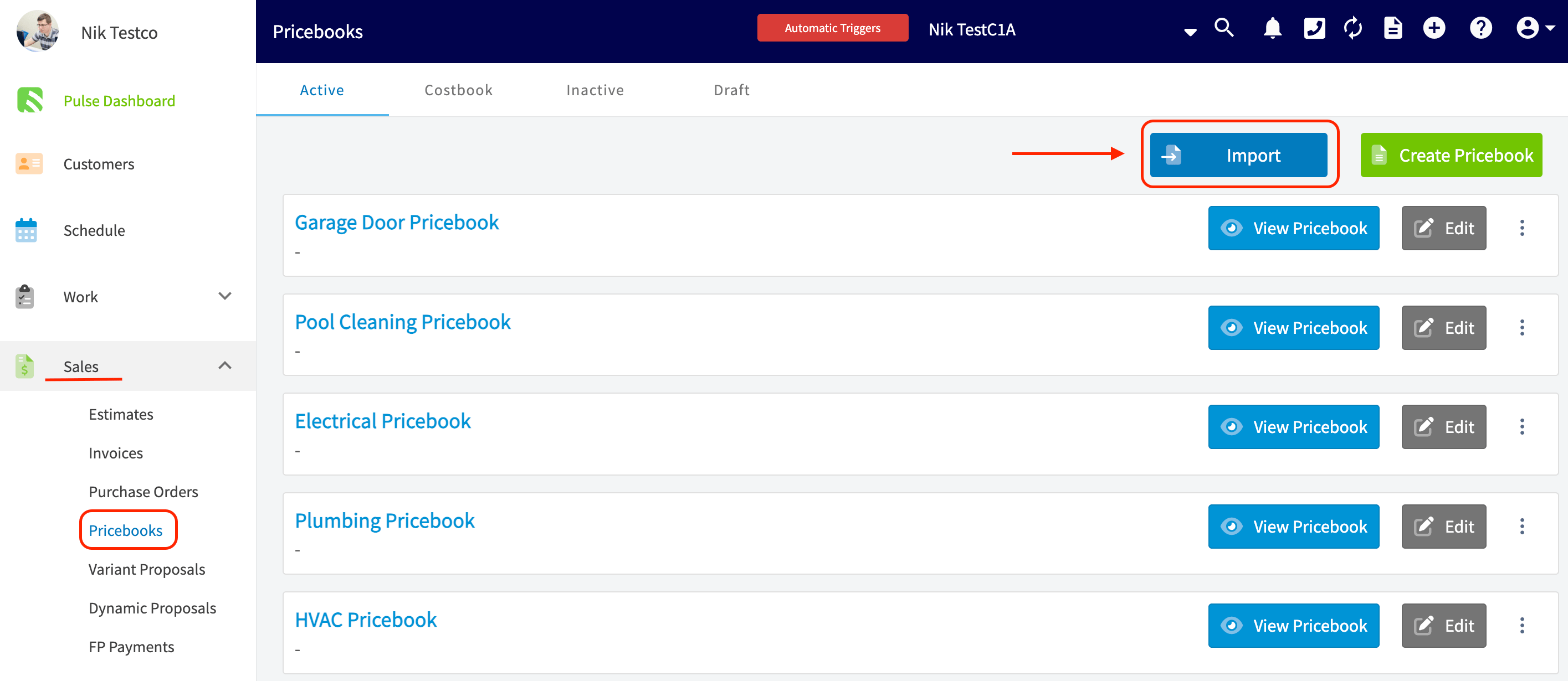
To begin, navigate to the \_Sales t\_ab from the menu on the left hand side of your screen. Under the *Sales* tab you will then need to click into the tab that says *Pricebooks*. You will then see any/all active pricebooks you have in FieldPulse. Near the top right hand corner of your screen you will see the blue *Import* button.
 After clicking the *Import* button you will then need to follow the on-screen prompts to download the *Pricebook Excel template*. ***(Note: If you do not have Excel, you can always utilize Google Sheets. Click [importing data with Google Sheets](/using-fieldpulse/data-imports-exports/self-importing-data-with-google-sheets) to learn how)***.
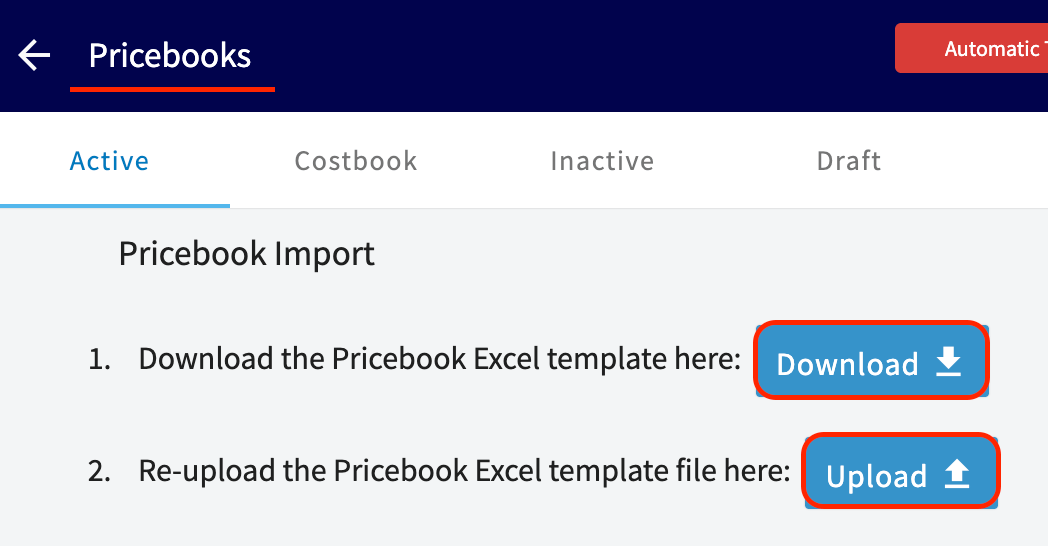 You will then need to fill in the template, being sure not to alter the structure of the template. Once completed, re-upload the template into FieldPulse using the *Upload* button pictured in step #2 above.
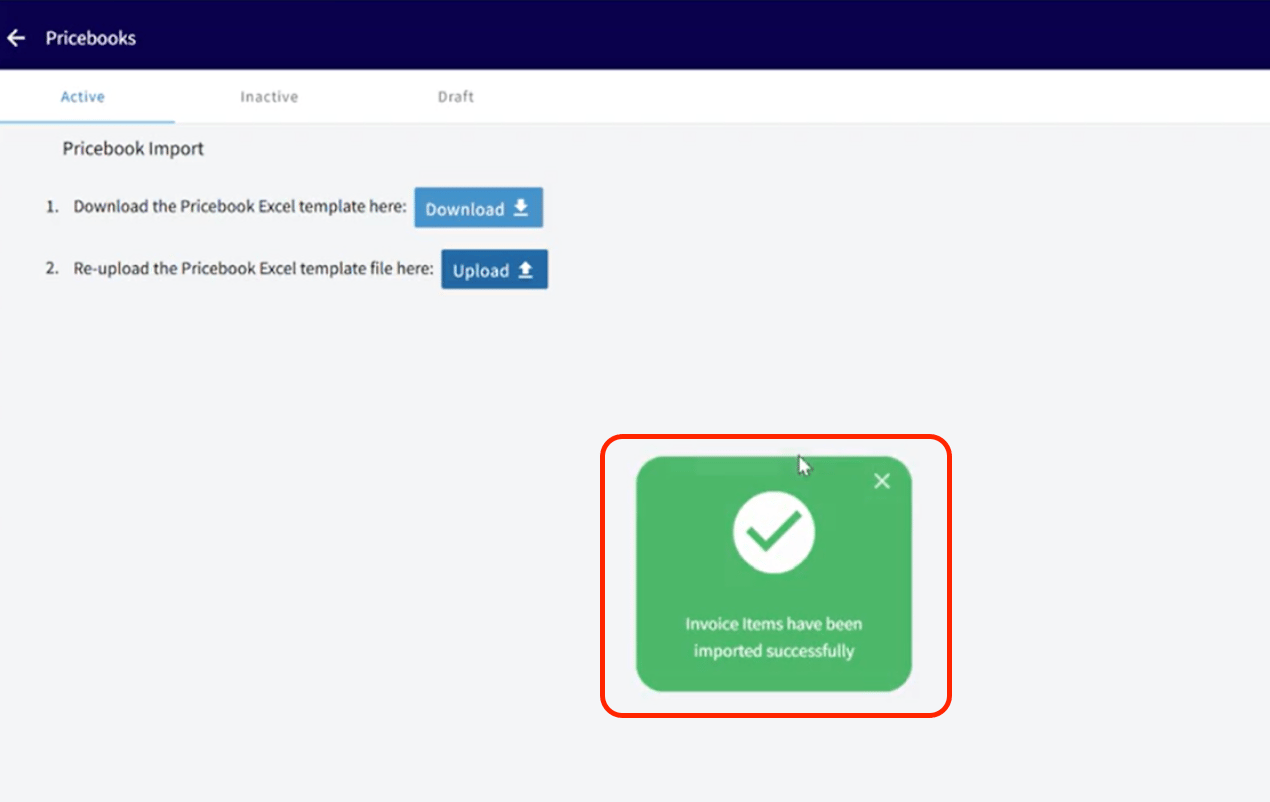
Our system will notify you when your pricebook has been successfully imported into FieldPulse.
You will then need to fill in the template, being sure not to alter the structure of the template. Once completed, re-upload the template into FieldPulse using the *Upload* button pictured in step #2 above.
Our system will notify you when your pricebook has been successfully imported into FieldPulse.
 ***
**Have additional questions?**
*Contact us at [support@fieldpulse.com](mailto:support@fieldpulse.com) or use the chat feature in the bottom right corner of your screen.*
***
**Have additional questions?**
*Contact us at [support@fieldpulse.com](mailto:support@fieldpulse.com) or use the chat feature in the bottom right corner of your screen.*