> ## Documentation Index
> Fetch the complete documentation index at: https://help.fieldpulse.com/llms.txt
> Use this file to discover all available pages before exploring further.
# Pricebook
> Build flat-rate pricebooks with good-better-best options, capture signatures and payments on-site, and turn techs into upsellers.
# Overview
Pricebook is a flat-rate sales tool that trade businesses can use to supercharge their sales process and increase revenue. Build and deploy your own custom pricebooks with ease, create tiered pricing with our ‘Good, Better, Best’ variant proposal options, and even take signatures and payments. Our pricebook helps turn your technicians into full-fledged salesmen, making upsells and boosting your customer satisfaction easier than ever.
## Benefits Include
* Showcase price integrity to customers.
* Create custom tailored pricebooks catered to your business.
* Instantly view costs and profitability on jobs.
* Automate your estimate and invoicing process in seconds.
***
# Prerequisites
Before you can use Pricebook, make sure the following is in place:
* Pricebook is enabled in your account
***
# On Web: Admin Experience
## Finding Pricebook
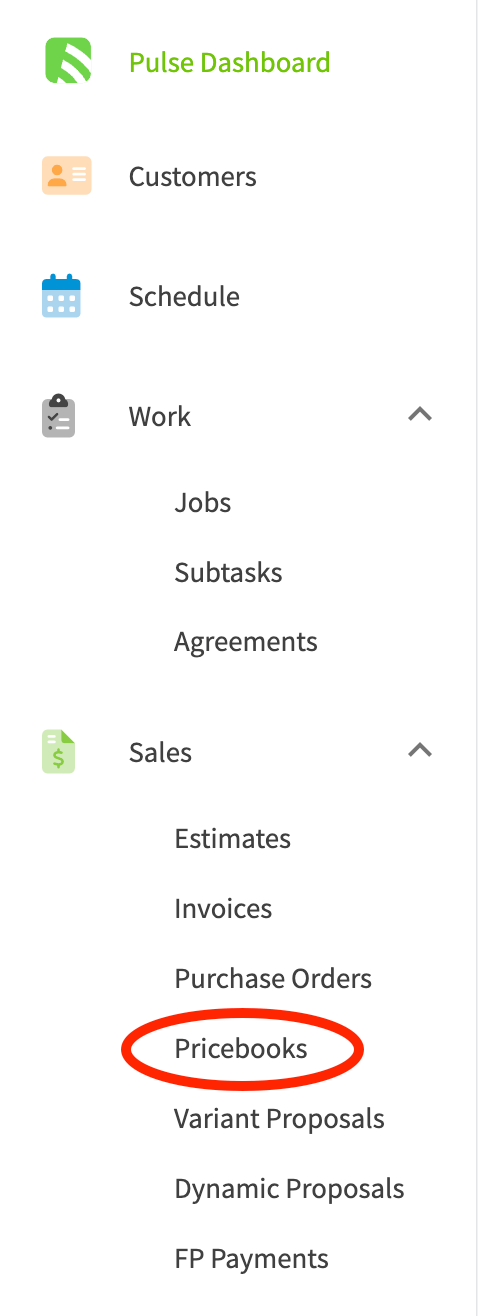
Once Pricebook has been enabled, you’re ready to begin exploring! Pricebook will appear under the Sales section, and can be used through the FieldPulse web app or through the FieldPulse mobile app.
 ## Ways to Create a Pricebook in FieldPulse
1. To create a brand new pricebook, select the + Create Pricebook button to begin entering your information.
## Ways to Create a Pricebook in FieldPulse
1. To create a brand new pricebook, select the + Create Pricebook button to begin entering your information.
 2. You can import an external pricebook into your FieldPulse account by using our pricebook import.
1. [how to import a pricebook](/features-add-ons/sales-suite/importing-a-pricebook) to learn more.
3. If you’d like to build from a FieldPulse pricebook template, contact us at [support@fieldpulse.com](mailto:support@fieldpulse.com) or use the Chat feature in the bottom right hand corner of your screen to have this imported into your account.
## Basic Info & Set-Up
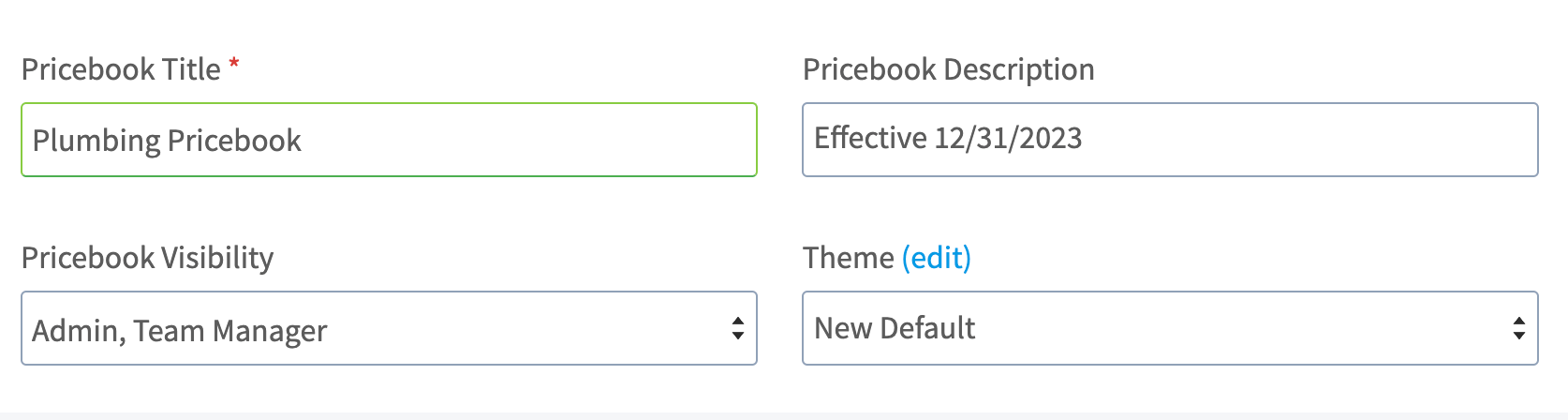
Once you create, import, or select a pricebook, you will be able to change the pricebook’s name and add a description. In this section, you’ll also be able to adjust which roles within your team have access to view the pricebook. Lastly, you can edit your pricebook theme to match your company’s brand.
2. You can import an external pricebook into your FieldPulse account by using our pricebook import.
1. [how to import a pricebook](/features-add-ons/sales-suite/importing-a-pricebook) to learn more.
3. If you’d like to build from a FieldPulse pricebook template, contact us at [support@fieldpulse.com](mailto:support@fieldpulse.com) or use the Chat feature in the bottom right hand corner of your screen to have this imported into your account.
## Basic Info & Set-Up
Once you create, import, or select a pricebook, you will be able to change the pricebook’s name and add a description. In this section, you’ll also be able to adjust which roles within your team have access to view the pricebook. Lastly, you can edit your pricebook theme to match your company’s brand.
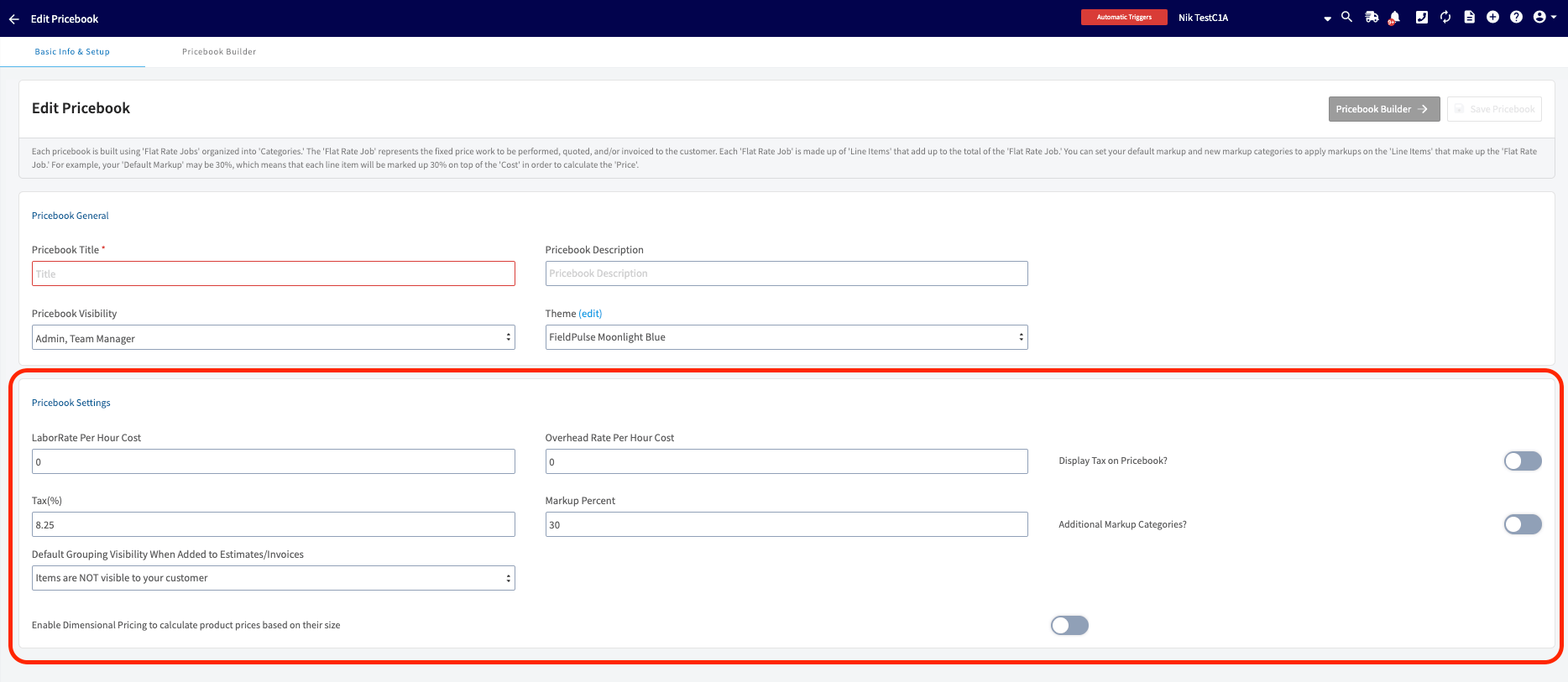
 **Labor Rate per Hour Cost:** This is where you will enter the cost to you of labor on an hourly basis. Remember, this is not the price you charge customers, but what it costs you.
**Overhead Rate per Hour Cost:** This is where you will enter your overall overhead costs on an hourly basis. This number may take some calculations for you to identify, but entering your hourly overhead costs will help ensure that you make a profit on every job listed in your pricebook.
**Markup Percent:** Markup percent is where you will enter your default markup rate for all labor, supplies, and equipment. You will be able to customize your markup percentages in the next section, *Markup Categories*, but your default markup will be set here.
**Markup Categories:** Markup categories allow you to customize your markups. For example, you may set a markup rate for labor, a markup rate for supplies costing \$1-\$50, or a markup rate for all stainless steel items. Simply select *Add Markup Category* and enter a title and markup percentage. You can create as many categories as you need – just don’t forget to press *+ Save* after each addition.
**Default Grouping Visibility When Added to Estimates/Invoices:** This feature allows you to define the default grouping visibility at the Pricebook level, with the option to override it for individual flat rate jobs when adding them to estimates or invoices. A pop-up message in the app will prompt you to either update the default for future use or apply it to all existing jobs within your Pricebook.
**Labor Rate per Hour Cost:** This is where you will enter the cost to you of labor on an hourly basis. Remember, this is not the price you charge customers, but what it costs you.
**Overhead Rate per Hour Cost:** This is where you will enter your overall overhead costs on an hourly basis. This number may take some calculations for you to identify, but entering your hourly overhead costs will help ensure that you make a profit on every job listed in your pricebook.
**Markup Percent:** Markup percent is where you will enter your default markup rate for all labor, supplies, and equipment. You will be able to customize your markup percentages in the next section, *Markup Categories*, but your default markup will be set here.
**Markup Categories:** Markup categories allow you to customize your markups. For example, you may set a markup rate for labor, a markup rate for supplies costing \$1-\$50, or a markup rate for all stainless steel items. Simply select *Add Markup Category* and enter a title and markup percentage. You can create as many categories as you need – just don’t forget to press *+ Save* after each addition.
**Default Grouping Visibility When Added to Estimates/Invoices:** This feature allows you to define the default grouping visibility at the Pricebook level, with the option to override it for individual flat rate jobs when adding them to estimates or invoices. A pop-up message in the app will prompt you to either update the default for future use or apply it to all existing jobs within your Pricebook.
 ## Pricebook Builder
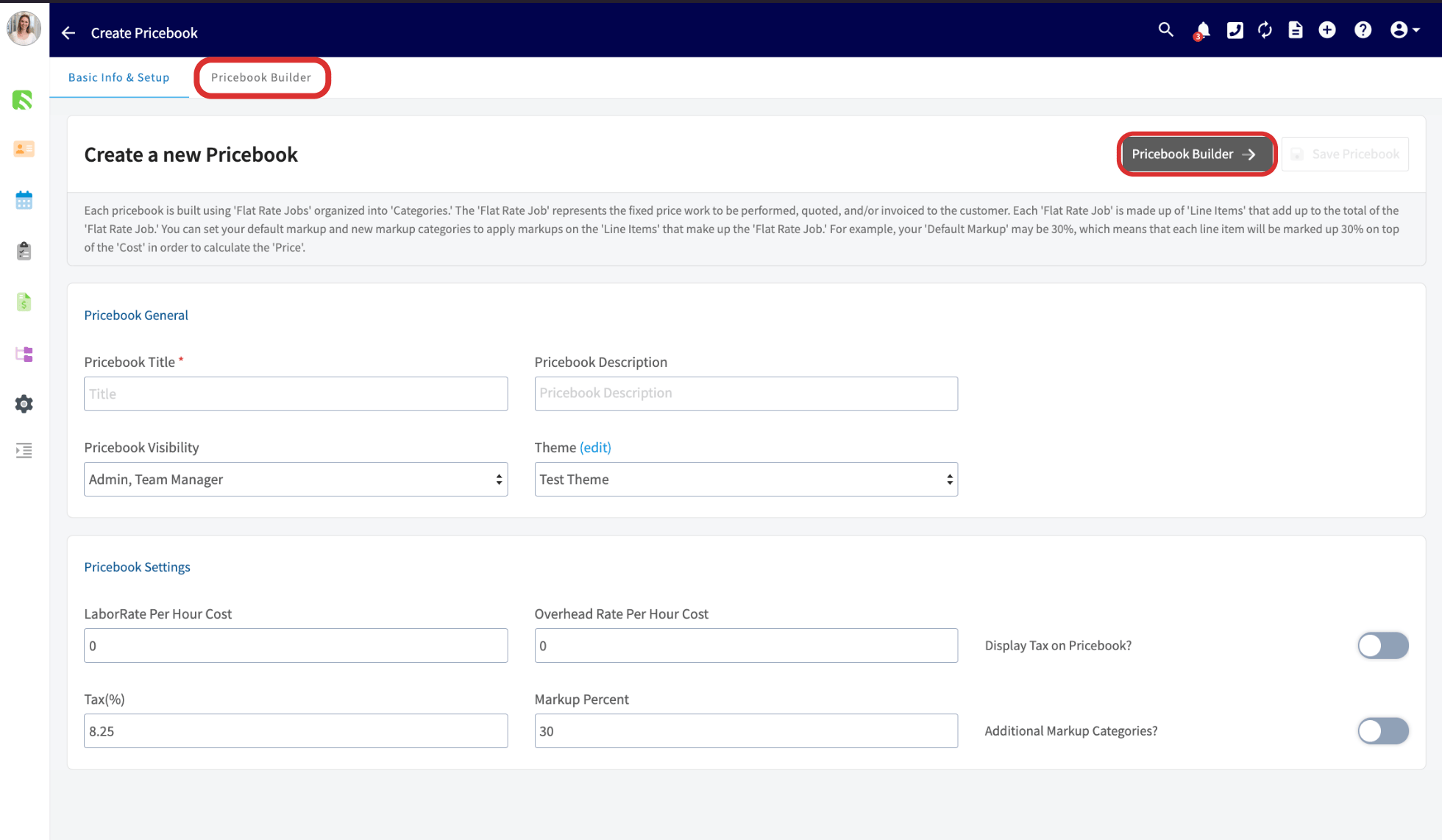
When you're ready to begin creating categories, flat rate jobs, add-ons, and more, select *Pricebook Builder*.
## Pricebook Builder
When you're ready to begin creating categories, flat rate jobs, add-ons, and more, select *Pricebook Builder*.
 ## Categories
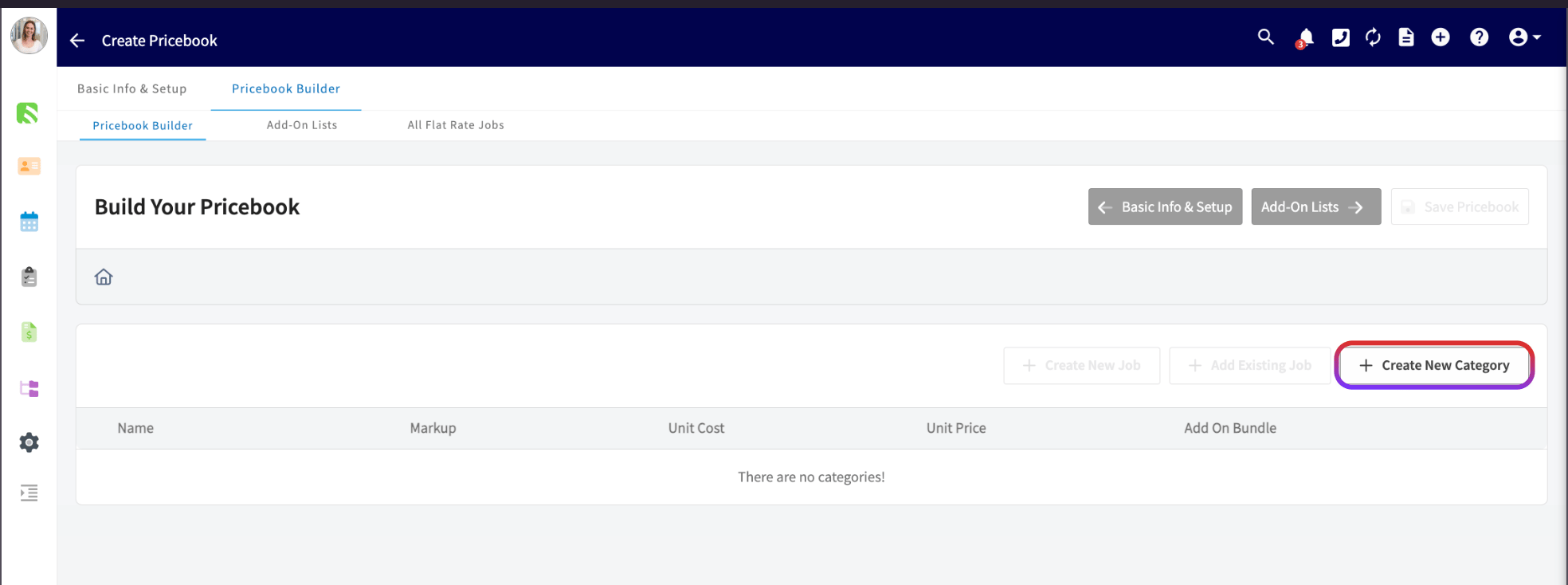
This tab allows you to create categories to organize your flat rate jobs. Begin by selecting *Create New Category*.
## Categories
This tab allows you to create categories to organize your flat rate jobs. Begin by selecting *Create New Category*.
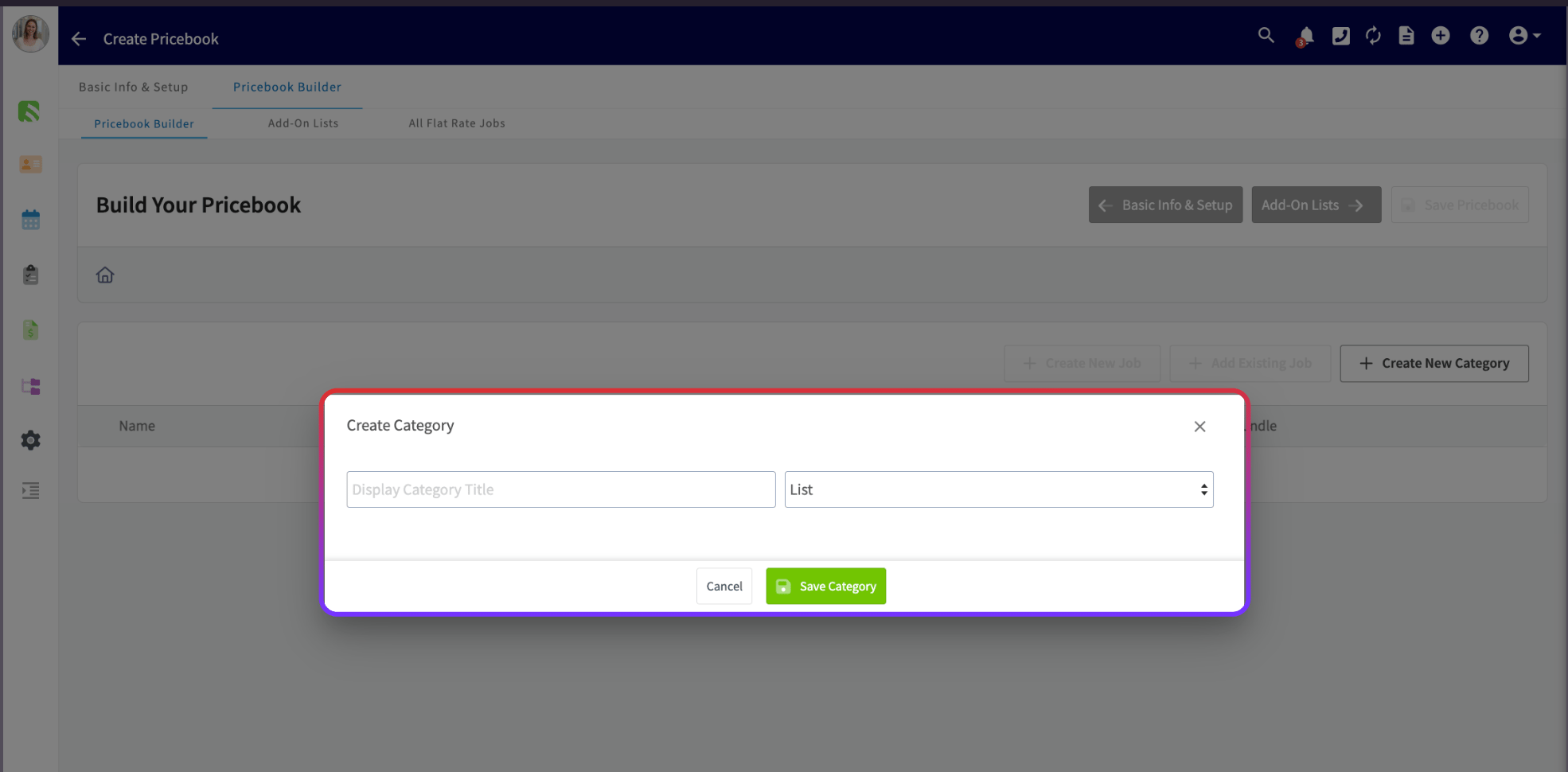
 Enter your display category title then select whether you’d like the jobs in this category to appear as a list, or in a Good/Better/Best format. If you aren’t sure which display method you’d like to use, it can always be changed later. To add this display category, click *Save Category*.
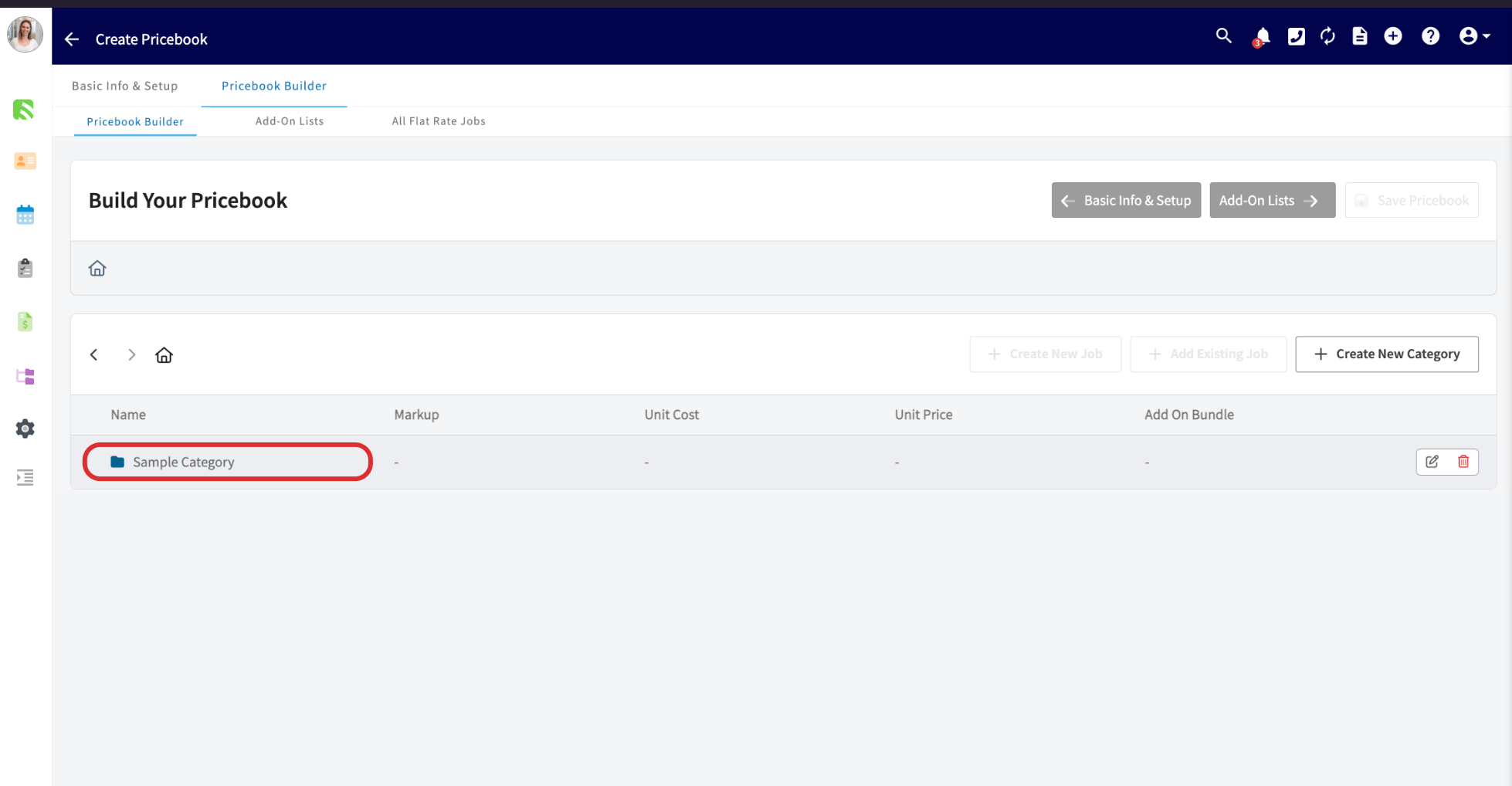
 Some examples of display categories include:
* Diagnostic/Evaluation
* Gas Furnace
* Heat Pump Systems
Next, you can add additional sub-categories under each category to further organize your jobs. Click on the category under which you'd like to create a sub-category, then press *Create New Category*.
Some examples of display categories include:
* Diagnostic/Evaluation
* Gas Furnace
* Heat Pump Systems
Next, you can add additional sub-categories under each category to further organize your jobs. Click on the category under which you'd like to create a sub-category, then press *Create New Category*.
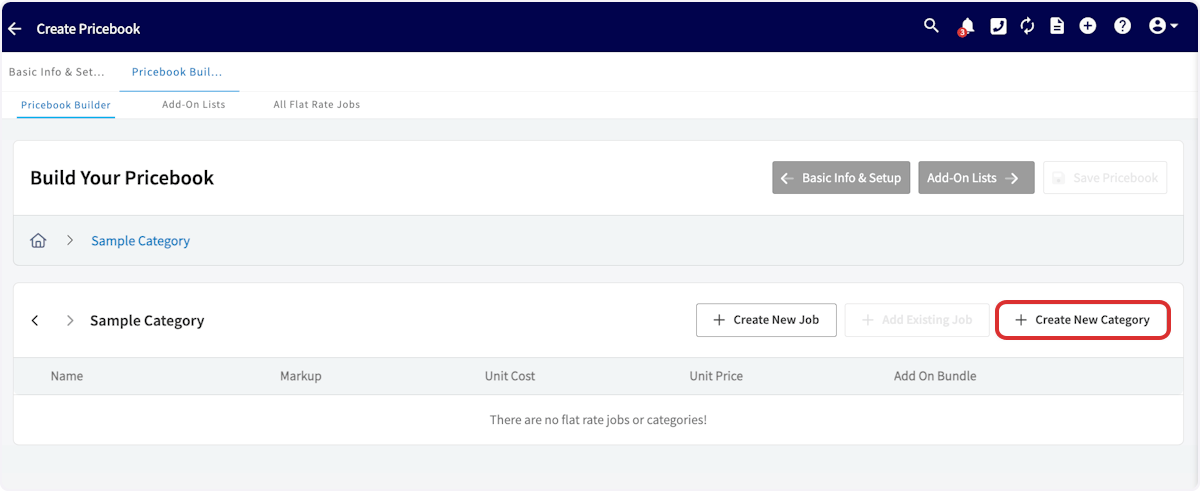 You can navigate back to the list of display categories at any time by selecting the home icon.
## Add-On Lists
Next, select *Add-On Lists*, then click *Create Options List*.
You can navigate back to the list of display categories at any time by selecting the home icon.
## Add-On Lists
Next, select *Add-On Lists*, then click *Create Options List*.
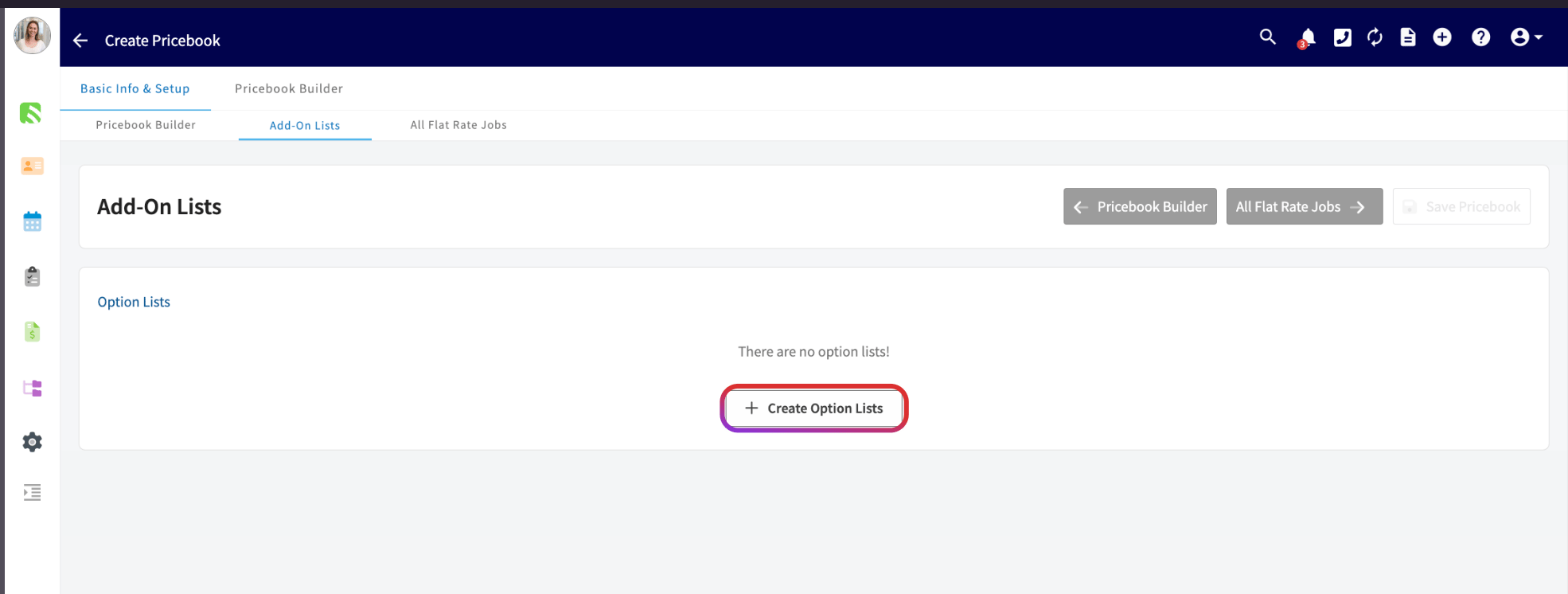 Add-On Lists allow you to create add-on options which can later be linked to flat rate jobs. Begin by creating new options lists, then indicate whether you would like to have this options list be single-item select or multiple-item select.
* Single-item select: Allows you or your customer to only choose one item from each options list
* Multiple-select: Allows you or your customer to choose as many items as desired.
*(**Note:** If you aren’t sure which item selection method you’d like to use, it can always be changed later.)*
Add-On Lists allow you to create add-on options which can later be linked to flat rate jobs. Begin by creating new options lists, then indicate whether you would like to have this options list be single-item select or multiple-item select.
* Single-item select: Allows you or your customer to only choose one item from each options list
* Multiple-select: Allows you or your customer to choose as many items as desired.
*(**Note:** If you aren’t sure which item selection method you’d like to use, it can always be changed later.)*
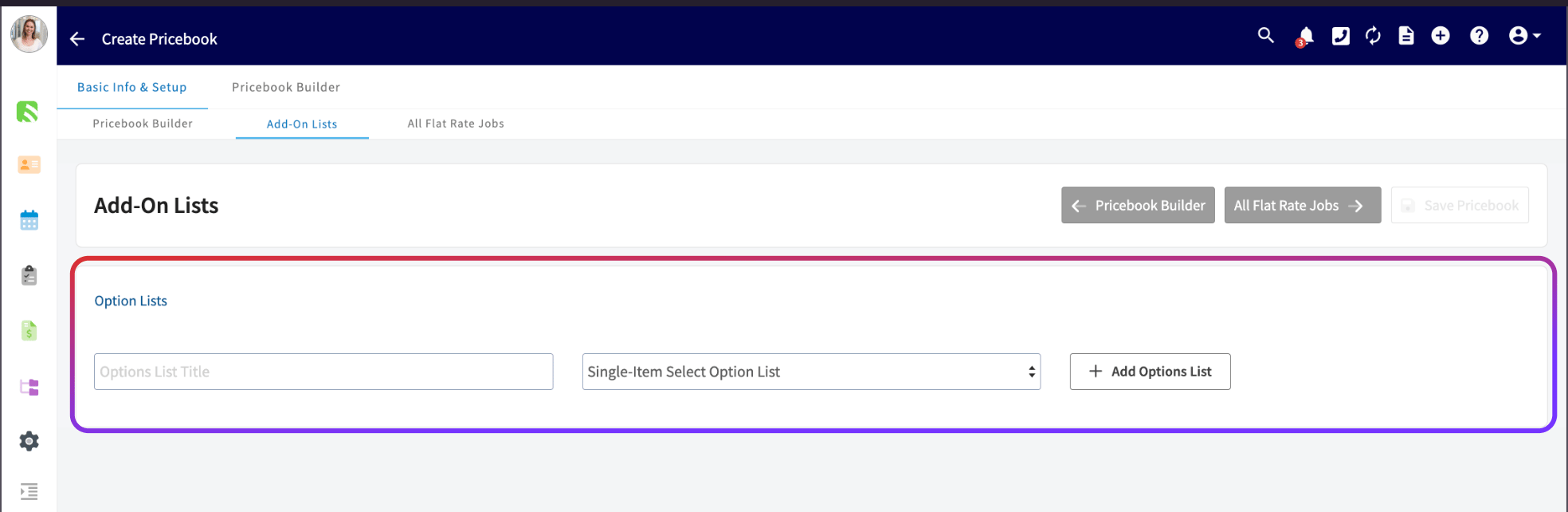 Some examples of option list titles include:
* Condenser Coil Add-Ons
* Washing Machine Extended Warranties
* Thermostat Upgrades
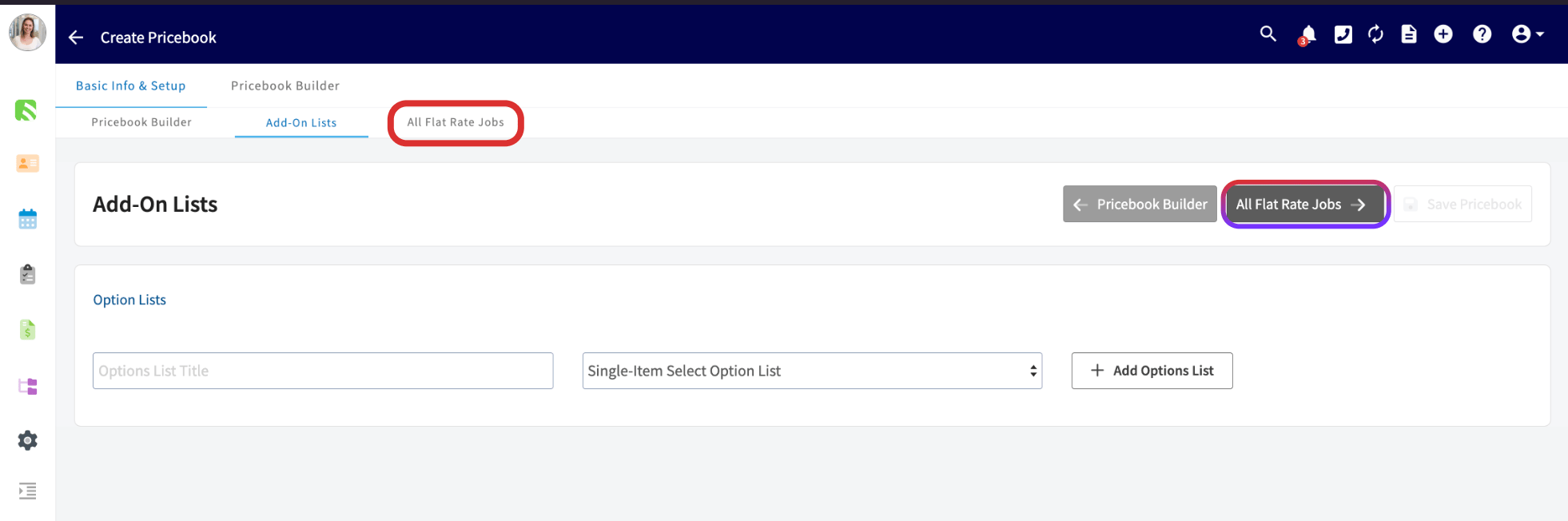
After creating your options list title, search to enter each flat rate job you’d like to be housed under this options list. Flat rate jobs can be listed under multiple options lists.
Some examples of option list titles include:
* Condenser Coil Add-Ons
* Washing Machine Extended Warranties
* Thermostat Upgrades
After creating your options list title, search to enter each flat rate job you’d like to be housed under this options list. Flat rate jobs can be listed under multiple options lists.
 ## All Flat-Rate Jobs
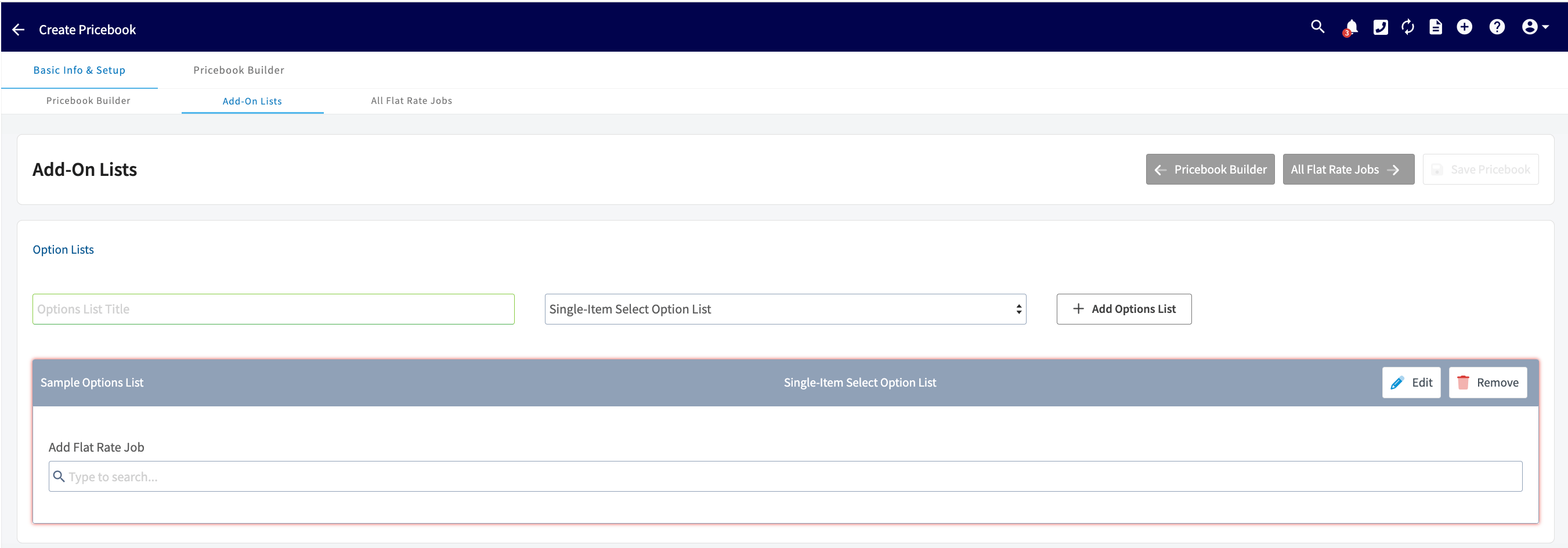
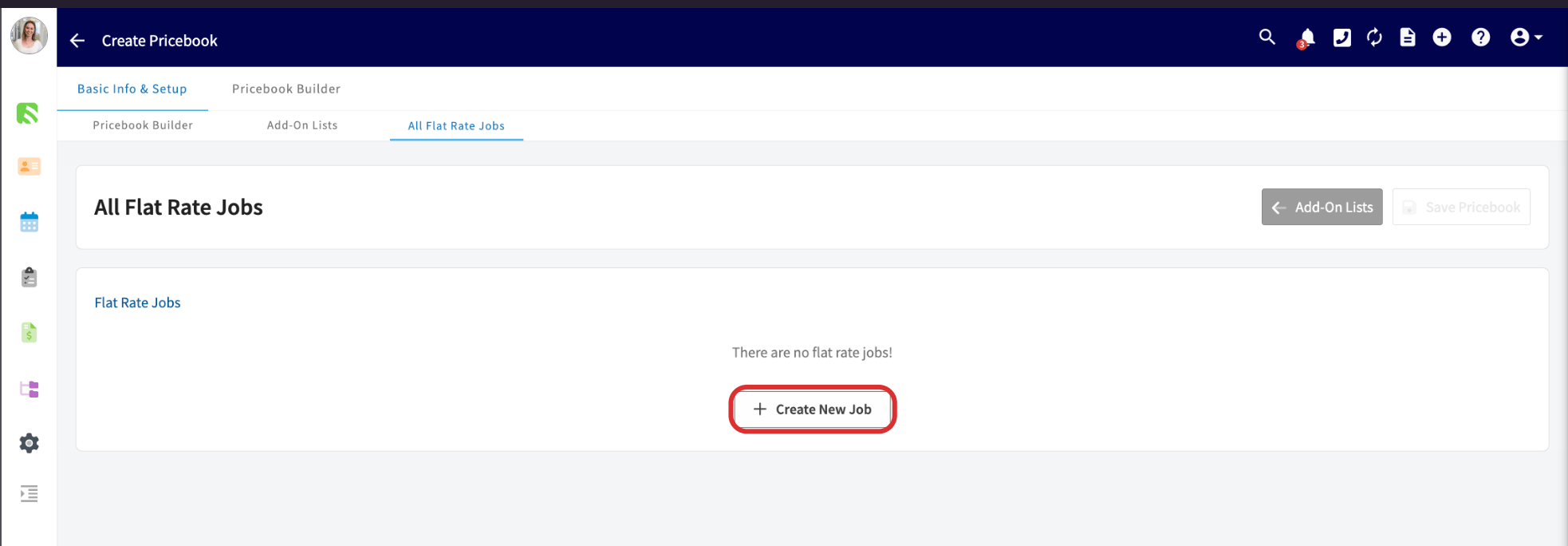
Next, select *All Flat-Rate Jobs*, then click *Create New Job*.
## All Flat-Rate Jobs
Next, select *All Flat-Rate Jobs*, then click *Create New Job*.
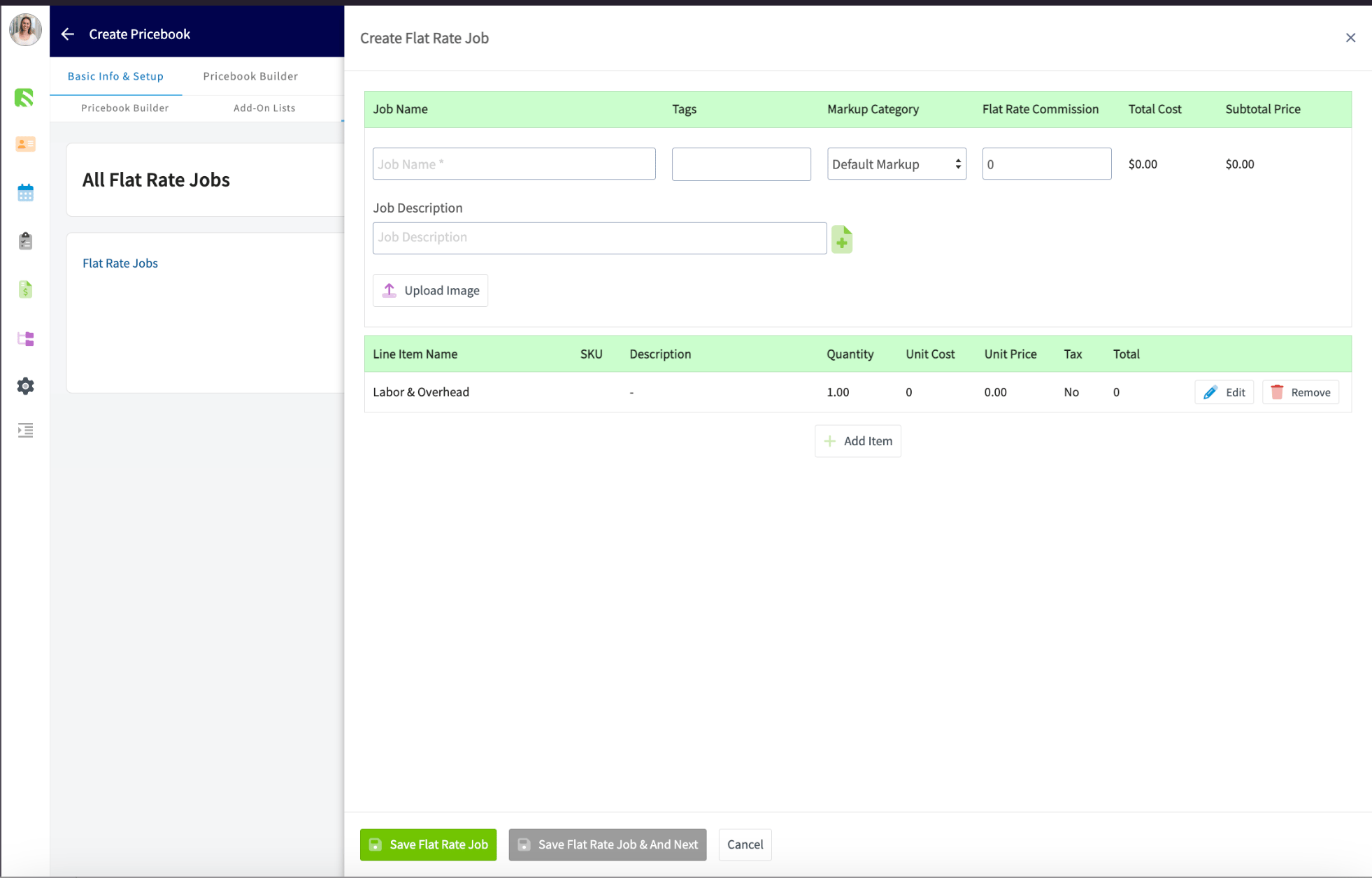
 Now you will need to enter a job name, and you can also add a description, an image, and tags. You should also select your markup category for this job from the dropdown menu. You can use the default markup you set above, assign unique markups by item, or use the unique markup categories you created.
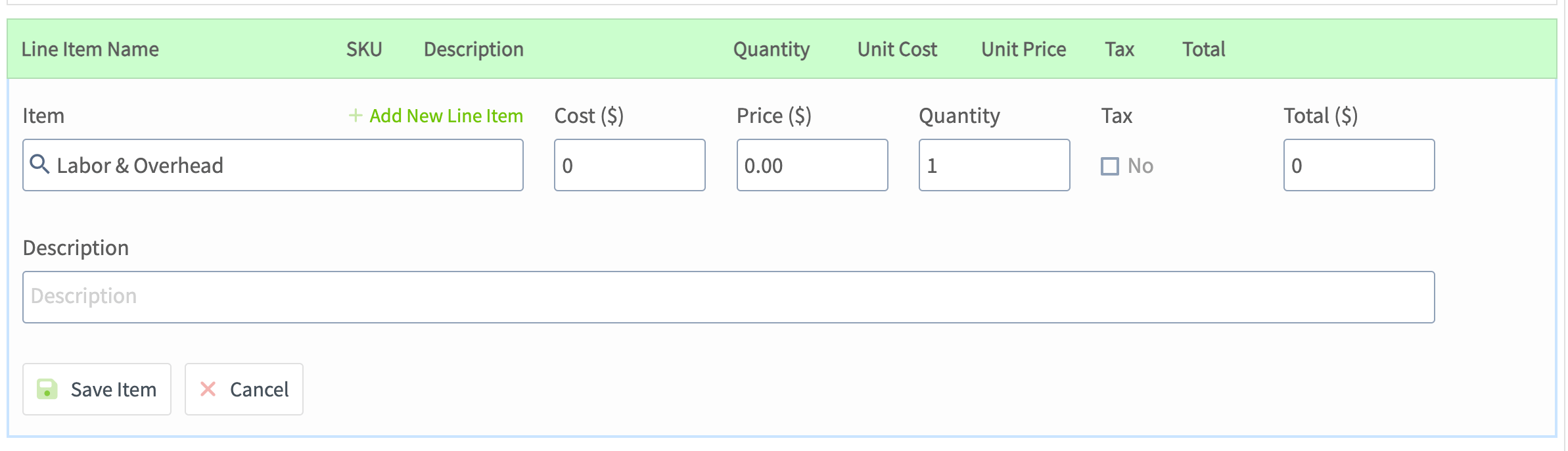
 Once these details have been added, go ahead and adjust the labor and overhead by pressing *Edit*. Here you can enter the quantity of hours required for this job and include a description. Press *Save Item* to complete your changes.
 Next, press *+ Add Item* for every item you will need for this job. Your pricebook will pull from your item list or you can create a new line item. Your cost, price, and description will automatically apply once you select an item, but you can always make changes to these fields, as well as adjust the quantity of each line item.
To add additional flat rate jobs, simply begin the process again by clicking *Create New Job*. Be sure to press *Save Pricebook* when you're finished making changes.
To change the order of your line items, click and hold the six-dot icon to the left of any line item and drag it to the position you want. The updated order will apply to any future estimates or invoices generated from this flat rate job.
***
# On Mobile: Field Experience
Use Pricebook in the field to easily generate estimates, invoices, and variant proposals. Present your customer with clear pricing and offer add-ons all at once!
## Accessing Your Pricebooks
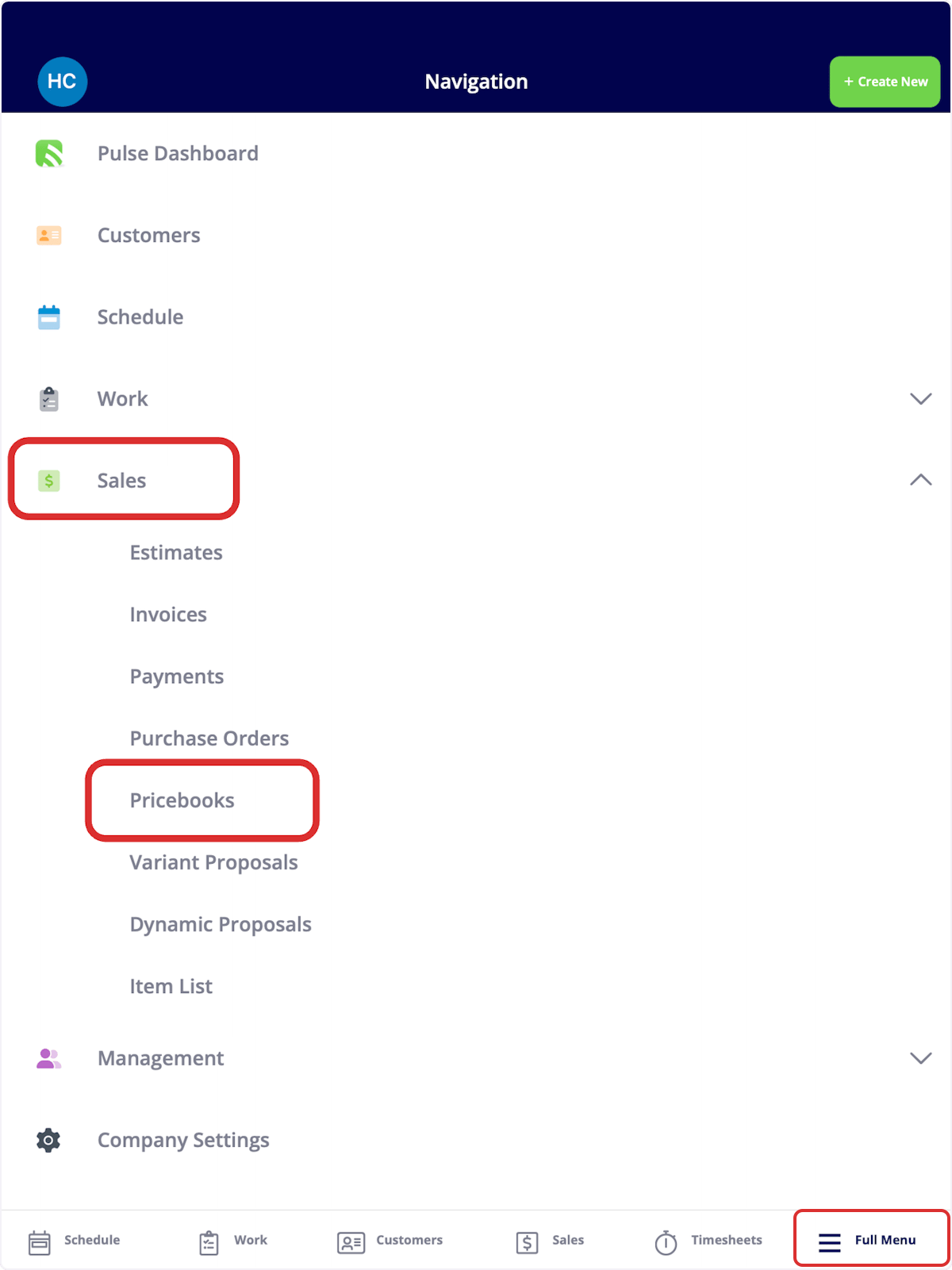
To begin, navigate to the *Sales* tab on the bottom of your screen and select *Pricebooks*.
Next, press *+ Add Item* for every item you will need for this job. Your pricebook will pull from your item list or you can create a new line item. Your cost, price, and description will automatically apply once you select an item, but you can always make changes to these fields, as well as adjust the quantity of each line item.
To add additional flat rate jobs, simply begin the process again by clicking *Create New Job*. Be sure to press *Save Pricebook* when you're finished making changes.
To change the order of your line items, click and hold the six-dot icon to the left of any line item and drag it to the position you want. The updated order will apply to any future estimates or invoices generated from this flat rate job.
***
# On Mobile: Field Experience
Use Pricebook in the field to easily generate estimates, invoices, and variant proposals. Present your customer with clear pricing and offer add-ons all at once!
## Accessing Your Pricebooks
To begin, navigate to the *Sales* tab on the bottom of your screen and select *Pricebooks*.
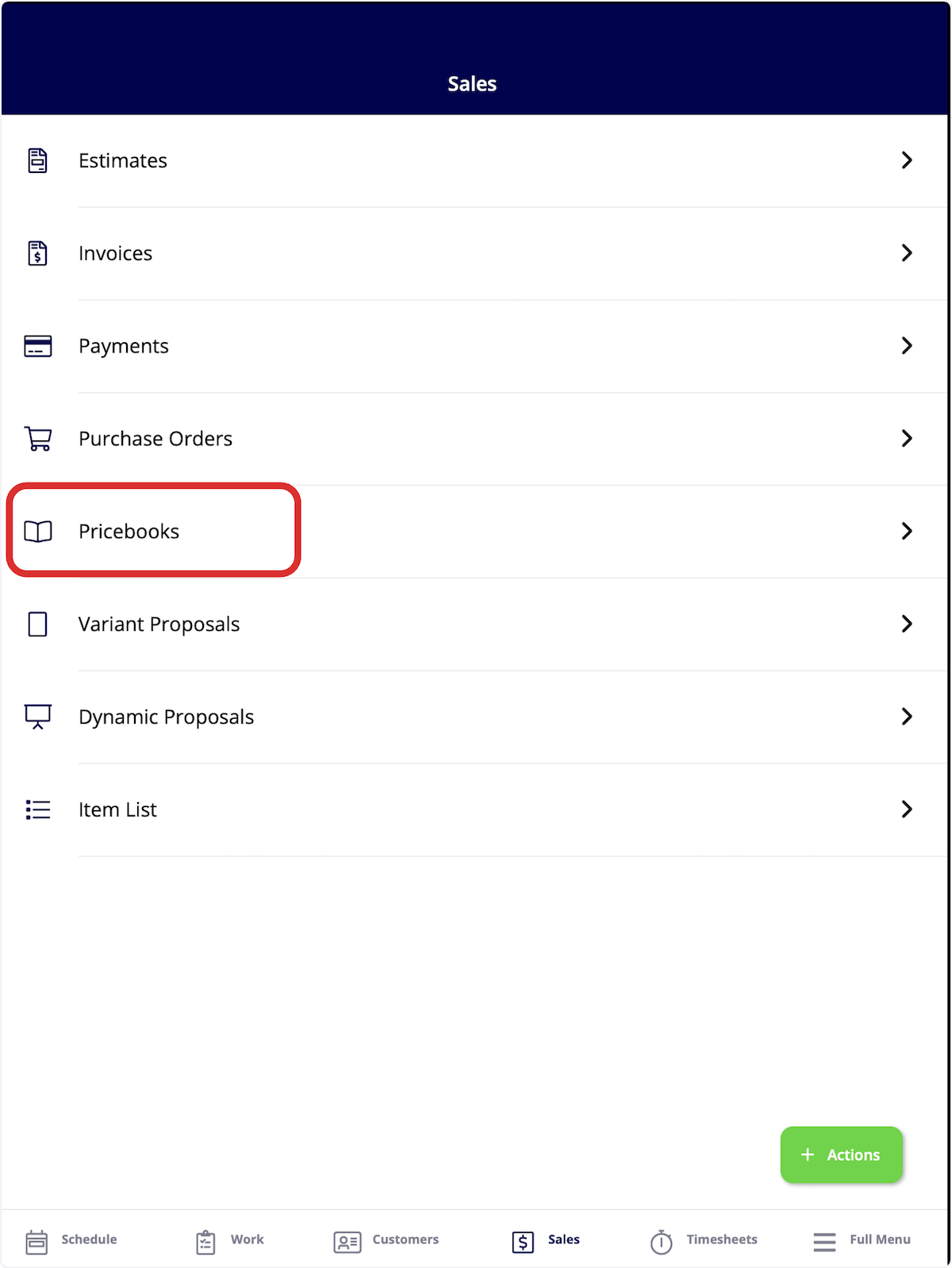 Alternatively, you can select *Full Menu > Sales > Pricebooks*.
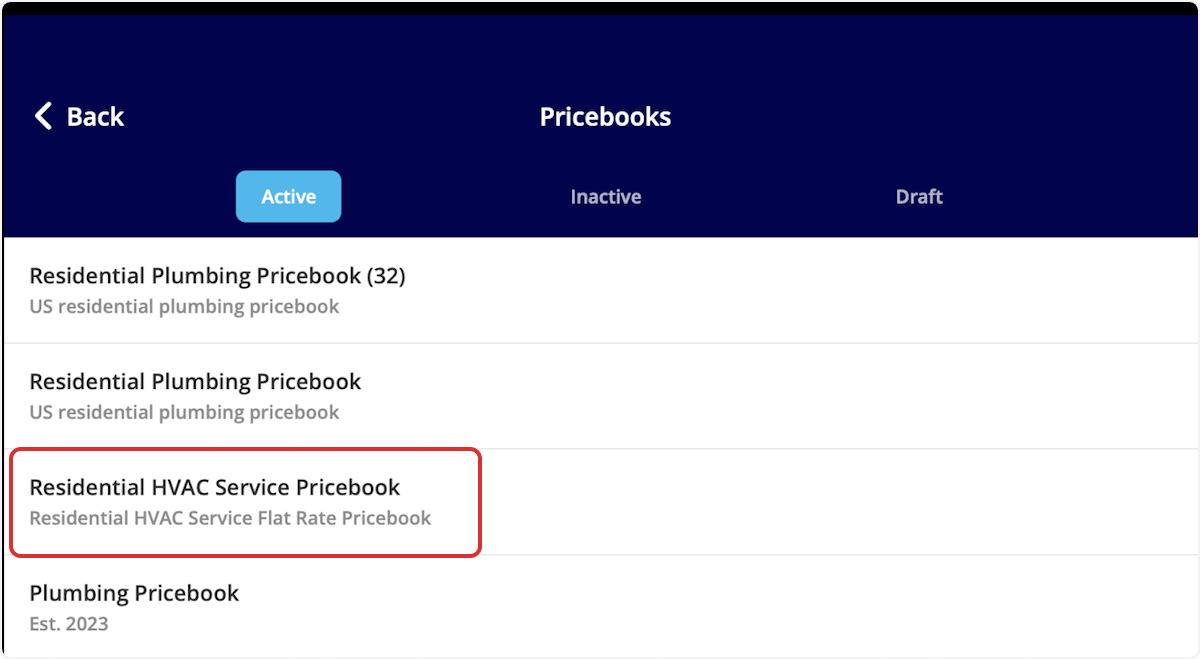
 Once viewing your active pricebooks, click on the pricebook you'd like to use.
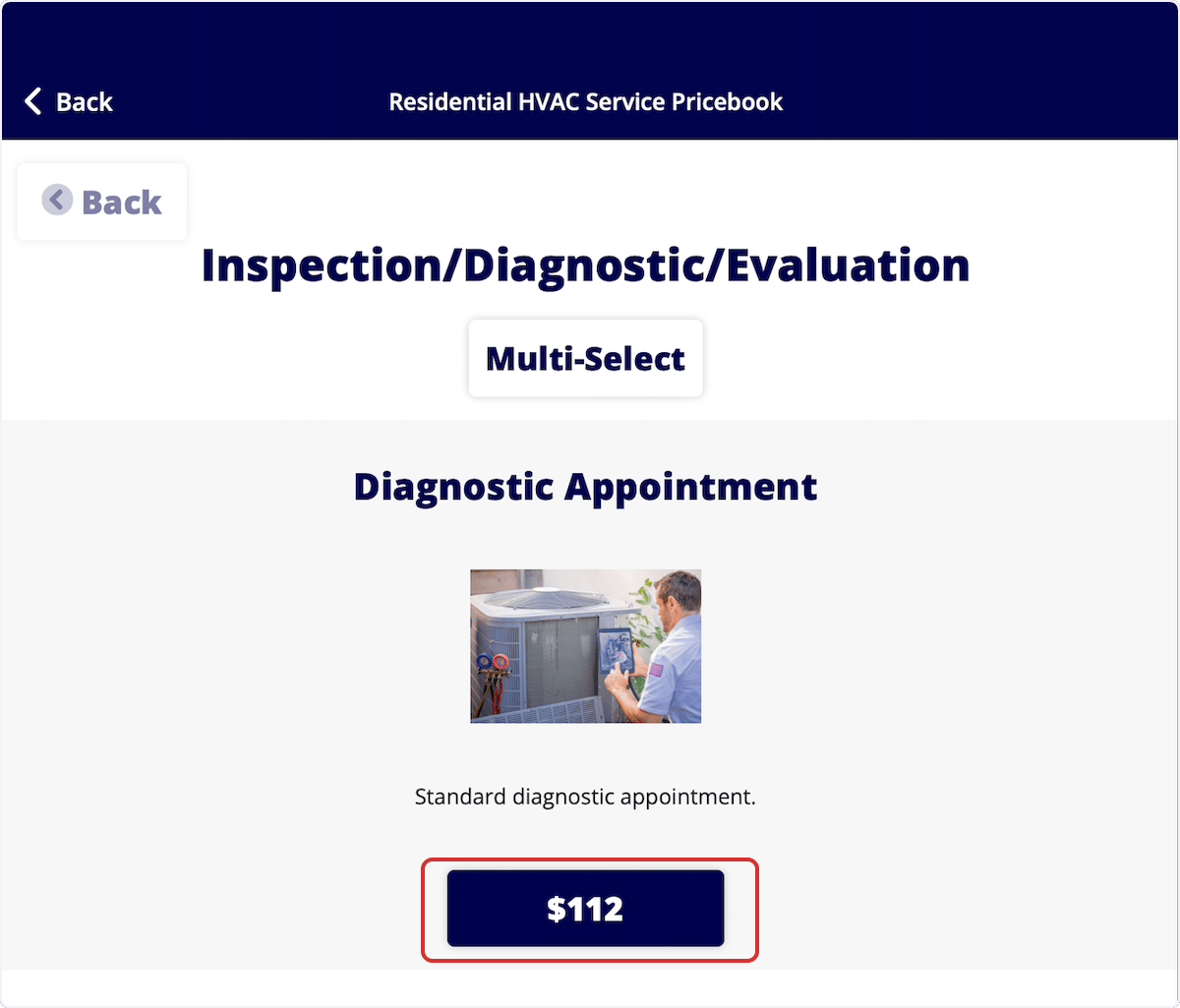
 Select the category under which your desired job(s) are listed. At this point, click *Multi-Select* if you are selecting multiple flat-rate jobs from the Pricebook, or click the price listed if you are selecting a single flat-rate job.
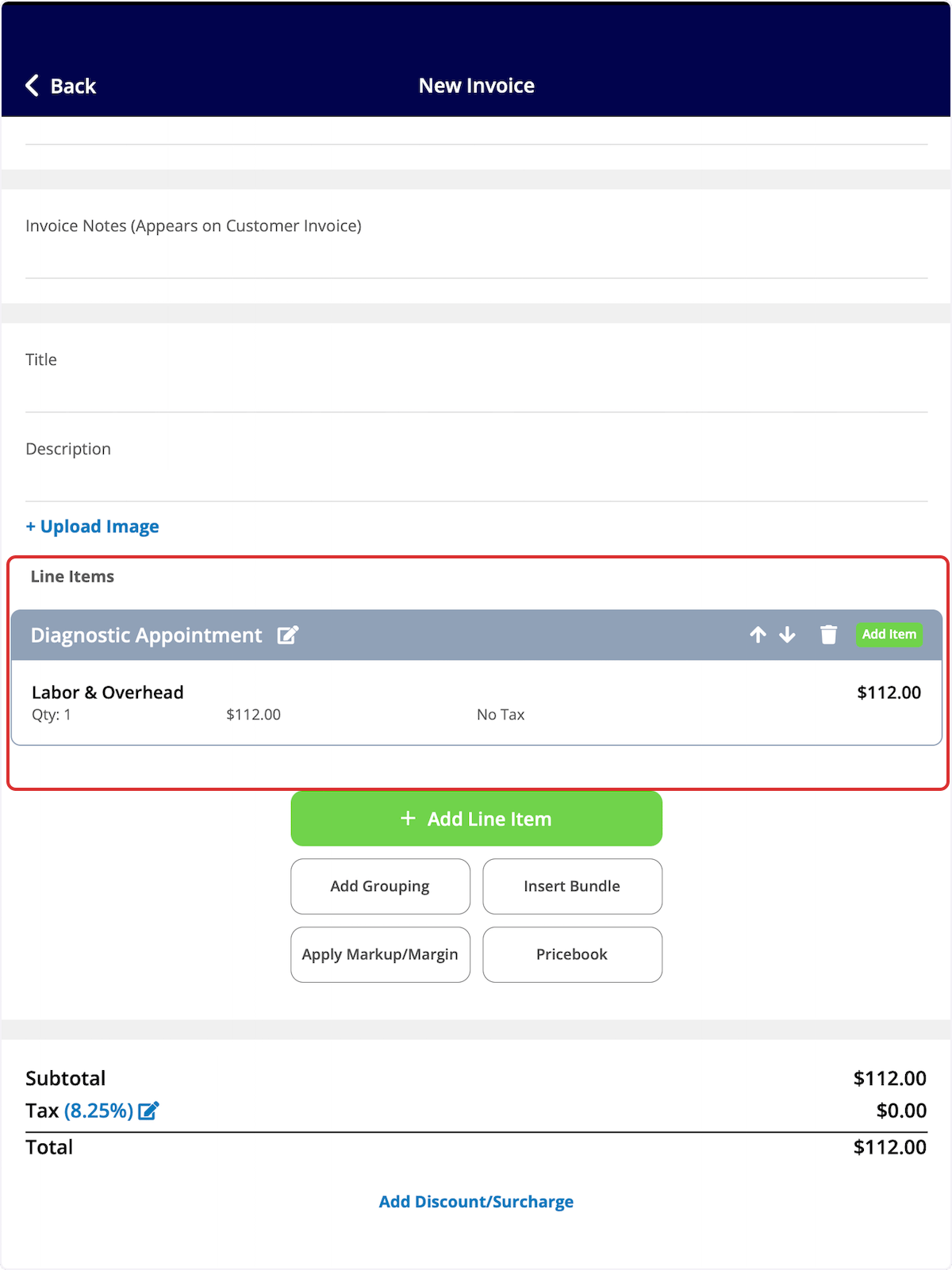
 FieldPulse will now present you with a few options: you can add your flat-rate job(s) to a new invoice, estimate, or variant proposal. For this example, we will select an invoice.
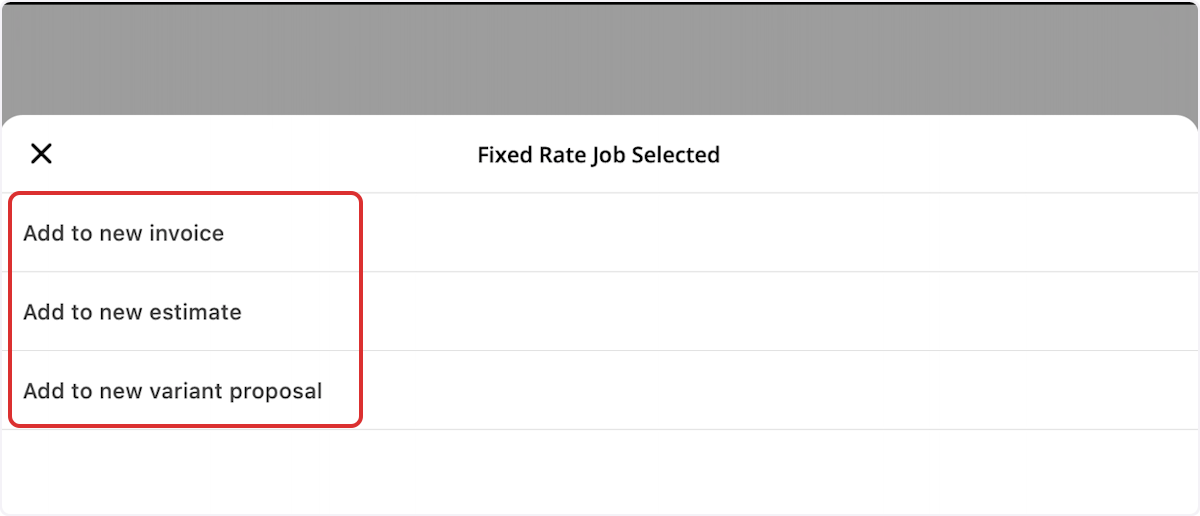 Once you select either invoice, estimate, or variant proposal, the pricing and item details will be auto-populated into your invoice/estimate/variant proposal! Simply add your customer details and any other key information you'd like to capture, then send it to your customer, show them on-site, or collect payment.
 ***
# Video Tutorials
## Web App
## Mobile
***
**Have additional questions?**
*Contact us at [support@fieldpulse.com](mailto:support@fieldpulse.com) or use the chat feature in the bottom right corner of your screen.*
***
# Video Tutorials
## Web App
## Mobile
***
**Have additional questions?**
*Contact us at [support@fieldpulse.com](mailto:support@fieldpulse.com) or use the chat feature in the bottom right corner of your screen.*