> ## Documentation Index
> Fetch the complete documentation index at: https://help.fieldpulse.com/llms.txt
> Use this file to discover all available pages before exploring further.
# Setting Up Two-Factor Authentication (2FA)
> Add a second login check to lock down your account, meet security requirements, and keep unauthorized users out.
Two-factor authentication (2FA) provides an added layer of security by requiring two forms of identification to access FieldPulse.
# Benefits
* **Extra Protection:** Adding a second check makes your account much safer, just like having two locks on your door.
* **Keeping Up with the Rules**: This step helps us stay in line with new safety rules so that everyone's information stays private and secure.
* **Peace of Mind:** With this update, you can worry less about the bad guys getting in, keeping your account and data smooth and secure.
***
# Enabling Two-Factor Authentication
To enable Two-Factor Authentication (2FA), please contact FieldPulse Support at [support@fieldpulse.com](mailto:support@fieldpulse.com).
***
# Setting Up Two-Factor Authentication
When a user logs in for the first time after two-factor authentication is turned on, a message with instructions on how to setup 2FA via Google Authenticator will appear. *(Note: Each of your team members will be required to go through this same process.)*
Scan the QR code and follow the prompts or download the Google Authenticator app and type in the code.
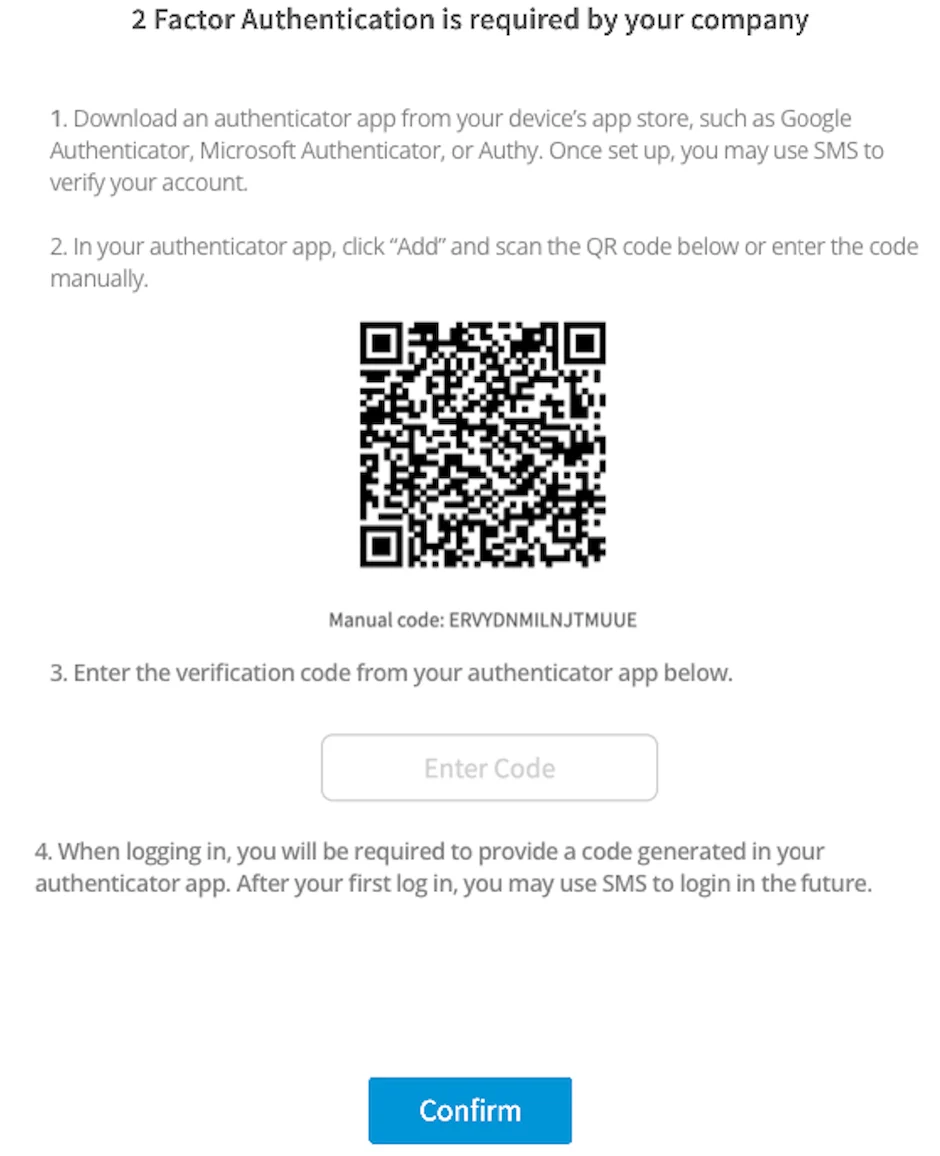 Notice that in step #4 pictured above, **after** your first log in utilizing an Authenticator app, you will then have the option to send yourself an SMS message (sent to the phone number associated on your FieldPulse profile user page) for future sign-ins.
After setting up Google Authenticator, you will then enter the provided 6 digit code to login to FieldPulse.
Lastly, FieldPulse will prompt you to download a file of recovery codes in case you lose your device.
***
# Using Two-Factor Authentication
If you have already connected FieldPulse to Google Authenticator, simply use the authenticator app to enter the 6-digit code and login to FieldPulse. After the initial sign-in using an Authenticator app, you will see a blue *here* button on your screen during future sign-ins to allow you to text yourself a code to be entered. This option can save you time as you will no longer need to pull up a separate Authenticator application.
Notice that in step #4 pictured above, **after** your first log in utilizing an Authenticator app, you will then have the option to send yourself an SMS message (sent to the phone number associated on your FieldPulse profile user page) for future sign-ins.
After setting up Google Authenticator, you will then enter the provided 6 digit code to login to FieldPulse.
Lastly, FieldPulse will prompt you to download a file of recovery codes in case you lose your device.
***
# Using Two-Factor Authentication
If you have already connected FieldPulse to Google Authenticator, simply use the authenticator app to enter the 6-digit code and login to FieldPulse. After the initial sign-in using an Authenticator app, you will see a blue *here* button on your screen during future sign-ins to allow you to text yourself a code to be entered. This option can save you time as you will no longer need to pull up a separate Authenticator application.
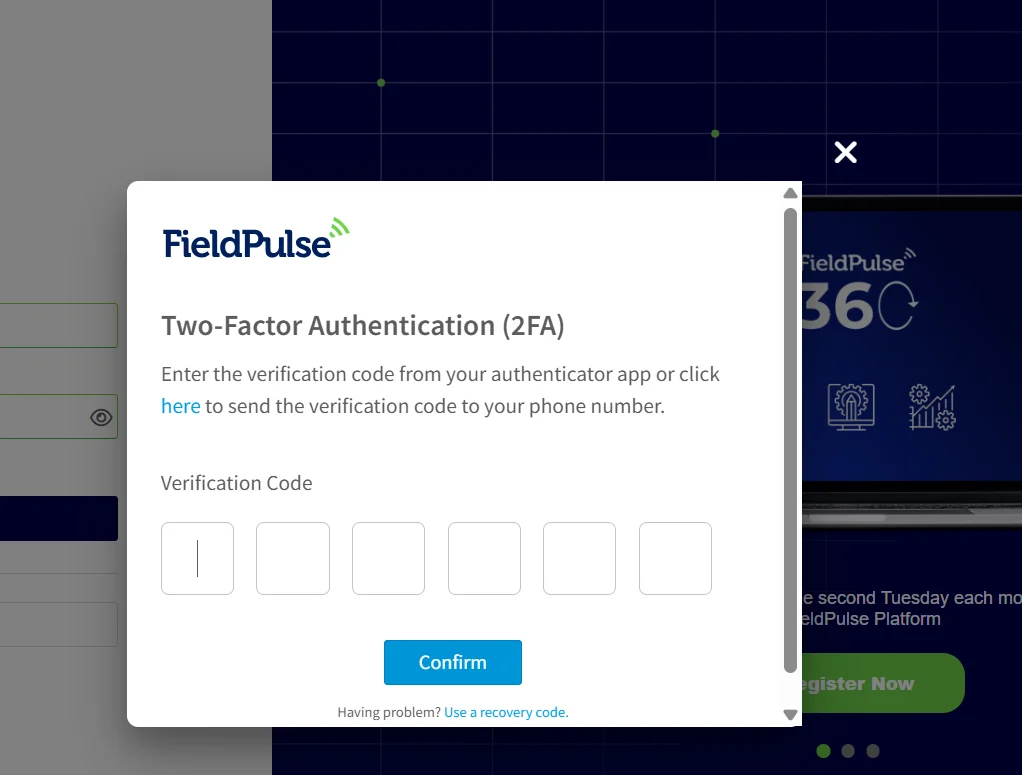 After 3 unsuccessful login attempts, you will be prompted to enter a recovery code from the file of recovery codes provided to you when first setting up two-factor authentication. If you no longer have your recovery codes, contact an administrator on your account to reset your two-factor authentication.
***
# Resetting Two-Factor Authentication
If a team member has lost access to their device with the authenticator app, they should use their recovery codes. If these codes are lost, administrators can either reset a user’s 2FA or access and send them their recovery codes. Navigate to *Company Settings*, then select *User Accounts*. Click on the user that you'd like to reset, then click *Edit*. Scroll down to *2FA Recovery Codes* or *Reset 2FA*.
After 3 unsuccessful login attempts, you will be prompted to enter a recovery code from the file of recovery codes provided to you when first setting up two-factor authentication. If you no longer have your recovery codes, contact an administrator on your account to reset your two-factor authentication.
***
# Resetting Two-Factor Authentication
If a team member has lost access to their device with the authenticator app, they should use their recovery codes. If these codes are lost, administrators can either reset a user’s 2FA or access and send them their recovery codes. Navigate to *Company Settings*, then select *User Accounts*. Click on the user that you'd like to reset, then click *Edit*. Scroll down to *2FA Recovery Codes* or *Reset 2FA*.
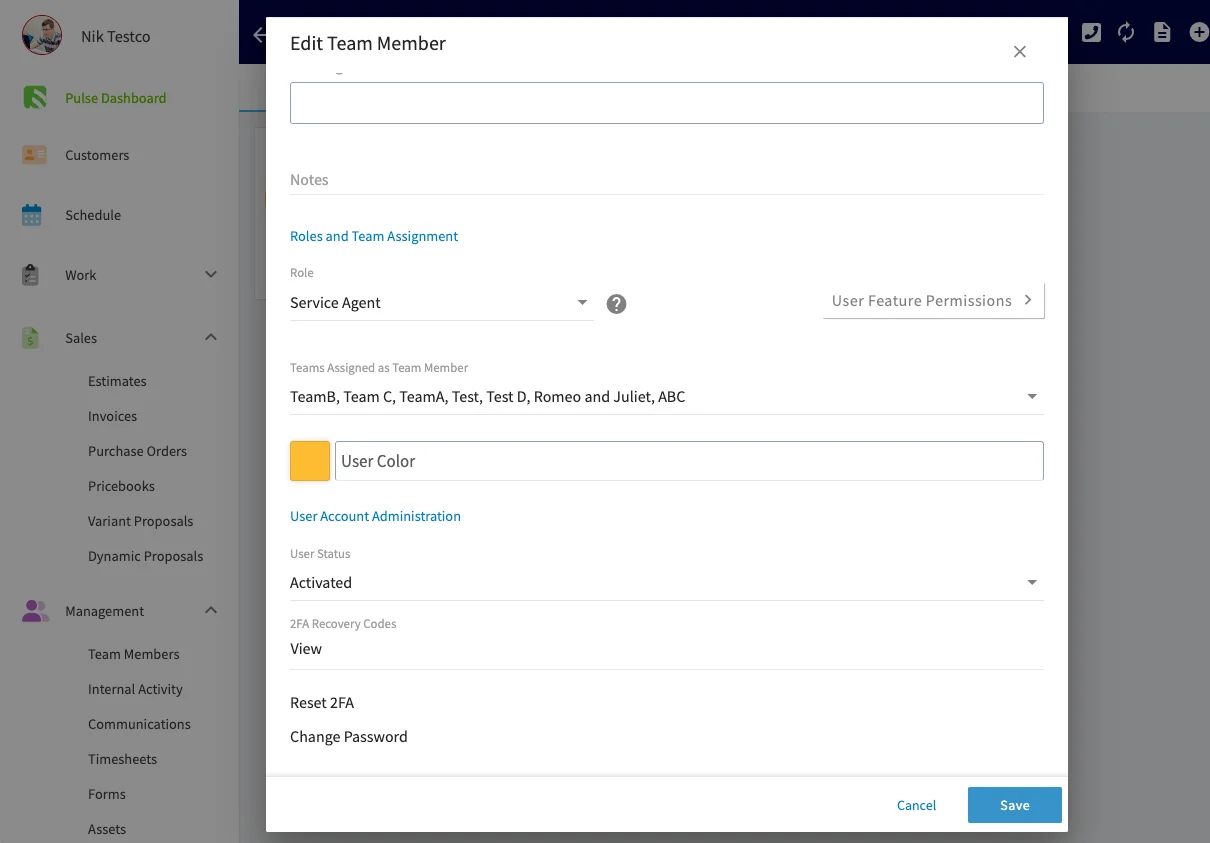 Selecting either option will require you enter your own password for security purposes. Resetting a user's 2FA will invalidate any of their old recovery codes and require them to set up 2FA again.
***
# **FAQs**
**Can you require 2FA for specific users?**
No, if turned on it will be required for **all** users in an account.
**Can you require users to use 2FA every single time they log in?**
Yes, when setting up 2FA select *Every Day*.
**I lost my device that had the Google Authenticator app and can’t log in, now what?**
If your device is lost, use your recovery codes. Each can only be used once.
**I don’t have my recovery codes, now what?**
If you don’t have access to the Authenticator app and have lost your recovery codes, you will have to contact your FieldPulse admin who can then access your recovery codes. If those codes have all been used, the admin can manually reset your 2FA profile from settings. After you’ve logged in using a recovery code, you will be prompted to set up 2FA again for this user.
**Can I use any Authenticator app?**
There are several free authenticator apps, but we recommend Google Authenticator.
***
# Video Tutorial
***
**Have additional questions?**
*Contact us at [support@fieldpulse.com](mailto:support@fieldpulse.com) or use the chat feature in the bottom right corner of your screen.*
Selecting either option will require you enter your own password for security purposes. Resetting a user's 2FA will invalidate any of their old recovery codes and require them to set up 2FA again.
***
# **FAQs**
**Can you require 2FA for specific users?**
No, if turned on it will be required for **all** users in an account.
**Can you require users to use 2FA every single time they log in?**
Yes, when setting up 2FA select *Every Day*.
**I lost my device that had the Google Authenticator app and can’t log in, now what?**
If your device is lost, use your recovery codes. Each can only be used once.
**I don’t have my recovery codes, now what?**
If you don’t have access to the Authenticator app and have lost your recovery codes, you will have to contact your FieldPulse admin who can then access your recovery codes. If those codes have all been used, the admin can manually reset your 2FA profile from settings. After you’ve logged in using a recovery code, you will be prompted to set up 2FA again for this user.
**Can I use any Authenticator app?**
There are several free authenticator apps, but we recommend Google Authenticator.
***
# Video Tutorial
***
**Have additional questions?**
*Contact us at [support@fieldpulse.com](mailto:support@fieldpulse.com) or use the chat feature in the bottom right corner of your screen.*