> ## Documentation Index
> Fetch the complete documentation index at: https://help.fieldpulse.com/llms.txt
> Use this file to discover all available pages before exploring further.
# Mobile App Overview - Admins & Team Managers
> See what admins and team managers can run from the mobile app across iPhone, iPad, and Android on one shared team.
This guide will give you an overview of the Admin and Team Manager view on the FieldPulse mobile app.
To use FieldPulse on an iPhone or iPad, simply download the FieldPulse mobile app from the App Store and log in with your credentials. To use FieldPulse on an Android phone or tablet, simply download the FieldPulse mobile app from the Google Play store and log in with your credentials. Your team members can operate on different device types and also use multiple devices; iPhone/iPad, Android phone/tablet, and WebApp users can all be on the same team.
***
# Mobile App Tour
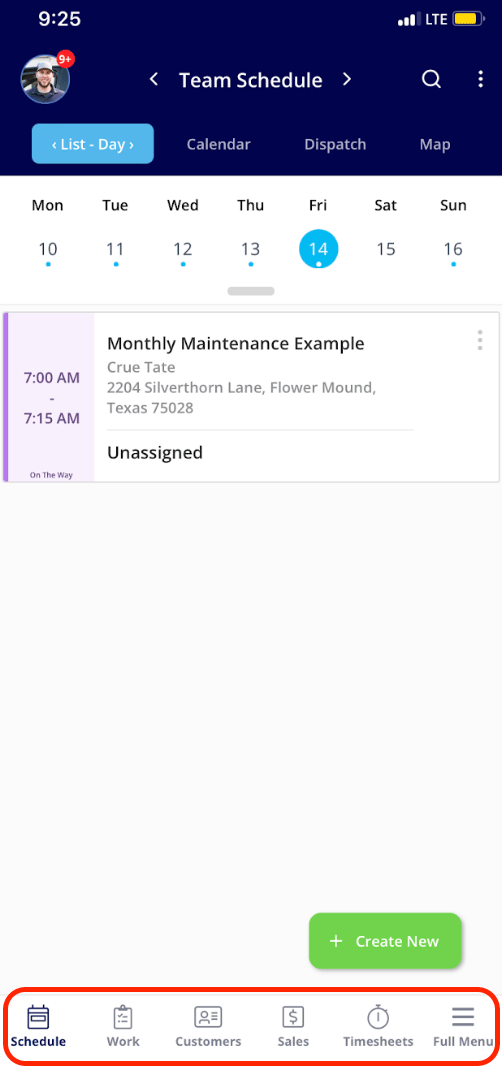
When you first enter the mobile app, you will see the schedule and jobs you have for the day. This is a great landing page to prepare your team for the day ahead!
The menu at the bottom of the screen allows easy access to a variety of functions.
* ***Schedule:*** *includes the schedules for both you and your team.*
* ***Work:*** *includes projects, jobs, subtasks, and maintenance agreements.*
* ***Customers:*** *includes the company's list of customers.*
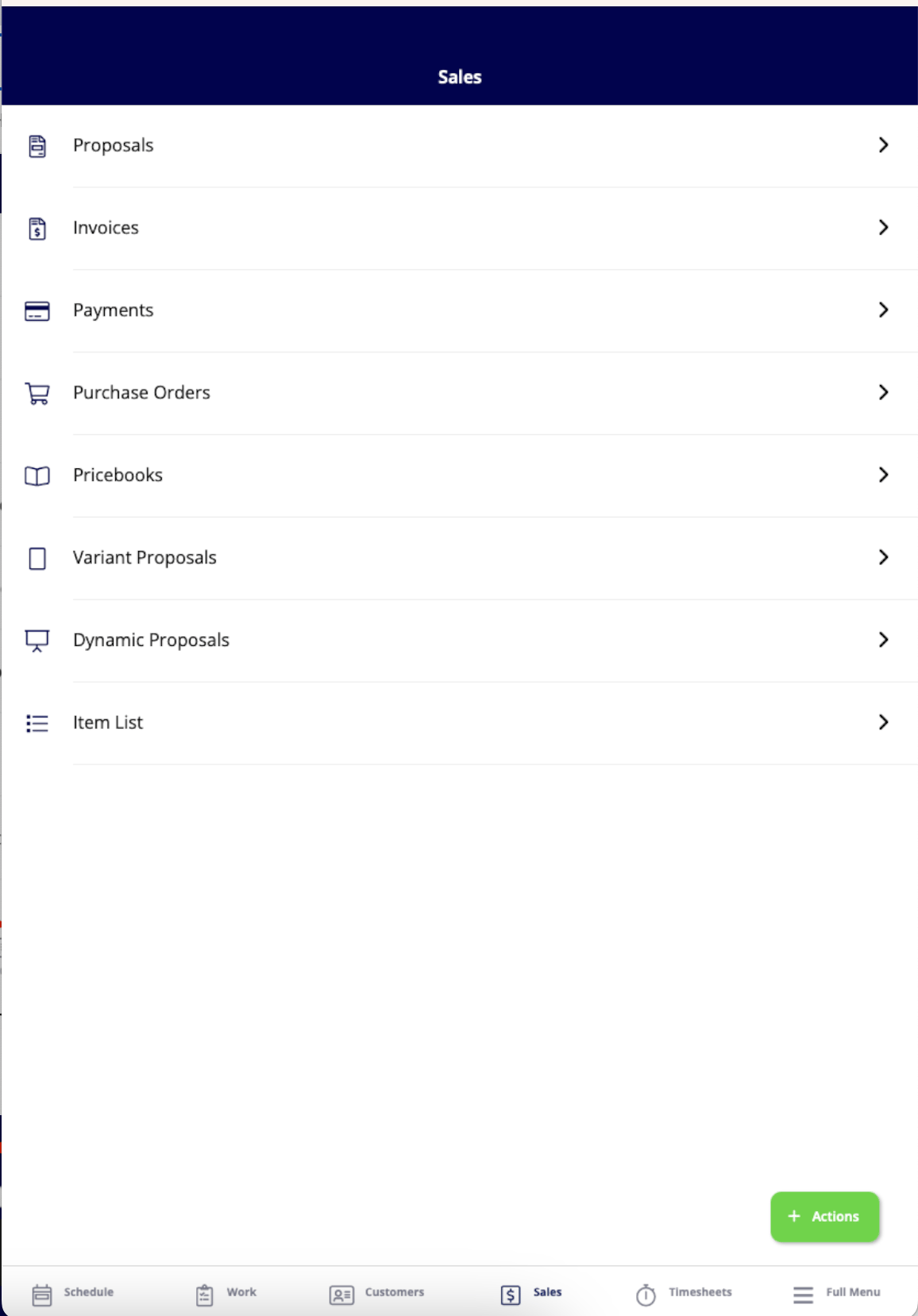
* ***Sales:*** *includes estimates, invoices, payments, purchase orders, pricebooks (add-on), variant proposals, dynamic proposals (add-on), and item list.*
* ***Timesheets:*** *includes both general and job tracking timesheets.*
By selecting ***Full Menu***, you will be able to navigate to these categories as well.
 ## Dashboard
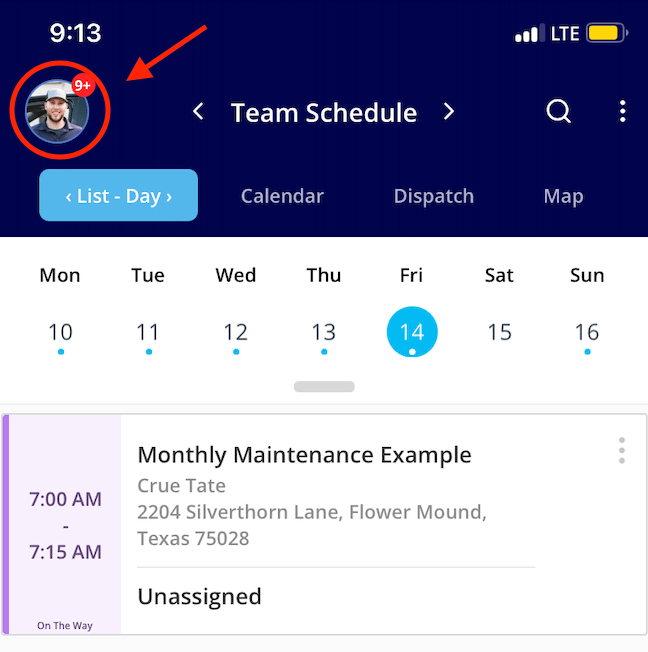
To access the dashboard, you will need to click on your picture or bubble with your initials in the top left hand corner of your screen.
## Dashboard
To access the dashboard, you will need to click on your picture or bubble with your initials in the top left hand corner of your screen.
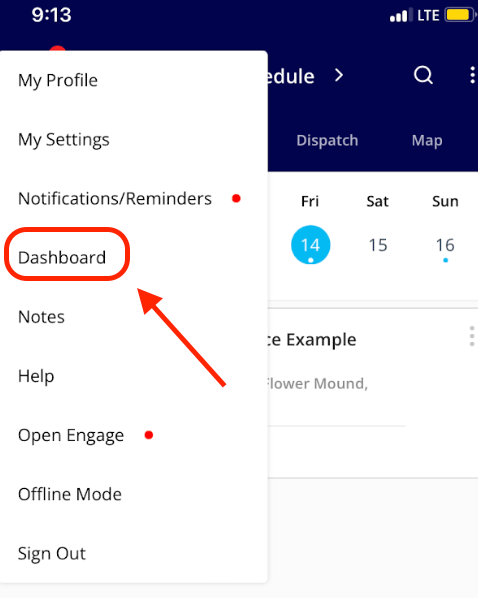 From the bar in the middle of the screen, you can quickly create a customer, job, estimate, or invoice. You can also see Today’s Jobs, which shows jobs assigned to both you and your team. You can create a job by selecting *Create New*. Recent Customers are also displayed on the dashboard, where you can see your recent customer list or create a new customer.
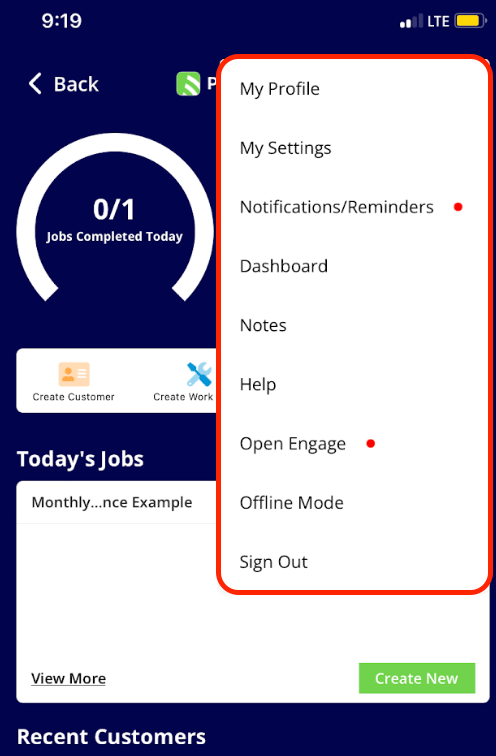
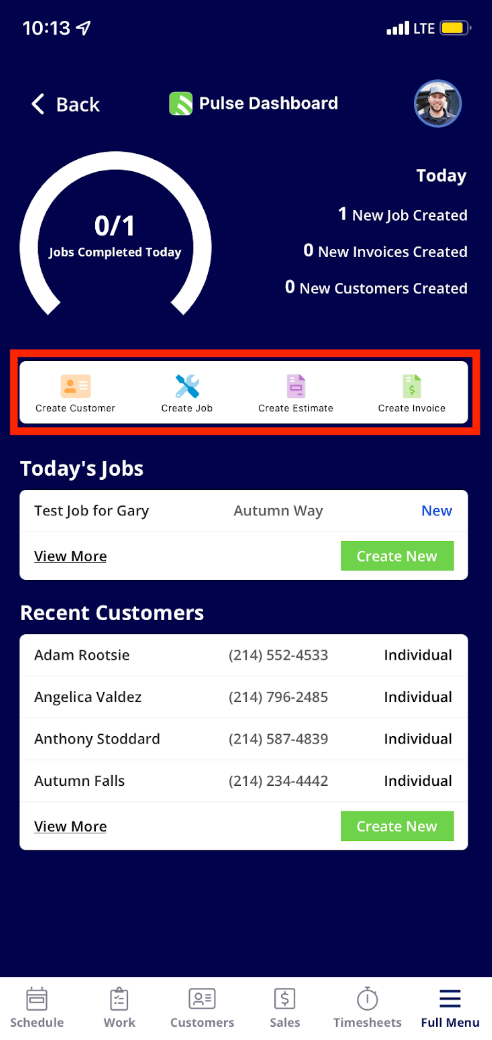 In the top right corner, tap on the photo/initials to display a dropdown menu. This menu will allow you to navigate to your profile, your settings, view all notifications/reminders, the dashboard, your notes, the FieldPulse Help Center, open Engage, access offline mode, or sign out of the app.
 ***
## Schedule
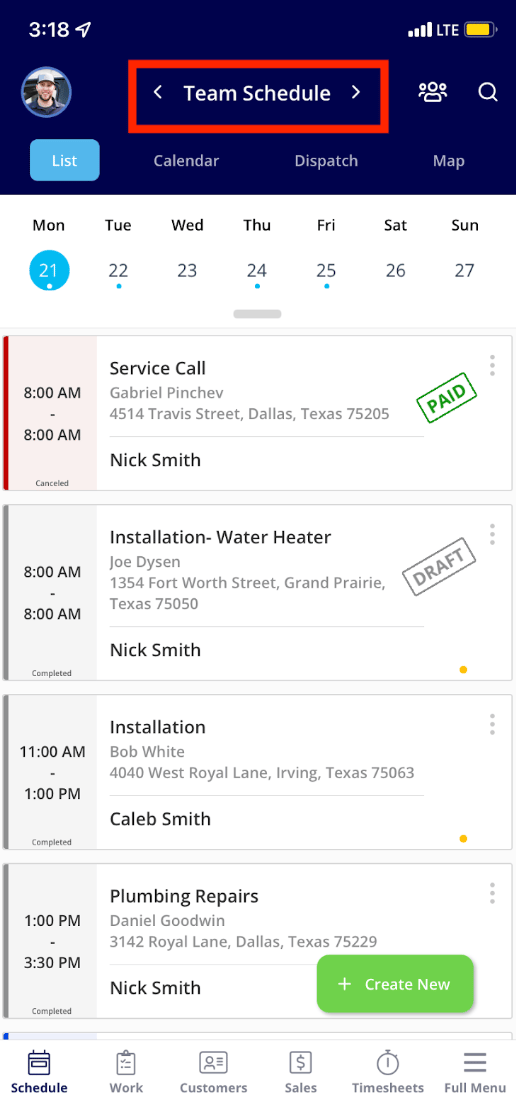
Under the *Schedule* tab, you will immediately see all of the jobs scheduled for the day on the *Team Schedule*. If you would like to only see your jobs, tap the arrow next to *Team Schedule* to switch to *My Schedule*. You can switch between the *List*, *Calendar*, *Dispatch*, and *Map* views to see your schedule in the format that works best for you.
***
## Schedule
Under the *Schedule* tab, you will immediately see all of the jobs scheduled for the day on the *Team Schedule*. If you would like to only see your jobs, tap the arrow next to *Team Schedule* to switch to *My Schedule*. You can switch between the *List*, *Calendar*, *Dispatch*, and *Map* views to see your schedule in the format that works best for you.
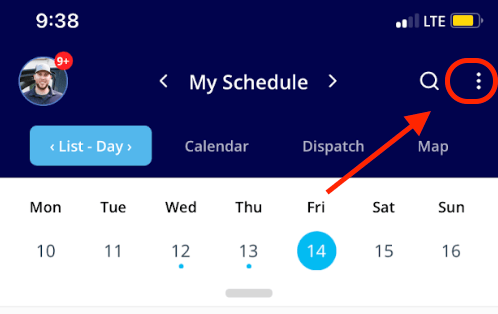
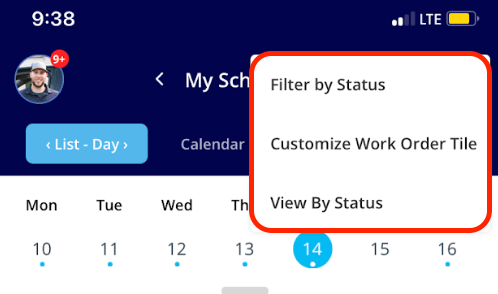
 If you’d like to filter your jobs by status, customize your work order tile, or view jobs by a specific status you can do so by clicking on the 3 dots in the upper right hand corner of your screen.
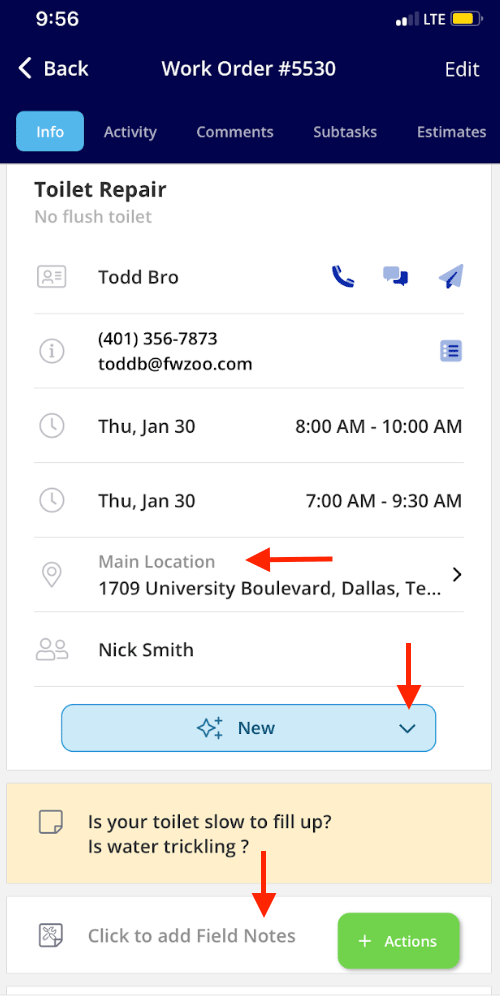
 If you tap on a job from the schedule, you will be able to access the full job record including seeing the customer details, changing the status, navigating to the job location, and adding notes.
 ***
## Work
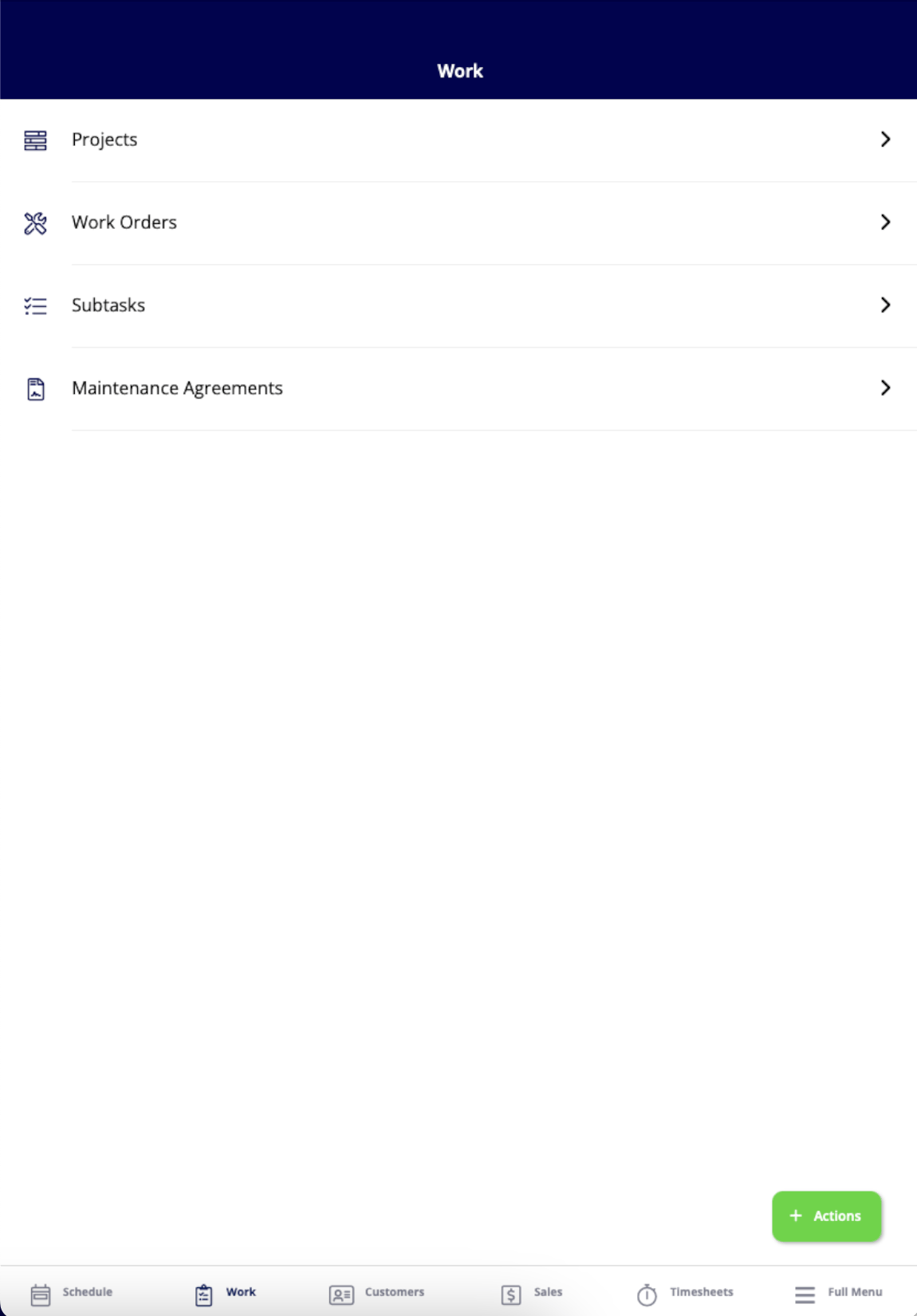
Under the *Work* tab, you will also be able to view and create: projects, jobs, subtasks, and maintenance agreements.
***
## Work
Under the *Work* tab, you will also be able to view and create: projects, jobs, subtasks, and maintenance agreements.
 ***
## Customers
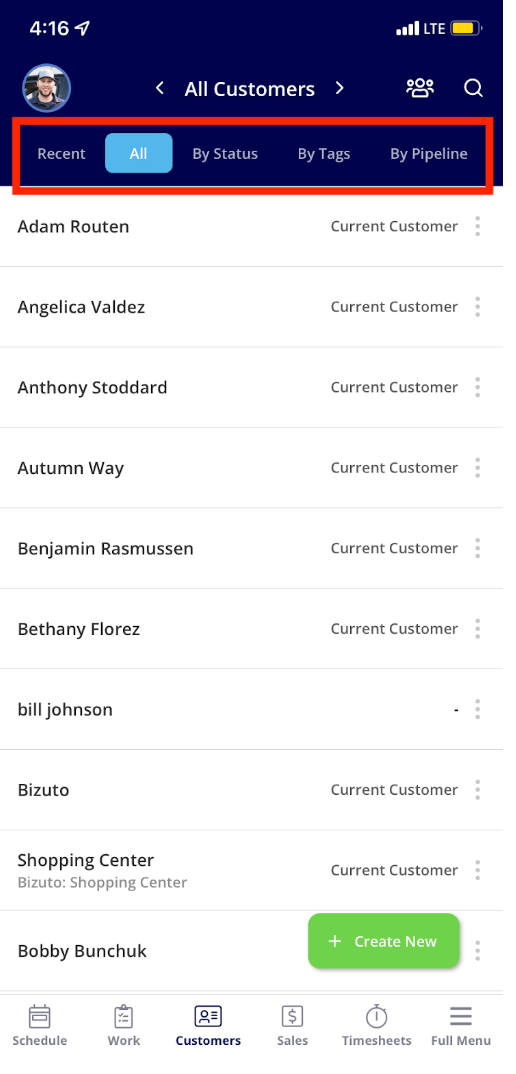
Under the *Customers* tab, you will see All Customers. You can then filter by status, tags, or pipeline at the top of the screen.
***
## Customers
Under the *Customers* tab, you will see All Customers. You can then filter by status, tags, or pipeline at the top of the screen.
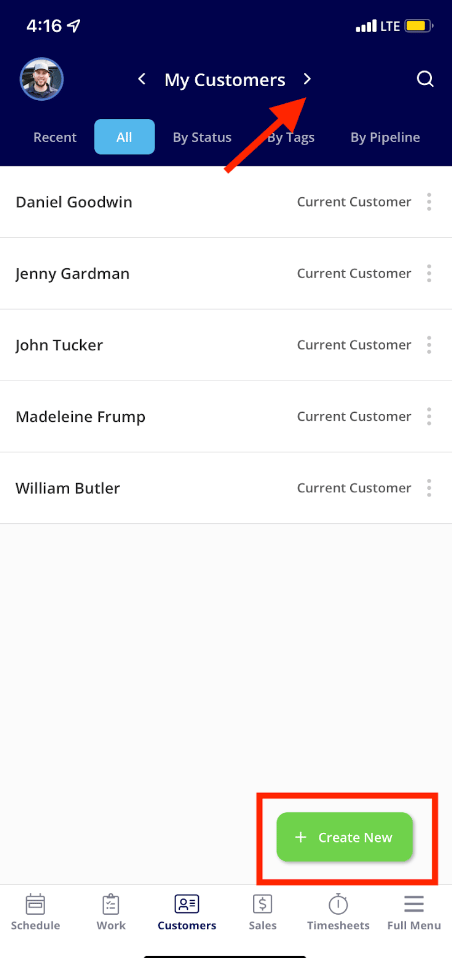
 If you would like to only see your customers, tap the arrow next to *All Customers*. You can also create a new customer from the *Create New* button in the bottom right corner.
 ***
## Sales
Under the *Sales* tab, you'll be able to create estimates, invoices, payments, purchase orders, variant proposals, dynamic proposals (add-on), find your pricebook (add-on), and search your item list.
***
## Sales
Under the *Sales* tab, you'll be able to create estimates, invoices, payments, purchase orders, variant proposals, dynamic proposals (add-on), find your pricebook (add-on), and search your item list.
 ***
## Timesheets
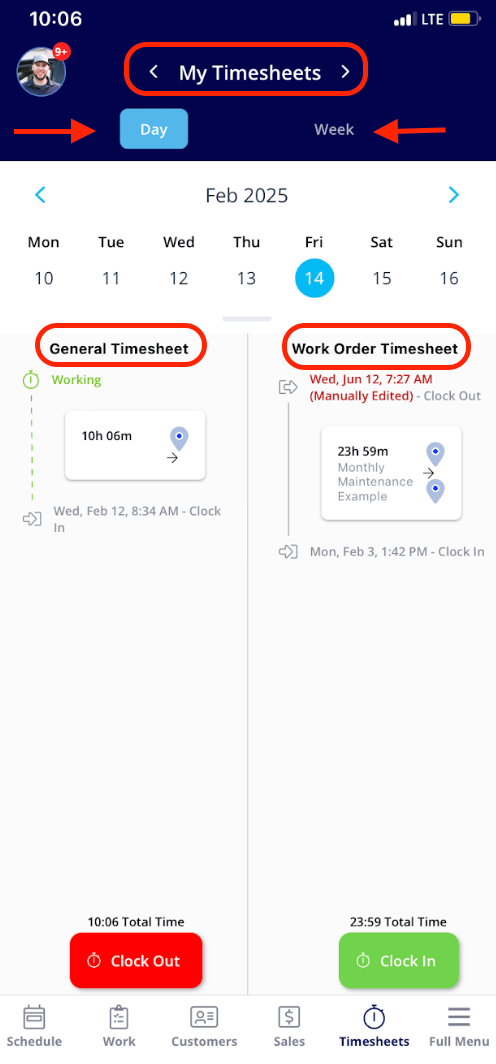
Lastly, under the *Timesheets* tab, you can clock in and out using the *General Timesheet* and/or the *Work Order Timesheet*, as well as view your teams hours for the day or week. Here, you have the option to select *Day* or *Week* if you need to view or edit an entry.
If you would like to view your team timesheets, tap the arrow next to *My Timesheets*. You can view your team's daily or weekly entries, or select a specific time frame to review.
***
## Timesheets
Lastly, under the *Timesheets* tab, you can clock in and out using the *General Timesheet* and/or the *Work Order Timesheet*, as well as view your teams hours for the day or week. Here, you have the option to select *Day* or *Week* if you need to view or edit an entry.
If you would like to view your team timesheets, tap the arrow next to *My Timesheets*. You can view your team's daily or weekly entries, or select a specific time frame to review.
 ***
# FAQs
**Is the mobile app available in the native language of the country where it is being used, or is it only in English?**
The mobile app is currently available only in English, regardless of the country in which it is being used.
**When clicking the hyperlink to take me to the job/service site in the FieldPulse mobile app, how do I reset the default maps app that it opens (Google Maps or Apple Maps)?**
You can reset the default maps app at any time by following these steps:
1. Log out of the FieldPulse app.
2. Log back in and tap on the hyperlink for the address.
3. You will be prompted to select between Apple Maps or Google Maps.
4. Once you choose your preferred option, it will become your new default maps app.
If you decide to switch to a different maps app later, just log out of FieldPulse and repeat this process.
***
# Video Tutorial
***
## **Have additional questions?**
*Contact us at [support@fieldpulse.com](mailto:support@fieldpulse.com) or use the chat feature in the bottom right corner of your screen.*
***
# FAQs
**Is the mobile app available in the native language of the country where it is being used, or is it only in English?**
The mobile app is currently available only in English, regardless of the country in which it is being used.
**When clicking the hyperlink to take me to the job/service site in the FieldPulse mobile app, how do I reset the default maps app that it opens (Google Maps or Apple Maps)?**
You can reset the default maps app at any time by following these steps:
1. Log out of the FieldPulse app.
2. Log back in and tap on the hyperlink for the address.
3. You will be prompted to select between Apple Maps or Google Maps.
4. Once you choose your preferred option, it will become your new default maps app.
If you decide to switch to a different maps app later, just log out of FieldPulse and repeat this process.
***
# Video Tutorial
***
## **Have additional questions?**
*Contact us at [support@fieldpulse.com](mailto:support@fieldpulse.com) or use the chat feature in the bottom right corner of your screen.*