> ## Documentation Index
> Fetch the complete documentation index at: https://help.fieldpulse.com/llms.txt
> Use this file to discover all available pages before exploring further.
# Mobile App Overview - Limited Agents
> Know exactly which mobile features a Limited Agent can reach so field staff work within the right permissions.
This article is your guide to navigating the FieldPulse Mobile App as a **Limited Agent**. You'll discover exactly what features and functionalities are available to you to help you excel in your role.
To get started, simply download the **FieldPulse Mobile App** from your device's app store:
* **iPhone or iPad users:** Download from the Apple App Store.
* **Android phone or tablet users:** Download from the Google Play Store.
Once downloaded, log in to FieldPulse using your provided credentials.
***
# Your Access as a Limited Agent
As a Limited Agent, your access within the mobile app is different from managers or full-service agents. If you find certain features or information unavailable, it's likely due to your specific permissions. Please reach out to your manager if you have any questions about your access.
## **What You Can Do:**
* **General App Use:**
* Use the mobile app
* Be assigned to a team
* View your schedule
* Use both general and job timesheets
* Ability to add notes to timesheets
* **Job Management:**
* View customer names, locations, job details, dates, times, assigned team members, status, notes, and field notes on job records that you are assigned to
* View job files
* Upload files
## **What You Cannot Do:**
* **Change Job Status:** You are not permitted to update the status of a job.
* **Access Web App**: You cannot use the computer-based version of FieldPulse.
* **Schedule Customization**: You cannot customize your schedule view.
***
# Mobile App Tour
## Dashboard
Once you log in, you will see your schedule. Here, you can view any jobs that are assigned to you.
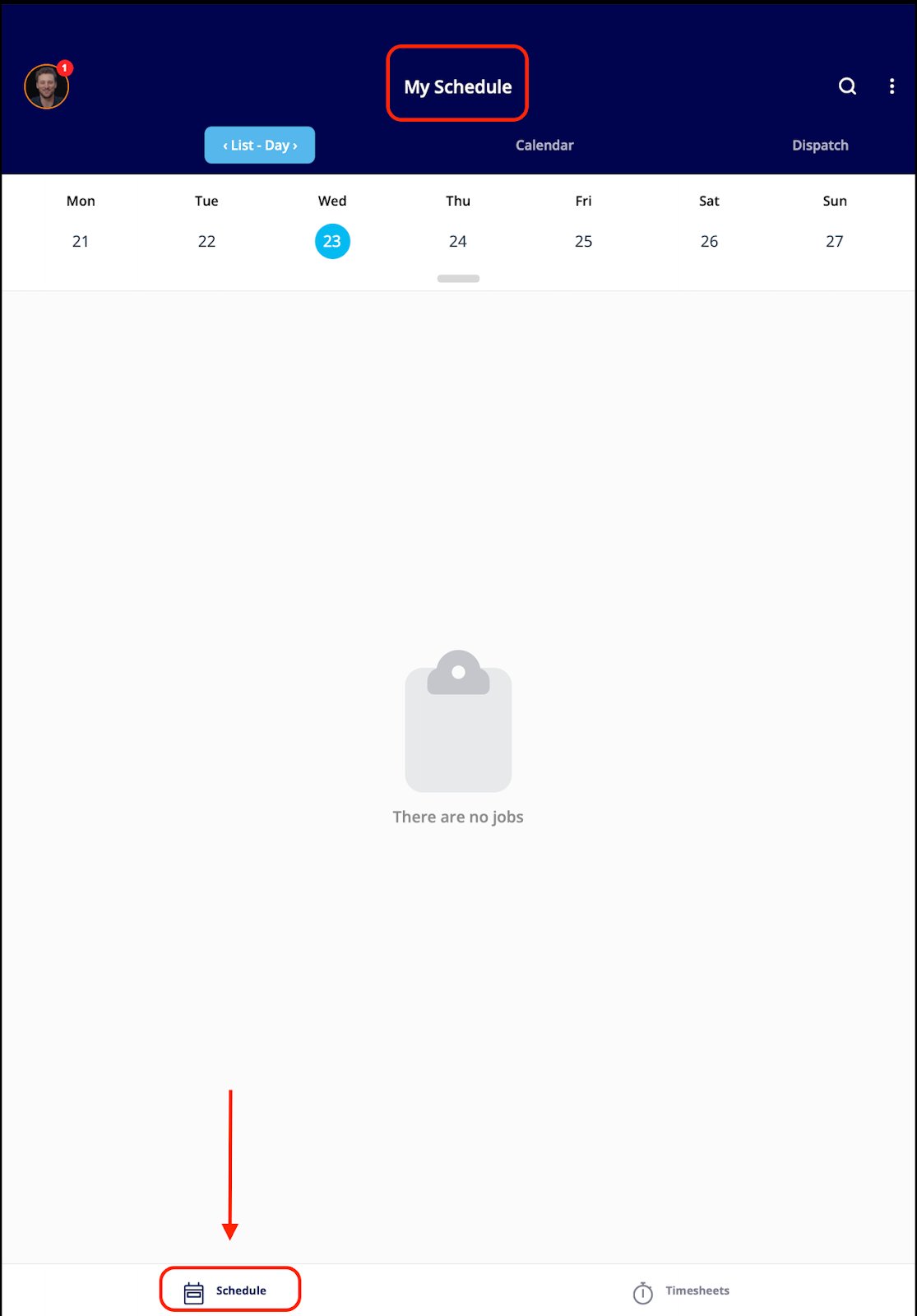 There are several actions you can take from the “My Schedule” dashboard:
1. You can edit your profile, view notifications/Reminders, or log out by clicking the round icon in the top left corner.
2. You can see your jobs for the day.
3. You can clock in and clock out.
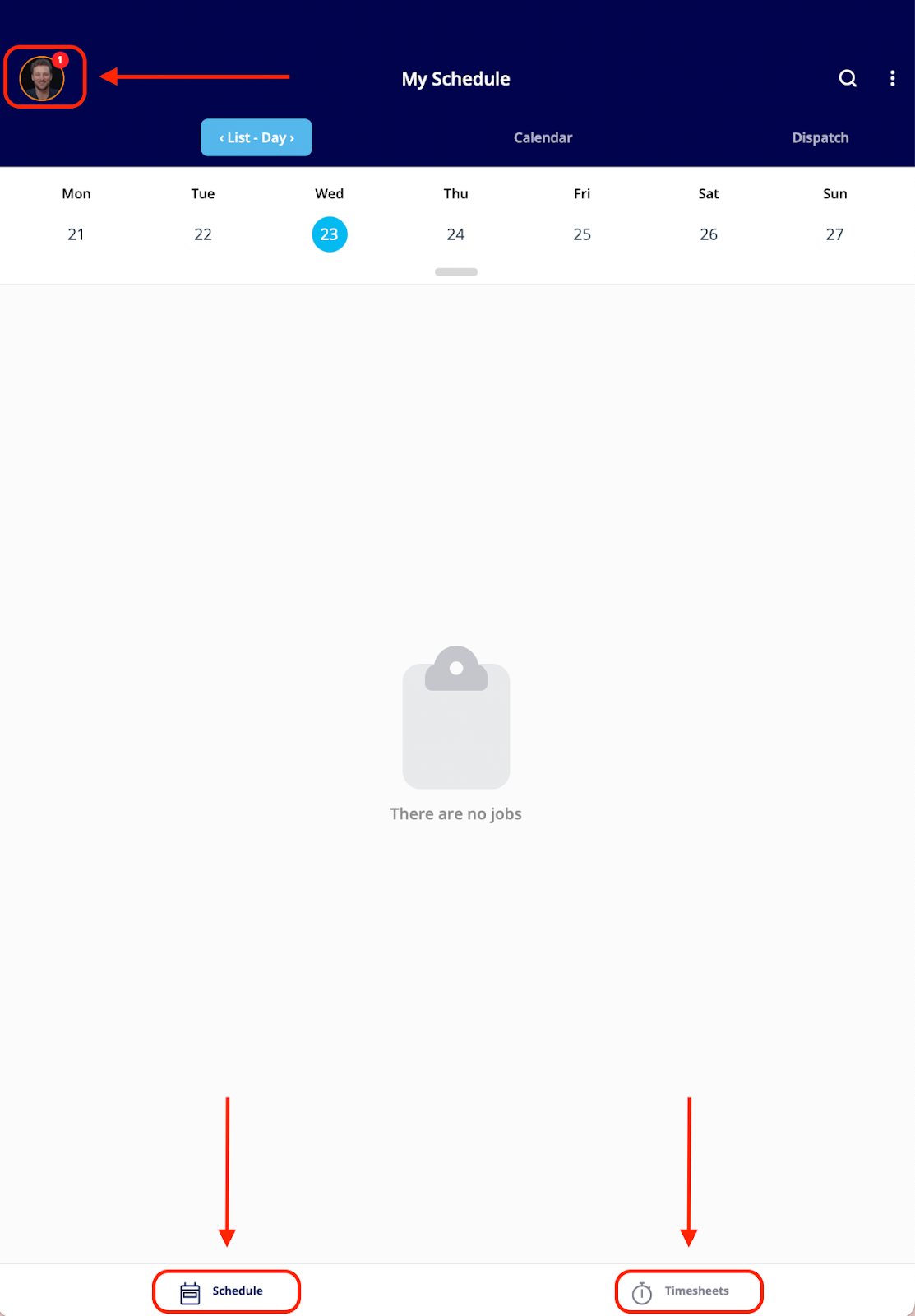
There are several actions you can take from the “My Schedule” dashboard:
1. You can edit your profile, view notifications/Reminders, or log out by clicking the round icon in the top left corner.
2. You can see your jobs for the day.
3. You can clock in and clock out.
 ***
# **Navigating Your Schedule**
From the **Schedule** tab in the bottom left corner, you'll see a list of your assigned jobs. We offer **four different ways** to view your schedule.
## **List View**
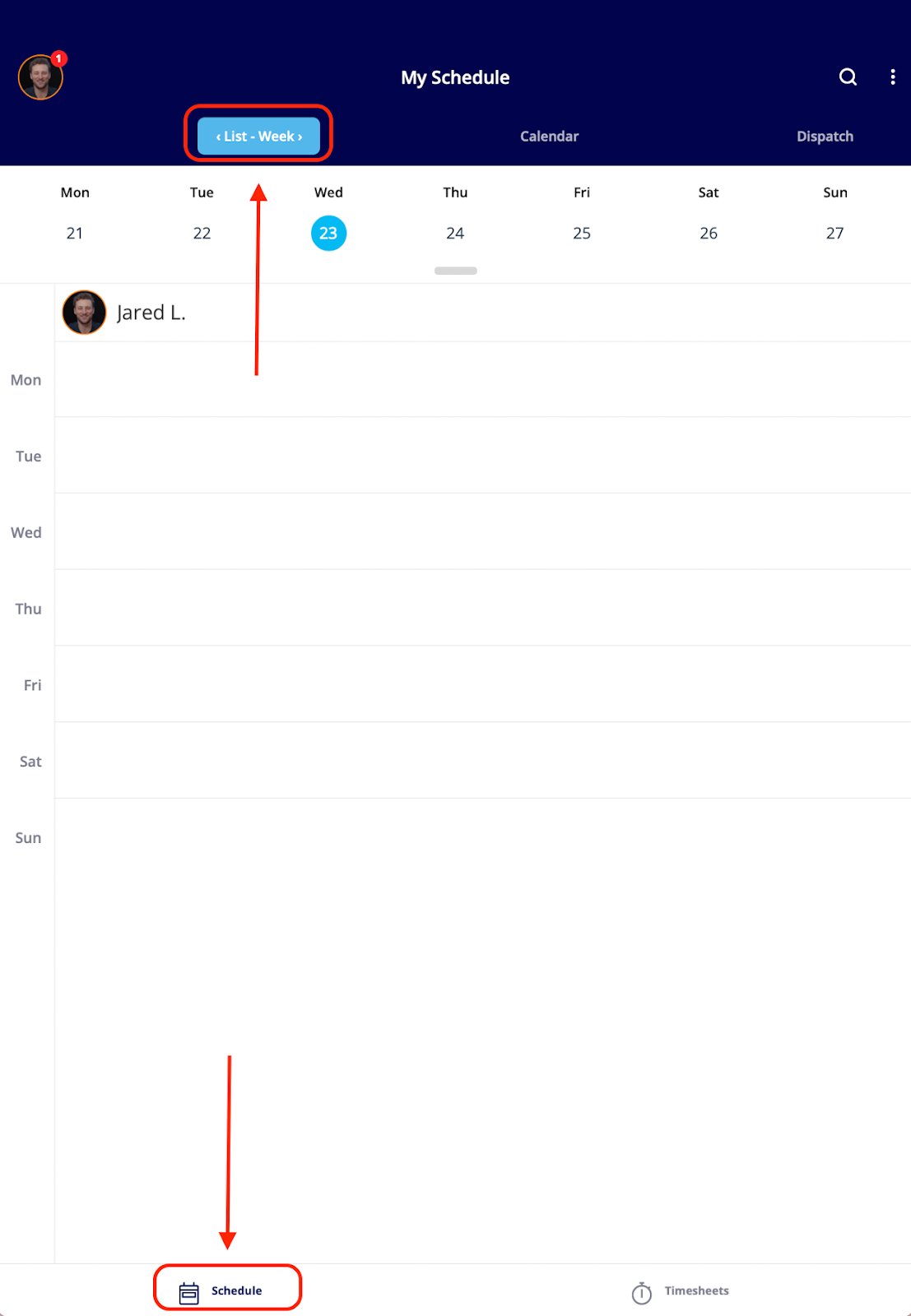
* This view displays your assigned jobs in a clear, organized list. You can easily **sort your services by day, week, or month.** Tapping on any job will reveal it's full details, including customer information and options to clock in or our directly from that job.
***
# **Navigating Your Schedule**
From the **Schedule** tab in the bottom left corner, you'll see a list of your assigned jobs. We offer **four different ways** to view your schedule.
## **List View**
* This view displays your assigned jobs in a clear, organized list. You can easily **sort your services by day, week, or month.** Tapping on any job will reveal it's full details, including customer information and options to clock in or our directly from that job.
 ## **Calendar View**
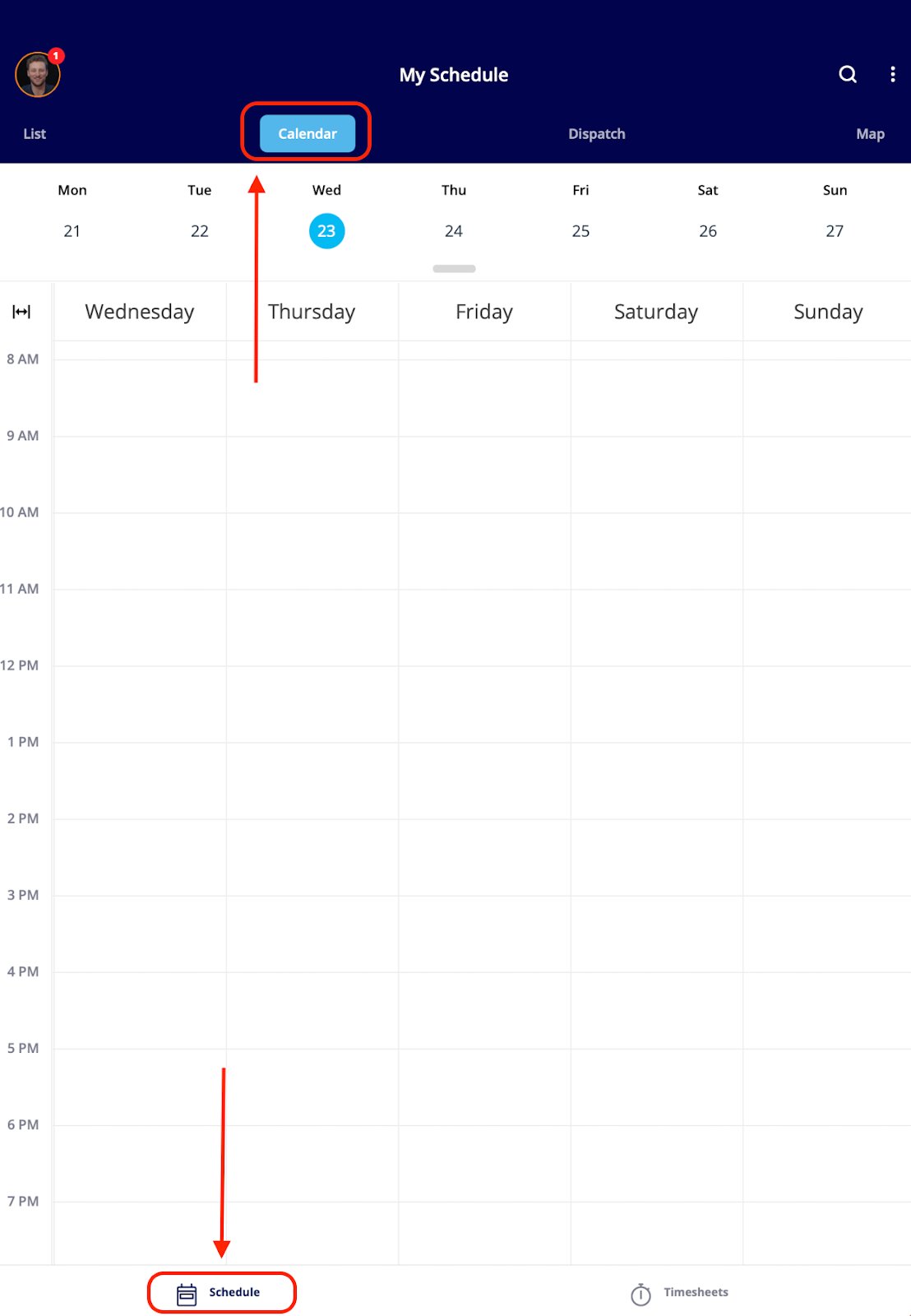
* The Calendar View presents your jobs in a **weekly calendar format.** Similar to the List View, you can tap on a job to access its details, customer information, and clock in/out options.
## **Calendar View**
* The Calendar View presents your jobs in a **weekly calendar format.** Similar to the List View, you can tap on a job to access its details, customer information, and clock in/out options.
 ## **Dispatch View**
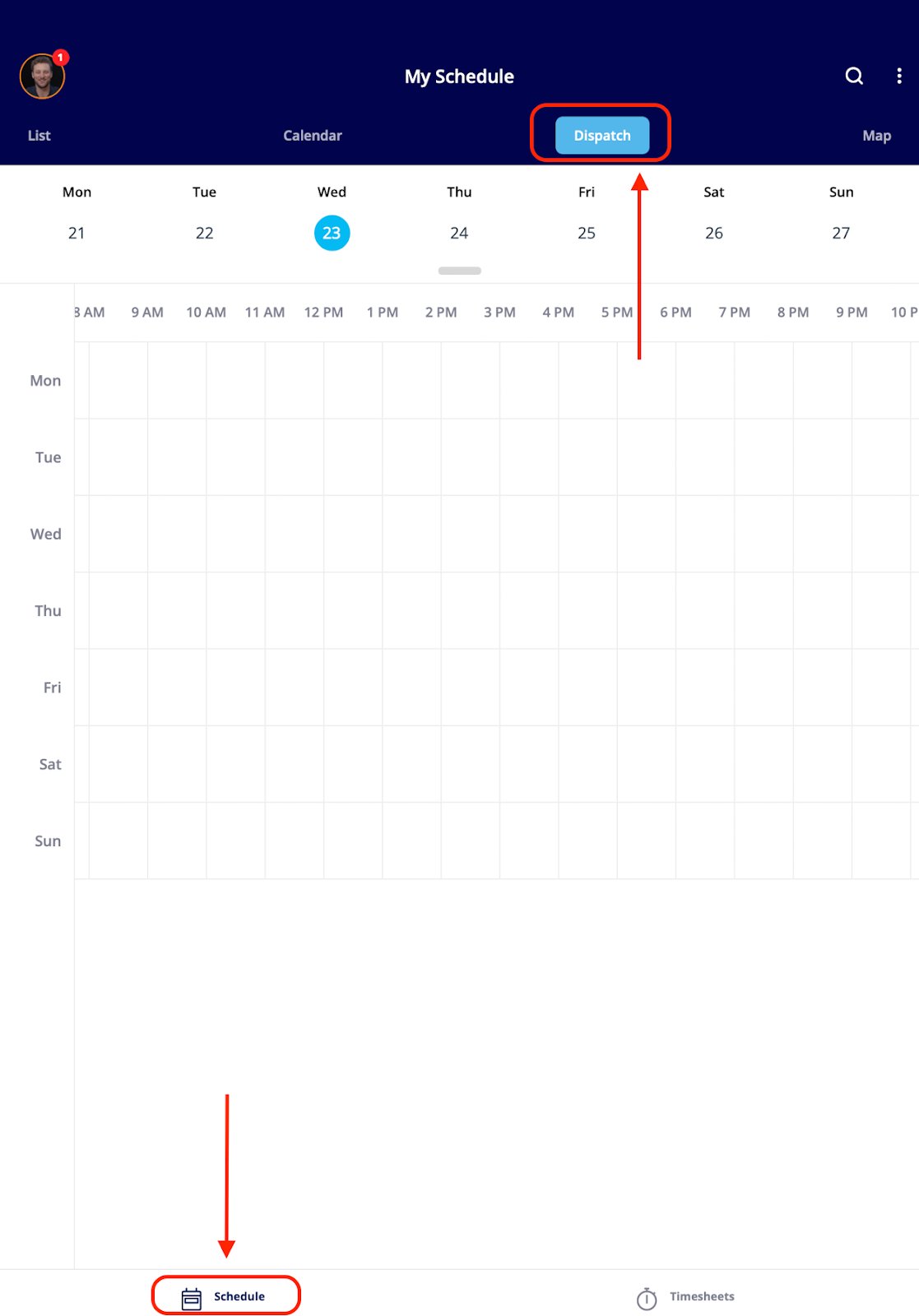
* The Dispatch View offers a visual way to see your schedule and job assignments throughout the week. It shows **a clear timeline of when you are out in the field on jobs.** You can easily tap on any listed job to access its full details, including customer information and options to clock in or out.
## **Dispatch View**
* The Dispatch View offers a visual way to see your schedule and job assignments throughout the week. It shows **a clear timeline of when you are out in the field on jobs.** You can easily tap on any listed job to access its full details, including customer information and options to clock in or out.
 ## **Map View**
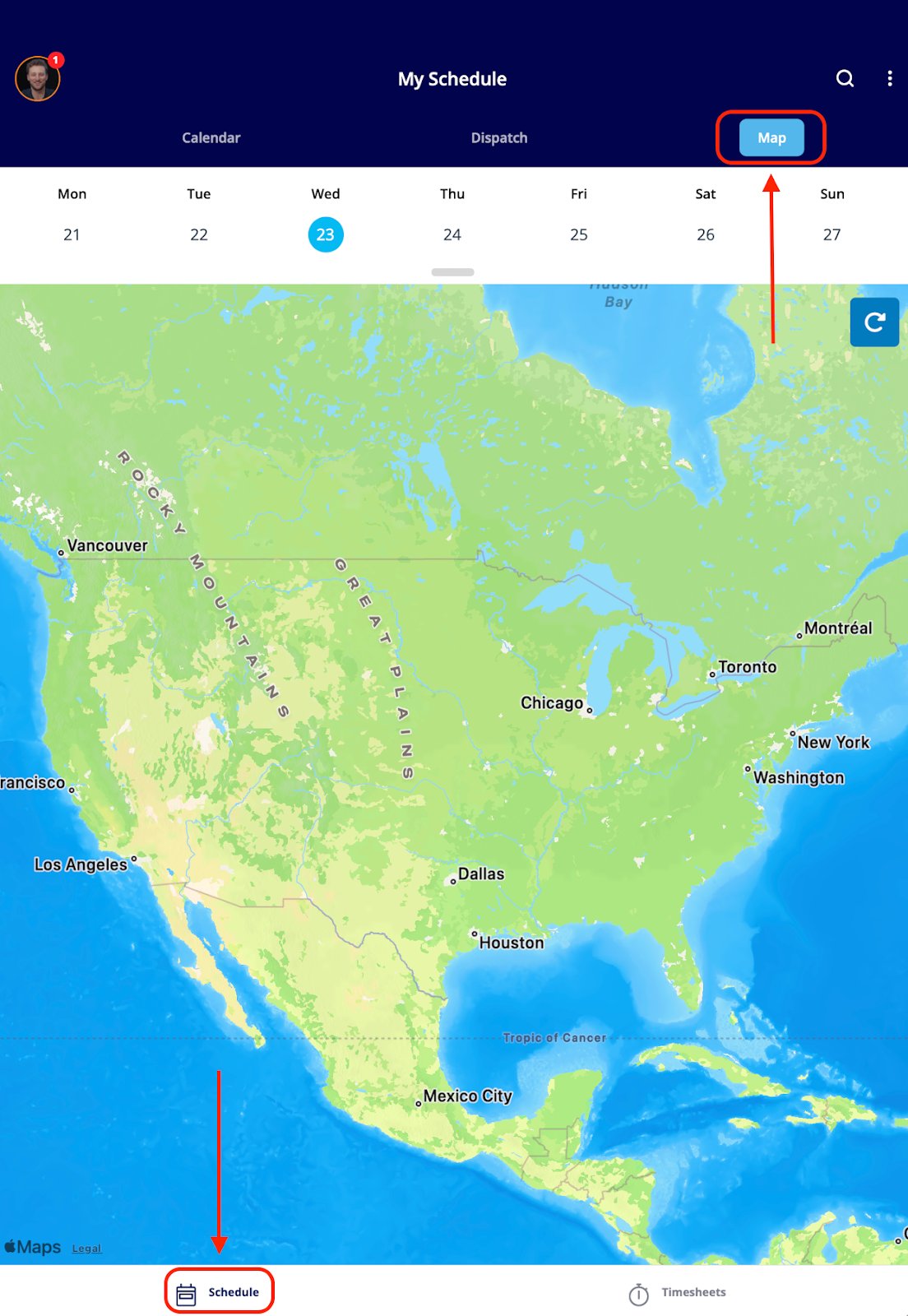
* The Map View **plots your jobs directly on a map, offering a geographical overview.** From here, you can tap on a job to view its details, including customer information and clock in/out options directly from that job.
## **Map View**
* The Map View **plots your jobs directly on a map, offering a geographical overview.** From here, you can tap on a job to view its details, including customer information and clock in/out options directly from that job.
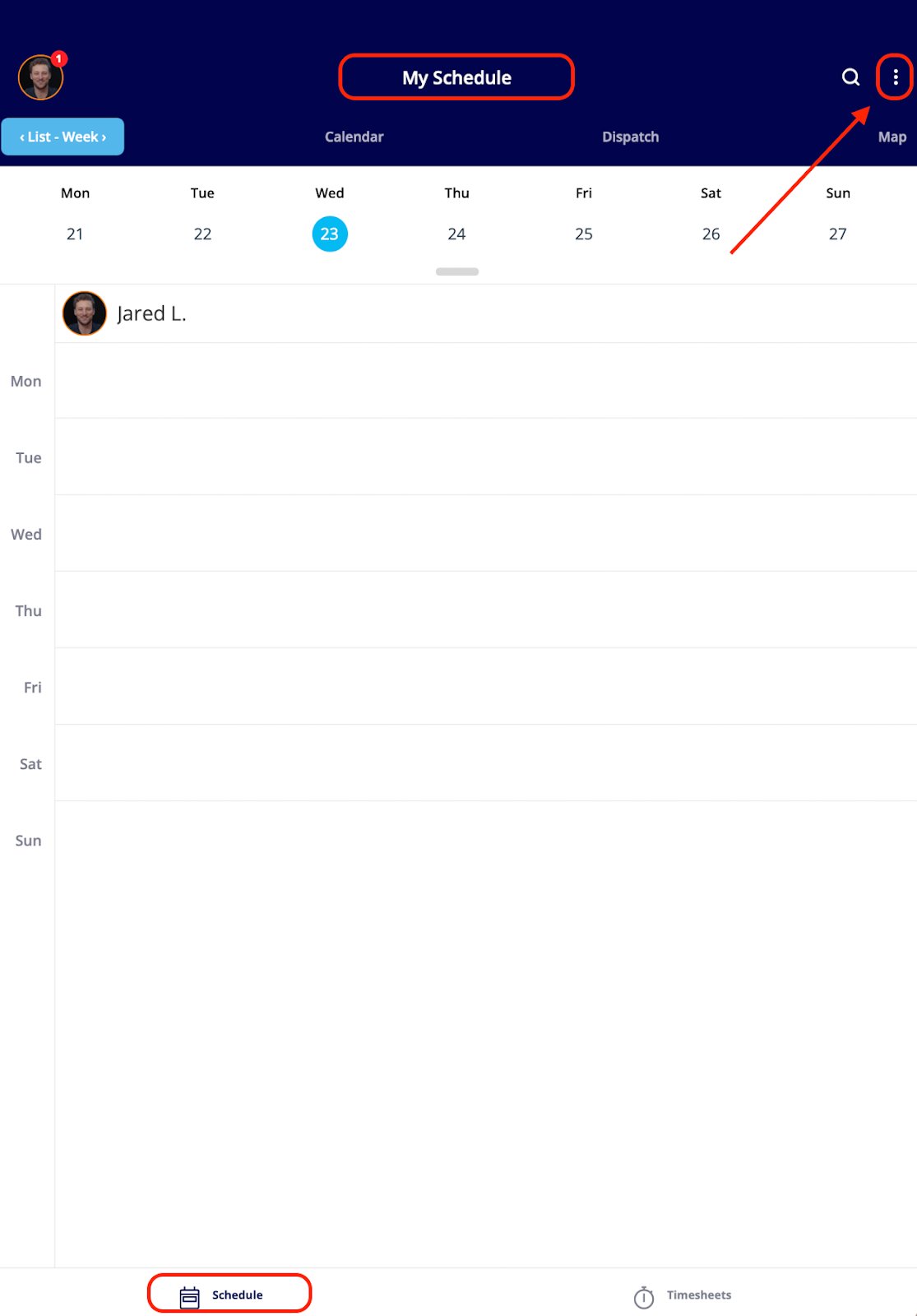
 If you want more information to display on the job tile for quick and easy viewing on the schedule, try **customizing your tile**. When on one of the schedule views mentioned above, click on the three dots in the upper right hand corner of your screen.
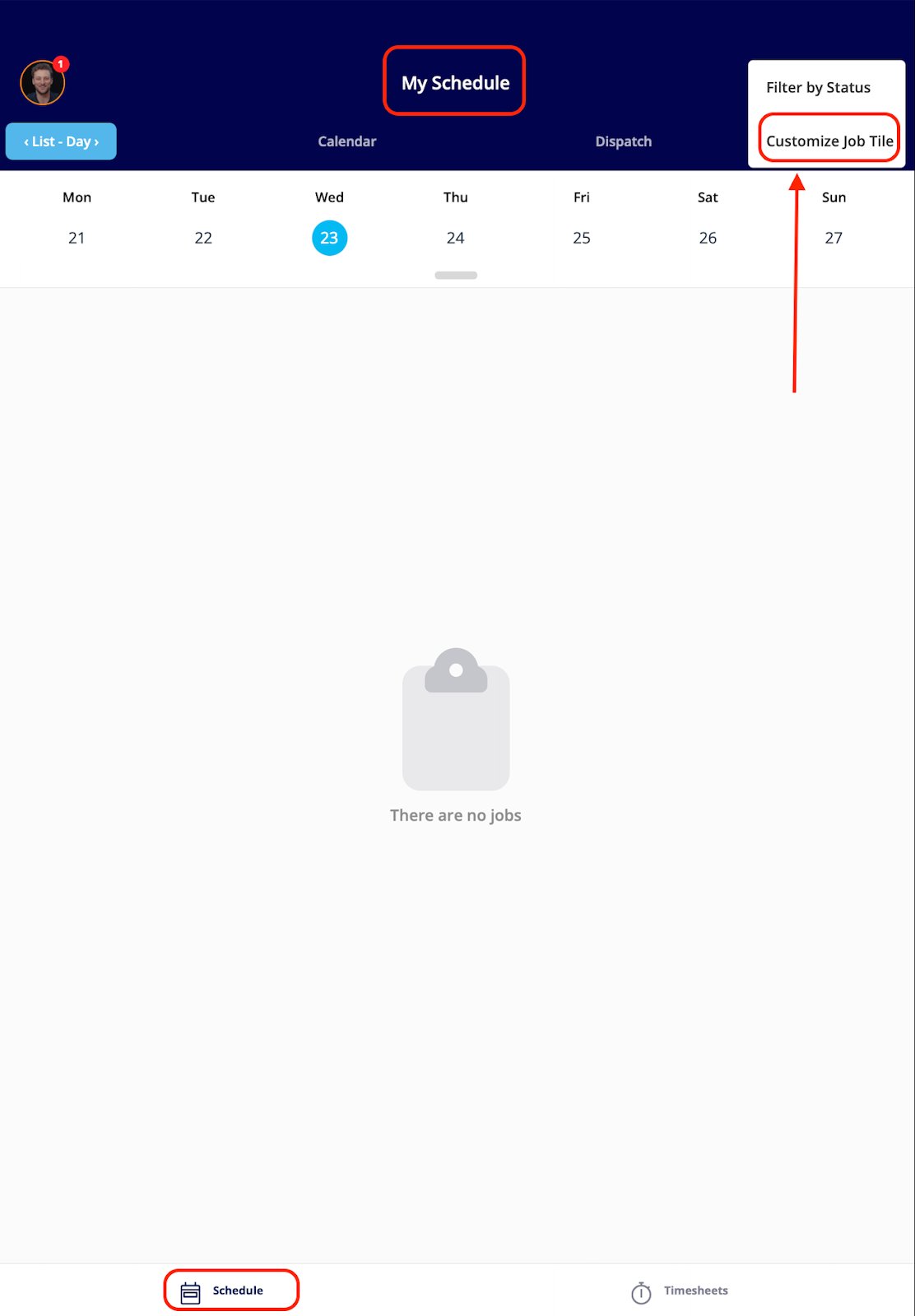
 Then click, **Customize Job Tile.**
 Select **Custom Job Tile Layout** then click on **Select Fields to Display.**
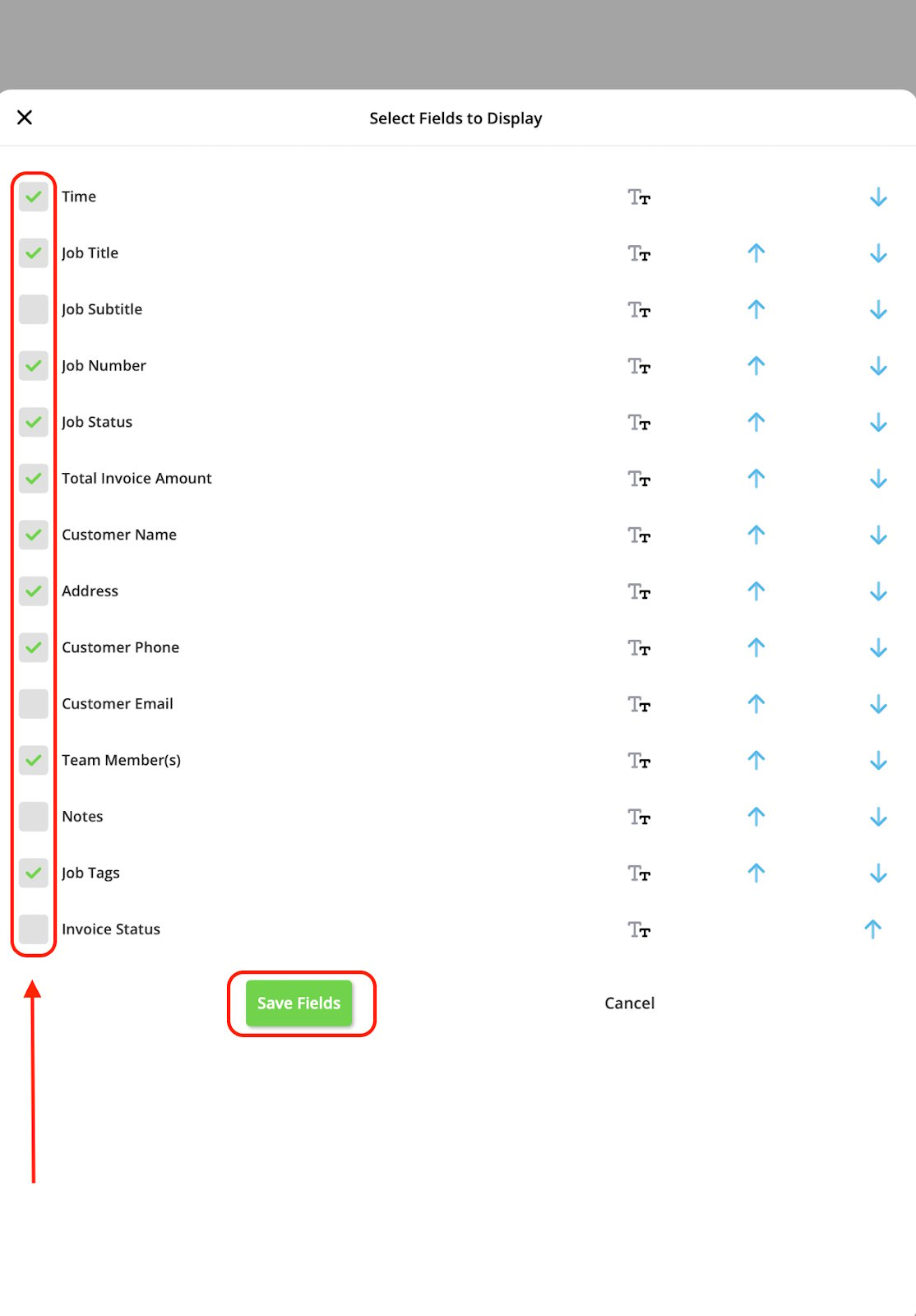
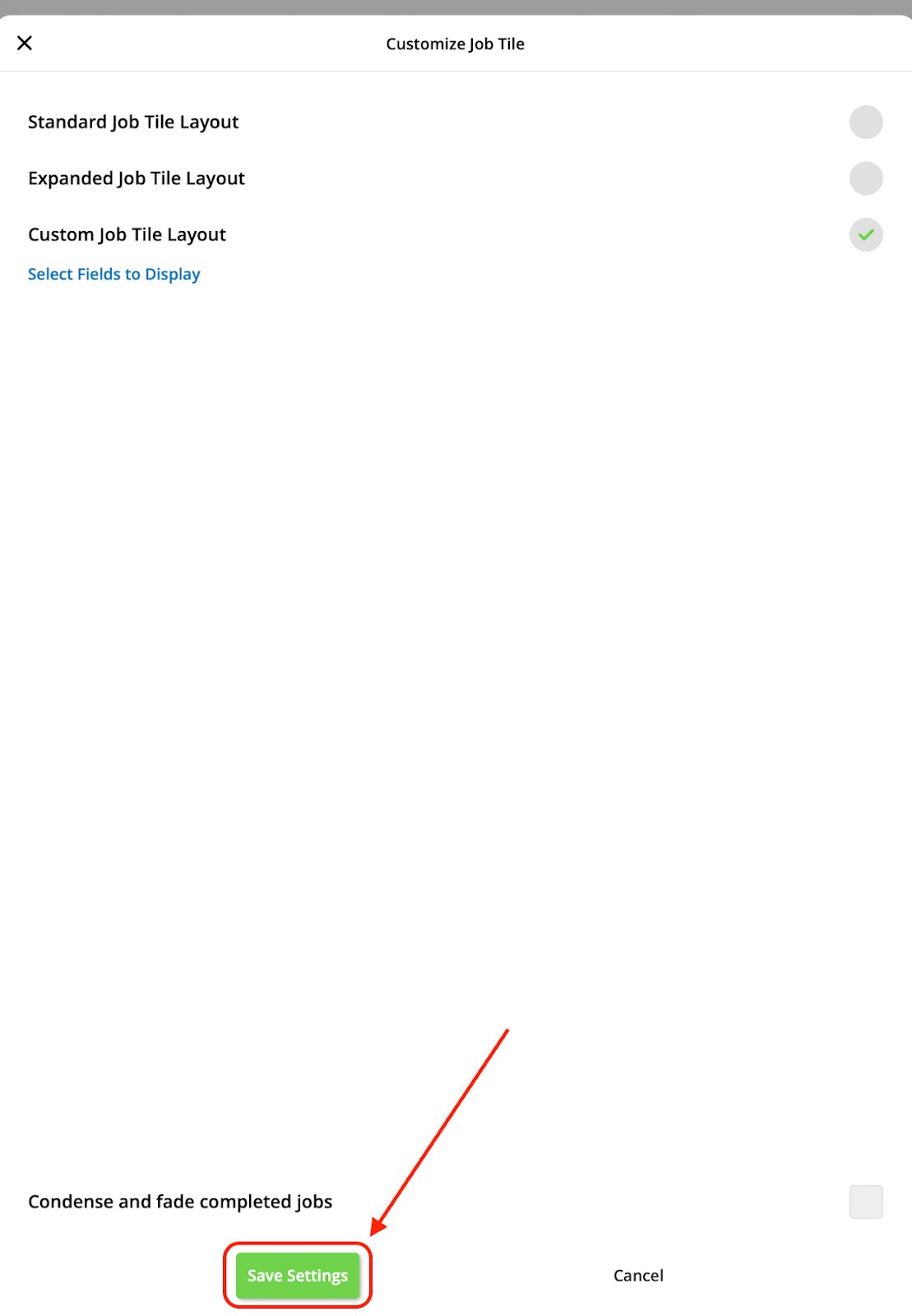
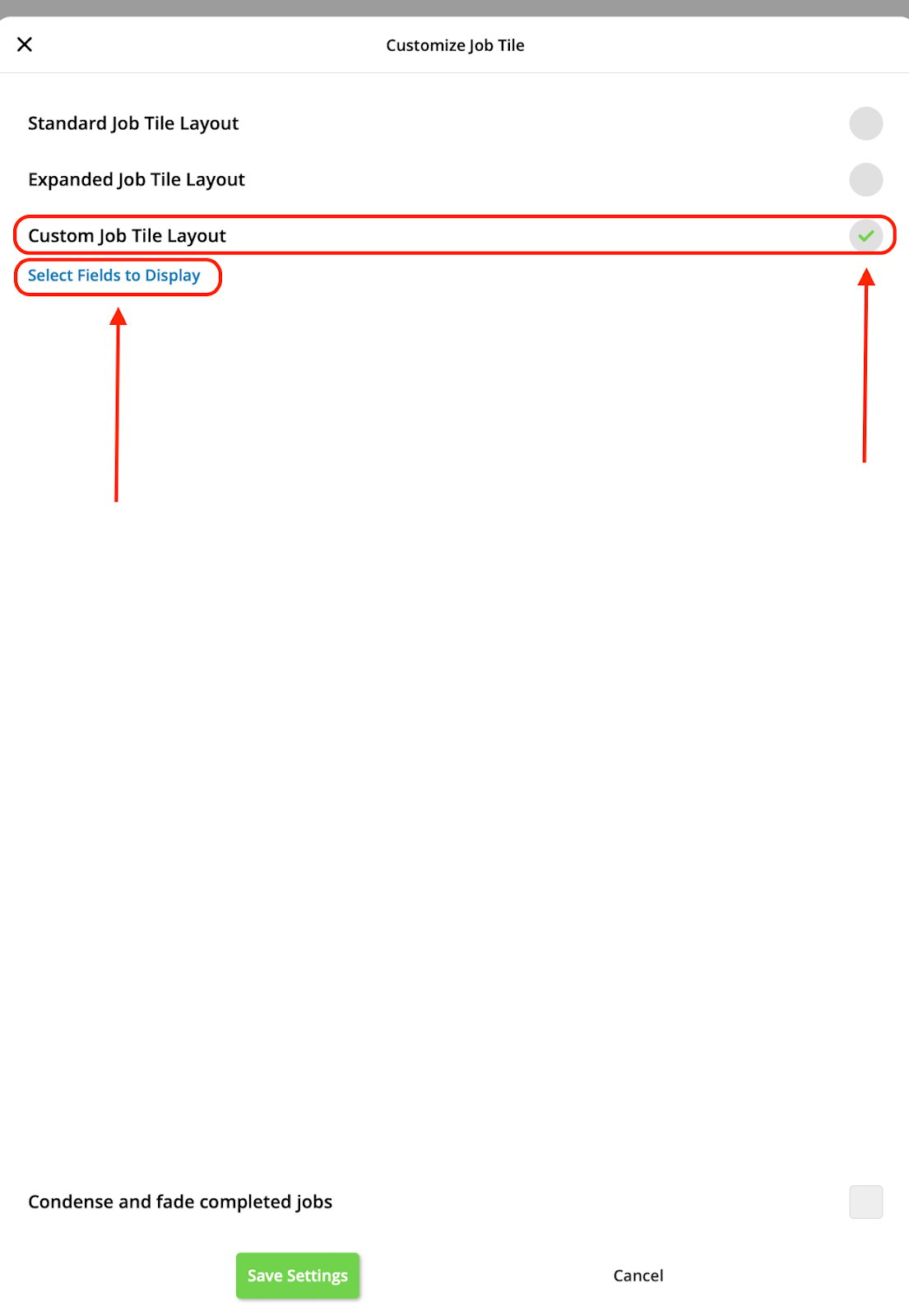 Utilize the check boxes to select which information you wish to display on your job tiles moving forward. When you are done, ensure you press the green **Save Fields** button. When it redirects you back to the original screen ensure you press the green **Save Settings** button.
 ***
# Timesheets
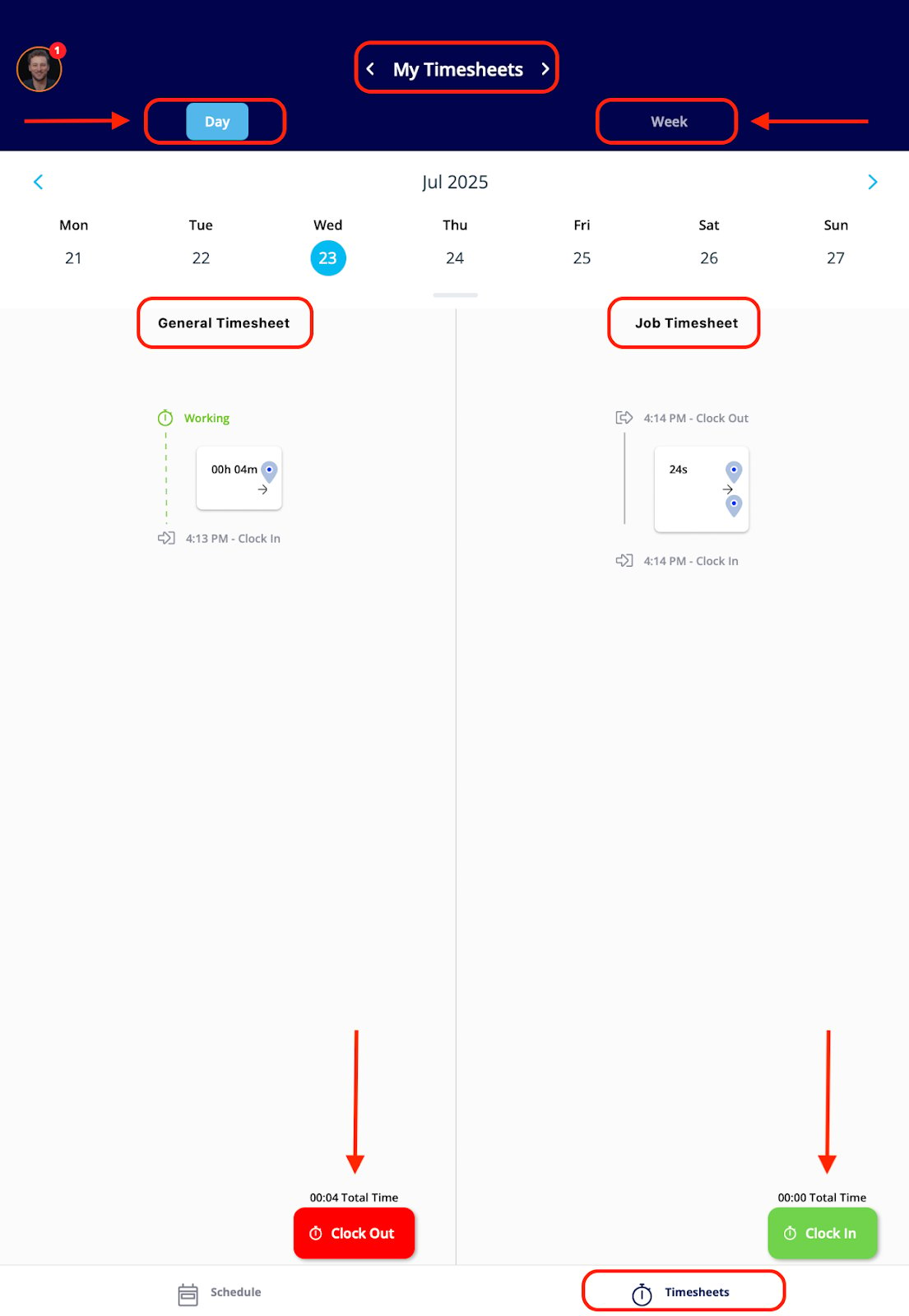
Under the **Timesheets** tab, you'll find the functionality to clock in and out for the day. You can utilize **both** general and job-tracking timesheets. Here, you have the option to select *Day* or *Week* if you need to view or edit an entry.
* **General Timesheets** are used to track your entire workday, logging your time from the moment you clock in until you clock out.
* **Job Timesheets** are for tracking the time you spend completing a particular job or service.
To review your past timesheets, simply select the specific day or week you wish to view.
***
# Timesheets
Under the **Timesheets** tab, you'll find the functionality to clock in and out for the day. You can utilize **both** general and job-tracking timesheets. Here, you have the option to select *Day* or *Week* if you need to view or edit an entry.
* **General Timesheets** are used to track your entire workday, logging your time from the moment you clock in until you clock out.
* **Job Timesheets** are for tracking the time you spend completing a particular job or service.
To review your past timesheets, simply select the specific day or week you wish to view.
 ***
# Video Tutorial
***
**Have additional questions?**
*Contact us at [support@fieldpulse.com](mailto:support@fieldpulse.com) or use the chat feature in the bottom right corner of your screen.*
***
# Video Tutorial
***
**Have additional questions?**
*Contact us at [support@fieldpulse.com](mailto:support@fieldpulse.com) or use the chat feature in the bottom right corner of your screen.*