> ## Documentation Index
> Fetch the complete documentation index at: https://help.fieldpulse.com/llms.txt
> Use this file to discover all available pages before exploring further.
# Mobile App Overview - Service Agents
> This guide will provide an overview of the FieldPulse mobile app for Service Agents.
This guide will provide an overview of the FieldPulse mobile app for Service Agents.
To use FieldPulse on an iPhone or iPad, simply download the FieldPulse mobile app from the App Store and log in with your credentials. To use FieldPulse on an Android phone or tablet, simply download the FieldPulse mobile app from the Google Play store and log in with your credentials.
**Note:** As a Service Agent, there are different permission settings that your manager or admin have set up for you. If you don't have access to something in this article, please contact your manager to adjust your FieldPulse permission settings.
***
# Mobile App Tour
## Dashboard
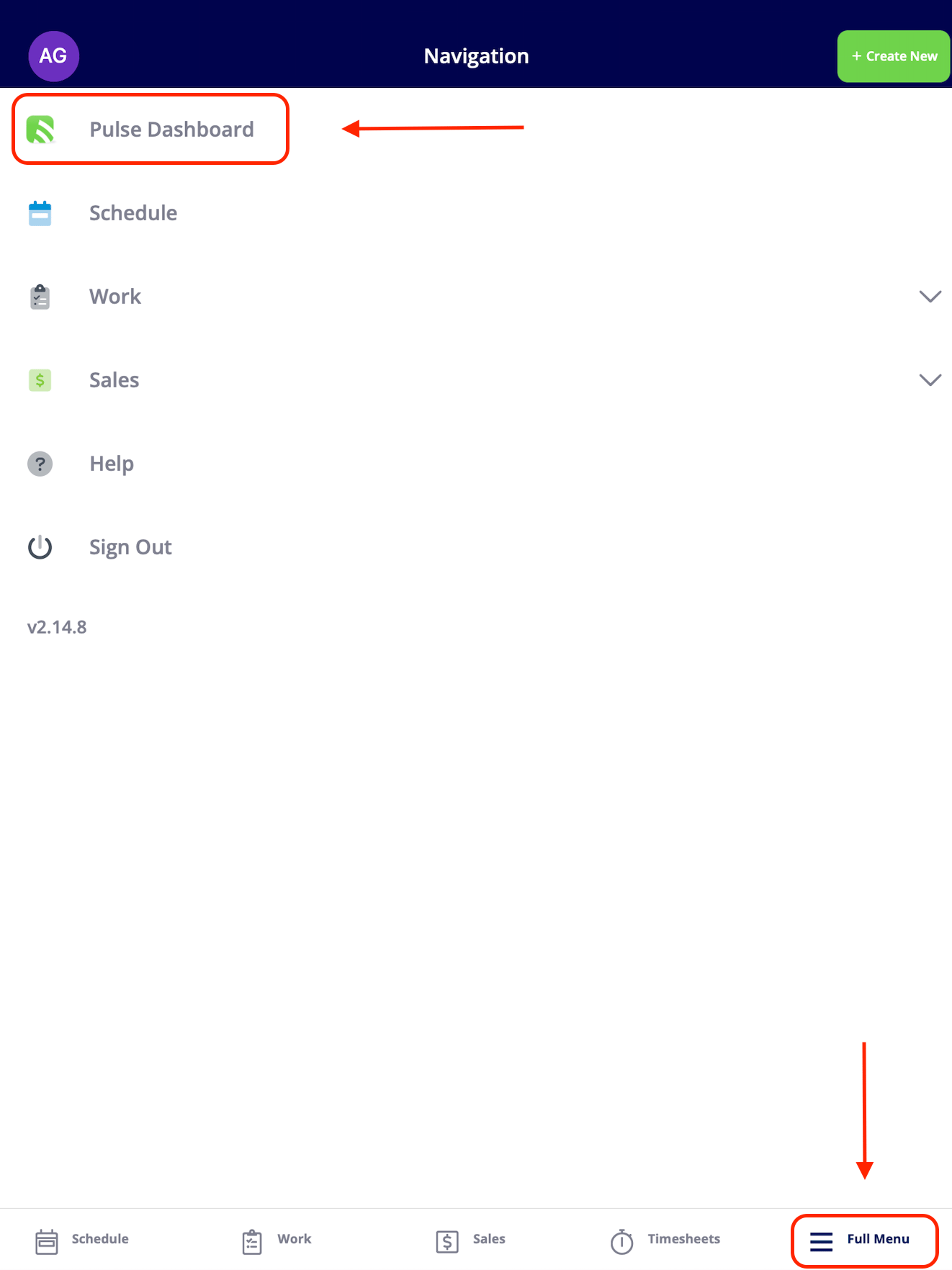
Once you get logged in, you can navigate to your FieldPulse dashboard by clicking *Full Menu* then *Pulse Dashboard* at the top of your screen.
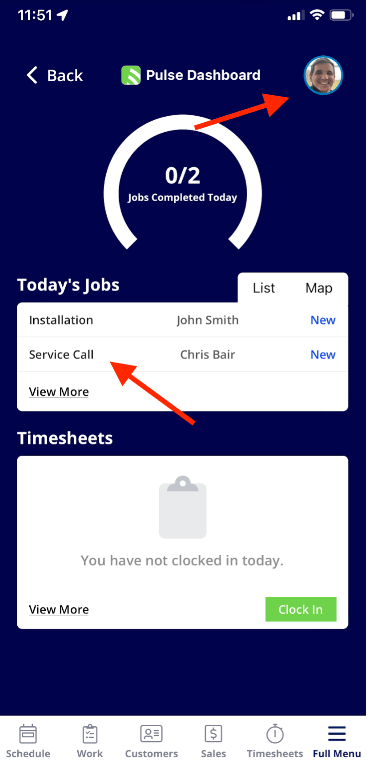
 There are several actions you can take from the dashboard:
1. You can edit your profile in the top right corner.
2. You can see your jobs for the day.
3. You can clock in and clock out.
4. You can navigate to schedule, work, customers, sales and timesheet from the bottom menu.
There are several actions you can take from the dashboard:
1. You can edit your profile in the top right corner.
2. You can see your jobs for the day.
3. You can clock in and clock out.
4. You can navigate to schedule, work, customers, sales and timesheet from the bottom menu.
 ***
# Schedule
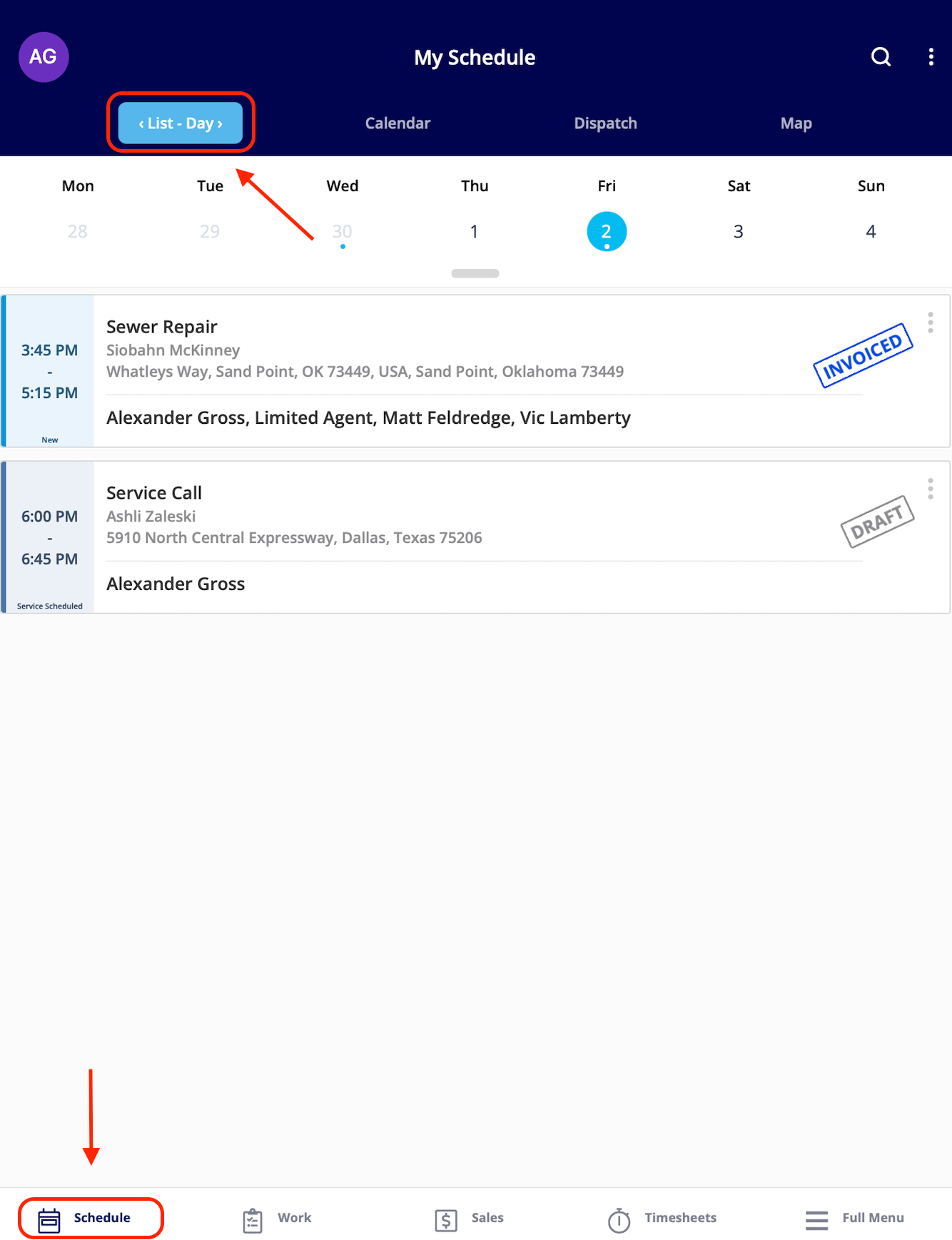
From the *Schedule* tab in the bottom left hand corner, you can see a list of your jobs. We have four different viewing options.
**1. List View**: The list view will give you a list of your assigned jobs. You can decide if you want to see your services by day, week, or month. From the list view, you can change the job status, clock in, add a comment, and call/email the customer by clicking on a job.
***
# Schedule
From the *Schedule* tab in the bottom left hand corner, you can see a list of your jobs. We have four different viewing options.
**1. List View**: The list view will give you a list of your assigned jobs. You can decide if you want to see your services by day, week, or month. From the list view, you can change the job status, clock in, add a comment, and call/email the customer by clicking on a job.
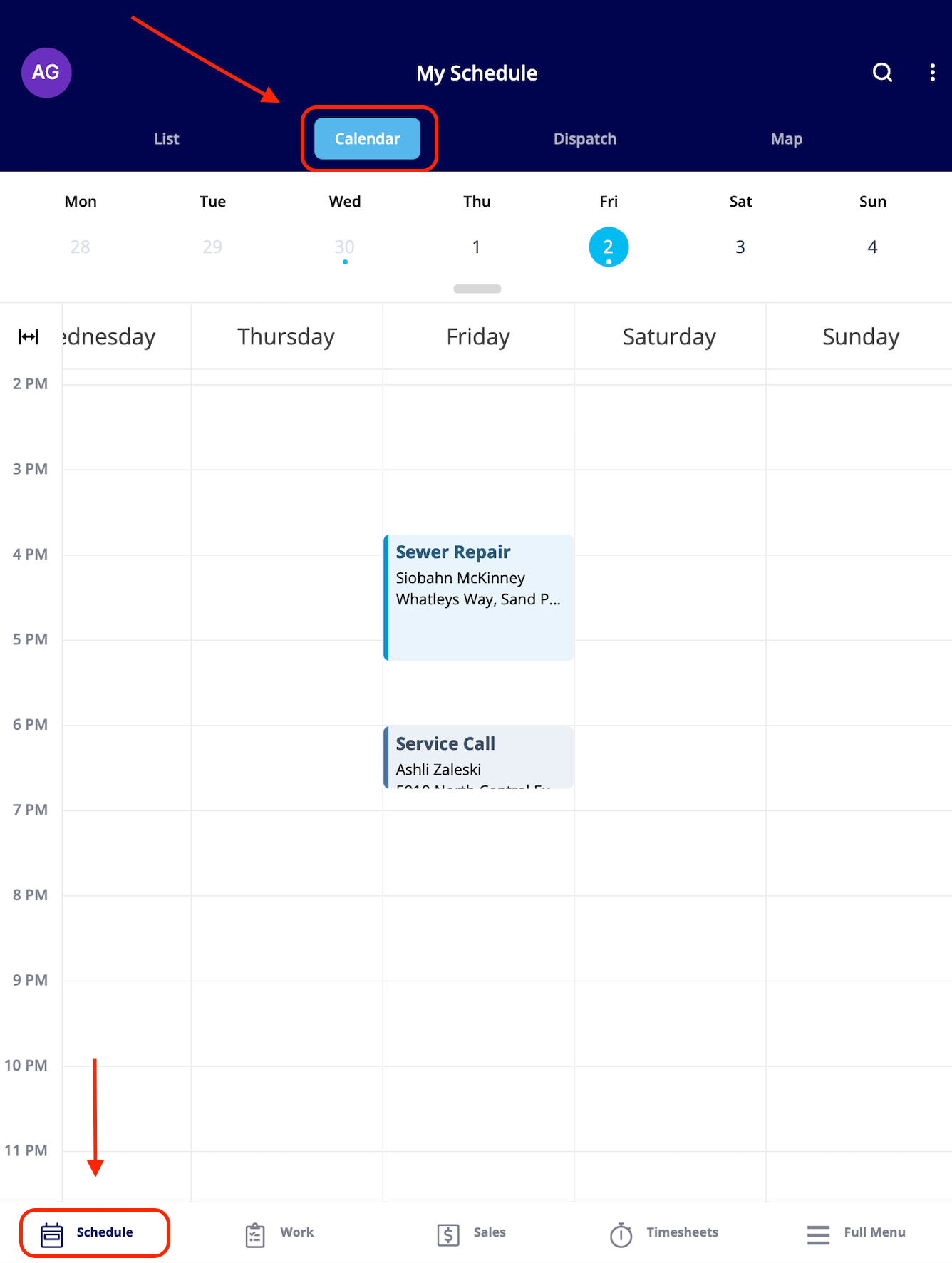
 2\. **Calendar View:** The calendar view allows you to view your jobs in a calendar format by week. From the calendar view, you can change the job status, clock in, add a comment, and call/email the customer by clicking on a job.
 **3. Dispatch View:** The dispatch view allows you to view your jobs in another format, depending on your preference. From the dispatch view, you can change the job status, clock in, add a comment, and call/email the customer by clicking on a job.
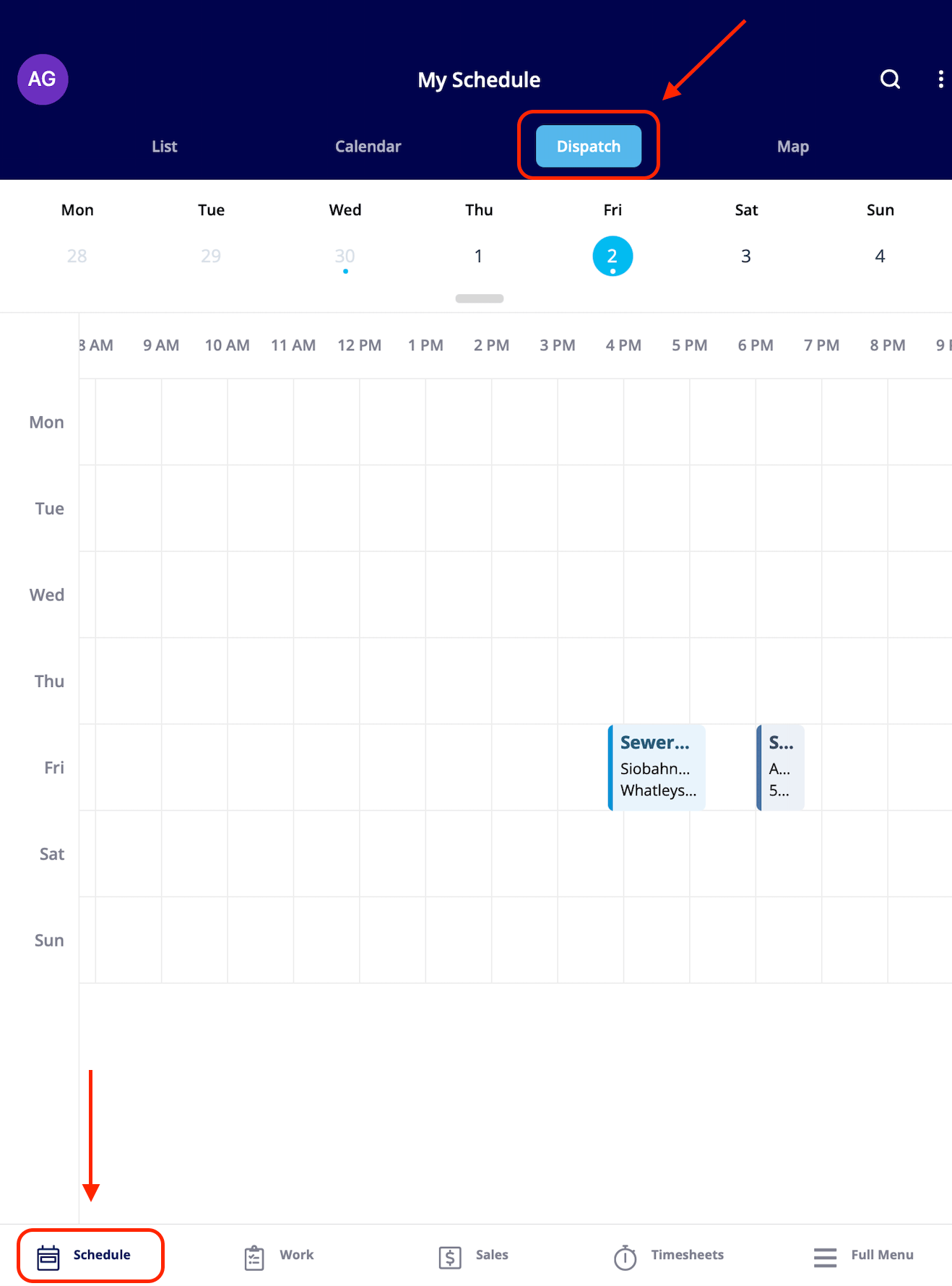 **4. Map View:** The map view allows you to view your jobs on a map. From the map view, you can change the job status, clock in, add a comment, and call/email the customer by clicking on a job.
 If you want more information to display on the job tile for quick and easy viewing on the schedule, try customizing your tile. When on one of the **list schedule view** mentioned above, click on the three dots in the upper right hand corner of your screen.
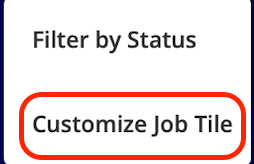
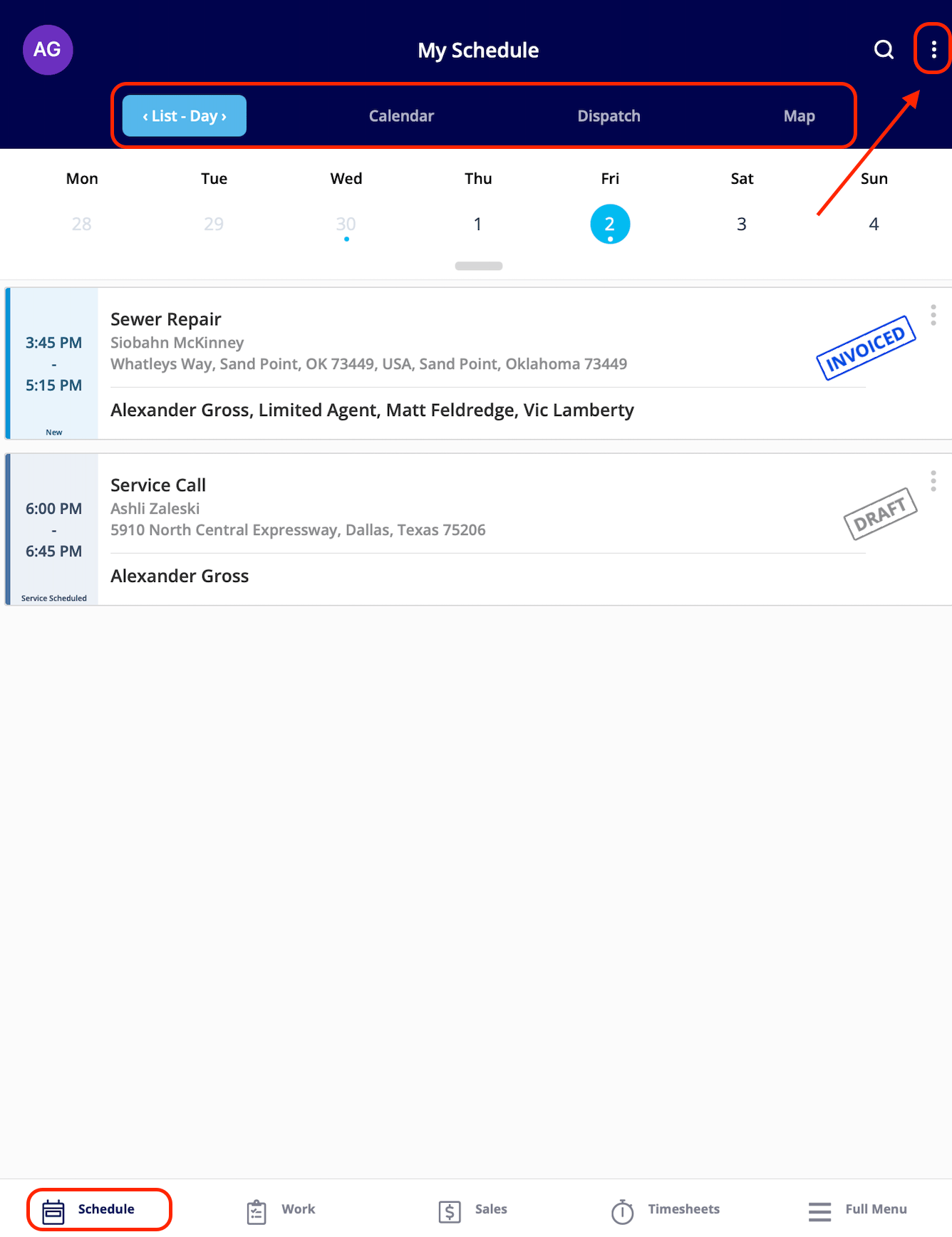 Then click, *Customize Job Tile*.
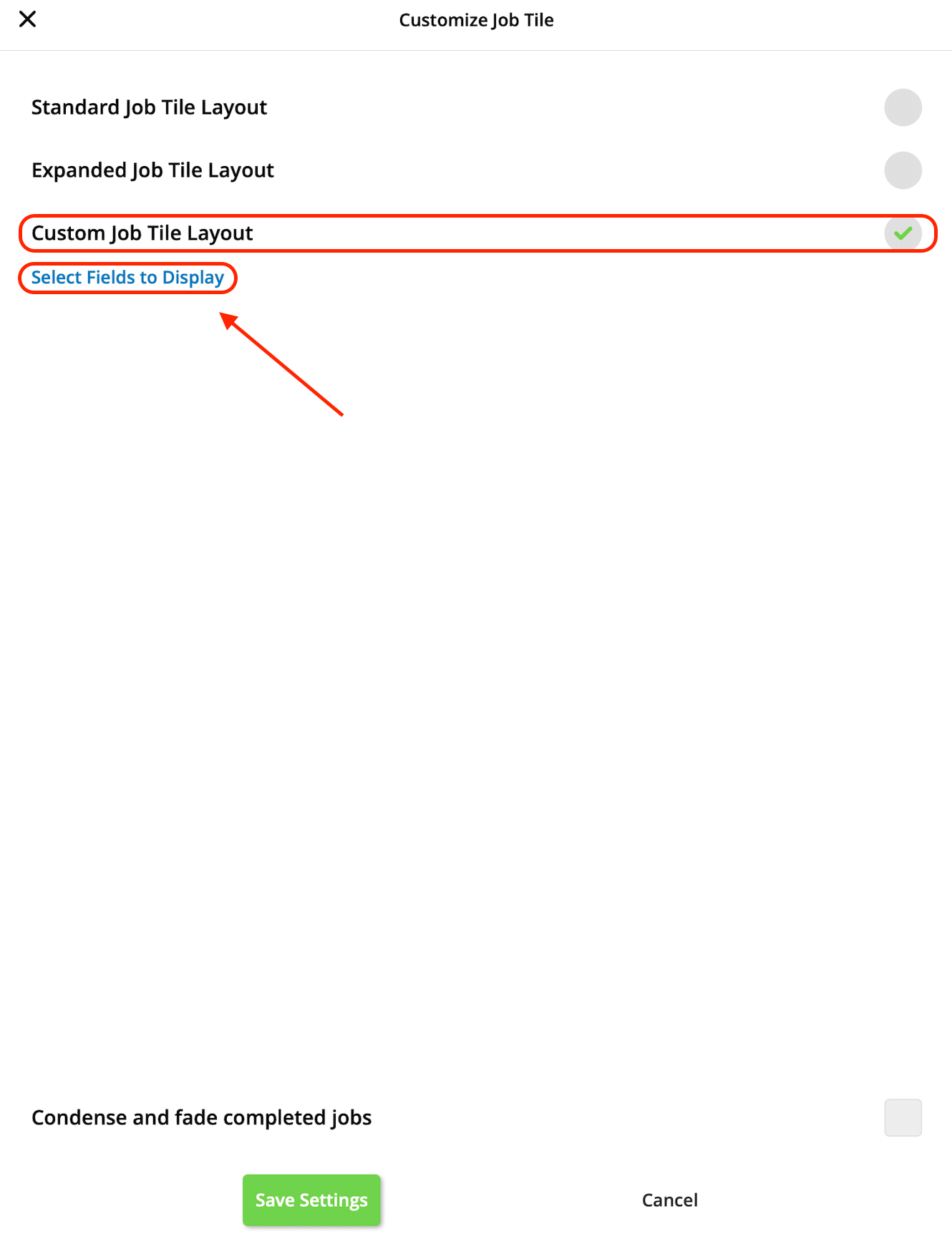
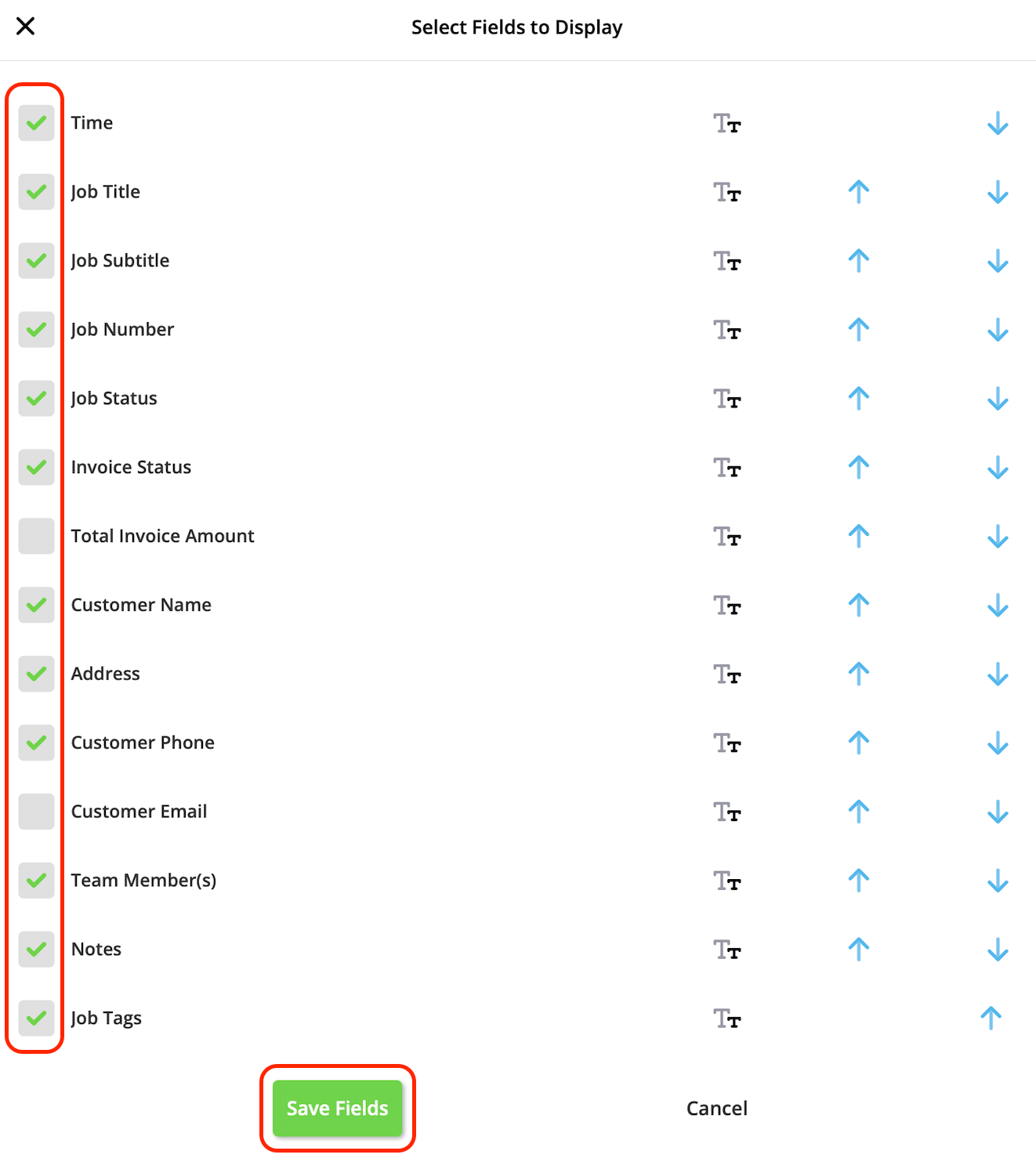
 Select *Custom Job Tile Layout* then click on *Select Fields to Display*.
 Utilizing the check boxes to select which information you wish to display on your job tiles moving forward. When you are done, ensure you press the green *Save Fields* button. When it redirects you back to the original screen ensure you press the green *Save Settings* button.
 ***
# Work
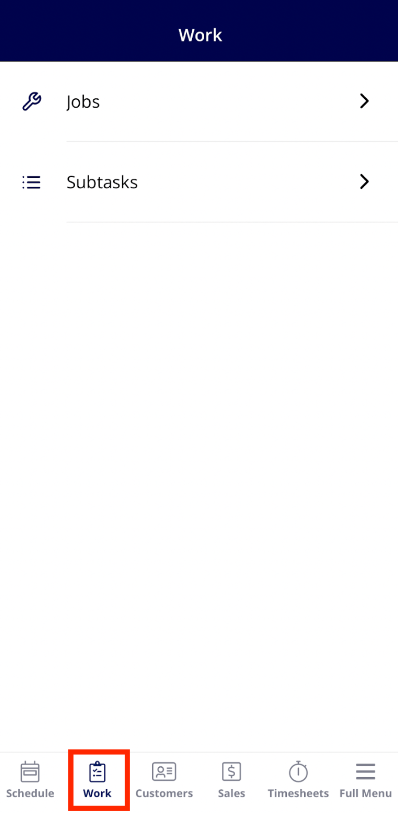
If you click into the *Work* tab, you'll be able to view jobs as well as subtasks.
***
# Work
If you click into the *Work* tab, you'll be able to view jobs as well as subtasks.
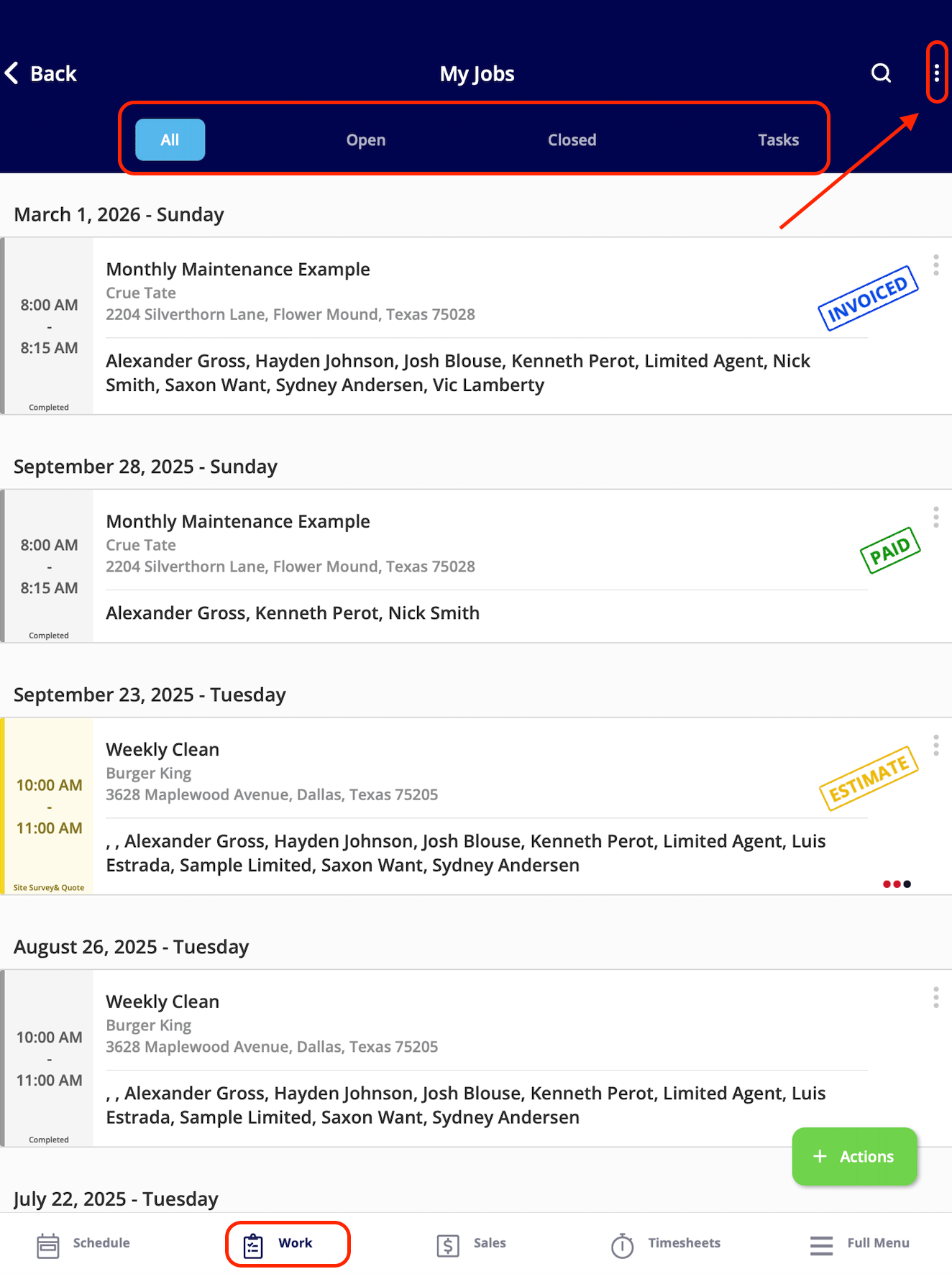
 If you click on *Jobs*, you can sort your jobs by *All*, *Open*, *Closed,* or *By Tasks*. Click on any job to change the job status, clock in, add a comment, or call/email the customer. Utilize the three dots in the upper right hand corner of your screen to filter by service status and/or to hide recurring jobs.
 ***
# Customers
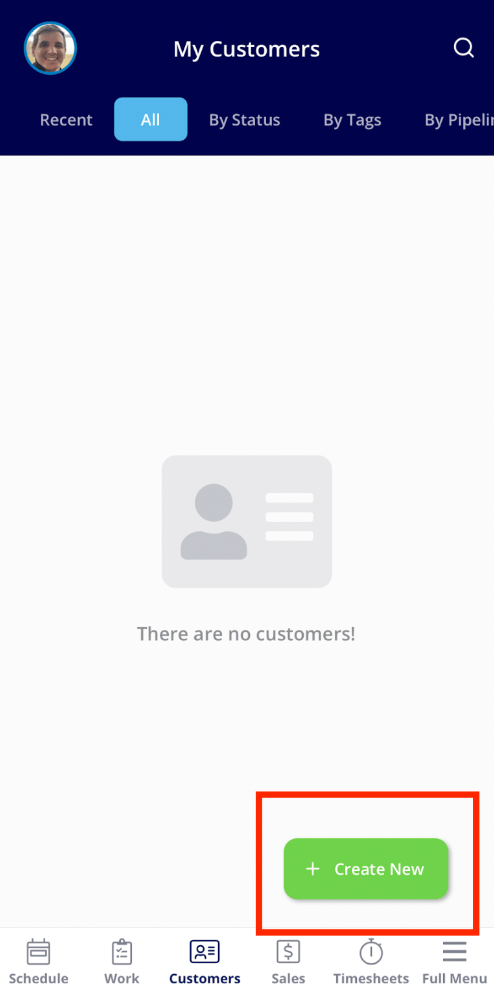
Under the *Customers* tab, you will only have access to the customers you are assigned or you have a job for. You can create new customers by clicking on *Create New*.
***
# Customers
Under the *Customers* tab, you will only have access to the customers you are assigned or you have a job for. You can create new customers by clicking on *Create New*.
 ***
# Sales
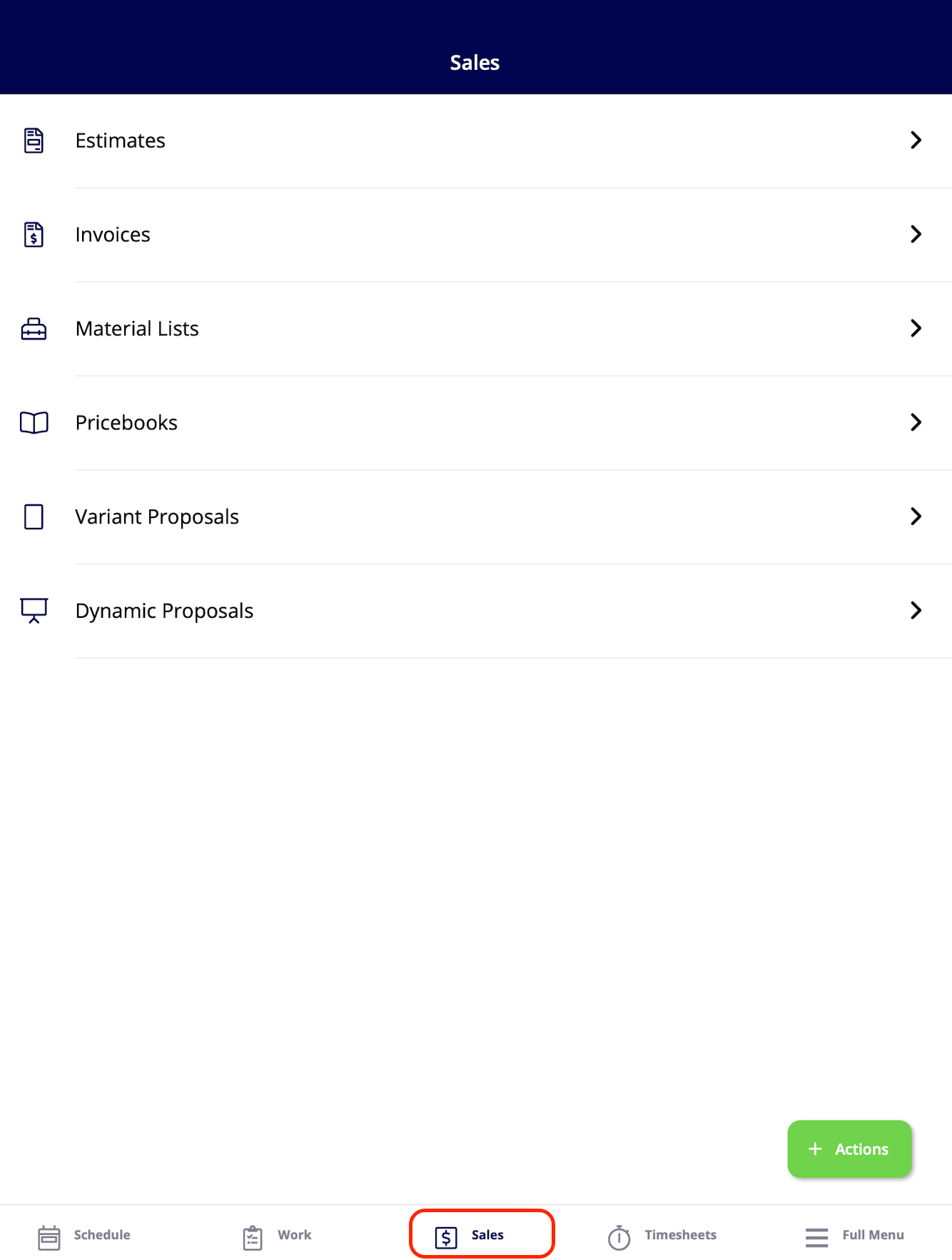
Under the *Sales* tab, you'll be able to view or create estimates, invoices, material lists, your pricebooks (add-on), variant proposals, and dynamic proposals (add-on).
***
# Sales
Under the *Sales* tab, you'll be able to view or create estimates, invoices, material lists, your pricebooks (add-on), variant proposals, and dynamic proposals (add-on).
 ***
# Timesheets
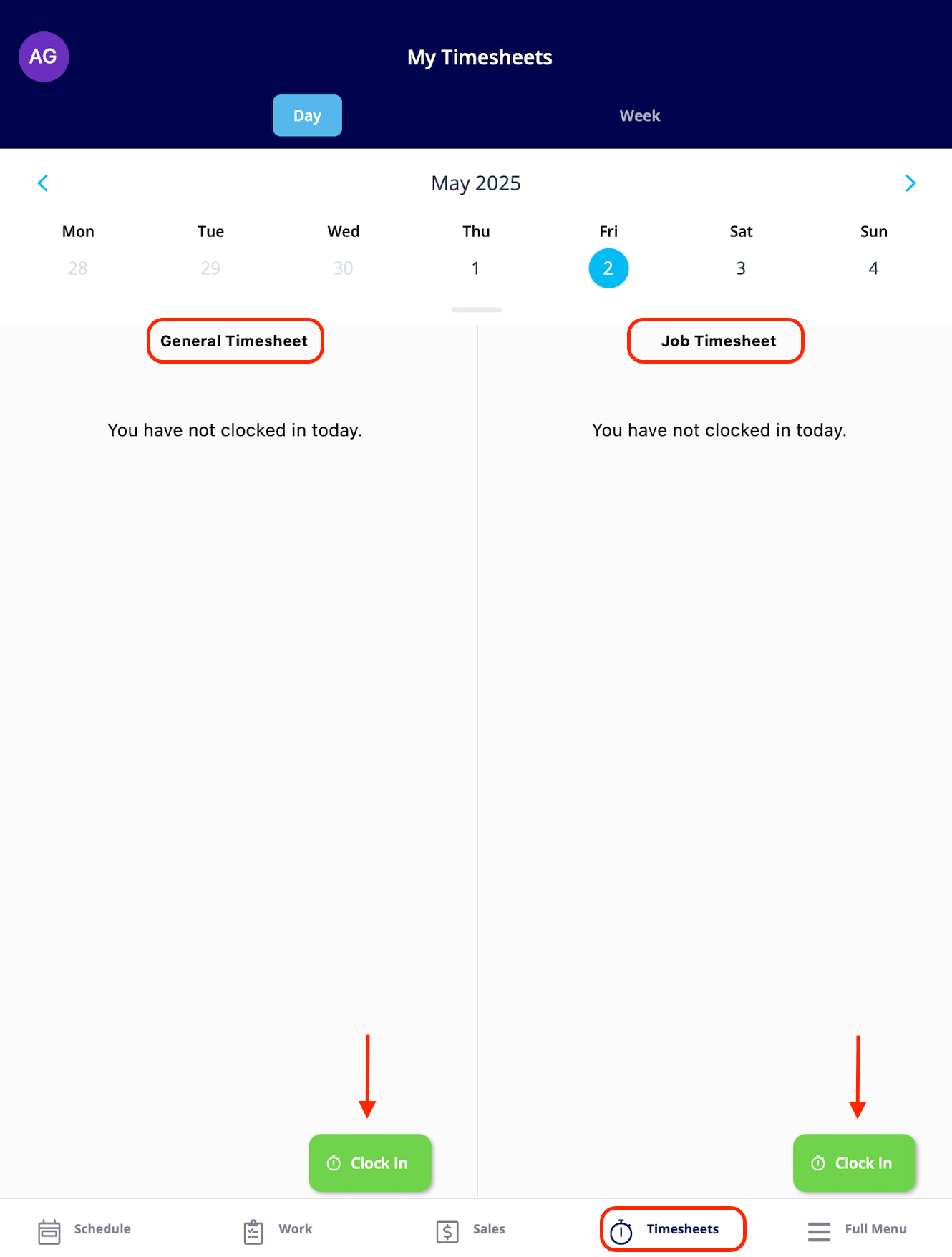
Under the *Timesheets* tab, you'll be able to clock in and out for the day. Some teams have both general and job tracking timesheets enabled as shown below. To see your previous timesheets, select the day or week you'd like to review.
***
# Timesheets
Under the *Timesheets* tab, you'll be able to clock in and out for the day. Some teams have both general and job tracking timesheets enabled as shown below. To see your previous timesheets, select the day or week you'd like to review.
 ***
# Video Tutorial
***
**Have additional questions?**
*Contact us at [support@fieldpulse.com](mailto:support@fieldpulse.com) or use the chat feature in the bottom right corner of your screen.*
***
# Video Tutorial
***
**Have additional questions?**
*Contact us at [support@fieldpulse.com](mailto:support@fieldpulse.com) or use the chat feature in the bottom right corner of your screen.*