> ## Documentation Index
> Fetch the complete documentation index at: https://help.fieldpulse.com/llms.txt
> Use this file to discover all available pages before exploring further.
# Get Started as a Dispatcher
> Run your day as a FieldPulse dispatcher: see who's available, book and assign jobs, track work in real time, and handle unassigned work.
# Welcome to FieldPulse
As a Dispatcher (called a Team Manager in FieldPulse), you're the one keeping the schedule full and the team moving. This page walks you through everything you need to run your day: seeing who's available, booking and assigning jobs, tracking work in real time, and handling the curveballs that come up. Follow the steps in order and you'll have everything you need to run dispatch without digging through other articles.
Team Managers can create and assign work to their own team(s), but can't view Company Settings or other teams' schedules. If you can't find something below, check with your Admin — see the [full Team Manager permissions](https://help.fieldpulse.com/using-fieldpulse/users-teams/user-roles#team-manager).
## Know Your Team's Schedule
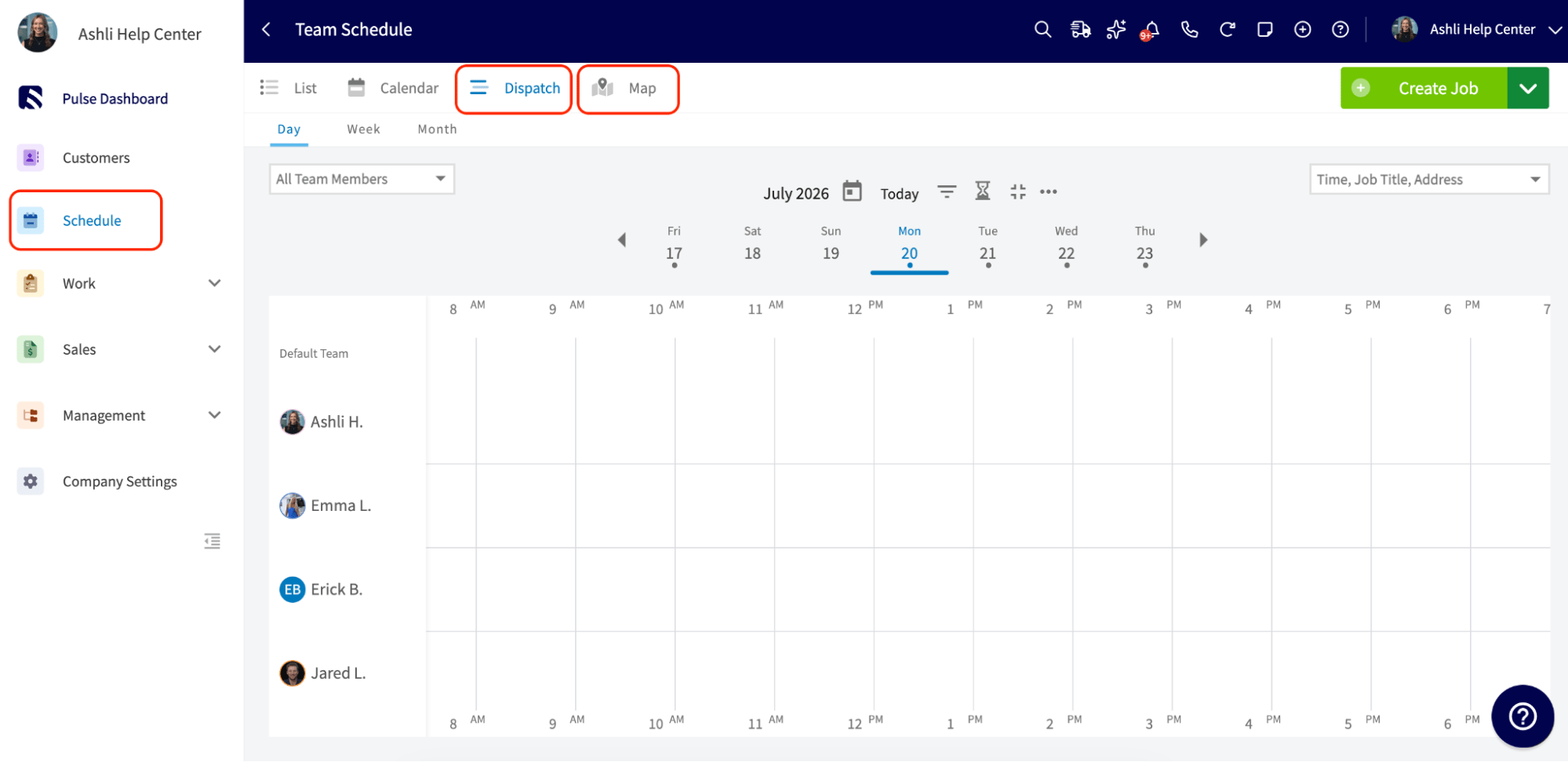
Everything starts on the *Schedule* page in the left-side menu. Two views matter most for dispatching:
* **Dispatch View:** Shows your team across a time grid so you can see exactly who's booked and who's open at a glance.
* **Map View:** Plots jobs and technicians geographically — useful for spotting unscheduled work and keeping routes tight. Filter by team, unassigned jobs, or unscheduled jobs, and view by job status or by team member color.
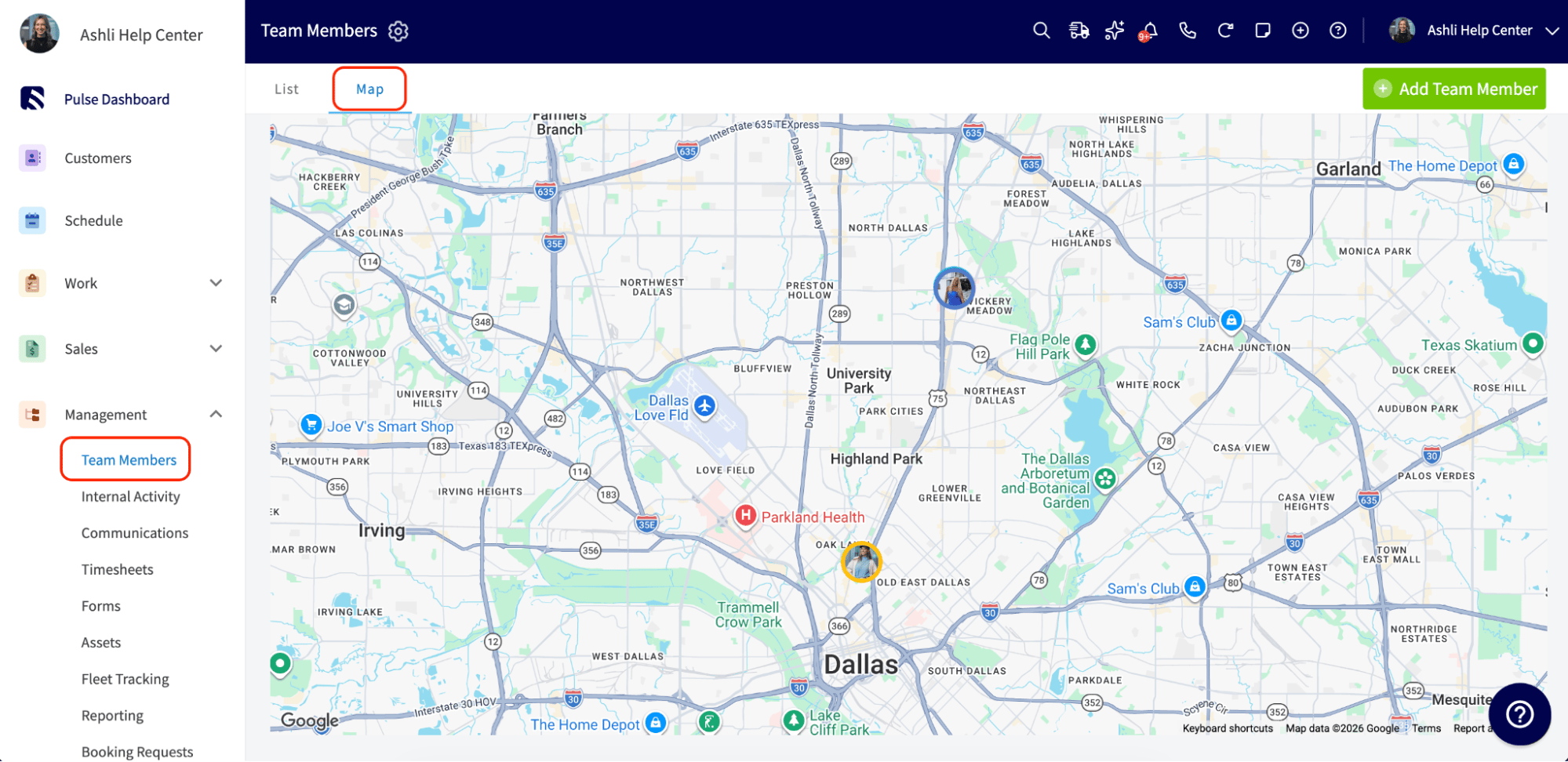
 If you need to check where a technician actually is (not just what's on their calendar), go to *Team Members* in the left-side menu and click *Map* to see everyone's last known location and timestamp, pulled from their mobile app activity.
 **Read more:** [Dispatch Availability Scheduling](https://help.fieldpulse.com/using-fieldpulse/scheduling-dispatch/dispatch-availability-scheduling), [Using the Schedule Map View](https://help.fieldpulse.com/using-fieldpulse/scheduling-dispatch/using-the-schedule-map-view), [Checking the Location of Your Team Members](https://help.fieldpulse.com/using-fieldpulse/users-teams/checking-the-location-of-your-team-members)
## Create and Assign the Job
1. Go to *Jobs > Create Job*.
2. Link an existing customer or create a new one, then add a title describing the work.
3. Use *Assigned Users to Job* to select one person, multiple people, or an entire team.
4. Add job tags if you use them to color-code the schedule.
5. Set the date and time, then click *Save Job*. Assigned team members are notified automatically and the job lands on their schedule.
**Read more:** [Creating a Job](https://help.fieldpulse.com/using-fieldpulse/work/creating-a-job), [Job Templates](https://help.fieldpulse.com/using-fieldpulse/work/job-templates)
## Find Availability & Avoid Double-Booking
Instead of guessing who's free, let FieldPulse do the work:
* **From the Dispatch View:** Click a team member's name to select them, then click the time grid at your desired start time and select *Create Job*. The job record is pre-filled with that person and time slot.
* **From a job record:** Scroll to the date/time section and click *Find Availability*. Set your requirements (team members, skills, duration, booking window) and click *Suggest Times*. FieldPulse returns available combinations of team members that fit.
FieldPulse will also flag scheduling conflicts automatically when you pick a date and time, so you don't need to cross-check calendars manually.
**Read more:** [Find Availability](https://help.fieldpulse.com/using-fieldpulse/scheduling-dispatch/find-availability), [Dispatch Availability Scheduling](https://help.fieldpulse.com/using-fieldpulse/scheduling-dispatch/dispatch-availability-scheduling)
## Track the Day in Real Time
Once jobs are out, keep an eye on progress from the *Schedule* page:
* Job status updates (en route, in progress, completed) show up live as your technicians update them from the field.
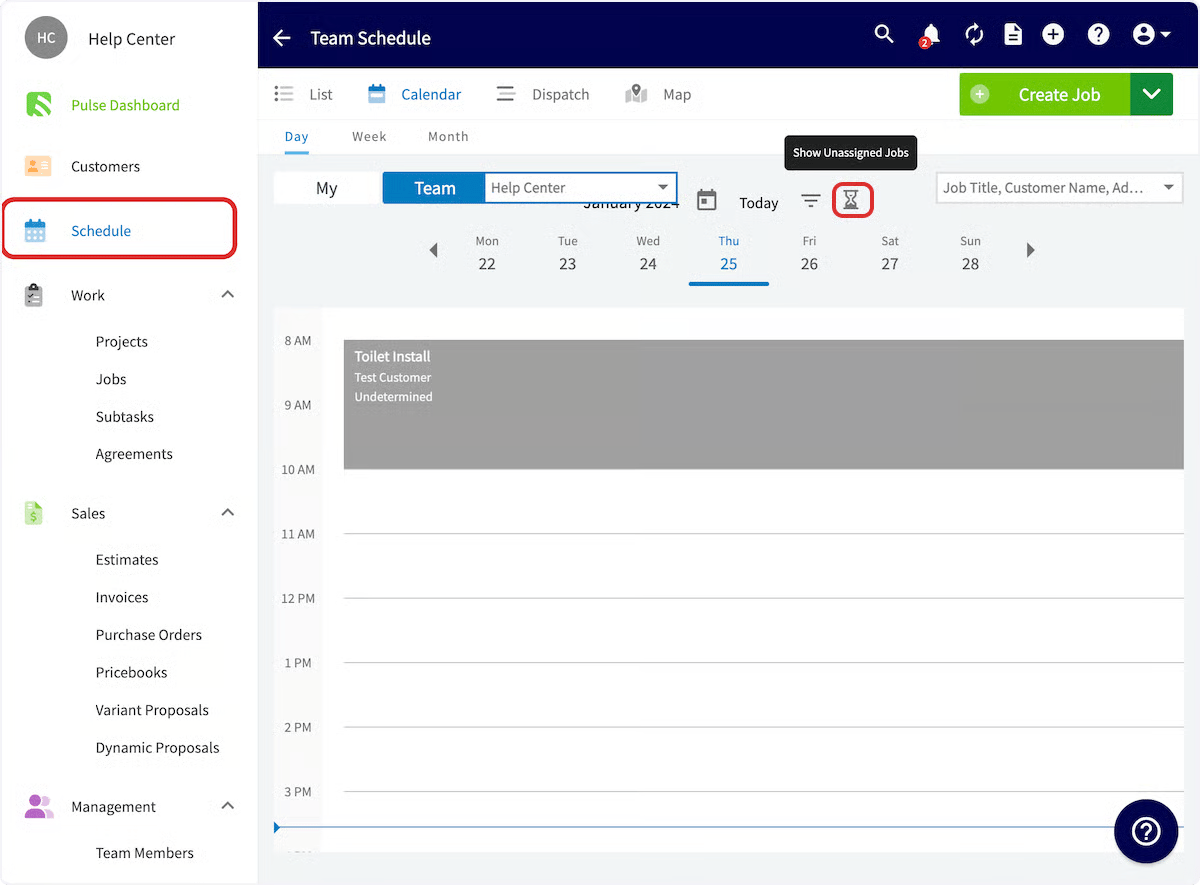
* Use *Map View* with *Filter by Job Status* or the *Job Queue* panel (hourglass icon) to see what's still unassigned or unscheduled at a glance.
* Check *Team Members > Map* any time you need a technician's last known location.
**Read more:** [Using the Schedule Map View](https://help.fieldpulse.com/using-fieldpulse/scheduling-dispatch/using-the-schedule-map-view)
## Handle Unassigned & Unscheduled Work
Not every job needs a tech or a date the moment it's created. Leave a job unassigned by not selecting a team member, or unscheduled by clicking *Clear Dates* when creating it. To pick it back up later:
* Go to *Jobs > Unassigned* to see every unassigned/unscheduled job in one list, then open it and click *Edit* to add a date and assign a team member, or
* On the *Schedule* page, click the hourglass icon to open the *Job Queue*, then drag the job straight onto your preferred date and time.
**Read more:** [Dispatch Availability Scheduling](https://help.fieldpulse.com/using-fieldpulse/scheduling-dispatch/dispatch-availability-scheduling), [Using the Schedule Map View](https://help.fieldpulse.com/using-fieldpulse/scheduling-dispatch/using-the-schedule-map-view), [Checking the Location of Your Team Members](https://help.fieldpulse.com/using-fieldpulse/users-teams/checking-the-location-of-your-team-members)
## Create and Assign the Job
1. Go to *Jobs > Create Job*.
2. Link an existing customer or create a new one, then add a title describing the work.
3. Use *Assigned Users to Job* to select one person, multiple people, or an entire team.
4. Add job tags if you use them to color-code the schedule.
5. Set the date and time, then click *Save Job*. Assigned team members are notified automatically and the job lands on their schedule.
**Read more:** [Creating a Job](https://help.fieldpulse.com/using-fieldpulse/work/creating-a-job), [Job Templates](https://help.fieldpulse.com/using-fieldpulse/work/job-templates)
## Find Availability & Avoid Double-Booking
Instead of guessing who's free, let FieldPulse do the work:
* **From the Dispatch View:** Click a team member's name to select them, then click the time grid at your desired start time and select *Create Job*. The job record is pre-filled with that person and time slot.
* **From a job record:** Scroll to the date/time section and click *Find Availability*. Set your requirements (team members, skills, duration, booking window) and click *Suggest Times*. FieldPulse returns available combinations of team members that fit.
FieldPulse will also flag scheduling conflicts automatically when you pick a date and time, so you don't need to cross-check calendars manually.
**Read more:** [Find Availability](https://help.fieldpulse.com/using-fieldpulse/scheduling-dispatch/find-availability), [Dispatch Availability Scheduling](https://help.fieldpulse.com/using-fieldpulse/scheduling-dispatch/dispatch-availability-scheduling)
## Track the Day in Real Time
Once jobs are out, keep an eye on progress from the *Schedule* page:
* Job status updates (en route, in progress, completed) show up live as your technicians update them from the field.
* Use *Map View* with *Filter by Job Status* or the *Job Queue* panel (hourglass icon) to see what's still unassigned or unscheduled at a glance.
* Check *Team Members > Map* any time you need a technician's last known location.
**Read more:** [Using the Schedule Map View](https://help.fieldpulse.com/using-fieldpulse/scheduling-dispatch/using-the-schedule-map-view)
## Handle Unassigned & Unscheduled Work
Not every job needs a tech or a date the moment it's created. Leave a job unassigned by not selecting a team member, or unscheduled by clicking *Clear Dates* when creating it. To pick it back up later:
* Go to *Jobs > Unassigned* to see every unassigned/unscheduled job in one list, then open it and click *Edit* to add a date and assign a team member, or
* On the *Schedule* page, click the hourglass icon to open the *Job Queue*, then drag the job straight onto your preferred date and time.
 **Read more:** [Managing Unassigned & Unscheduled Jobs](https://help.fieldpulse.com/using-fieldpulse/work/managing-unassigned-unscheduled-jobs)
## Keep Tabs on Customers
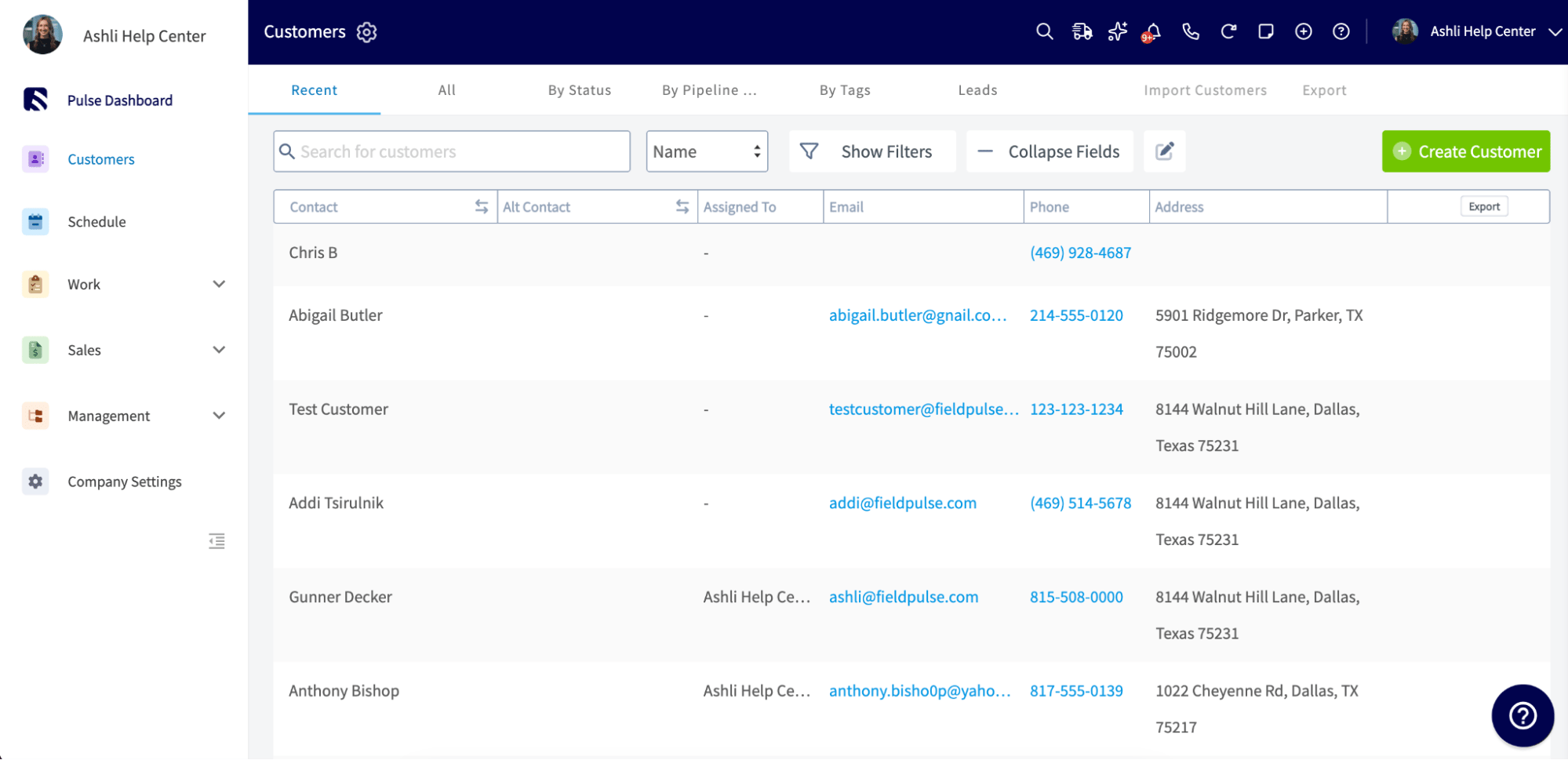
Depending on how your Admin has configured your permissions, you can view the customer list, customer communications, and inbound leads. Use these to catch a customer's history before you dispatch a job to them, or to follow up on a lead that hasn't been scheduled yet.
**Read more:** [Managing Unassigned & Unscheduled Jobs](https://help.fieldpulse.com/using-fieldpulse/work/managing-unassigned-unscheduled-jobs)
## Keep Tabs on Customers
Depending on how your Admin has configured your permissions, you can view the customer list, customer communications, and inbound leads. Use these to catch a customer's history before you dispatch a job to them, or to follow up on a lead that hasn't been scheduled yet.
 **Read more:** [Customer Communications](https://help.fieldpulse.com/using-fieldpulse/communications-notifications/customer-communications)
## Review Estimates & Invoices for Your Team
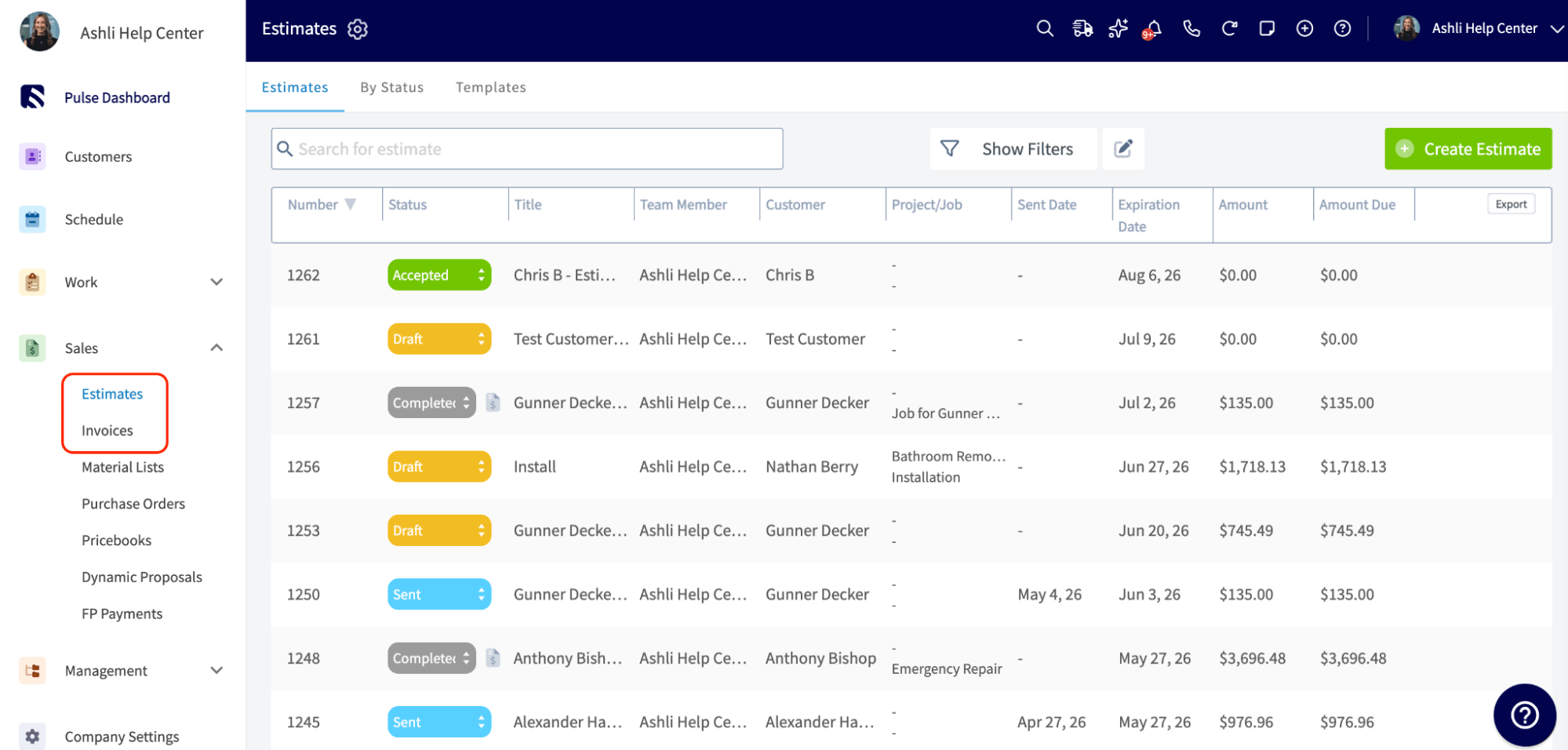
Team Managers can create, edit, and view estimates and invoices tied to their team's jobs. Build one straight from the customer record, the job record, or the Estimates/Invoices tab — all three lead to the same record. This is worth checking regularly to make sure completed jobs are actually getting billed.
**Read more:** [Customer Communications](https://help.fieldpulse.com/using-fieldpulse/communications-notifications/customer-communications)
## Review Estimates & Invoices for Your Team
Team Managers can create, edit, and view estimates and invoices tied to their team's jobs. Build one straight from the customer record, the job record, or the Estimates/Invoices tab — all three lead to the same record. This is worth checking regularly to make sure completed jobs are actually getting billed.
 **Read more:** [Estimates & Invoices Quick Start](https://help.fieldpulse.com/getting-started/core-features-first-tasks/fieldpulse-foundations/estimates-invoices-quick-start)
## What's Next
If your Admin has enabled reporting access for your role, check *Reporting* in the left-side menu to see how your team is trending on jobs, revenue, and commission.
From there, keep learning through FieldPulse360, our live monthly training series.
See your dashboard, custom reports, and raw data exports (if enabled for your role).
Join a live session or browse past recordings.
Managing multiple teams? See [My business has a complex team structure — can we operate in teams?](https://help.fieldpulse.com/using-fieldpulse/users-teams/my-business-has-a-complex-team-structure-can-we-operate-in-teams) for how FieldPulse handles multiple teams, managers, and subcontractors.
***
**Have additional questions?**
*Contact us at [support@fieldpulse.com](mailto:support@fieldpulse.com) or use the chat feature in the bottom right corner of your screen, or browse the [full Help Center](https://help.fieldpulse.com/).*
**Read more:** [Estimates & Invoices Quick Start](https://help.fieldpulse.com/getting-started/core-features-first-tasks/fieldpulse-foundations/estimates-invoices-quick-start)
## What's Next
If your Admin has enabled reporting access for your role, check *Reporting* in the left-side menu to see how your team is trending on jobs, revenue, and commission.
From there, keep learning through FieldPulse360, our live monthly training series.
See your dashboard, custom reports, and raw data exports (if enabled for your role).
Join a live session or browse past recordings.
Managing multiple teams? See [My business has a complex team structure — can we operate in teams?](https://help.fieldpulse.com/using-fieldpulse/users-teams/my-business-has-a-complex-team-structure-can-we-operate-in-teams) for how FieldPulse handles multiple teams, managers, and subcontractors.
***
**Have additional questions?**
*Contact us at [support@fieldpulse.com](mailto:support@fieldpulse.com) or use the chat feature in the bottom right corner of your screen, or browse the [full Help Center](https://help.fieldpulse.com/).*