> ## Documentation Index
> Fetch the complete documentation index at: https://help.fieldpulse.com/llms.txt
> Use this file to discover all available pages before exploring further.
# Limited Agent Mobile App Overview
> See what a Limited Agent can reach in the FieldPulse mobile app — assigned jobs, schedule views, files, and timesheets — and what stays out of reach.
> **Who uses this:** Limited Agents — the role's permissions set what appears in the app. **Availability:** FieldPulse mobile app on iOS and Android; Limited Agents cannot access the web app.
If you're a Limited Agent, the [FieldPulse mobile app](https://www.fieldpulse.com/features/mobile-app) is where you see the jobs you're assigned, view their details and files, and log your time — a focused, field-only view of the app.
## Overview
This overview is for **Limited Agents** — the most restricted of the mobile roles, built to see and work only the jobs assigned to you. Your access is different from a manager's or a Service Agent's, and if a feature or detail isn't available in the app, your permissions are the most likely reason. Reach out to your manager with any questions about your access.
Here is how the Limited Agent view compares with the other mobile roles:
| **Mobile role** | **What the role can reach in the app** |
| -------------------------- | ---------------------------------------------------------------------------------------------------------------------------------------------------------------------------------------------------- |
| **Limited Agent** | Assigned jobs, schedule views, job files, and timesheets — mobile app only, with no job status changes and no web app access. This article covers this view. |
| **Service Agent** | A broader field view: change job status, contact assigned customers, and view or create estimates and invoices. See [Service Agent Mobile App Overview](/getting-started/mobile-app/service-agents). |
| **Admin and Team Manager** | The whole team's schedule, work, customers, sales, and timesheets. See [Mobile App Overview: Admins and Team Managers](/getting-started/mobile-app/admins-team-managers). |
For the full definition of each role and the permissions behind it, see [User Roles and Permissions Details](/settings/users-teams/user-roles).
To get the app, download **FieldPulse** from the Apple App Store (iPhone or iPad) or the Google Play Store (Android phone or tablet) and log in with your credentials.
## Video walkthrough
## What you can and can't do
As a Limited Agent, your access is set by your role and your permissions:
| **You can** | **You can't** |
| ------------------------------------------------------------------------------------------------------------------------------------------- | ----------------------------------------------------------------------------------------------------------------------------------------------------------------------------------------------------------------------- |
| Use the mobile app and be assigned to a team | Change the status of a job |
| View your schedule and your assigned jobs | Access the web app (the computer-based version of FieldPulse) |
| View job details on jobs assigned to you — customer name and location, date and time, assigned team members, status, notes, and field notes | Change which jobs appear on your schedule — a Limited Agent's schedule shows the jobs you are assigned to and cannot be customized further (see [User Roles and Permissions Details](/settings/users-teams/user-roles)) |
| View job files and upload files | — |
| Use general and job timesheets, and add notes to timesheets | — |
## How it works
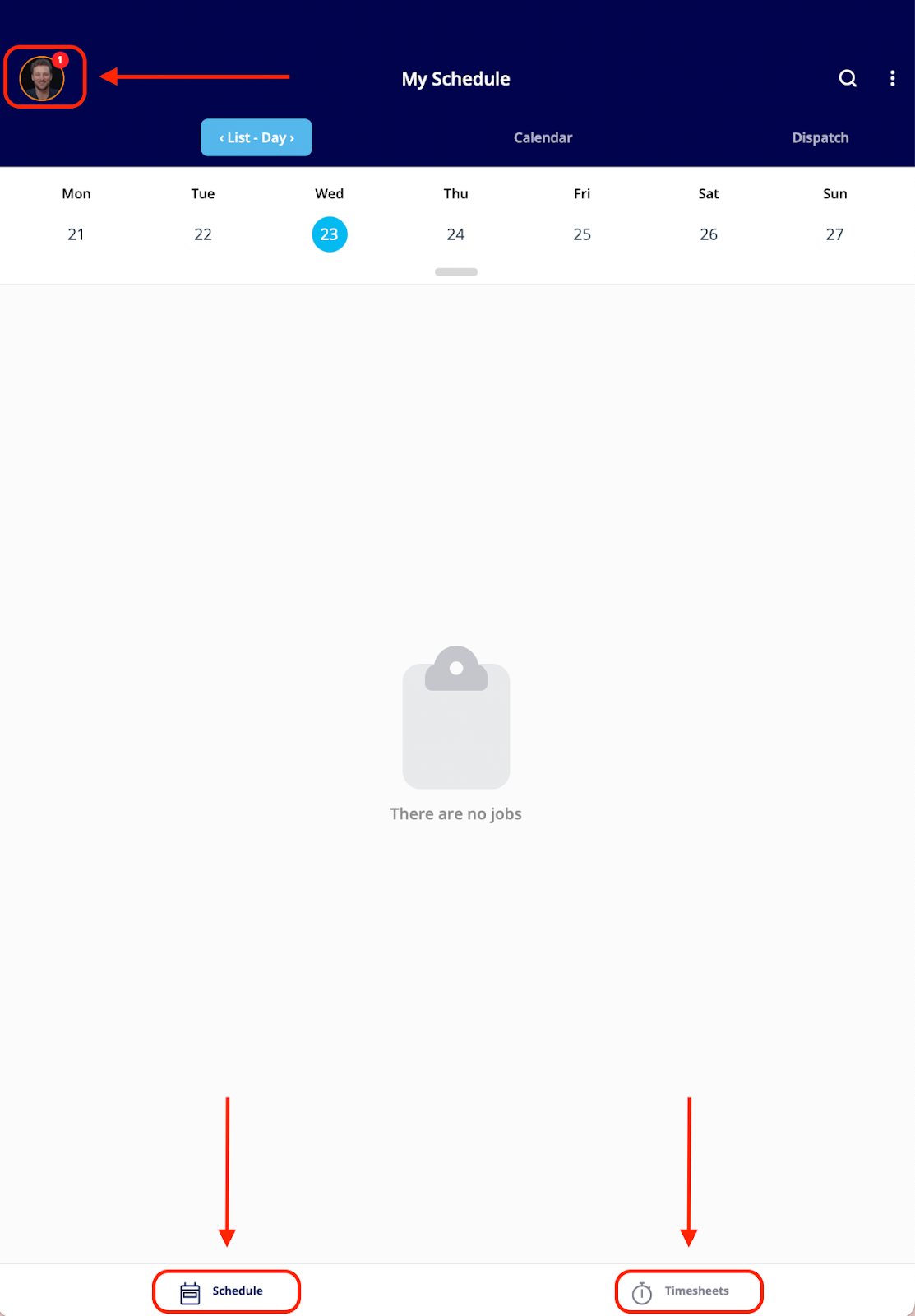
When you log in, the FieldPulse mobile app opens on your schedule and shows the jobs assigned to you. Two tabs anchor a Limited Agent's day: **Schedule** in the bottom left corner and **Timesheets** in the bottom right.
### Dashboard
On login you land on **My Schedule**, the Limited Agent dashboard, which lists any jobs assigned to you.
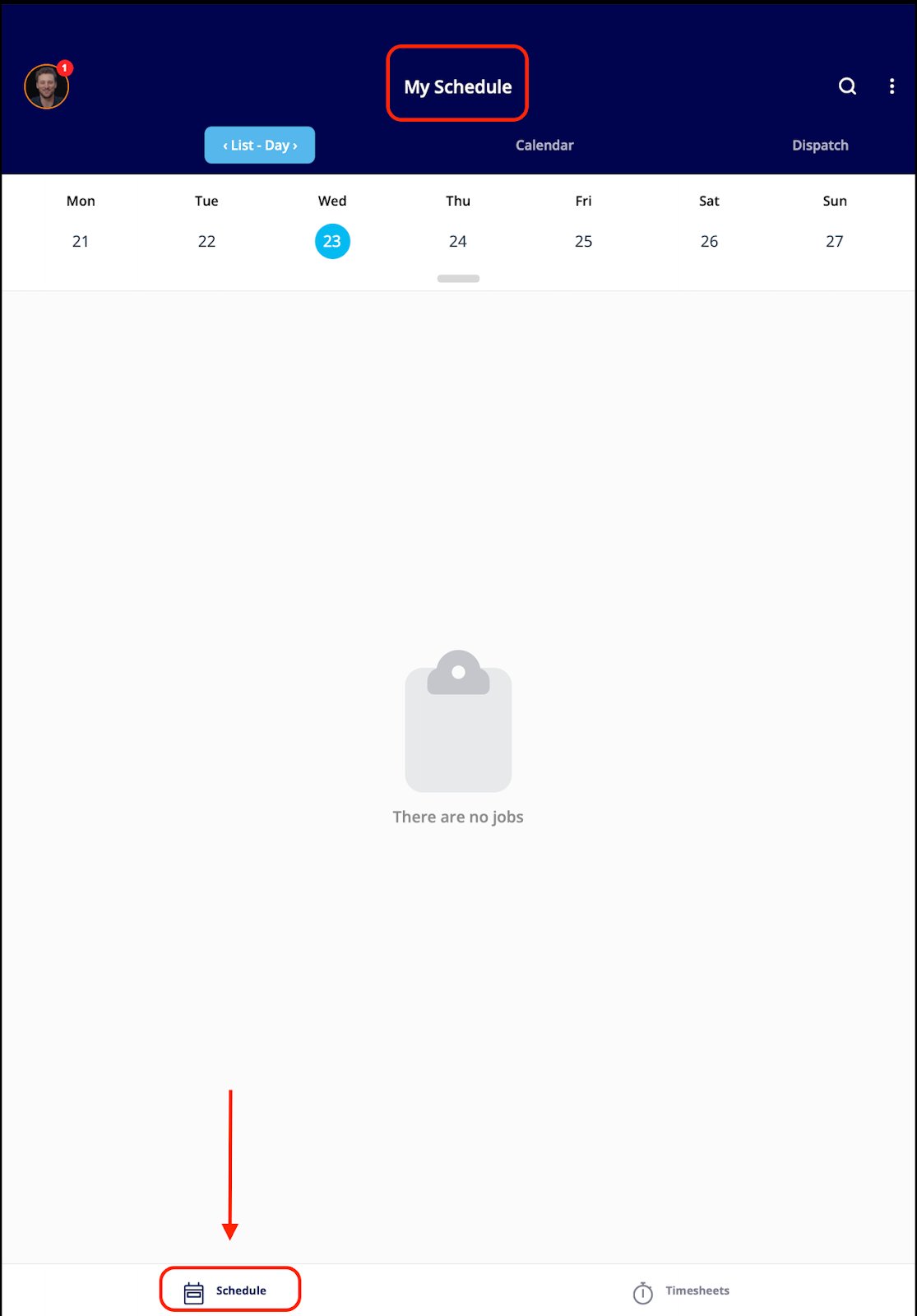 From the My Schedule dashboard you can:
* Tap the round profile icon in the top left corner to edit your profile, view notifications and reminders, or log out.
* See your jobs for the day.
* Clock in and clock out.
From the My Schedule dashboard you can:
* Tap the round profile icon in the top left corner to edit your profile, view notifications and reminders, or log out.
* See your jobs for the day.
* Clock in and clock out.
 ### Schedule
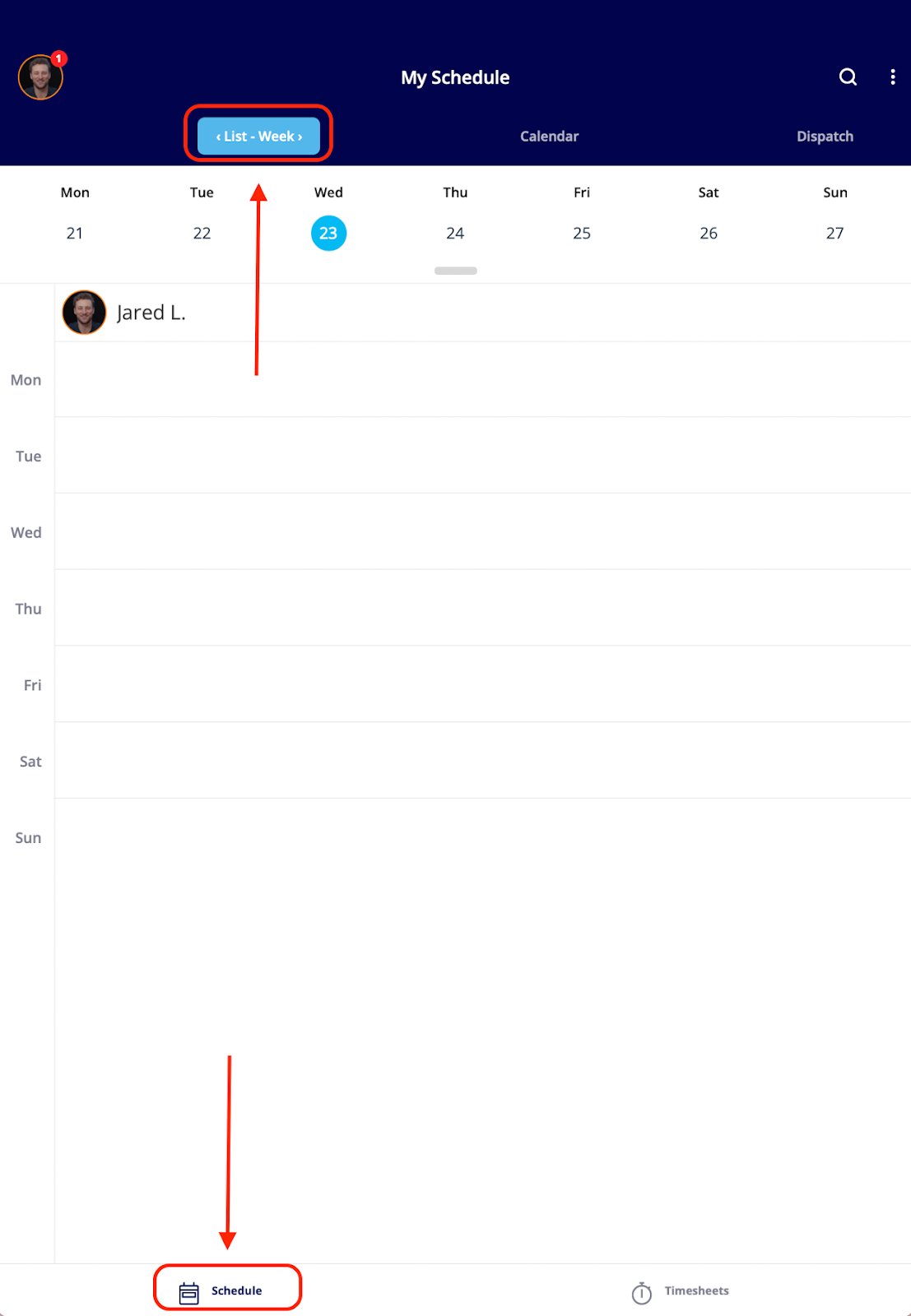
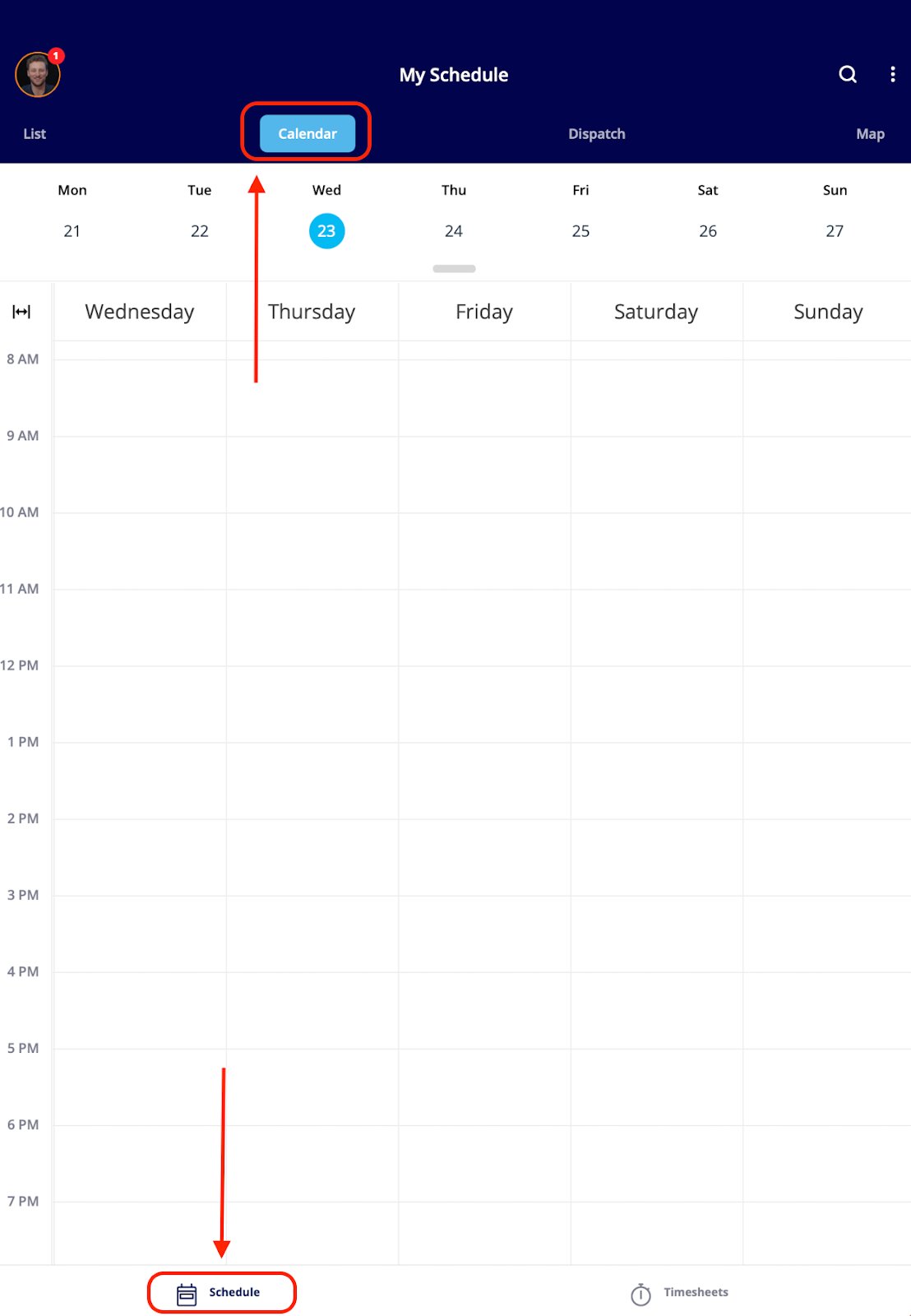
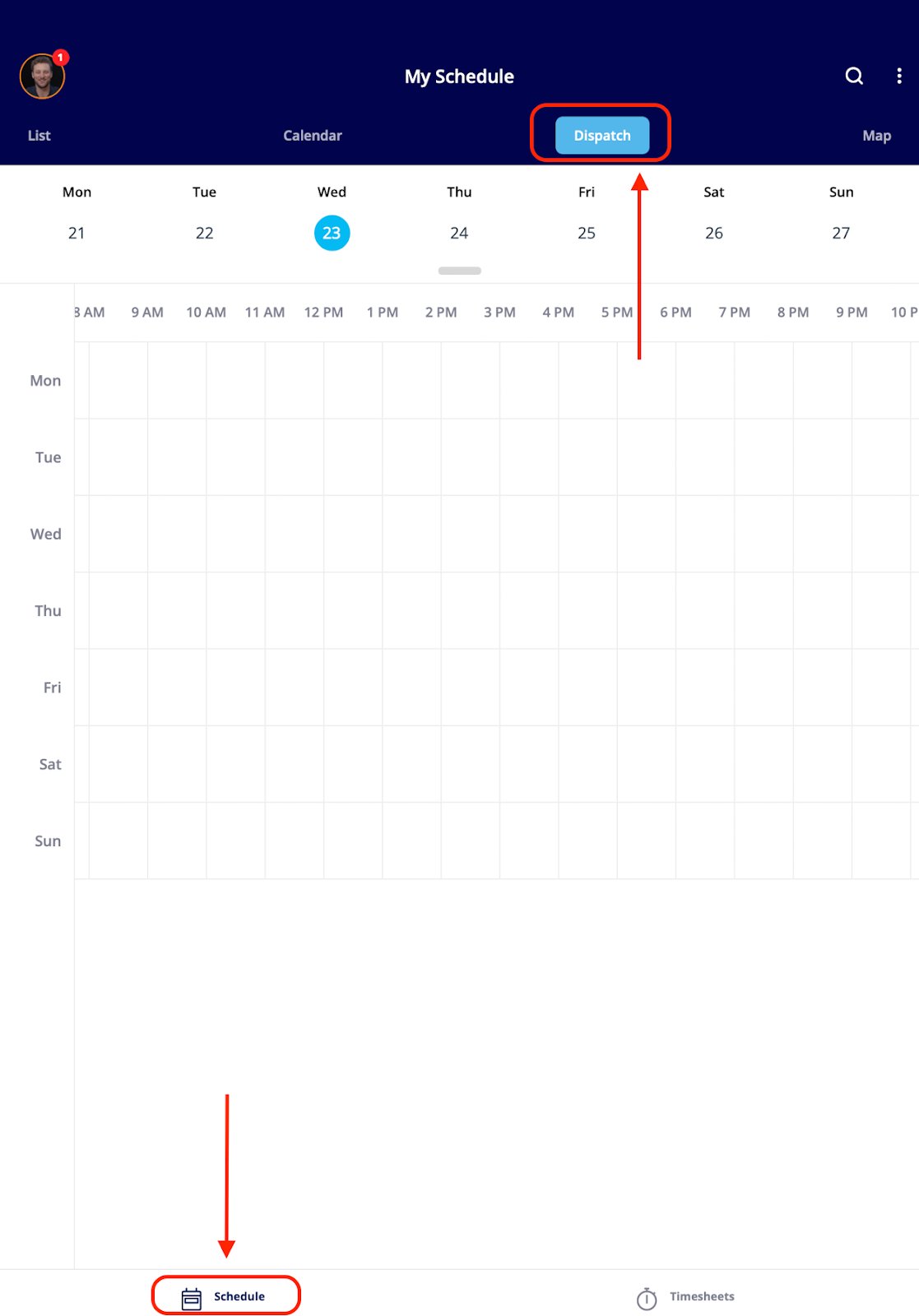
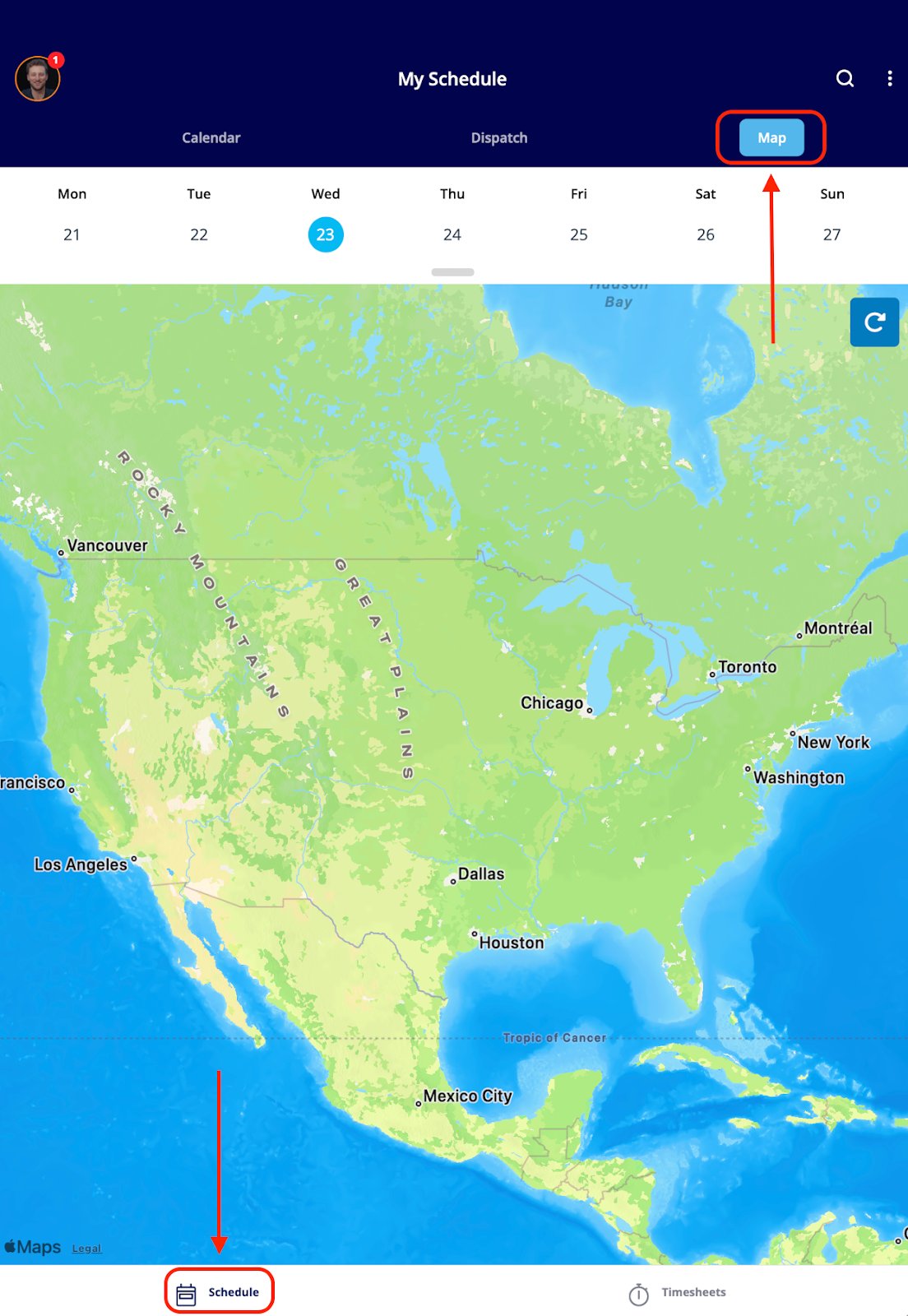
The **Schedule** tab lists your assigned jobs with four ways to view them:
| **View** | **What it shows** |
| ------------ | ---------------------------------------------------------------------- |
| **List** | Your assigned jobs in an organized list, sorted by day, week, or month |
| **Calendar** | Your jobs in a weekly calendar format |
| **Dispatch** | A timeline of when you're out in the field on jobs |
| **Map** | Your jobs plotted on a map for a geographic overview |
### Schedule
The **Schedule** tab lists your assigned jobs with four ways to view them:
| **View** | **What it shows** |
| ------------ | ---------------------------------------------------------------------- |
| **List** | Your assigned jobs in an organized list, sorted by day, week, or month |
| **Calendar** | Your jobs in a weekly calendar format |
| **Dispatch** | A timeline of when you're out in the field on jobs |
| **Map** | Your jobs plotted on a map for a geographic overview |
 \|
\|  |
|  |
From any view, tap a job to open its full details, including customer information and options to clock in or out directly from that job.
### Customizing your job tiles
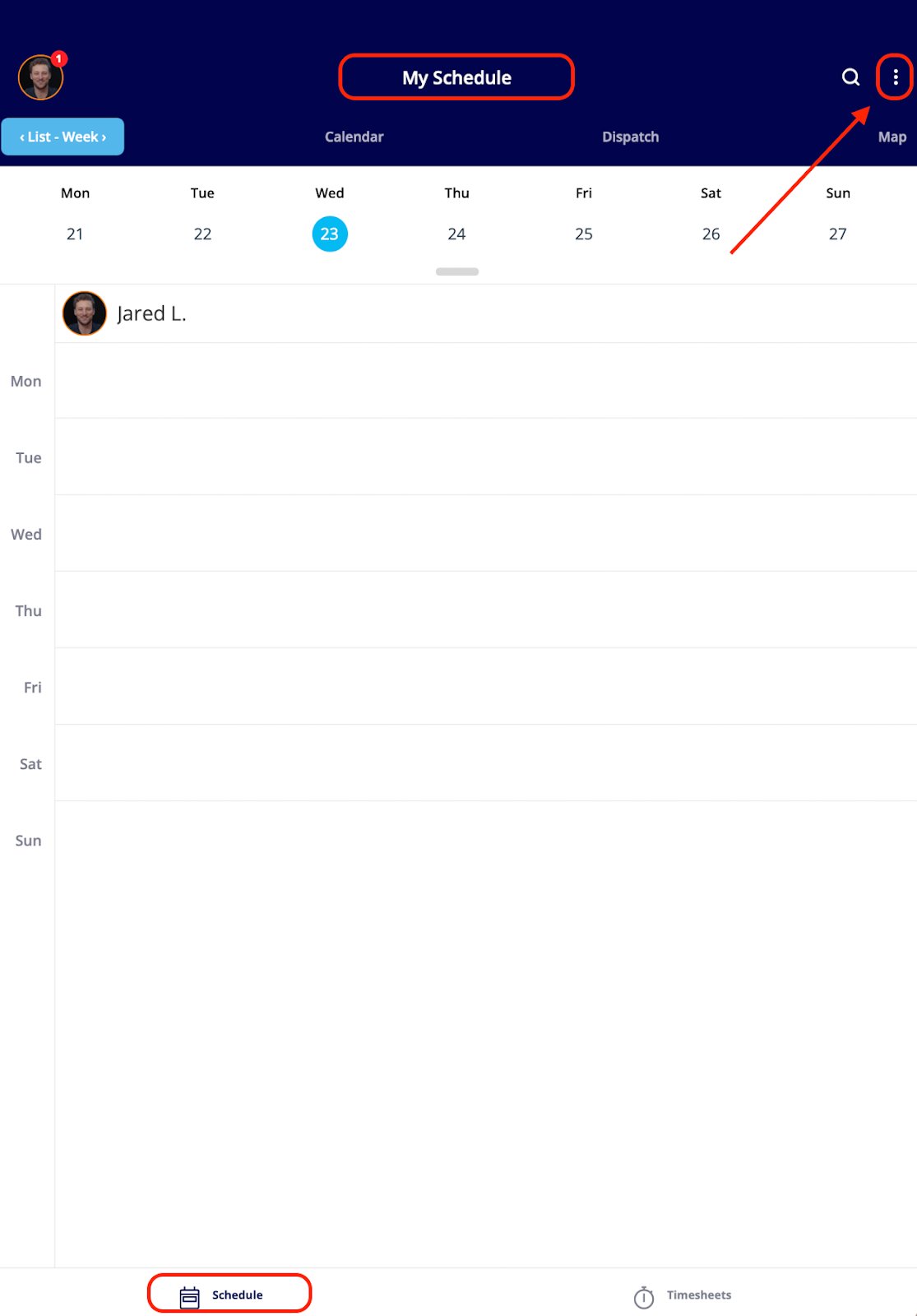
To show more information on each job tile for quick viewing on the schedule, customize the tile layout:
1. From a schedule view, tap the three dots in the upper right corner of your screen.
|
From any view, tap a job to open its full details, including customer information and options to clock in or out directly from that job.
### Customizing your job tiles
To show more information on each job tile for quick viewing on the schedule, customize the tile layout:
1. From a schedule view, tap the three dots in the upper right corner of your screen.
 2. Tap **Customize Job Tile**.
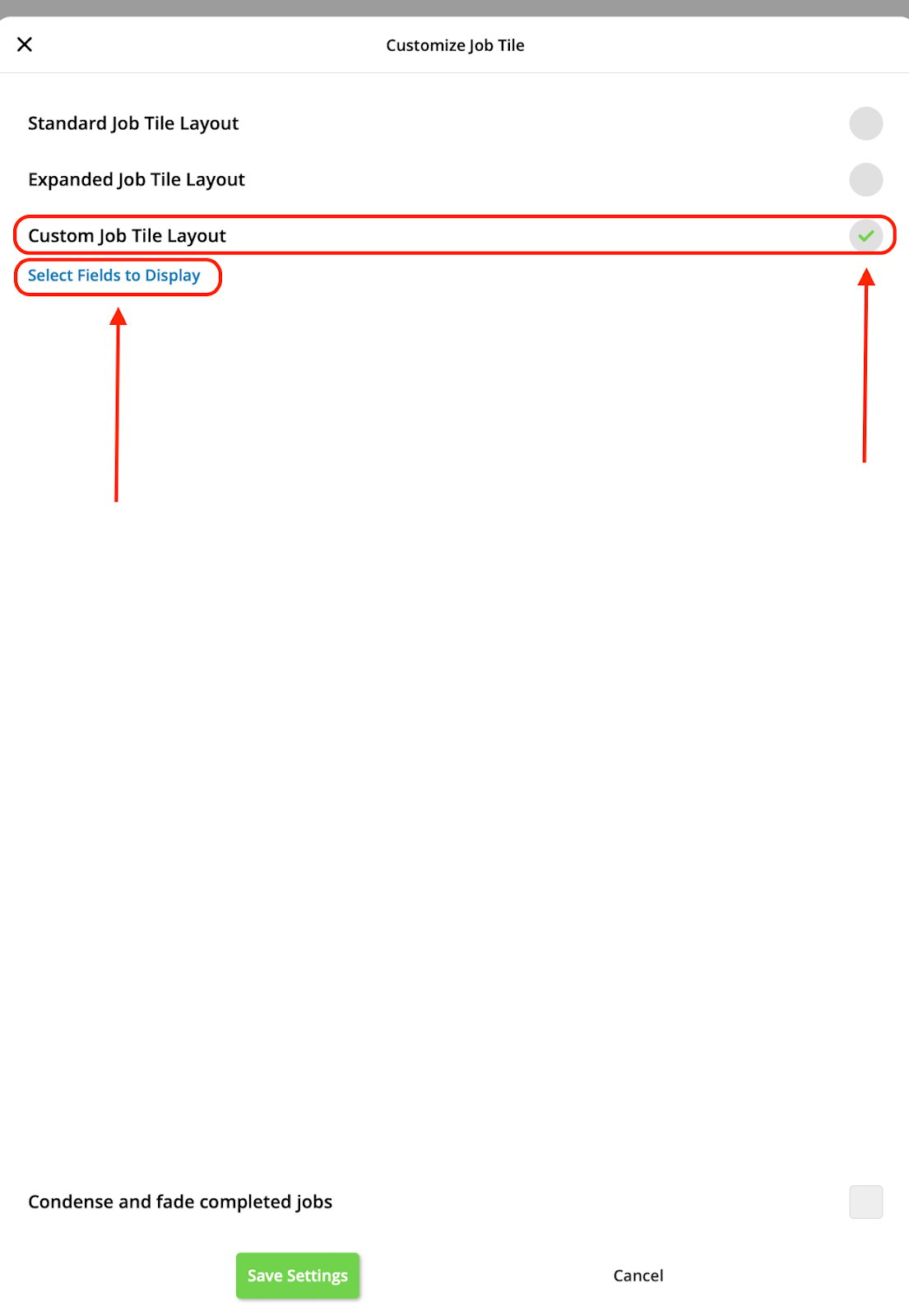
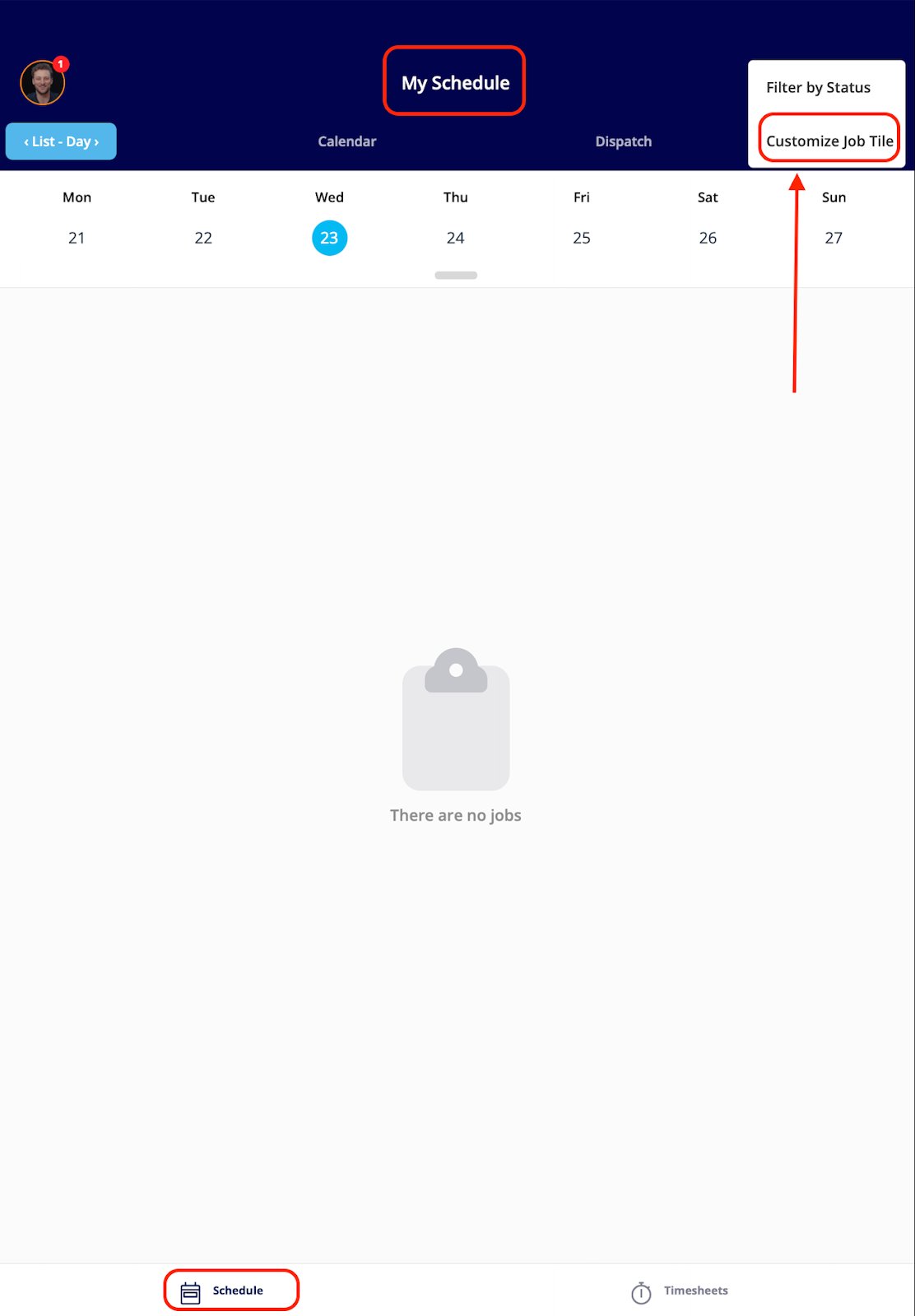 3. Select **Custom Job Tile Layout**, then tap **Select Fields to Display**.
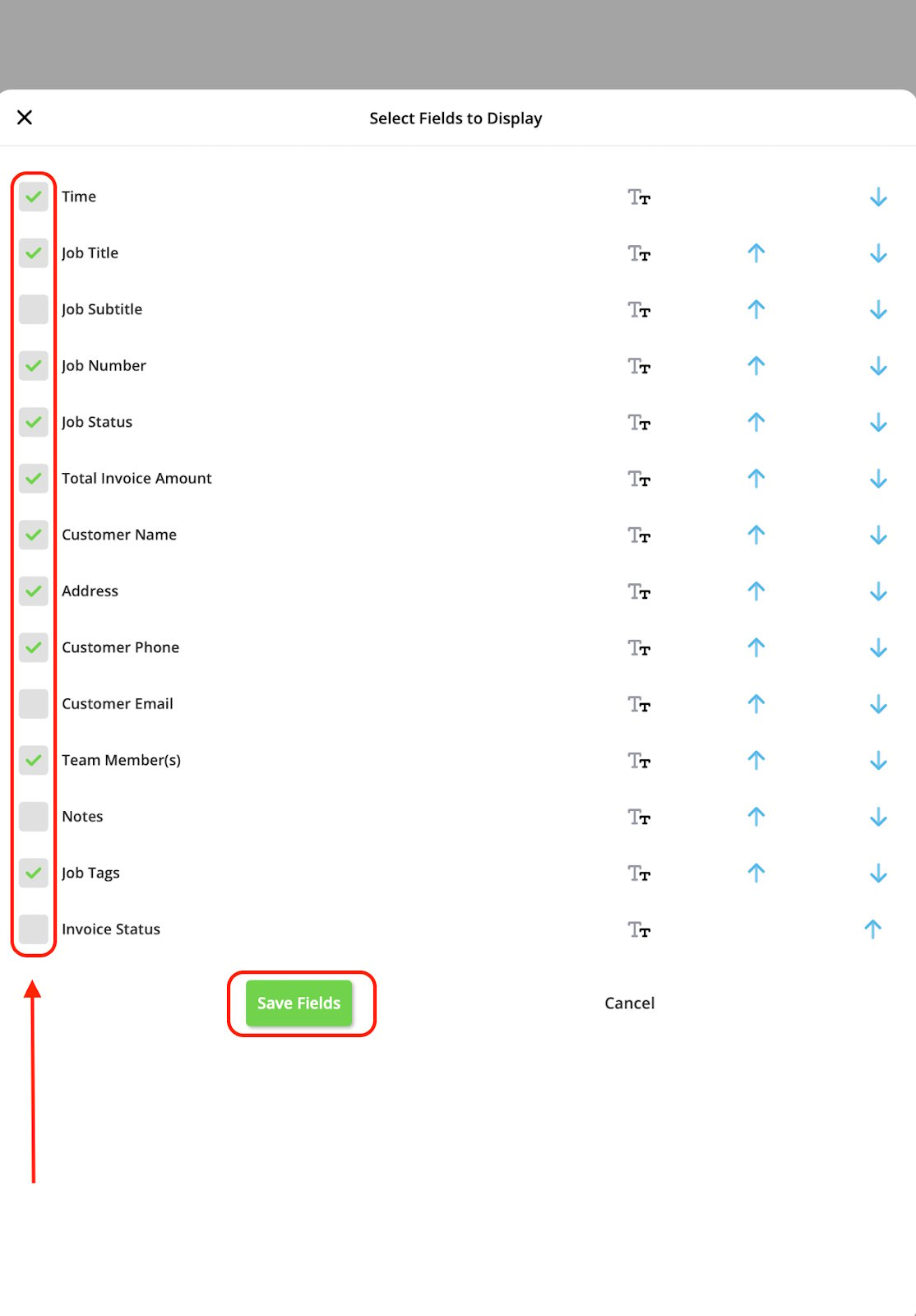
 4. Use the check boxes to select which fields display on your job tiles, then press the green **Save Fields** button.
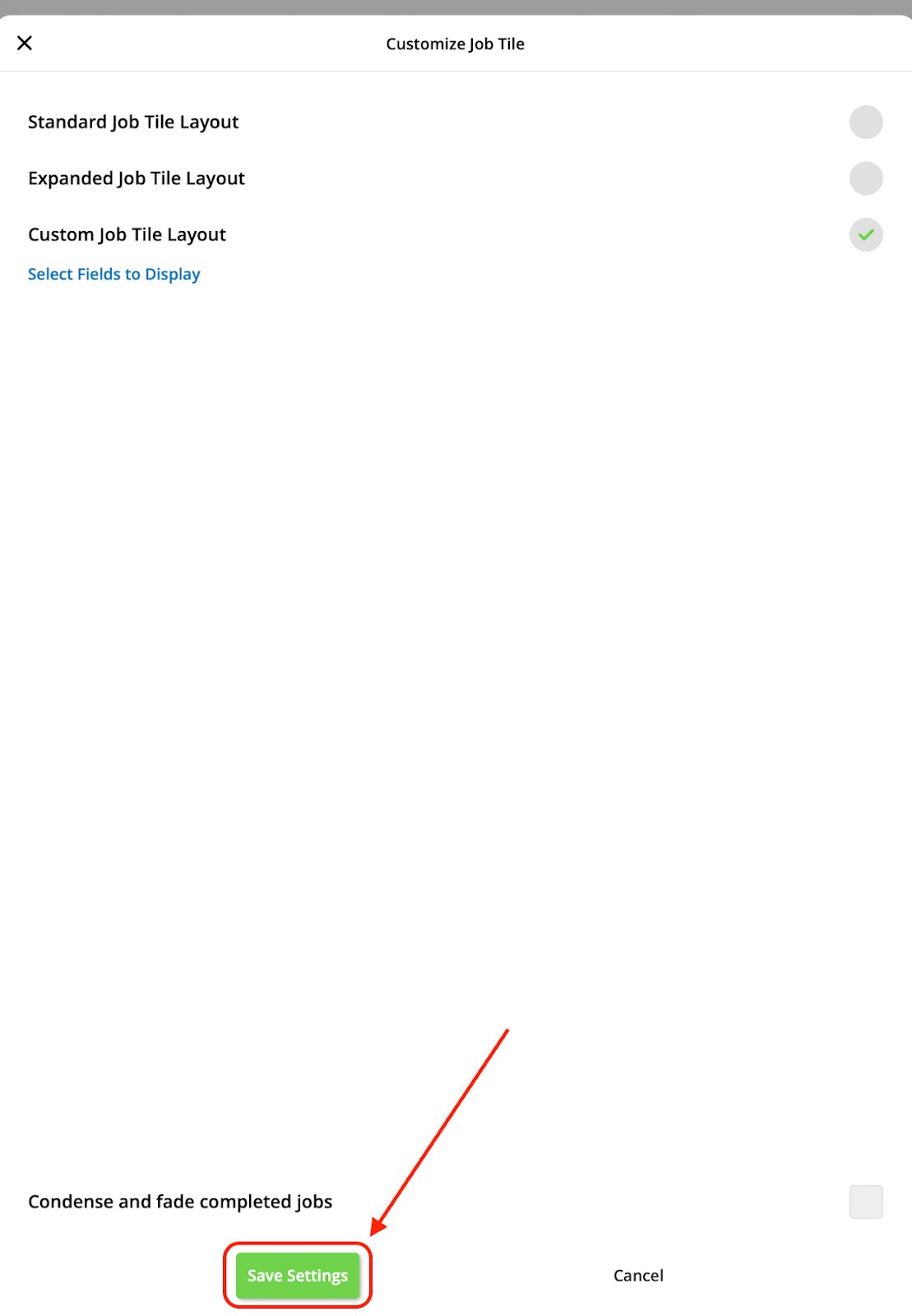
 5. Back on the **Customize Job Tile** screen, press the green **Save Settings** button.
 ### Timesheets
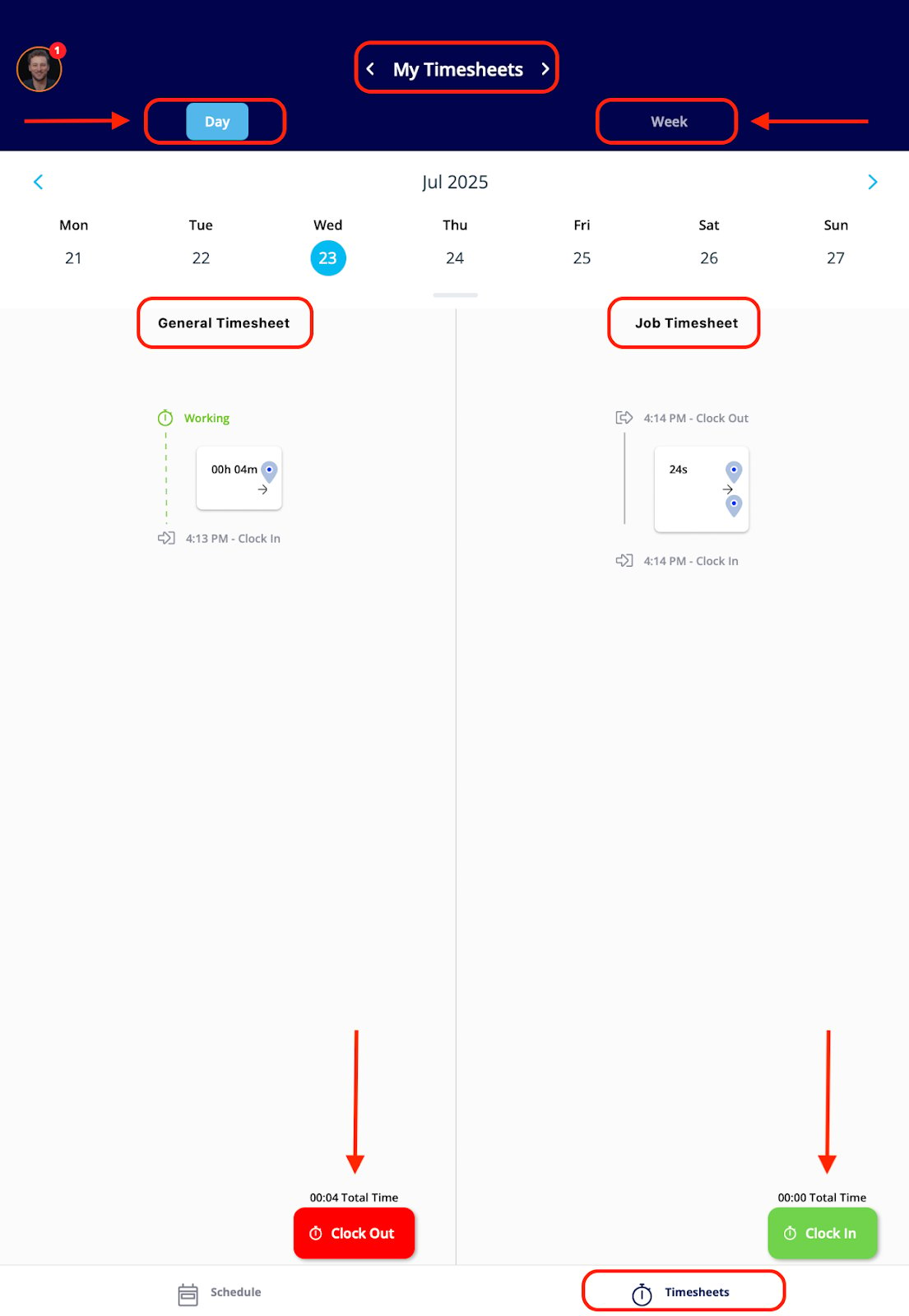
The **Timesheets** tab is where you clock in and out for the day, using both timesheet types:
* **General timesheets** track your entire workday, from clock-in to clock-out.
* **Job timesheets** track the time you spend completing a particular job or service.
Select **Day** or **Week** at the top of the screen to view or edit an entry. To review your past timesheets, select the specific day or week you want to see.
### Timesheets
The **Timesheets** tab is where you clock in and out for the day, using both timesheet types:
* **General timesheets** track your entire workday, from clock-in to clock-out.
* **Job timesheets** track the time you spend completing a particular job or service.
Select **Day** or **Week** at the top of the screen to view or edit an entry. To review your past timesheets, select the specific day or week you want to see.
 ## Availability
The FieldPulse mobile app runs on iOS (Apple App Store) and Android (Google Play Store). Limited Agents work from the mobile app only — the role has no access to the web app. The mobile app is currently available only in English, regardless of the country in which it is used.
## Related articles
* [Service Agent Mobile App Overview](/getting-started/mobile-app/service-agents)
* [Mobile App Overview: Admins and Team Managers](/getting-started/mobile-app/admins-team-managers)
* [User Roles and Permissions Details](/settings/users-teams/user-roles)
## Related topics
- [Service Agent Mobile App Overview](/getting-started/mobile-app/service-agents.md)
- [Mobile App Basics](/getting-started/mobile-app/index.md)
- [Mobile App Overview: Admins and Team Managers](/getting-started/mobile-app/admins-team-managers.md)
- [Welcome to FieldPulse](/getting-started/welcome/overview.md)
## Availability
The FieldPulse mobile app runs on iOS (Apple App Store) and Android (Google Play Store). Limited Agents work from the mobile app only — the role has no access to the web app. The mobile app is currently available only in English, regardless of the country in which it is used.
## Related articles
* [Service Agent Mobile App Overview](/getting-started/mobile-app/service-agents)
* [Mobile App Overview: Admins and Team Managers](/getting-started/mobile-app/admins-team-managers)
* [User Roles and Permissions Details](/settings/users-teams/user-roles)
## Related topics
- [Service Agent Mobile App Overview](/getting-started/mobile-app/service-agents.md)
- [Mobile App Basics](/getting-started/mobile-app/index.md)
- [Mobile App Overview: Admins and Team Managers](/getting-started/mobile-app/admins-team-managers.md)
- [Welcome to FieldPulse](/getting-started/welcome/overview.md)