> ## Documentation Index
> Fetch the complete documentation index at: https://help.fieldpulse.com/llms.txt
> Use this file to discover all available pages before exploring further.
# How to Create Your First Estimate or Invoice
> Start an estimate or invoice in FieldPulse from a customer record, the Estimates or Invoices tab, or a job record — where you start decides what fills in.
> **Who uses this:** Administrators and Team Managers can create and send estimates and invoices; for Service Agents it is a permission an Administrator turns on per user, and Limited Agents cannot. **Availability:** All regions.
Once your customers are added and your first jobs are scheduled, you are ready to create an estimate or an invoice. [Estimates and invoices](https://www.fieldpulse.com/features/estimates-and-invoices) follow the same process in FieldPulse and share the same record layout, so learning one teaches you both. This quick start covers the three places you can start from, and each one links to the full feature page when you want the complete detail.
## Overview
An estimate is the price you send for approval, and an invoice is the bill you collect on. Both use one shared record layout in FieldPulse, so you build them the same way. You can start an estimate or an invoice from three places, and where you start decides how much of the record fills in for you:
* **A customer record** — links the customer for you.
* **The Estimates or Invoices tab** — starts the record from scratch, and you link the customer yourself.
* **A job record** — links both the customer and the job for you.
## Video walkthrough
Watch a short walkthrough of creating your first estimate or invoice in FieldPulse, then follow the written steps below.
## Before you begin
* Add your customers first, so there is a [customer record](https://www.fieldpulse.com/features/customer-management) to attach the estimate or invoice to. See [Customers & Scheduling Quick Start](/getting-started/quick-start/customers-scheduling).
* Create and schedule the [job](https://www.fieldpulse.com/features/job-management) if the work already exists in FieldPulse. Starting from a job record carries both the customer and the job onto the new estimate or invoice and saves you a step.
## On web
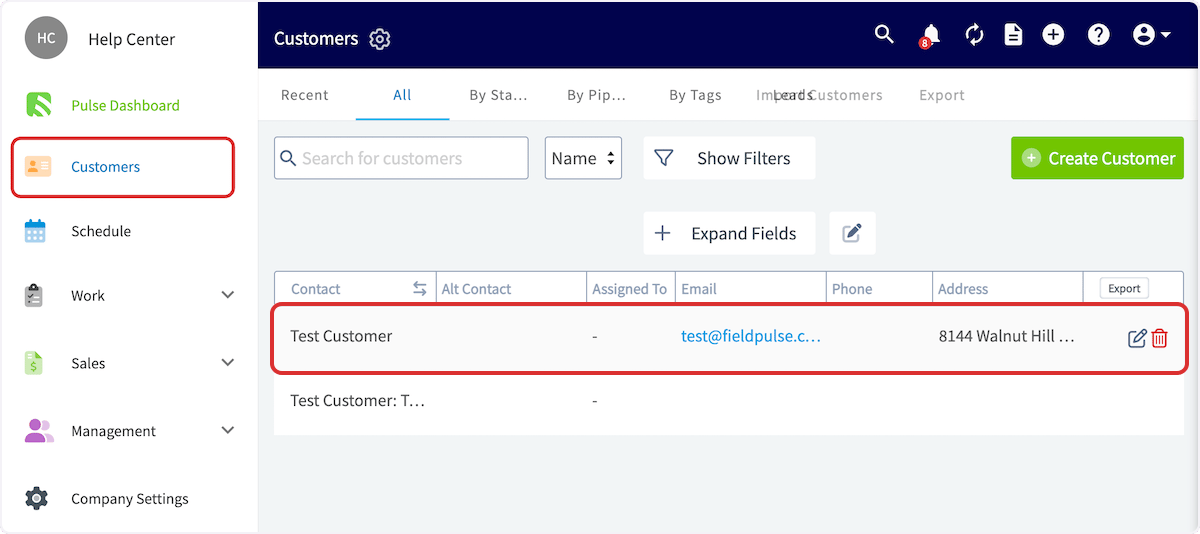
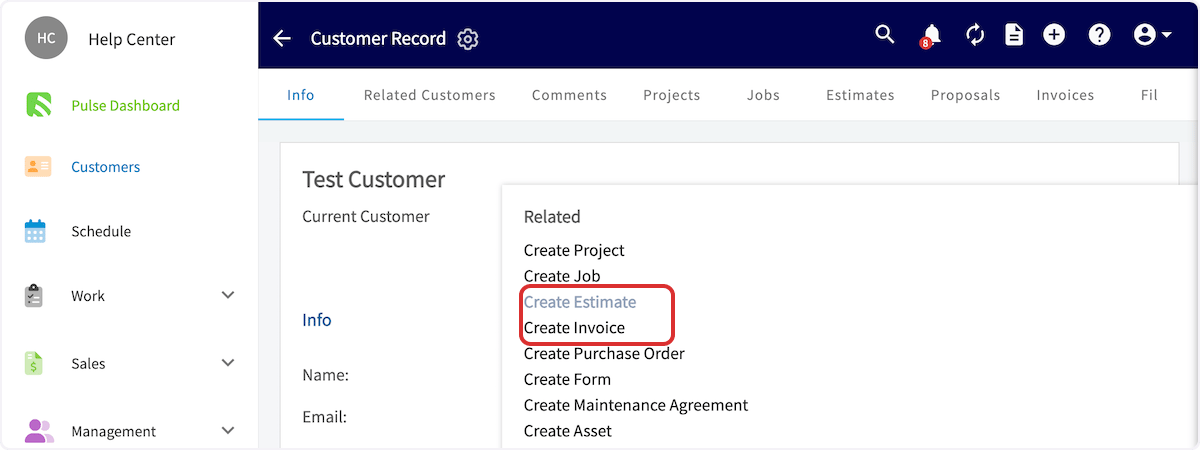
### From a customer record
Starting from a customer record links the customer to the estimate or invoice for you.
1. Select **Customers** in the left-side menu.
2. Search for and select the customer you are billing.
3. Select the **Actions** drop-down, then **Create Estimate** or **Create Invoice** under **Related**.
 ### From the Estimates or Invoices tab
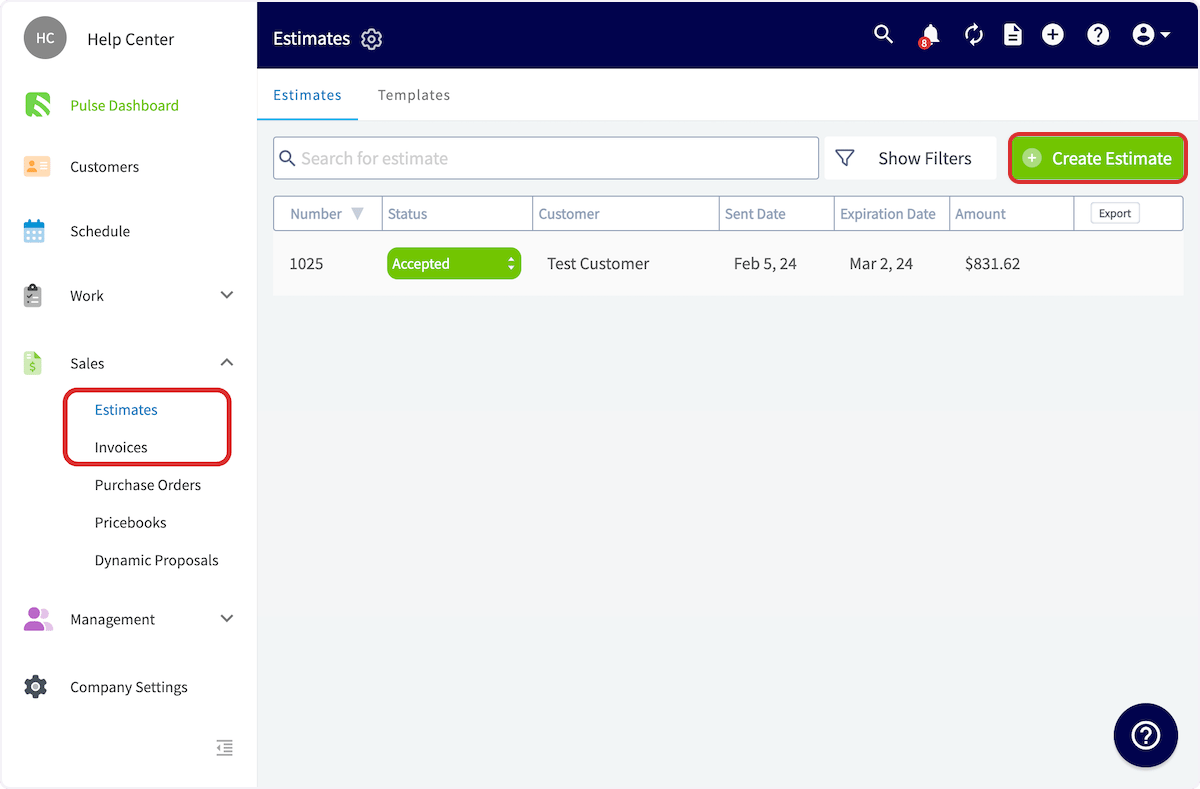
Starting from the tab creates the record from scratch, and you link the customer yourself.
1. Select **Estimates** or **Invoices** under **Sales** in the left-side menu.
2. Select **Create Estimate** or **Create Invoice**.
3. Link the customer, and any related job, on the record.
### From the Estimates or Invoices tab
Starting from the tab creates the record from scratch, and you link the customer yourself.
1. Select **Estimates** or **Invoices** under **Sales** in the left-side menu.
2. Select **Create Estimate** or **Create Invoice**.
3. Link the customer, and any related job, on the record.
 ### From a job record
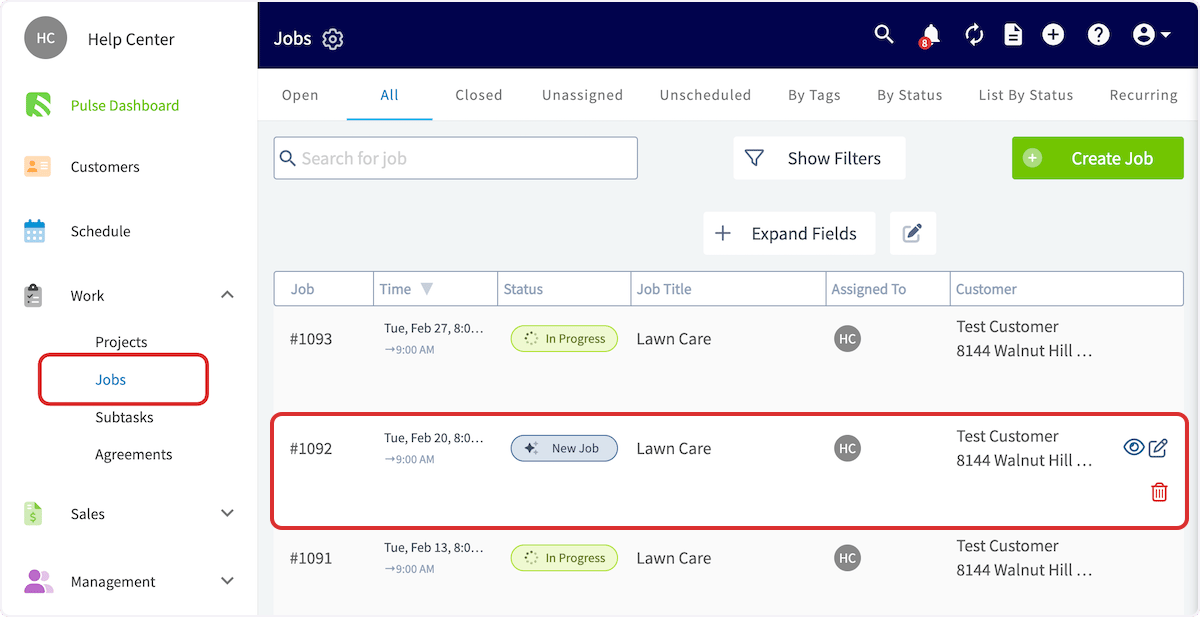
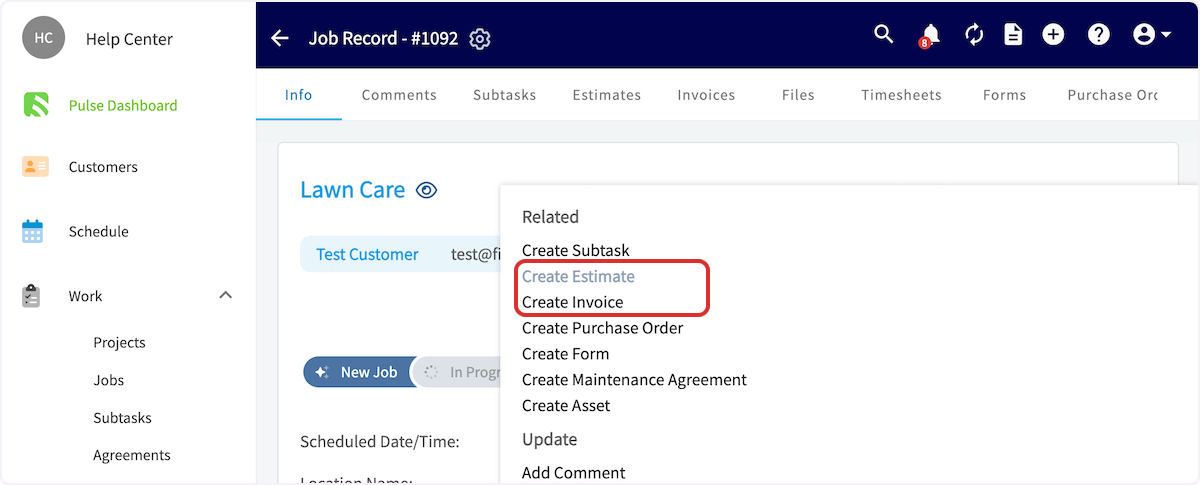
Starting from a job record links both the customer and the job for you.
1. Select **Jobs** under **Work** in the left-side menu.
2. Search for and select the job you are billing for.
3. Select the **Actions** drop-down, then **Create Estimate** or **Create Invoice** under **Related**.
### From a job record
Starting from a job record links both the customer and the job for you.
1. Select **Jobs** under **Work** in the left-side menu.
2. Search for and select the job you are billing for.
3. Select the **Actions** drop-down, then **Create Estimate** or **Create Invoice** under **Related**.
 ## What to do next
The new estimate or invoice opens on its own record, where you add line items, set the final details, and send it to your customer. For the complete walkthrough of each record type, see [How to Create an Estimate](/estimates-invoices/creating/estimate) and [How to Create an Invoice](/estimates-invoices/creating/invoice). From there you can [send the record to your customer](/estimates-invoices/creating/sending), [apply a saved template](/estimates-invoices/templates/using-templates), or [set automatic tax rates](/estimates-invoices/creating/auto-tax-rates).
## FAQs
### Which starting point should I use?
Start from the job record when the work already exists in FieldPulse, because that option links both the customer and the job for you. Start from the customer record or the **Estimates** or **Invoices** tab when there is no job yet.
### Can I turn an accepted estimate into an invoice?
Yes. Open the accepted estimate and select **Convert to Invoice**, and the estimate's details transfer into an invoice record so nothing is re-entered. See [How to Create an Invoice](/estimates-invoices/creating/invoice) for what to do with the invoice next.
## Still need help?
Reach the [FieldPulse support team](https://www.fieldpulse.com/company/contact-us) at [support@fieldpulse.com](mailto:support@fieldpulse.com) or through the chat feature in the bottom-right corner of your screen.
## Related articles
* [How to Create an Estimate](/estimates-invoices/creating/estimate)
* [How to Create an Invoice](/estimates-invoices/creating/invoice)
* [How to Send Estimates & Invoices to Customers](/estimates-invoices/creating/sending)
* [How to Use Estimate & Invoice Templates](/estimates-invoices/templates/using-templates)
* [Customers & Scheduling Quick Start](/getting-started/quick-start/customers-scheduling)
Your first record is done when the estimate or invoice opens with the right customer already linked — plus the job, if you started from one — and you can add line items and send it to the customer.
## Related topics
- [Quick-Start Guides](/getting-started/quick-start/index.md)
- [Customers & Scheduling Quick Start](/getting-started/quick-start/customers-scheduling.md)
- [Welcome to FieldPulse](/getting-started/welcome/overview.md)
- [How to Create an Invoice](/estimates-invoices/creating/invoice.md)
## What to do next
The new estimate or invoice opens on its own record, where you add line items, set the final details, and send it to your customer. For the complete walkthrough of each record type, see [How to Create an Estimate](/estimates-invoices/creating/estimate) and [How to Create an Invoice](/estimates-invoices/creating/invoice). From there you can [send the record to your customer](/estimates-invoices/creating/sending), [apply a saved template](/estimates-invoices/templates/using-templates), or [set automatic tax rates](/estimates-invoices/creating/auto-tax-rates).
## FAQs
### Which starting point should I use?
Start from the job record when the work already exists in FieldPulse, because that option links both the customer and the job for you. Start from the customer record or the **Estimates** or **Invoices** tab when there is no job yet.
### Can I turn an accepted estimate into an invoice?
Yes. Open the accepted estimate and select **Convert to Invoice**, and the estimate's details transfer into an invoice record so nothing is re-entered. See [How to Create an Invoice](/estimates-invoices/creating/invoice) for what to do with the invoice next.
## Still need help?
Reach the [FieldPulse support team](https://www.fieldpulse.com/company/contact-us) at [support@fieldpulse.com](mailto:support@fieldpulse.com) or through the chat feature in the bottom-right corner of your screen.
## Related articles
* [How to Create an Estimate](/estimates-invoices/creating/estimate)
* [How to Create an Invoice](/estimates-invoices/creating/invoice)
* [How to Send Estimates & Invoices to Customers](/estimates-invoices/creating/sending)
* [How to Use Estimate & Invoice Templates](/estimates-invoices/templates/using-templates)
* [Customers & Scheduling Quick Start](/getting-started/quick-start/customers-scheduling)
Your first record is done when the estimate or invoice opens with the right customer already linked — plus the job, if you started from one — and you can add line items and send it to the customer.
## Related topics
- [Quick-Start Guides](/getting-started/quick-start/index.md)
- [Customers & Scheduling Quick Start](/getting-started/quick-start/customers-scheduling.md)
- [Welcome to FieldPulse](/getting-started/welcome/overview.md)
- [How to Create an Invoice](/estimates-invoices/creating/invoice.md)