> ## Documentation Index
> Fetch the complete documentation index at: https://help.fieldpulse.com/llms.txt
> Use this file to discover all available pages before exploring further.
# Setting Up Google Single Sign-On
> Turn on Sign in with Google and whitelist your company email domain so your team logs in to FieldPulse with Google credentials, not a separate password.
> **Who uses this:** Administrators — Google single sign-on is set from Company Settings, which only Administrators can reach. **Availability:** All regions; each user who signs in with Google needs their own Google account.
Google single sign-on (SSO) lets your team access FieldPulse with their existing Google credentials, so they don't have to remember a separate FieldPulse password. You turn on Google single sign-on from **Company Settings** > **User Accounts**, and you can whitelist your company email domains so only the right people get in.
## Overview
Google single sign-on is optional by default — once you turn it on, each user can choose to sign in with Google or keep using their FieldPulse email and password. You can tighten access two ways: whitelist your company email domains so only accounts on those domains can sign in with Google, and require specific users to sign in with Google. Both are set from **User Accounts** in Company Settings.
## Before you begin
* You need an **Administrator** account — Google single sign-on is set from Company Settings, and only Administrators can view Company Settings.
* Know the **email domain(s)** your company uses (for example, companyabc.com) if you plan to whitelist them.
* Each user who signs in with Google needs their own **Google account**.
## Step-by-step setup
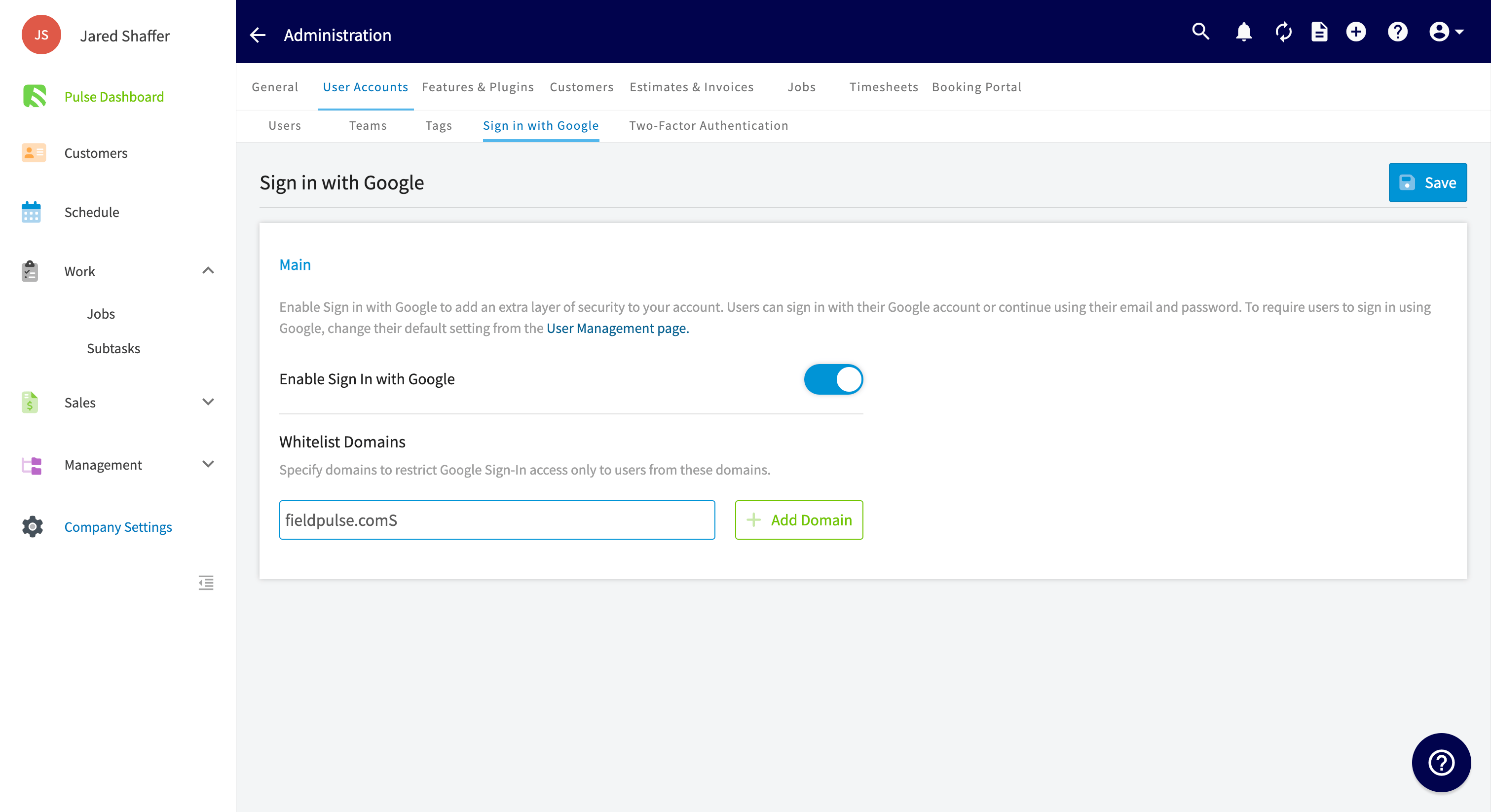
### Turn on Sign in with Google
1. In the left-side menu, select **Company Settings**.
2. Select **User Accounts**.
3. Select the **Sign in with Google** tab.
4. Toggle on **Enable Sign In with Google**.
 ### Whitelist your email domains (optional)
Whitelisting restricts which email domains can sign in to your account with Google single sign-on. For example, if everyone at your company has an email address ending in @companyabc.com, whitelist companyabc.com and only users with that email domain can access your account with Google.
1. On the **Sign in with Google** tab, enter a domain in the **Whitelist Domains** field — for example, companyabc.com.
2. Select **Add Domain**.
3. Repeat for each domain you want to allow.
### Require Google sign-in for a specific user (optional)
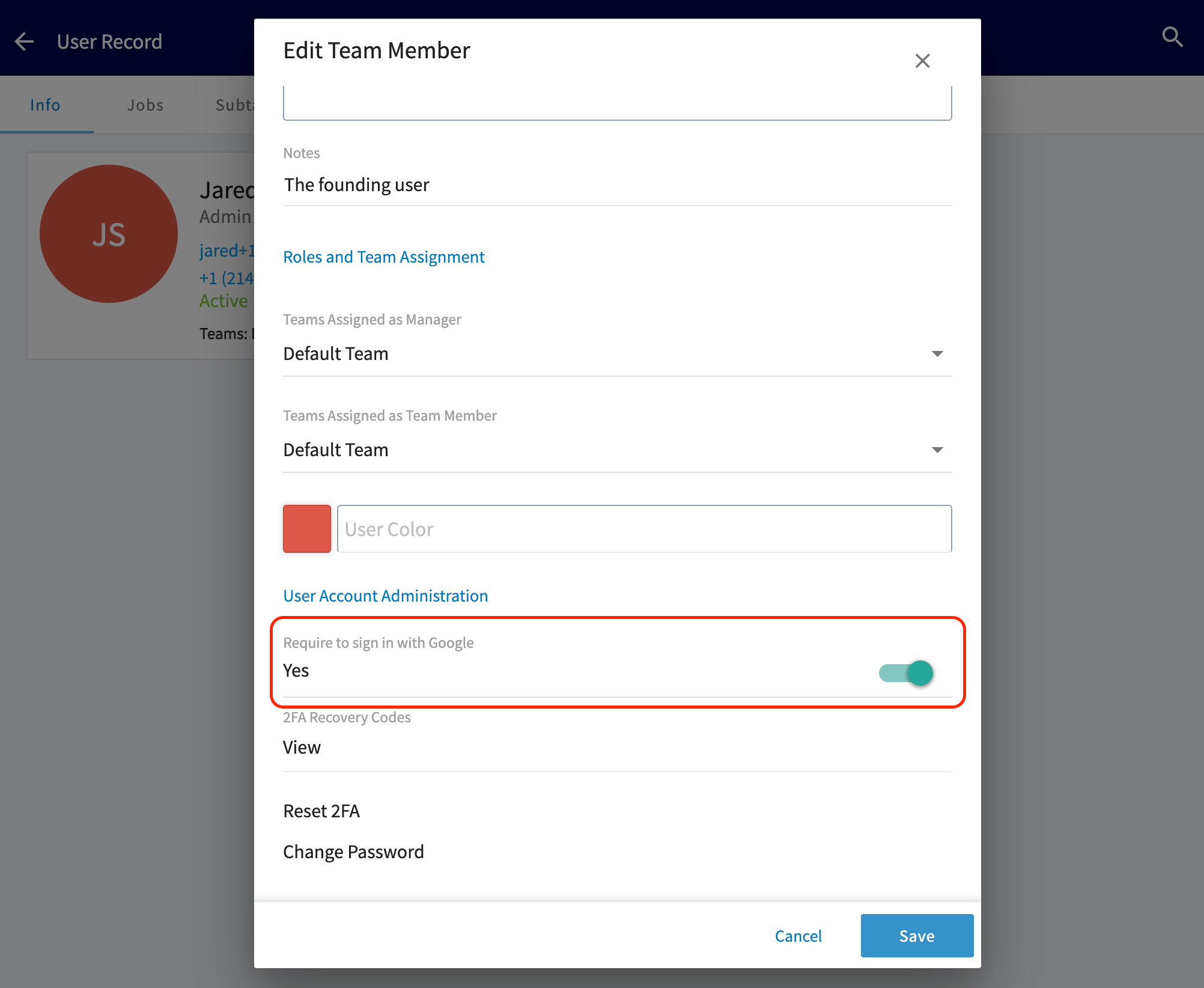
Signing in with Google stays optional for each user unless you require it on their user account:
1. Go to **Company Settings** > **User Accounts**.
2. Select the user, then select **Edit**.
3. Under **User Account Administration**, toggle on **Require to sign in with Google**.
### Whitelist your email domains (optional)
Whitelisting restricts which email domains can sign in to your account with Google single sign-on. For example, if everyone at your company has an email address ending in @companyabc.com, whitelist companyabc.com and only users with that email domain can access your account with Google.
1. On the **Sign in with Google** tab, enter a domain in the **Whitelist Domains** field — for example, companyabc.com.
2. Select **Add Domain**.
3. Repeat for each domain you want to allow.
### Require Google sign-in for a specific user (optional)
Signing in with Google stays optional for each user unless you require it on their user account:
1. Go to **Company Settings** > **User Accounts**.
2. Select the user, then select **Edit**.
3. Under **User Account Administration**, toggle on **Require to sign in with Google**.
 ## Still need help?
Reach the [FieldPulse support team](https://www.fieldpulse.com/company/contact-us) at [support@fieldpulse.com](mailto:support@fieldpulse.com) or through the chat feature in the bottom-right corner of your screen.
## Related articles
* [Setting Up Your Account](/getting-started/welcome/account-setup)
* [Setting Up Two-Factor Authentication (2FA)](/getting-started/welcome/two-factor-auth)
* [How to Add New Users](/settings/users-teams/adding-users)
Your setup is working when the **Enable Sign In with Google** toggle is on and a user on a whitelisted domain can sign in to FieldPulse with their Google account instead of a FieldPulse password.
## Related topics
- [Setting Up Two-Factor Authentication (2FA)](/getting-started/welcome/two-factor-auth.md)
- [Setting Up Your Account](/getting-started/welcome/account-setup.md)
- [Welcome to FieldPulse](/getting-started/welcome/overview.md)
- [Welcome & Account Setup](/getting-started/welcome/index.md)
## Still need help?
Reach the [FieldPulse support team](https://www.fieldpulse.com/company/contact-us) at [support@fieldpulse.com](mailto:support@fieldpulse.com) or through the chat feature in the bottom-right corner of your screen.
## Related articles
* [Setting Up Your Account](/getting-started/welcome/account-setup)
* [Setting Up Two-Factor Authentication (2FA)](/getting-started/welcome/two-factor-auth)
* [How to Add New Users](/settings/users-teams/adding-users)
Your setup is working when the **Enable Sign In with Google** toggle is on and a user on a whitelisted domain can sign in to FieldPulse with their Google account instead of a FieldPulse password.
## Related topics
- [Setting Up Two-Factor Authentication (2FA)](/getting-started/welcome/two-factor-auth.md)
- [Setting Up Your Account](/getting-started/welcome/account-setup.md)
- [Welcome to FieldPulse](/getting-started/welcome/overview.md)
- [Welcome & Account Setup](/getting-started/welcome/index.md)