> ## Documentation Index
> Fetch the complete documentation index at: https://help.fieldpulse.com/llms.txt
> Use this file to discover all available pages before exploring further.
# Automatic Deposit Invoices
> Auto-generate a separate deposit invoice so collected deposits sync to QuickBooks and land correctly on cash-basis Profit & Loss reports.
### Note: Integration with QuickBooks Online or Quickbooks Desktop is required for this feature.
# Why We've Released This Feature
Currently, when you request and collect a deposit on an Estimate record, that payment is generated and applied to a converted invoice. When this invoice is finalized and synced to QuickBooks Online or QuickBooks Desktop with the linked payment, the payment and invoice reflect in QuickBooks Online/QuickBooks Desktop Profit & Loss reports on a Cash Basis. This means that they reflect money that has actually been paid.
We recognize that a lot of FieldPulse users require a deposit to be made before agreeing to start a project/job, with the remainder of the payment due upon the service completion. To align with accrual accounting principles, with this feature enabled we will now ensure that the deposit is treated as a liability (money your business owes your customer) that will be routed to a Liability Account in QuickBooks Online/QuickBooks Desktop Profit until the final payment is made. **This feature is available on both the web and mobile app.**
In short, deposits will not hit your revenue until the project is finished and the final payment is received.
***
# How to Enable
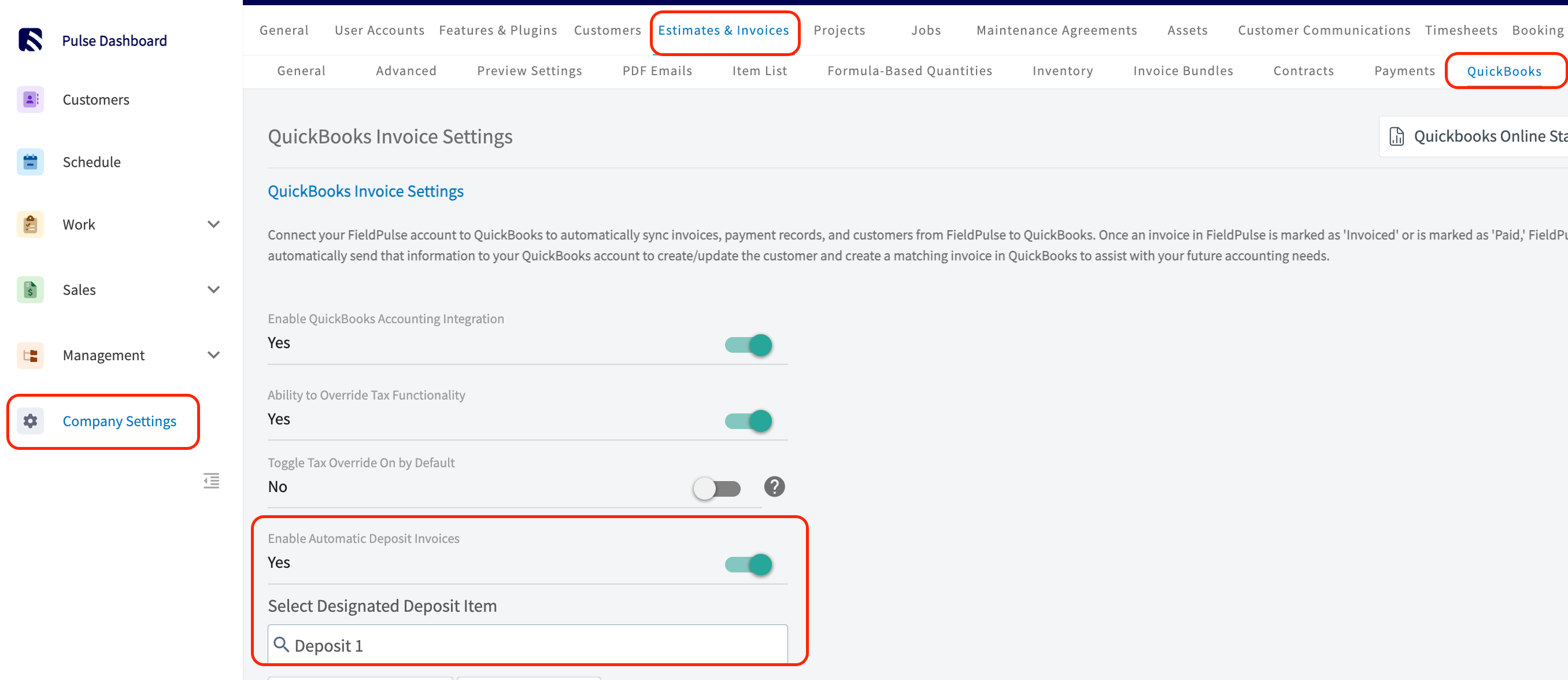
1. Navigate to *Company Settings > Estimates & Invoices > QuickBooks*.
2. From this page, toggle on the setting to *Enable Automatic Deposit Invoices.*
3. Once this toggle is enabled, select your designated *Customer Deposit Item* from your Item List (liability accounts created from QuickBooks Online/QuickBooks Desktop Profit).
1. *Note: only one item can be selected here.*
4. Be sure to save your selections by pressing the *Save* button in the top right corner.
 ***
# See it in Action
Create your estimates as you normally would! You can request a deposit on an estimate in person or by sending via email with a dynamic link to your customer. If the deposit/payment request percentage/amount is less than 100% of the estimate total, then this will trigger the flow of the automatic invoice deposit. **Two invoices will automatically be generated.**
* **The First Invoice - Deposit Invoice**
* This will be for the amount of the deposit payment (Referred to as the *Deposit Invoice*). On the *Deposit Invoice* there will only be one line item, C\_ustomer Deposit Line Item\_. The *Customer Deposit Line Item* price will equal the amount of the deposit payment that was collected. This is shown in image 1 below.
* The deposit payment that was made will be applied to this first invoice (*Deposit Invoice*) and the *Status* of this invoice will be marked as *Paid*. This is shown in image 2 below.
***
# See it in Action
Create your estimates as you normally would! You can request a deposit on an estimate in person or by sending via email with a dynamic link to your customer. If the deposit/payment request percentage/amount is less than 100% of the estimate total, then this will trigger the flow of the automatic invoice deposit. **Two invoices will automatically be generated.**
* **The First Invoice - Deposit Invoice**
* This will be for the amount of the deposit payment (Referred to as the *Deposit Invoice*). On the *Deposit Invoice* there will only be one line item, C\_ustomer Deposit Line Item\_. The *Customer Deposit Line Item* price will equal the amount of the deposit payment that was collected. This is shown in image 1 below.
* The deposit payment that was made will be applied to this first invoice (*Deposit Invoice*) and the *Status* of this invoice will be marked as *Paid*. This is shown in image 2 below.
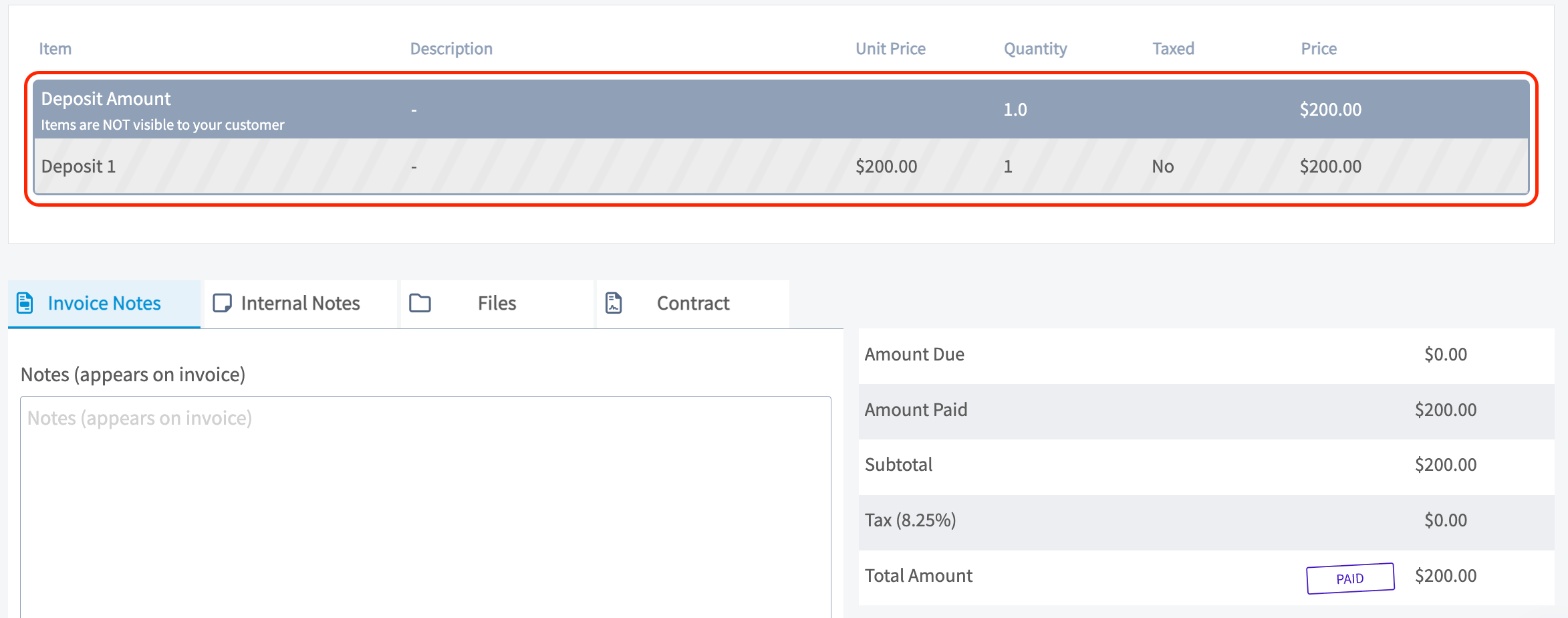 *Image 1*
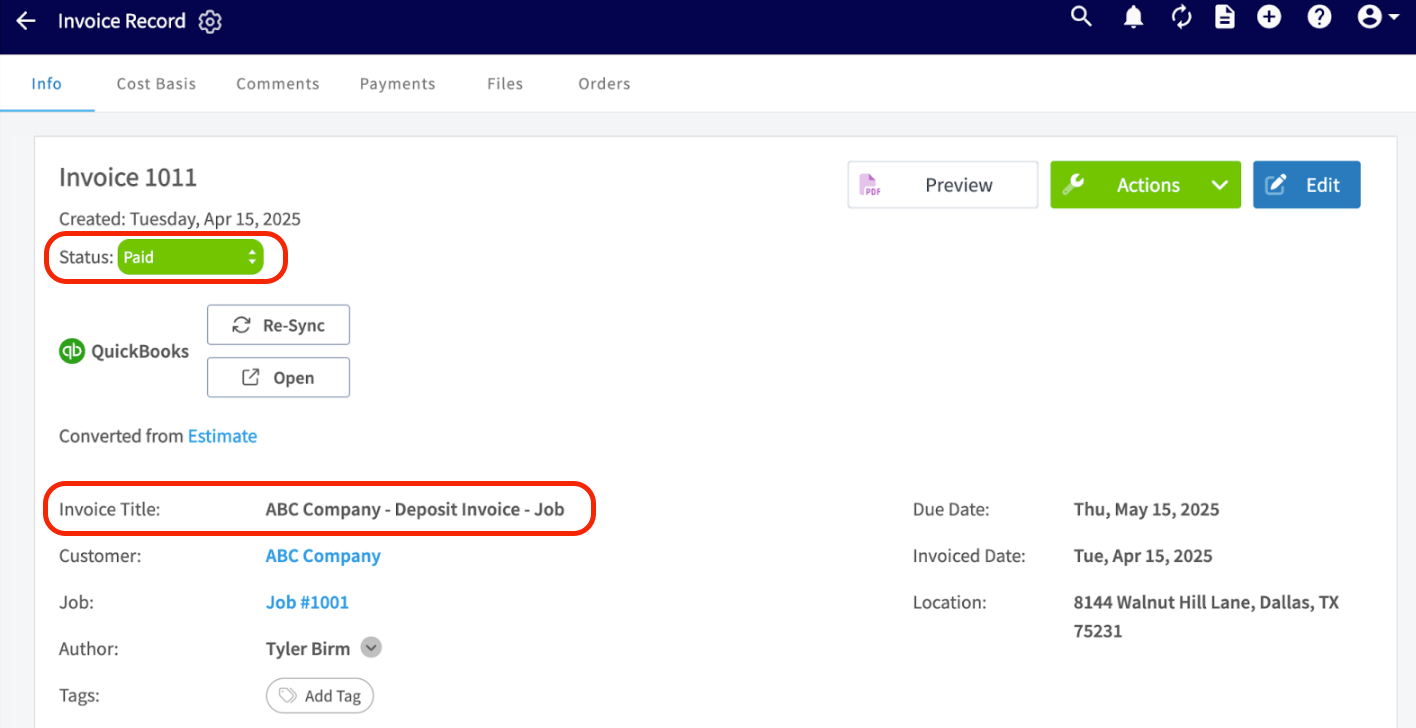 *Image 2*
* **The Second Invoice - Final Invoice**
* This invoice will be **generated automatically from deposit payment collection** (Referred to as the *Final Invoice*). All items from the estimate will cascade to this invoice.
* This invoice will remain in the **draft state/status** until project is finished and you go to collect the final payment. Shown in image 3 below.
* On the *Final Invoice*, a grouping will be automatically inserted, titled *Deposit Amount*. ***Note:*** *Line items within this grouping will **not** be visible to your customers.*
* A line item will be added to the grouping mentioned above titled, *Customer Deposit Item*. The unit price of this line item will be the negative value of the payment amount that was received on the deposit. Shown in image 4 below.
*Image 2*
* **The Second Invoice - Final Invoice**
* This invoice will be **generated automatically from deposit payment collection** (Referred to as the *Final Invoice*). All items from the estimate will cascade to this invoice.
* This invoice will remain in the **draft state/status** until project is finished and you go to collect the final payment. Shown in image 3 below.
* On the *Final Invoice*, a grouping will be automatically inserted, titled *Deposit Amount*. ***Note:*** *Line items within this grouping will **not** be visible to your customers.*
* A line item will be added to the grouping mentioned above titled, *Customer Deposit Item*. The unit price of this line item will be the negative value of the payment amount that was received on the deposit. Shown in image 4 below.
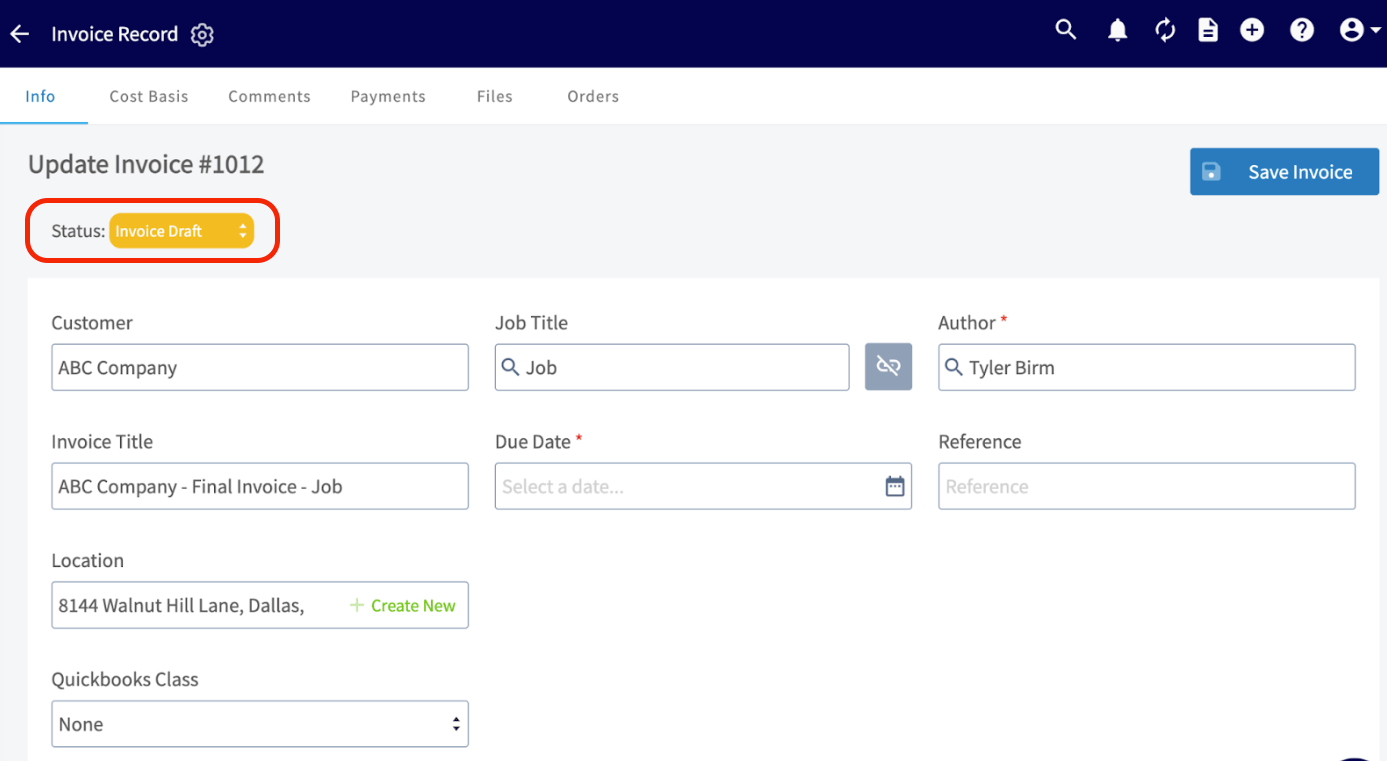 *Image 3*
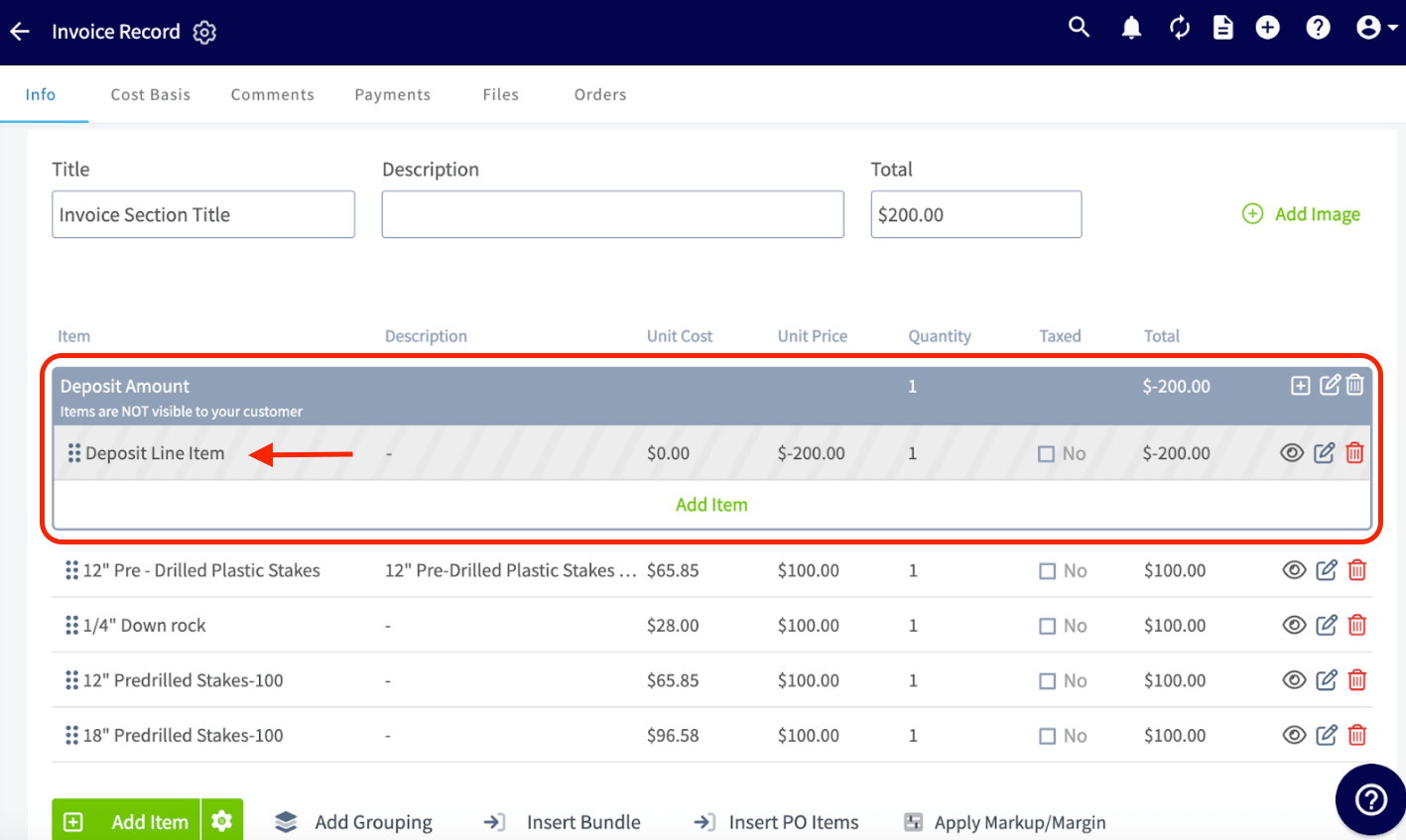 *Image 4*
# Important Notes
* The deposit line item needs to be linked to a Liability Account in QuickBooks Online or QuickBooks Desktop. The Liability Account(s) will need to be created prior to enabling this feature.
* The deposit percentage will **always** be based on the **estimate subtotal**.
* The designated deposit item should **always** be **non taxed**.
***
# Marking a Deposit
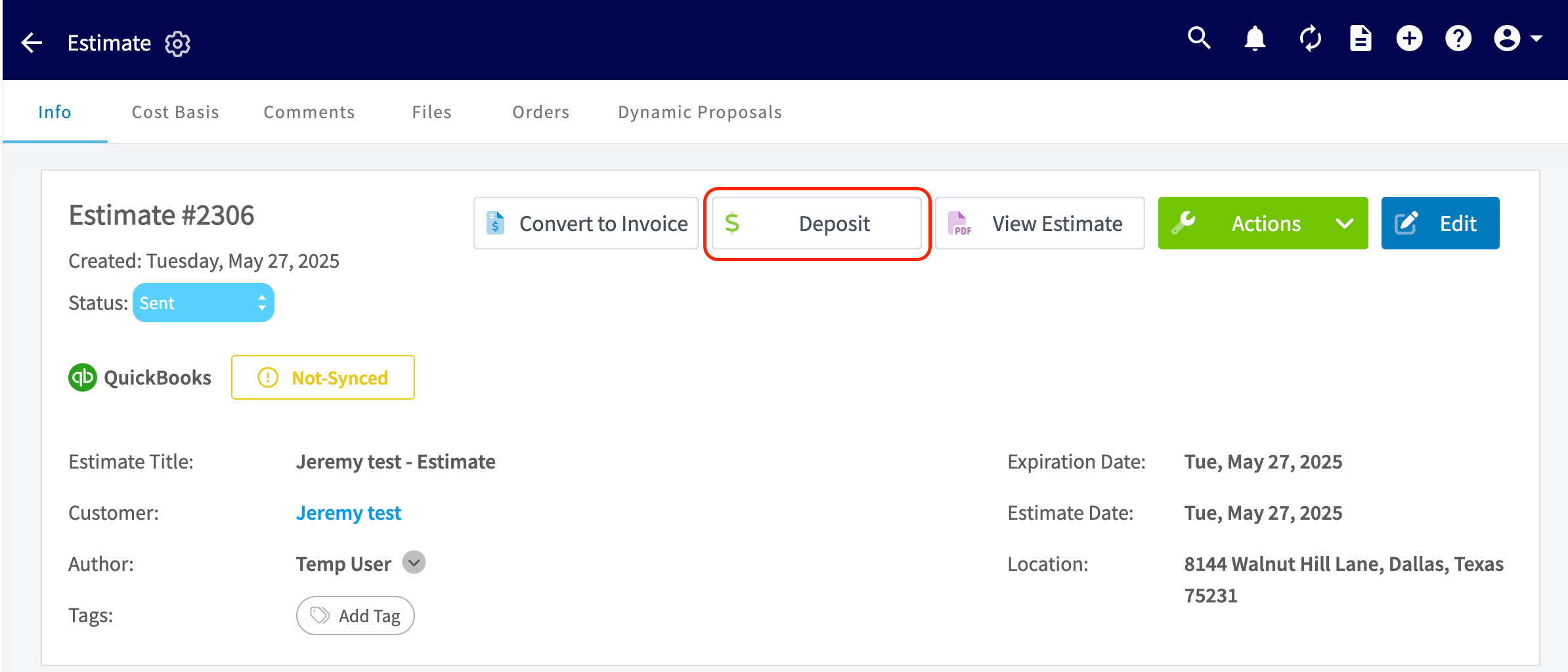
Once you've enabled *Automatic Deposit Invoices*, you will now see a button available on all new estimates allowing you to *Mark Deposits*. By clicking this button, and Marking Payment (for less than the total amount of the estimate) and saving it will trigger the automatic creation of the two invoices (*Deposit Invoice* & *Final Invoice*).
Note: You will only be able to trigger this flow from the Deposit button **once per estimate**.
*Image 4*
# Important Notes
* The deposit line item needs to be linked to a Liability Account in QuickBooks Online or QuickBooks Desktop. The Liability Account(s) will need to be created prior to enabling this feature.
* The deposit percentage will **always** be based on the **estimate subtotal**.
* The designated deposit item should **always** be **non taxed**.
***
# Marking a Deposit
Once you've enabled *Automatic Deposit Invoices*, you will now see a button available on all new estimates allowing you to *Mark Deposits*. By clicking this button, and Marking Payment (for less than the total amount of the estimate) and saving it will trigger the automatic creation of the two invoices (*Deposit Invoice* & *Final Invoice*).
Note: You will only be able to trigger this flow from the Deposit button **once per estimate**.
 ***
# Video Tutorial
***
# FAQs
**Can any FieldPulse user utilize Automatic Deposit Invoices?**
No. This feature is only for users who integrate with either QuickBooks Desktop or QuickBooks Online.
**When manually marking a deposit on an estimate out in the field, will FieldPulse keep record of who took the deposit?**
Yes! The Activity Log on the Estimate record will reflect the manual marking of a deposit. The Activity Log will include: The user marking the deposit and the amount of it.
**If an estimate is linked to a job, will both invoices (Deposit & Final) automatically link to that same job when they are created?**
Yes! Best practice is to build your estimate from the job/service record so both invoices will be linked.
***
**Have additional questions?**
*Contact us at [support@fieldpulse.com](mailto:support@fieldpulse.com) or use the chat feature in the bottom right corner of your screen.*
***
# Video Tutorial
***
# FAQs
**Can any FieldPulse user utilize Automatic Deposit Invoices?**
No. This feature is only for users who integrate with either QuickBooks Desktop or QuickBooks Online.
**When manually marking a deposit on an estimate out in the field, will FieldPulse keep record of who took the deposit?**
Yes! The Activity Log on the Estimate record will reflect the manual marking of a deposit. The Activity Log will include: The user marking the deposit and the amount of it.
**If an estimate is linked to a job, will both invoices (Deposit & Final) automatically link to that same job when they are created?**
Yes! Best practice is to build your estimate from the job/service record so both invoices will be linked.
***
**Have additional questions?**
*Contact us at [support@fieldpulse.com](mailto:support@fieldpulse.com) or use the chat feature in the bottom right corner of your screen.*