> ## Documentation Index
> Fetch the complete documentation index at: https://help.fieldpulse.com/llms.txt
> Use this file to discover all available pages before exploring further.
# Angi Integration
> Connect Angi so new leads drop straight into FieldPulse, ending manual re-entry and lost prospects.
FieldPulse has teamed up with Angi to seamlessly send your leads directly into your FieldPulse account!
This integration allows for a streamlined process to manage your leads effectively. By connecting your accounts, you can eliminate manual data entry, saving time and increasing workflow efficiency.
**Note:** To use this integration, you must have an account with Angi.
To learn more about Angi, [the Angi partner page](https://www.angi.com/landing/fieldpulse).
***
# Where to Find Your Angi Service Provider ID
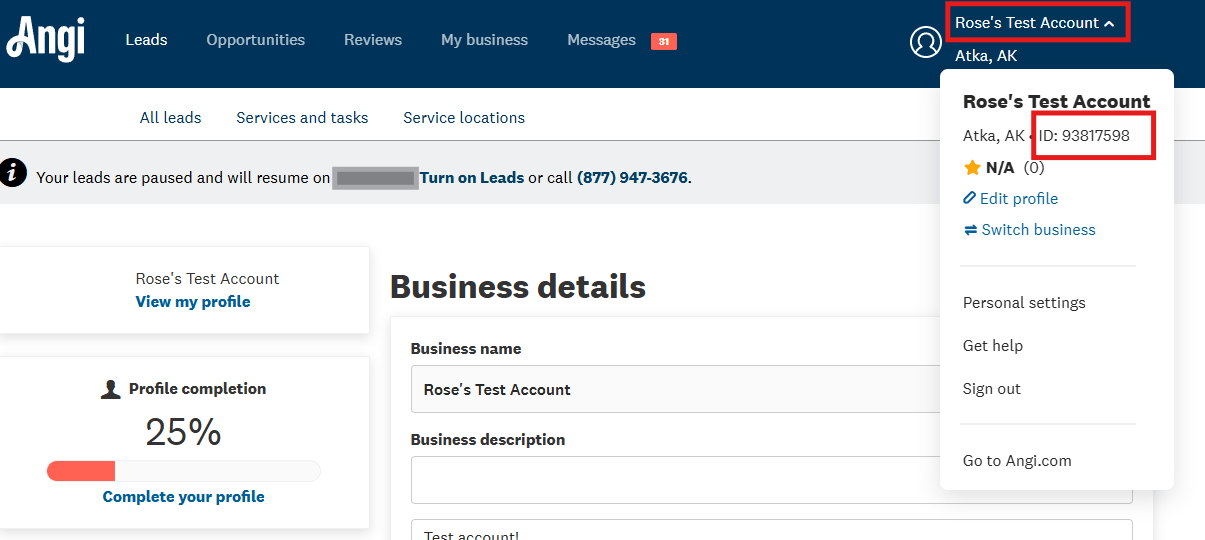
To connect your Angi account to FieldPulse, you will need your Angi Service Provider ID (SP ID).
## **To find your Angi SP ID:**
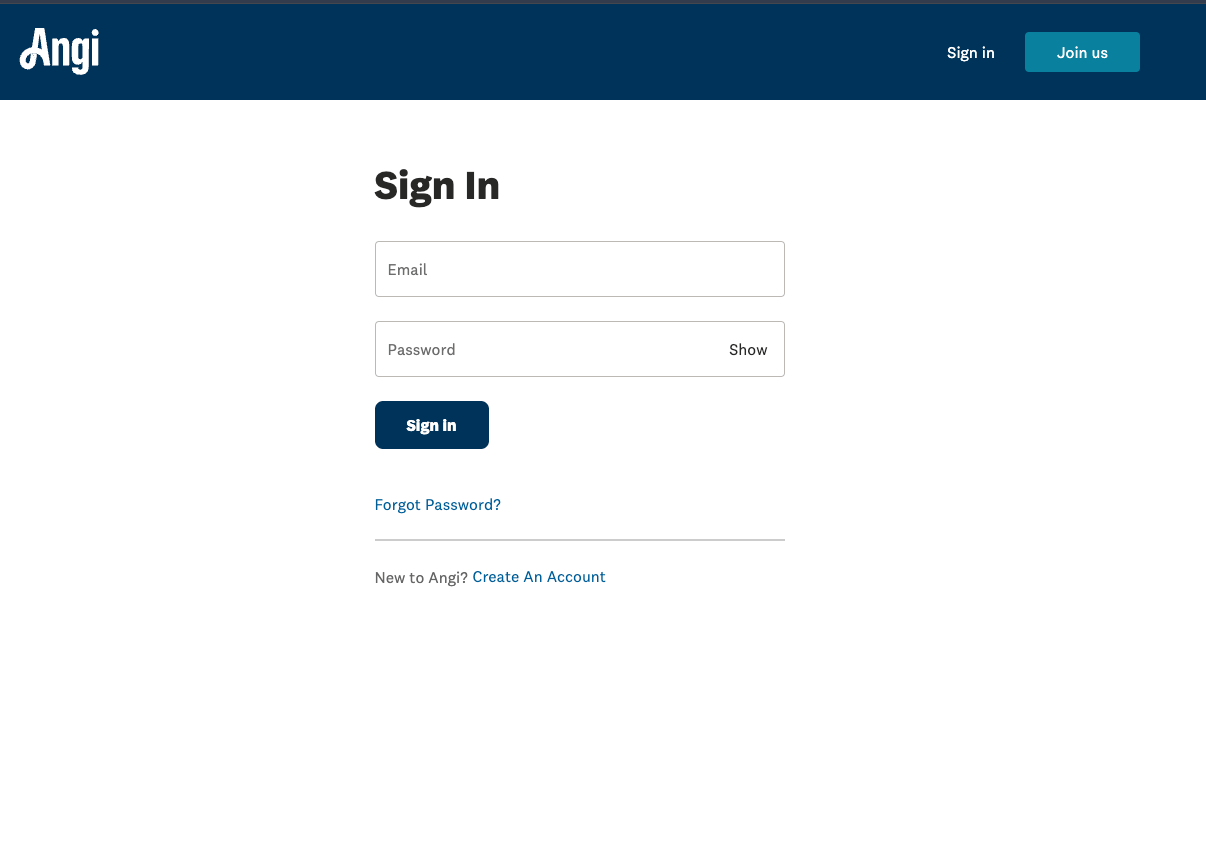
* Log in to your [Angi account](https://id.angi.com/realms/ads-user/protocol/openid-connect/auth?client_id=platform-gateway\&scope=openid\&response_type=code\&redirect_uri=https%3A%2F%2Foffice.angi.com%2Fapp%2Flogin%2Foidc%2Fcallback\&state=no1i5AW2F6oZ268gzbRgqw).
 * You can find your SP ID directly after "ID:" at the top of the drop-down menu.
 ***
# How to Enable the Angi Integration in FIeldPulse
**To enable your integration with Angi:**
1. Navigate to *Company Settings* > *Features & Plugins* in FieldPulse.
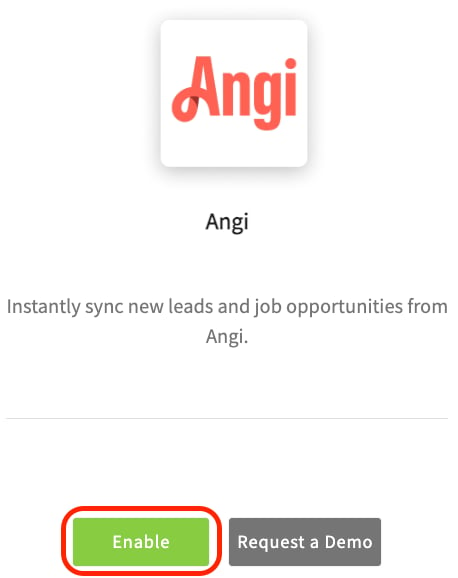
2. Locate the Angi tile and click *Enable*.
***
# How to Enable the Angi Integration in FIeldPulse
**To enable your integration with Angi:**
1. Navigate to *Company Settings* > *Features & Plugins* in FieldPulse.
2. Locate the Angi tile and click *Enable*.
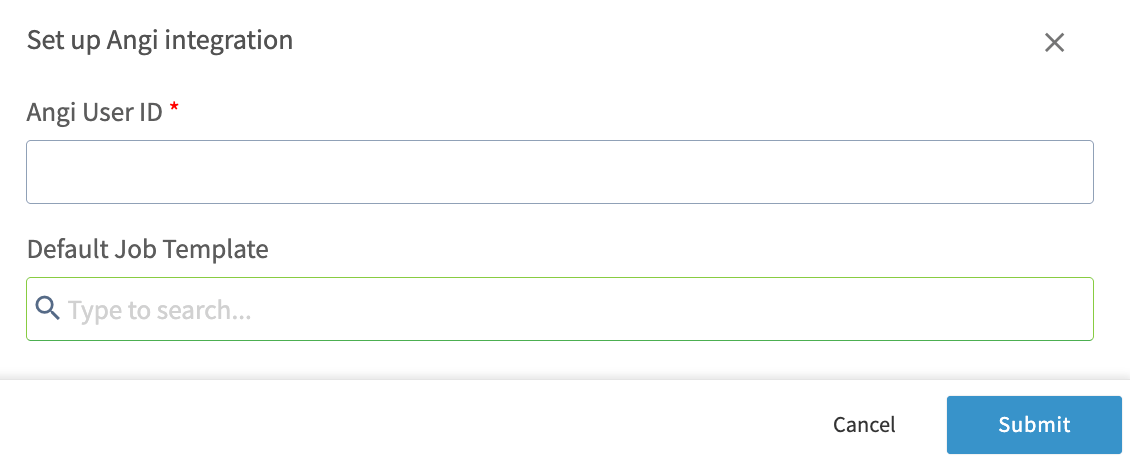
 3. Fill out the fields in the pop-up window that appears.
1. Enter your Angi Service Provider ID (SP ID) into the designated text box.
2. Select a default Job template. This template will be used for all leads from Angi. If you do not select a template, the system will create an unscheduled Job by default.
3. Fill out the fields in the pop-up window that appears.
1. Enter your Angi Service Provider ID (SP ID) into the designated text box.
2. Select a default Job template. This template will be used for all leads from Angi. If you do not select a template, the system will create an unscheduled Job by default.
 **Note:** The Angi integration can take 2-3 business days to successfully connect.
***
# How the Integration Works
Once the integration has been successfully activated, all new leads from Angi will be created as both a Customer and Job Record simultaneously in FieldPulse.
## Angi → Customer Record in FieldPulse
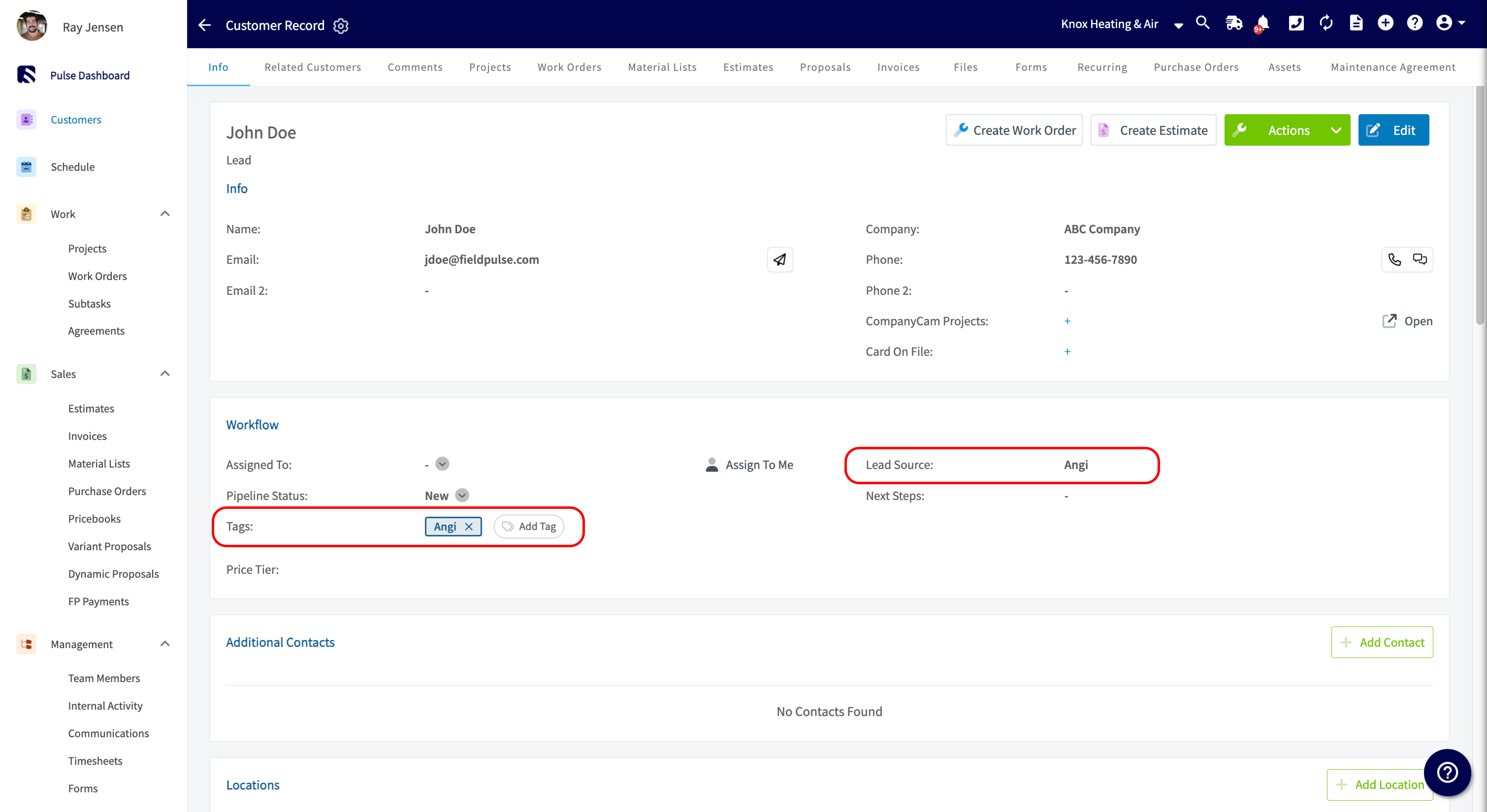
* FieldPulse will verify whether the lead from Angi already exists as a customer in our system by checking their email address. If the customer does not exist, a new Customer Record will be automatically created and assigned to the founding Admin user within the company's FieldPulse account.
* The system will also default the *Lead Source* field on the Customer Record to indicate Angi.
* The system will also add a Tag for Angi to your Customer Records.
* All information collected in Angi, including appointment details and interview questions and answers will be added to the Notes section of this record.
**Note:** The Angi integration can take 2-3 business days to successfully connect.
***
# How the Integration Works
Once the integration has been successfully activated, all new leads from Angi will be created as both a Customer and Job Record simultaneously in FieldPulse.
## Angi → Customer Record in FieldPulse
* FieldPulse will verify whether the lead from Angi already exists as a customer in our system by checking their email address. If the customer does not exist, a new Customer Record will be automatically created and assigned to the founding Admin user within the company's FieldPulse account.
* The system will also default the *Lead Source* field on the Customer Record to indicate Angi.
* The system will also add a Tag for Angi to your Customer Records.
* All information collected in Angi, including appointment details and interview questions and answers will be added to the Notes section of this record.
 ## Angi → Job Record in FieldPulse
* If you selected a default Job template, as mentioned in step three above, FieldPulse will automatically create a Job for this lead/customer using that template. If no default template was selected, our system will automatically create an unscheduled and unassigned Job Record.
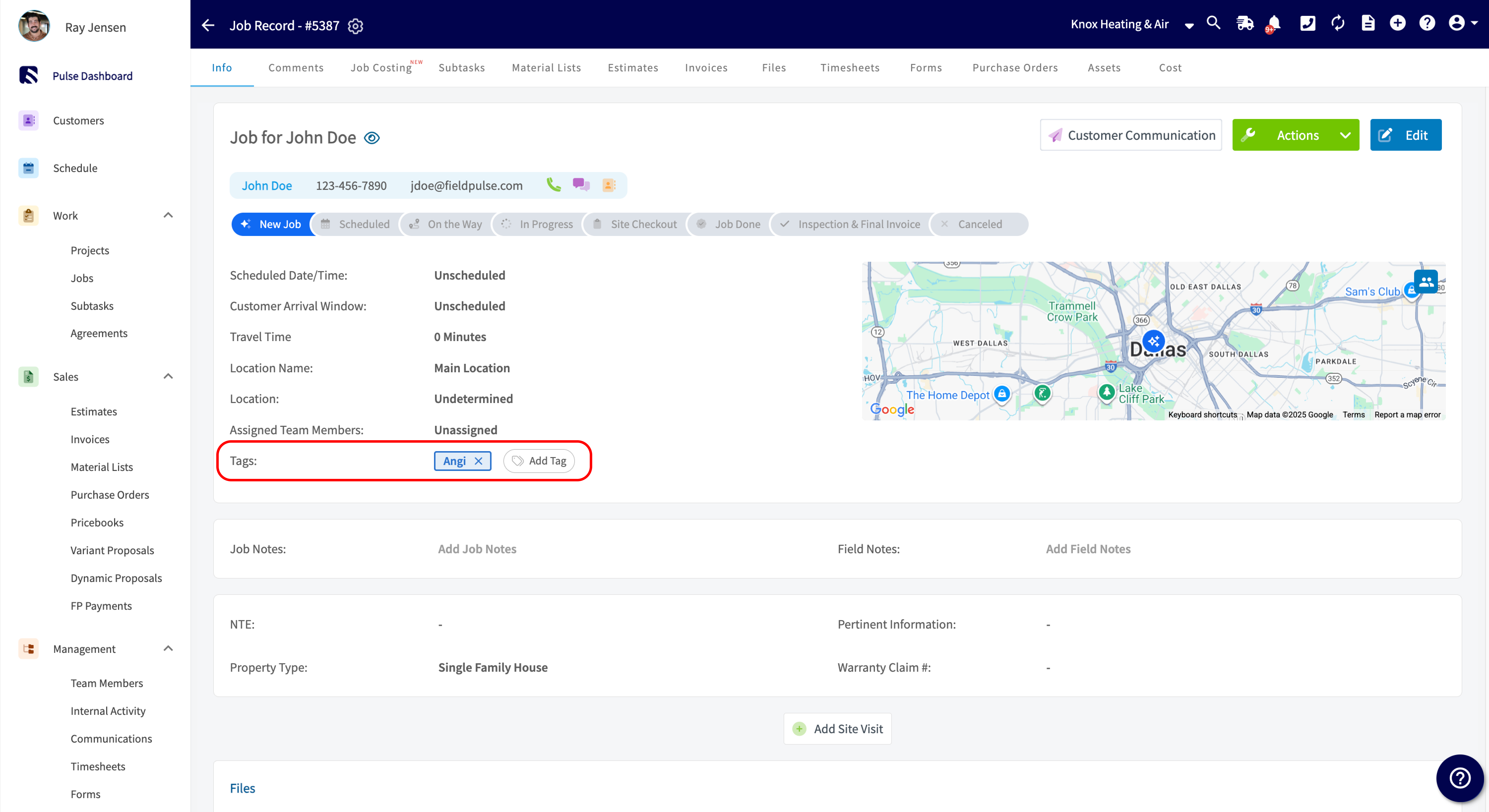
* The system will add a Tag for Angi to your Job Records.
* The automatically created Job Record will follow the Default Custom Status Workflow for unassigned and unscheduled jobs. However, if a different Custom Status Workflow is defined on your selected Job template, the Job Record will follow that template's Custom Status Workflow instead.
* All information collected in Angi, including appointment details and interview questions and answers will be added to the Notes section of this record.
## Angi → Job Record in FieldPulse
* If you selected a default Job template, as mentioned in step three above, FieldPulse will automatically create a Job for this lead/customer using that template. If no default template was selected, our system will automatically create an unscheduled and unassigned Job Record.
* The system will add a Tag for Angi to your Job Records.
* The automatically created Job Record will follow the Default Custom Status Workflow for unassigned and unscheduled jobs. However, if a different Custom Status Workflow is defined on your selected Job template, the Job Record will follow that template's Custom Status Workflow instead.
* All information collected in Angi, including appointment details and interview questions and answers will be added to the Notes section of this record.
 ***
**Have additional questions?**
*Contact us at [support@fieldpulse.com](mailto:support@fieldpulse.com) or use the chat feature in the bottom right corner of your screen.*
***
**Have additional questions?**
*Contact us at [support@fieldpulse.com](mailto:support@fieldpulse.com) or use the chat feature in the bottom right corner of your screen.*