> ## Documentation Index
> Fetch the complete documentation index at: https://help.fieldpulse.com/llms.txt
> Use this file to discover all available pages before exploring further.
# Marketing 360 Integration
> Push customer, address, lead-source, and pipeline data one-way from FieldPulse into Marketing 360 to power your ad campaigns.
 The Marketing 360® integration allows for a one-way sync from FieldPulse to Marketing 360® of the following information:
* *Customer Name*
* *Phone Number*
* *Email Address*
* *Address*
* *Lead Source*
* *Customer Type/Status*
* *Pipeline Status*
* *Custom Tags*
***
# **Learn More about** Marketing 360®
Marketing 360® is a technology company that provides business marketing and marketing software and services for SMBs and franchises. The Marketing 360 platform gives SMBs everything they need to manage and grow their business from a singular platform, including the ability to — build a professional website, manage content marketing, run multi-channel digital advertising campaigns, accept and manage payments, manage leads and customers, monitor reviews, manage SMS, syndicate business listings, and more.
To learn more about setting up the integration, [the Marketing 360 setup guide](https://support.marketing360.com/hc/en-us/articles/27561188989837-Integrate-FieldPulse-with-the-Marketing-360-CRM). If you're interested in learning more about Marketing 360®'s services and prices, [Marketing 360 services and pricing](https://fieldpulse.partners.marketing360.com/).
***
# **Integration Set Up**
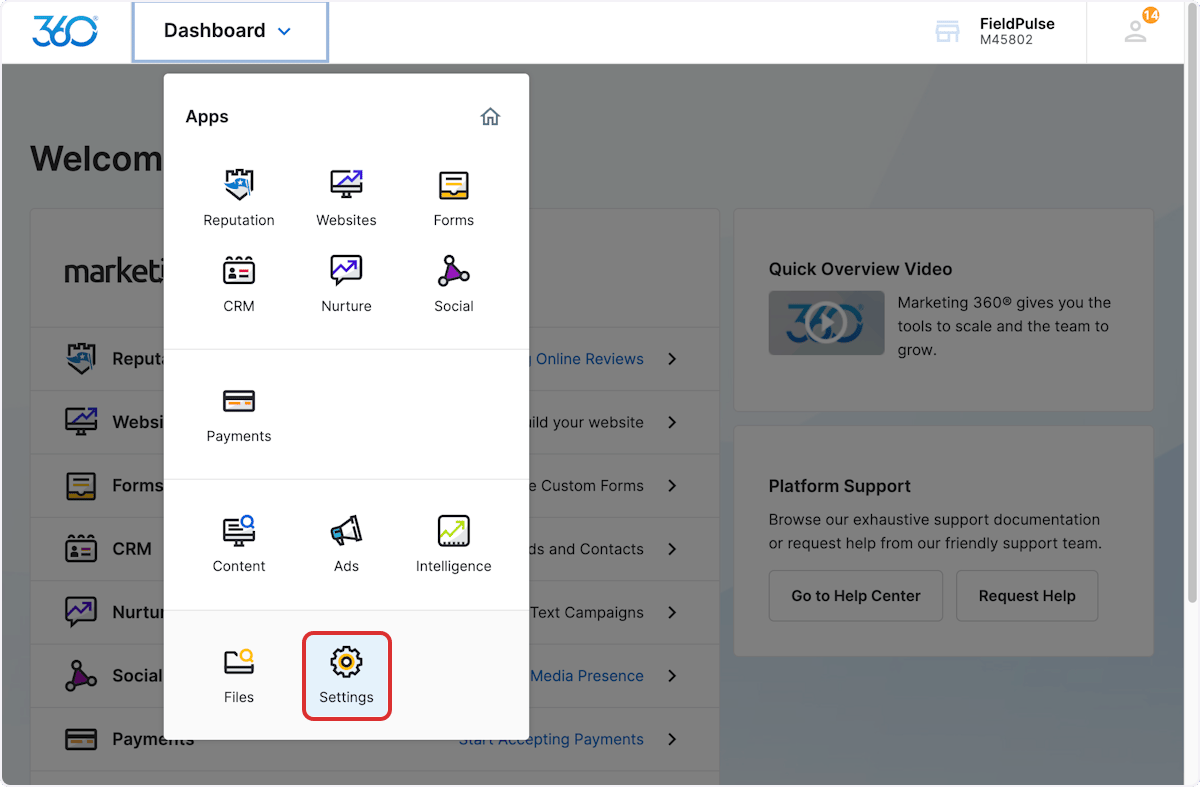
1. In Marketing 360, navigate to *Dashboard*, then select *Settings*.
The Marketing 360® integration allows for a one-way sync from FieldPulse to Marketing 360® of the following information:
* *Customer Name*
* *Phone Number*
* *Email Address*
* *Address*
* *Lead Source*
* *Customer Type/Status*
* *Pipeline Status*
* *Custom Tags*
***
# **Learn More about** Marketing 360®
Marketing 360® is a technology company that provides business marketing and marketing software and services for SMBs and franchises. The Marketing 360 platform gives SMBs everything they need to manage and grow their business from a singular platform, including the ability to — build a professional website, manage content marketing, run multi-channel digital advertising campaigns, accept and manage payments, manage leads and customers, monitor reviews, manage SMS, syndicate business listings, and more.
To learn more about setting up the integration, [the Marketing 360 setup guide](https://support.marketing360.com/hc/en-us/articles/27561188989837-Integrate-FieldPulse-with-the-Marketing-360-CRM). If you're interested in learning more about Marketing 360®'s services and prices, [Marketing 360 services and pricing](https://fieldpulse.partners.marketing360.com/).
***
# **Integration Set Up**
1. In Marketing 360, navigate to *Dashboard*, then select *Settings*.
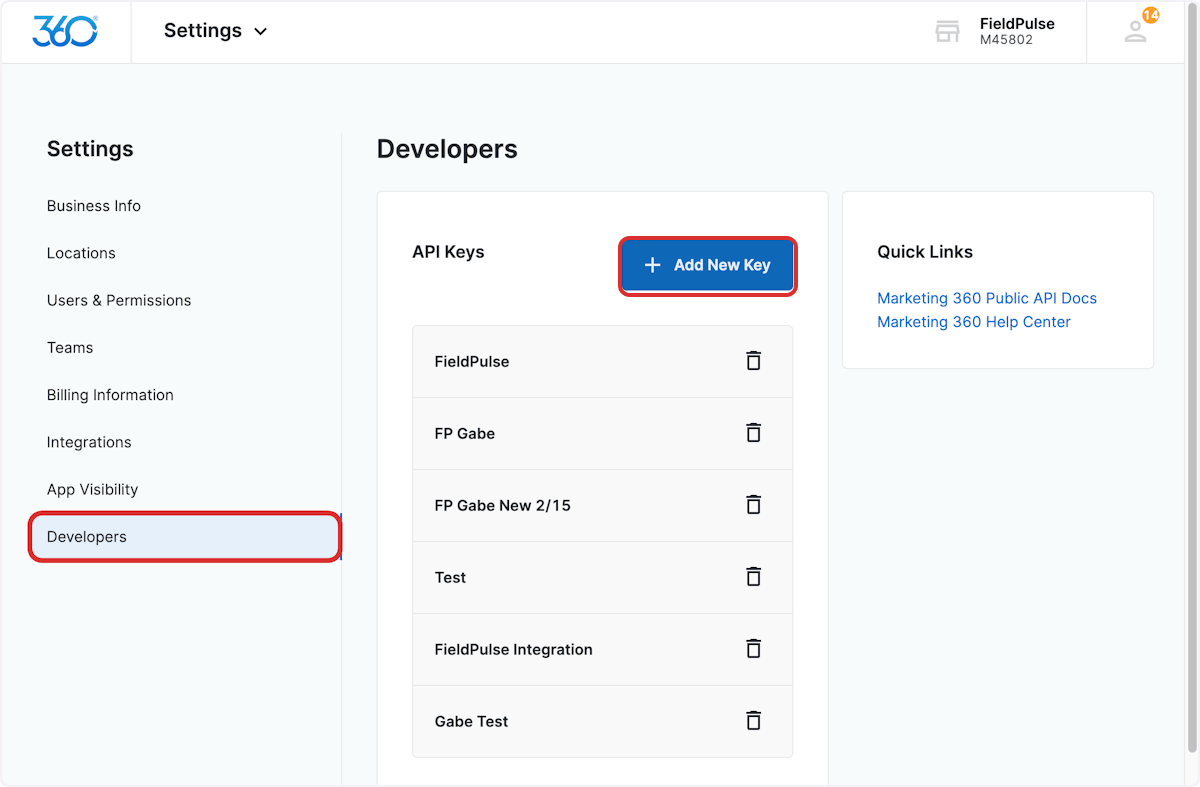
 2. Select *Developers*, then click *Add New Key*.
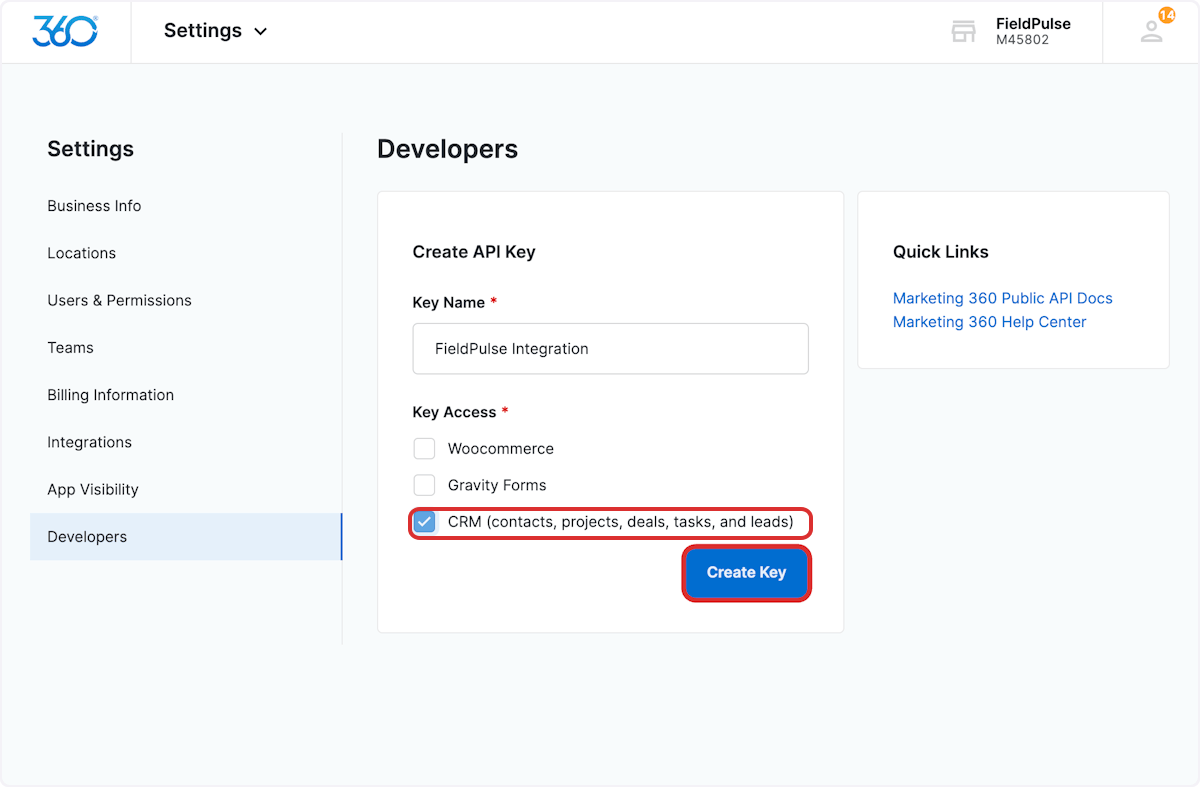
 3. Enter FieldPulse as the *Key Name*. Select the *CRM* checkbox, then click *Create Key*.
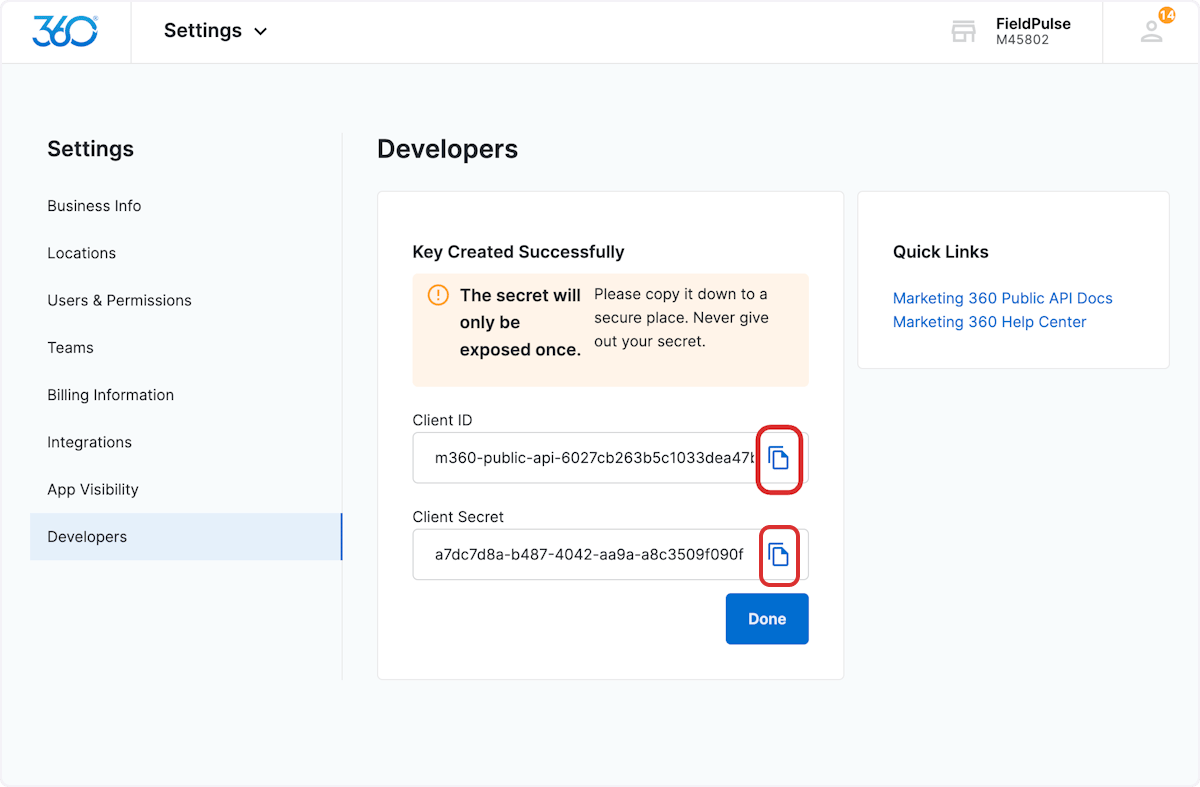
 4. A new API Key will be created, providing you with the *Client ID* and *Client Secret*. Copy the *Client ID* and the *Client Secret*. (**Note:** If you navigate away from this page or press *Done*, you will not be able to access the *Client ID* and *Client Secret* again without repeating the steps outlined above.)
 5. Use the chat in the bottom right corner to provide your *Client ID* and *Client Secret* to the FieldPulse Support Team. Our team will complete the remaining steps to set up your integration!
***
# **Sync Instructions**
In order to sync lead sources, custom tags, customer types, and statuses, the list of options must exist in both Marketing 360® and FieldPulse. If the matching values are not available in Marketing 360®, then the value will not sync.
1. In Marketing 360, navigate to *Dashboard*, then select *CRM*.
5. Use the chat in the bottom right corner to provide your *Client ID* and *Client Secret* to the FieldPulse Support Team. Our team will complete the remaining steps to set up your integration!
***
# **Sync Instructions**
In order to sync lead sources, custom tags, customer types, and statuses, the list of options must exist in both Marketing 360® and FieldPulse. If the matching values are not available in Marketing 360®, then the value will not sync.
1. In Marketing 360, navigate to *Dashboard*, then select *CRM*.
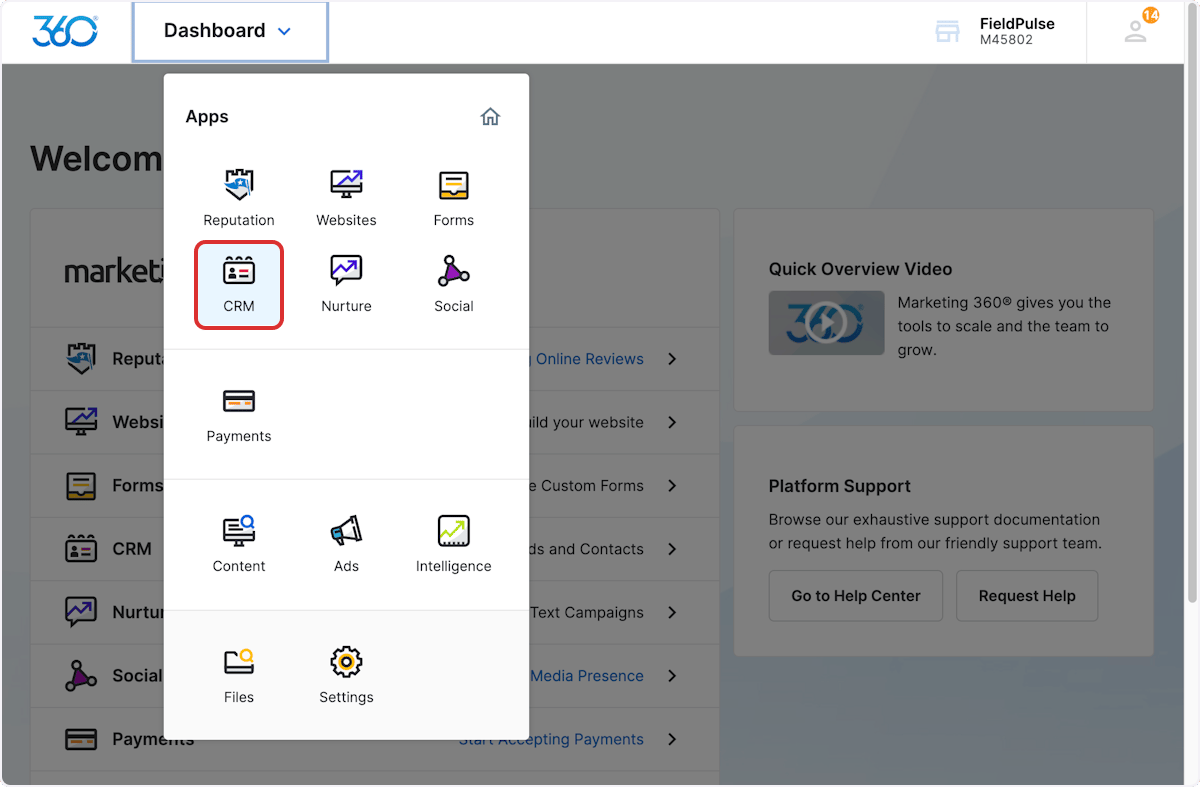 2. Once on the *CRM* page, select *Settings*.
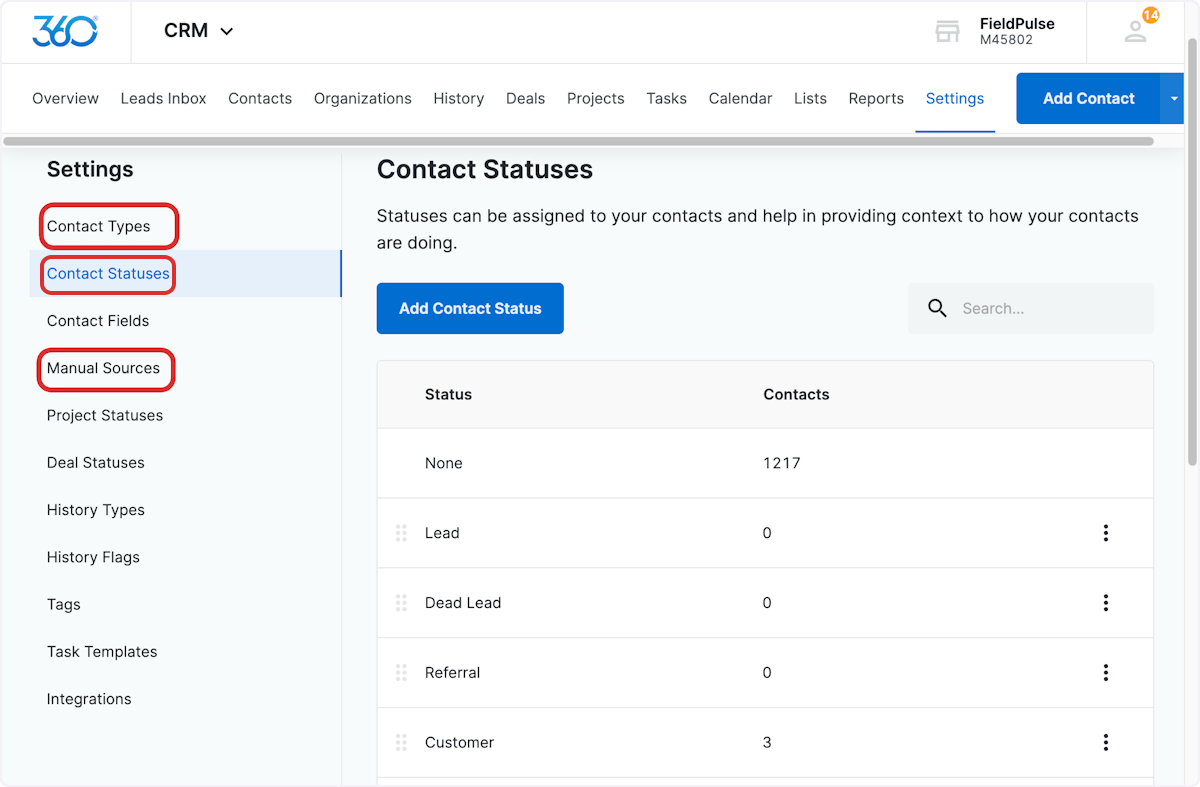
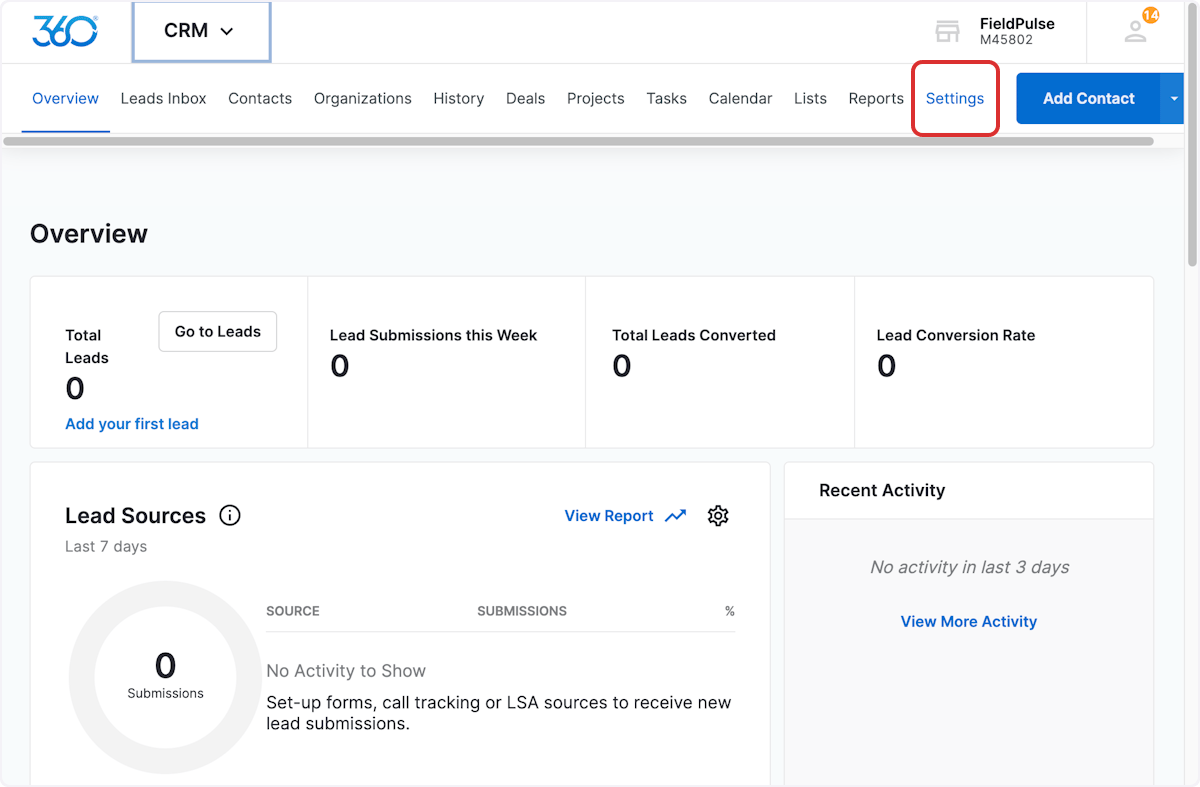 3. You can now add/adjust the various Marketing360 fields to ensure they match your entries in FieldPulse.
 | **FieldPulse Field** | **Marketing 360 Field** | **Set Up Process** |
| ---------------------------------- | ----------------------- | --------------------------------------------------------------------------------------------------------------------------------------------------------------------------------------------------------------------------------------------------------------------------------------------------------------------------------------------------------------------------------------------------------------------------------------------------------------------------------------------------- |
| Lead Source | Manual Sources | Manually ensure the list of available options for *Lead Source* in FieldPulse matches the list of available options for *Manual Sources* in Marketing 360.
| **FieldPulse Field** | **Marketing 360 Field** | **Set Up Process** |
| ---------------------------------- | ----------------------- | --------------------------------------------------------------------------------------------------------------------------------------------------------------------------------------------------------------------------------------------------------------------------------------------------------------------------------------------------------------------------------------------------------------------------------------------------------------------------------------------------- |
| Lead Source | Manual Sources | Manually ensure the list of available options for *Lead Source* in FieldPulse matches the list of available options for *Manual Sources* in Marketing 360.
**Required:** Add *Default* as one of the *Manual Sources* in Marketing 360. |
| Customer Pipeline Status | Contact Statuses | Manually ensure the list of available options for *Customer Pipeline Status* in FieldPulse matches the list of available options for *Contact Status* in Marketing 360. |
| Custom Tags &
Customer Status | Contact Types | Both *Custom Tags* and *Customer Statuses* from FieldPulse sync into *Contact Type* in Marketing 360.
Manually ensure the list of available options for *Custom Tags* and *Customer Status* (Lead, Opportunity, Current Customer, Lost Other, Inactive) matches the list of available options for *Contact Types* in Marketing 360.
(**Note:** If you add additional custom tags to FieldPulse in the future, you will need to manually enter them in Marketing 360 to ensure they sync.) |
***
# **Syncing Existing Customers**
Only customers created once the Marketing 360® integration has been set up will sync from FieldPulse to Marketing 360®. If you have been using FieldPulse before integrating with Marketing 360®, you’ll want to sync all existing customers from FieldPulse to Marketing 360®. To do so, contact us at [support@fieldpulse.com](mailto:support@fieldpulse.com) or via the chat in the bottom right corner. *(**Note:** the customers may sync to Marketing 360® slowly depending on the quantity.)*
***
**Have additional questions?**
*Contact us at [support@fieldpulse.com](mailto:support@fieldpulse.com) or use the chat feature in the bottom right corner of your screen.*