> ## Documentation Index
> Fetch the complete documentation index at: https://help.fieldpulse.com/llms.txt
> Use this file to discover all available pages before exploring further.
# XAPPAI Integration
> Connect XAPPAI so its chat and form widgets create customer leads and pending jobs in FieldPulse automatically.
 The XAPPAI integration connects your FieldPulse account to automatically send leads from the XAPPAI chat and form widgets. The following information can be sent into FieldPulse:
* *Customers*
* *Jobs*
***
# How it Works
Depending on the channel (chat vs. form) and the type of information gathered, either just a customer lead will be created or a customer lead and pending job.
## Customer Lead[](https://documentation.xapp.ai/help/integrations/integration-fieldpulse/#customer-lead)
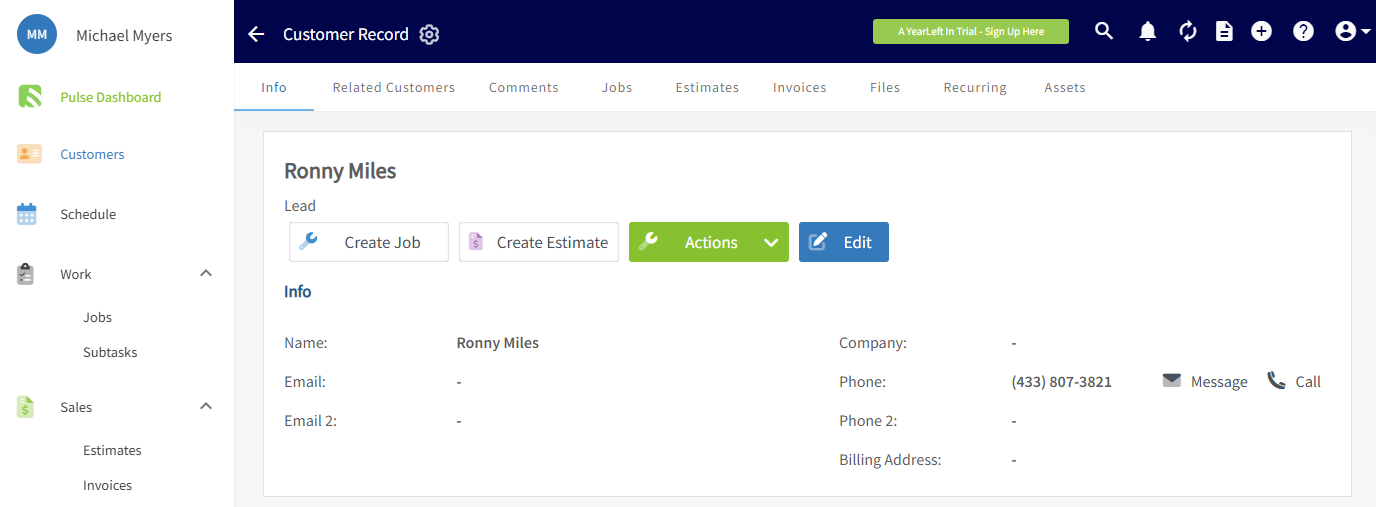
If only contact information and message is gathered (which is more typical from chat), only a customer lead will be created. You will find it in the "Customers" section.
The XAPPAI integration connects your FieldPulse account to automatically send leads from the XAPPAI chat and form widgets. The following information can be sent into FieldPulse:
* *Customers*
* *Jobs*
***
# How it Works
Depending on the channel (chat vs. form) and the type of information gathered, either just a customer lead will be created or a customer lead and pending job.
## Customer Lead[](https://documentation.xapp.ai/help/integrations/integration-fieldpulse/#customer-lead)
If only contact information and message is gathered (which is more typical from chat), only a customer lead will be created. You will find it in the "Customers" section.
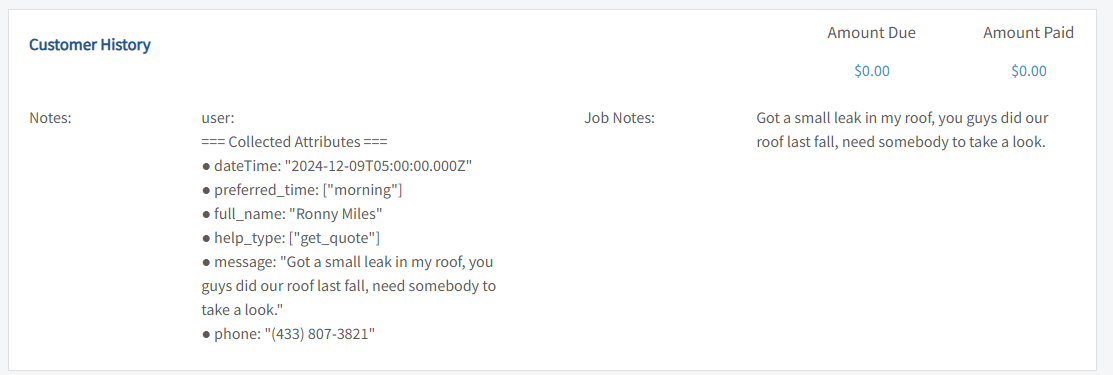
 You will also see additional information under the "Customer History" section.
 ##
Job Creation[](https://documentation.xapp.ai/help/integrations/integration-fieldpulse/#job-creation)
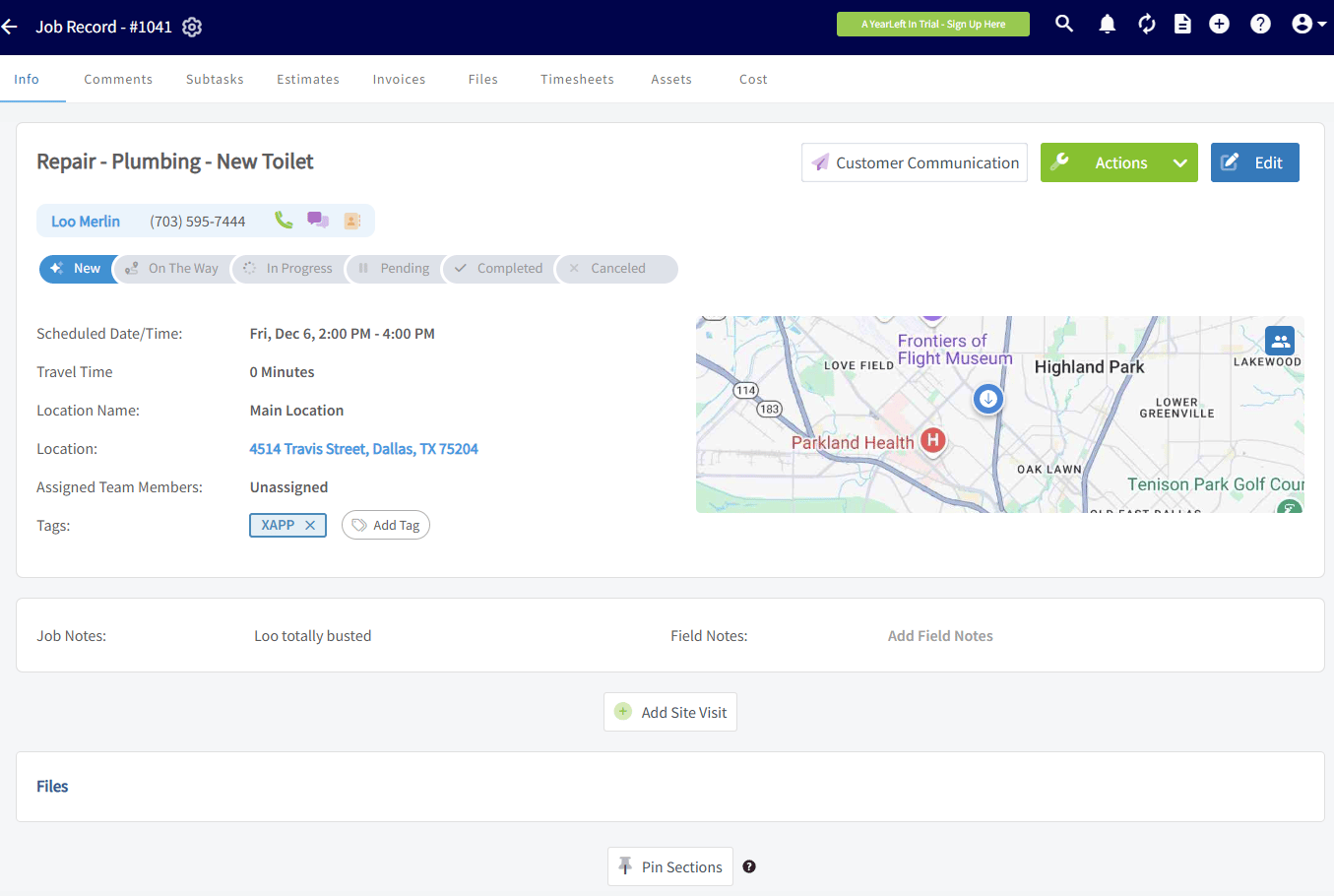
If the customer lead also specifies they need some type of service or visit, a job will be created for the customer with a description of the desired job in the title. It will also have a preferred time that will need to be confirmed with the customer.
##
Job Creation[](https://documentation.xapp.ai/help/integrations/integration-fieldpulse/#job-creation)
If the customer lead also specifies they need some type of service or visit, a job will be created for the customer with a description of the desired job in the title. It will also have a preferred time that will need to be confirmed with the customer.
 ***
# Integration Set Up
1. Request API Key from FieldPulse through chat or by phone.
2. In XAPPAI, navigate to Studio > Integrations.
***
# Integration Set Up
1. Request API Key from FieldPulse through chat or by phone.
2. In XAPPAI, navigate to Studio > Integrations.
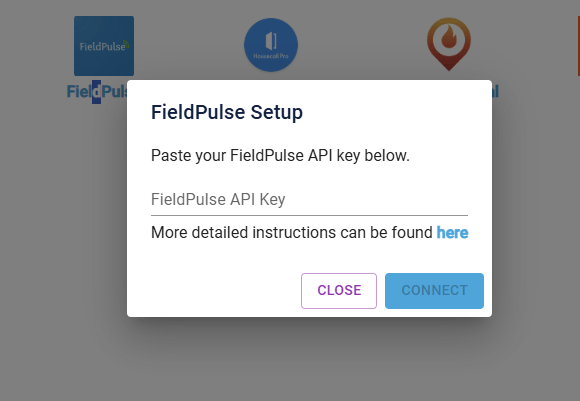
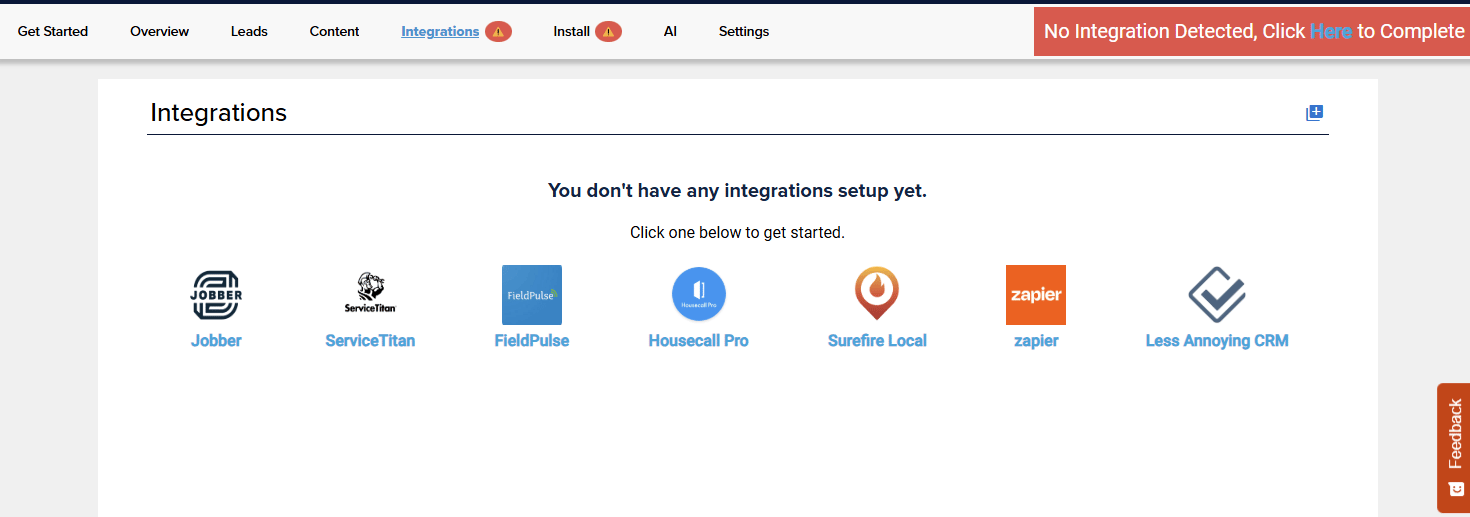 3. Select "FieldPulse" and paste your API key in the text field and click "Connect".
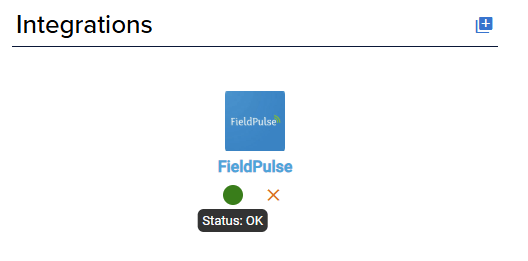
 4. After the integration is setup, a status light will appear next to the integration. If it is green, the API key is working properly.
 5. To confirm the integration is working, complete a lead from the XAPPAI form or chat and confirm it is sent to FieldPulse.
***
**Have additional questions?**
*Contact us at [support@fieldpulse.com](mailto:support@fieldpulse.com) or use the chat feature in the bottom right corner of your screen.*
5. To confirm the integration is working, complete a lead from the XAPPAI form or chat and confirm it is sent to FieldPulse.
***
**Have additional questions?**
*Contact us at [support@fieldpulse.com](mailto:support@fieldpulse.com) or use the chat feature in the bottom right corner of your screen.*