> ## Documentation Index
> Fetch the complete documentation index at: https://help.fieldpulse.com/llms.txt
> Use this file to discover all available pages before exploring further.
# Reece Integration (US)
> Check Reece inventory and pricing, place orders, and manage supplier invoices without leaving FieldPulse.
Ready to integrate Reece with your FieldPulse account? With this integration you can now check inventory and pricing in real time, place orders, and manage your invoices all in one spot.
 ***
# How to Enable
To get started, navigate to *Company Settings* > *Features & Plugins* tab > locate the *Reece* tile > click *Enable*.
## You will then need to fill in the following details
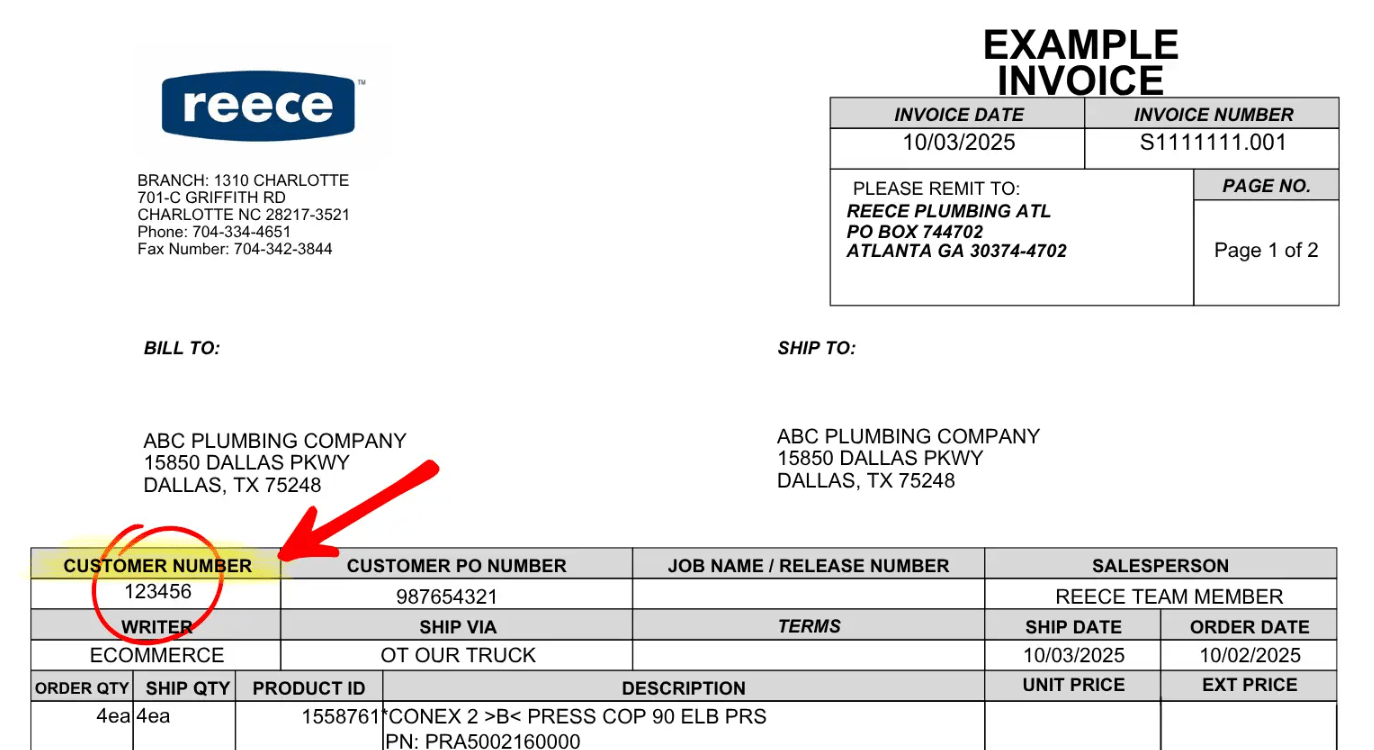
* Reece Customer ID (This is your Customer Number that can be found on any Reece supplier invoice)
***
# How to Enable
To get started, navigate to *Company Settings* > *Features & Plugins* tab > locate the *Reece* tile > click *Enable*.
## You will then need to fill in the following details
* Reece Customer ID (This is your Customer Number that can be found on any Reece supplier invoice)
 * Zip Code
***
# Integration Benefits
## Reece Purchase Orders
Within FieldPulse, you can create new purchase orders and send them directly to your chosen Reece branch, eliminating the need for manual transfers. This integration also allows you to easily convert your FieldPulse estimates into Reece purchase orders, saving you time and reducing the potential for errors.
## Simplified Estimates and Invoices
Creating estimates and invoices is now effortless! With this integration, you can search the Reece store directly within FieldPulse and add items to your estimates and invoices without leaving the platform.
***
# Item Search
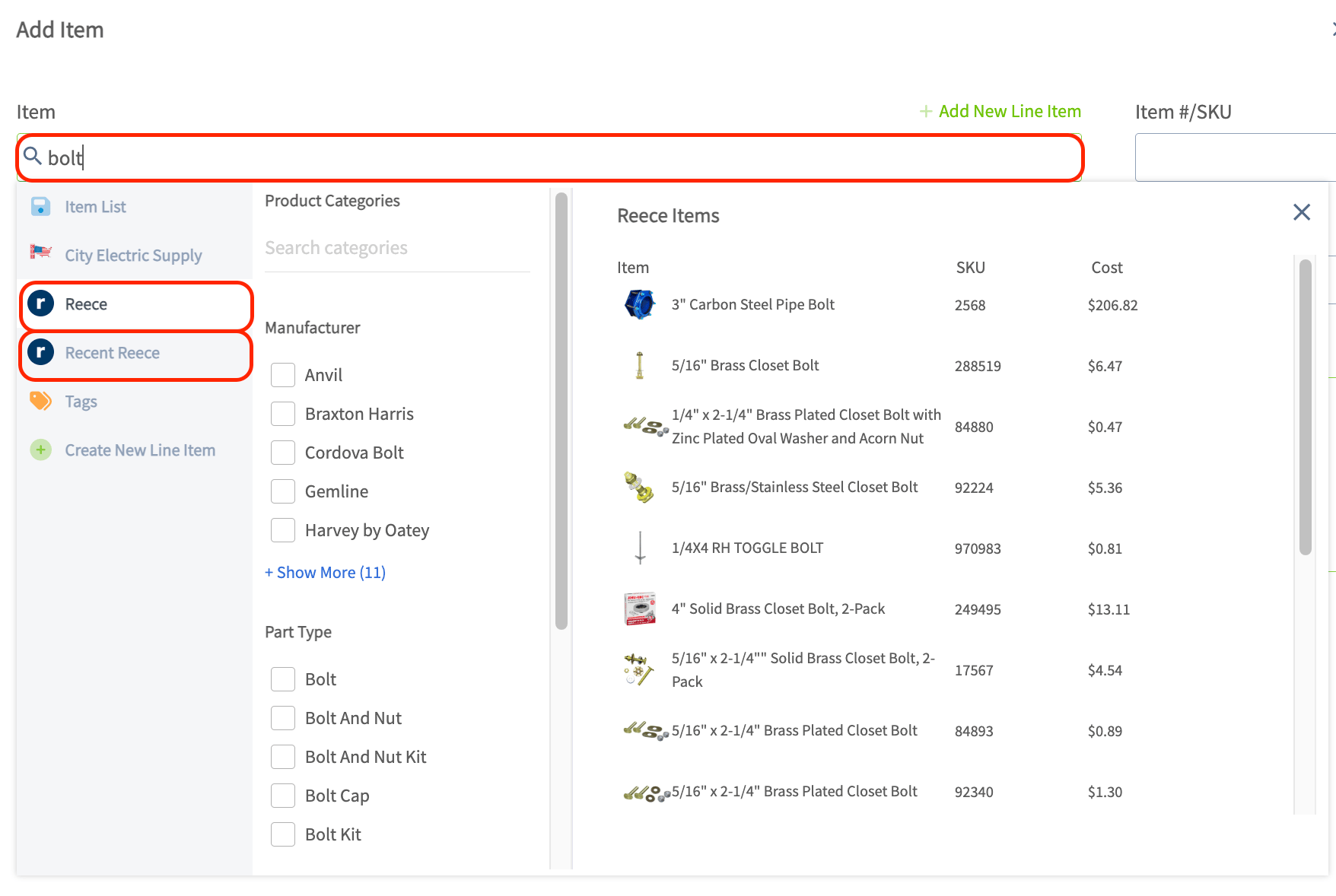
To add a Reece line item to an estimate, invoice, or purchase order, navigate to your desired record. Click *Add Item* and select one of the following tabs from the left-side menu to begin searching for your desired item: *Reece US* or *Recent Reece*.
Start typing in the main search bar to pull up a list of all Reece parts matching your search. When searching an item, the 3 top categories that Reece has for that item with automatically populate. You can then multi-select options within those categories to narrow down the list of items. To view a list of all Reece US Product Categories, [the Reece product categories guide](/integrations-partners/suppliers-distributors/reece-integration-us/reece-us-integration-product-categories).
When you find the part you're looking for, click on it and adjust the quantity as needed. Once you have added a line item you can repeat the process for any additional items you want to add.
* Zip Code
***
# Integration Benefits
## Reece Purchase Orders
Within FieldPulse, you can create new purchase orders and send them directly to your chosen Reece branch, eliminating the need for manual transfers. This integration also allows you to easily convert your FieldPulse estimates into Reece purchase orders, saving you time and reducing the potential for errors.
## Simplified Estimates and Invoices
Creating estimates and invoices is now effortless! With this integration, you can search the Reece store directly within FieldPulse and add items to your estimates and invoices without leaving the platform.
***
# Item Search
To add a Reece line item to an estimate, invoice, or purchase order, navigate to your desired record. Click *Add Item* and select one of the following tabs from the left-side menu to begin searching for your desired item: *Reece US* or *Recent Reece*.
Start typing in the main search bar to pull up a list of all Reece parts matching your search. When searching an item, the 3 top categories that Reece has for that item with automatically populate. You can then multi-select options within those categories to narrow down the list of items. To view a list of all Reece US Product Categories, [the Reece product categories guide](/integrations-partners/suppliers-distributors/reece-integration-us/reece-us-integration-product-categories).
When you find the part you're looking for, click on it and adjust the quantity as needed. Once you have added a line item you can repeat the process for any additional items you want to add.
 ***
# Permission Settings That Will Impact This Integration
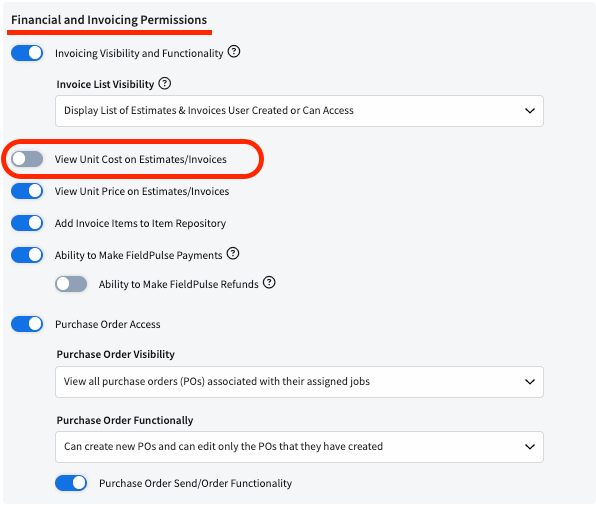
If you do not want your [Service Agents](/using-fieldpulse/users-teams/user-roles#h_086ea043b8) to have access to see the cost of items from Reece, ensure that the toggle is off for the ability to View Unit Costs on Estimates/Invoices.
***
# Permission Settings That Will Impact This Integration
If you do not want your [Service Agents](/using-fieldpulse/users-teams/user-roles#h_086ea043b8) to have access to see the cost of items from Reece, ensure that the toggle is off for the ability to View Unit Costs on Estimates/Invoices.
 ***
# Purchase Orders
Generate a Reece purchase order and submit it without having to leave FieldPulse! Before you begin, ensure that the Reece integration is set up and that [purchase orders](/using-fieldpulse/purchase-orders/purchase-orders) are enabled in FieldPulse.
## Step 1
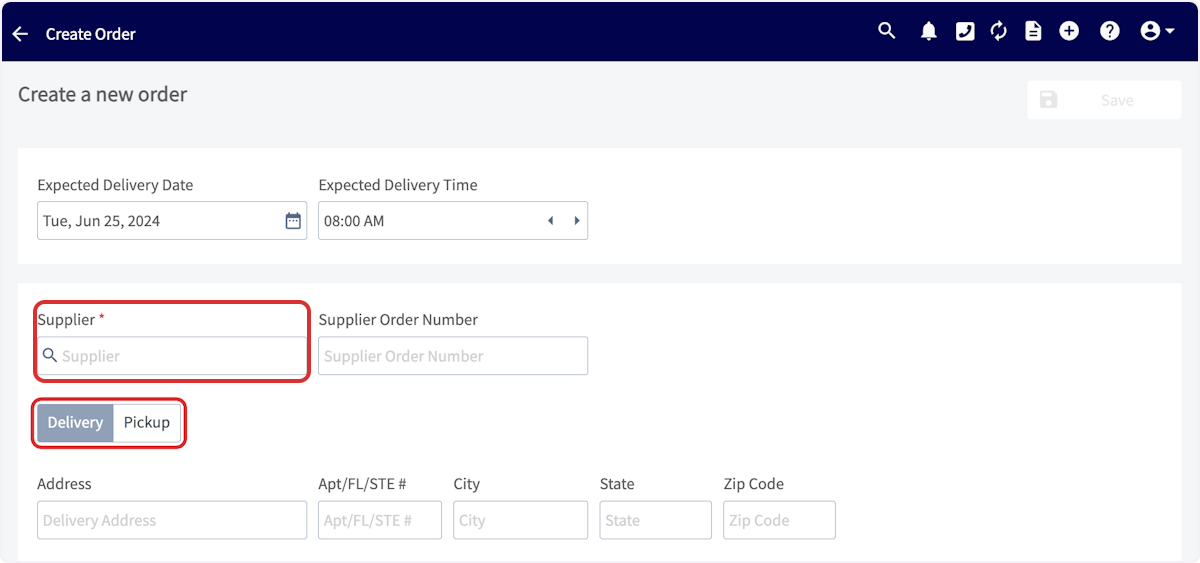
Start by creating a new purchase order. Click in the *Supplier* search box and look for **Reece US** in the dropdown menu.
## Step 2
Make sure to select the “Reece US” supplier created by FieldPulse—not one you've created yourself. You can easily identify the FieldPulse-created "Reece US" supplier as it cannot be edited.
## Step 3
Once you've found Reece US, click *Select Supplier*. Enter the vendor order number in the search box, select *Delivery,* and enter the delivery address. *(**Note:** Pickup is not available with the Reece US integration at this time.)*
***
# Purchase Orders
Generate a Reece purchase order and submit it without having to leave FieldPulse! Before you begin, ensure that the Reece integration is set up and that [purchase orders](/using-fieldpulse/purchase-orders/purchase-orders) are enabled in FieldPulse.
## Step 1
Start by creating a new purchase order. Click in the *Supplier* search box and look for **Reece US** in the dropdown menu.
## Step 2
Make sure to select the “Reece US” supplier created by FieldPulse—not one you've created yourself. You can easily identify the FieldPulse-created "Reece US" supplier as it cannot be edited.
## Step 3
Once you've found Reece US, click *Select Supplier*. Enter the vendor order number in the search box, select *Delivery,* and enter the delivery address. *(**Note:** Pickup is not available with the Reece US integration at this time.)*
 ## Step 4
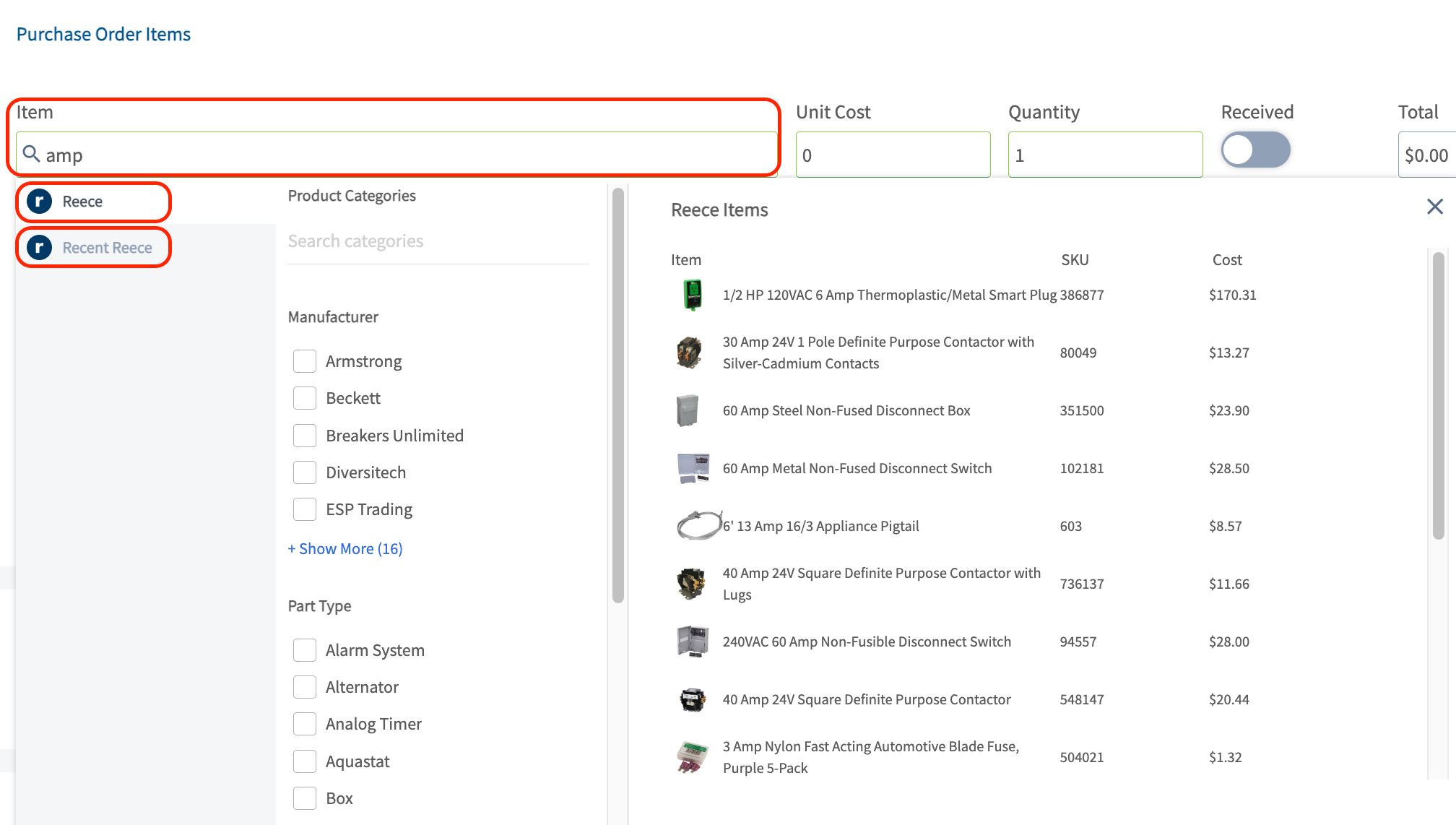
Now you can begin adding items to the purchase order! Click in the item search bar and start typing to pull up a list of all Reece parts matching your search. When you find the part you're looking for, click *Add Item*.
Once you have added a line item you can repeat the process for any additional items you want to add to your PO. Don't forget to set the quantity of each item.
## Step 4
Now you can begin adding items to the purchase order! Click in the item search bar and start typing to pull up a list of all Reece parts matching your search. When you find the part you're looking for, click *Add Item*.
Once you have added a line item you can repeat the process for any additional items you want to add to your PO. Don't forget to set the quantity of each item.
 ## Step 5
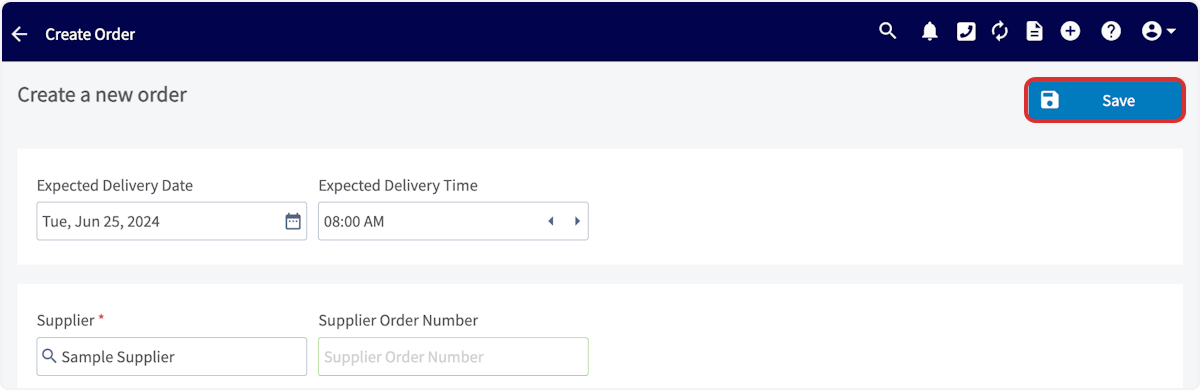
Complete the remainder of the purchase order, then press *Save*. When you're ready to order, submit the order. Once the items have been processed, this order will show up in your Reece account.
## Step 5
Complete the remainder of the purchase order, then press *Save*. When you're ready to order, submit the order. Once the items have been processed, this order will show up in your Reece account.
 ## Order Processing Notification
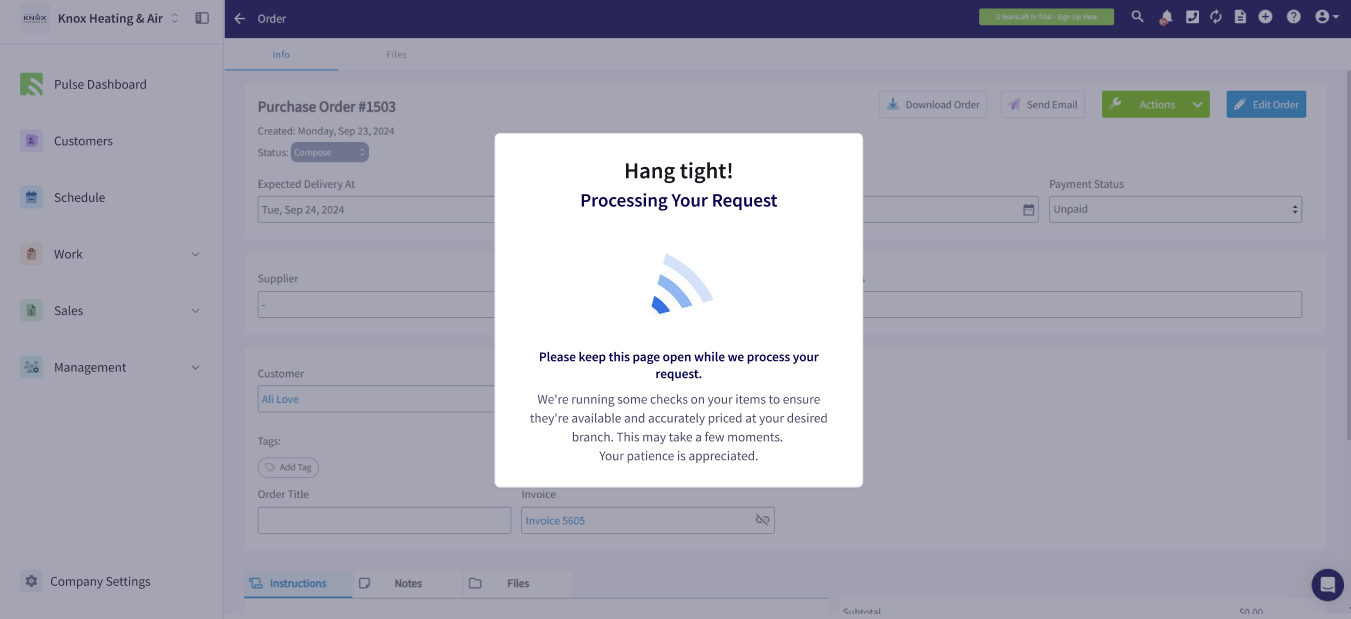
The loading wheel remains active while FieldPulse sends the item details and related information to the supplier for verification of stock, validity, and price.
## Order Processing Notification
The loading wheel remains active while FieldPulse sends the item details and related information to the supplier for verification of stock, validity, and price.
 ##
Order Placed Notification
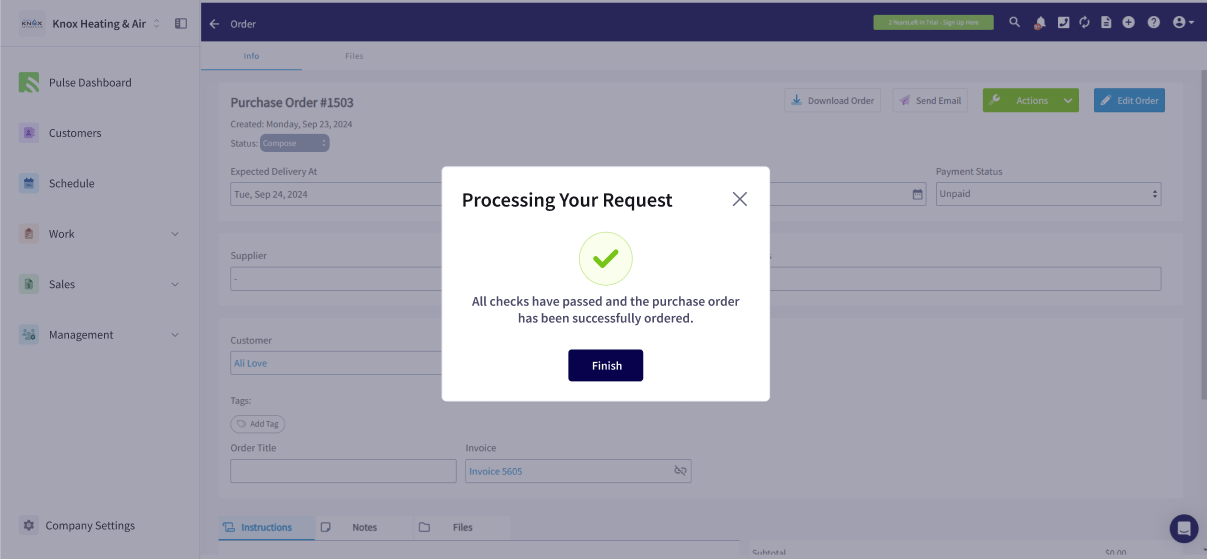
FieldPulse has verified the item details and successfully placed your order.
##
Order Placed Notification
FieldPulse has verified the item details and successfully placed your order.
 ## Failed Checks
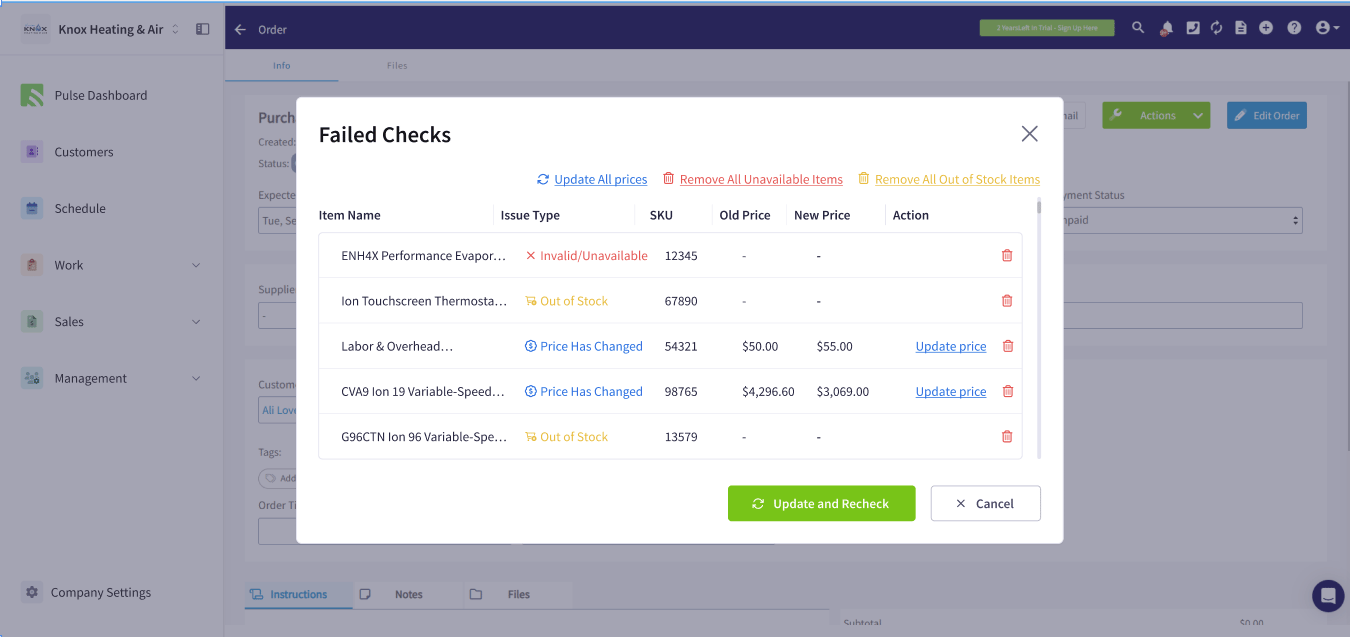
FieldPulse has the ability to identify errors with items on the purchase order and will notify you of these. In the example below, you can see some of the items are either out of stock, invalid/unavailable, and/or the price has changed. You can correct the errors before resubmitting the purchase order. This can be done quickly by using the options at the top of the pop up window. Here you can select *Update All Prices*, *Remove All Unavailable Items*, and/or *Remove All Out of Stock Items*.
## Failed Checks
FieldPulse has the ability to identify errors with items on the purchase order and will notify you of these. In the example below, you can see some of the items are either out of stock, invalid/unavailable, and/or the price has changed. You can correct the errors before resubmitting the purchase order. This can be done quickly by using the options at the top of the pop up window. Here you can select *Update All Prices*, *Remove All Unavailable Items*, and/or *Remove All Out of Stock Items*.
 ***
# Reece Purchase Order Tips & Tricks
To use the Reece integration for purchase orders, here’s what you need to know:
* **You can only add items to a Reece US purchase order** if they meet one of these conditions:
* They were added via the Reece API (`Add Item > Reece`).
* They already exist in your item list **with the supplier set as "Reece US."**
* If your items still use an old Reece supplier name, you’ll need to update them:
* You can update items one by one by going to:\
\_Company Settings\_ > *Estimates & Invoices* tab > *Items*
* To update in bulk:
* Step 1: Export your item list.
* Step 2: Update the **Supplier** column to say "Reece US".
* Step 3: Re-import the file using the item import tool.
🚀 **FieldPulse Pro Tip:** When you build an estimate or invoice with Reece US items, we’ll automatically create a draft purchase order for you, making it easy to choose your branch and place the order.
***
# Integration Walkthrough
## Not a Reece customer yet? Sign up today! [the Reece signup page](https://www.reece.com/) to get started
***
# Reece Purchase Order Tips & Tricks
To use the Reece integration for purchase orders, here’s what you need to know:
* **You can only add items to a Reece US purchase order** if they meet one of these conditions:
* They were added via the Reece API (`Add Item > Reece`).
* They already exist in your item list **with the supplier set as "Reece US."**
* If your items still use an old Reece supplier name, you’ll need to update them:
* You can update items one by one by going to:\
\_Company Settings\_ > *Estimates & Invoices* tab > *Items*
* To update in bulk:
* Step 1: Export your item list.
* Step 2: Update the **Supplier** column to say "Reece US".
* Step 3: Re-import the file using the item import tool.
🚀 **FieldPulse Pro Tip:** When you build an estimate or invoice with Reece US items, we’ll automatically create a draft purchase order for you, making it easy to choose your branch and place the order.
***
# Integration Walkthrough
## Not a Reece customer yet? Sign up today! [the Reece signup page](https://www.reece.com/) to get started
 ***
**Have additional questions?**
*Contact us at [support@fieldpulse.com](mailto:support@fieldpulse.com) or use the chat feature in the bottom right corner of your screen.*
***
**Have additional questions?**
*Contact us at [support@fieldpulse.com](mailto:support@fieldpulse.com) or use the chat feature in the bottom right corner of your screen.*