> ## Documentation Index
> Fetch the complete documentation index at: https://help.fieldpulse.com/llms.txt
> Use this file to discover all available pages before exploring further.
# Reece maX Integration Purchase Orders (ANZ)
> Create and submit Reece purchase orders straight from FieldPulse, no separate maX login or re-keying required.
Easily generate a Reece purchase order and submit it without leaving FieldPulse! Before continuing, be sure you have the [Reece maX integration](/integrations-partners/suppliers-distributors/reece-max-integration-anz/reece-max-integration-anz) set up, as well as [purchase orders](/using-fieldpulse/purchase-orders/purchase-orders) enabled.
***
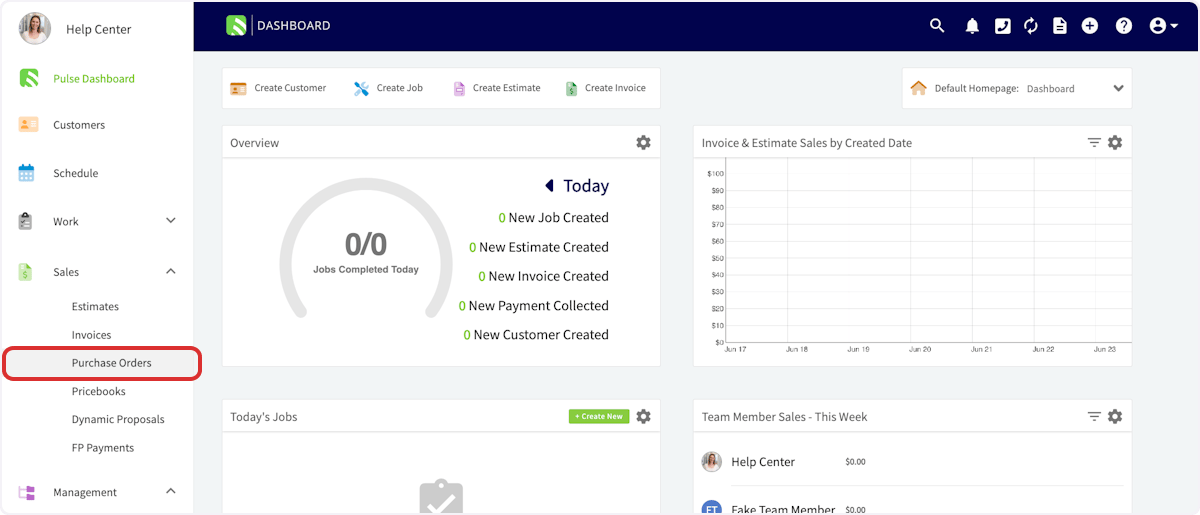
Navigate to your left hand menu and click on *Purchase Orders*.
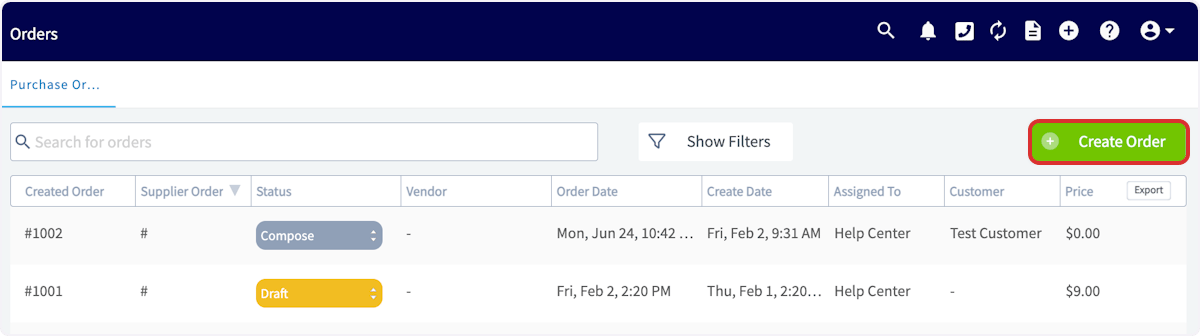
 Once on the *Purchase Orders* page, click *Create Order*.
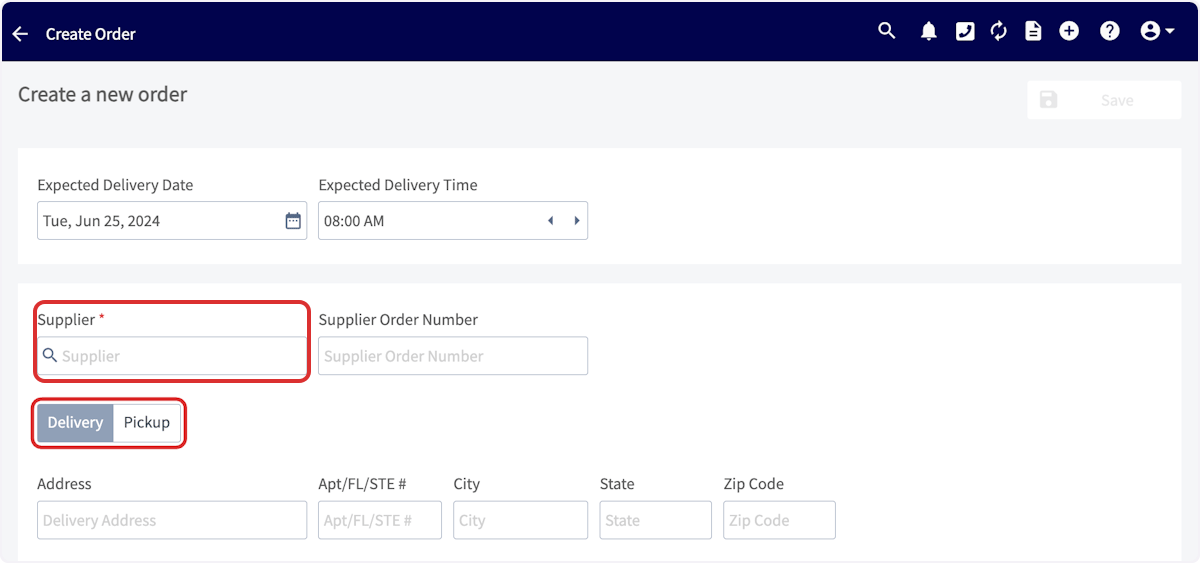
 Click in the *Supplier* search box and look for Reece maX in the dropdown menu. Once you've found Reece maX, click *Select Supplier*. Enter the vendor order number in the search box, select either *Pickup* or *Delivery*. If required, enter the delivery address. If you select *Pickup*, the address will default to your Reece Home Branch.
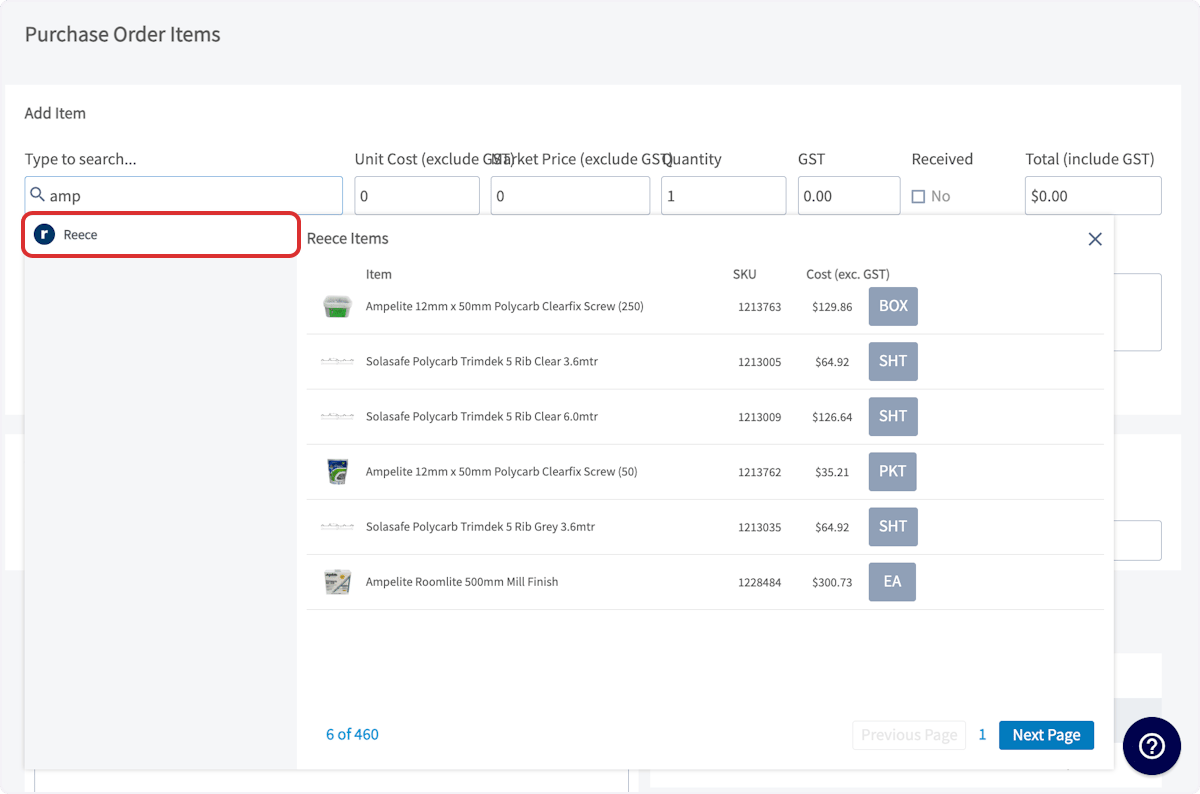
 Start adding items to the purchase order! Click in the item search bar and start typing to pull up a list of all Reece parts matching your search. When you find the part you're looking for, click *Add Item*. Once you have added a line item you can repeat the process for any additional items you want to add to your PO. Don't forget to set the quantity of each item.
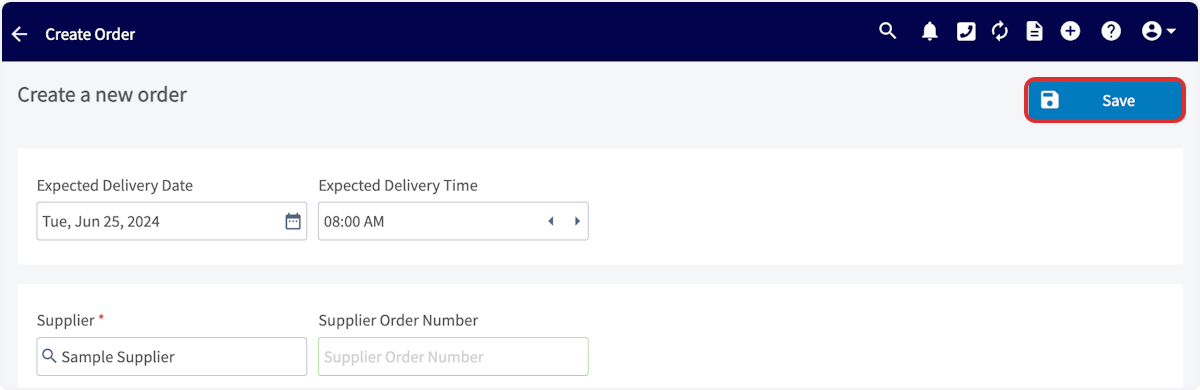
 Complete the remainder of the purchase order, then press *Save*. When you're ready to order, submit the order! Once the items have been processed, this order will show up in your maX account.
 ***
**Have additional questions?**
*Contact us at [support@fieldpulse.com](mailto:support@fieldpulse.com) or use the chat feature in the bottom right corner of your screen.*
***
**Have additional questions?**
*Contact us at [support@fieldpulse.com](mailto:support@fieldpulse.com) or use the chat feature in the bottom right corner of your screen.*