> ## Documentation Index
> Fetch the complete documentation index at: https://help.fieldpulse.com/llms.txt
> Use this file to discover all available pages before exploring further.
# The Granite Group Integration
> Pull live Granite Group material pricing into FieldPulse so estimates quote current supplier costs without manual lookups.
 **With our Granite Group integration you can get the most up to date material pricing all within FieldPulse.**
Ready to integrate The Granite Group with your FieldPulse account? To get started, reach out to us via [support@fieldpulse.com](mailto:support@fieldpulse.com) or use the chat in bottom right corner of your screen. Let us know you'd like to enable the integration, and provide your Granite Group account number, ship-to address, and company name. Your integration will be activated once your details are verified, in approximately 2 business days.
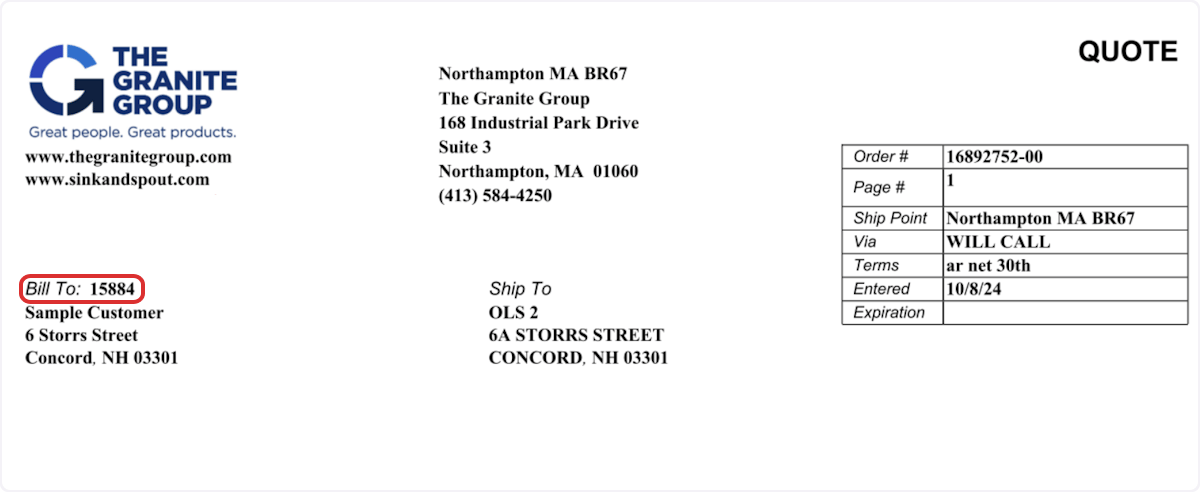
Find your account number here:
**With our Granite Group integration you can get the most up to date material pricing all within FieldPulse.**
Ready to integrate The Granite Group with your FieldPulse account? To get started, reach out to us via [support@fieldpulse.com](mailto:support@fieldpulse.com) or use the chat in bottom right corner of your screen. Let us know you'd like to enable the integration, and provide your Granite Group account number, ship-to address, and company name. Your integration will be activated once your details are verified, in approximately 2 business days.
Find your account number here:
 ***
# Estimates & Invoices
To add a Granite Group line item to an estimate or invoice, navigate to your desired record. Click *Granite Group* to open the catalog and select the line items you need.
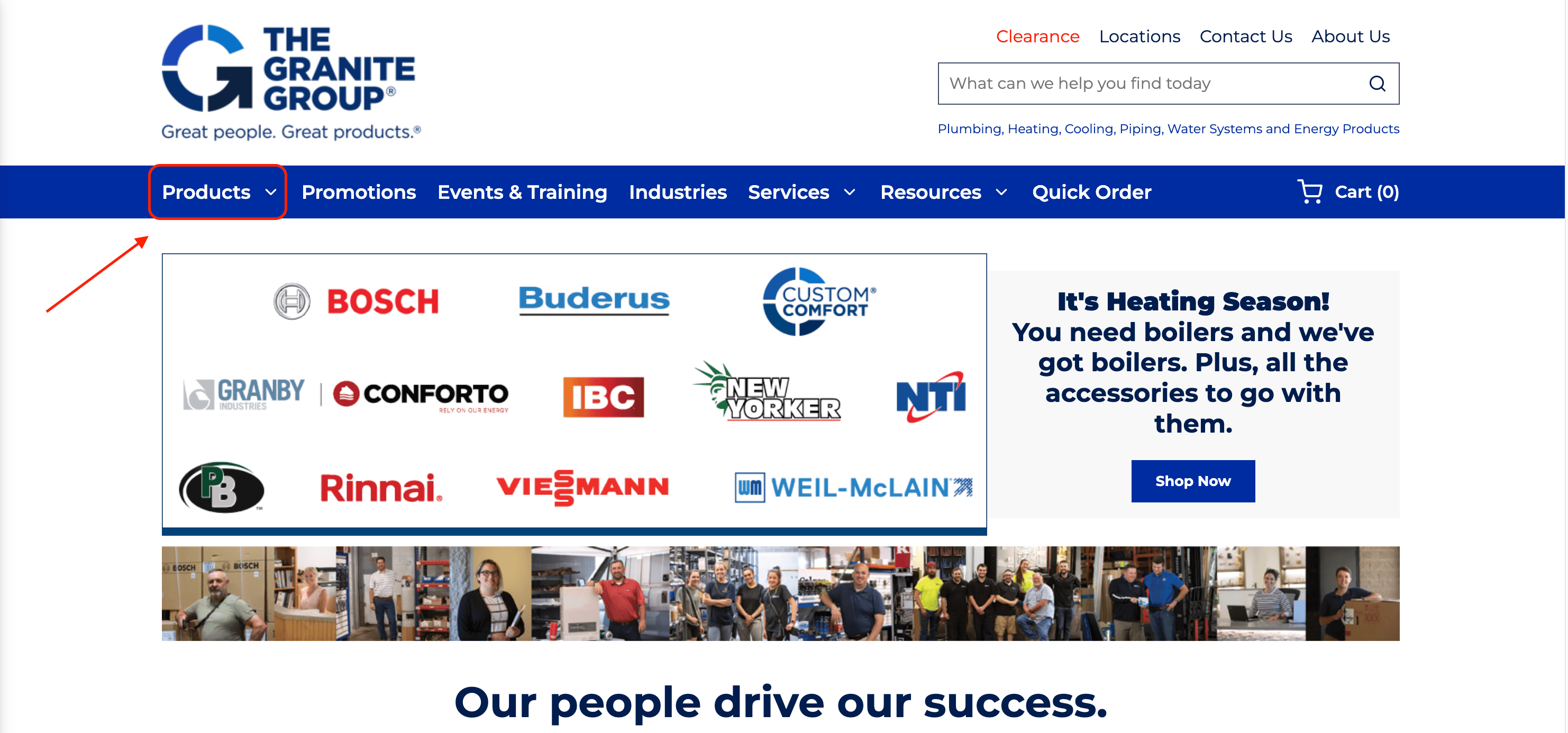
Begin by clicking *Products*, then selecting the necessary category.
***
# Estimates & Invoices
To add a Granite Group line item to an estimate or invoice, navigate to your desired record. Click *Granite Group* to open the catalog and select the line items you need.
Begin by clicking *Products*, then selecting the necessary category.
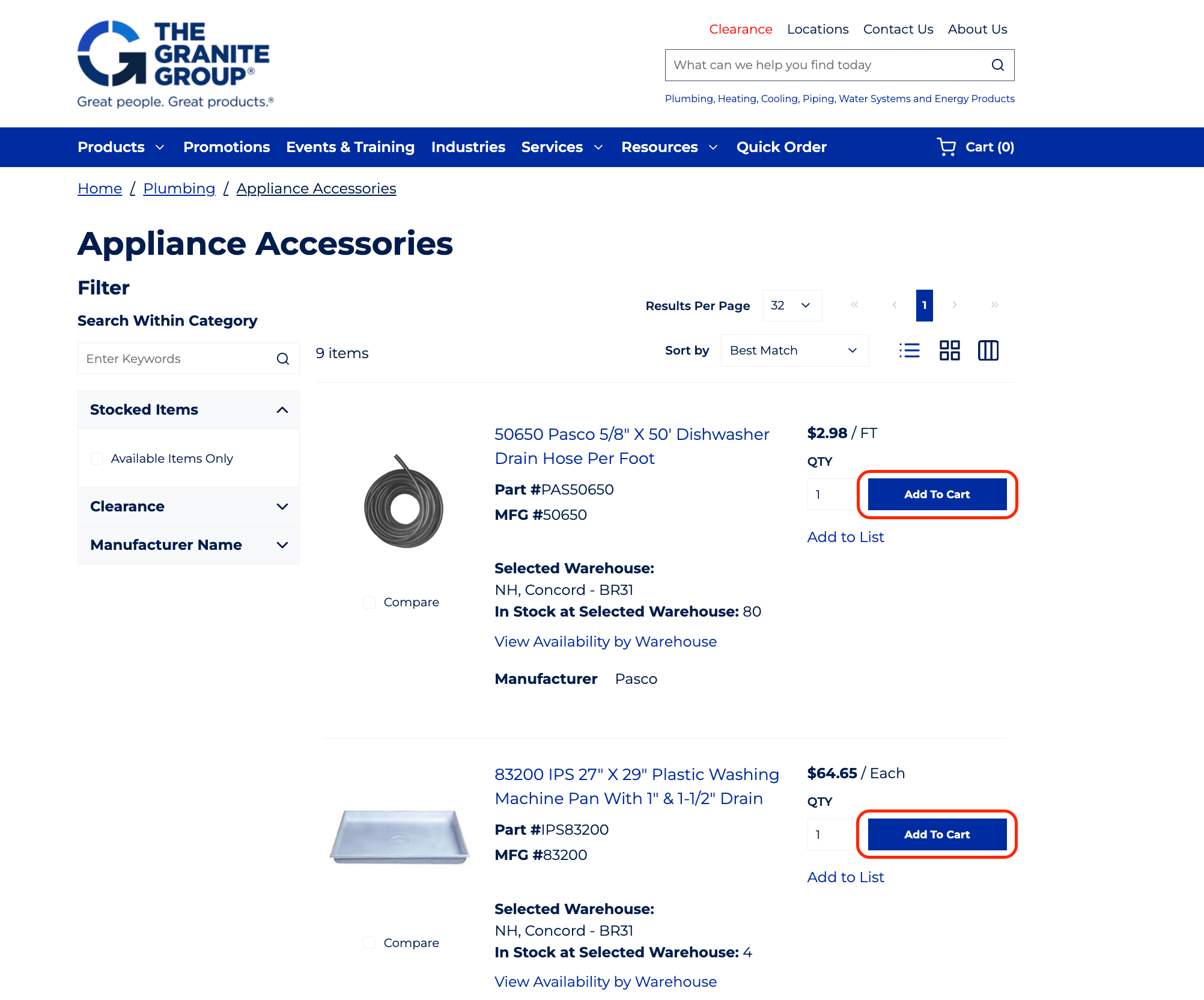
 When you find the part you're looking for, adjust the quantity as needed and press *Add to Cart*. Once you have selected a line item, you can repeat the process for any additional items you want to add.
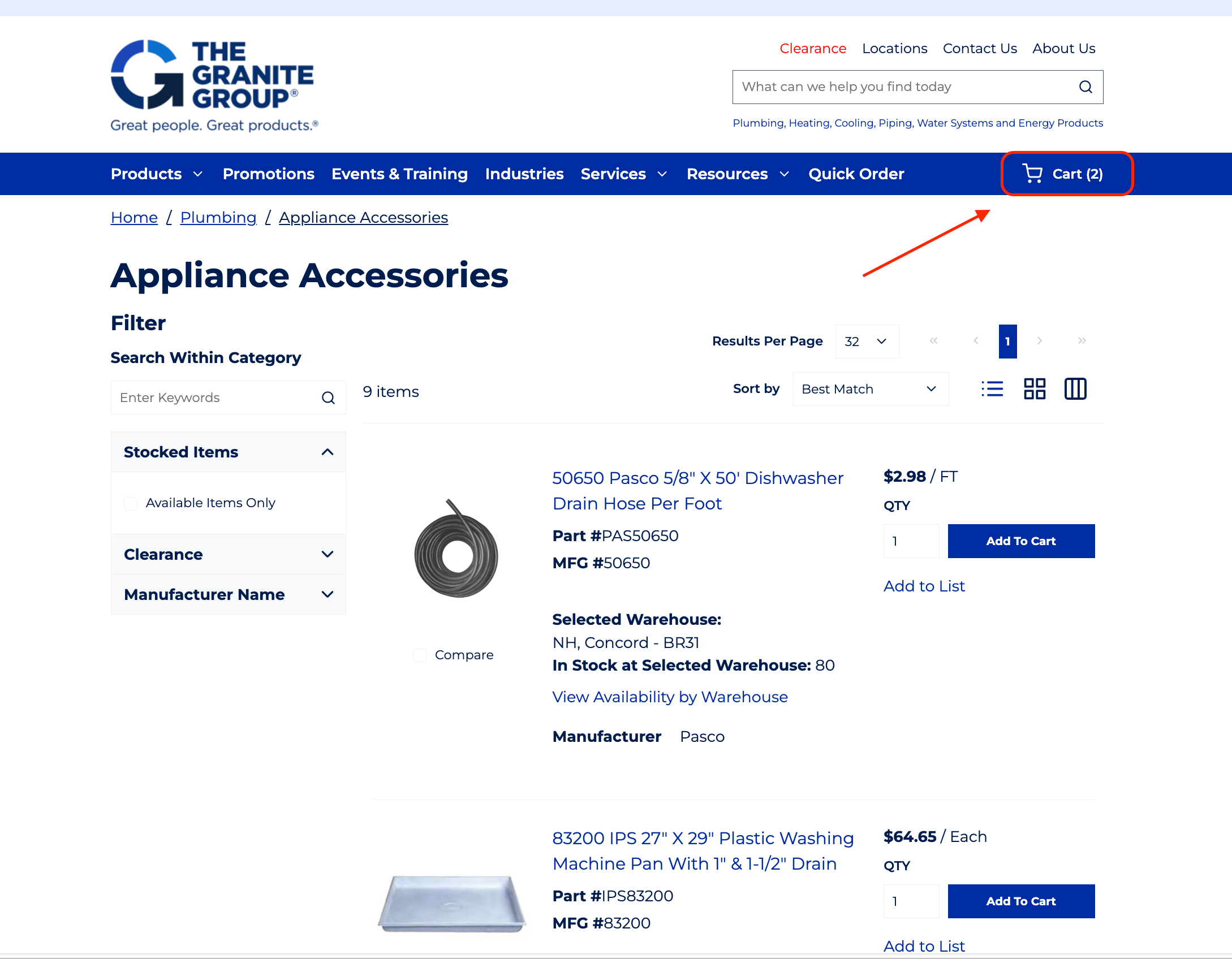
 When you're ready to return to the estimate or invoice, proceed to checkout in the Granite Group catalog by clicking on the shopping cart icon.
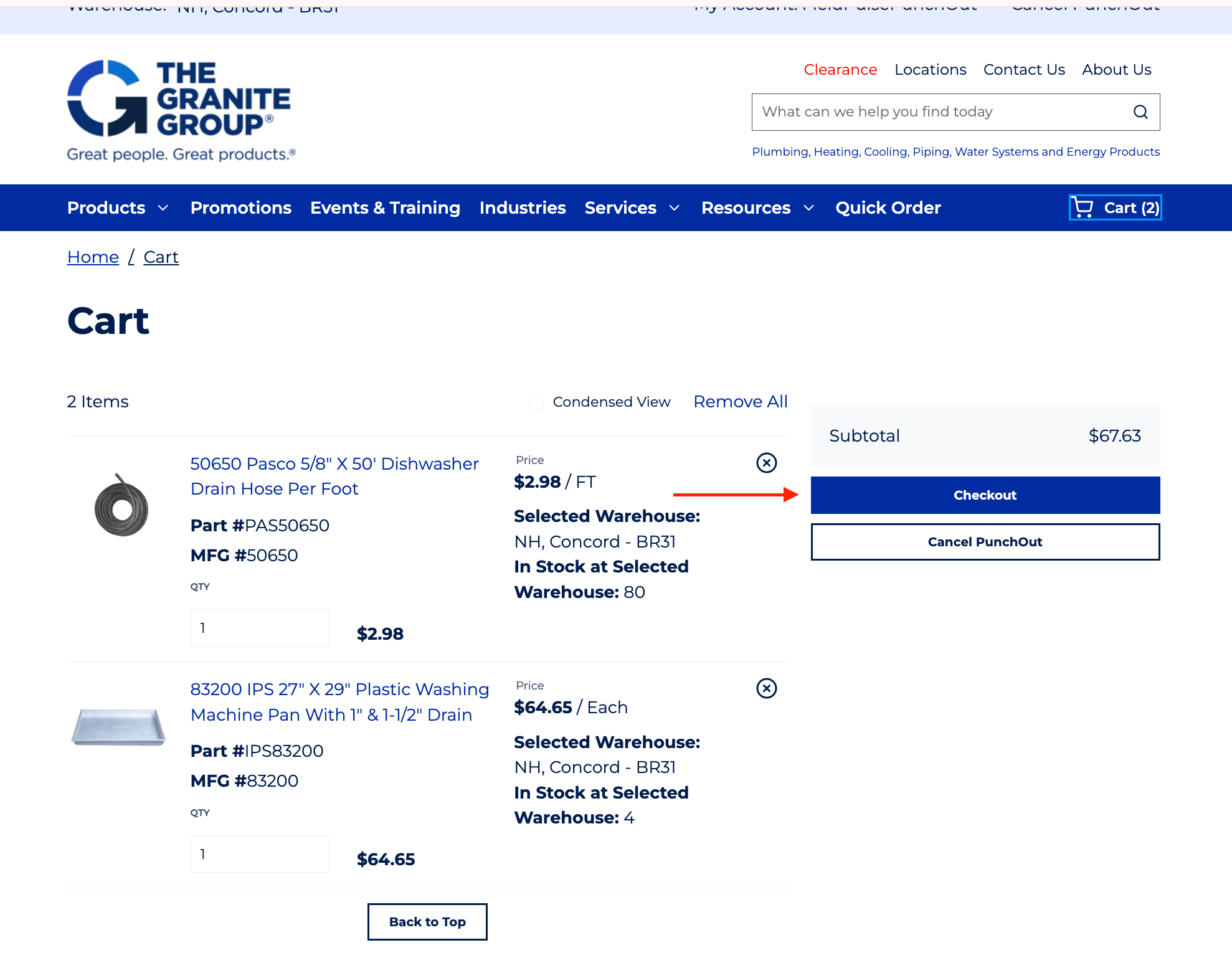
 Confirm your selections by clicking *Checkout*.
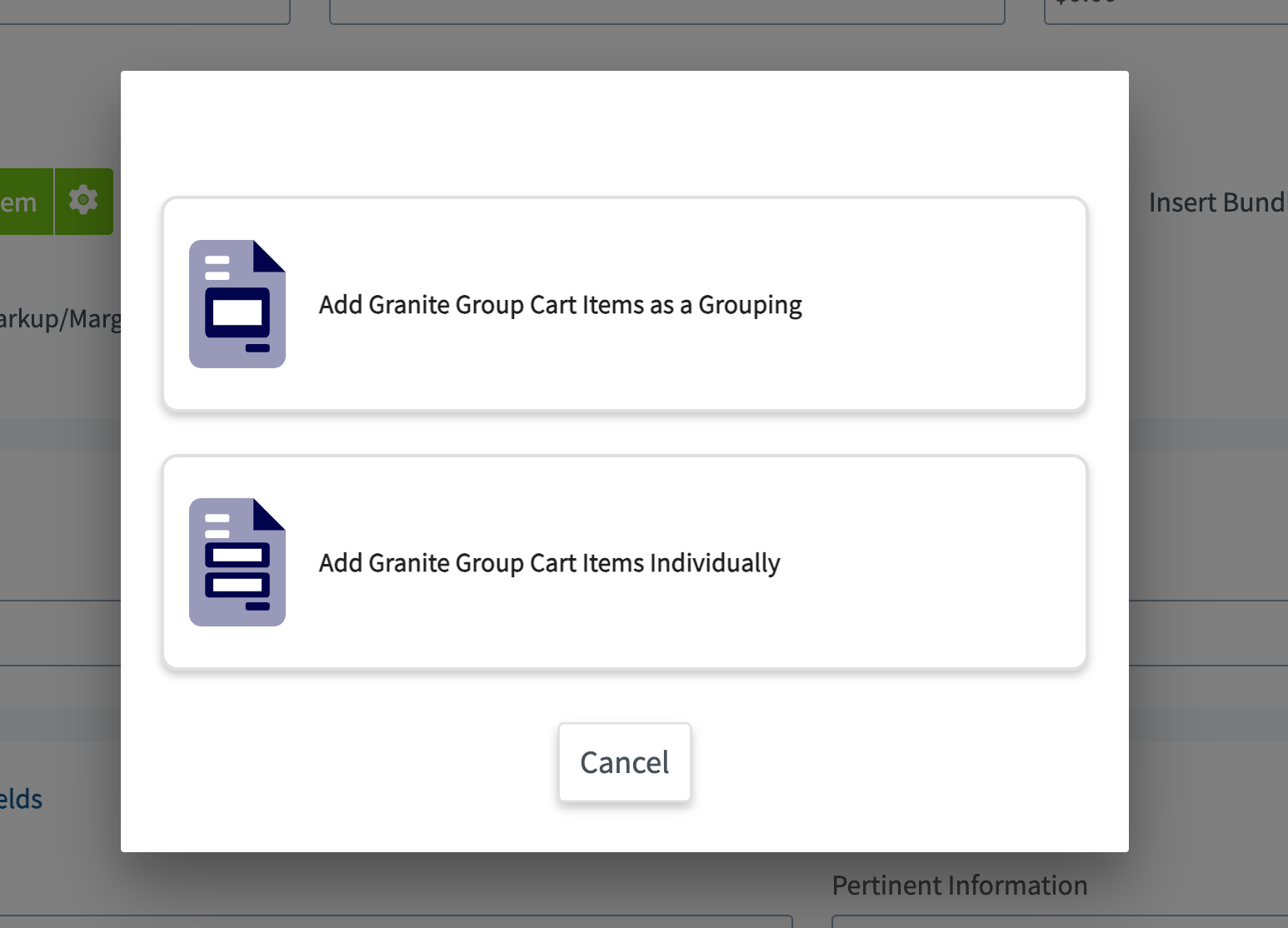
 You'll then be prompted to select to add the Granite Group line items as a grouping or individually. A grouping will place the items together under a header, as well as allow you to customize the visibility of the individual items and/or their pricing for your customers.
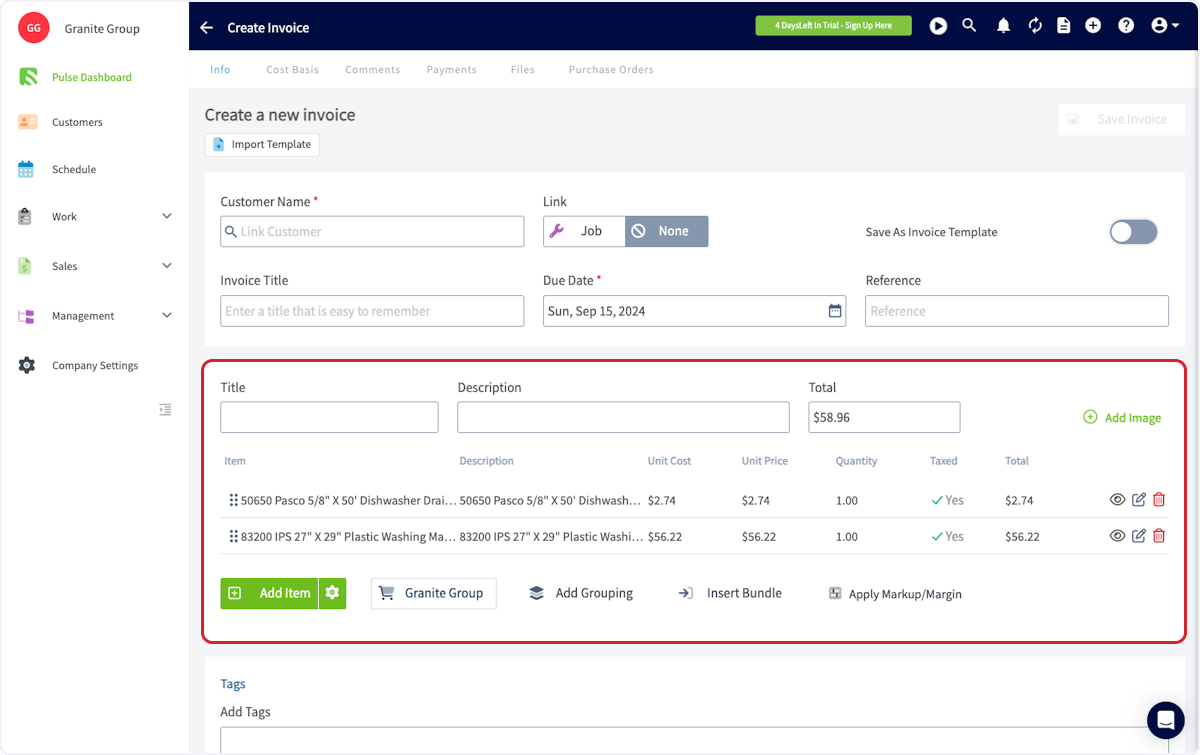
 You'll now see your Granite Group line items added to your estimate or invoice!
 ***
# Default Mark Up on Items from The Granite Group
***
# Purchase Orders
To place purchase orders with The Granite Group through FieldPulse, you will need to enable purchase orders in your FieldPulse account. To learn more, visit the [Purchase Orders article](/using-fieldpulse/purchase-orders/purchase-orders).
## From an Estimate or Invoice
The easiest way to create a purchase order for The Granite Group is to go directly from an estimate or invoice record. Navigate to the estimate or invoice you'd like to create a purchase order from and select *Order* from the top menu.
***
# Default Mark Up on Items from The Granite Group
***
# Purchase Orders
To place purchase orders with The Granite Group through FieldPulse, you will need to enable purchase orders in your FieldPulse account. To learn more, visit the [Purchase Orders article](/using-fieldpulse/purchase-orders/purchase-orders).
## From an Estimate or Invoice
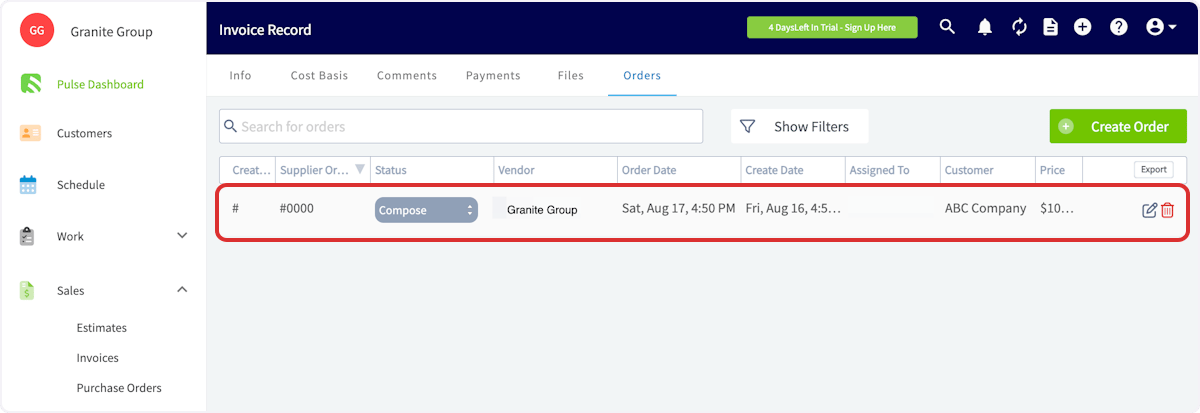
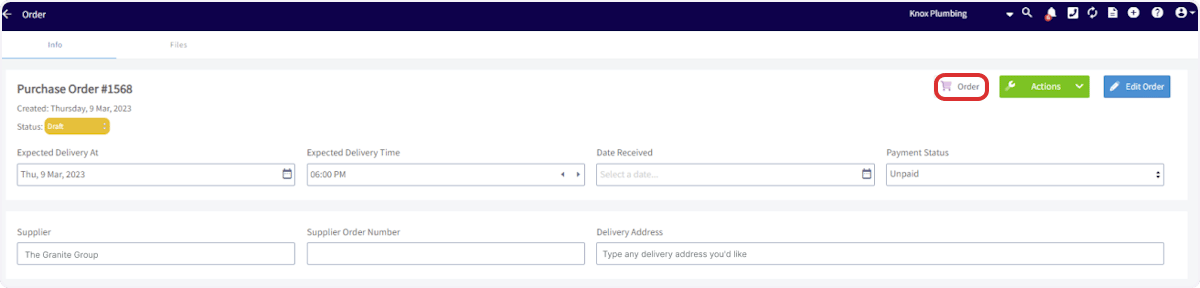
The easiest way to create a purchase order for The Granite Group is to go directly from an estimate or invoice record. Navigate to the estimate or invoice you'd like to create a purchase order from and select *Order* from the top menu.
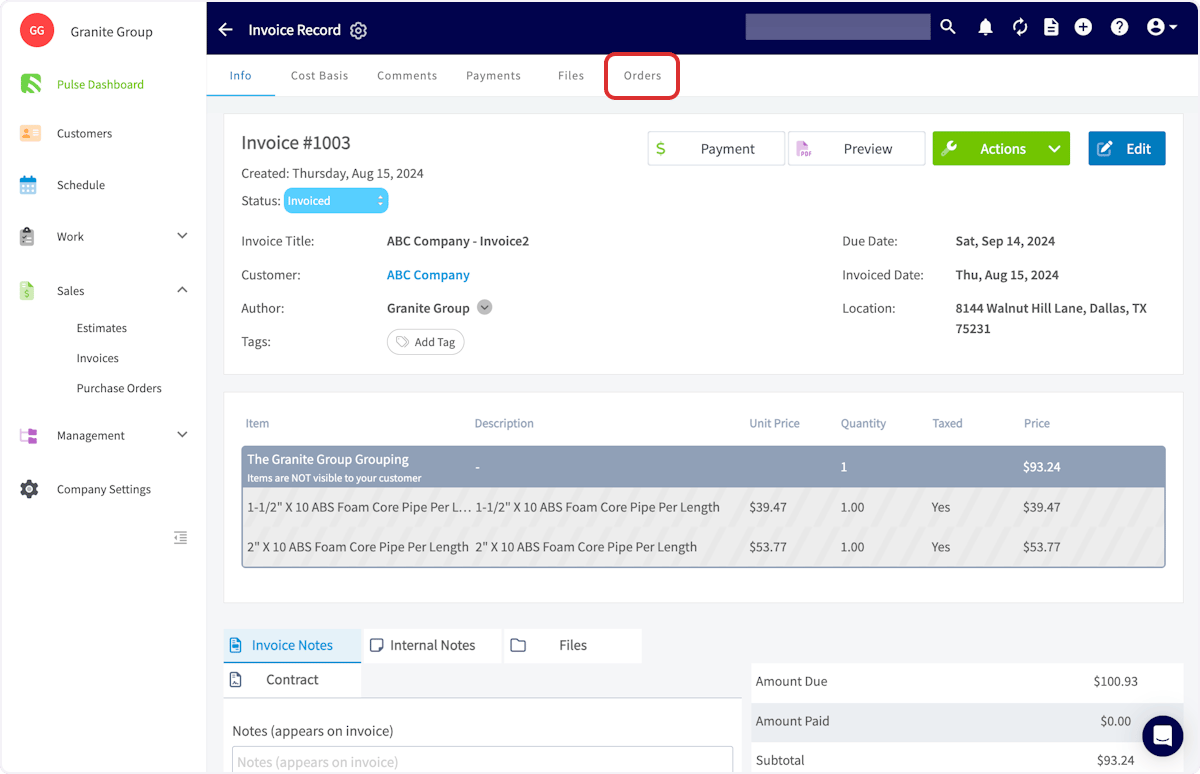 This feature creates draft purchase orders for each supplier on an estimate or invoice. Click on the draft purchase order for The Granite Group, which will include all Granite Group line items on the estimate or invoice. *(**Note:** You can adjust the line items on the purchase order as needed before sending the order to The Granite Group.)*
 ## From Scratch
Begin your purchase order by selecting *The Granite Group* as the supplier. This will only allow you to add items from The Granite Group to this order.
## From Scratch
Begin your purchase order by selecting *The Granite Group* as the supplier. This will only allow you to add items from The Granite Group to this order.
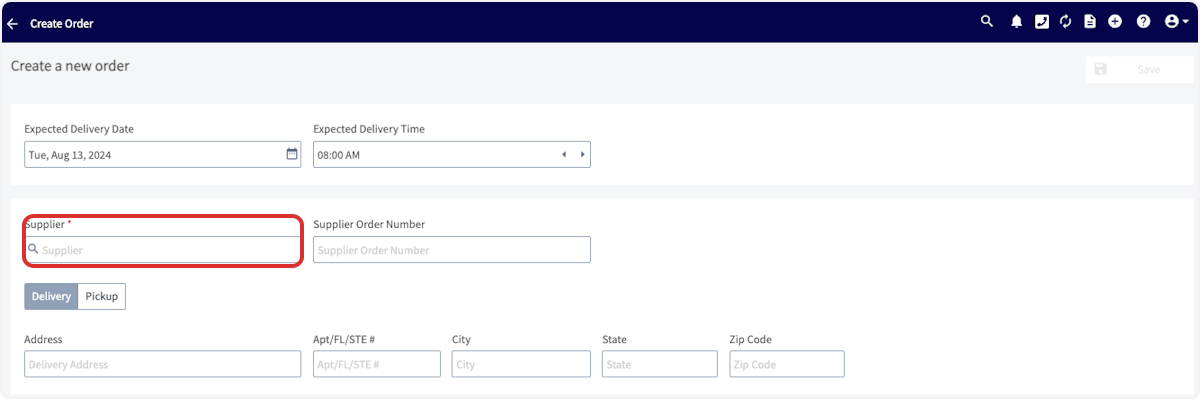 When selecting delivery or pickup, please note that you will be able to enter an address (delivery) or select from a list of The Granite Group Branches (pickup).
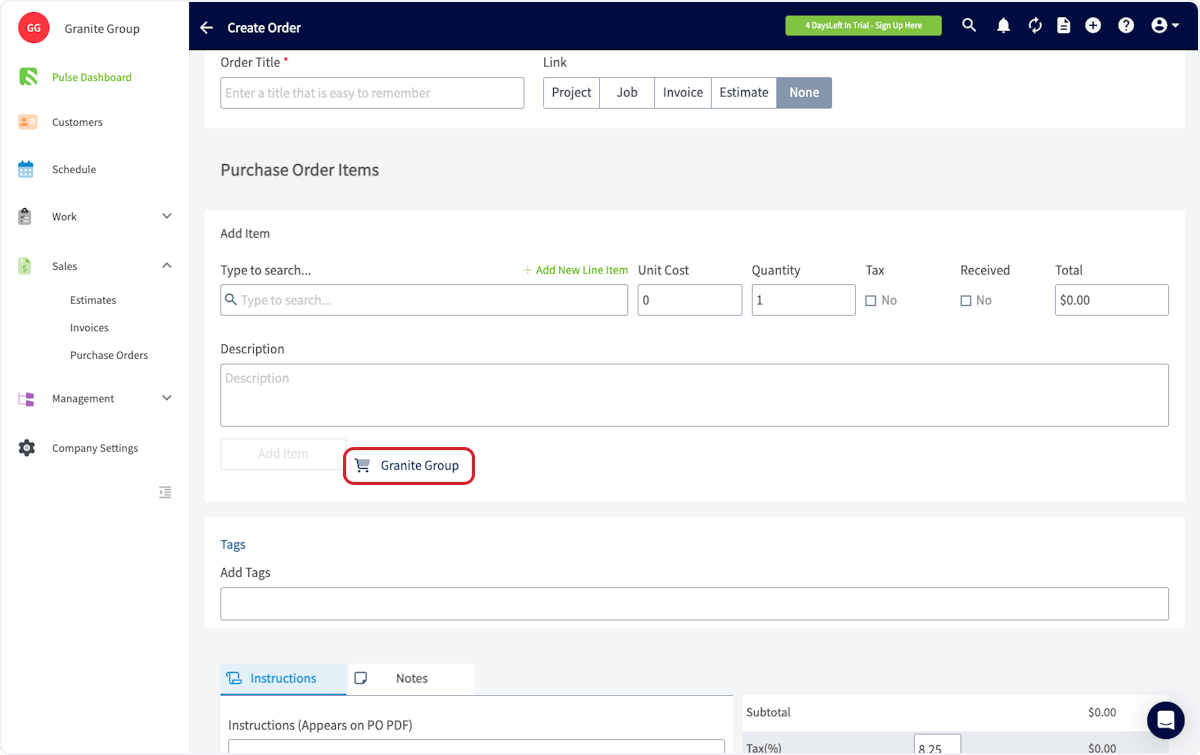
Click *Granite Group* to open the catalog and select the line items you need. Follow the steps detailed above under **Estimates & Invoices** to add line items to your purchase order.
When selecting delivery or pickup, please note that you will be able to enter an address (delivery) or select from a list of The Granite Group Branches (pickup).
Click *Granite Group* to open the catalog and select the line items you need. Follow the steps detailed above under **Estimates & Invoices** to add line items to your purchase order.
 Once you've added your line items, save your purchase order.
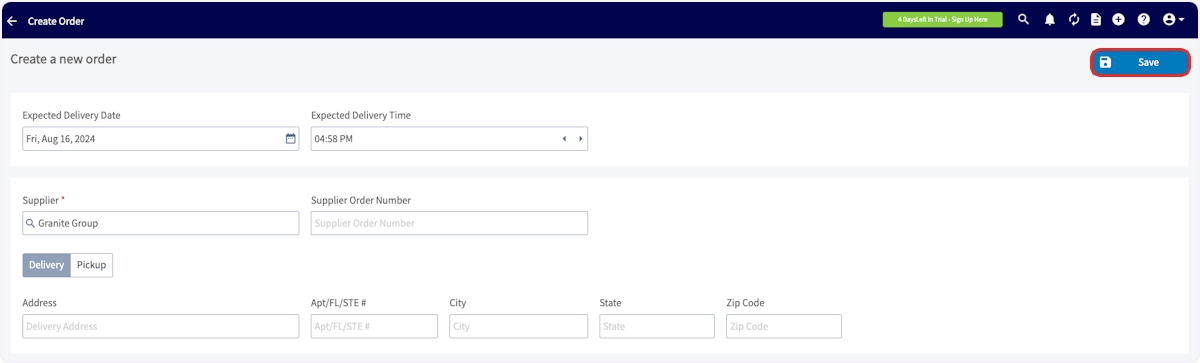 Then, click *Order* to send the purchase order to The Granite Group.
 If you need to check your order status, change, or cancel your order, contact your local Granite Group branch or use their [contact form](https://store.thegranitegroup.com/contactus). *(**Note:** If you have been using purchase orders, be sure not to select the supplier you created and named Granite Group)*
## Please Note:
When sending purchase orders from FieldPulse to The Granite Group, item prices at the time of adding them to your order are not guaranteed. The Granite Group will charge the current price at the moment you select 'Order' in FieldPulse. This is important to keep in mind for accurate job costing. While price fluctuations are typically minor, they can still affect your calculations.
We’re actively exploring enhancements for the next version of our integration with The Granite Group. These improvements may include pre-order price checks, ensuring that your purchase orders reflect accurate, up-to-date pricing for more precise job and project costing.
***
# Permission Settings That Will Impact This Integration
If you do not want your [Service Agents](/using-fieldpulse/users-teams/user-roles#h_086ea043b8) to have access to see the cost of items from The Granite Group, ensure that the toggle is off for the ability to View Unit Costs on Estimates/Invoices.
If you need to check your order status, change, or cancel your order, contact your local Granite Group branch or use their [contact form](https://store.thegranitegroup.com/contactus). *(**Note:** If you have been using purchase orders, be sure not to select the supplier you created and named Granite Group)*
## Please Note:
When sending purchase orders from FieldPulse to The Granite Group, item prices at the time of adding them to your order are not guaranteed. The Granite Group will charge the current price at the moment you select 'Order' in FieldPulse. This is important to keep in mind for accurate job costing. While price fluctuations are typically minor, they can still affect your calculations.
We’re actively exploring enhancements for the next version of our integration with The Granite Group. These improvements may include pre-order price checks, ensuring that your purchase orders reflect accurate, up-to-date pricing for more precise job and project costing.
***
# Permission Settings That Will Impact This Integration
If you do not want your [Service Agents](/using-fieldpulse/users-teams/user-roles#h_086ea043b8) to have access to see the cost of items from The Granite Group, ensure that the toggle is off for the ability to View Unit Costs on Estimates/Invoices.
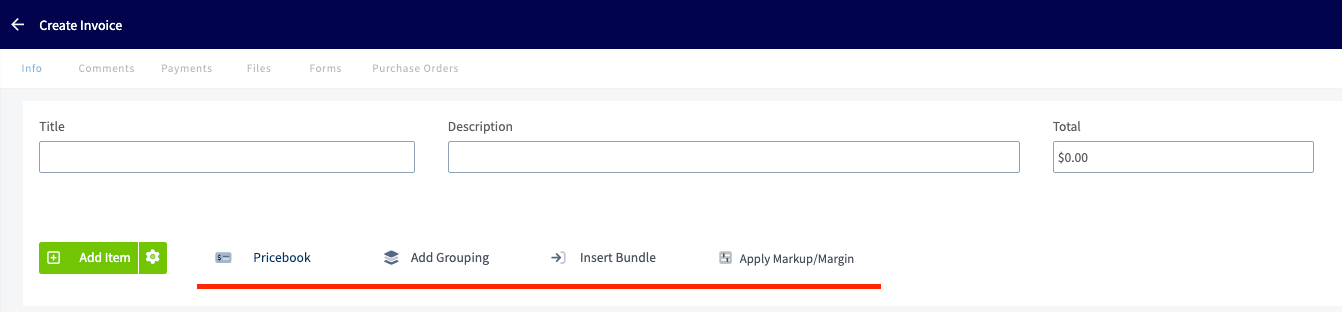
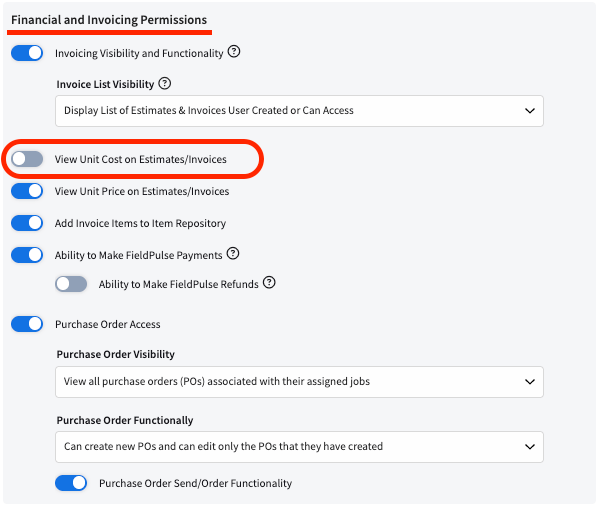 By toggling the above permission off, your Service Agents will no longer see the Granite Group catalog option.
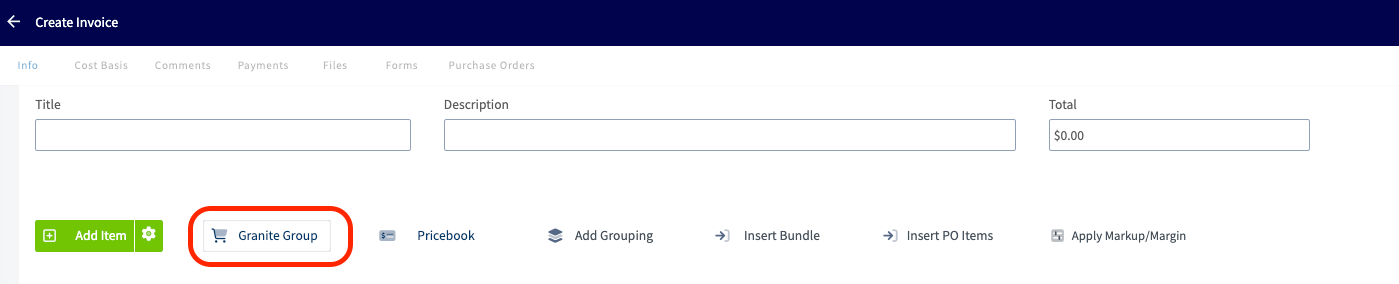
 If the above permission was on, your Service Agents would be able to see the Granite Group Catalog as shown in the image below.
 ***
# Video Tutorial
***
**Have additional questions?**
*Contact us at [support@fieldpulse.com](mailto:support@fieldpulse.com) or use the chat feature in the bottom right corner of your screen.*
***
# Video Tutorial
***
**Have additional questions?**
*Contact us at [support@fieldpulse.com](mailto:support@fieldpulse.com) or use the chat feature in the bottom right corner of your screen.*