> ## Documentation Index
> Fetch the complete documentation index at: https://help.fieldpulse.com/llms.txt
> Use this file to discover all available pages before exploring further.
# Setting Up QuickBooks Desktop Before Syncing
> Get QuickBooks Desktop ready before your FieldPulse sync, covering supported versions, required settings, and what will and will not sync.
> **Who uses this:** An admin prepares QuickBooks Desktop and configures the sync; it then runs on its own. **Availability:** Requires QuickBooks Desktop + the sync connector.
Preparing to sync with QuickBooks Desktop means confirming your QuickBooks version, turning off the settings that break the connection, and setting the Web Connector user's permissions — so the first import lands clean and you avoid version mismatches. Do this before you connect the integration.
## Overview
Once FieldPulse and QuickBooks Desktop are connected, [customers](https://www.fieldpulse.com/features/customer-management), line items, [estimates, invoices](https://www.fieldpulse.com/features/estimates-and-invoices), and payments created or edited in either system sync to the other, and all of your existing [QuickBooks data](https://www.fieldpulse.com/company/partners/quickbooks) imports into FieldPulse. The most important condition for a clean sync is a connection that runs constantly: your computer's sleep mode must be off and the QuickBooks Web Connector must stay open. This page covers the checks and settings to complete first; the connection steps live in [How to Sync With QuickBooks Desktop](/integrations/accounting/quickbooks-desktop/sync).
## Before you begin
Confirm each of these before you start:
* **QuickBooks Desktop 2024 or newer.** FieldPulse does not integrate with older versions.
* **Windows only.** QuickBooks Desktop for Mac and other systems are not supported.
* **Supported editions:** Contractor, Pro, Premier, and Enterprise.
* **Single-user mode.** Setup must be completed in single-user mode within QuickBooks Desktop.
* **A stable internet connection.**
## Step-by-step setup
1. **Disable sleep mode** on the computer that runs QuickBooks Desktop. The sync runs continuously, so the machine cannot sleep. Go to **Settings > System > Power & Sleep** and set sleep to **Never**. If sleep mode is left on, the sync will not work.
2. **Confirm your QuickBooks Desktop version and edition** meet the requirements above.
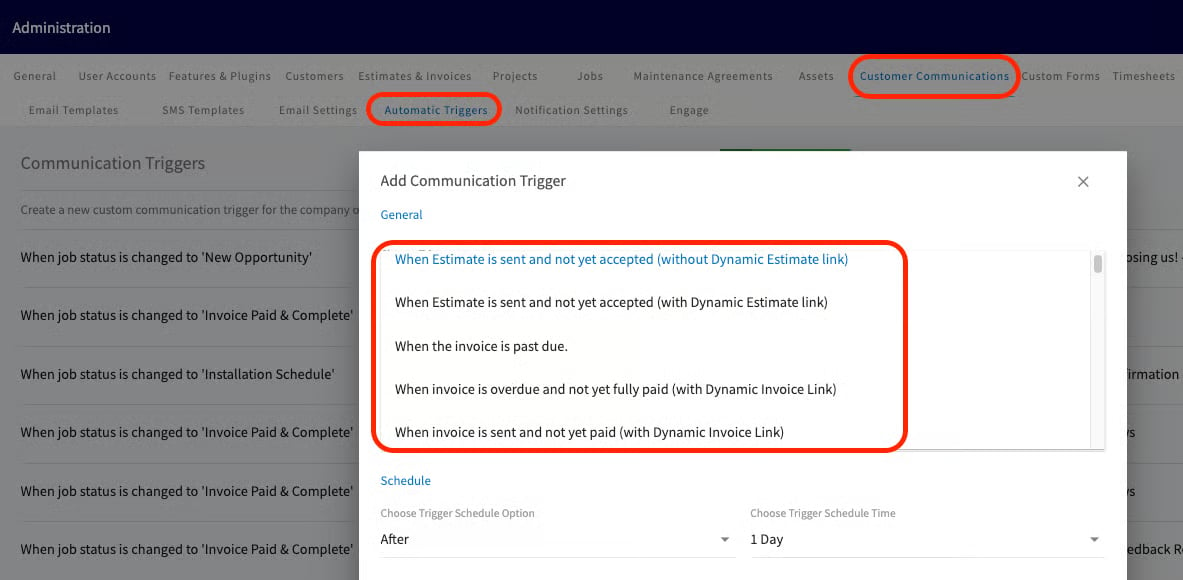
3. **If you use Customer Communications in FieldPulse, turn off the automatic triggers** tied to estimate and invoice records. The first import touches many records at once, and leaving triggers on would send your customers a flood of updates.
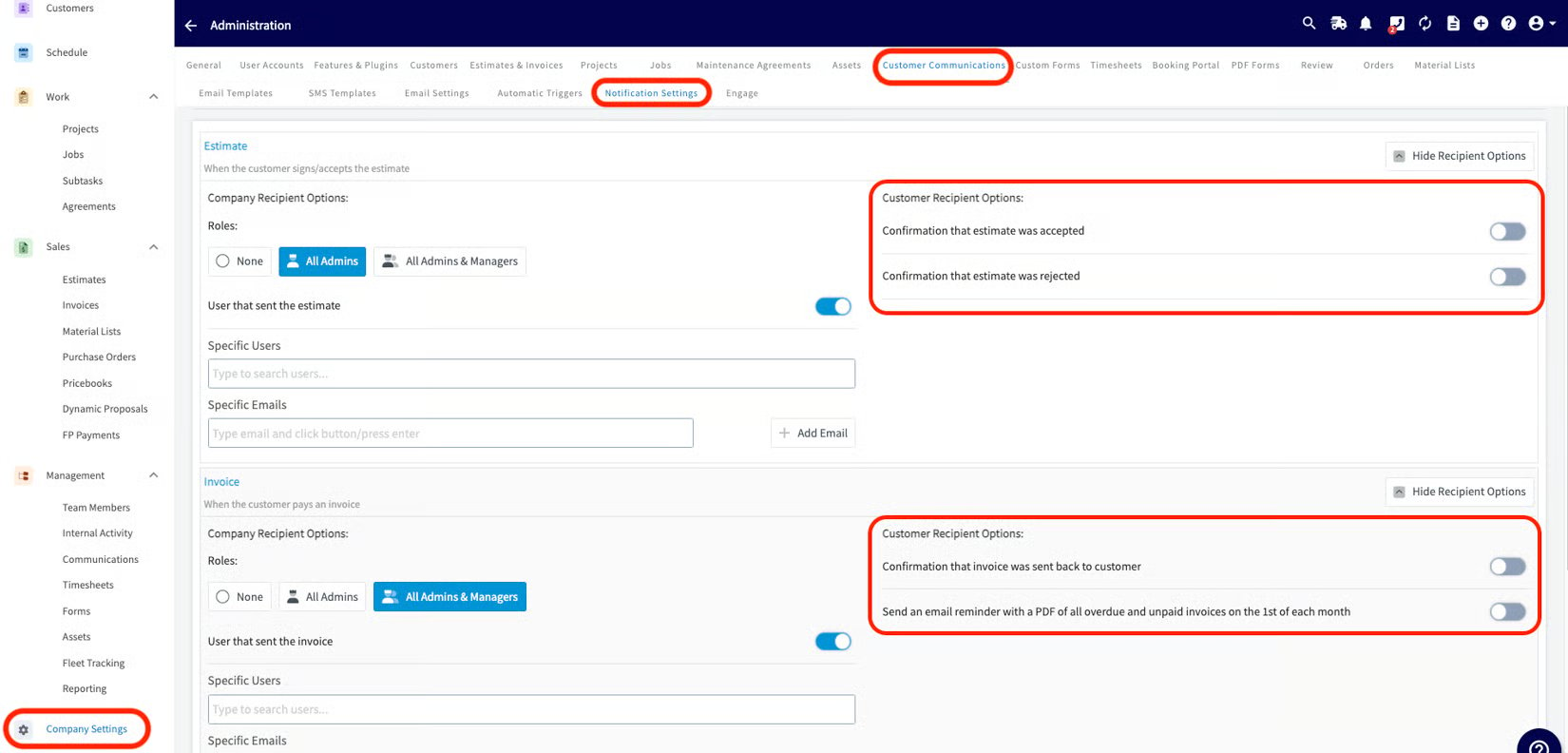
 4. **Disable notification settings** for estimate and invoice records, for the same reason — to stop customers from receiving updates during the import.
 5. **Set the Web Connector user's role permissions** in QuickBooks Desktop. The sync runs under one QuickBooks user, and that user needs the permissions in the settings reference below. In QuickBooks Desktop, go to **Edit Role** to make these changes.
Once these are done, continue to [How to Sync With QuickBooks Desktop](/integrations/accounting/quickbooks-desktop/sync) to connect the integration.
## What will sync
Most records sync both ways. A few sync one way only — noted below.
| **Record** | **Notes** |
| --------------------- | ------------------------------------------------------------------------------------------------------------------------------------------------------------------------------------------------------------------------------------------------------------------------------------------------------ |
| **Customers** | Up to three levels of sub-customers (parent/child). Only the latest customer message syncs (this maps to the Customer Note in FieldPulse). Archived and deleted customers sync in their current state. |
| **Ship To addresses** | Sync as **Locations** in FieldPulse. Address name → Location Name; address, city, state, county, zip map directly; note → location notes. Matching is by **address, not name**; a changed default Ship To updates the matching location as the new main location, and no match creates a new location. |
| **Bill To address** | Syncs exactly as it appears in QuickBooks Desktop, including the customer name. Two-way. |
| **Classes** | Sync on estimates and invoices. |
| **Tax codes** | |
| **Estimates** | Date, expiration date, notes, business classes, tax codes. |
| **Invoices** | FieldPulse pulls the same invoice # sequence as QuickBooks. |
| **Line items** | Item name, description, unit cost/price, quantities, tax/non-tax, total inventory and quantities. |
| **Purchase orders** | One-way, FieldPulse → QuickBooks Desktop. See [How to Sync Purchase Orders With QuickBooks Desktop](/integrations/accounting/quickbooks-desktop/purchase-orders). |
| **Timesheets** | One-way, FieldPulse → QuickBooks Time (requires QuickBooks Time). Clock-in/out dates and times and duration sync. |
| **Credit memos** | One-way, QuickBooks Desktop → FieldPulse. Sync as general payments; FieldPulse cannot mark a payment as a credit vs. a direct payment — that is only visible in QuickBooks Desktop. |
| **Vendors** | Includes tax codes and suppliers. |
## What won't sync
Knowing these up front prevents most first-sync failures. The character limits and special characters below are the most common cause of a failed record.
| **Area** | **What won't sync** |
| -------------- | ------------------------------------------------------------------------------------------------------------------------------------------------------------------------------------------------- |
| **Customers** | Custom fields. A customer name over **31 characters** fails. Special characters (\$, &, #, @, +, \{, }, :) can cause sync issues. |
| **Classes** | Subclasses are not supported. |
| **Tax codes** | Custom fields; multiple tax codes. |
| **Estimates** | Custom fields; payments on estimates (these leave a "credit" on the customer record in QuickBooks, showing as undeposited funds not tied to any record); un-selected estimate options; groupings. |
| **Invoices** | Custom fields; an invoice item name over **31 characters** fails; special characters (\$, &, #, @, +, \{, }, :); groupings; **Shipping** and **Deposit** fields if they contain values. |
| **Line items** | Custom fields; negative line items (treated as a "discount" in QuickBooks Desktop); credit memos; special characters; sales receipts. |
| **Payments** | Payment methods other than cash, check, credit card, or ACH (for example, gift cards); custom fields; payments exceeding the invoice total (tips). |
## QuickBooks Desktop user permissions
For the sync to work, enable these role permissions for the QuickBooks user under whom the Web Connector will run. In QuickBooks Desktop, go to **Edit Role**.
| **Area** | **Activity** | **Access level** | **Permissions** |
| ----------------------- | ------------------------------ | ---------------- | ------------------------------------------ |
| Centers | Customer Center | Partial | View, Create, Modify, Delete, View Balance |
| Centers | Vendor Center | Partial | View, Create, Modify, Delete, View Balance |
| Customers & Receivables | Accounts Receivable Accounts | Partial | View |
| Customers & Receivables | Assess Finance Charges | Full | |
| Customers & Receivables | Change Item Prices | Full | |
| Customers & Receivables | Credit Card Refunds | Full | |
| Customers & Receivables | Credit Memos | Partial | View, Create, Modify, Delete |
| Customers & Receivables | Estimates | Partial | View, Create, Modify, Delete |
| Customers & Receivables | Invoices | Partial | View, Create, Modify, Delete |
| Customers & Receivables | Receive Payments | Full | |
| Customers & Receivables | Sales Orders | Partial | View, Create, Modify, Delete |
| Customers & Receivables | Sales Receipts | Partial | View, Create, Modify, Delete |
| Customers & Receivables | Statement Charges | Full | |
| Customers & Receivables | Statements | Full | |
| Customers & Receivables | Undeposited Funds Account | Partial | View |
| Lists | All activities in this section | Partial | View, Create, Modify, Delete |
| Vendors & Payables | Accounts Payable Accounts | Partial | View |
## FAQs
**Does FieldPulse sync classes for QuickBooks Desktop?** Yes — FieldPulse syncs classes on estimates and invoices. Classes can also exist on individual line items, but those do not sync.
**Do refunds processed in FieldPulse sync to QuickBooks Desktop?** No. Refunds do not sync in either direction and must be reconciled manually.
## Related articles
* [QuickBooks Desktop Overview](/integrations/accounting/quickbooks-desktop/overview)
* [How to Sync With QuickBooks Desktop](/integrations/accounting/quickbooks-desktop/sync) — the next step
* [How to Manage QuickBooks Desktop After Syncing](/integrations/accounting/quickbooks-desktop/post-sync)
* [QuickBooks Desktop Sync Examples and Details](/integrations/accounting/quickbooks-desktop/sync-examples)
Your books are ready when sleep mode is off, your estimate and invoice triggers and notifications are turned off, and the Web Connector user has the permissions above — then you can connect the integration and let the first import run clean.
## Related topics
- [QuickBooks Desktop Overview](/integrations/accounting/quickbooks-desktop/overview.md)
- [QuickBooks Desktop](/integrations/accounting/quickbooks-desktop/index.md)
- [How to Manage QuickBooks Desktop After Syncing](/integrations/accounting/quickbooks-desktop/post-sync.md)
- [How to Sync With QuickBooks Desktop](/integrations/accounting/quickbooks-desktop/sync.md)
5. **Set the Web Connector user's role permissions** in QuickBooks Desktop. The sync runs under one QuickBooks user, and that user needs the permissions in the settings reference below. In QuickBooks Desktop, go to **Edit Role** to make these changes.
Once these are done, continue to [How to Sync With QuickBooks Desktop](/integrations/accounting/quickbooks-desktop/sync) to connect the integration.
## What will sync
Most records sync both ways. A few sync one way only — noted below.
| **Record** | **Notes** |
| --------------------- | ------------------------------------------------------------------------------------------------------------------------------------------------------------------------------------------------------------------------------------------------------------------------------------------------------ |
| **Customers** | Up to three levels of sub-customers (parent/child). Only the latest customer message syncs (this maps to the Customer Note in FieldPulse). Archived and deleted customers sync in their current state. |
| **Ship To addresses** | Sync as **Locations** in FieldPulse. Address name → Location Name; address, city, state, county, zip map directly; note → location notes. Matching is by **address, not name**; a changed default Ship To updates the matching location as the new main location, and no match creates a new location. |
| **Bill To address** | Syncs exactly as it appears in QuickBooks Desktop, including the customer name. Two-way. |
| **Classes** | Sync on estimates and invoices. |
| **Tax codes** | |
| **Estimates** | Date, expiration date, notes, business classes, tax codes. |
| **Invoices** | FieldPulse pulls the same invoice # sequence as QuickBooks. |
| **Line items** | Item name, description, unit cost/price, quantities, tax/non-tax, total inventory and quantities. |
| **Purchase orders** | One-way, FieldPulse → QuickBooks Desktop. See [How to Sync Purchase Orders With QuickBooks Desktop](/integrations/accounting/quickbooks-desktop/purchase-orders). |
| **Timesheets** | One-way, FieldPulse → QuickBooks Time (requires QuickBooks Time). Clock-in/out dates and times and duration sync. |
| **Credit memos** | One-way, QuickBooks Desktop → FieldPulse. Sync as general payments; FieldPulse cannot mark a payment as a credit vs. a direct payment — that is only visible in QuickBooks Desktop. |
| **Vendors** | Includes tax codes and suppliers. |
## What won't sync
Knowing these up front prevents most first-sync failures. The character limits and special characters below are the most common cause of a failed record.
| **Area** | **What won't sync** |
| -------------- | ------------------------------------------------------------------------------------------------------------------------------------------------------------------------------------------------- |
| **Customers** | Custom fields. A customer name over **31 characters** fails. Special characters (\$, &, #, @, +, \{, }, :) can cause sync issues. |
| **Classes** | Subclasses are not supported. |
| **Tax codes** | Custom fields; multiple tax codes. |
| **Estimates** | Custom fields; payments on estimates (these leave a "credit" on the customer record in QuickBooks, showing as undeposited funds not tied to any record); un-selected estimate options; groupings. |
| **Invoices** | Custom fields; an invoice item name over **31 characters** fails; special characters (\$, &, #, @, +, \{, }, :); groupings; **Shipping** and **Deposit** fields if they contain values. |
| **Line items** | Custom fields; negative line items (treated as a "discount" in QuickBooks Desktop); credit memos; special characters; sales receipts. |
| **Payments** | Payment methods other than cash, check, credit card, or ACH (for example, gift cards); custom fields; payments exceeding the invoice total (tips). |
## QuickBooks Desktop user permissions
For the sync to work, enable these role permissions for the QuickBooks user under whom the Web Connector will run. In QuickBooks Desktop, go to **Edit Role**.
| **Area** | **Activity** | **Access level** | **Permissions** |
| ----------------------- | ------------------------------ | ---------------- | ------------------------------------------ |
| Centers | Customer Center | Partial | View, Create, Modify, Delete, View Balance |
| Centers | Vendor Center | Partial | View, Create, Modify, Delete, View Balance |
| Customers & Receivables | Accounts Receivable Accounts | Partial | View |
| Customers & Receivables | Assess Finance Charges | Full | |
| Customers & Receivables | Change Item Prices | Full | |
| Customers & Receivables | Credit Card Refunds | Full | |
| Customers & Receivables | Credit Memos | Partial | View, Create, Modify, Delete |
| Customers & Receivables | Estimates | Partial | View, Create, Modify, Delete |
| Customers & Receivables | Invoices | Partial | View, Create, Modify, Delete |
| Customers & Receivables | Receive Payments | Full | |
| Customers & Receivables | Sales Orders | Partial | View, Create, Modify, Delete |
| Customers & Receivables | Sales Receipts | Partial | View, Create, Modify, Delete |
| Customers & Receivables | Statement Charges | Full | |
| Customers & Receivables | Statements | Full | |
| Customers & Receivables | Undeposited Funds Account | Partial | View |
| Lists | All activities in this section | Partial | View, Create, Modify, Delete |
| Vendors & Payables | Accounts Payable Accounts | Partial | View |
## FAQs
**Does FieldPulse sync classes for QuickBooks Desktop?** Yes — FieldPulse syncs classes on estimates and invoices. Classes can also exist on individual line items, but those do not sync.
**Do refunds processed in FieldPulse sync to QuickBooks Desktop?** No. Refunds do not sync in either direction and must be reconciled manually.
## Related articles
* [QuickBooks Desktop Overview](/integrations/accounting/quickbooks-desktop/overview)
* [How to Sync With QuickBooks Desktop](/integrations/accounting/quickbooks-desktop/sync) — the next step
* [How to Manage QuickBooks Desktop After Syncing](/integrations/accounting/quickbooks-desktop/post-sync)
* [QuickBooks Desktop Sync Examples and Details](/integrations/accounting/quickbooks-desktop/sync-examples)
Your books are ready when sleep mode is off, your estimate and invoice triggers and notifications are turned off, and the Web Connector user has the permissions above — then you can connect the integration and let the first import run clean.
## Related topics
- [QuickBooks Desktop Overview](/integrations/accounting/quickbooks-desktop/overview.md)
- [QuickBooks Desktop](/integrations/accounting/quickbooks-desktop/index.md)
- [How to Manage QuickBooks Desktop After Syncing](/integrations/accounting/quickbooks-desktop/post-sync.md)
- [How to Sync With QuickBooks Desktop](/integrations/accounting/quickbooks-desktop/sync.md)