> ## Documentation Index
> Fetch the complete documentation index at: https://help.fieldpulse.com/llms.txt
> Use this file to discover all available pages before exploring further.
# QuickBooks Desktop Sync Examples and Details
> Preview how records map between FieldPulse and QuickBooks Desktop — sync direction by record type, field mapping, and tax rate item behavior.
> **Who uses this:** Anyone confirming how a record will transfer before or after connecting; the sync runs on its own once an admin configures it. **Availability:** Requires QuickBooks Desktop + the sync connector.
This page shows how records map between [FieldPulse and QuickBooks Desktop](https://www.fieldpulse.com/company/partners/quickbooks) — which direction each record type moves and which fields land where — so you can preview a transfer before it happens. FieldPulse integrates with **QuickBooks Desktop 2024 and newer**.
## Overview
Most records in the QuickBooks Desktop sync move both ways, but several move one way only, and a few behave differently once they arrive. Use the tables below as a reference map: sync direction by record type first, then the field-level mapping for customers and addresses, then the specific behavior of tax rate items. For records that fail to transfer, see [Troubleshooting QuickBooks Desktop Sync Errors](/integrations/accounting/quickbooks-desktop/sync-errors).
## Sync direction by record type
| **Record** | **Direction** | **Notes** |
| ----------------- | ------------------------------------- | ----------------------------------------------------------------------------------------------------------------------- |
| Customers | Two-way | Up to three levels of sub-customers; only the latest customer message syncs. |
| Ship To addresses | Two-way | Sync as **Locations** in FieldPulse; matched by address, not name. |
| Bill To address | Two-way | Syncs exactly as it appears in QuickBooks Desktop, including the customer name. |
| Classes | Two-way | On estimates and invoices only, not line items. |
| Tax codes | Two-way | Multiple tax codes and custom fields don't sync. |
| Estimates | One-way or two-way | You choose the direction for estimates and invoices during setup. |
| Invoices | One-way or two-way | FieldPulse pulls the same invoice # sequence as QuickBooks. |
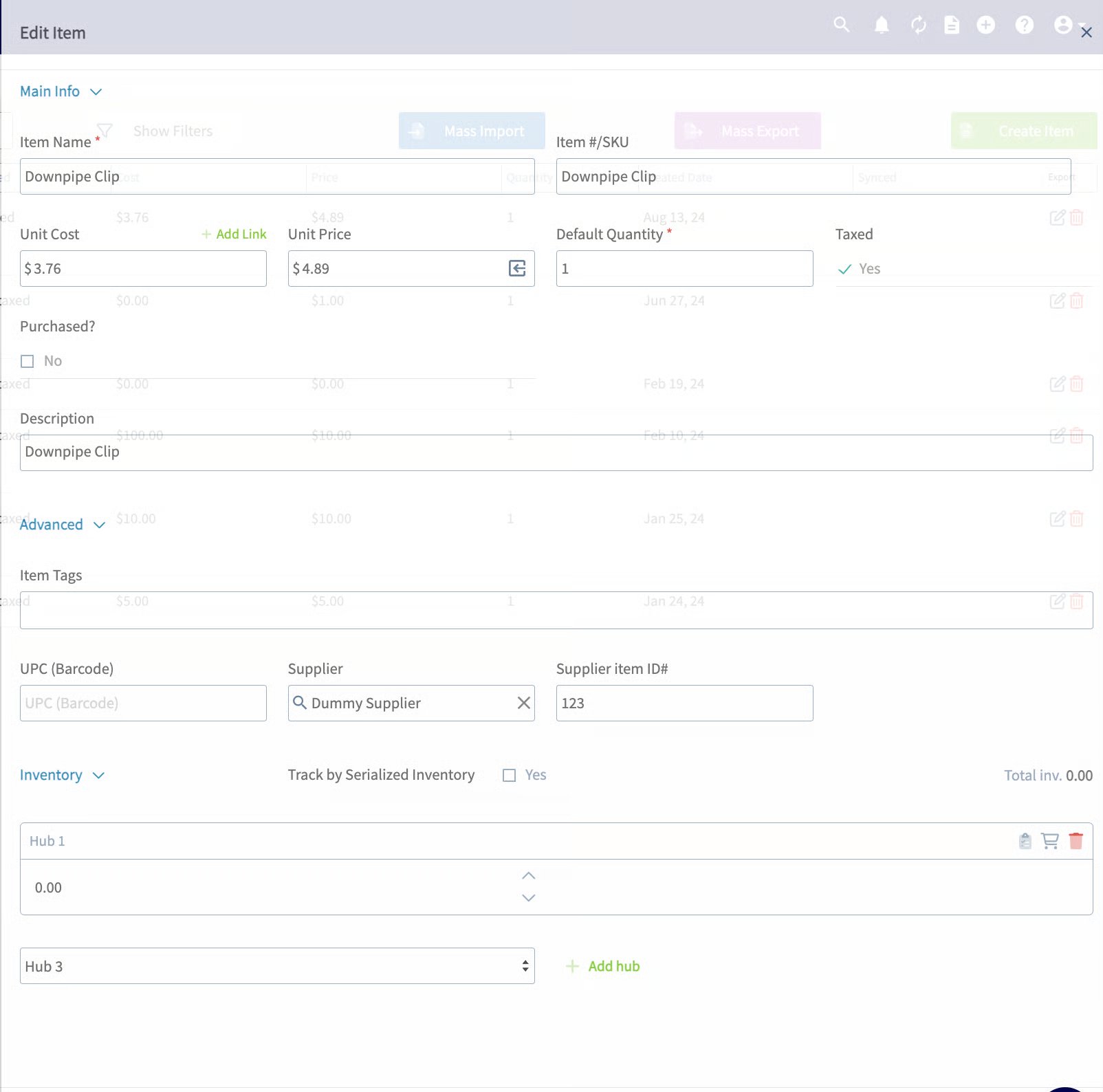
| Line items | Two-way | |
| Purchase orders | One-way, FieldPulse → QBD | See [How to Sync Purchase Orders With QuickBooks Desktop](/integrations/accounting/quickbooks-desktop/purchase-orders). |
| Timesheets | One-way, FieldPulse → QuickBooks Time | Requires QuickBooks Time. |
| Credit memos | One-way, QBD → FieldPulse | Arrive as general payments in FieldPulse. |
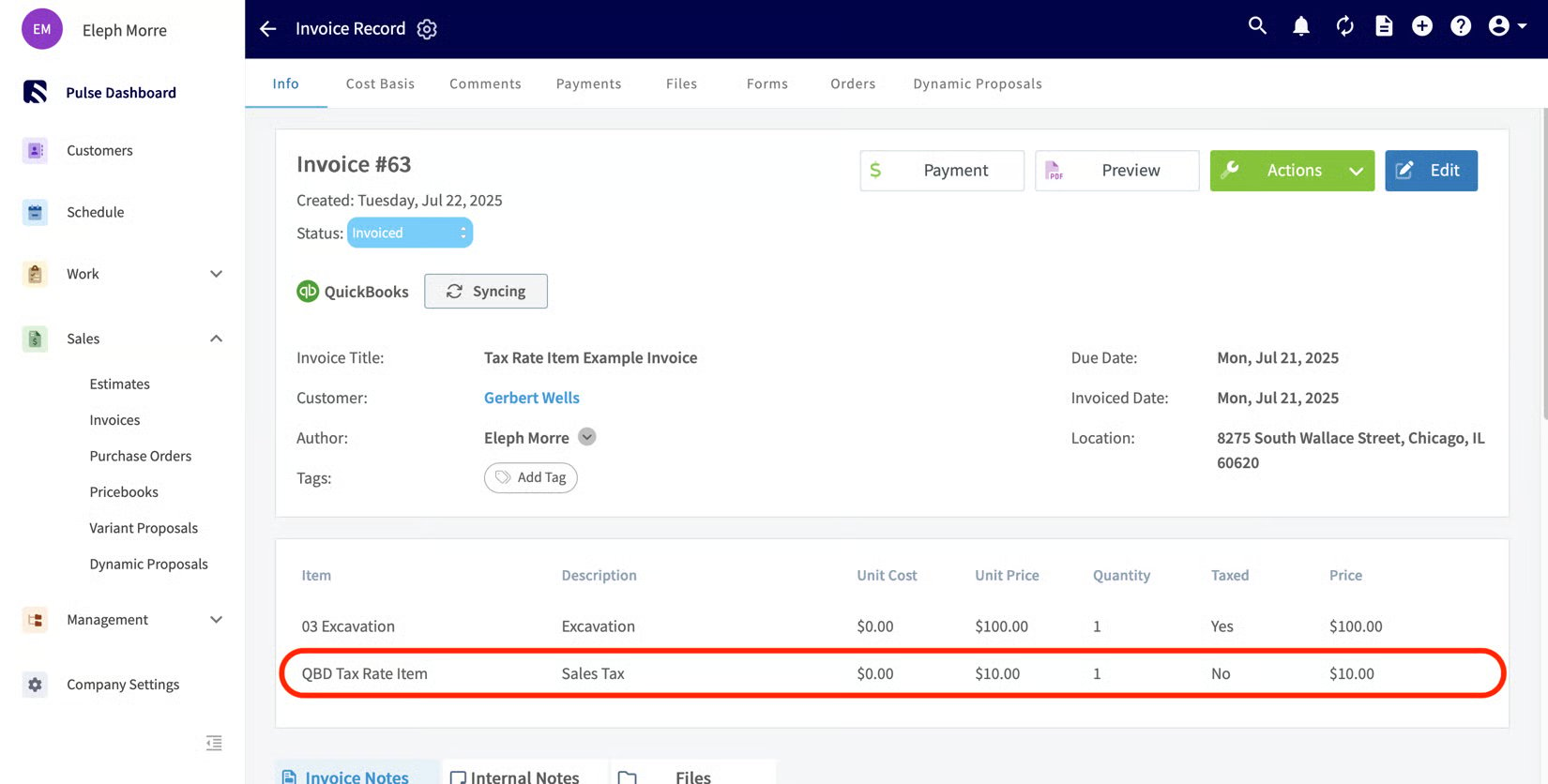
| Tax rate items | One-way, QBD → FieldPulse | Arrive as a line item; can't be edited in FieldPulse afterward. |
## Example: customer and address mapping
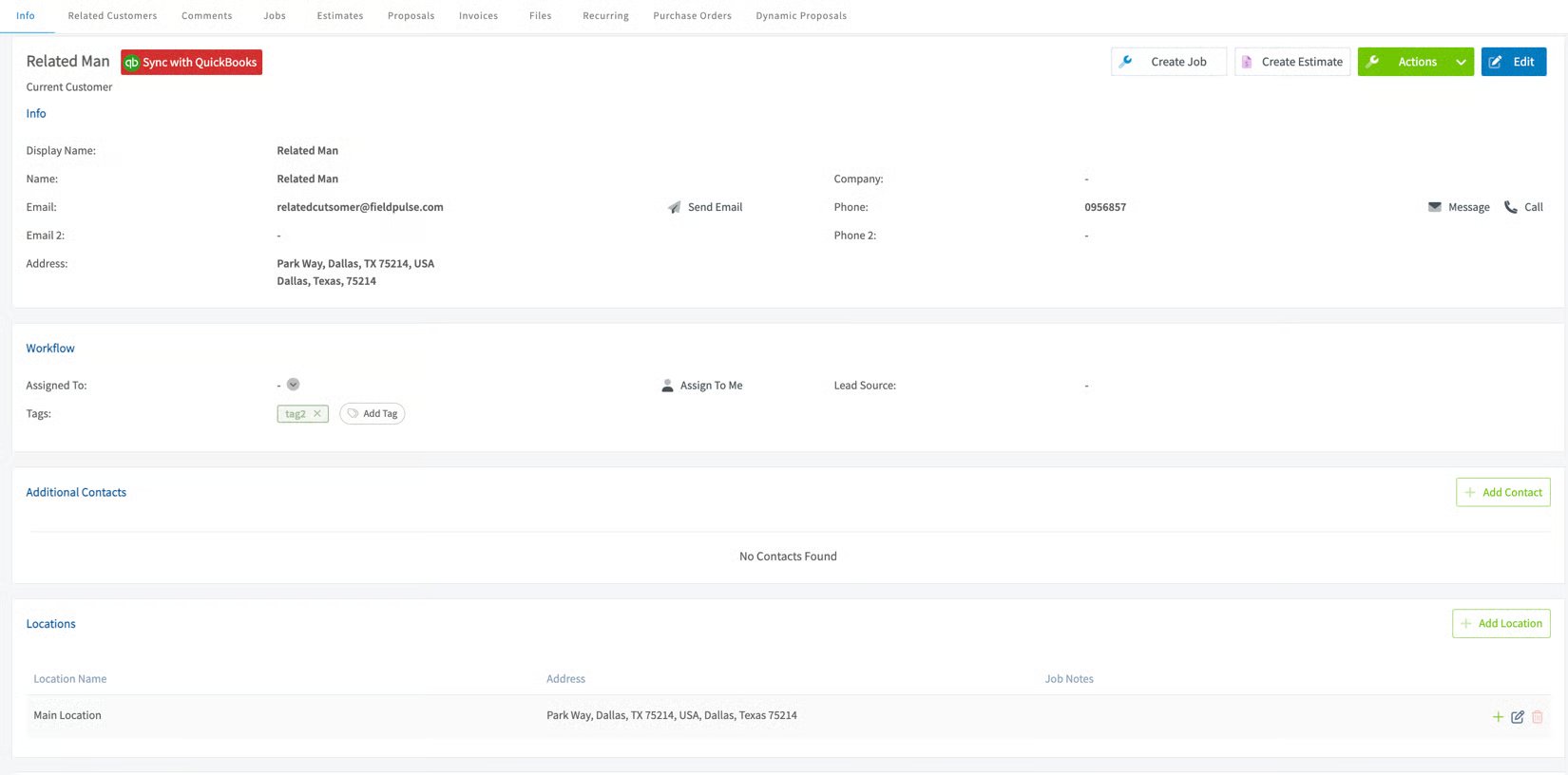
When a customer syncs from QuickBooks Desktop, the address fields map to a FieldPulse **Location** like this:
| **QuickBooks Desktop** | **FieldPulse** |
| --------------------------------- | --------------- |
| Address Name | Location Name |
| Address, City, State, County, Zip | Mapped directly |
| Note | Location notes |
FieldPulse:
 QuickBooks Desktop:
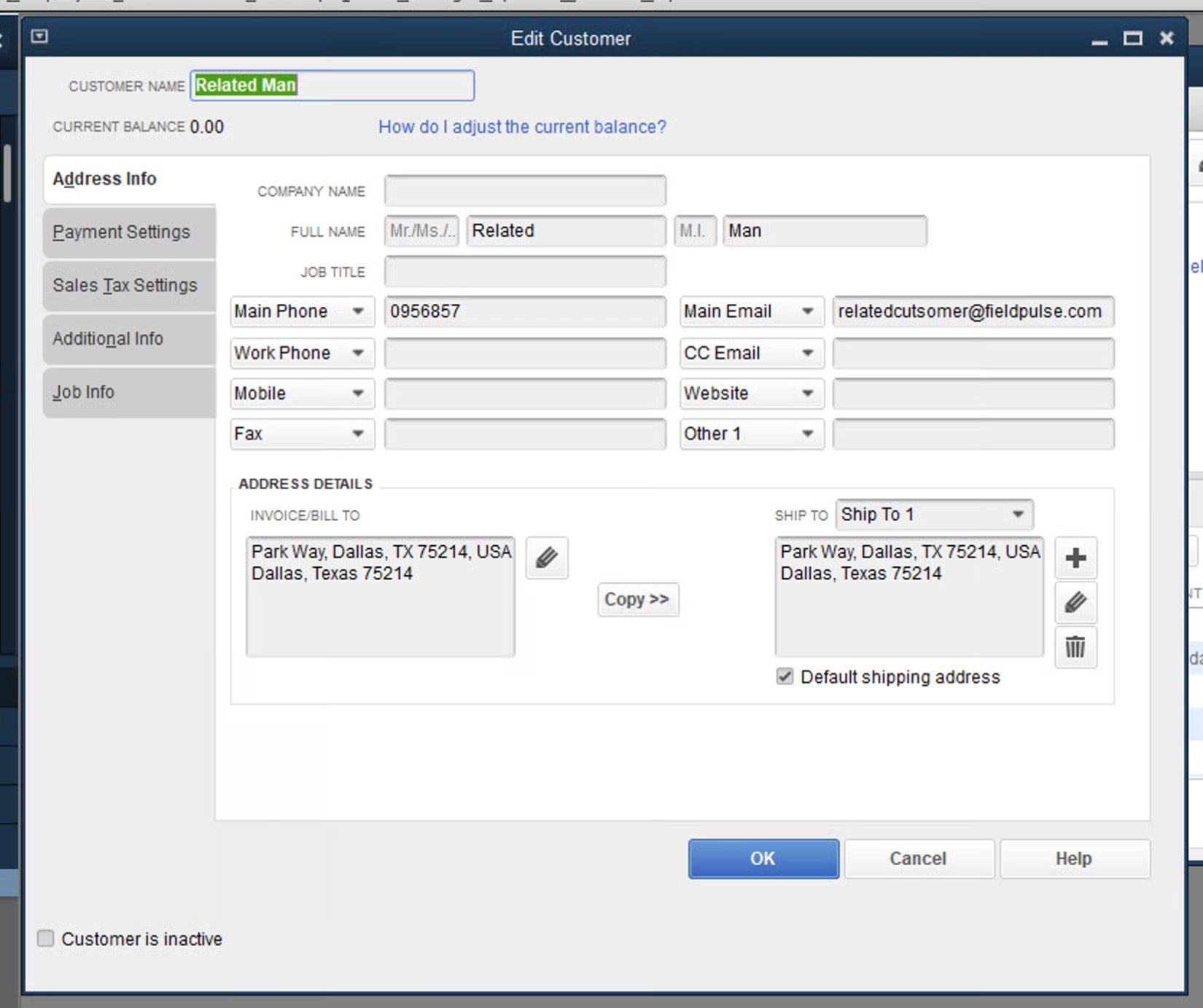 When QuickBooks Desktop's default **Ship To** address changes, FieldPulse updates the matching location as the new **main location**. Matching is based on **address**, not name — if no matching location exists, FieldPulse creates a new one. The **Bill To** address syncs across exactly as entered in QuickBooks Desktop, including the customer name.
## Example: tax rate items
Tax rate items in QuickBooks Desktop sync to FieldPulse one way, arriving as a **line item**. Once a tax rate item has synced into FieldPulse, it cannot be edited on any [estimate or invoice within FieldPulse](https://www.fieldpulse.com/features/estimates-and-invoices) — you make changes on the QuickBooks Desktop side.
When QuickBooks Desktop's default **Ship To** address changes, FieldPulse updates the matching location as the new **main location**. Matching is based on **address**, not name — if no matching location exists, FieldPulse creates a new one. The **Bill To** address syncs across exactly as entered in QuickBooks Desktop, including the customer name.
## Example: tax rate items
Tax rate items in QuickBooks Desktop sync to FieldPulse one way, arriving as a **line item**. Once a tax rate item has synced into FieldPulse, it cannot be edited on any [estimate or invoice within FieldPulse](https://www.fieldpulse.com/features/estimates-and-invoices) — you make changes on the QuickBooks Desktop side.
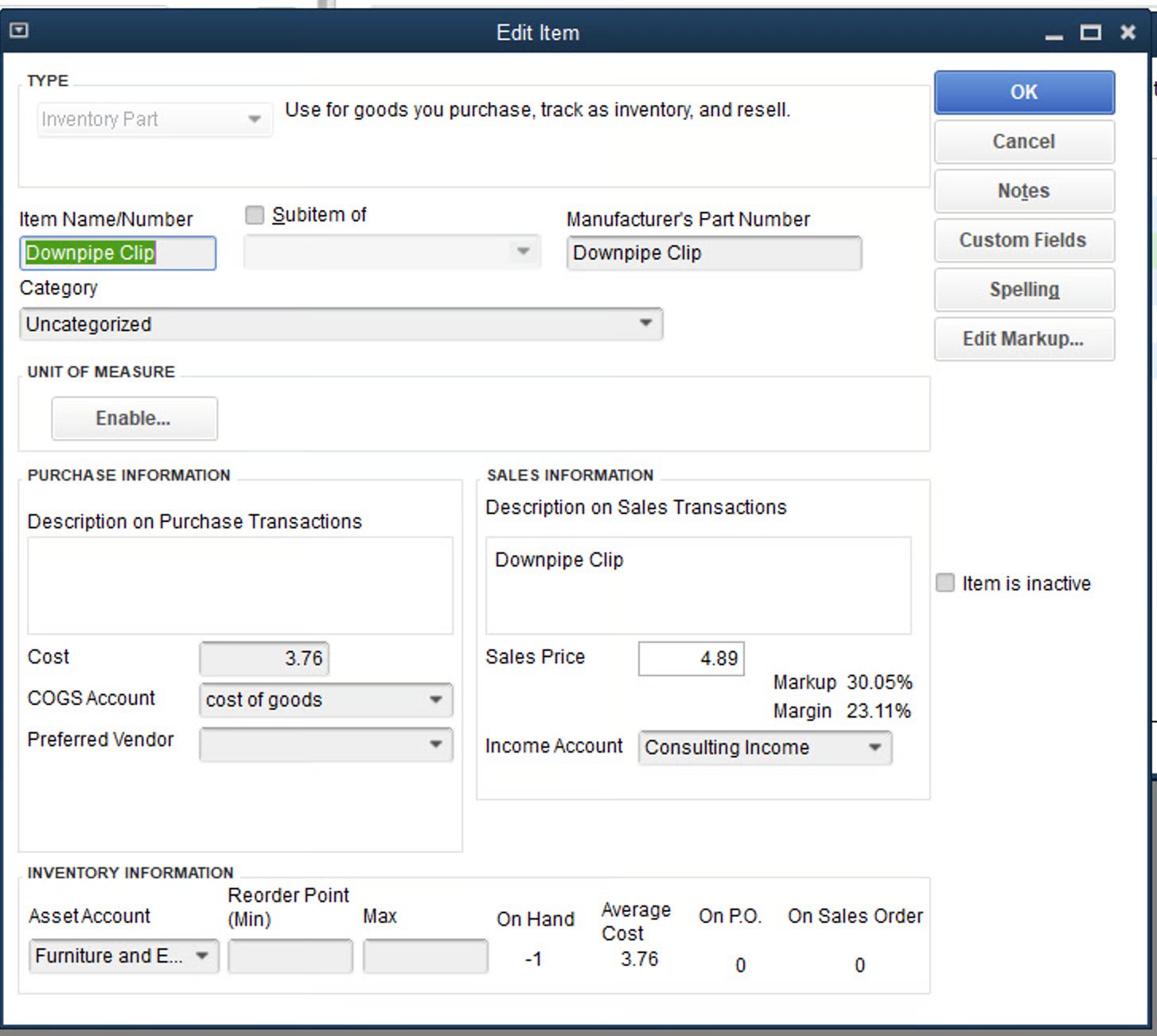
 ## Example: Line Items
FieldPulse:
## Example: Line Items
FieldPulse:
 QuickBooks Desktop:
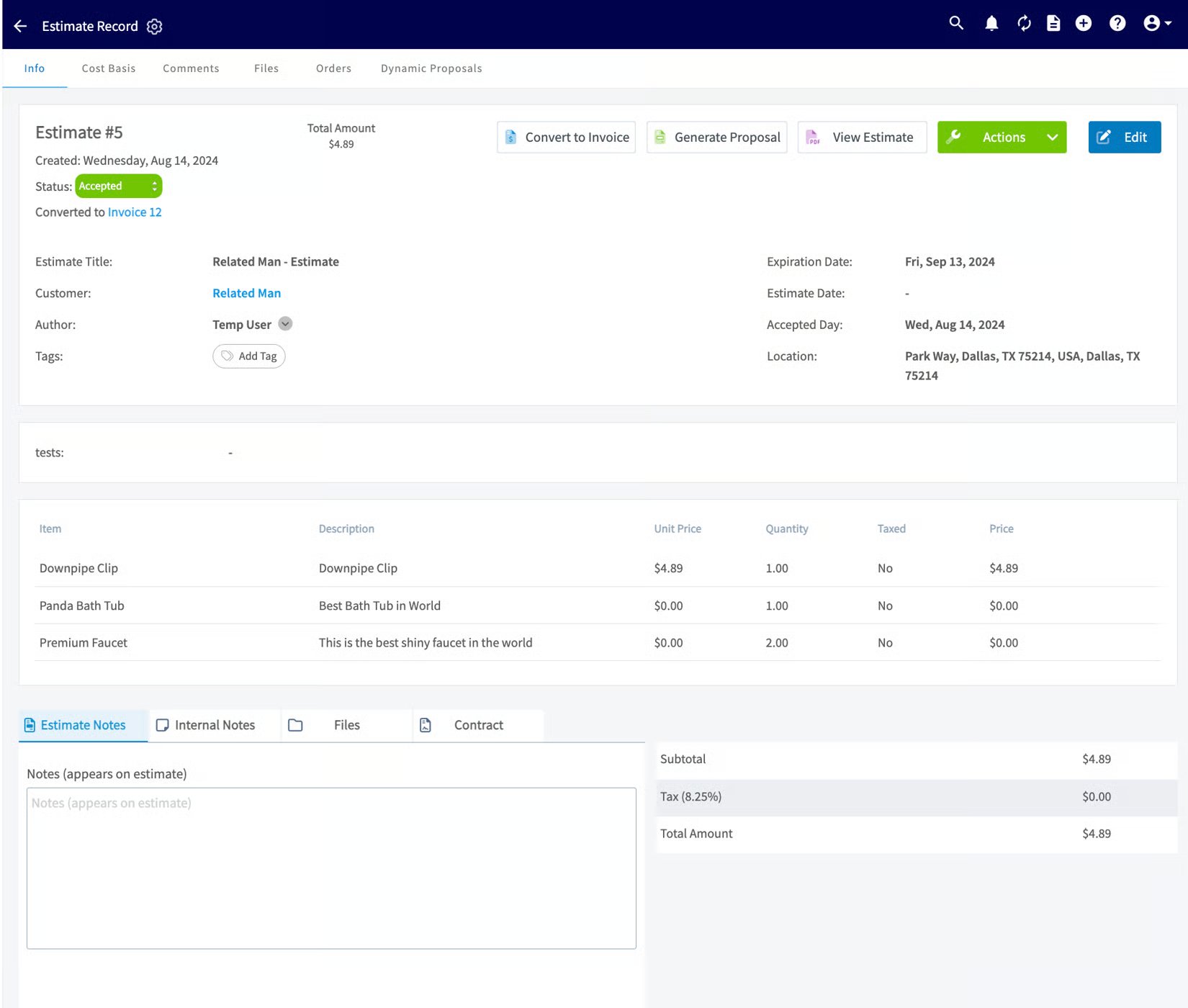
 ## Example: Estimates
FieldPulse:
## Example: Estimates
FieldPulse:
 QuickBooks Desktop:
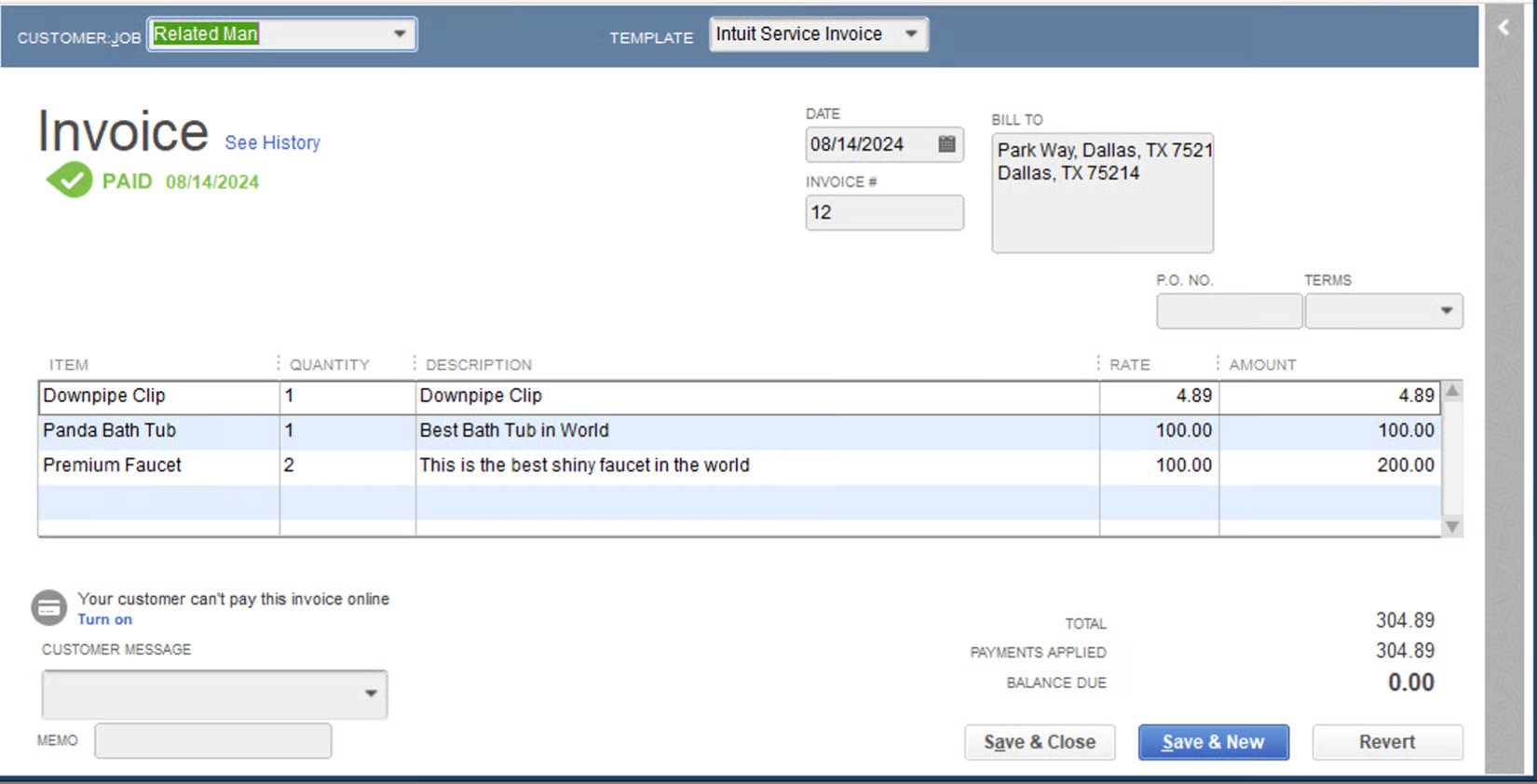
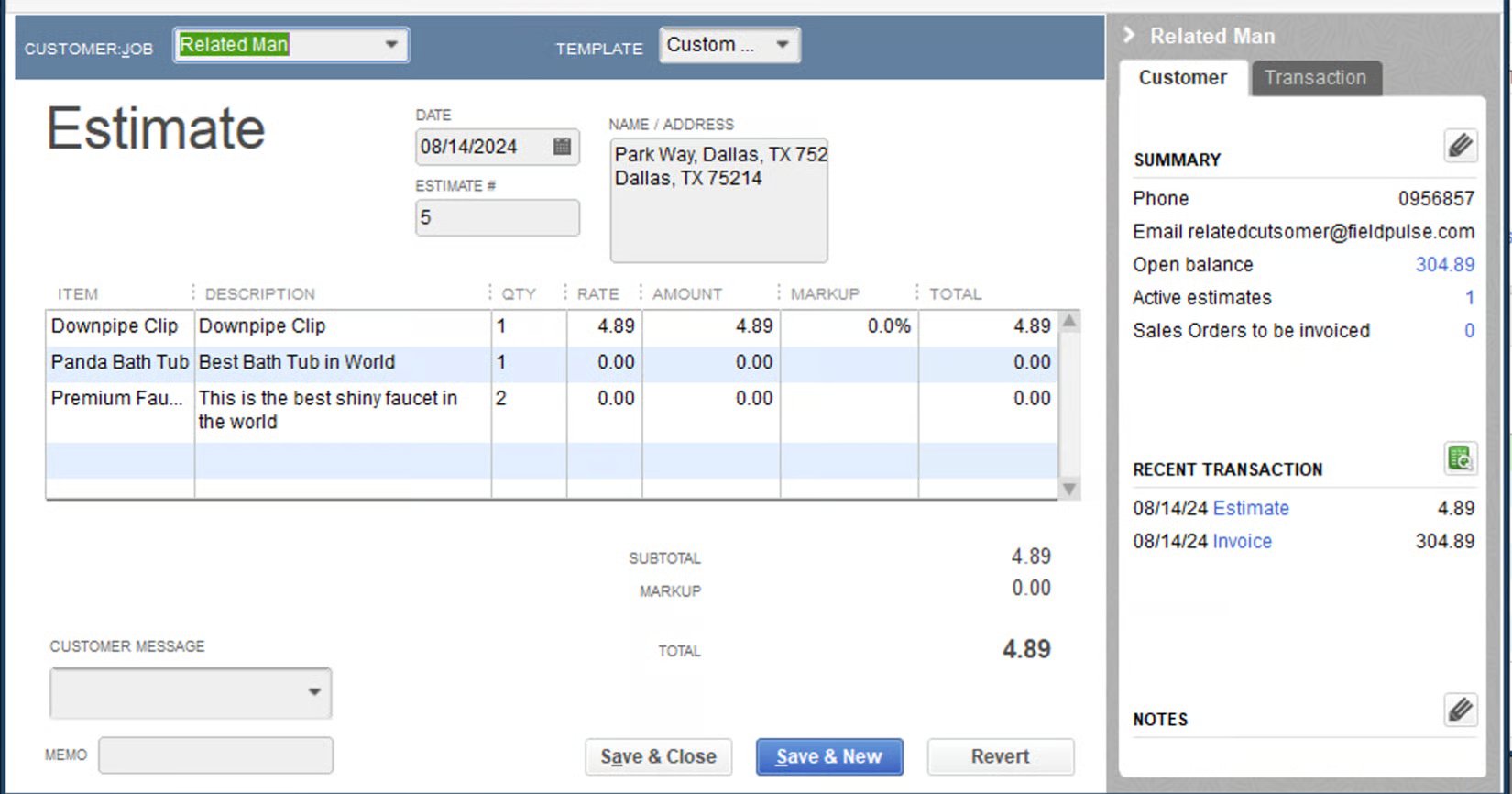 ## Example: Invoices
FieldPulse:
## Example: Invoices
FieldPulse:
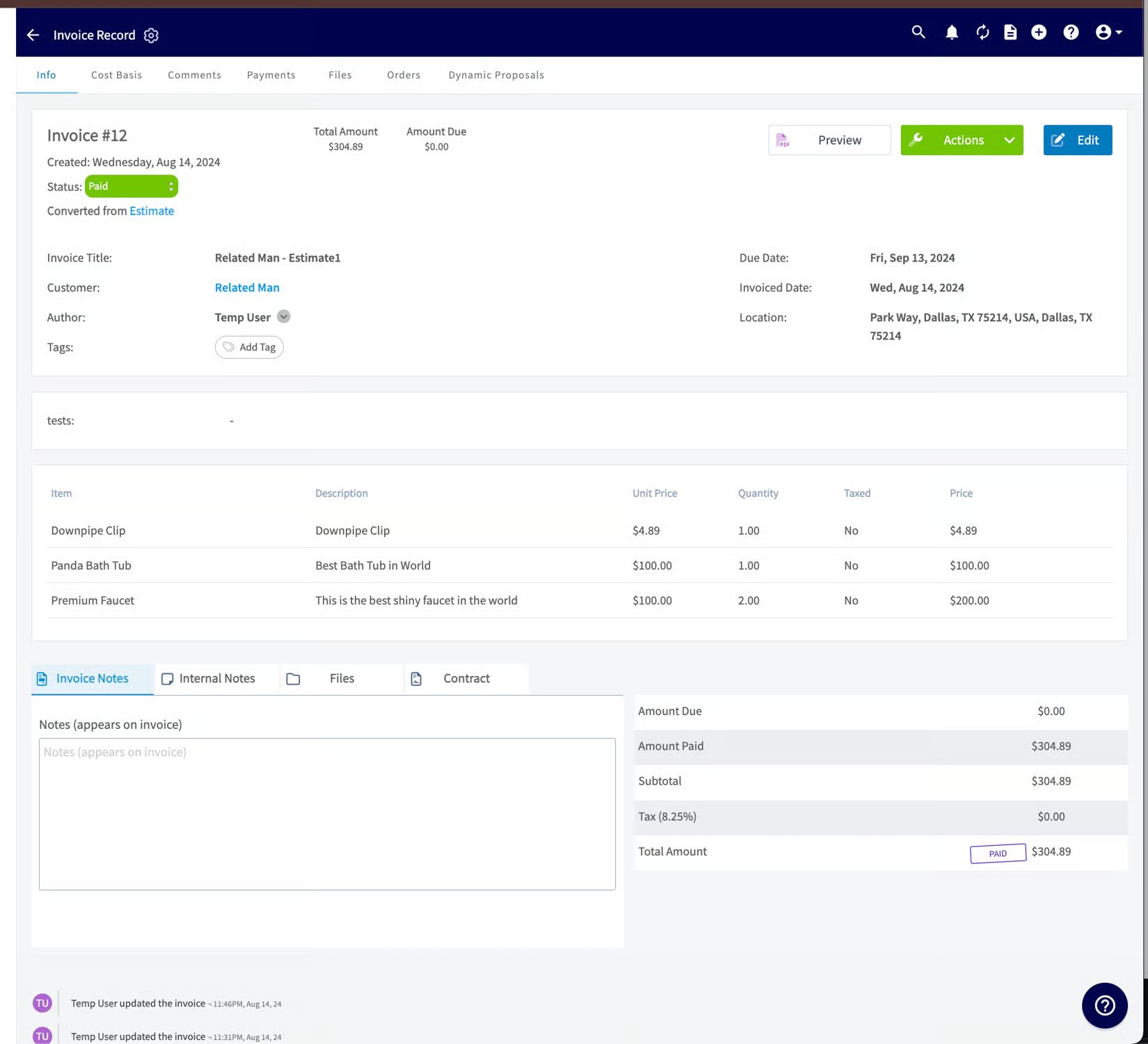 QuickBooks Desktop:
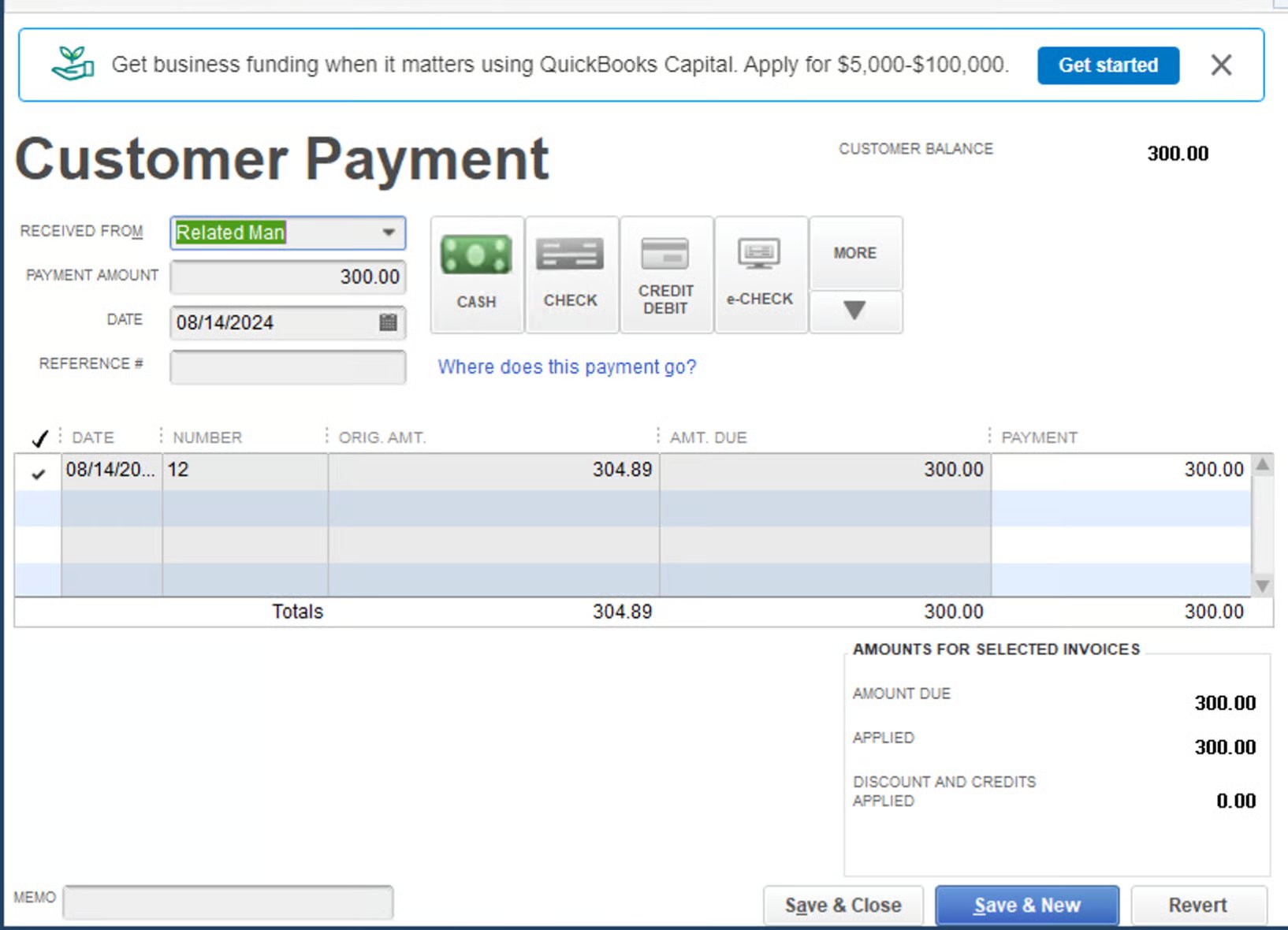
 ## Example: Payments
FieldPulse:
## Example: Payments
FieldPulse:
 QuickBooks Desktop:
 ## Notes & limitations
* **Direction can differ from the general rule.** [Purchase orders](/inventory-materials/purchase-orders/managing), timesheets, credit memos, and tax rate items are one-way; check the direction table above before assuming an edit will flow back.
* **Tax rate items are read-only in FieldPulse** after syncing — edit them in QuickBooks Desktop.
* **Credit memos arrive as general payments,** and FieldPulse can't distinguish a credit from a direct payment; that distinction is only visible in QuickBooks Desktop.
* **Character limits and special characters block transfers.** Names over 31 characters and special characters (\$, &, #, @, +, \{, }, :) are the most common reasons a record won't map. See the full list in [Setting Up QuickBooks Desktop Before Syncing](/integrations/accounting/quickbooks-desktop/pre-sync).
## Related articles
* [Setting Up QuickBooks Desktop Before Syncing](/integrations/accounting/quickbooks-desktop/pre-sync) — the full what-will-and-won't-sync list
* [Troubleshooting QuickBooks Desktop Sync Errors](/integrations/accounting/quickbooks-desktop/sync-errors)
* [How to Sync Purchase Orders With QuickBooks Desktop](/integrations/accounting/quickbooks-desktop/purchase-orders)
* [QuickBooks Desktop Overview](/integrations/accounting/quickbooks-desktop/overview)
## Related topics
- [QuickBooks Desktop Overview](/integrations/accounting/quickbooks-desktop/overview.md)
- [QuickBooks Desktop](/integrations/accounting/quickbooks-desktop/index.md)
- [How to Sync Purchase Orders With QuickBooks Desktop](/integrations/accounting/quickbooks-desktop/purchase-orders.md)
- [Setting Up QuickBooks Desktop Before Syncing](/integrations/accounting/quickbooks-desktop/pre-sync.md)
## Notes & limitations
* **Direction can differ from the general rule.** [Purchase orders](/inventory-materials/purchase-orders/managing), timesheets, credit memos, and tax rate items are one-way; check the direction table above before assuming an edit will flow back.
* **Tax rate items are read-only in FieldPulse** after syncing — edit them in QuickBooks Desktop.
* **Credit memos arrive as general payments,** and FieldPulse can't distinguish a credit from a direct payment; that distinction is only visible in QuickBooks Desktop.
* **Character limits and special characters block transfers.** Names over 31 characters and special characters (\$, &, #, @, +, \{, }, :) are the most common reasons a record won't map. See the full list in [Setting Up QuickBooks Desktop Before Syncing](/integrations/accounting/quickbooks-desktop/pre-sync).
## Related articles
* [Setting Up QuickBooks Desktop Before Syncing](/integrations/accounting/quickbooks-desktop/pre-sync) — the full what-will-and-won't-sync list
* [Troubleshooting QuickBooks Desktop Sync Errors](/integrations/accounting/quickbooks-desktop/sync-errors)
* [How to Sync Purchase Orders With QuickBooks Desktop](/integrations/accounting/quickbooks-desktop/purchase-orders)
* [QuickBooks Desktop Overview](/integrations/accounting/quickbooks-desktop/overview)
## Related topics
- [QuickBooks Desktop Overview](/integrations/accounting/quickbooks-desktop/overview.md)
- [QuickBooks Desktop](/integrations/accounting/quickbooks-desktop/index.md)
- [How to Sync Purchase Orders With QuickBooks Desktop](/integrations/accounting/quickbooks-desktop/purchase-orders.md)
- [Setting Up QuickBooks Desktop Before Syncing](/integrations/accounting/quickbooks-desktop/pre-sync.md)