> ## Documentation Index
> Fetch the complete documentation index at: https://help.fieldpulse.com/llms.txt
> Use this file to discover all available pages before exploring further.
# How to Sync With QuickBooks Desktop
> Connect FieldPulse to QuickBooks Desktop — request access, turn on the integration, install the Web Connector, and set the sync to run automatically.
> **Who uses this:** An admin sets up the connection on the computer running QuickBooks Desktop; the sync then runs on its own. **Availability:** Requires QuickBooks Desktop + the sync connector.
Syncing with QuickBooks Desktop connects the two systems through the QuickBooks Web Connector, a small application that runs on the same Windows computer as QuickBooks Desktop. Setup runs from requesting access to setting the sync to auto-run — and once it is on, the connector must stay open for records to keep flowing.
## Overview
The QuickBooks Desktop connection is not a self-serve toggle: you [request access from FieldPulse first](https://www.fieldpulse.com/company/contact-us), then [FieldPulse enables the integration](https://www.fieldpulse.com/company/partners/quickbooks) for your account. After that, you turn on the integration in Company Settings, download a connection file, add it to the QuickBooks Web Connector, and set the connector to run the sync every minute. Because the connection is local to the Web Connector, the computer's sleep mode must stay off and the connector must stay open.
## Before you begin
* **Finish the prep first.** Confirm your version, disable sleep mode, turn off estimate/invoice triggers and notifications, and set the Web Connector user's permissions — all in [Setting Up QuickBooks Desktop Before Syncing](/integrations/accounting/quickbooks-desktop/pre-sync).
* **Work on the computer that runs QuickBooks Desktop.** The Web Connector installs there, and the setup file downloads to that device.
* **Have QuickBooks Desktop in single-user mode.**
## Set up the sync
1. **Request access to sync with QuickBooks.** Contact the FieldPulse support team through in-app chat or at [support@fieldpulse.com](mailto:support@fieldpulse.com). The team schedules a call with you to initiate the sync. You cannot connect until FieldPulse enables it.
2. **Turn on the integration in Company Settings.** Once FieldPulse has enabled the connection, go to **Company Settings**, open the **Features & Plugins** tab, and find the **QuickBooks Desktop** tile.
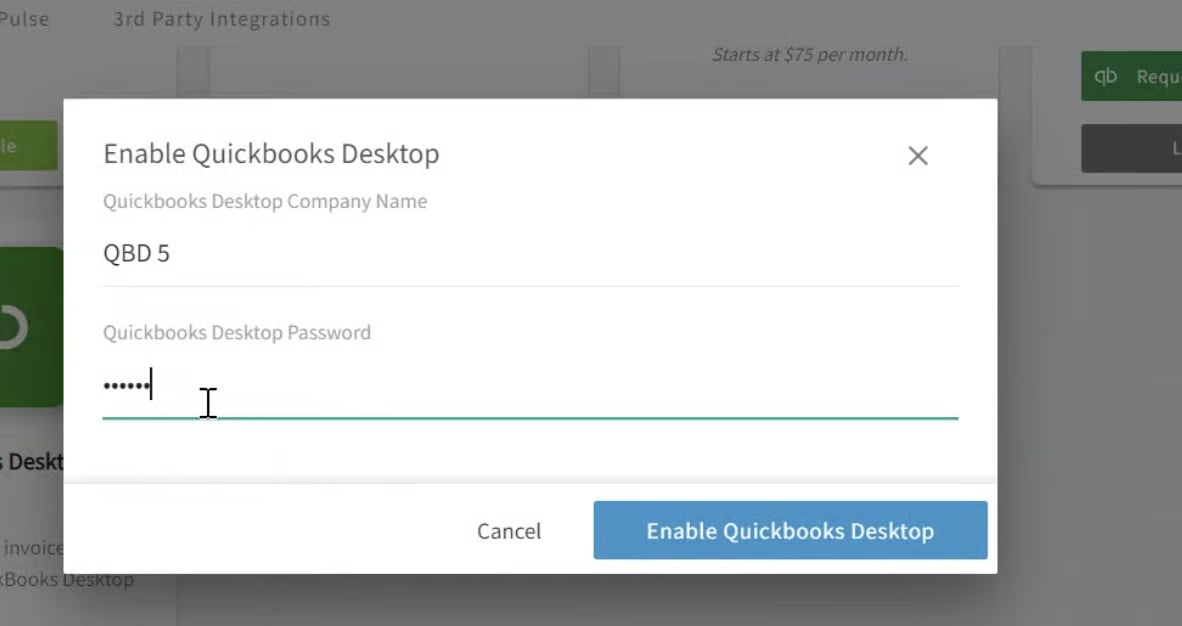
3. **Enter your company name and create a password.** FieldPulse downloads a connection file to your device.
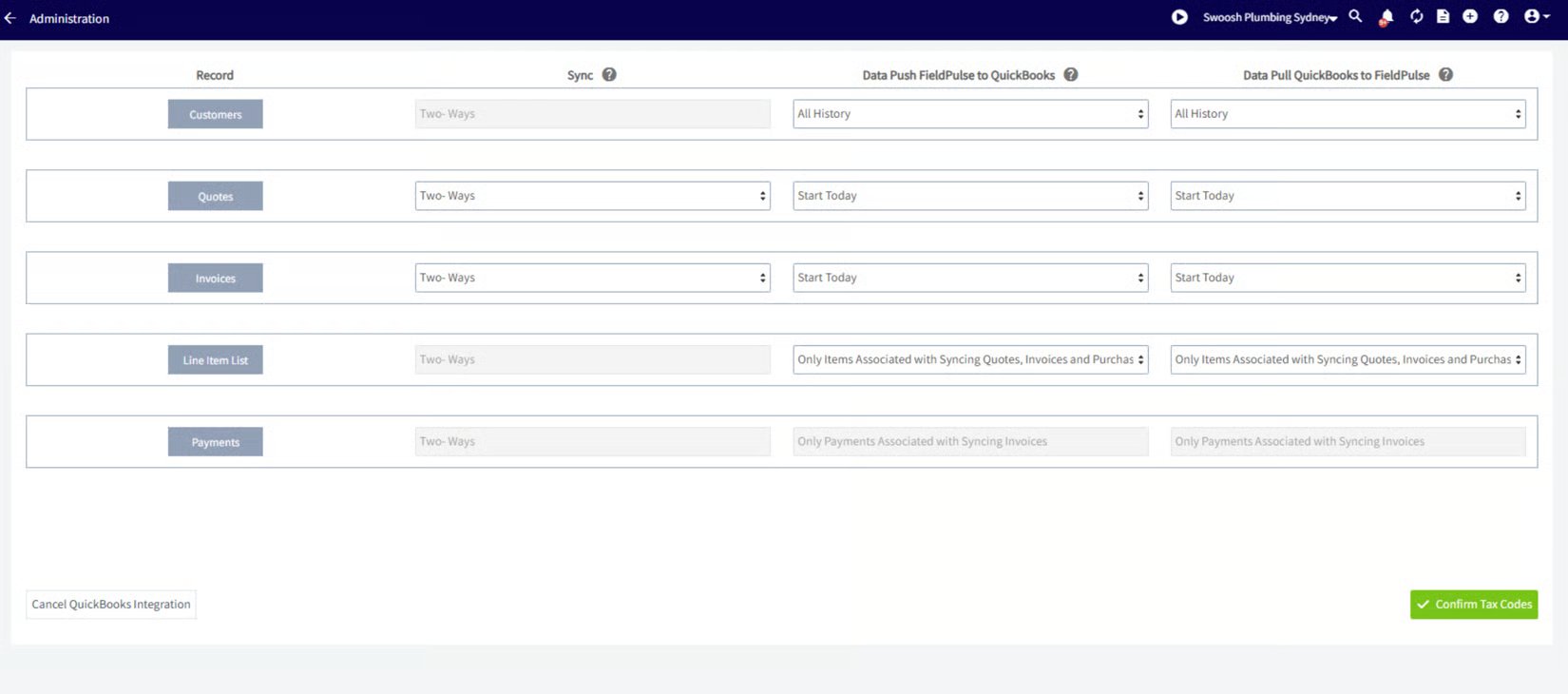
 4. **Select the sync type and date range.** Choose **one-way sync** ([FieldPulse to QuickBooks](https://www.fieldpulse.com/company/partners/quickbooks)) or **two-way sync** for estimates and invoices, and set the specific date or period of records to exchange.
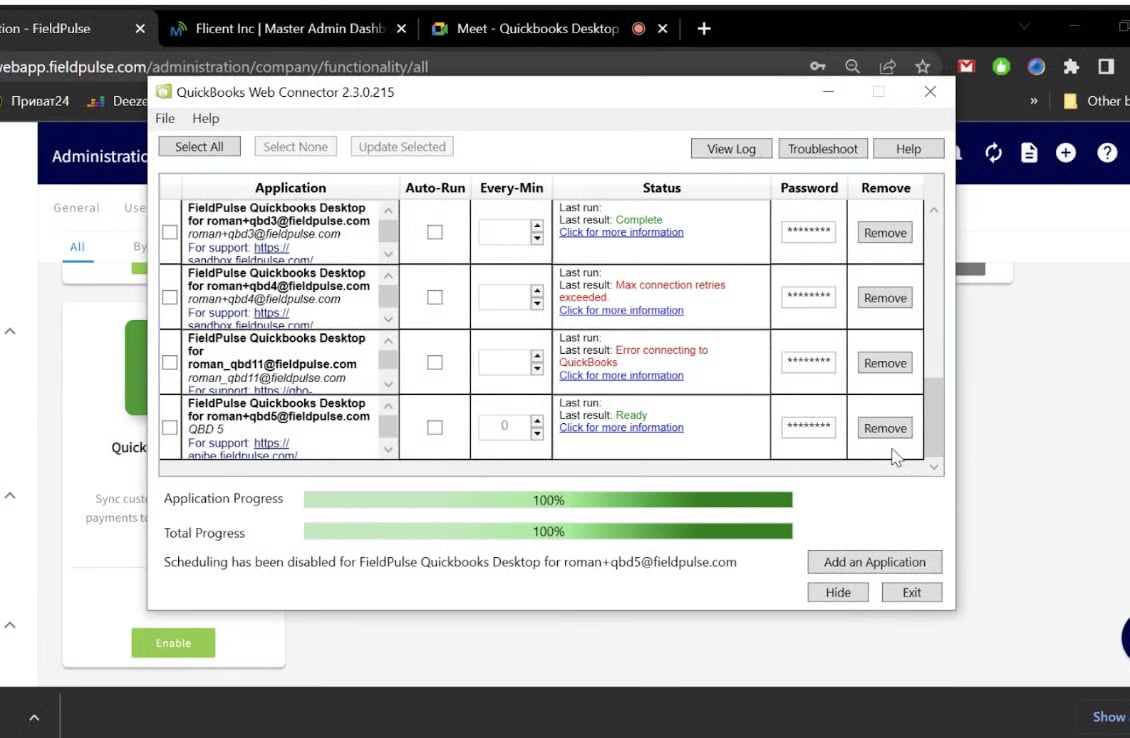
 5. **Download and start the QuickBooks Web Connector.** In the Web Connector, select **Add an Application**, then select the file FieldPulse downloaded in step 3.
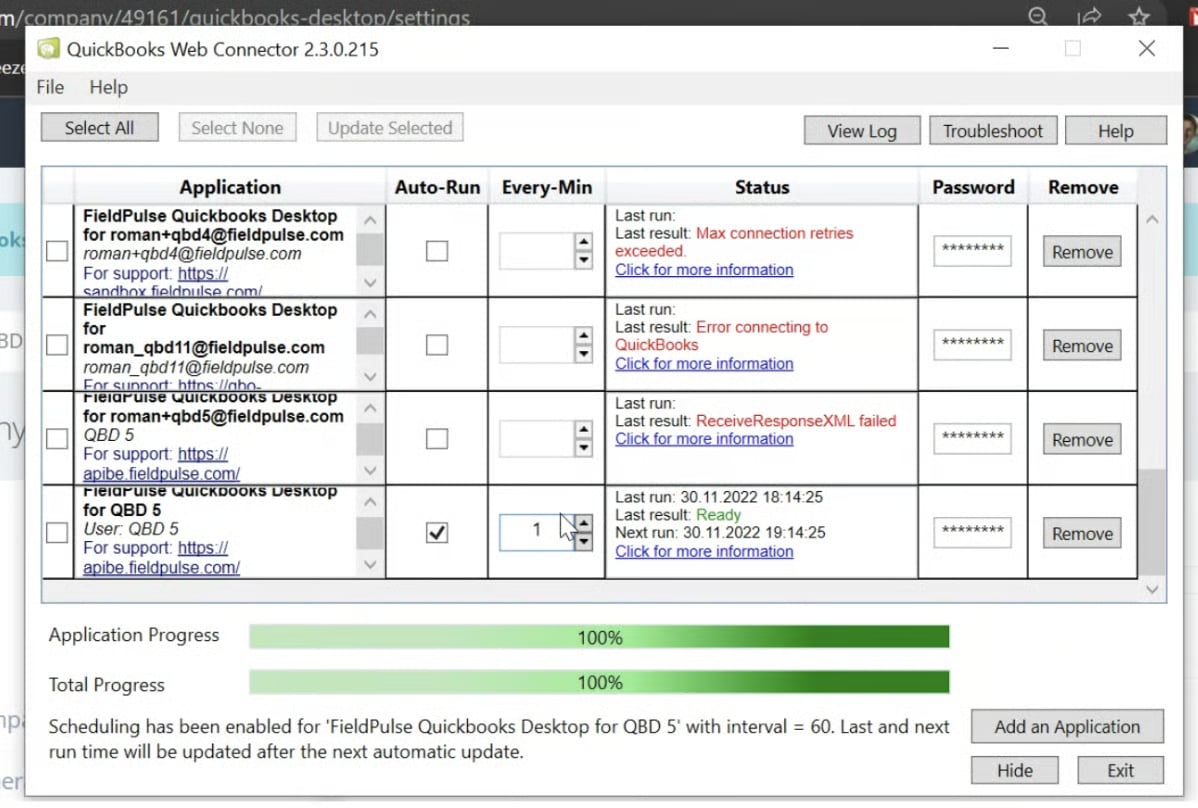
 6. **Set the sync to auto-run every 1 minute.** In the Web Connector, set the run interval to every minute, then select **Update Selected**. The sync begins.
 **Keep the connector on and open at all times for the sync to continue,** and keep the device's sleep mode disabled so the connection runs constantly. If the connector closes or the computer sleeps, the sync stops until you reopen it.
## Related articles
* [Setting Up QuickBooks Desktop Before Syncing](/integrations/accounting/quickbooks-desktop/pre-sync) — the prior step
* [How to Manage QuickBooks Desktop After Syncing](/integrations/accounting/quickbooks-desktop/post-sync) — the next step
* [QuickBooks Desktop Overview](/integrations/accounting/quickbooks-desktop/overview)
* [Troubleshooting QuickBooks Desktop Sync Errors](/integrations/accounting/quickbooks-desktop/sync-errors)
Your sync is working when the Web Connector is running the FieldPulse application every minute and your existing QuickBooks data has imported into FieldPulse — from there, check your results in [How to Manage QuickBooks Desktop After Syncing](/integrations/accounting/quickbooks-desktop/post-sync).
## Related topics
- [QuickBooks Desktop Overview](/integrations/accounting/quickbooks-desktop/overview.md)
- [QuickBooks Desktop](/integrations/accounting/quickbooks-desktop/index.md)
- [How to Sync Purchase Orders With QuickBooks Desktop](/integrations/accounting/quickbooks-desktop/purchase-orders.md)
- [How to Manage QuickBooks Desktop After Syncing](/integrations/accounting/quickbooks-desktop/post-sync.md)
**Keep the connector on and open at all times for the sync to continue,** and keep the device's sleep mode disabled so the connection runs constantly. If the connector closes or the computer sleeps, the sync stops until you reopen it.
## Related articles
* [Setting Up QuickBooks Desktop Before Syncing](/integrations/accounting/quickbooks-desktop/pre-sync) — the prior step
* [How to Manage QuickBooks Desktop After Syncing](/integrations/accounting/quickbooks-desktop/post-sync) — the next step
* [QuickBooks Desktop Overview](/integrations/accounting/quickbooks-desktop/overview)
* [Troubleshooting QuickBooks Desktop Sync Errors](/integrations/accounting/quickbooks-desktop/sync-errors)
Your sync is working when the Web Connector is running the FieldPulse application every minute and your existing QuickBooks data has imported into FieldPulse — from there, check your results in [How to Manage QuickBooks Desktop After Syncing](/integrations/accounting/quickbooks-desktop/post-sync).
## Related topics
- [QuickBooks Desktop Overview](/integrations/accounting/quickbooks-desktop/overview.md)
- [QuickBooks Desktop](/integrations/accounting/quickbooks-desktop/index.md)
- [How to Sync Purchase Orders With QuickBooks Desktop](/integrations/accounting/quickbooks-desktop/purchase-orders.md)
- [How to Manage QuickBooks Desktop After Syncing](/integrations/accounting/quickbooks-desktop/post-sync.md)