> ## Documentation Index
> Fetch the complete documentation index at: https://help.fieldpulse.com/llms.txt
> Use this file to discover all available pages before exploring further.
# How to Sync Purchase Orders With QuickBooks Online
> Turn on one-way or two-way purchase order sync between FieldPulse and QuickBooks Online, and see which PO fields map where.
Who uses this: Admins request and configure the purchase order sync. Availability: Requires the customer's own QuickBooks Online subscription and an active QuickBooks Online integration — available in the United States, Canada, and Australia.
The purchase order sync sends your FieldPulse purchase orders to QuickBooks Online, either one-way or two-way. Once it's on, the sync is triggered by every newly created and updated purchase order — the PO's status does not trigger it.
## Overview
The purchase order sync is a separate, opt-in part of the QuickBooks Online integration that you request from the FieldPulse team. It can run one-way (FieldPulse → QuickBooks Online) or two-way, and it fires whenever a purchase order is created or updated. This page covers turning it on and how each purchase order field maps into QuickBooks Online.
## Before you begin
* Have the main QuickBooks Online integration connected first. See [How to Sync With QuickBooks Online](/integrations/accounting/quickbooks-online/sync).
## Turn on the purchase order sync
1. **Request the sync.** [Contact the FieldPulse team](https://www.fieldpulse.com/company/contact-us) through in-app chat or at [support@fieldpulse.com](mailto:support@fieldpulse.com) to initiate your purchase order sync.
2. **Confirm the direction.** Let the team know whether you want a one-way ([FieldPulse → QuickBooks Online](https://www.fieldpulse.com/company/partners/quickbooks)) or two-way sync.
Once enabled, the sync runs automatically on every purchase order created or updated — no manual step per PO.
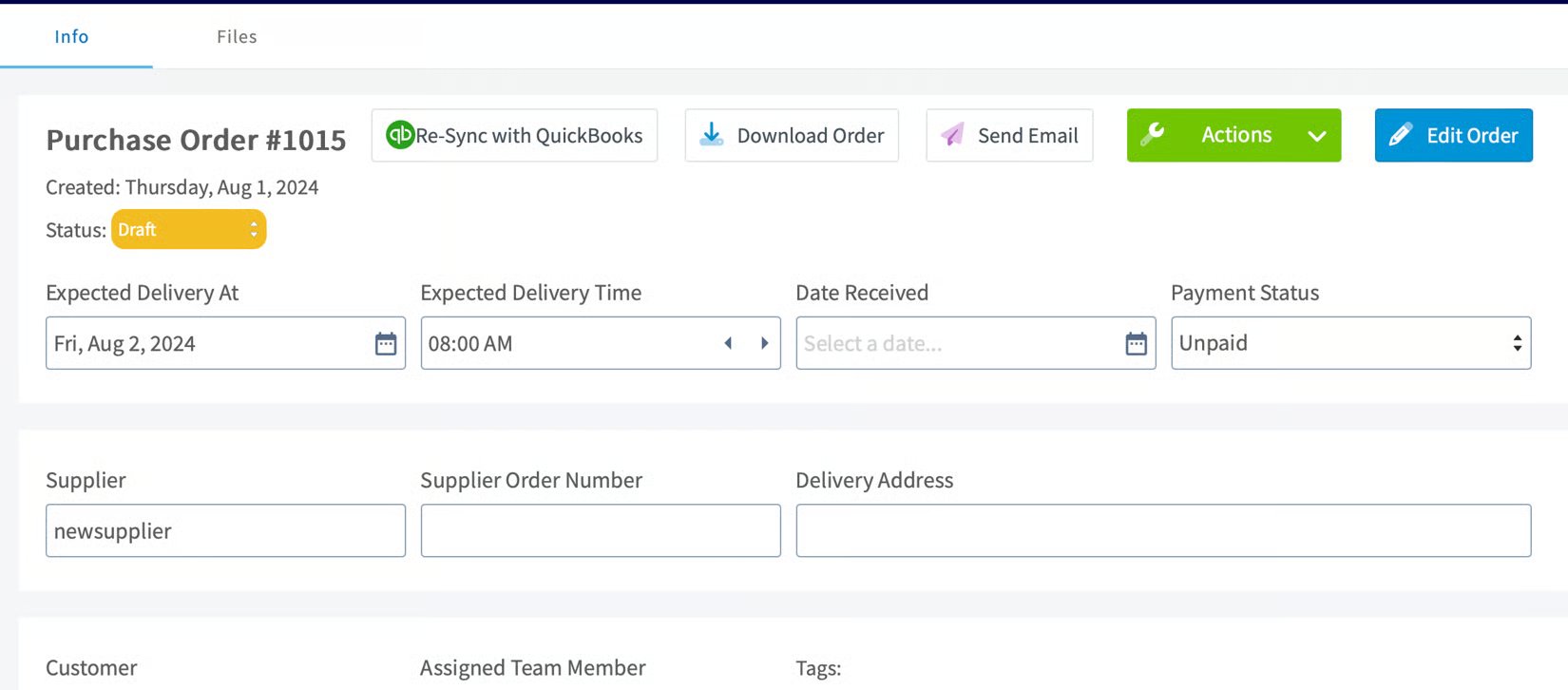
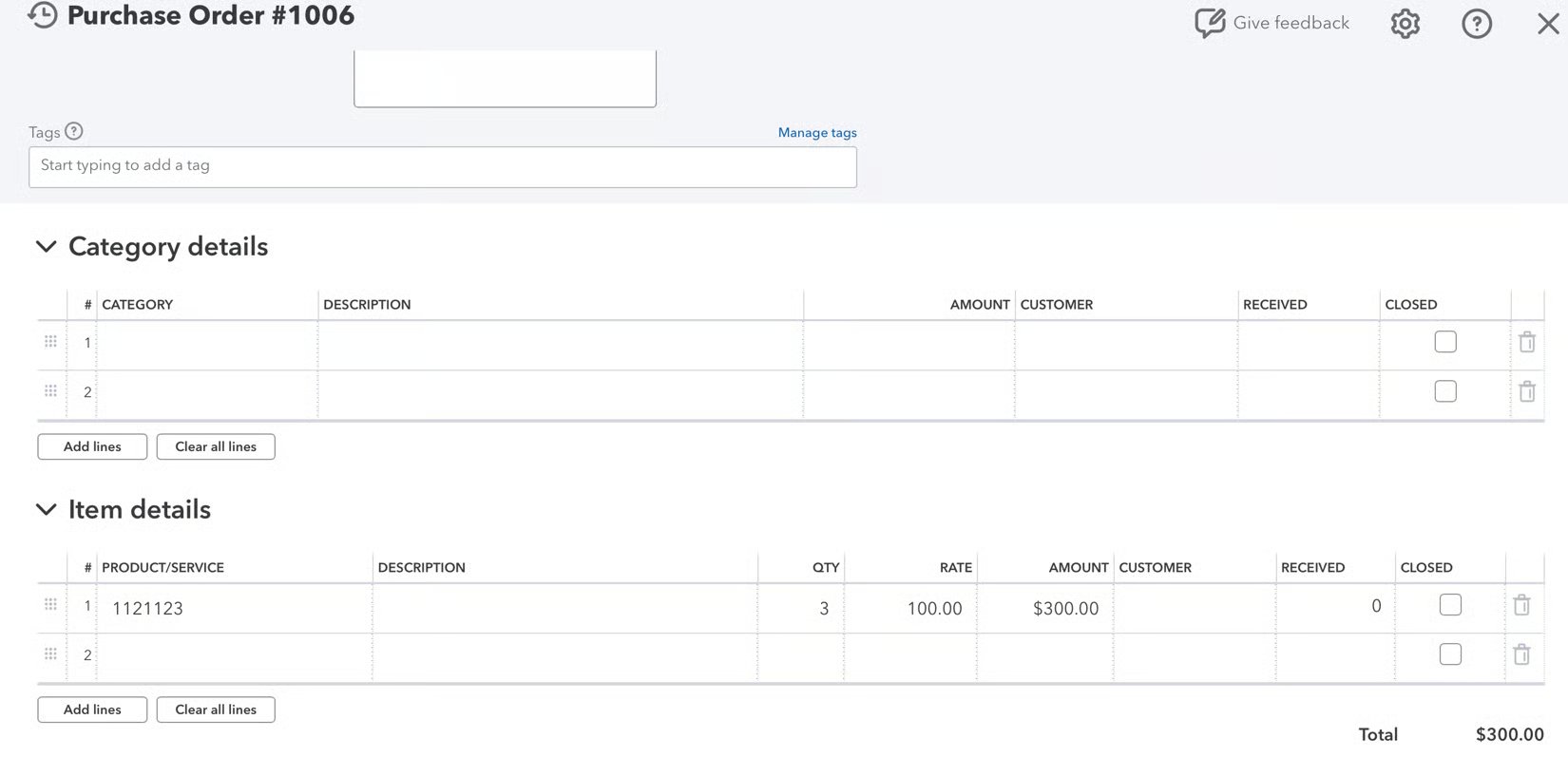 ## Purchase order field mapping
The table below shows which FieldPulse purchase order fields sync and where they appear in QuickBooks Online. A field that is not listed does not sync.
| **FieldPulse field** | **QuickBooks Online field** |
| --------------------- | --------------------------- |
| Purchase Order Number | Document Number |
| Supplier Name | Vendor |
| Supplier Email | Email |
| Status = Ordered | Purchase Order Date |
| Address | Shipping Address |
| Line Item Title | Product/Service |
| Description | Description |
| Quantity | Quantity |
| Unit Cost | Rate |
| Total (per line item) | Amount |
| Created At Date | Created Time |
| Updated At Date | Last Updated Time |
| Order Title | Memo |
| Subtotal | Subtotal |
| Total | Total |
| Instructions | Your Message to Vendor |
## How FieldPulse PO statuses map
Every FieldPulse purchase order status maps to either Open or Closed in QuickBooks Online.
| **Maps to Open in QuickBooks Online** | **Maps to Closed in QuickBooks Online** |
| --------------------------------------------------------------------------------------- | --------------------------------------- |
| Compose, Draft, Ordered, Pending, En Route, Ready for Pickup, Partially Received, Issue | Received, Completed, Canceled |
## Related articles
* [QuickBooks Online Overview](/integrations/accounting/quickbooks-online/overview)
* [How to Sync With QuickBooks Online](/integrations/accounting/quickbooks-online/sync)
* [How to Manage QuickBooks Online After Syncing](/integrations/accounting/quickbooks-online/post-sync)
Your purchase order sync is working when a purchase order you create or update in FieldPulse appears in QuickBooks Online with its number, vendor, and line items mapped as shown above.
## Related topics
- [QuickBooks Online Overview](/integrations/accounting/quickbooks-online/overview.md)
- [QuickBooks Online](/integrations/accounting/quickbooks-online/index.md)
- [Setting Up QuickBooks Online Before Syncing](/integrations/accounting/quickbooks-online/pre-sync.md)
- [How to Sync With QuickBooks Online](/integrations/accounting/quickbooks-online/sync.md)
## Purchase order field mapping
The table below shows which FieldPulse purchase order fields sync and where they appear in QuickBooks Online. A field that is not listed does not sync.
| **FieldPulse field** | **QuickBooks Online field** |
| --------------------- | --------------------------- |
| Purchase Order Number | Document Number |
| Supplier Name | Vendor |
| Supplier Email | Email |
| Status = Ordered | Purchase Order Date |
| Address | Shipping Address |
| Line Item Title | Product/Service |
| Description | Description |
| Quantity | Quantity |
| Unit Cost | Rate |
| Total (per line item) | Amount |
| Created At Date | Created Time |
| Updated At Date | Last Updated Time |
| Order Title | Memo |
| Subtotal | Subtotal |
| Total | Total |
| Instructions | Your Message to Vendor |
## How FieldPulse PO statuses map
Every FieldPulse purchase order status maps to either Open or Closed in QuickBooks Online.
| **Maps to Open in QuickBooks Online** | **Maps to Closed in QuickBooks Online** |
| --------------------------------------------------------------------------------------- | --------------------------------------- |
| Compose, Draft, Ordered, Pending, En Route, Ready for Pickup, Partially Received, Issue | Received, Completed, Canceled |
## Related articles
* [QuickBooks Online Overview](/integrations/accounting/quickbooks-online/overview)
* [How to Sync With QuickBooks Online](/integrations/accounting/quickbooks-online/sync)
* [How to Manage QuickBooks Online After Syncing](/integrations/accounting/quickbooks-online/post-sync)
Your purchase order sync is working when a purchase order you create or update in FieldPulse appears in QuickBooks Online with its number, vendor, and line items mapped as shown above.
## Related topics
- [QuickBooks Online Overview](/integrations/accounting/quickbooks-online/overview.md)
- [QuickBooks Online](/integrations/accounting/quickbooks-online/index.md)
- [Setting Up QuickBooks Online Before Syncing](/integrations/accounting/quickbooks-online/pre-sync.md)
- [How to Sync With QuickBooks Online](/integrations/accounting/quickbooks-online/sync.md)