> ## Documentation Index
> Fetch the complete documentation index at: https://help.fieldpulse.com/llms.txt
> Use this file to discover all available pages before exploring further.
# Setting Up the Marketing 360 Integration
> Connect Marketing 360 to push customer, address, lead-source, and pipeline data one-way from FieldPulse into Marketing 360 to power your ad campaigns.
> **Who uses this:** Admins can enable it, plus a Marketing 360 admin who can create API keys. **Availability:** Requires a Marketing 360 account. Setup is completed by the FieldPulse Support team.
The [Marketing 360 integration](https://www.fieldpulse.com/company/partners/marketing-360) pushes customer data one-way from [FieldPulse](https://www.fieldpulse.com/company/partners) into Marketing 360, so the leads and customers you manage in FieldPulse feed straight into your Marketing 360 ad campaigns and CRM. Because the sync is one-way, FieldPulse is the source and Marketing 360 receives the data.
## Overview
The Marketing 360 integration sends the following FieldPulse data into Marketing 360:
* Customer Name
* Phone Number
* Email Address
* Address
* Lead Source
* Customer Type / Status
* Pipeline Status
* Custom Tags
For lead sources, tags, customer types, and statuses to sync, the matching values must exist in **both** [Marketing 360 and FieldPulse](https://marketplace.marketing360.com/fieldpulse). If a value does not exist in Marketing 360, it will not sync. Learn more on the [Marketing 360 setup guide](https://help.marketing360.com/portal/en/kb/articles/integratefieldpulsewiththemarketing360crm686578c608157#Integration_setup).
 ## Before you begin
* You need a **Marketing 360 account**.
* You will generate an API key in Marketing 360 and hand the **Client ID** and **Client Secret** to the FieldPulse Support team, who complete the connection on our side.
## Connect Marketing 360
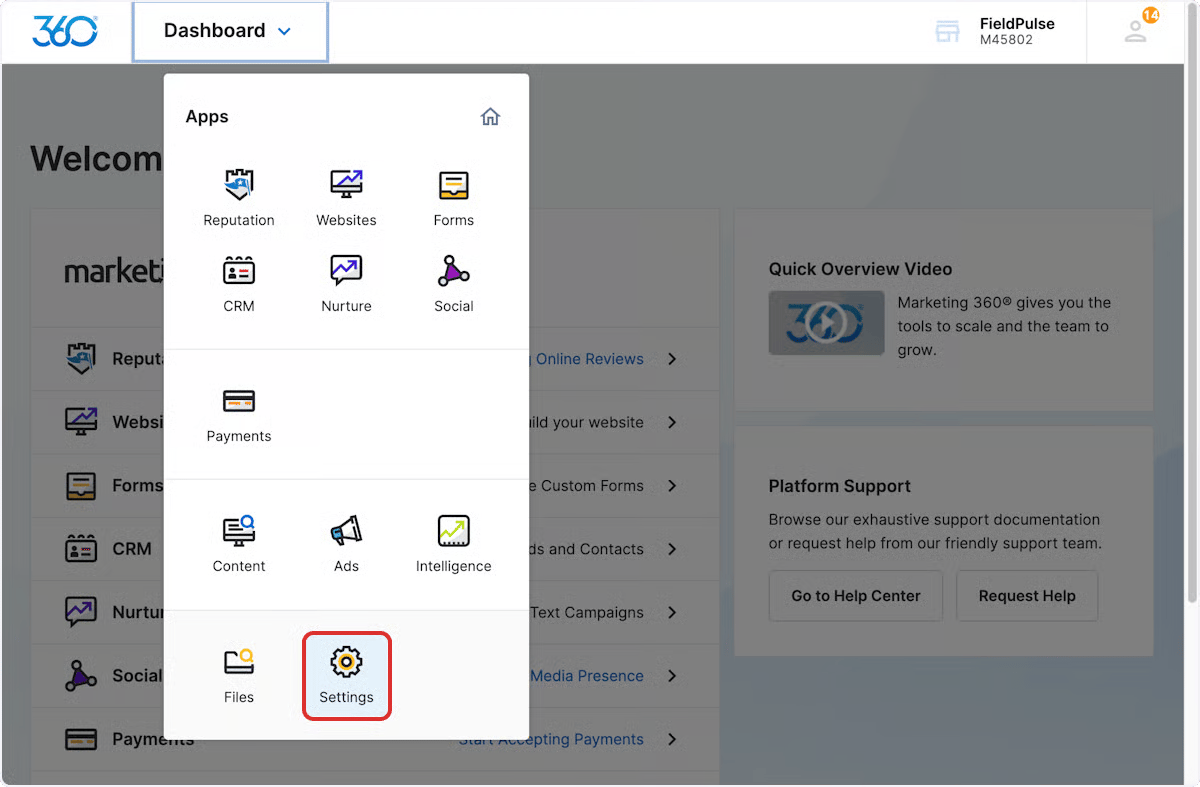
1. In Marketing 360, go to **Dashboard** > **Settings**.
## Before you begin
* You need a **Marketing 360 account**.
* You will generate an API key in Marketing 360 and hand the **Client ID** and **Client Secret** to the FieldPulse Support team, who complete the connection on our side.
## Connect Marketing 360
1. In Marketing 360, go to **Dashboard** > **Settings**.
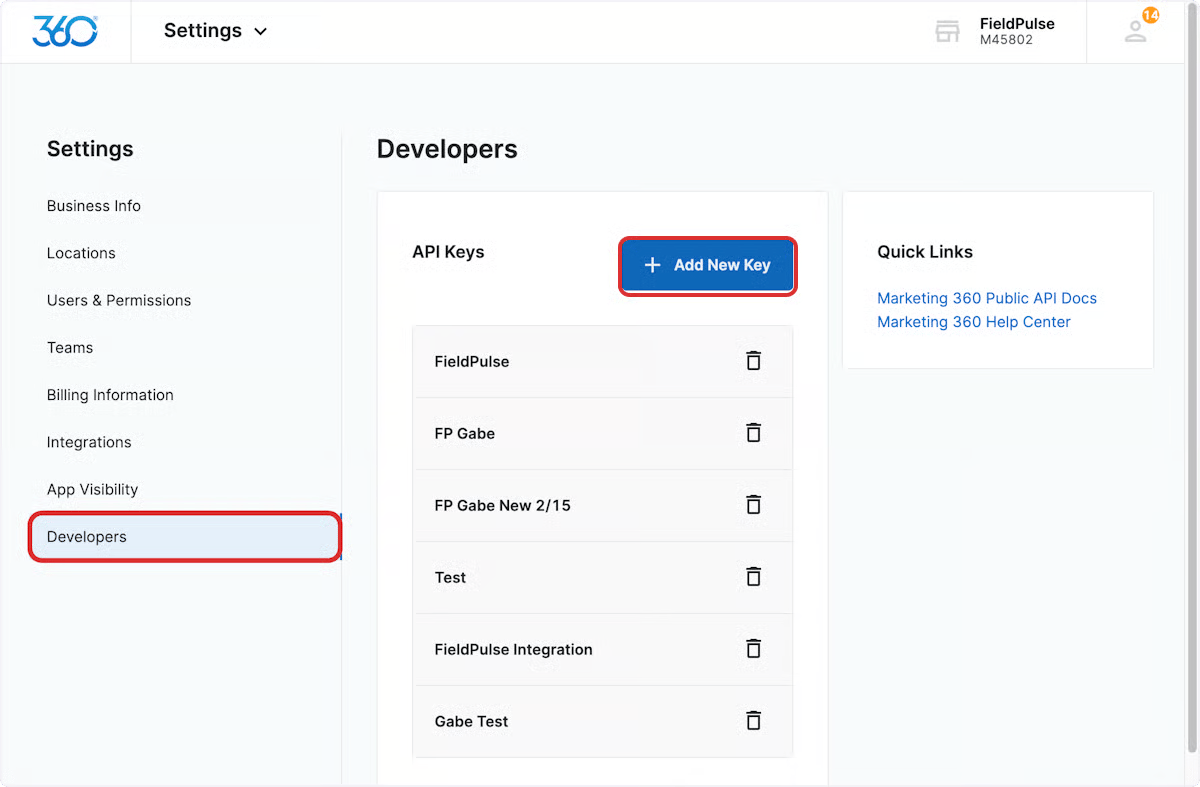
 2. Select **Developers**, then select **Add New Key**.
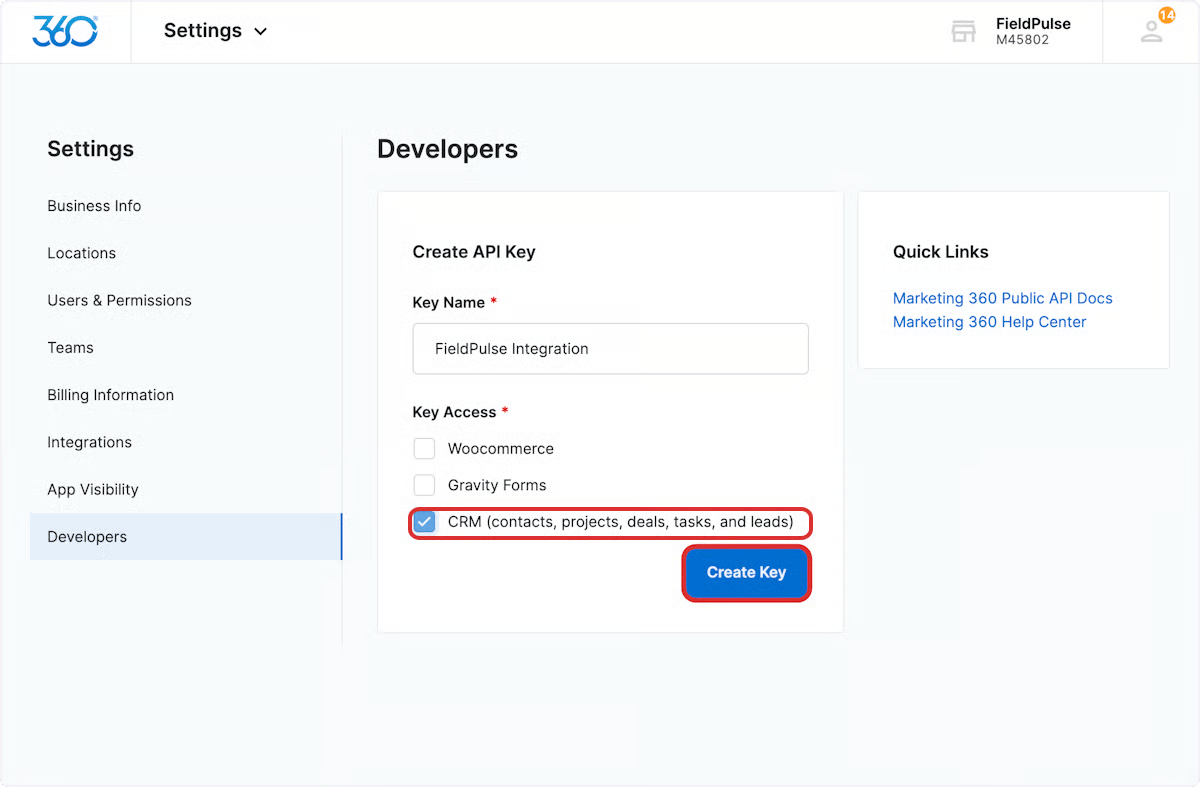
 3. Enter **FieldPulse** as the **Key Name**, select the **CRM** checkbox, then select **Create Key**.
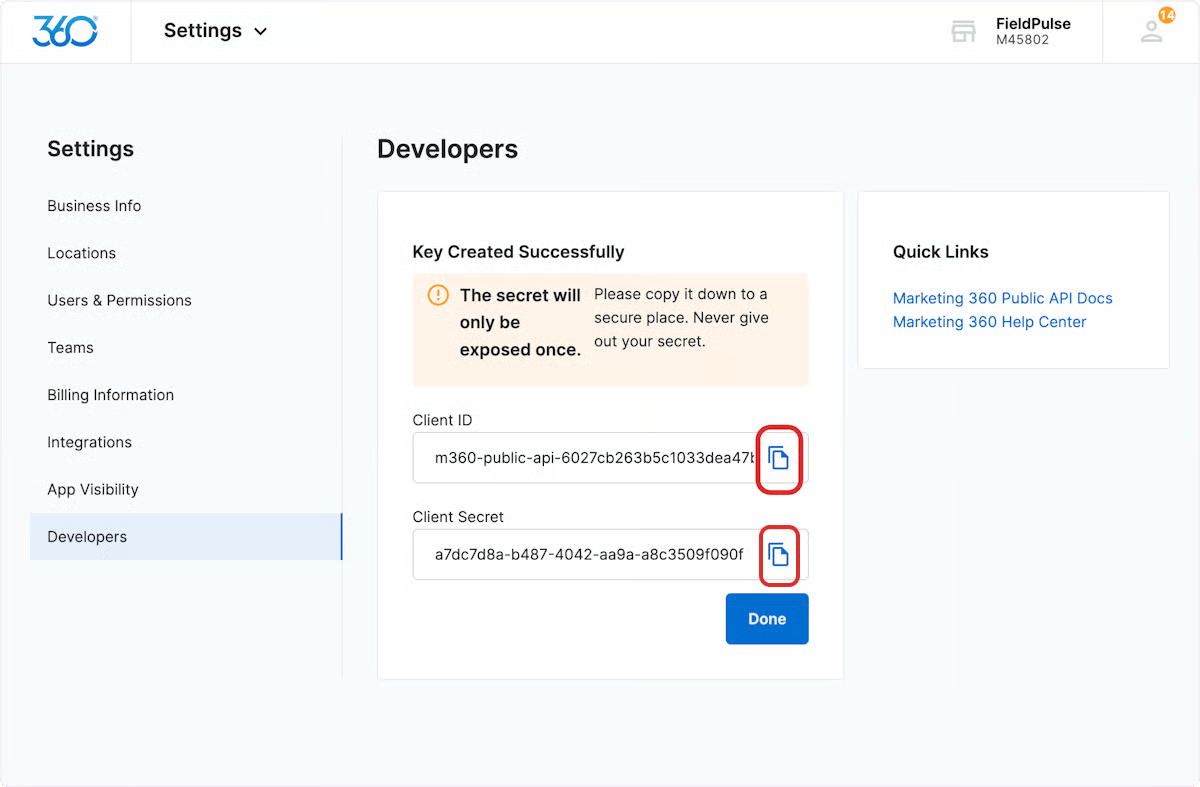
 4. Copy the **Client ID** and **Client Secret**. Copy them now — once you leave the page or select **Done**, you cannot view them again without repeating these steps.
 5. Use the chat in the bottom-right corner of FieldPulse to send your **Client ID** and **Client Secret** to the FieldPulse Support team. Support completes the remaining setup.
## Match your fields so data syncs
Before data can sync, align these FieldPulse fields with their Marketing 360 equivalents. In Marketing 360, go to **Dashboard** > **CRM** > **Settings** to add or adjust the values.
5. Use the chat in the bottom-right corner of FieldPulse to send your **Client ID** and **Client Secret** to the FieldPulse Support team. Support completes the remaining setup.
## Match your fields so data syncs
Before data can sync, align these FieldPulse fields with their Marketing 360 equivalents. In Marketing 360, go to **Dashboard** > **CRM** > **Settings** to add or adjust the values.
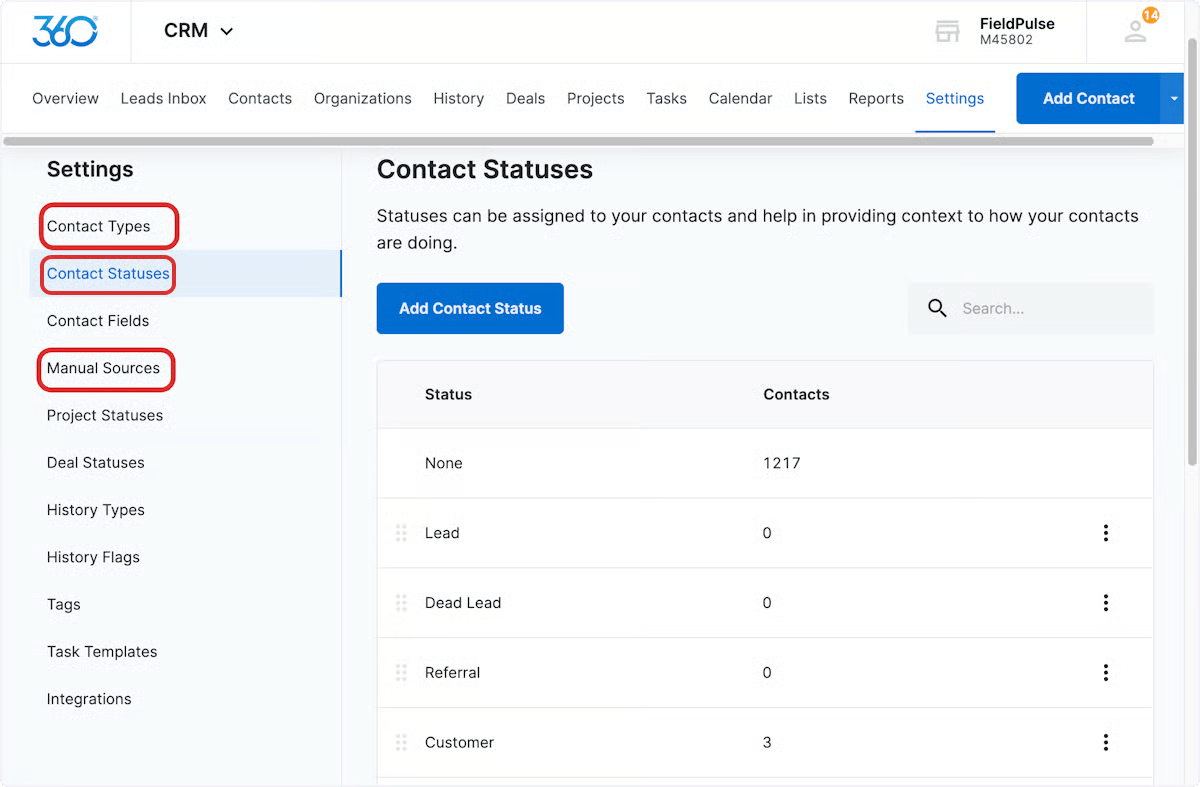 | **FieldPulse field** | **Marketing 360 field** | **What to do** |
| ----------------------------- | ----------------------- | ----------------------------------------------------------------------------------------------------------------------------------------------------------------------------------------------------------------------------------------------------------------------------------------------- |
| Lead Source | Manual Sources | Match the FieldPulse **Lead Source** options to the Marketing 360 **Manual Sources** options. **Required:** add **Default** as one of the Manual Sources. |
| Customer Pipeline Status | Contact Statuses | Match the FieldPulse **Customer Pipeline Status** options to the Marketing 360 **Contact Statuses** options. |
| Custom Tags & Customer Status | Contact Types | Both FieldPulse **Custom Tags** and **Customer Statuses** (Lead, Opportunity, Current Customer, Lost, Other, Inactive) sync into Marketing 360 **Contact Types**. Match the option lists. If you add new custom tags in FieldPulse later, add them in Marketing 360 too, or they will not sync. |
## Sync existing customers
Only customers created **after** the integration is set up sync automatically. If you used FieldPulse before connecting Marketing 360, [contact the FieldPulse Support team](https://www.fieldpulse.com/company/contact-us) (email [support@fieldpulse.com](mailto:support@fieldpulse.com) or use the chat) to sync your existing customers. Large customer lists may sync slowly.
## Related articles
* [How to Track Lead Sources](/customers/leads-pipeline/sources)
* [Setting Up Customer Statuses](/customers/managing-customers/statuses)
* [Setting Up a Custom Sales Pipeline](/customers/leads-pipeline/sales)
* [How to Tag and Sort Customers](/customers/managing-customers/tagging-sorting)
Your setup is working when a [customer you create in FieldPulse](https://www.fieldpulse.com/features/customer-management) after setup appears in Marketing 360 with the matching lead source, status, and tags.
## Related topics
- [Marketing & Lead Gen](/integrations/marketing/index.md)
- [Setting Up the Mailchimp Integration](/integrations/marketing/mailchimp.md)
- [Setting Up the CHIIRP Integration](/integrations/marketing/chiirp.md)
- [Setting Up the Signpost Integration](/integrations/marketing/signpost.md)
| **FieldPulse field** | **Marketing 360 field** | **What to do** |
| ----------------------------- | ----------------------- | ----------------------------------------------------------------------------------------------------------------------------------------------------------------------------------------------------------------------------------------------------------------------------------------------- |
| Lead Source | Manual Sources | Match the FieldPulse **Lead Source** options to the Marketing 360 **Manual Sources** options. **Required:** add **Default** as one of the Manual Sources. |
| Customer Pipeline Status | Contact Statuses | Match the FieldPulse **Customer Pipeline Status** options to the Marketing 360 **Contact Statuses** options. |
| Custom Tags & Customer Status | Contact Types | Both FieldPulse **Custom Tags** and **Customer Statuses** (Lead, Opportunity, Current Customer, Lost, Other, Inactive) sync into Marketing 360 **Contact Types**. Match the option lists. If you add new custom tags in FieldPulse later, add them in Marketing 360 too, or they will not sync. |
## Sync existing customers
Only customers created **after** the integration is set up sync automatically. If you used FieldPulse before connecting Marketing 360, [contact the FieldPulse Support team](https://www.fieldpulse.com/company/contact-us) (email [support@fieldpulse.com](mailto:support@fieldpulse.com) or use the chat) to sync your existing customers. Large customer lists may sync slowly.
## Related articles
* [How to Track Lead Sources](/customers/leads-pipeline/sources)
* [Setting Up Customer Statuses](/customers/managing-customers/statuses)
* [Setting Up a Custom Sales Pipeline](/customers/leads-pipeline/sales)
* [How to Tag and Sort Customers](/customers/managing-customers/tagging-sorting)
Your setup is working when a [customer you create in FieldPulse](https://www.fieldpulse.com/features/customer-management) after setup appears in Marketing 360 with the matching lead source, status, and tags.
## Related topics
- [Marketing & Lead Gen](/integrations/marketing/index.md)
- [Setting Up the Mailchimp Integration](/integrations/marketing/mailchimp.md)
- [Setting Up the CHIIRP Integration](/integrations/marketing/chiirp.md)
- [Setting Up the Signpost Integration](/integrations/marketing/signpost.md)