> ## Documentation Index
> Fetch the complete documentation index at: https://help.fieldpulse.com/llms.txt
> Use this file to discover all available pages before exploring further.
# Setting Up the Thumbtack Integration
> Connect Thumbtack to bring new leads into FieldPulse automatically as Customer records, with optional Jobs mapped to your Thumbtack business profiles.
> **Who uses this:** Admins can enable it. **Availability:** Requires an active Thumbtack account with at least one business profile.
The [Thumbtack integration](https://www.fieldpulse.com/company/partners/thumbtack) brings every new Thumbtack lead into FieldPulse automatically as a Customer record — and, if you turn it on, a Job mapped to the right Thumbtack business profile and Job template. It ends the manual re-entry of Thumbtack leads and keeps your response fast, which matters because Thumbtack ranks your profile partly on how quickly you reply.
## Overview
Once connected, each new Thumbtack lead automatically creates a **Customer record** in FieldPulse. You can also turn on automatic **Job** creation and map each of your Thumbtack business profiles to a specific Job template — so leads from a "Roof Repair" profile create a Job from your Roof Repair template, while "Gutter Cleaning" leads use a different one. Everything lands in FieldPulse categorized and ready to assign.
## Before you begin
* You need **Admin** permissions in FieldPulse to enable and configure the integration.
* You need an active **Thumbtack account** with at least one business profile.
* Setup is **web-only** — it cannot be enabled or configured in the mobile app. Leads created by the integration still appear in the mobile app once they are in your account.
## Connect Thumbtack
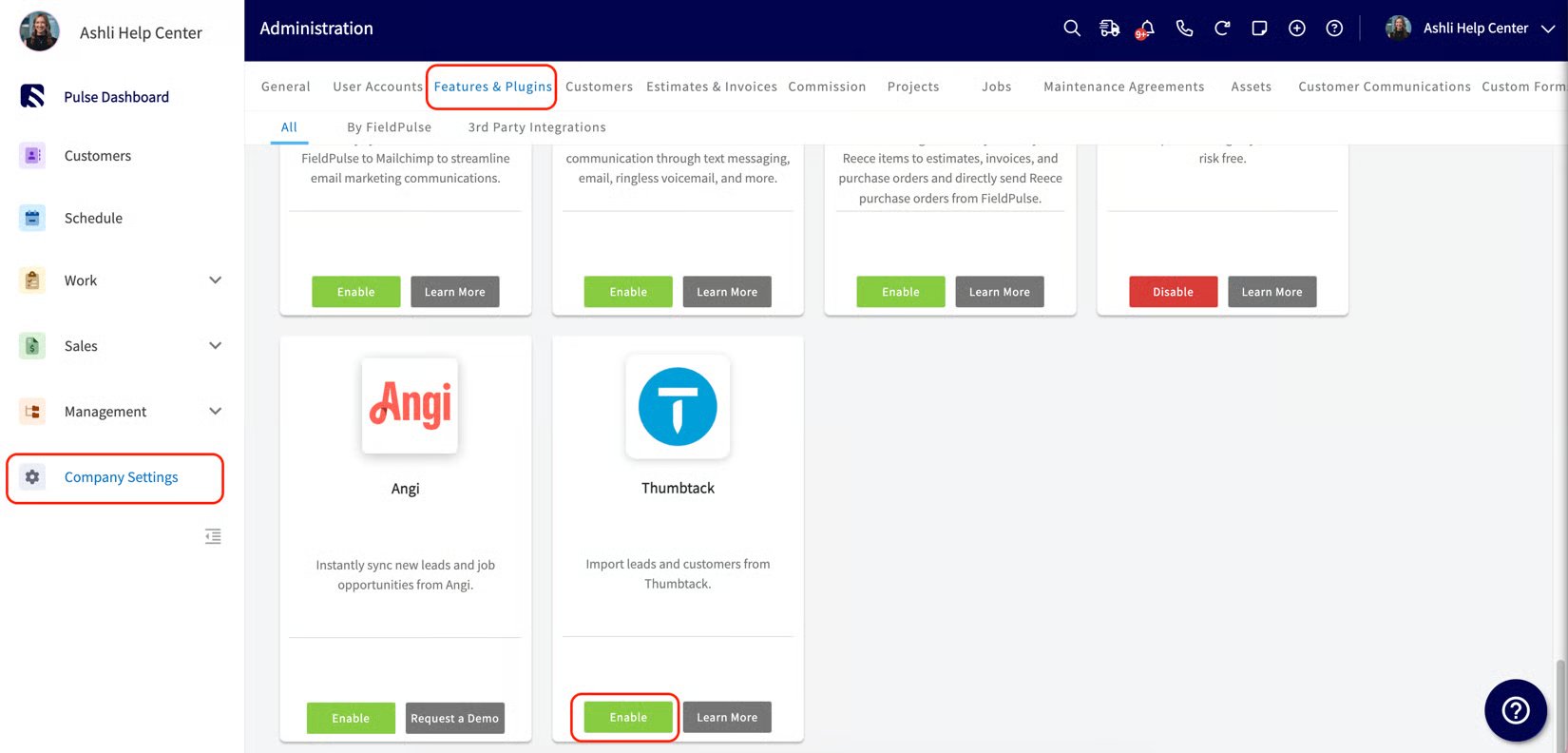
1. In FieldPulse, go to **Company Settings** > **Features & Plugins**.
2. Locate the **Thumbtack** tile and select **Enable**.
 3. You are redirected to Thumbtack's sign-in page. Log in with your **Thumbtack credentials**. (If authentication fails, close the error and select **Enable** again to retry, or select **Get Support** to open live chat.)
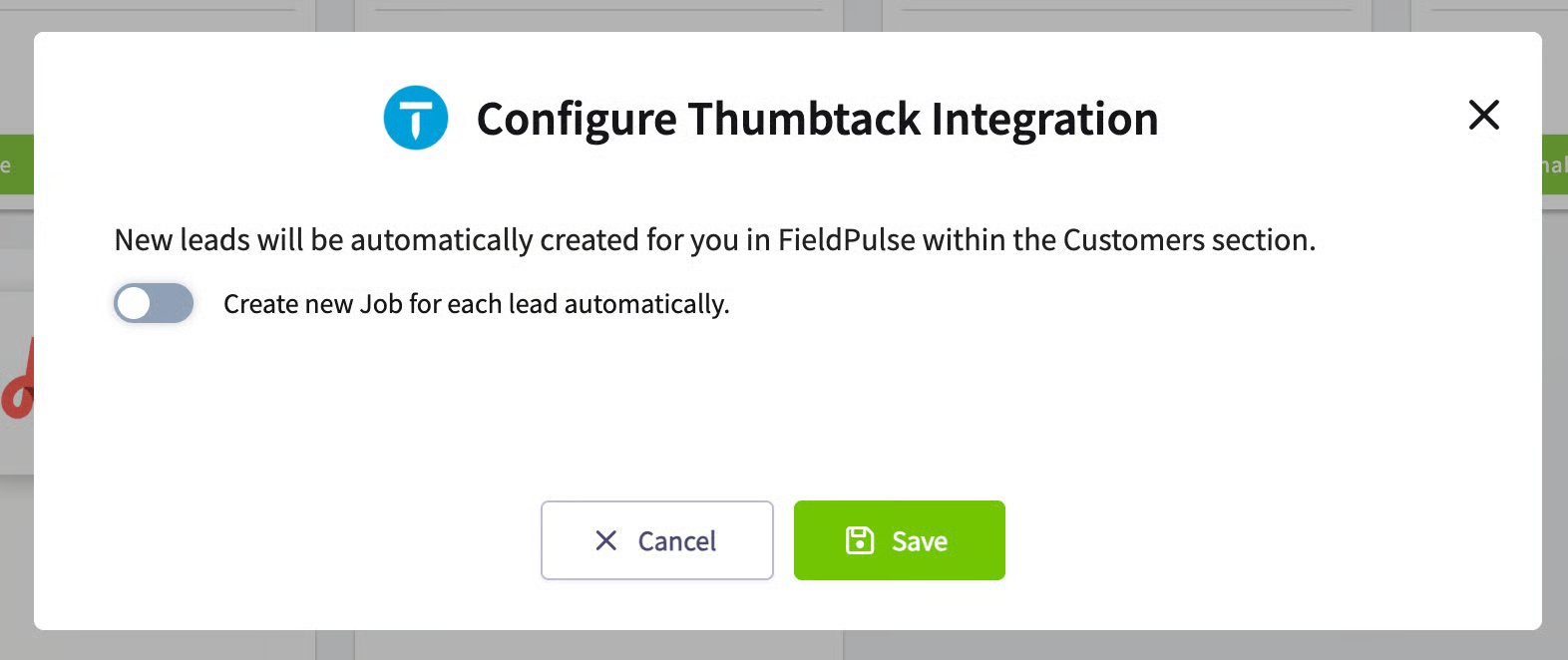
4. Back in FieldPulse, a configuration pop-up appears. Leads will automatically create Customer records. To also create Jobs, turn on **Create new Job for each lead automatically**.
3. You are redirected to Thumbtack's sign-in page. Log in with your **Thumbtack credentials**. (If authentication fails, close the error and select **Enable** again to retry, or select **Get Support** to open live chat.)
4. Back in FieldPulse, a configuration pop-up appears. Leads will automatically create Customer records. To also create Jobs, turn on **Create new Job for each lead automatically**.
 5. If you turned the toggle on, a table lists your active Thumbtack business profiles. Choose a **Job template** for each profile (leave one unset to create a generic, unscheduled, unassigned Job).
6. Save your configuration. The Thumbtack tile now shows a **Configure** button for later changes.
To change settings later, go to **Company Settings** > **Features & Plugins**, select **Configure** on the Thumbtack tile, adjust, and save. To stop leads flowing in, select **Disable** and confirm — existing records are not affected.
## What syncs
When a new lead comes in, FieldPulse checks whether the customer already exists by **name and address** (Thumbtack does not provide email and uses intermediary phone numbers), then:
| **Record** | **What happens** |
| -------------------- | ------------------------------------------------------------------------------------------------------------------------------------------------------------------------------------------------------------------------------------------------------------------------------------------------------------------------------------------------------------------------ |
| **Customer** | Created if no match is found, assigned to the founding Admin. **Lead Source** set to Thumbtack; a **Thumbtack** tag added. If a match is found and the phone differs, the Thumbtack number is added as a **secondary** phone — the existing number is not overwritten. |
| **Job** (if enabled) | Title/description pulled from the lead's request; linked to the Customer; unscheduled and following the Default Workflow unless the mapped template says otherwise; unassigned unless the template assigns a user. Full request details (questions and answers, proposed times, estimate details, attachments) added to **Notes**. Lead Source and tag set to Thumbtack. |
**Contact the customer through the Thumbtack number first.** Thumbtack ranks your profile partly on response speed and quality. Reach out via the Thumbtack number, or enable an auto-response in your Thumbtack account and follow up through another channel, to keep your profile in good standing.
## FAQs
### Can I map different Job templates to different Thumbtack business profiles?
Yes. When you turn on **Create new Job for each lead automatically**, FieldPulse shows a table of your Thumbtack business profiles and lets you assign a different Job template to each.
### Why do "when job is newly created" triggers not fire for Thumbtack Jobs?
FieldPulse does not automatically notify customers when a Job is created from a Thumbtack lead. Automatic Triggers set to "When job is newly created" **will not** fire for Thumbtack-created Jobs. Triggers set at other steps in the workflow still send as configured.
### What if the phone number Thumbtack sends does not match the record?
FieldPulse adds the Thumbtack number as a secondary phone number. The original number is not replaced.
### A duplicate customer was created — why?
The lead's name or address in Thumbtack did not closely match the existing record. Merge the duplicates in FieldPulse, and keep customer names and addresses accurate to improve future matching.
## Related articles
* [How to Track Lead Sources](/customers/leads-pipeline/sources)
* [How to Merge Duplicate Customers](/customers/managing-customers/merging-duplicates)
* [Setting Up Automatic Communication Triggers](/customers/communications/automatic-triggers)
Your setup is working when a new [Thumbtack lead appears in FieldPulse](https://www.fieldpulse.com/resources/blog/manage-leads-fieldpulse-thumbtack) as a [Customer record](https://www.fieldpulse.com/features/customer-management) with the Thumbtack lead source and tag — and a matching [Job](https://www.fieldpulse.com/features/job-management) if you enabled automatic Job creation.
## Related topics
- [Setting Up the CHIIRP Integration](/integrations/marketing/chiirp.md)
- [Marketing & Lead Gen](/integrations/marketing/index.md)
- [Setting Up the Signpost Integration](/integrations/marketing/signpost.md)
- [Setting Up The Seal Integration](/integrations/partner-apps/the-seal.md)
5. If you turned the toggle on, a table lists your active Thumbtack business profiles. Choose a **Job template** for each profile (leave one unset to create a generic, unscheduled, unassigned Job).
6. Save your configuration. The Thumbtack tile now shows a **Configure** button for later changes.
To change settings later, go to **Company Settings** > **Features & Plugins**, select **Configure** on the Thumbtack tile, adjust, and save. To stop leads flowing in, select **Disable** and confirm — existing records are not affected.
## What syncs
When a new lead comes in, FieldPulse checks whether the customer already exists by **name and address** (Thumbtack does not provide email and uses intermediary phone numbers), then:
| **Record** | **What happens** |
| -------------------- | ------------------------------------------------------------------------------------------------------------------------------------------------------------------------------------------------------------------------------------------------------------------------------------------------------------------------------------------------------------------------ |
| **Customer** | Created if no match is found, assigned to the founding Admin. **Lead Source** set to Thumbtack; a **Thumbtack** tag added. If a match is found and the phone differs, the Thumbtack number is added as a **secondary** phone — the existing number is not overwritten. |
| **Job** (if enabled) | Title/description pulled from the lead's request; linked to the Customer; unscheduled and following the Default Workflow unless the mapped template says otherwise; unassigned unless the template assigns a user. Full request details (questions and answers, proposed times, estimate details, attachments) added to **Notes**. Lead Source and tag set to Thumbtack. |
**Contact the customer through the Thumbtack number first.** Thumbtack ranks your profile partly on response speed and quality. Reach out via the Thumbtack number, or enable an auto-response in your Thumbtack account and follow up through another channel, to keep your profile in good standing.
## FAQs
### Can I map different Job templates to different Thumbtack business profiles?
Yes. When you turn on **Create new Job for each lead automatically**, FieldPulse shows a table of your Thumbtack business profiles and lets you assign a different Job template to each.
### Why do "when job is newly created" triggers not fire for Thumbtack Jobs?
FieldPulse does not automatically notify customers when a Job is created from a Thumbtack lead. Automatic Triggers set to "When job is newly created" **will not** fire for Thumbtack-created Jobs. Triggers set at other steps in the workflow still send as configured.
### What if the phone number Thumbtack sends does not match the record?
FieldPulse adds the Thumbtack number as a secondary phone number. The original number is not replaced.
### A duplicate customer was created — why?
The lead's name or address in Thumbtack did not closely match the existing record. Merge the duplicates in FieldPulse, and keep customer names and addresses accurate to improve future matching.
## Related articles
* [How to Track Lead Sources](/customers/leads-pipeline/sources)
* [How to Merge Duplicate Customers](/customers/managing-customers/merging-duplicates)
* [Setting Up Automatic Communication Triggers](/customers/communications/automatic-triggers)
Your setup is working when a new [Thumbtack lead appears in FieldPulse](https://www.fieldpulse.com/resources/blog/manage-leads-fieldpulse-thumbtack) as a [Customer record](https://www.fieldpulse.com/features/customer-management) with the Thumbtack lead source and tag — and a matching [Job](https://www.fieldpulse.com/features/job-management) if you enabled automatic Job creation.
## Related topics
- [Setting Up the CHIIRP Integration](/integrations/marketing/chiirp.md)
- [Marketing & Lead Gen](/integrations/marketing/index.md)
- [Setting Up the Signpost Integration](/integrations/marketing/signpost.md)
- [Setting Up The Seal Integration](/integrations/partner-apps/the-seal.md)